FreeCAD
Official source code of FreeCAD, a free and opensource multiplatform 3D parametric modeler.
- 36k
- C++
- LGPL-2.1
- 9 h ago
A Mac / Windows 3D-printing workbench for Codex: ideas, CAD, slicing, materials and print records. Noncommercial; attribution required.
Repo AFangTeam/PrintLab, read from GitHub 1 min ago. AFangTeam has not joined Take My Repo.
AFangTeam/PrintLab is a public repo on GitHub by AFangTeam. A Mac / Windows 3D-printing workbench for Codex: ideas, CAD, slicing, materials and print records. Noncommercial; attribution required. It declares no license on GitHub. Public does not mean open source: without a license, nobody is granted the right to reuse it. It is written mainly in Python, has 420 stars and last changed on 2026-11-15. Nobody has reviewed it on Take My Repo yet, which says nothing about its quality. Read from GitHub on 2026-11-19.
English · 简体中文
Turn an idea into something you can hold.
PrintLab is the 3D-printing workbench and collaboration workflow AFang (Eric) uses in his E41 video. It is designed for Mac / Windows + Codex + Bambu Lab printers. Describe what you want to make, then work with Codex on the design, CAD, slicing comparisons, materials, print records, and physical feedback in one workspace.
Watch on YouTube · Watch on Bilibili
By AFang EricFang. Video language: Chinese. For current dispatch capabilities, use this README and the printing guide.
Acknowledgments and project roles: Thank you to Text-to-CAD for CAD modeling and viewing tools, Bambuddy for printer status, filament and print-record management, and Bambu Studio for slicing and official print submission. PrintLab contributes the workbench, collaboration workflow and adapters. These third-party tools are maintained by their respective authors, installed independently from their original projects, and governed by their own licenses. See third-party sources and licenses.
PrintLab shows print history already captured by Bambuddy and locally maintained inspiration collections. Importing older Bambu Cloud history and MakerWorld account collections is outside the current scope. Preserve existing Handy and cloud needs when choosing a connection mode. Missing archive thumbnails can be recovered from Mac Studio caches or explicitly linked local PNG/3MF files using history-recover. Sync limits · Preview recovery
Language coverage: The workbench UI is currently in Chinese. The default README, installation and core agent collaboration guides are in English; some detailed references and project templates remain in Chinese. Your agent can explain them in your preferred language. Language policy
Give the repository URL and this prompt to Codex or another agent with local terminal and filesystem access.
Install https://github.com/AFangTeam/PrintLab on this computer. Read README.md, AGENTS.md, and docs/AGENT_START.md. Create a persistent workspace, start the workbench, and run the onboarding verification. Create Sarah, the 3D-printing advisor, and Mike, the workflow designer, as chats sharing this workspace, and record their actual setup status. Create a task-group chat when I choose my first object. Install third-party tools independently from their original projects. Tell me the specific actions needed for device information, login, or system permissions. Report the workspace path, workbench URL, role entry points, verified results, and next steps.
The interaction guide explains what happens in chat, what happens in the web workbench, and how roles exchange project context. The agent guide provides executable setup steps and completion checks. User interaction guide · Agent onboarding guide
For a manual installation, prepare Python 3.11+ and Node.js 22+, then run the following commands.
git clone https://github.com/AFangTeam/PrintLab.git
cd PrintLab
bash scripts/setup.sh
bash scripts/start.sh
Open http://127.0.0.1:8018. Setup creates an empty workspace and local configuration. Running it again preserves existing settings. If the system Python is too old, select an interpreter with PRINTLAB_PYTHON=/path/to/python3 bash scripts/setup.sh.
You can also download PrintLab.zip from a release. Extract it and open the resulting PrintLab/ folder in Codex, or use these commands. Latest release
curl -fL -o PrintLab.zip https://github.com/AFangTeam/PrintLab/releases/latest/download/PrintLab.zip
unzip PrintLab.zip
cd PrintLab
bash scripts/setup.sh
bash scripts/start.sh
Installation guide · Language coverage and contribution policy
On Windows, install Python 3.11+ and Node.js 22+, open PowerShell in the repository folder, and run these commands.
powershell -NoProfile -ExecutionPolicy Bypass -File .\scripts\setup.ps1
powershell -NoProfile -ExecutionPolicy Bypass -File .\scripts\start.ps1
The Windows guide covers tool paths, verification, and official Studio handoff. Windows guide
PrintLab provides context through files and commands. Available models and tools depend on the user's Codex installation. Copy the role prompts to start your own chats. Role prompts
A fresh installation starts with an empty project collection and an unconfigured printer. Data appears as you connect your own equipment and create projects.
Purpose and dimensions → choose a shape → confirm three views → build CAD → compare revisions → choose colors and materials → compare slices → confirm the exact print → record physical feedback.
For a new shape, the default workflow first selects one concept image, then one of four three-view sets derived from that concept. Small revisions are handled according to their impact, using existing decisions. Text-to-CAD provides modeling and viewing capabilities. Dimensions, interfaces, and assembly still require checks. Full workflow
Mac requires macOS 14+, with Apple Silicon recommended. Windows provides native PowerShell setup, command-line tools, and the browser workbench. The general workbench runs independently. Device status and print history use a separately installed Bambuddy service.
The Mac automated sending helper targets X2D, Chinese Bambu Studio 02.08.02.61, 0.4 mm, one main AMS filament, the left main nozzle, and one Textured PEI plate. Other printers, software versions, and multi-material routes need verification in the user's environment. Printing and compatibility
v0.4.3 adds the offline dispatch-plan command to assess the model and feeding route before recommending permissions. Supported A1, A1 mini, P1S and X1 Carbon AMS combinations prefer the Bambuddy queue on Mac or Windows; actual device acceptance still requires on-site validation. Declined permissions, cloud-preserving choices or unsupported combinations use official Studio with manual handoff if automation is unavailable. PrintLab A1 external-spool automatic dispatch is not yet adapted. Unknown send outcomes require reconciliation before any route change.
The dedicated Studio GUI helper is macOS-only. Windows users can use an eligible Bambuddy queue route or hand prepared files to official Studio. Setup independently downloads the pinned public file inspector on both systems, and doctor exercises it with a disposable file. Complete the printer and material questionnaire before creating a design. First-run questionnaire · Connections
The repository includes a PrintLab Agent Skill at .agents/skills/printlab/SKILL.md. Open this workspace in a compatible agent and verify that it discovers the skill. Text-to-CAD is installed separately, with pinned-version commands and a modeling smoke test in the CAD guide. CAD setup
This repository contains the workbench source, original workflow documents, role prompts, and empty project templates. Obtain third-party projects, model weights, Bambu applications, and plugins independently from their original authors. Your own objects live in the local Project/ directory. Third-party dependencies
Runtime/venv/bin/python scripts/verify_onboarding.py
Runtime/venv/bin/python -m pytest Harness/tests -q
node --test Harness/tests/native-inspection.test.mjs
cd Harness/studio && npm run build
Tests use temporary workspaces and synthetic devices. Read-only integration tests for installed equipment require an explicit PRINTLAB_LIVE_TEST=1 opt-in. The release verification record documents completed checks, skipped tests, and remaining physical validation. Verification record
PrintLab-authored source and documentation use PolyForm Noncommercial 1.0.0. Use, modification, and redistribution are permitted for the noncommercial purposes defined by that license. Redistribution must include the license terms and required attribution from NOTICE.txt. Commercial use requires separate authorization from AFangTeam.
Original author is AFangTeam / 阿方 (Eric). Independently installed third-party software retains its own license. License · Required notices · Project
AFangTeam/PrintLab is a public repo on GitHub by AFangTeam. A Mac / Windows 3D-printing workbench for Codex: ideas, CAD, slicing, materials and print records. Noncommercial; attribution required.
It declares no license on GitHub. Public does not mean open source: without a license, nobody is granted the right to reuse it.
Its maker has not tagged a system, so it is unknown here. Its README says what it needs.
Open "Take it" on its page: Take My Repo writes an install plan for your machine and hands it to your AI agent (Claude Code, Codex or Cursor), which asks you before each step. Take My Repo has not tested it on any machine.
Its last change on GitHub was on 2026-11-15. Take My Repo does not judge from that whether it is maintained.
Nobody has reviewed it on Take My Repo yet, which says nothing about its quality.
Official source code of FreeCAD, a free and opensource multiplatform 3D parametric modeler.
Your Bambu Lab. No Cloud. Your Rules. Self-hosted command center for Bambu Lab — from one A1 to an entire print farm.
Fair-code workflow automation platform with native AI capabilities. Combine visual building with custom code, self-host or cloud, 400+ integrations.
Marlin is a firmware for RepRap 3D printers optimized for both 8 and 32 bit microcontrollers. Marlin supports all common platforms. Many commercial 3D printers come with Marlin installed. Check with your vendor if you need source code for your specific machine.
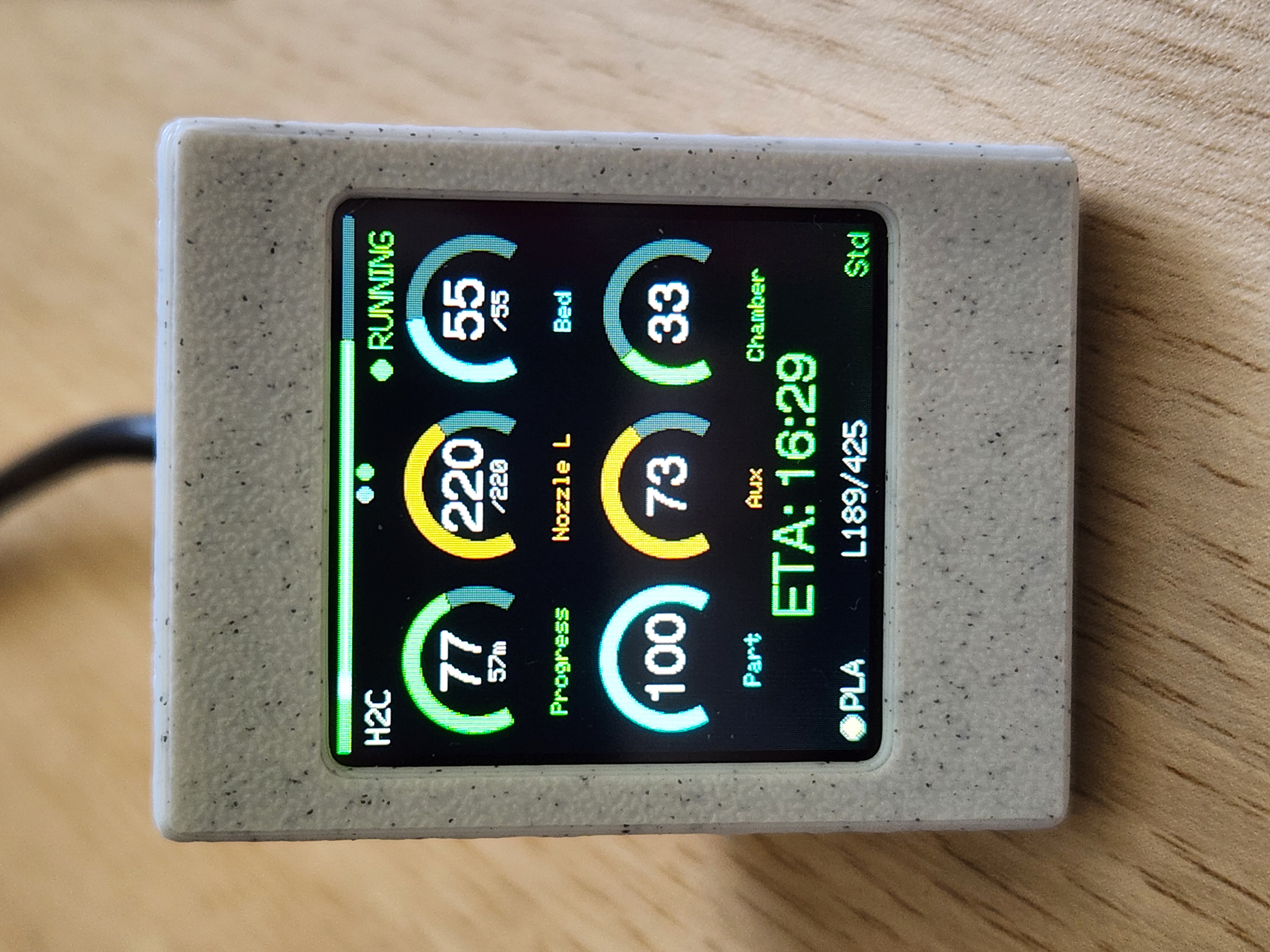
ESP32 desk monitor for Bambu Lab printers. Real-time MQTT dashboard on a color TFT - temps, progress, fans, AMS, HMS errors. LAN or Cloud, dual printers, OTA, web config portal. Flash from the browser.