
PixverseAPI
Pixverse AI video generation service.
- 2
- 8 wk ago
Repo AceDataCloud/PixverseAPI, read from GitHub 3 d ago. AceDataCloud has not joined Take My Repo.
In short
AceDataCloud/PixverseAPI is a public repo on GitHub by AceDataCloud. Pixverse AI video generation service. It declares no license on GitHub. Public does not mean open source: without a license, nobody is granted the right to reuse it. It has 2 stars and last changed on 2026-09-27. Nobody has reviewed it on Take My Repo yet, which says nothing about its quality. Read from GitHub on 2026-11-20.

Pixverse Video Generation API
Pixverse AI video generation service.
API home page: Ace Data Cloud - Pixverse Video Generation
Keywords: pixverse-api, ai-video, video-generation, text-to-video, rest-api, ai-api, aivideo, AI API, REST API, Developer API, Ace Data Cloud
Why Use Pixverse Video Generation on Ace Data Cloud
- Unified developer platform with one API key, billing system, and usage tracking
- Production-ready AI API endpoints served from https://api.acedata.cloud
- English integration guides, API references, and service documentation
- Global-ready workflow for developers building chat, image, video, music, and search products
Overview
This document will introduce the Pixverse Videos Generation API integration instructions, which can generate official Pixverse videos by inputting custom parameters.
Application and Usage
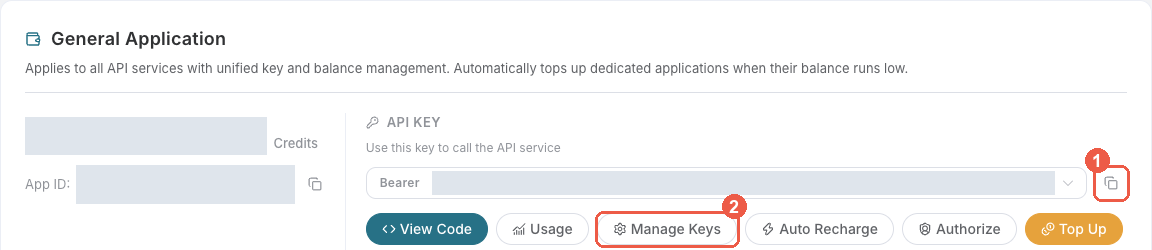
To use Pixverse Videos Generation API, first open the Ace Data Cloud Console and copy your API Token.
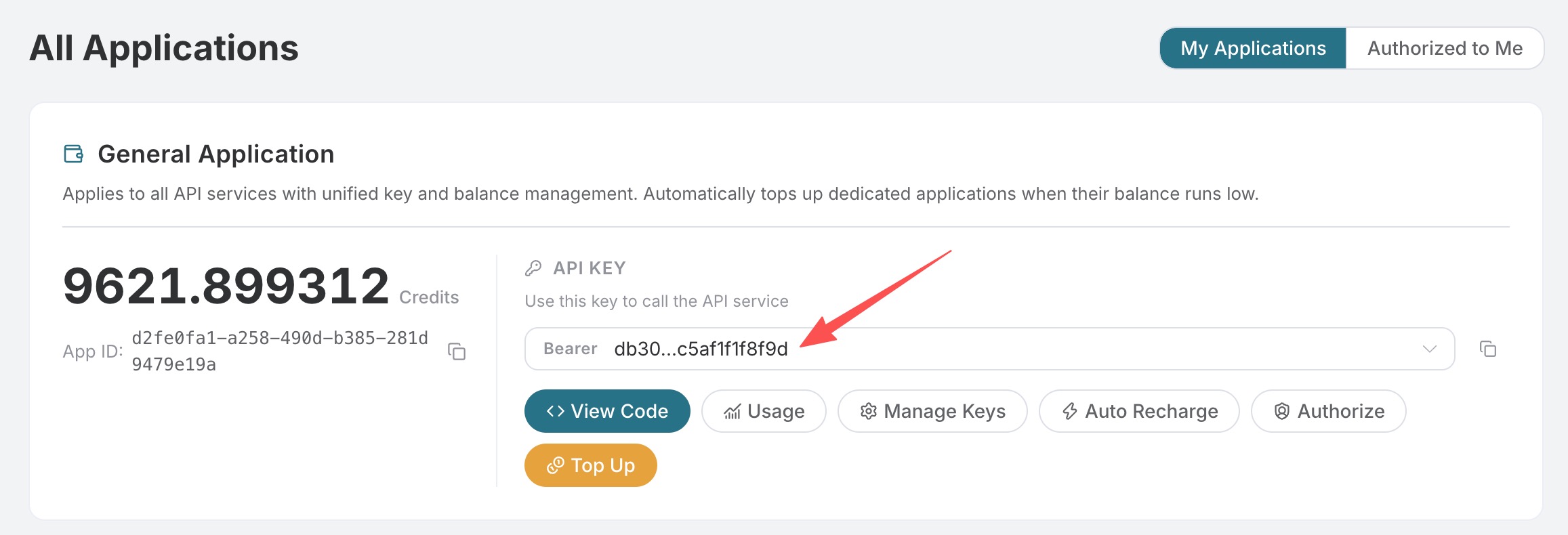
If you are not logged in, you will be redirected to sign in and brought back to this page automatically.
A single API Token works across every service on the platform — no need to subscribe per service. New accounts receive free starter credit; when it runs low you can top up your shared balance in the console.
📘 Full documentation: Pixverse Videos Generation API →
Basic Usage
You can generate videos based on prompts, for example, you can input quiver, as shown in the image:
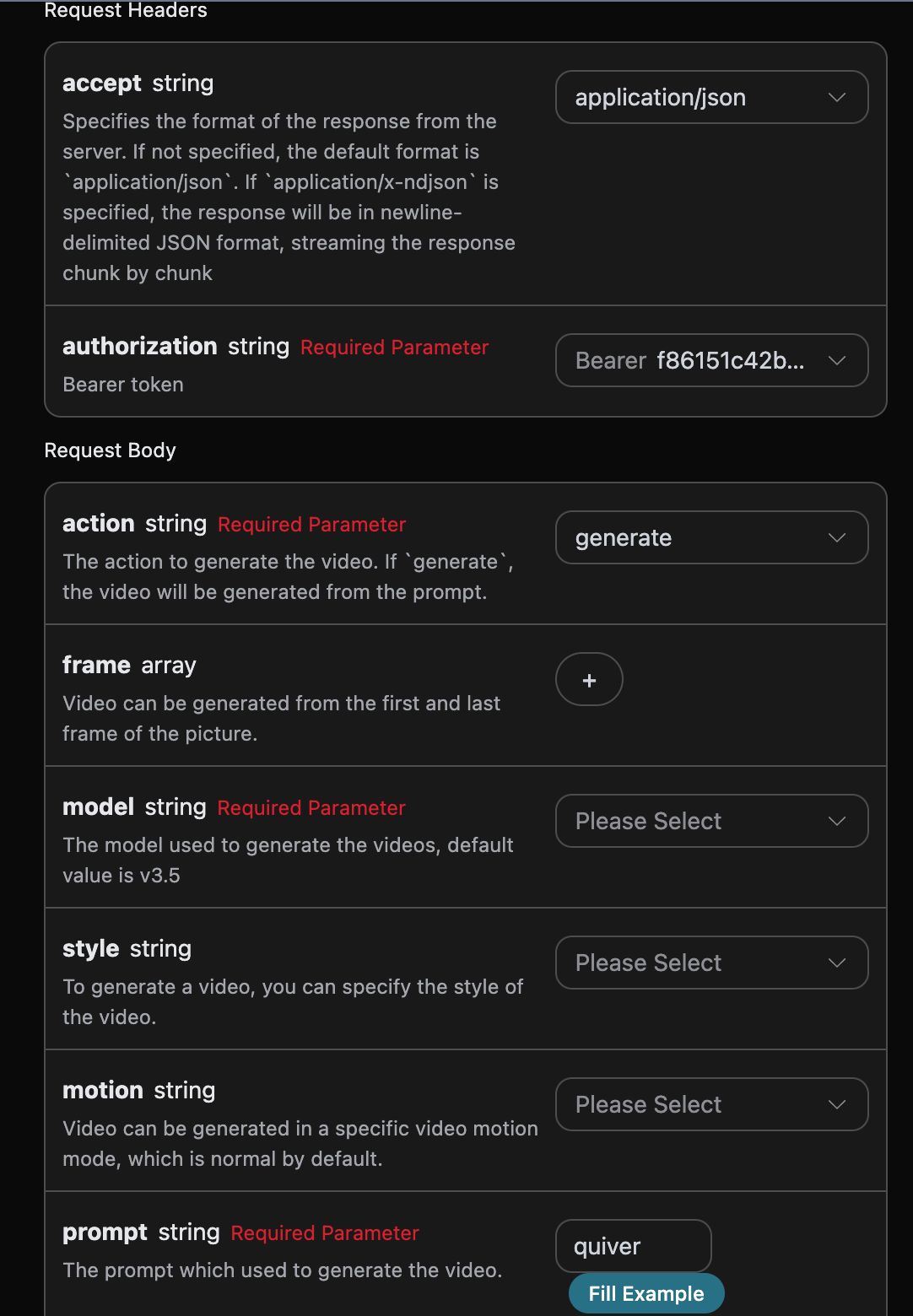
The generated code is as follows:
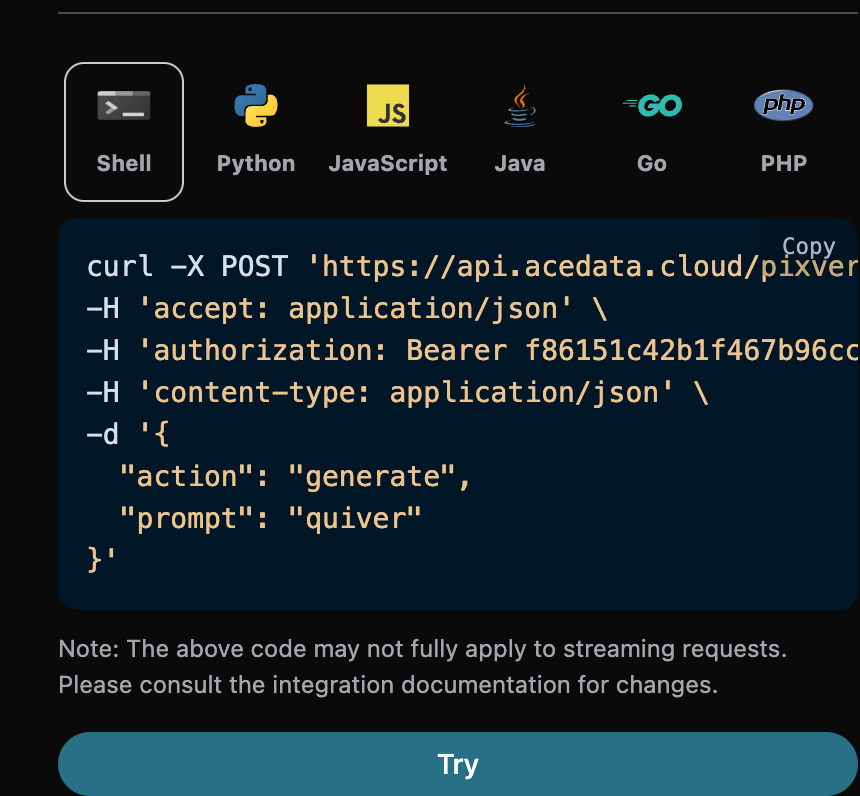
Main request parameters:
model: The model for generating the video, default isv3.5.action: The action for generating the video, default isgenerate, optionalextend.prompt: The prompt for generating the video (required).style: Optional video style.motion: Motion mode, default is normal.quality: Video clarity, default is540p.duration: Video duration, 5 or 8 seconds, default is 5.image_url: Reference image for the first frame, optional.aspect_ratio: Aspect ratio, default is16:9.seed: Optional, fixed random seed.template_id: Optional, specify template effects.callback_url: URL for callback results.
You can click the "Try" button to directly test the API, wait for 1-2 minutes, and the result is as follows:
{
  "success": true,
  "task_id": "69e677ca-f1de-419f-99a4-cb39ea0cb5fc",
  "trace_id": "e544f904-ac13-4b42-a26e-2de69d9ac06b",
  "data": [
    {
      "id": 317982208110208,
      "first_frame": "",
      "video_width": 0,
      "video_height": 0,
      "prompt": "quiver",
      "model": "v3.5",
      "quality": "360p",
      "motion": "normal",
      "video_url": "https://media.pixverse.ai/pixverse%2Fmp4%2Fmedia%2Fweb%2F77e48783-3dc9-48ab-84a0-0e310ff9b83d_seed0.mp4",
      "template_id": 0,
      "template_name": "",
      "style": "",
      "aspect_ratio": "16:9",
      "duration": 5,
      "extended": 0,
      "last_frame": "",
      "seed": 0,
      "asset_id": 0,
      "asset_name": ""
    }
  ]
}
At this point, we have obtained the content of a video, including video ID, video link, video clarity, video duration, and other details.
Field descriptions are as follows:
- success: Indicates whether the generation was successful; if successful, it is
true, otherwise it isfalse. - task_id: The ID of this generation task.
- trace_id: The tracking ID of this generation task.
- data: A list containing detailed information about the generated video.
- id: The unique ID of the generated video, which can be used for subsequent extension generation.
- first_frame: The link to the first frame image of the video.
- last_frame: The link to the last frame image of the video.
- video_width: The width of the video result.
- video_height: The height of the video result.
- prompt: The prompt for this video generation task.
- model: The model used for this video generation task.
- video_url: The video link for this generation task.
- template_id: The ID of the template effects used in the video.
- template_name: The name of the template effects used in the video.
- asset_id: The ID of the character used in the video.
- asset_name: The name of the character used in the video.
- style: The style of this video generation task.
- aspect_ratio: The size of this video.
- extended: Indicates whether this video is an extended generation; 0 means it is not an extended generation, otherwise it is an extended generation.
Custom First and Last Frame Video Generation
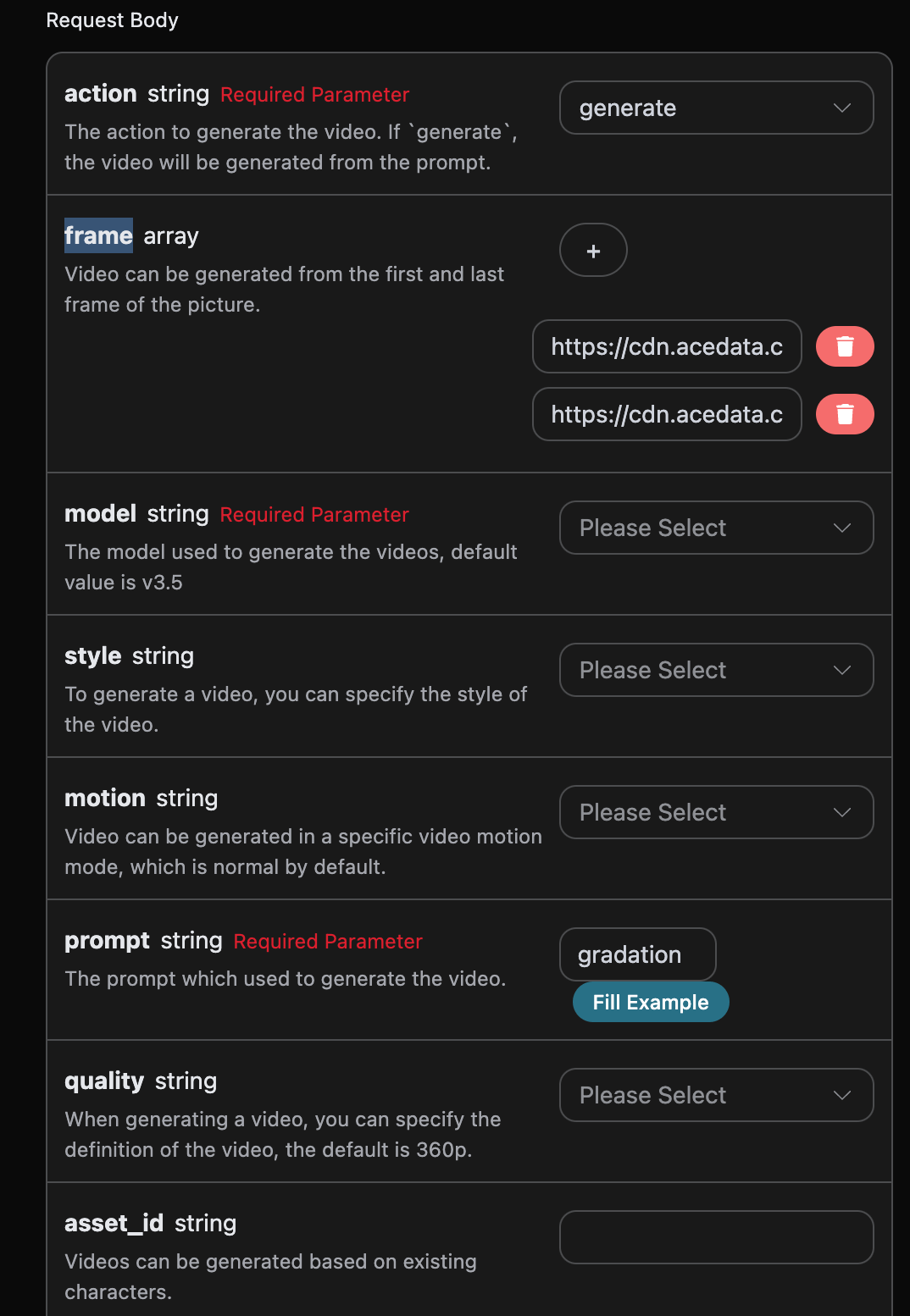
If you want to customize the first and last frames for video generation, you can input the links to the first and last frame images:
At this time, the frame field can accept content similar to the following:
- First frame image

- Last frame image

Next, we need to customize the song generation based on lyrics, title, and style, specifying the following content:
- action: The action for this video generation task, which can be either generate video
actionor extend videoextend. - prompt: The prompt for this video generation task.
- frame: An array of video links for the first and last frames.
An example of the filled form is as follows:
After filling it out, the generated code is as follows:
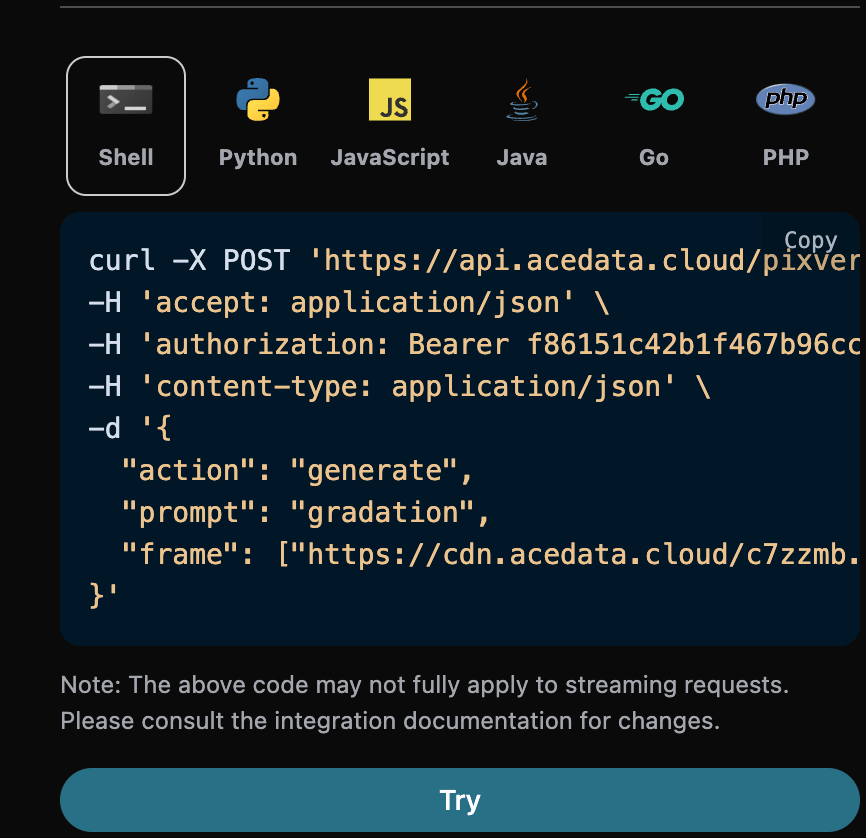
Corresponding Shell code:
curl -X POST 'https://api.acedata.cloud/pixverse/videos' \
-H 'accept: application/json' \
-H 'authorization: Bearer {token}' \
-H 'content-type: application/json' \
-d '{
  "action": "generate",
  "prompt": "gradation",
  "frame": ["https://cdn.acedata.cloud/c7zzmb.png","https://cdn.acedata.cloud/fqd8br.png"]
}'
Testing is allowed, and the generated effect is similar.
Custom Video Template Effects Generation
If you want to use specific video template effects to generate a video, you only need to add a template ID field template_id to specify the template effects. We provide the following template effects, and the specific template effects are shown in the image below:
Questions
What is PixverseAPI?
AceDataCloud/PixverseAPI is a public repo on GitHub by AceDataCloud. Pixverse AI video generation service.
Is PixverseAPI open source?
It declares no license on GitHub. Public does not mean open source: without a license, nobody is granted the right to reuse it.
Does PixverseAPI run on macOS, Windows or Linux?
Its maker has not tagged a system, so it is unknown here. Its README says what it needs.
How do I install PixverseAPI?
Open "Take it" on its page: Take My Repo writes an install plan for your machine and hands it to your AI agent (Claude Code, Codex or Cursor), which asks you before each step. Take My Repo has not tested it on any machine.


