obsidian-native-mindmap
The fastest way to think in Obsidian: animated, keyboard-first mindmaps stored as plain Markdown.
- 6
- MIT
- 6 wk ago
Repo Azilone/obsidian-native-mindmap, read from GitHub 13 min ago. Azilone has not joined Take My Repo.
In short
Azilone/obsidian-native-mindmap is a public repo on GitHub by Azilone. The fastest way to think in Obsidian: animated, keyboard-first mindmaps stored as plain Markdown. It declares the MIT license on GitHub. It is written mainly in TypeScript, has 6 stars and last changed on 2026-10-13. Nobody has reviewed it on Take My Repo yet, which says nothing about its quality. Read from GitHub on 2026-11-25.
Similar repos



Native Mindmap
Mindmaps that are just Markdown notes. Keyboard-first. Animated.
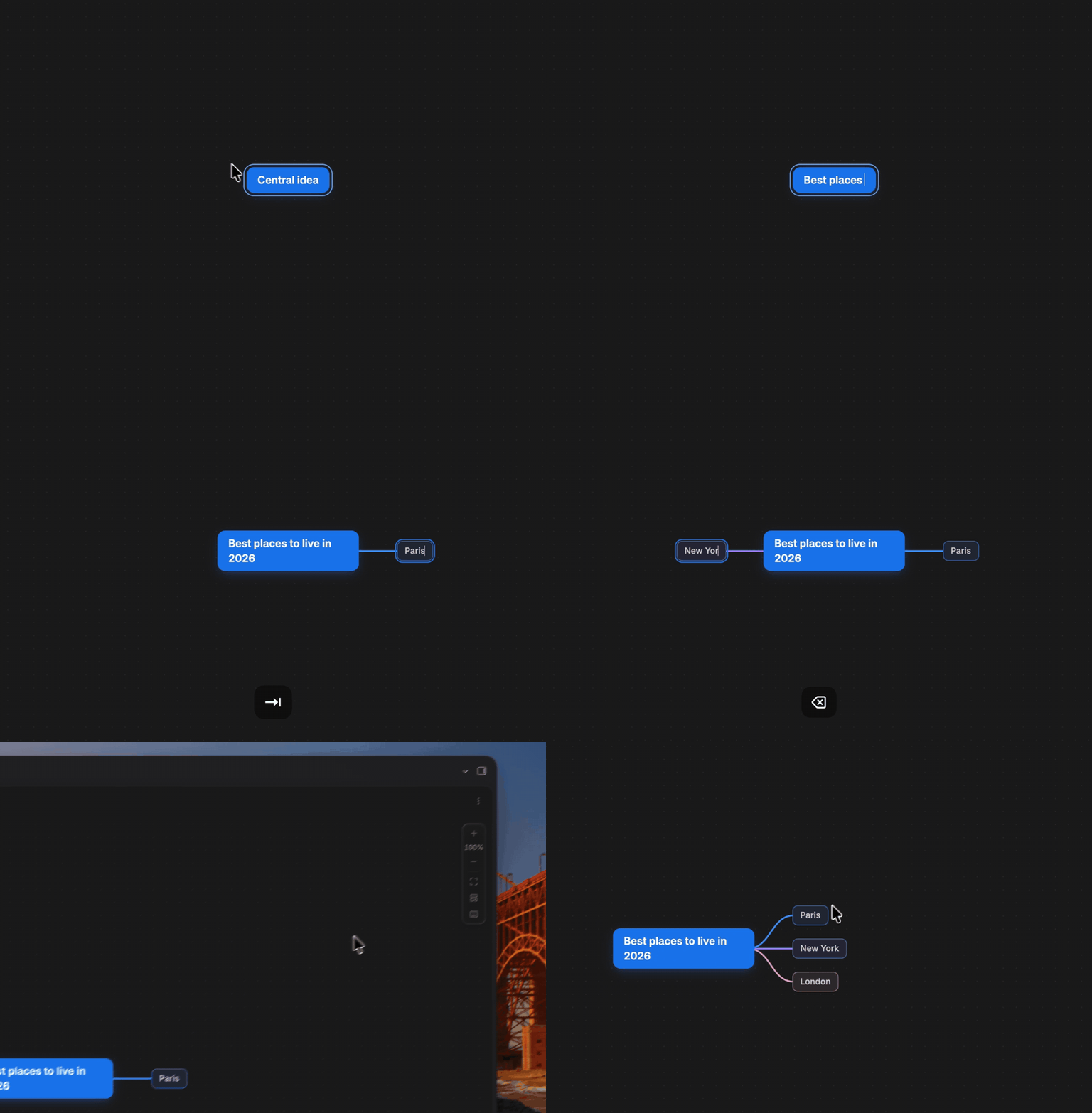
▶️ Watch the full 2-minute demo (keyboard building, Markdown sync, Canvas mode)
Install · Features · Shortcuts · Canvas mode
Why Native Mindmap?
Most mindmap tools make you choose: a beautiful editor that locks your ideas in a proprietary format, or plain text that you can't see the shape of. Native Mindmap refuses the trade-off.
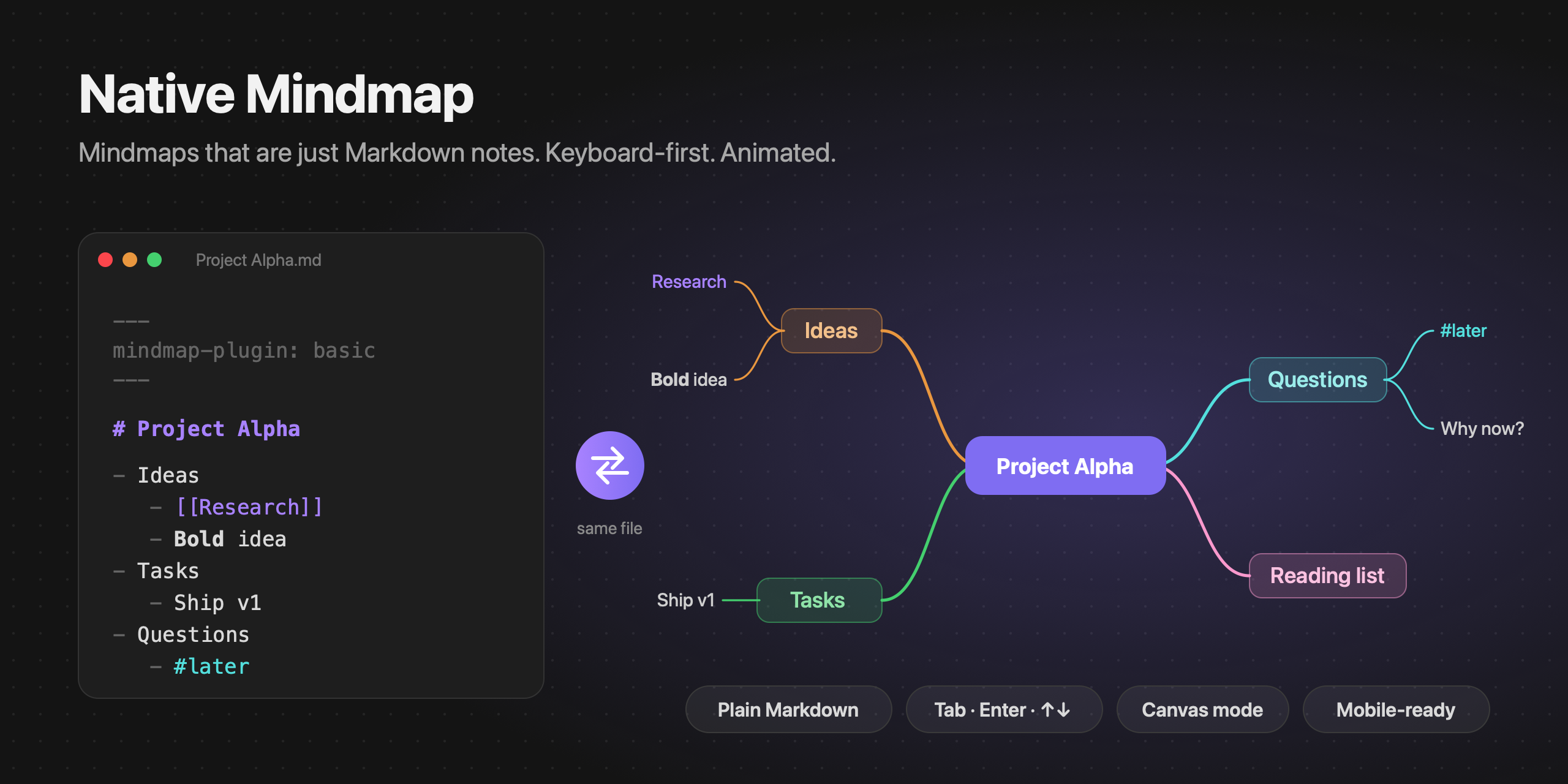
- Your map is a note. A mindmap is a regular Markdown file: the first
# headingis the central topic and the nested bullet list is the tree. It stays searchable, linkable, diffable, syncable and future-proof. No database, no lock-in, no export step. - Keyboard-first.
Tabadds a child,Enteradds a sibling, arrows navigate. You can build a whole map without touching the mouse. - Alive. Topics grow out of their parent, fold back into it, and edges morph smoothly as the layout changes. Animations respect your system's reduce motion setting.
- Truly native. Topics render real Obsidian Markdown:
[[wikilinks]]with hover preview, tags, bold,code, math. It follows your theme's palette in light and dark mode. - Works inside Canvas. Turn any Canvas card into the center of a mindmap with a single keypress.
At a glance
| Native Mindmap | |
|---|---|
| Storage | A plain .md note: heading + bullet list. No JSON, no database. |
| Editing | Directly on the map, with the keyboard (Tab, Enter, arrows) or the mouse. |
| Rendering | Real Obsidian Markdown: wikilinks with hover preview, tags, bold, code, math. |
| Layouts | Mindmap, Logic, Timeline, switchable per map with animation. |
| Canvas | Turn any Canvas card into a mindmap with Tab. |
| Platforms | Desktop, tablet, phone. |
Your map is a note
Quick start
A mindmap is a note with one frontmatter flag:
---
mindmap-plugin: basic
---

# Project Alpha

- Ideas
	- [[Some note]]
	- **Bold** idea
- Tasks
	- Ship v1
The note opens as a mindmap wherever Obsidian opens it: file explorer, links, quick switcher. Switch to the raw Markdown and back from the tab header, the "More options" menu or the command palette.
Features
- Smooth animations on add, delete, fold, move and layout change.
- Balanced branches on both sides, colored from your theme's palette.
- Drag and drop to reparent a topic (drop on it) or reorder (drop above or below).
- Multi-select with a drag rectangle,
Shiftclick orMod A, then delete, copy, fold or drag topics together. - Undo / redo, plus copy / cut / paste as Markdown lists (paste a list from anywhere to grow a branch instantly).
- Fold and unfold branches, with a count of hidden topics.
- Canvas-like navigation: pan, zoom, pinch, dot grid, floating zoom controls, zoom to fit / selection.
- Three layouts, selectable per map.
- Mobile and tablet friendly.
- Configurable: spacing, topic width, colors, grid, animation speed, scroll behavior, default layout and folder for new maps.
- Every action is a command, so you can bind your own hotkeys.
Layouts
Each map picks its own layout from the layout button (Markdown view) or the right-click menu (Canvas):
| Layout | Description |
|---|---|
| Mindmap | Branches balanced on both sides of the central topic. |
| Logic | Everything grows to the right, like a logic chart. |
| Timeline | First-level topics are chained along an axis; their details hang alternately below and above. |
Canvas mode
Inside any Obsidian Canvas, select a card and press Tab: it becomes the center of a mindmap and gets a connected child. Enter adds a sibling, arrows move between topics, Delete removes a branch, and the right-click menu switches layout or tidies the map.
Several mindmaps can live on the same canvas next to your other cards. Only edges created by the plugin (marked "mindmap": true in the .canvas file) are ever re-arranged; the rest of your canvas is left alone.
Canvas mode relies on Canvas internals (checked on Obsidian 1.14) and may need an update after a future Obsidian release. You can turn it off in the settings.
Shortcuts
| Key | Action |
|---|---|
Tab |
Add child |
Enter / Shift Enter |
Add sibling below / above |
Space, F2, double-click |
Edit topic |
Delete / Backspace |
Delete topic |
| Arrows | Navigate |
Drag empty space / Shift click / Mod A |
Select several topics |
Scroll, Space + drag, middle mouse |
Pan |
Mod + scroll |
Zoom |
Alt ↑ / ↓ |
Reorder |
Shift Tab |
Move up one level |
Esc / Home |
Clear selection / select central topic |
Mod . |
Fold / unfold |
Mod Z / Mod Shift Z |
Undo / redo |
Mod C / X / V |
Copy / cut / paste (Markdown lists) |
Shift 1 / Shift 2 |
Zoom to fit / to selection |
? |
Show all shortcuts |
Mod is ⌘ on macOS and Ctrl elsewhere.
Installation
- Open Settings → Community plugins → Browse.
- Search for Native Mindmap.
- Select Install, then Enable.
It is also listed in the community directory.
Manual install or beta versions
From a GitHub release
- Download
main.js,manifest.jsonandstyles.cssfrom the latest release. - Put them in
<your vault>/.obsidian/plugins/native-mindmap/. - Reload Obsidian and enable Native Mindmap in Settings → Community plugins.
With BRAT
Install BRAT, then add this repository as a beta plugin.
Development
bun install            # or npm install
VAULT="/path/to/vault" bun esbuild.config.mjs   # watch mode, builds into the vault's plugin folder
bun run build          # type-check + production bundle
Then enable Native Mindmap in Settings → Community plugins. The Hot Reload plugin gives you live reloading while you develop.
Good to know
- Fold state is kept per session and isn't written to the file.
- Lines in the note that aren't part of the list are kept and written back after the list.
- Multi-line list items are joined onto one line.
Contributing & maintenance
This plugin is actively maintained. Every issue and pull request is read and gets an answer.
- 🐛 Found a bug? Open an issue with your Obsidian version and steps to reproduce.
- 💡 Have an idea? Open an issue and describe the workflow you want: real use cases shape the roadmap.
- 🔧 Want to contribute code? Pull requests are welcome, see CONTRIBUTING.md.
License
Not affiliated with Obsidian.
Questions
What is obsidian-native-mindmap?
Azilone/obsidian-native-mindmap is a public repo on GitHub by Azilone. The fastest way to think in Obsidian: animated, keyboard-first mindmaps stored as plain Markdown.
Is obsidian-native-mindmap open source?
It declares the MIT license on GitHub.
Does obsidian-native-mindmap run on macOS, Windows or Linux?
Its maker has not tagged a system, so it is unknown here. Its README says what it needs.
How do I install obsidian-native-mindmap?
Open "Take it" on its page: Take My Repo writes an install plan for your machine and hands it to your AI agent (Claude Code, Codex or Cursor), which asks you before each step. Take My Repo has not tested it on any machine.