dify
Build Agentic workflows, RAG pipelines, with rich AI model and tool support on one collaborative workspace. Deploy on cloud, VPC, or self-hosted, so teams move from prototype to production without rebuilding the stack.
- 161k
- Python
- 43 min ago
[EMNLP 2025 Oral] MemoryOS is designed to provide a memory operating system for personalized AI agents.
Repo BAI-LAB/MemoryOS, read from GitHub 1 min ago. BAI-LAB has not joined Take My Repo.
BAI-LAB/MemoryOS is a public repo on GitHub by BAI-LAB. [EMNLP 2025 Oral] MemoryOS is designed to provide a memory operating system for personalized AI agents. It declares the Apache-2.0 license on GitHub. It is written mainly in Python, has 1,626 stars and last changed on 2026-07-07. Nobody has reviewed it on Take My Repo yet, which says nothing about its quality. Read from GitHub on 2026-11-19.

MemoryOS is designed to provide a memory operating system for personalized AI agents, enabling more coherent, personalized, and context-aware interactions. Drawing inspiration from memory management principles in operating systems, it adopts a hierarchical storage architecture with four core modules: Storage, Updating, Retrieval, and Generation, to achieve comprehensive and efficient memory management. On the LoCoMo benchmark, the model achieved average improvements of 49.11% and 46.18% in F1 and BLEU-1 scores.
🏆 TOP Performance in Memory Management
The SOTA results in long-term memory benchmarks, boosting F1 scores by 49.11% and BLEU-1 by 46.18% on the LoCoMo benchmark.
🧠 Plug-and-Play Memory Management Architecture
Enables seamless integration of pluggable memory modules—including storage engines, update strategies, and retrieval algorithms.
✨ Agent Workflow Create with Ease (MemoryOS-MCP)
Inject long-term memory capabilities into various AI applications by calling modular tools provided by the MCP Server.
🌐 Universal LLM Support
MemoryOS seamlessly integrates with a wide range of LLMs (e.g., OpenAI, Deepseek, Qwen ...)
Welcome to our Memory Family, a research line dedicated to exploring AI Memory.
Survey on AI Memory: Theories, Taxonomies, Evaluations, and Emerging Trends
TL;DR: Provides a unified theoretical framework for AI Memory, introducing a comprehensive taxonomy and systematically analyzing memory mechanisms, applications, and evaluation methods.
📄 Paper: http://github.com/BAI-LAB/Survey-on-AI-Memory/blob/main/Survey%20on%20AI%20Memory.pdf
LightSearcher: Efficient DeepSearch via Experiential Memory
TL;DR: Introduces experiential memory into deep search systems, enabling models to learn from successful reasoning trajectories and improve search efficiency.
📄 Paper: https://arxiv.org/abs/2512.06653
Memory OS of AI Agent
TL;DR: Proposes a memory operating system for AI agents that manages short-term, mid-term, and long-term personal memory through hierarchical storage, dynamic updating, retrieval, and generation, improving coherence and personalization in long conversations.
📄 Paper: https://arxiv.org/abs/2506.06326
| Type | Name | Open Source | Support | Configuration | Description |
|---|---|---|---|---|---|
| Agent Client | Claude Desktop | ❌ | ✅ | claude_desktop_config.json | Anthropic official client |
| Cline | ✅ | ✅ | VS Code settings | VS Code extension | |
| Cursor | ❌ | ✅ | Settings panel | AI code editor | |
| Model Provider | OpenAI | ❌ | ✅ | OPENAI_API_KEY | GPT-4, GPT-3.5, etc. |
| Anthropic | ❌ | ✅ | ANTHROPIC_API_KEY | Claude series | |
| Deepseek-R1 | ✅ | ✅ | DEEPSEEK_API_KEY | Chinese large model | |
| Qwen/Qwen3 | ✅ | ✅ | QWEN_API_KEY | Alibaba Qwen | |
| vLLM | ✅ | ✅ | Local deployment | Local model inference | |
| Llama_factory | ✅ | ✅ | Local deployment | Local fine-tuning deployment |

memoryos/
├── __init__.py            # Initializes the MemoryOS package
├── __pycache__/           # Python cache directory (auto-generated)
├── long_term.py           # Manages long-term persona memory (user profile, knowledge)
├── memoryos.py            # Main class for MemoryOS, orchestrating all components
├── mid_term.py            # Manages mid-term memory, consolidating short-term interactions
├── prompts.py             # Contains prompts used for LLM interactions (e.g., summarization, analysis)
├── retriever.py           # Retrieves relevant information from all memory layers
├── short_term.py          # Manages short-term memory for recent interactions
├── updater.py             # Processes memory updates, including promoting information between layers
└── utils.py               # Utility functions used across the library
pip install memoryos-pro -i https://pypi.org/simple
git clone https://github.com/BAI-LAB/MemoryOS.git
cd MemoryOS/memoryos-pypi
pip install -r requirements.txtimport os from memoryos import Memoryos # --- Basic Configuration --- USER_ID = "demo_user" ASSISTANT_ID = "demo_assistant" API_KEY = "YOUR_OPENAI_API_KEY" # Replace with your key BASE_URL = "" # Optional: if using a custom OpenAI endpoint DATA_STORAGE_PATH = "./simple_demo_data" LLM_MODEL = "gpt-4o-mini" def simple_demo(): print("MemoryOS Simple Demo") # 1. Initialize MemoryOS print("Initializing MemoryOS...") try: memo = Memoryos( user_id=USER_ID, openai_api_key=API_KEY, openai_base_url=BASE_URL, data_storage_path=DATA_STORAGE_PATH, llm_model=LLM_MODEL, assistant_id=ASSISTANT_ID, short_term_capacity=7, mid_term_heat_threshold=5, retrieval_queue_capacity=7, long_term_knowledge_capacity=100, #Support Qwen/Qwen3-Embedding-0.6B, BAAI/bge-m3, all-MiniLM-L6-v2 embedding_model_name="BAAI/bge-m3" ) print("MemoryOS initialized successfully!\n") except Exception as e: print(f"Error: {e}") return # 2. Add some basic memories print("Adding some memories...") memo.add_memory( user_input="Hi! I'm Tom, I work as a data scientist in San Francisco.", agent_response="Hello Tom! Nice to meet you. Data science is such an exciting field. What kind of data do you work with?" ) test_query = "What do you remember about my job?" print(f"User: {test_query}") response = memo.get_response( query=test_query, ) print(f"Assistant: {response}") if __name__ == "__main__": simple_demo()
add_memorySaves the content of the conversation between the user and the AI assistant into the memory system, for the purpose of building a persistent dialogue history and contextual record.
retrieve_memoryRetrieves related historical dialogues, user preferences, and knowledge information from the memory system based on a query, helping the AI assistant understand the user’s needs and background.
get_user_profileObtains a user profile generated from the analysis of historical dialogues, including the user’s personality traits, interest preferences, and relevant knowledge background.
cd memoryos-mcp
pip install -r requirements.txtEdit config.json:
{
  "user_id": "user ID",
  "openai_api_key": "OpenAI API key",
  "openai_base_url": "https://api.openai.com/v1",
  "data_storage_path": "./memoryos_data",
  "assistant_id": "assistant_id",
  "llm_model": "gpt-4o-mini"
  "embedding_model_name":"BAAI/bge-m3"
}python server_new.py --config config.json
python test_comprehensive.py
Copy the mcp.json file over, and make sure the file path is correct.
command": "/root/miniconda3/envs/memos/bin/python"
#This should be changed to the Python interpreter of your virtual environment
cd memoryos-chromadb
pip install -r requirements.txtThe edit information is in comprehensive_test.py memoryos = Memoryos( user_id='travel_user_test', openai_api_key='', openai_base_url='', data_storage_path='./comprehensive_test_data', assistant_id='travel_assistant', embedding_model_name='BAAI/bge-m3', mid_term_capacity=1000, mid_term_heat_threshold=13.0, mid_term_similarity_threshold=0.7, short_term_capacity=2 ) python3 comprehensive_test.py # Make sure to use a different data storage path when switching embedding models.
You can run MemoryOS using Docker in two ways: by pulling the official image or by building your own image from the Dockerfile. Both methods are suitable for quick setup, testing, and production deployment.
# Pull the latest official image
docker pull ghcr.io/bai-lab/memoryos:latest

docker run -it --gpus=all ghcr.io/bai-lab/memoryos /bin/bash# Clone the repository git clone https://github.com/BAI-LAB/MemoryOS.git cd MemoryOS # Build the Docker image (make sure Dockerfile is present) docker build -t memoryos . docker run -it --gpus=all memoryos /bin/bash
cd MemoryOS/memoryos-playground/memdemo/

python3 app.py
After launching the main interface, fill in the corresponding User ID, OpenAI API Key, Model, and API Base URL.
After entering the system, you can use the Help button to view the functions of each button.
The user's memory is stored under MemoryOS-main/memoryos-playground/memdemo/data

cd eval
Configure API keys and other settings in the code
python3 main_loco_parse.py
python3 evalution_loco.py
MemoryOS is continuously evolving! Here's what's coming:
Have ideas or suggestions? Contributions are welcome! Please feel free to submit issues or pull requests! 🚀
A more detailed documentation is coming soon 🚀, and we will update in the Documentation page.
If you find this project useful, please consider citing our paper:
@misc{kang2025memoryosaiagent,
      title={Memory OS of AI Agent},
      author={Jiazheng Kang and Mingming Ji and Zhe Zhao and Ting Bai},
      year={2025},
      eprint={2506.06326},
      archivePrefix={arXiv},
      primaryClass={cs.AI},
      url={https://arxiv.org/abs/2506.06326},
}
BaiJia AI is a research team guided by Associate Professor Bai Ting from Beijing University of Posts and Telecommunications, dedicated to creating emotionally rich and super-memory brains for AI agents.
🤝 Cooperation and Suggestions: baiting@bupt.edu.cn
📣Follow our WeChat official account, join the WeChat group or https://discord.gg/SqVj7QvZ to get the latest updates.


This project, MemoryOS (Memory Operation System), is developed by the BaiJia AI team and has no affiliation with memoryOS (https://memoryos.com). The use of the name "MemoryOS" herein is solely for academic discussion purposes.
BAI-LAB/MemoryOS is a public repo on GitHub by BAI-LAB. [EMNLP 2025 Oral] MemoryOS is designed to provide a memory operating system for personalized AI agents.
It declares the Apache-2.0 license on GitHub.
Its maker has not tagged a system, so it is unknown here. Its README says what it needs.
Open "Take it" on its page: Take My Repo writes an install plan for your machine and hands it to your AI agent (Claude Code, Codex or Cursor), which asks you before each step. Take My Repo has not tested it on any machine.
Its last change on GitHub was on 2026-07-07. Take My Repo does not judge from that whether it is maintained.
Nobody has reviewed it on Take My Repo yet, which says nothing about its quality.
Build Agentic workflows, RAG pipelines, with rich AI model and tool support on one collaborative workspace. Deploy on cloud, VPC, or self-hosted, so teams move from prototype to production without rebuilding the stack.
21 Lessons, Get Started Building with Generative AI
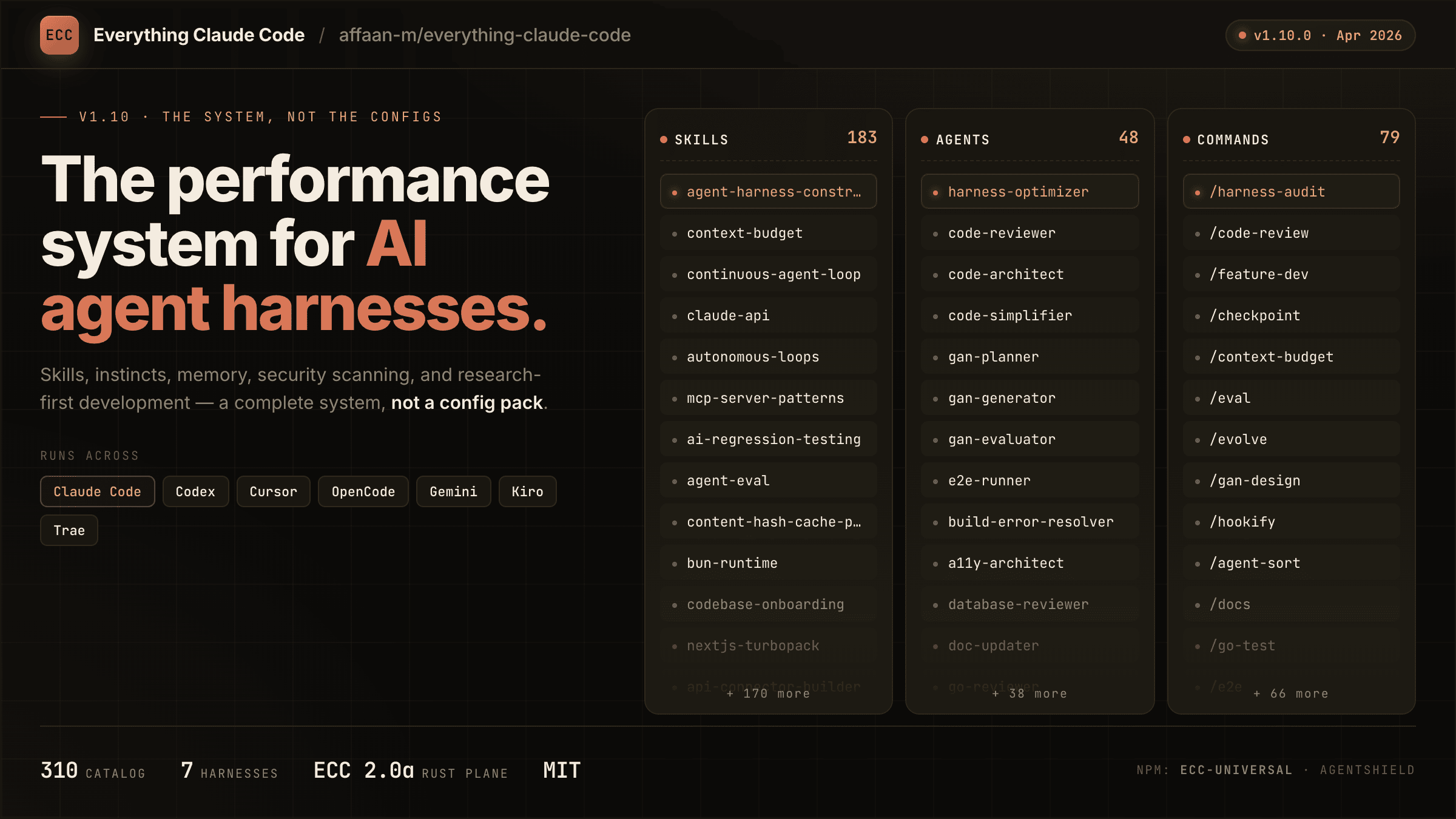
The agent harness performance optimization system. Skills, instincts, memory, security, and research-first development for Claude Code, Codex, Opencode, Cursor and beyond.
Persistent Context Across Sessions for Every Agent – Captures everything your agent does during sessions, compresses it with AI, and injects relevant context back into future sessions. Works with Claude Code, OpenClaw, Codex, Gemini, Hermes, Copilot, OpenCode + More