
batch-ocr
Dockerized PaddleOCR pipeline to convert thousands of PDFs into clean text (GPU/CPU, Windows / OSX/ Linux)
- 35
- MIT
- 11 mo ago
Repo BoltzmannEntropy/batch-ocr, read from GitHub 6 h ago. BoltzmannEntropy has not joined Take My Repo.
In short
BoltzmannEntropy/batch-ocr is a public repo on GitHub by BoltzmannEntropy. Dockerized PaddleOCR pipeline to convert thousands of PDFs into clean text (GPU/CPU, Windows / OSX/ Linux). It declares the MIT license on GitHub. It is written mainly in Python, has 35 stars and last changed on 2025-12-28. Nobody has reviewed it on Take My Repo yet, which says nothing about its quality. Read from GitHub on 2026-11-24.

Batch OCR (PaddleOCR) — Docker + macOS Native
I created Batch OCR to process hundreds and thousands of PDF files into text files using a very efficient model. I tested almost everything available on Hugging Face and finally chose PaddleOCR for its speed and accuracy. The Gradio app lets you select a folder and recursively process all PDFs into text for indexing or LLM training, etc.
This project packages a fast, reliable PDF-to-text pipeline using PaddleOCR. It scans a folder recursively, extracts embedded text when available, falls back to OCR when needed, filters low-quality text, and writes clean .txt files while mirroring the original folder structure under ocr_results.
Run it via Docker on Windows, Linux, and macOS (CPU-only on macOS), or natively on macOS (CPU). GPU acceleration is available on Windows/Linux with NVIDIA CUDA; macOS is CPU-only.
Overview
/workspace
  └── <your PDFs>  →  Recursive scan
                      ├─ Embedded text via PyMuPDF
                      └─ OCR fallback via PaddleOCR
                           ↓
                      Quality filter → /workspace/ocr_results/*_ocr.txt
Fast Track
# Build (Windows/Linux/macOS)
docker build -t batch-ocr:latest -f Dockerfile .

# Run
# Windows
.\run-d.bat
# Linux/macOS
sh run.sh
Features
- Recursive processing of PDFs in a chosen root folder
- Embedded text extraction via PyMuPDF, with OCR fallback via PaddleOCR
- Simple quality filtering to avoid noisy output
- Output mirrors input structure under
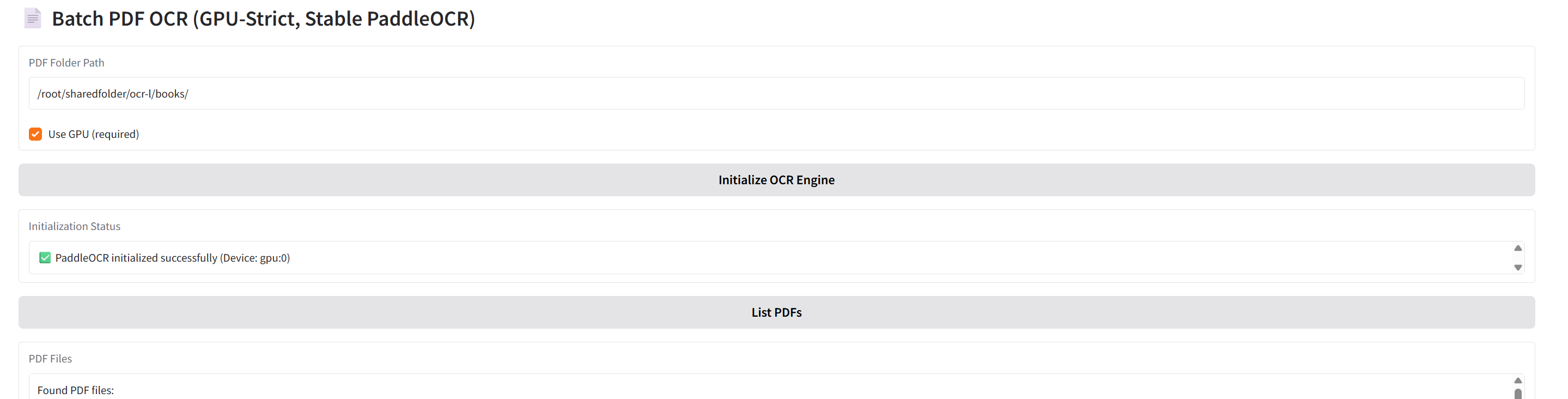
ocr_results/with_ocr.txtfiles - Gradio UI to set folder, initialize OCR, list PDFs, and run batch OCR
- GPU or CPU mode selectable from the UI
System Requirements
- Docker 24+
- Windows 11, Linux (Ubuntu/Debian recommended), or macOS 12+ (Intel/Apple Silicon)
- Optional GPU acceleration (Windows/Linux only):
- NVIDIA GPU + drivers on host
- NVIDIA Container Toolkit (nvidia-docker2)
Requirements
- Docker 24+
- For GPU acceleration (Windows/Linux): NVIDIA driver and NVIDIA Container Toolkit (nvidia-docker2)
- For CPU-only runs: no GPU requirements (macOS is CPU-only)
Build
Run from the batch-ocr folder:
docker build -t batch-ocr:latest -f Dockerfile .
Run
Windows (PowerShell or cmd)
Use the included script:
.\run-d.bat
This starts the container and launches the Gradio app. It maps your current folder to /workspace inside the container and exposes the UI at http://localhost:7888.
Linux/macOS (Docker)
Use the included script:
sh run.sh
This runs the container with GPU (if available), maps the current folder to /workspace, and starts the app. The UI is available at http://localhost:7888.
macOS (native, CPU-only)
If you prefer running outside Docker on macOS (CPU-only), use the helper script which creates a venv, installs dependencies, and runs a quick OCR smoke test:
bash batch-ocr/osx_setup_run_test.sh
To launch the classic batch OCR UI (app.py) after setup:
source batch-ocr/.venv/bin/activate
python batch-ocr/app.py
# Open http://127.0.0.1:7888 and uncheck "Use GPU" in the UI
To launch the PP-Structure + OCR UI (app2.py) after setup:
source batch-ocr/.venv/bin/activate
python batch-ocr/app2.py
# Open http://127.0.0.1:7888 and uncheck "Use GPU" in the UI
If you see an ImportError for PPStructureV3 when running app2.py, upgrade document components in the venv:
source batch-ocr/.venv/bin/activate
pip install --upgrade paddleocr paddlex
Using the App
- Open
http://localhost:7888in your browser. - Set “Root PDF Folder” to a path under
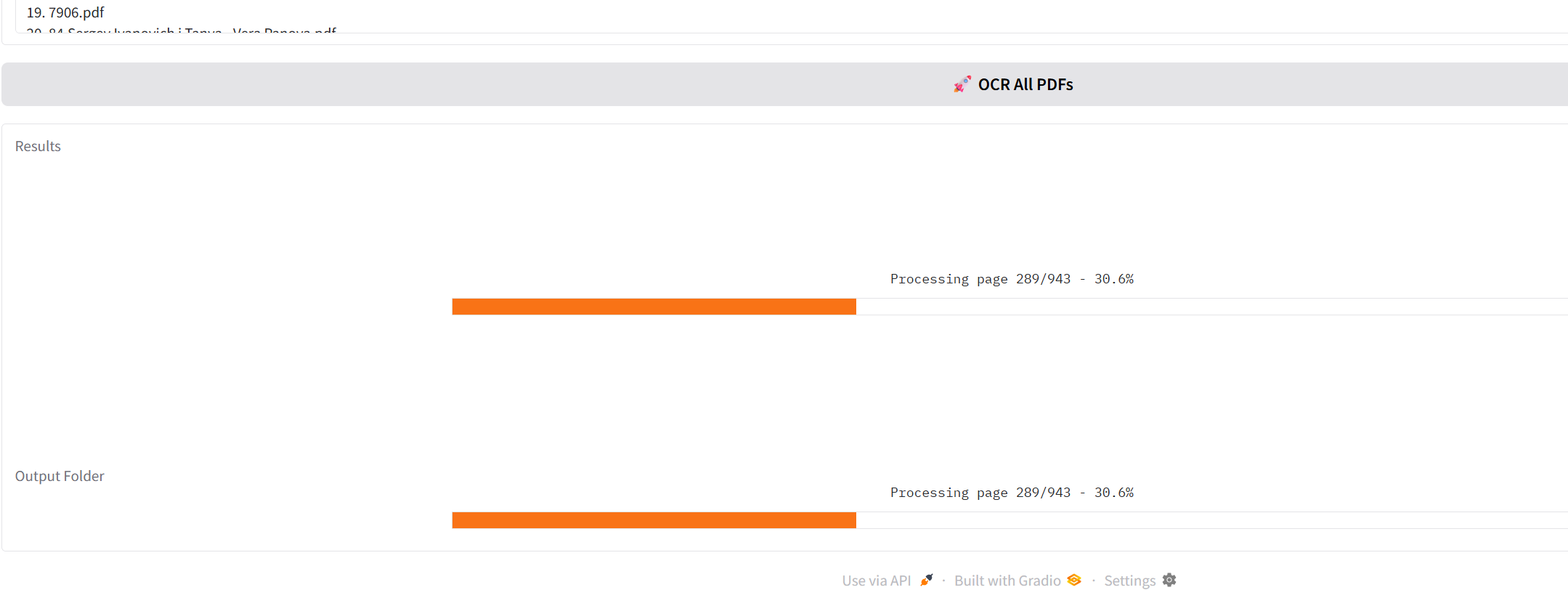
/workspace(the host’s current directory is mounted there). Example:/workspace/pdfs. - Click “Initialize OCR” (toggle “Use GPU” on or off as needed).
- Click “List PDFs” to confirm discovery.
- Click “OCR All PDFs” to process all PDFs recursively.
Outputs are written to /workspace/ocr_results, preserving the subfolder structure. Each PDF produces a matching _ocr.txt file. Errors (if any) are written as _ERROR.txt in the same mirrored folder.
Using app2.py (PP-Structure + OCR)
app2.py adds PP-StructureV3 for document parsing (tables, layout), alongside OCR:
- Choose language and structure options (orientation, unwarp, textline, charts).
- Choose exports: plain text, JSON, Markdown.
- Adjust render scale (PDF → image) for quality/speed tradeoffs.
- Batch run writes:
- Text files to
ocr_results/(mirroring input tree) - Structured outputs to
doc_results/<pdf-name>/per PDF
- Text files to
Note: PP-Structure is heavier than plain OCR; on CPU (macOS), expect slower processing.
Headless CLI (no UI)
Run batch OCR from the terminal using the CLI script. This works with either the classic OCR pipeline or the PP-Structure pipeline, and respects macOS CPU defaults.
# Classic OCR (app.py pipeline)
source batch-ocr/.venv/bin/activate   # if using macOS native setup
python batch-ocr/ocr_cli.py --mode classic --root /path/to/pdfs

# Structure + OCR (app2.py pipeline)
python batch-ocr/ocr_cli.py \
  --mode structure \
  --root /path/to/pdfs \
  --lang en \
  --render-scale 2.0 \
  --export-txt --export-json --export-md \
  --force-ocr           # optional

# GPU toggle (defaults to off on macOS, on elsewhere)
python batch-ocr/ocr_cli.py --mode classic --root /path/to/pdfs --no-gpu
python batch-ocr/ocr_cli.py --mode structure --root /path/to/pdfs --use-gpu
Outputs are written under ocr_results/ (and doc_results/ for structure mode). A _batch_summary.txt is saved in the text output root.
Ports and Volumes
- Ports
- 7888: Gradio UI (container → host)
- Volumes
- Windows:
-v "%cd%":/workspace - Linux/macOS:
-v "$(pwd)":/workspace
- Windows:
Everything under your current host directory is available inside the container at /workspace.
Notes
GPU mode requires PaddlePaddle with CUDA support in the container and a host with NVIDIA Container Toolkit. If you see a CUDA support error, uncheck “Use GPU” and run on CPU.
The default “Root PDF Folder” is
/workspace. Adjust as needed based on where your PDFs live within the mounted path.You can also start the container in interactive mode and run the app manually:
Windows:
docker run --gpus all --rm -it -p 7888:7888 -v "%cd%":/workspace batch-ocr:latest bash
python /workspace/app.py
Linux/macOS:
docker run --gpus all --rm -it -p 7888:7888 -v "$(pwd)":/workspace batch-ocr:latest bash
python /workspace/app.py
Project Layout
app.py— Gradio app and OCR pipeline using PaddleOCR and PyMuPDFapp2.py— Advanced UI with PP-StructureV3 document parsing (JSON/Markdown) + batch OCRDockerfile— Base image with PaddleOCR and required librariesrun-d.bat— Windows script to run the container and start the apprun.sh— Linux/macOS script to run the container and start the apposx_setup_run_test.sh— macOS native setup + smoke test (creates.venv, installs CPU deps)assets/— Optional images and logo files
Troubleshooting
- GPU not available:
- Error:
PaddlePaddle CUDA support is required for GPU mode. - Fix: Uncheck “Use GPU” in the UI, or install NVIDIA drivers + NVIDIA Container Toolkit on the host.
- macOS note: GPU (CUDA) is not supported; run CPU and uncheck “Use GPU”.
- Error:
- No PDFs found:
- Ensure the path is inside
/workspaceand contains.pdffiles; use “List PDFs” to verify discovery.
- Ensure the path is inside
- Permission denied on output:
- Ensure the host directory is writable; the app writes to
/workspace/ocr_results.
- Ensure the host directory is writable; the app writes to
- Processing is slow on CPU:
- Use GPU mode if available. For large batches, consider reducing image render scale in
app.py(search forfitz.Matrix(2, 2)and adjust to(1, 1)to trade accuracy for speed).
- Use GPU mode if available. For large batches, consider reducing image render scale in
- Output quality is inconsistent:
- Tweak heuristics in
app.py(is_readable_text) to relax/tighten filters.
- Tweak heuristics in
macOS dependency notes
- The
batch-ocr/osx_setup_run_test.shscript pins versions known to work on macOS CPU:paddleocr==2.7.3(legacy.ocr()result shape used by the apps)numpy<2(for OpenCV compatibility with PaddleOCR 2.7.x)huggingface_hub<1.0(required by the current Gradio import path)
- First run downloads OCR models to
~/.paddleocrand~/.paddlex.
License
This repository uses PaddleOCR and other open-source packages; consult their respective licenses for details.
Credits
- PaddleOCR (PaddlePaddle)
- PyMuPDF (fitz)
- Gradio
- OpenCV / Pillow
Changelog
- v1.0: Initial Dockerized Batch OCR with Gradio UI, Windows and Linux run scripts, GPU/CPU modes.
Questions
What is batch-ocr?
BoltzmannEntropy/batch-ocr is a public repo on GitHub by BoltzmannEntropy. Dockerized PaddleOCR pipeline to convert thousands of PDFs into clean text (GPU/CPU, Windows / OSX/ Linux).
Is batch-ocr open source?
It declares the MIT license on GitHub.
Does batch-ocr run on macOS, Windows or Linux?
Its maker tagged it for macOS, Windows and Linux, or as Docker or cross-platform. That is declared by the maker; Take My Repo has not tested it.
How do I install batch-ocr?
Open "Take it" on its page: Take My Repo writes an install plan for your machine and hands it to your AI agent (Claude Code, Codex or Cursor), which asks you before each step. Take My Repo has not tested it on any machine.