

ECC
The agent harness performance optimization system. Skills, instincts, memory, security, and research-first development for Claude Code, Codex, Opencode, Cursor and beyond.
- 310k
- JavaScript
- MIT
- 2 d ago
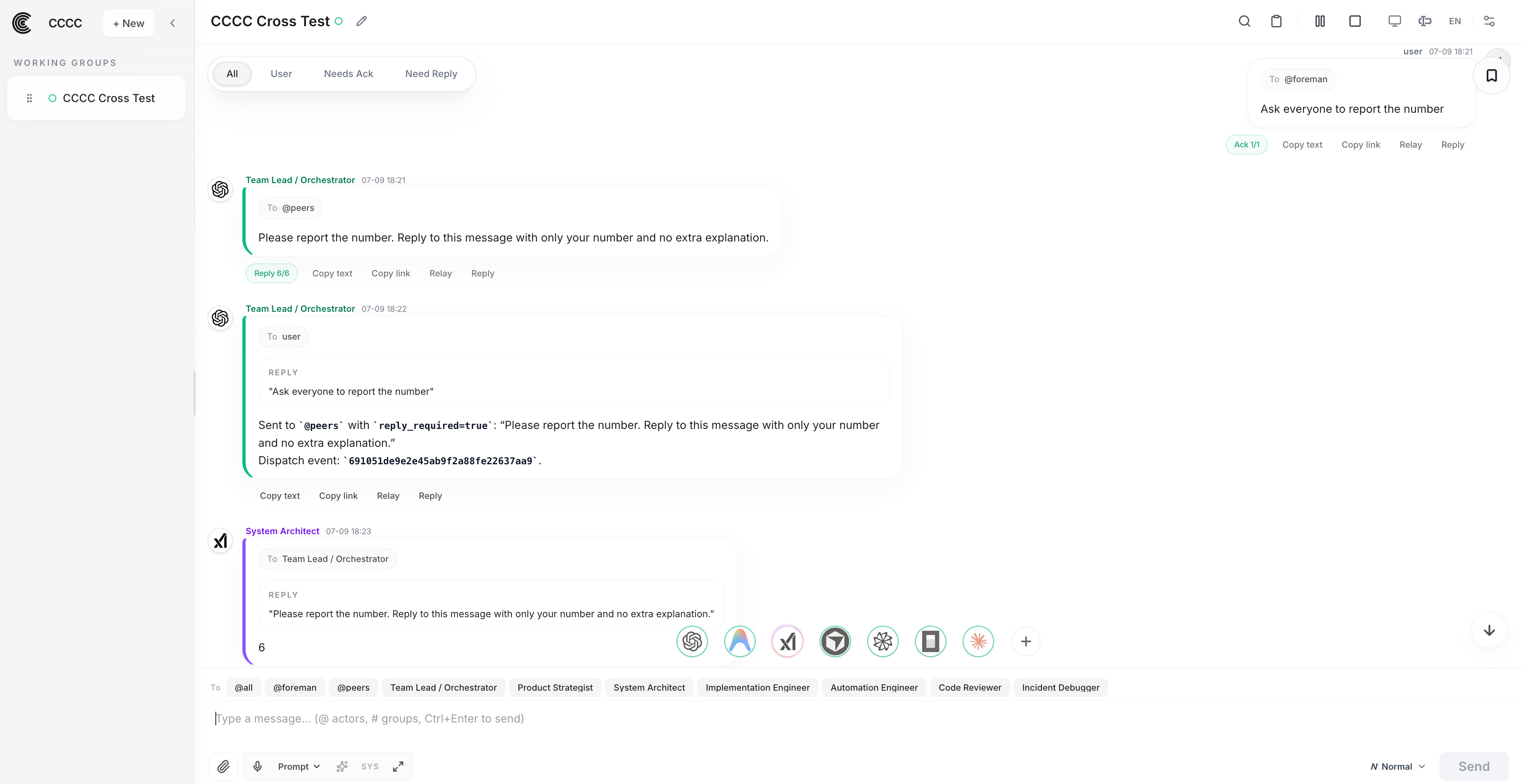
Coordinate your coding agents like a group chat — read receipts, delivery tracking, and remote ops from your phone. One pip install, zero infrastructure. A production‑minded orchestrator for 24/7 workflow
Repo ChesterRa/cccc, read from GitHub 3 h ago. ChesterRa has not joined Take My Repo.
ChesterRa/cccc is a public repo on GitHub by ChesterRa. Coordinate your coding agents like a group chat — read receipts, delivery tracking, and remote ops from your phone. One pip install, zero infrastructure. A production‑minded orchestrator for 24/7 workflow. It declares the Apache-2.0 license on GitHub. It is written mainly in Rust, has 1,346 stars and last changed on 2026-11-22. Nobody has reviewed it on Take My Repo yet, which says nothing about its quality. Read from GitHub on 2026-11-25.
The agent harness performance optimization system. Skills, instincts, memory, security, and research-first development for Claude Code, Codex, Opencode, Cursor and beyond.
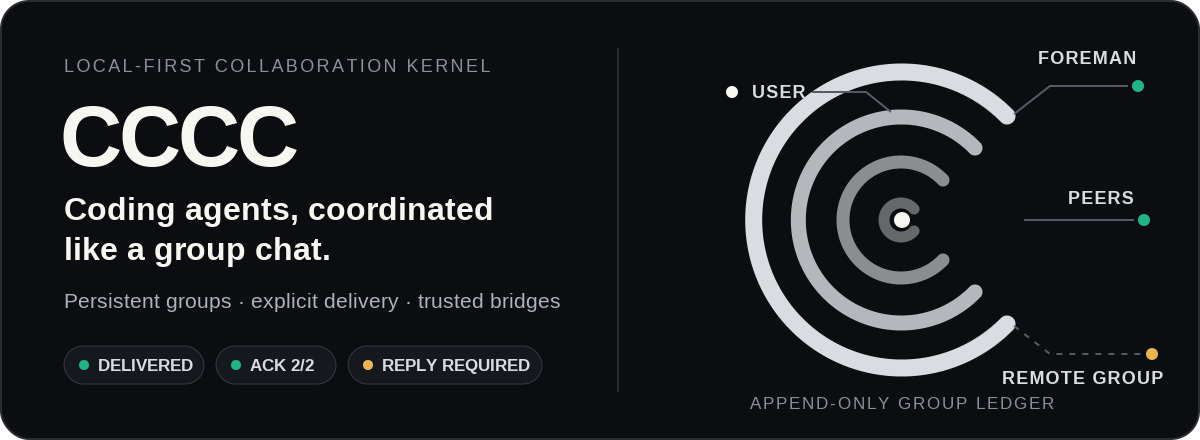
Local-first coordination for coding agents: durable Group history, explicit message status, cross-instance collaboration, and access from the Web, the terminal and IM.
Connect the Claude Code, Codex, Pi and OpenCode sessions you already run, or let CCCC run agents for you, as one persistent team.
One install command. No Rust toolchain, database server, message broker or Docker required.


When several coding agents share work, you need to know who owns a task, whether a message reached its recipient, and what survives a restart. CCCC keeps that in one place:
CCCC_HOME (default ~/.cccc/), outside your repository.Upgrade notes. On Linux and native Apple Silicon Macs, a compatible update from 0.4.59 can keep agents running; Windows updates restart agents. A member kept running from 0.4.59 can still show Sent to runtime until it is restarted. Managed and DeepSeek members kept running from 0.4.59 need a restart of that member for the delivery and individual-stop fix above. If a session owner is already unresponsive when CCCC starts, startup can still fail; see the release notes for recovery.
Details: 0.4.60 release notes.
# macOS / Linux
curl -fsSL https://chesterra.github.io/cccc/install.sh | sh

# Windows CMD or PowerShell
powershell.exe -NoProfile -ExecutionPolicy Bypass -Command "[Net.ServicePointManager]::SecurityProtocol = [Net.ServicePointManager]::SecurityProtocol -bor [Net.SecurityProtocolType]::Tls12; Invoke-RestMethod 'https://chesterra.github.io/cccc/install.ps1' | Invoke-Expression"

# Or through pip: the same native executable in a platform wheel
python -m pip install -U "cccc-pair>=0.4.36"
CCCC runs on Linux x86-64 (glibc 2.28+), Apple Silicon macOS 11+ and Windows x86-64. See Installation and upgrades for more.
cccc
cccc starts the daemon and the Web UI. In an interactive terminal it also opens a status panel; type / for its commands, and /quit or Ctrl+C stops what this launch started. Open http://127.0.0.1:8848 for the full Web UI; local use needs no password.
On servers, in containers and in scripts, use cccc --headless (the same as cccc web). If port 8848 is in use, choose another with cccc --port 9000. cccc doctor checks the installation and the agent CLIs it detects.
| Sessions you already run | Agents CCCC runs | |
|---|---|---|
| Who starts it | You, in Codex, Claude Code, Pi or OpenCode V2 | CCCC, with the Runtime you choose |
| Who owns it | The app keeps its process, conversation, account, model, approvals and terminal | CCCC starts, stops and restarts it; most runtimes show their terminal in the Web UI |
| Approval prompts | The app's own prompts still apply | Many runtimes start with them bypassed |
| Set up with | /setup or cccc sessions enable, then Add Agent → Add existing sessions |
New and Add an agent in the Web UI, or cccc attach and cccc actor add |
Both kinds can work in the same Group. Steps: Connect the sessions you already run or Let CCCC run agents.
Codex, Claude Code, Pi and OpenCode V2 sessions that you started yourself can join Groups and contact each other through the local daemon. CCCC imports no history and needs no provider API key. This is experimental: it was tested on Linux and WSL, and macOS and native Windows still need acceptance testing. Antigravity sessions cannot connect this way yet.
Requirements. Codex 0.163.0, Claude Code 2.1.306, Pi 1.4.0 or OpenCode V2 2.1.4, or later, on the machine running CCCC, as the same OS user and with the same CCCC_HOME as the daemon. Enable this only if your local sessions may receive work from each other and from this instance's administrator. Codex also needs its shared app-server: add this to $CODEX_HOME/config.toml (normally ~/.codex/config.toml), inside the existing [features] table if there is one:
[features]
daemon_auto_start = true
cccc status panel, type /setup, tick the apps with Enter, choose Continue, then Connect. Or run cccc sessions enable --runtime codex (or claude, pi, opencode)./hooks), then send any message.claude --resume picks the conversation to continue), then send any message. Plugin Monitor must be enabled./reload, or start Pi.cccc sessions list. Add --include-offline to also see registered sessions that cannot receive right now.You can also ask from inside a session; CCCC creates or reuses a Group for both:
Use CCCC to contact the Codex session in /path/to/project about the current task. Use Send + Reply and ask it to reply through CCCC using Send. If several sessions match, ask me to choose.
The app keeps its tool approvals, so a CCCC tool call can wait for you in its terminal. Only what a session sends through CCCC reaches the Group, not its ordinary terminal output. Pause CCCC access and Resume CCCC access change one Group membership without touching the app. cccc sessions disable --runtime codex (or claude, pi, opencode) removes only what this CCCC installation registered.
After upgrading CCCC, reload the integration in each app. The native sessions guide also covers the CLI commands, resuming conversations, recovery and limits.
Install and sign in to the agent CLIs you want to use first. In the Web UI:
From the command line, with CCCC running (for example cccc in another terminal):
cd /path/to/your/repo
cccc attach .                                # create a Group for this folder and make it active
cccc actor add lead --runtime claude         # the first agent becomes the foreman
cccc actor add implementer --runtime codex   # a peer
cccc group start                             # start the Group's enabled agents
cccc send "Please inspect the repo and propose the first safe task." --to "@foreman"
cccc tracked-send "Please take the first concrete task and reply with validation evidence." \
  --to implementer \
  --title "First concrete task" \
  --outcome "The change and validation evidence are reported"
Claude Code and Codex receive CCCC's MCP tools when CCCC starts them, so no cccc setup step is needed. The CLI calls agents actor. In PowerShell, keep "@foreman" in quotes, since a bare @ starts splatting, and enter tracked-send on one line: the trailing \ continues a line only in POSIX shells.
On first launch, Claude may ask you to trust the workspace or accept its --dangerously-skip-permissions disclaimer, and the agent shows Awaiting your confirmation in the terminal. Answer in its terminal in the Web UI (Open confirmation terminal takes you there); CCCC never answers for you. If you decline, choose Launch or Relaunch to try again.
Approvals. Many runtimes start with approval prompts bypassed, for example claude --dangerously-skip-permissions. Review each agent's command in its settings and the autonomy defaults.
You should see both agents in the members' row, the foreman's reply in Messages and the tracked request with a linked task. If an agent does not start, open it to read the error, check that its CLI is installed and signed in, and run cccc doctor; see also the FAQ.
Chet is one assistant for the whole CCCC instance, outside every Group's member list. Open it with the Chet control below the Group list and type, or choose Start voice beside it for a live call. A Group selected when you send is included as context, not as a permission boundary.
ChesterRa/cccc is a public repo on GitHub by ChesterRa. Coordinate your coding agents like a group chat — read receipts, delivery tracking, and remote ops from your phone. One pip install, zero infrastructure. A production‑minded orchestrator for 24/7 workflow.
It declares the Apache-2.0 license on GitHub.
Its maker has not tagged a system, so it is unknown here. Its README says what it needs.
Open "Take it" on its page: Take My Repo writes an install plan for your machine and hands it to your AI agent (Claude Code, Codex or Cursor), which asks you before each step. Take My Repo has not tested it on any machine.
Reverse engineer anything with agents, from app behavior down to native binaries.
3,000+ reusable AI agent skills for Claude Code, Codex, Cursor and Gemini CLI. AAS Core adds local catalog discovery, agent-owned selection and plan preview. CLI, MCP and plugins.
HuixiangDou: Overcoming Group Chat Scenarios with LLM-based Technical Assistance
Free, local plugin that keeps tool output out of your coding agent's context window. Sandbox and SQLite FTS5 search, 99% fewer bytes in context. Works with Claude Code, Codex, Pi, OMP, OpenCode, Gemini CLI, Copilot CLI and 4 more agents. Zero telemetry.
Its last change on GitHub was on 2026-11-22. Take My Repo does not judge from that whether it is maintained.
Nobody has reviewed it on Take My Repo yet, which says nothing about its quality.
Take My Repo cannot say: it does not audit code and has not run cccc. What is known comes from GitHub. It declares the Apache-2.0 license on GitHub. Its last change was on 2026-11-22. It has 1,346 stars, which measure popularity, not safety. Nobody has reviewed it on Take My Repo yet, which says nothing about its quality. Read the source before you run it. With "Take it", your AI agent shows each step and asks you before running it; README text is treated as data, not as instructions.