FloatingFilter
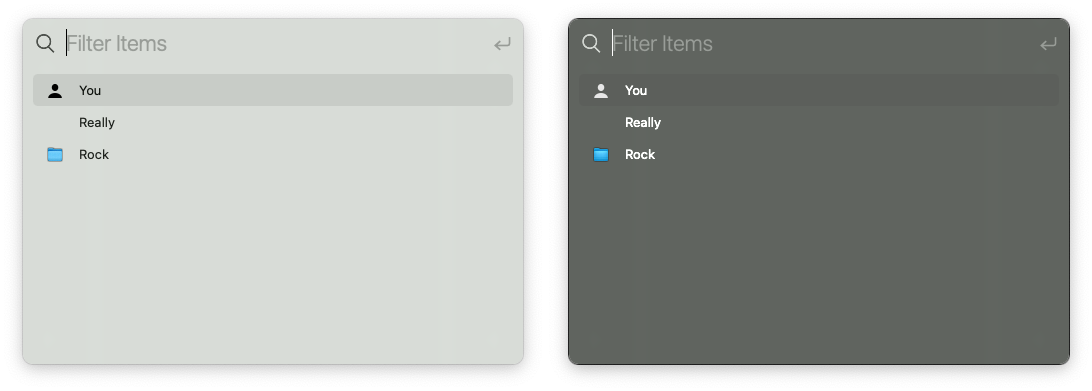
Floating window to filter arbitrary lists of stuff. Like the Spotlight finder or VSCode command invocation widget
- 144
- Swift
- MIT
- 23 mo ago
macOS app and file launching springboard
Repo CleanCocoa/OpenAny, read from GitHub 6 h ago. CleanCocoa has not joined Take My Repo.
CleanCocoa/OpenAny is a public repo on GitHub by CleanCocoa. macOS app and file launching springboard. It declares the GPL-3.0 license on GitHub. It is written mainly in Swift, has 96 stars and last changed on 2023-12-13. Nobody has reviewed it on Take My Repo yet, which says nothing about its quality. Read from GitHub on 2026-11-22.
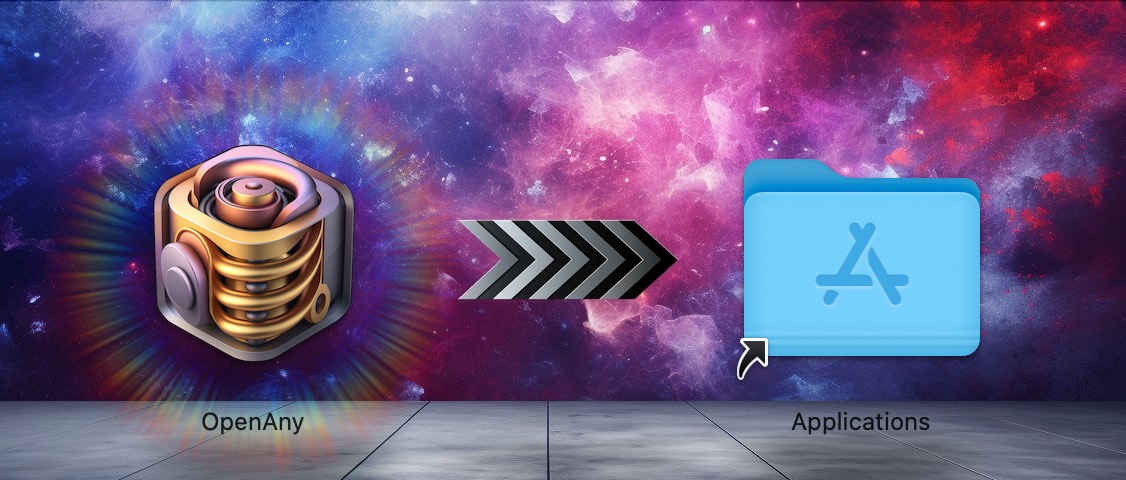
macOS app and file launcher for simple scripting.
Launches, performs its job, then quits. No long-running processes. No clutter in your menu bar!
/Applications (before launching, so that macOS clears the app's quarantine flags)Done!
Now use openany:// as explained below 🫶
Any app that renders URLs as clickable links can now become your external app or file launchpad.
For example, you can use this in almost any Markdown editor with syntax highlighting to get a clickable link that will open TextEdit:
## My favorite stock macOS apps

TextEdit: <openany://app/TextEdit>
That's a very silly example. Why would you want to launch TextEdit in such a complicated way?
Here's a more complicated example: open a file with a specific app, with a link.
The default file:// URLs you get from dragging from Finder are also clickable, but they only reveal the file. Opening the file is an extra step. Boo extra steps!!11
How about embedding a shortcut to edit a file with TableFlip and preview with Marked?
Preview:     <openany://app/com.brettterpstra.marked2/view?path=~/document.md>
Edit Tables: <openany://app/TableFlip/view?path=~/document.md>

... document goes here ...
Open any app, or any file, or any file in any app!
Powered by the openany:// URL scheme, you can launch apps and open files.
Open app:
openany://app/com.apple.texteditopenany://app/TextEditOpen file:
openany://file/open?path=/path/to/file.txt/path/to/file.txt in your default editor of text files.openany://file/open?url=file:///path/to/file.txt/path/to/file.txt in your default editor of text files, but using a file:// URL instead of a path.Open files with app:
openany://app/TextEdit/view?path=/path/to/file.txt/path/to/file.txt in TextEdit.openany://app/TextEdit/view?url=file:///path/to/file.txt/path/to/file.txt in TextEdit, but using a file:// URL instead of a path.openany://file/openwith/TextEdit?path=/path/to/file.txt/path/to/file.txt in TextEdit.openany://file/openwith/TextEdit?url=file:///path/to/file.txt/path/to/file.txt in TextEdit, but using a file:// URL instead of a path.Reveal file:
openany://file/reveal?path=/path/to/file.txt/path/to/file.txt in Finder.openany://file/reveal?url=file:///path/to/file.txt/path/to/file.txt in Finder, but using a file:// URL instead of a path.You can drag and drop any app onto the OpenAny application icon to extract its bundle ID.
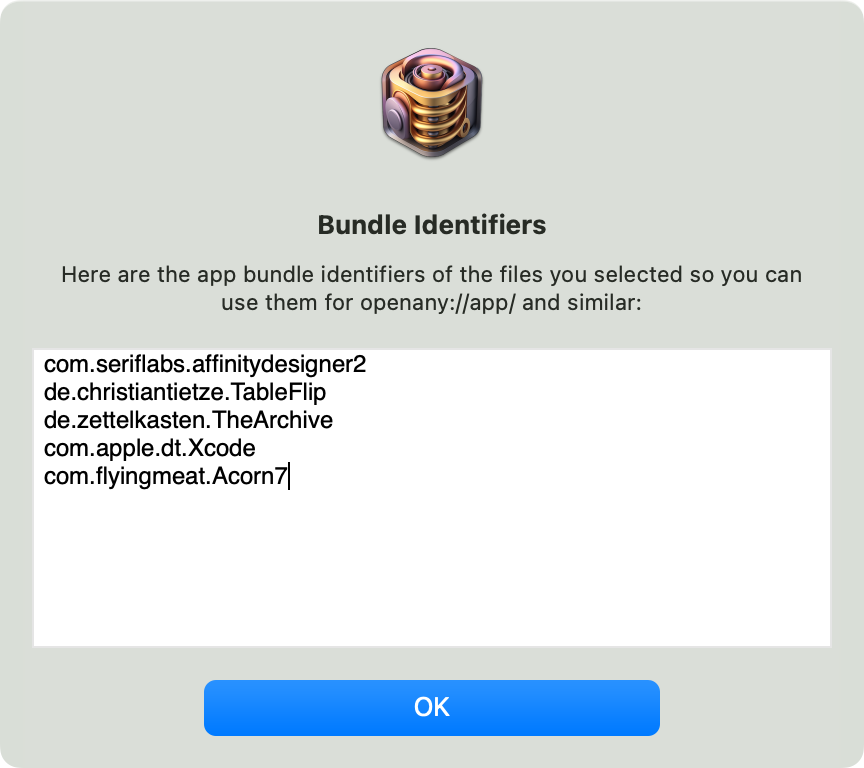
file://?!the path= query parameter works best for files without spaces or any other URL-escaped characters.
For all others, you're better off with a file URL.
If you drag files from Finder into some apps, they will insert the file:// into text field. Could be a text editor, a comment field on a calendar event, a note-taking app, a chat window -- you name it. That's how dropping files on macOS can behave.
You can delete the file:// part to get to the path, of course, but then you have all the URL-escpaed special characters (like %20 instead of spaces).
It's less annoying to just use the URL by that point. So we do.
The URL scheme is comprised of components like this:
openany://HOST/SUBJECT[/VERB[/OBJECT[?key1=value1[&key2=value2[...]]]]]
When the HOST acts as the subject, the pattern becomes:
openany://HOST/VERB[/OBJECT[?key1=value1[&key2=value2[...]]]]
The query parameters are called the URL's payload.
HOSTsapp: Launch an app, identified by SUBJECT. That's the bundle identifier.file: Open a file specified by the payloadSUBJECT patternsapp host:SUBJECT is the app's bundle ID. (Followed by a verb.)file host:reveal (acting as VERB here), see below.open (acting as VERB here), see below.openwith (acting as VERB here), see below.show (acting as VERB here), see below.VERBsapp hostAPP_ID (a bundle identifier or app name) being the SUBJECT:launch.launch: /app/APP_ID/launchview: /app/APP_ID/view opens a file, specified by the payload, in the app. Alias for /file/openwith/APP_ID.file host:reveal: Reveal a file, specified by the payload, in Finder.open: Open a file, specified by the payload, in the default app.openwith: Open a file, specified by the payload, with the app being the OBJECT. Alias for /app/APP_ID/view. Example: openany://file/openwith/com.apple.textedit?path=/path/to/file.txt opens /path/to/file.txt in TextEdit.show: Alias for reveal.Only used by file-related actions, the payload keys are:
path: As in ?path=/path/to/file.txt, using an absolute POSIX path. Expands ~ in the path. Most useful for simple paths without e.g. spaces.url: As in ?url=file:///path/to%20a%file/with%20spaces.txt, using an absolute file:// URL, e.g. to easil encode special characters.If the path or URL point to a directory, Finder will show the directory in a new window. So /file/open?path=~/Downloads/ is equivalent to /file/reveal?path=~/Downloads/`.
CleanCocoa/OpenAny is a public repo on GitHub by CleanCocoa. macOS app and file launching springboard.
It declares the GPL-3.0 license on GitHub.
Its maker has not tagged a system, so it is unknown here. Its README says what it needs.
Open "Take it" on its page: Take My Repo writes an install plan for your machine and hands it to your AI agent (Claude Code, Codex or Cursor), which asks you before each step. Take My Repo has not tested it on any machine.
Its last change on GitHub was on 2023-12-13. Take My Repo does not judge from that whether it is maintained.
Nobody has reviewed it on Take My Repo yet, which says nothing about its quality.
Floating window to filter arbitrary lists of stuff. Like the Spotlight finder or VSCode command invocation widget
Proof of concept for a vector drawing app without canvas boundaries.
macOS Dialog that displays "What's New" information after an app update
Swift framework to deal with licensing and time-based trial periods in macOS apps.