ui-ux-pro-max-skill
An AI skill that provides design intelligence for building professional UI/UX across multiple platforms.
- 153k
- Python
- MIT
- 46 min ago

CLI for using ComfyUI
Repo Comfy-Org/comfy-cli, read from GitHub 41 min ago. Comfy-Org has not joined Take My Repo.
Comfy-Org/comfy-cli is a public repo on GitHub by Comfy-Org. CLI for using ComfyUI. It declares the GPL-3.0 license on GitHub. It is written mainly in Python, has 1,061 stars and last changed on 2026-11-24. Nobody has reviewed it on Take My Repo yet, which says nothing about its quality. Read from GitHub on 2026-11-24.
An AI skill that provides design intelligence for building professional UI/UX across multiple platforms.
comfy-cli is a command-line tool for installing, running, and extending ComfyUI — the open-source generative-media engine. Set up ComfyUI, install custom nodes and models, run workflows, and call hosted partner image models, all from your terminal.
comfy generate, no workflow JSON requireduv (--fast-deps, --uv-compile)--where cloud (no GPU required)--json envelopespip install comfy-cli
comfy setup
comfy setup walks you through everything — local or cloud routing, authentication, and agent skill installation — in one interactive wizard. Pass -y for non-interactive (CI/scripted) installs.
No local GPU? Route any API-format workflow to Comfy Cloud with --where cloud:
comfy cloud login                                        # sign in via your browser (OAuth)
comfy run --workflow ./workflow.json --where cloud       # submits, prints a prompt_id, returns immediately
comfy jobs wait <prompt_id> --where cloud                # block until the job finishes (or: jobs status for a one-shot check)
comfy download <prompt_id> --where cloud -o ./outputs    # save the results locally
comfy run submits asynchronously and prints the prompt_id you feed to jobs/download; add --wait to block inline instead. Check your sign-in anytime with comfy cloud whoami. Export the workflow JSON from ComfyUI via File → Export (API) (UI-format JSON is auto-converted). Set cloud as your default target so you can drop the flag: comfy set-default --where cloud.
Credits: cloud generation (comfy run --where cloud, comfy generate) consumes Comfy Cloud credits and needs an active subscription. Discovery and inspection commands — comfy cloud whoami, comfy cloud status, comfy jobs status/ls, comfy templates ls, comfy generate list — don't. Check your balance and tier with comfy cloud status.
(Recommended) Activate a virtual environment (venv or conda).
Install with pip (requires Python 3.10+):
pip install comfy-cli
Install shell completion so comfy <TAB> expands commands and options:
comfy --install-completion
To install ComfyUI using comfy, simply run:
comfy install
This command will download and set up the latest version of ComfyUI and ComfyUI-Manager on your system. If you run in a ComfyUI repo that has already been setup. The command will simply update the comfy.yaml file to reflect the local setup
comfy install --skip-manager: Install ComfyUI without ComfyUI-Manager.
To use a custom Manager fork or specific version, skip the default installation
and install your own into the workspace venv:comfy install --skip-manager
# Then install your custom Manager:
pip install -e /path/to/your-manager-fork # editable install
# or
pip install comfyui-manager==4.1b8 # specific version
comfy --workspace=<path> install: Install ComfyUI into <path>/ComfyUI.comfy install --fast-deps: Use uv instead of pip for faster dependency resolution
during initial ComfyUI installation. comfy-cli's built-in resolver compiles all requirements (core + custom nodes)
into a single lockfile and installs from it. Also handles GPU-specific PyTorch wheel selection automatically.comfy install, if no path specification like --workspace, --recent, or --here is provided, it will be implicitly installed in <HOME>/comfy.When you run comfy install, comfy-cli picks a Python environment for ComfyUI
dependencies using the following precedence:
VIRTUAL_ENV / CONDA_PREFIX) is used as-is..venv or venv directory inside the workspace is reused.pip install comfy-cli (global / system Python): dependencies go
directly into the same Python environment. This is the typical Docker setup.pipx install comfy-cli or uv tool install comfy-cli (isolated
tool environment): a .venv is created inside the ComfyUI workspace.
Use comfy launch to start ComfyUI with the correct Python.comfy update brings an existing workspace up to date:
comfy update (or comfy update comfy): pull the branch the workspace is currently on and reinstall requirements.txt.comfy update all: also update every installed custom node.comfy update cli: upgrade comfy-cli itself.By default comfy update all exits 0 even when the custom-node update step fails — the error is printed, but the exit code says success, so scripts and wrappers can't tell. Pass --exit-on-fail (the same flag name and default as comfy node install --exit-on-fail) to have that failure exit non-zero instead. The flag only changes the all target; comfy update comfy and comfy update cli already exit non-zero when they fail, and accept the flag as a no-op so it can be forwarded unconditionally.
One limit worth knowing: --exit-on-fail can only surface what ComfyUI-Manager's cm-cli update reports. cm-cli currently handles a single pack failing to update by printing ERROR: ... and carrying on, still exiting 0, so that particular case stays invisible until ComfyUI-Manager propagates it. Unlike comfy node install, the flag is not forwarded to cm-cli — only its install subcommand accepts --exit-on-fail; its update subcommand has no such option and would reject it.
When the flag does fire, the exit code is cm-cli's own, normalized so it is always usable: a process killed by a signal becomes 128+N rather than a truncated value, an exit code that would truncate to 0 becomes 1, and 2 becomes 1 so it can't be mistaken for a CLI usage error. In --json mode the failure is also reported as an update_custom_nodes_failed error envelope carrying cm-cli's raw status in details.cm_cli_returncode.
comfy update comfy --version <X> moves an existing workspace to a specific ComfyUI version — a downgrade (rollback) or an upgrade — without prompting for anything, so it is safe to run headlessly or from a script. <X> is nightly (the repo's default branch), latest (the newest stable release), or a version number such as 0.3.0 (a leading v is optional).
comfy update comfy --version 0.3.0      # roll back to the v0.3.0 release
comfy update comfy --version latest     # newest stable release
comfy update comfy --version nightly    # roll forward to the default branch
Behavior worth knowing:
git stash push -u) and are never popped or dropped automatically — the stash ref is printed so you can restore them with git stash pop. Pass --no-stash if you would rather the command refuse to run on a dirty tree.comfy update comfy --version nightly (or --version latest); a plain comfy update cannot advance a detached HEAD.requirements.txt. PyTorch is deliberately left alone: the ComfyUI version doesn't determine your torch build, your machine does. If the dependency install fails, the command exits non-zero and says so — the tree is already on the new version, and re-running the same command is safe.--version and --no-stash apply only to target comfy; combining --version with all or cli is an error.You can specify the path of ComfyUI where the command will be applied through path indicators as follows:
comfy --workspace=<path>: Run from the ComfyUI installed in the specified workspace.comfy --recent: Run from the recently executed or installed ComfyUI.comfy --here: Run from the ComfyUI located in the current directory.--workspace, --recent, and --here options cannot be used simultaneously.
If there is no path indicator, the following priority applies:
comfy set-default <path>.Example 1: To run the recently executed ComfyUI:
comfy --recent launchExample 2: To install a package on the ComfyUI in the current directory:
comfy --here node install comfyui-impact-packExample 3: To update the automatically selected path of ComfyUI and custom nodes based on priority:
comfy node update allYou can use the comfy which command to check the path of the target workspace.
comfy --recent which, comfy --here which, comfy which, ...The default sets the option that will be executed by default when no specific workspace's ComfyUI has been set for the command.
comfy set-default <workspace path> ?[--launch-extras="<extra args>"]
--launch-extras option specifies extra args that are applied only during launch by default. However, if extras are specified at the time of launch, this setting is ignored.Comfy provides commands that allow you to easily run the installed ComfyUI.
comfy launch
To run with default ComfyUI options:
comfy launch -- <extra args...>
comfy launch -- --cpu --listen 0.0.0.0
To run background
comfy launch --background
comfy --workspace=~/comfy launch --background -- --listen 10.0.0.10 --port 8000
--background are displayed in the "Background ComfyUI" section of comfy env, providing management functionalities for a single background instance only.comfy stop.To point every command (not just one) at a ComfyUI on a non-default
address — e.g. a server you started outside comfy-cli on :8189 — export
the COMFY_LOCAL_URL environment variable:
export COMFY_LOCAL_URL=http://127.0.0.1:8189
http://host:port, host:port, or http://host (the port
defaults to 8188; the scheme is optional and, if present, must be
http). IPv6 literals are bracketed: COMFY_LOCAL_URL=http://[::1]:8189.comfy env, comfy run, comfy jobs, comfy upload/download,
comfy nodes, and every other local-targeting command, so comfy env's
"Comfy Server Running" line now probes and reports the resolved address.--host/--port flag wins, then
COMFY_LOCAL_URL, then a comfy-cli-launched background server, then the
127.0.0.1:8188 default. A malformed value is ignored with a one-line
stderr warning rather than breaking the command.to run ComfyUI with a specific pull request:
comfy install --pr "#1234"
comfy install --pr "jtydhr88:load-3d-nodes"
comfy install --pr "https://github.com/comfyanonymous/ComfyUI/pull/1234"
--pr option. This will automatically install the specified pull request and run ComfyUI with it.To test a frontend pull request:
Comfy-Org/comfy-cli is a public repo on GitHub by Comfy-Org. CLI for using ComfyUI.
It declares the GPL-3.0 license on GitHub.
Its maker tagged it for macOS, Windows and Linux, or as Docker or cross-platform. That is declared by the maker; Take My Repo has not tested it.
Open "Take it" on its page: Take My Repo writes an install plan for your machine and hands it to your AI agent (Claude Code, Codex or Cursor), which asks you before each step. Take My Repo has not tested it on any machine.
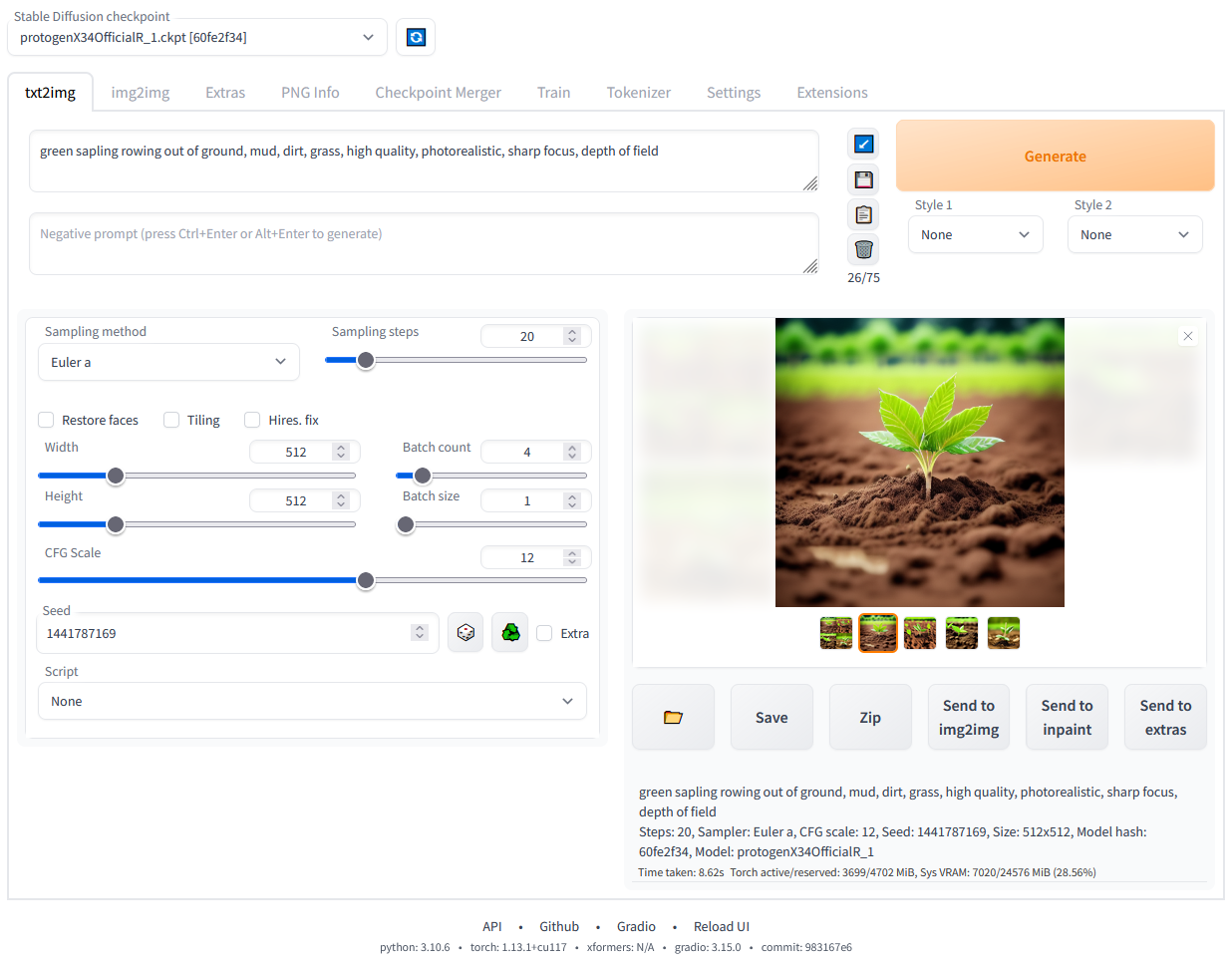
Stable Diffusion web UI
The new Windows Terminal and the original Windows console host, all in the same place!
World's first open-source, agentic video production system. 12 production pipelines, 100+ tools, 700+ agent skill and production-knowledge files. Turn your AI coding assistant into a full video production studio.
Its last change on GitHub was on 2026-11-24. GitHub counts 109 open issues and pull requests. Take My Repo does not judge from that whether it is maintained.
Nobody has reviewed it on Take My Repo yet, which says nothing about its quality.
Take My Repo cannot say: it does not audit code and has not run comfy-cli. What is known comes from GitHub. It declares the GPL-3.0 license on GitHub. Its last change was on 2026-11-24. It has 1,061 stars, which measure popularity, not safety. Nobody has reviewed it on Take My Repo yet, which says nothing about its quality. Read the source before you run it. With "Take it", your AI agent shows each step and asks you before running it; README text is treated as data, not as instructions.