
OpenDuet
An Open Source template for a proactive AI agent that gets your work done and keeps you in the loop.
- 2.1k
- MIT
- 4 d ago
Repo CopilotKit/OpenDuet, read from GitHub 30 min ago. CopilotKit has not joined Take My Repo.
In short
CopilotKit/OpenDuet is a public repo on GitHub by CopilotKit. An Open Source template for a proactive AI agent that gets your work done and keeps you in the loop. It declares the MIT license on GitHub. It is written mainly in TypeScript, has 2,140 stars and last changed on 2026-11-20. Nobody has reviewed it on Take My Repo yet, which says nothing about its quality. Read from GitHub on 2026-11-24.
OpenDuet
An open-source proactive agent that gets your work done and keeps you in the loop
Built on OpenBot and CopilotKit · Quick start · Overview · Features and Capabilities · How it works · Contributing
Each agent has a computer of its own. Use it on the web, on mobile, in Slack, or in Microsoft Teams.
Host OpenDuet yourself and choose your own model. Requires a free CopilotKit Intelligence project for threads and memory. Everything that makes it OpenDuet lives in one folder, so copy it and make it your own.
OpenDuet is now available as a UX skin in OpenBot, a more robust version with sign-in, per-Bot permissions and an audit trail, maintained by CopilotKit. This repo stays a community-maintained starter for building your own project.
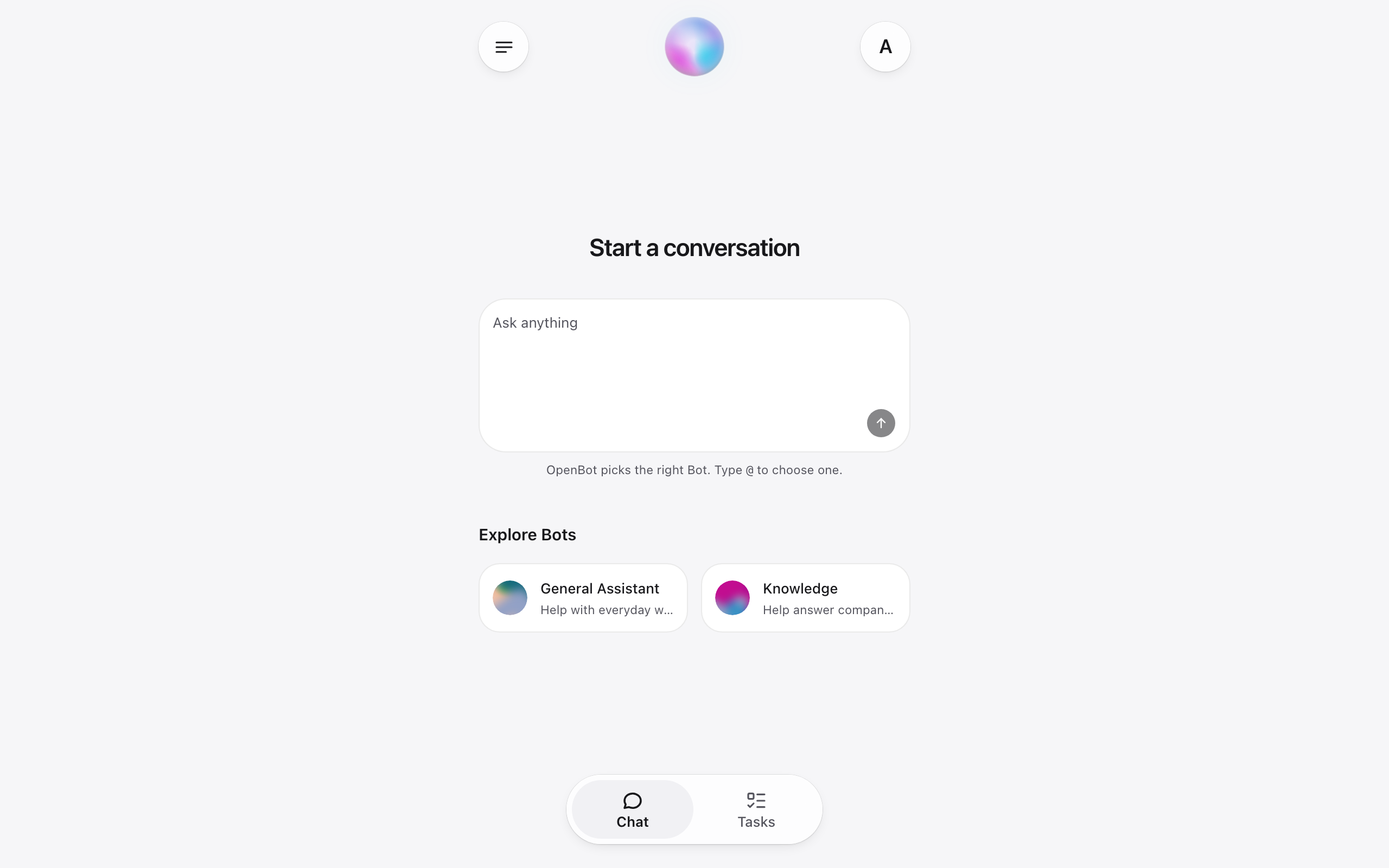
OpenBot with the OpenDuet skin, picked under Settings → Skin
Bringing OpenDuet to your company? Talk to us about OpenBot →
|
https://github.com/user-attachments/assets/f3439f74-855e-4d95-bb5c-713fded3c66e |
Setting it up takes a minute: onboarding ends on a checklist of what OpenDuet depends on.
|
https://github.com/user-attachments/assets/55b74b87-708e-4e69-af1e-16e4071ead95 |
OpenDuet and OpenBot
OpenDuet runs on OpenBot, CopilotKit's open-source agent platform, and ships inside it as a skin alongside OpenDots and OpenFuse. Pick it there and you get OpenDuet's look, with everything OpenBot does underneath.
| If you want to | Start here |
|---|---|
| Try OpenDuet, or make it your own | This repo: Quick start |
| Run it for your team, with sign-in, per-Bot permissions and an audit trail | OpenBot, then Settings → Skin → OpenDuet |
| Have us stand it up inside your company | Talk to an engineer |
OpenDots, OpenFuse and OpenDuet are community maintained, and issues and pull requests are welcome in each repo. OpenBot is the one the CopilotKit team maintains and ships fixes to.
Overview
OpenDuet does not wait to be asked. It starts your day with a short brief, keeps working on a computer of its own while you step away, and comes back only when something needs you. Before it sends, pays, signs, or deletes anything, it shows you exactly what it is about to do and waits for your answer.
Early. OpenDuet runs today as OpenBot, CopilotKit's open-source, self-hosted agent platform, with OpenDuet's name, Bots and skills on top. It already reads your Gmail and calendar, sorts what needs you from what can wait, and makes the morning brief. Features and Capabilities lists what works today. Expect things to move. Issues and ideas are welcome.
What it does
- A morning brief. One short message to start the day: what is on, what changed, and what needs a decision from you.
- What needs you, and what can wait. It looks across your mail, calendar, and Slack, brings the few things that need you to the top, and holds the rest until they matter.
- Keeps working when you step away. Hand it a task and it carries on in a computer of its own: a real browser, its own files, and only the tools you grant. It tells you when it is done, or when it is stuck.
- Asks before it acts. Sending a message, making a payment, signing a document, deleting anything: it shows you the exact action and waits. Allow once, always allow, or refuse.
- Never sees your passwords. When a site needs a login, you type it into a masked box. The password reaches the site, never the conversation the agent reads.
- Checks what leaves. Every outgoing message is checked for sensitive information, so a card number or a health detail does not go out by accident.
- Yours to run. Self-host it, choose your own model, and keep your data in your own database.
See Features and Capabilities for what works today.
Features and Capabilities
Everything below works today when you run this repository.
| Capability | What it means for you |
|---|---|
| A computer of its own | Keeps working in its own browser, /workspace, and shell while you are away. |
| Asks before it acts | A reviewer checks every action that changes something, and the ones that matter pause for Refuse, Allow once, or Always allow. A message to other people always asks, once, showing who it goes to and what it says. Anything you type while it carries an action out waits its turn and is answered after. Every action is checked against policy and recorded. |
| Never sees your passwords | Logins go through a masked secret box. Saved credentials are encrypted and write-only. |
| Memory | Threads and memory carry over through CopilotKit Intelligence. |
| Skills | Reusable instructions you write once and call with /. |
| Gmail and Google Calendar | Each person connects their own account. OpenDuet reads mail and today's calendar, and sends a reply only after you answer. |
| Connected apps | Governed MCP connectors, including Google Drive and Notion. |
| Public-web research | Search public sources, read selected pages and make a brief with source links after an administrator grants the research tools. Set up a research provider. |
| Scheduled work | Routines: ask it to do something on a schedule and it runs as you. |
| Make it your own | Its name, Bots, channels, model, and skills live in one folder, openbot/examples/openduet. |
| What needs you, what can wait | Sorts new mail into what needs you and what can wait, with a one-line reason for each. Measured on a labelled set in evals/triage. |
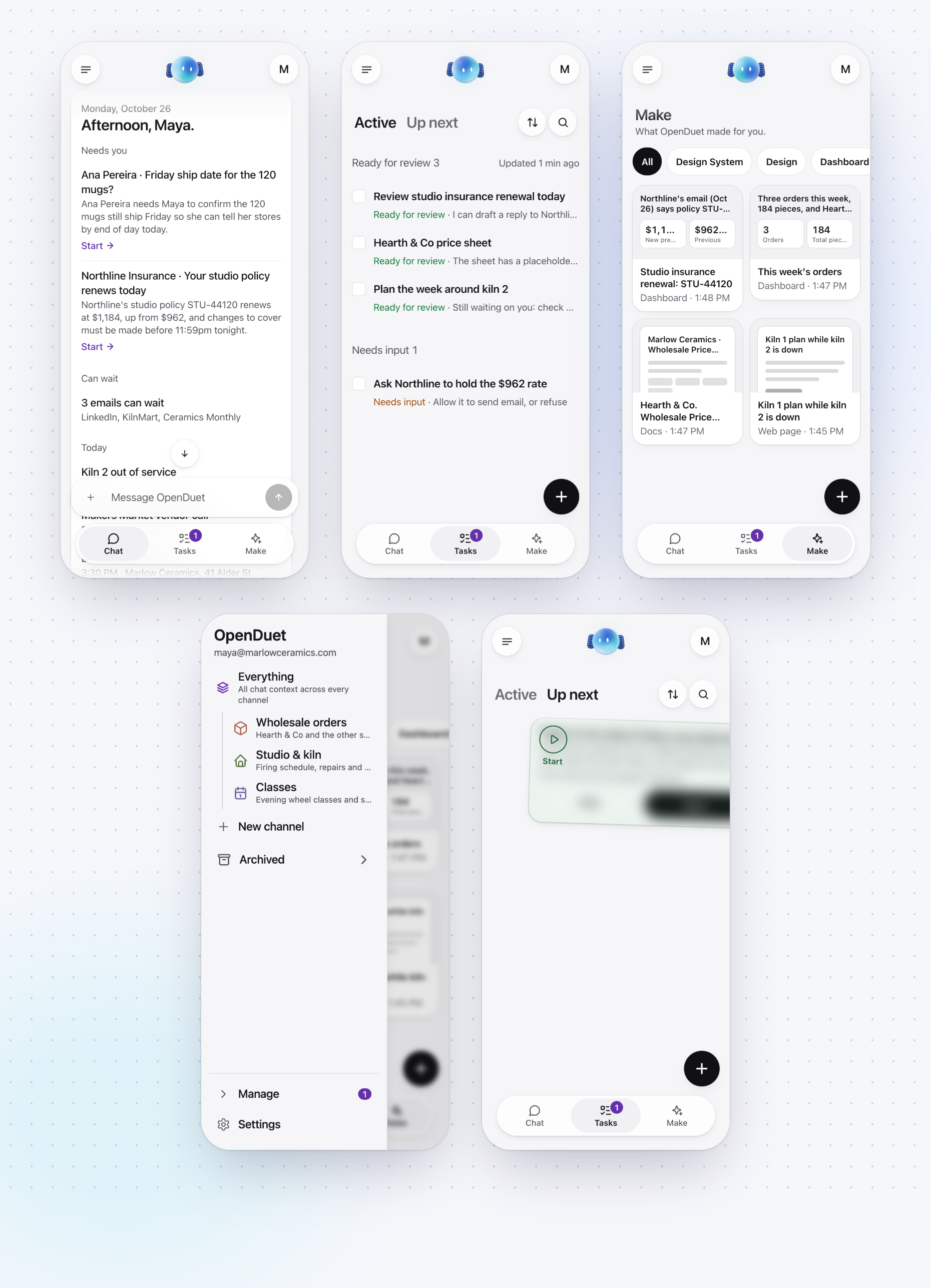
| Morning brief | The first time you open Chat each day after your first, it is already there: what needs you and why, what can wait, today's calendar, and anything it could not check, posted once a day however many tabs or devices you open. You can also ask for it any time. Start on a row that needs you hands that email to OpenDuet. |
| Tasks | One tab for what needs you, answered right there, what OpenDuet suggests from its background research, and what it is working on. Its newest suggestion also waits above Chat's composer, with Start and Hide. A suggestion you start stays in view: under Working while OpenDuet works, then Ready for review or Needs input with OpenDuet's next step, opening at its own message. Answer it in Chat, on its card or by deciding its approval, and it goes back to Working until OpenDuet replies. A run that fails says why, with Try again where running it again can help. Check one off and it folds into Resolved. |
| Setup checklist | Onboarding asks you to connect Gmail and Calendar and to turn on notifications, each with Not now, then ends on a list of what OpenDuet depends on: Intelligence, the model key, Google, your Gmail and Calendar, notifications, and the optional extras. Each is Ready, Not checked or Needs setup, from the real answer, with how to fix it. Check again asks Intelligence and the model provider again. Settings → Setup opens it again. |
| Gets to know you | On your first day it speaks first: it greets you, reads your recent mail and this week's calendar, then answers in three short bubbles (who you are, three ways it can help, and an invitation to correct it), with Sounds right and Something's off to tap. With Gmail and Calendar not connected, it promises no mail: it says what it can do now and shows the card to connect them. |
| Make | Ask for a design system, a design, a dashboard, slides, a doc or a web page, or pick one from the + on the Make tab, and OpenDuet makes it. A card in Chat opens it, and Make keeps everything it made as thumbnails you can filter by kind. |
| Channels | Make a channel for a piece of work: a name, an icon in a colour, and what it is for. OpenDuet says hello there and offers three things it could start on, keeps the work there about that purpose, and the tasks it starts there wear the channel's colour. Everything stays your one thread, and the menu lists your channels with Archived folded under them. |
| Answers in a tap | When it asks you to choose, the likely answers appear as replies you can tap. |
| Light or dark | Follows your phone's setting, changing with it, or pick Light or Dark in Settings. |
| Say it instead | Tap the voice button in Chat and say everything you need to do. It is written down and sent as your message. Needs a speech-to-text provider on the server (TRANSCRIPTION_*). |
Quick start
You will need Docker, Bun 1.3 or newer, Node (for npx, which runs the CopilotKit CLI), a model key, and a CopilotKit Intelligence project. Intelligence is required: it keeps OpenDuet's threads and memory, and the server will not start without its key. The free Developer plan is enough.
Run every command in this section from the repository root.
git clone https://github.com/CopilotKit/OpenDuet.git
cd OpenDuet
cp .env.example .env
bun install
Sign in and pick an Intelligence project:
npx --yes copilotkit@latest login
npx --yes copilotkit@latest project select
bun openbot/scripts/setup-learning.ts
project select writes the project's key to .env as CPK_INTELLIGENCE_API_KEY, its telemetry ID as CPK_TELEMETRY_ID, and your choice to .copilotkit/project.json. The server reads INTELLIGENCE_API_KEY, not CPK_INTELLIGENCE_API_KEY, so the last command finishes the job. It makes sure the project has an openbot Learning container, creating one if it does not (see Automatic Learning), then copies the key to INTELLIGENCE_API_KEY and sets CPK_INTELLIGENCE_LEARNING_CONTAINER_ID=openbot. It reads .env and .copilotkit/ from the directory it runs in, which is why it runs here and not from openbot/. If .env already has an INTELLIGENCE_API_KEY, it keeps it and only checks that the container exists.
Put your model key in .env. The OpenDuet Bot runs OpenAI's gpt-5.6-terra, set in openbot/examples/openduet/model.yaml, so by default that is:
OPENAI_API_KEY=sk-...
To use another provider or model:
- Another OpenAI model. Change
default_modelinopenbot/examples/openduet/model.yaml, or in your copy of it (see Make it your own).BOT_MODELdoes not change an OpenAI model on its own. It is used only whenOPENAI_BASE_URLis also set to an OpenAI-compatible endpoint, and then it names the model that endpoint serves. - Anthropic. Set
BOT_PROVIDER=anthropicandANTHROPIC_API_KEY=.... The model isBOT_MODELif you set one, such asBOT_MODEL=claude-sonnet-5-5, andclaude-sonnet-4-5if you do not.
Set these before you start it. Settings → Setup in the app says whether the model key works.
Then start it:
bash scripts/start.sh
and open http://localhost:3010
Questions
What is OpenDuet?
CopilotKit/OpenDuet is a public repo on GitHub by CopilotKit. An Open Source template for a proactive AI agent that gets your work done and keeps you in the loop.
Is OpenDuet open source?
It declares the MIT license on GitHub.
Does OpenDuet run on macOS, Windows or Linux?
Its maker tagged it for macOS, Windows and Linux, or as Docker or cross-platform. That is declared by the maker; Take My Repo has not tested it.
How do I install OpenDuet?
Open "Take it" on its page: Take My Repo writes an install plan for your machine and hands it to your AI agent (Claude Code, Codex or Cursor), which asks you before each step. Take My Repo has not tested it on any machine.