English | 한국어

AsterCache
A Windows desktop utility that aims to shorten load times of games installed on an HDD
Read before use. AsterCache physically moves file data, so back up drives that hold important data before using it. Validation covers one SMR drive (WD20EZAZ) and one real game (Frostpunk); CMR drives have not been tested. Anti-cheat games have only usage records from one PC and no controlled validation (Anti-cheat compatibility).
What it does
AsterCache is meant to shorten the loading of games installed on a hard disk (HDD). It watches what a game reads while it loads, puts those pieces side by side in one place on the disk, and loads them into RAM before you start the game.
- It does not change your game files, and does not copy them to another drive (the optional SSD assist storage, off by default, is the one exception).
- After installing, there is nothing you have to do. It works in the background.
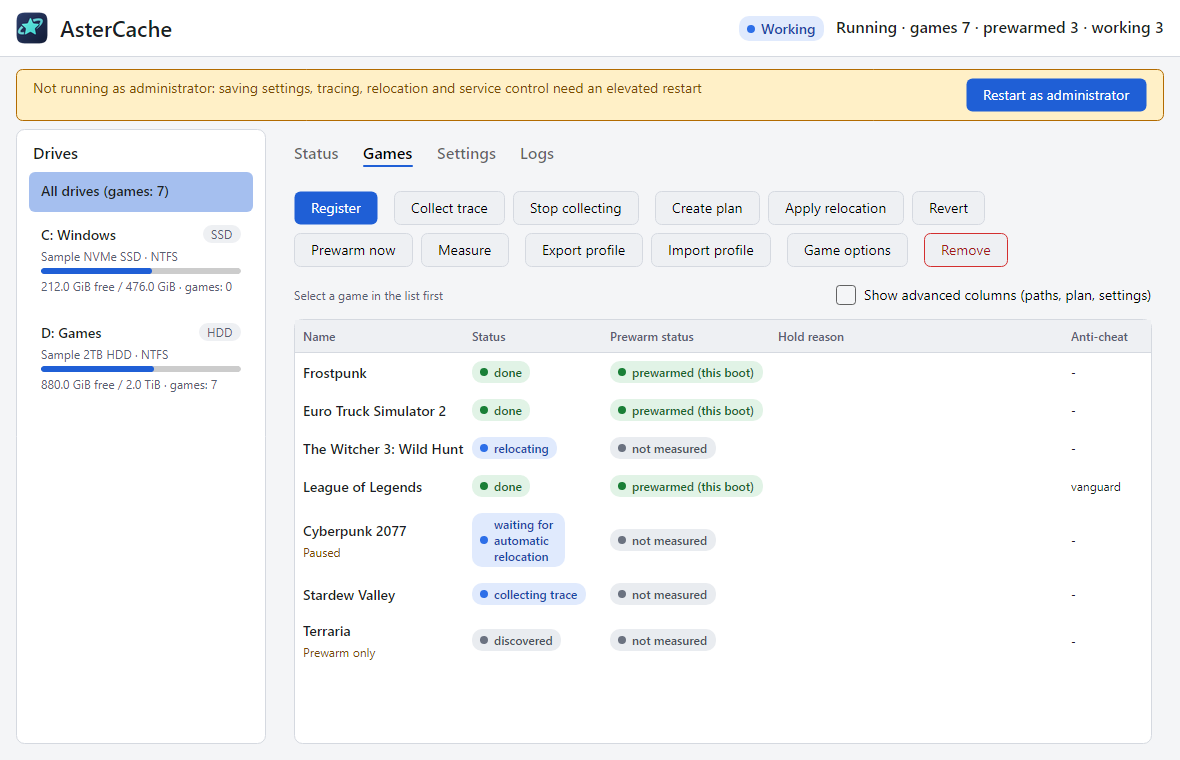
- The tray window shows a summary of each game's last play. It is disk read statistics, not a load-time or frame measurement. A diagnostics ZIP can be exported for support; it stays on your PC.
- While a game runs, the play record also keeps the frame interval (stutter). It opens no game process: an ordinary ETW session receives only the
Microsoft-Windows-DXGI Present start event and the service totals it per second; play.series also writes one line per second (frame values, CPU, memory, graphics memory, disk) to a file per play. The session is not opened for a game whose anti-cheat blocks automatic tracing, and play.frame_times turns it off. Only DirectX games can be measured, and its behavior in a real game and next to anti-cheat has not been checked. See the anti-cheat page.
- The measured figures in this document are replay times of recorded read patterns, not total load times of a running game.
Who it is for
A good fit
- Games installed on an HDD (NTFS) that you launch again and again, on Windows 11 x64.
- A PC with spare RAM. Validation used 32 GiB; prewarm leaves 4 GiB (4,096 MiB) free by default.
Not a good fit, or no gain
- Games on an SSD are skipped. A game on an HDD that is also the Windows system drive is only prewarmed, not relocated.
- The first real play of a game is mostly recorded. The full effect is expected from the second launch; before that, a prewarm without a record, or the game's Windows prefetch record used in place of a trace, may help, but no effect on real loading time has been measured.
- Reads that were not recorded (another level or mode, texture streaming during play) are not helped.
- Games with anti-cheat: no guarantee is made about account sanctions. Read Anti-cheat compatibility first.
Getting started
1. Install
Requirements: Windows 11 x64 and an NTFS game drive. Installing the service, tracing, and relocation need administrator rights.
- Open GitHub Releases and download
AsterCache-v<version>-win-x64-setup.exe (the latest release).
- Run it and choose a language (English or 한국어).
- Keep the default choices (desktop and Start menu shortcuts, start with Windows, install the service) and click Next until it finishes.
Prefer no installer? The same release has a zip, AsterCache-<version>-win-x64.zip. Extract it, run AsterCache.Tray.exe as administrator, and install and start the service from the Settings tab.
Running a newer installer upgrades the existing installation. Uninstalling reverts any SSD assist links first, then removes the program and the service, but keeps the data folder %ProgramData%\AsterCache. The installer is not code-signed, so Windows SmartScreen may show a warning. Building from source: docs/DEVELOPMENT.md.
2. Use it: there is nothing to press
Automatic mode is on by default. Play as usual:
| When |
What AsterCache does |
| Right after install, then every hour |
Finds HDD games in your Steam, Epic, GOG, Ubisoft, and Riot libraries and the Windows uninstall list, and registers them. |
| First play of a registered game |
Records what the game reads. This run is mainly for recording. |
| After you quit the game and the drive is idle |
Moves the recorded pieces into one zone, a contiguous area of the disk (about 5 minutes per 2 GB), one game at a time, then prewarms that zone. Starting a game pauses the move. |
| Every PC start and launcher open |
Prewarms the zone into RAM, within a RAM budget. |
| From the second launch |
The full effect is expected (the effect on real loading time has not been measured). |
Before a first run, a small game's whole folder (or a large game's engine profile) is prewarmed without a record; the effect of that prewarm has not been measured.
To watch progress, double-click the tray icon and open the Status tab. To turn automatic mode off, put a game back, or run each step by hand, see docs/USAGE.md. Questions and troubleshooting: docs/FAQ.md.
3. Updates
The tray checks the official releases 5 minutes after it starts and then every 24 hours. By default (update.mode = auto) it downloads a newer installer, verifies its SHA-256, and installs it silently, but only when the tray runs with administrator rights from an installed copy, no registered game is running, and no relocation is in progress. Otherwise it only notifies you, or opens the release page. You can choose Install automatically, Notify only, or Off in the Settings tab's Updates section; prereleases are not included unless you turn that on. Program updates are handled by the tray; the service itself uses the network only to download the shared profile over HTTPS (about once a week, while automatic mode and auto.shared_profiles are on). The silent installation has not yet been confirmed on a real machine. See docs/FAQ.md.
How it works
A hard disk reads by moving a head to each location. A game that loads a level reads thousands of pieces spread all over the disk, so the head spends most of its time moving instead of reading. Reading the same data from one contiguous area, in the order it is needed, needs far less head movement and is faster. AsterCache builds that area. On the test drive, scattered reads ran at about 39 MiB/s and one continuous read at 90~110 MB/s (docs/RESULTS_SUMMARY.md); other drives will differ.
- Discover. The background service finds HDD games from launcher libraries and by detecting game starts.
- Record. On the first play, Windows event tracing (ETW) writes down which parts of which files the game reads, in what order. The game process is never touched.
- Relocate. When the game is off and the drive is idle, the pieces are moved side by side into one zone of the disk, in read order, with the official NTFS move function (the one disk defragmenters use). File contents stay the same, and every step is journaled so it can be reverted.
- Prewarm. At PC start or when the launcher opens, the zone is read into RAM (the file cache). The game then reads from RAM. If the prewarm was not done in time, the zone is read in order the moment the game starts, which is expected to be faster than the scattered original (that was measured on replays of recorded reads, not on real loading).
- Keep up. The service re-prewarms if the cache went cold and restores the layout if it drifted (for example after a game update). It also touches the prewarmed cache again in memory, and while a game runs it holds the front of that cache as read-only mapped views in its own process, so those pages stay in the service's working set instead of on the standby list (SOLAR).
flowchart LR
    A["Run the game once"] --> B["Windows ETW records which parts of which files are read (the trace)"] --> C["Gather them in read order into one zone (NTFS move, journaled)"] --> D["At PC or launcher start, read the zone into RAM"] --> E["The game reads from RAM instead of the disk"]
ORBIT: prewarm order adjustment. For a game that has a recording, ORBIT calculates whether reading the prewarm in a different order, in segments of about 64 MiB, would help. Only the order changes, not the amount or the set of data read. The default mode is active; change it with aster orbit mode off|shadow|active. In the 2026-11-09 Call of Duty bench (one game, one drive, one session), the median value-weighted ready time fell 18.8%, but the worst-episode p95 (an episode is one load scenario, such as one map's loading) rose by 13.1 s, so it is too early to generalize. See docs/ORBIT.md.
SOLAR: keeping the cache and its eviction order. Prewarmed data is ordinary file cache. Windows reuses pages of the same priority in the order they entered its standby list, so the data a load needs first, which the prewarm reads first, would be the first to go. After a prewarm, SOLAR touches the cache the game has again, in the reverse of the read order and without reading the disk, so that the most important data is the last to be pushed out. It touches it again when Windows' standby-list statistics show that the pages that would be reused before it are being used up. If its time cap would hold that back while no game is running and a game's cache is close to being pushed out, it touches that game under a second, higher cap. If it finds a part missing, it leaves that to the next re-prewarm check. With several games, it touches the others first when one game is refreshed or when another game's prewarm is about to read, so that one game's reads do not push out another's cache, and it skips files with the sparse attribute. It is on by default (memory.standby_ladder) and does not run on a disk where a game is running, except for touching that game's own prewarmed cache at its start and while it runs. While the game runs, memory.keep_hold (on by default) also holds the front of that cache, up to 5 GiB, as read-only mapped views in the service process, so that Windows does not reuse those pages; the pages are not locked and are released when the available memory falls under 2 GiB. Nothing is held for a game whose anti-cheat forbids tracing. The experiments on the test PC show that the order can be set; what it does for load time or stutter in a real game has not been measured. See docs/SOLAR.md.
What AsterCache does not do.
- It does not change the content of your game files (a SHA-256 check before and after each move).
- It does not touch the game process: no injection, no hooking, no driver.
- It does not copy the game to an SSD by default. The optional SSD assist storage (off by default) copies selected hot files only; see docs/AUTO_MODE.md.
- RAM is used only for prewarm and first-run read-ahead, within a budget (prewarm at most half of physical RAM, and only while free RAM stays above 4 GiB by default). Prewarmed data is ordinary file cache, which Windows can drop when programs need the memory.
Effects on your hard disk, and cautions
This is a summary. The full guide is docs/GAME_GUIDE.md.
- It writes to the game drive. Relocation physically moves data. One automatic round writes at most 1 GiB on an SMR drive and 2 GiB on other drives. Per day the limit is 2 GiB on SMR and 8 GiB otherwise (
auto.max_relocate_gib_per_day), and at most 4 relocations (auto.max_relocations_per_day). The first run of a relocation takes time; the gain shows in repeated loads.
- It works only when the PC is idle. The game must be off, the game drive under 4 MiB/s for 30 seconds, and the PC on AC power (or a battery at 50% or more). If a game starts during a move, only the fragment being moved is finished, then it stops and resumes later.
- It also reads. Prewarm reads the zone into RAM within the budget. A cache check reads 1 MiB from each of 8 places every 10 minutes. The reads that no game start, launcher, or service start asks for (the cache check, including the one check after a game exit, the supplement prewarm, the prewarm after a relocation, the automatic prewarm of a played game that has no play record) have a daily limit on each drive (
auto.idle_read_gib_per_day; the default is meant to cap an unusually heavy day, not ordinary reading). A small 4 KiB read every 10 minutes keeps the HDD from spinning down while a launcher is open or at the hours you usually play (auto.keep_awake