headroom
Compress tool outputs, logs, files, and RAG chunks before they reach the LLM. 20% fewer tokens for coding agents, 60-95% fewer tokens for JSON, same answers. Library, proxy, MCP server.
- 81k
- Python
- Apache-2.0
- 6 h ago
Make PS5 game dumps small and still playable: a PC app and command line that pack dumps into zstd packs or a single .p5z. The hub of the MaxPack family.
Repo DeLFuS77/maxpack, read from GitHub 11 min ago. DeLFuS77 has not joined Take My Repo.
DeLFuS77/maxpack is a public repo on GitHub by DeLFuS77. Make PS5 game dumps small and still playable: a PC app and command line that pack dumps into zstd packs or a single .p5z. The hub of the MaxPack family. It declares the GPL-3.0 license on GitHub. It is written mainly in C, has 2 stars and last changed on 2026-11-24. Nobody has reviewed it on Take My Repo yet, which says nothing about its quality. Read from GitHub on 2026-11-25.
Compress tool outputs, logs, files, and RAG chunks before they reach the LLM. 20% fewer tokens for coding agents, 60-95% fewer tokens for JSON, same answers. Library, proxy, MCP server.

Pack a PS5 game you own into one .p5z file, about half its size, and play it straight from that file on the console, without unpacking it.
Download · User guide · MaxPack for the console · Compatibility
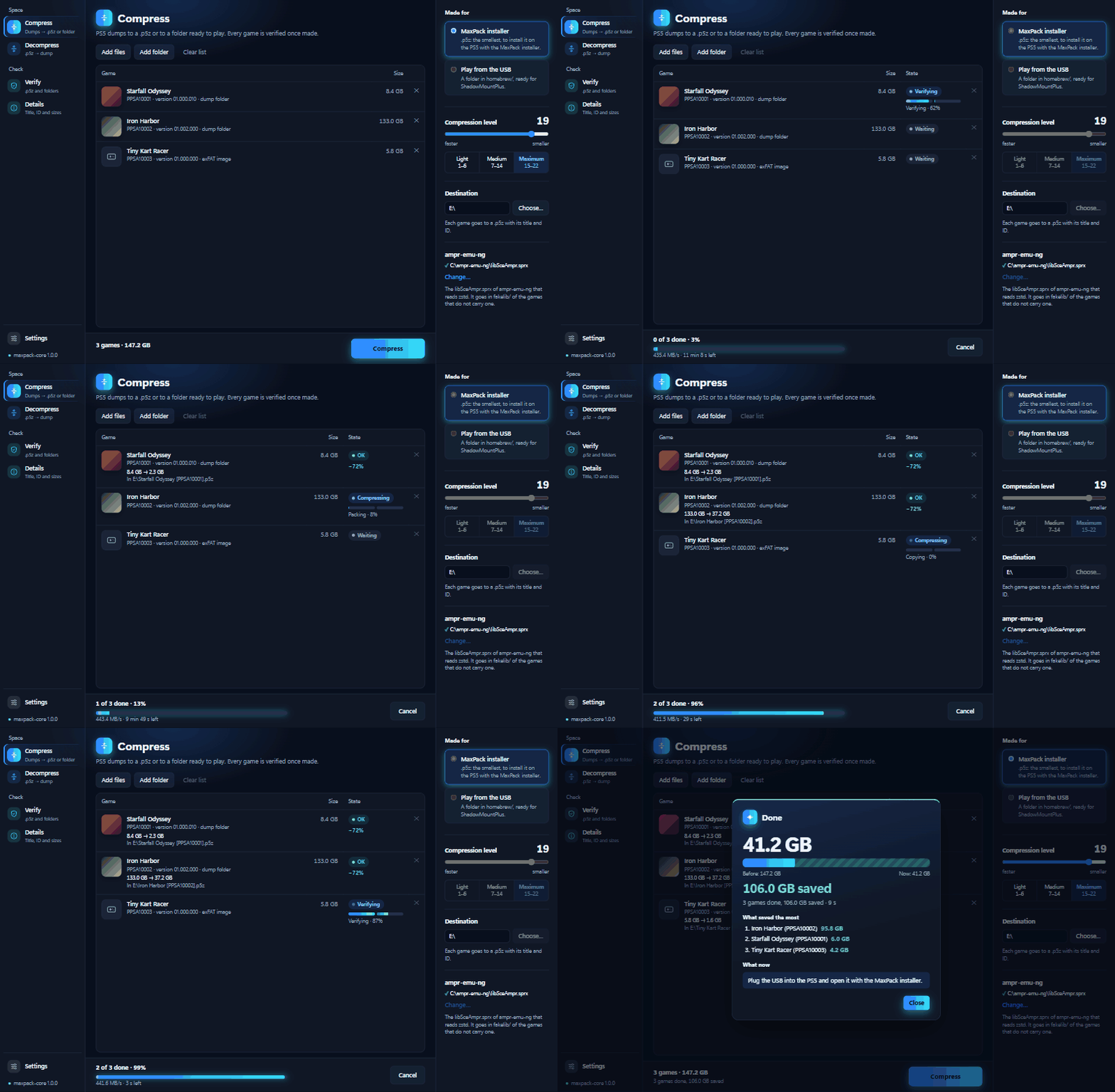
.p5z on firmware 13.60, from the
internal SSD and from an external M.2 SSD over USB-C (results)..p5z while you play..p5z holds the SHA-256 of every file: maxpack verify checked a
35.5 GB one in 70 s, and maxpack unpack --original gives the dump back bit for bit.[!NOTE] Status: first public release, help us test. MaxPack 1.0.0 is the first public release. It has been tested on one console (firmware 13.60) with a handful of games, so expect rough edges. Testing on other firmwares, games and drives is the most useful help right now: here is how.

❤️ Free and open source, and it will stay free. If it saves you time, a coffee helps keep it going.
MaxPack packs a PS5 game you own into zstd packs that the console reads while you play: the game
is never decompressed to full size, not on the PC and not on the PS5. You get one .p5z file per game
(or a folder ready to play), you can keep it on a USB drive and play it straight from there with
MaxPack for the console, and you can always turn it back
into the original dump, bit for bit.
This repository is the PC side and the hub of the project: the desktop app for Windows, macOS
and Linux, the maxpack command line, the complete user guide and the
.p5z format. New here? Start with the quick start below.
The goal was to make PS5 games take less space and still play them. It went like this:
maxpack analyze sorts every file of a dump into what the console must load as
a plain file (eboot.bin, modules, sce_sys/, fakelib/) and what can be packed, measures how well
a sample compresses at each zstd level, and finds duplicate blocks and files.libSceAmpr, serves the packs from inside the
game: they are never decompressed to disk..p5z holds the packs and the SHA-256 of every file, and is 40–70 %
smaller on the games tested..p5z
from its drive, and a new p5z mode in ampr-emu-ng reads the packs from inside the file.maxpack.elf for the console (see Download).<Title> [<TITLE_ID>].p5z..p5z to homebrew/ on the console's internal SSD (/data/homebrew, over FTP in
binary mode) or on an exFAT SSD that you plug into the PS5.maxpack.elf on the PS5: with kstuff loaded, send it to your ELF loader on port 9021.http://<PS5 IP>:8095 from the PS5 browser or your phone.Step by step, with every screen and the common problems: the guide. Using ShadowMountPlus or Kraken Mount instead? Choose Play from the USB in step 2 and follow way C of the guide.
A .p5z is one game in one file: compressed, checked and still playable. Compared with the usual ways
of keeping a dump:
| Dump folder | .exfat image |
.ffpkg image |
.p5z |
|
|---|---|---|---|---|
| Files per game | A folder, often thousands of files | One | One | One |
| Size | The dump's full size | The dump's full size | The dump's full size | 40–70 % smaller on the games tested |
| Checks its own contents | No | No | No | Yes: the SHA-256 of every file, checked by maxpack verify |
| Played on the PS5 with | MaxPack for the console, ShadowMountPlus or Kraken Mount | ShadowMountPlus | ShadowMountPlus | MaxPack for the console, straight from the file |
What a .p5z gives you:
maxpack verify checks them all.
A cut or damaged .p5z is detected as soon as it is opened.eboot.bin, modules, sce_sys/...) are
copied once to the console's cache on the internal SSD; the packs are read from the .p5z while you
play.maxpack unpack --folder turns it into a packed folder, and
maxpack unpack --original into the original dump, bit for bit, whenever you want.Keep in mind:
.p5z is played by MaxPack for the console, not by ShadowMountPlus or Kraken Mount. For them,
unpack it on the PC (--folder), or let the installer of MaxPack for the console turn it into a
packed folder on the console (it also works while ShadowMountPlus runs)..p5z over 4 GiB needs an exFAT drive or the internal SSD: FAT32 cannot hold it.flowchart LR
subgraph PC["On your PC"]
PACK["MaxPack packs the dump<br/>into one .p5z"]
end
subgraph PS5["On your PS5: maxpack.elf"]
SCAN["Scan<br/>finds the .p5z and checks it"]
CACHE["Cache<br/>copies only the loose files,<br/>once, to the internal SSD"]
REG["Register<br/>the game goes on<br/>the home screen"]
LAUNCH["Launch<br/>mounts the .p5z's folder<br/>read-only inside the game"]
PLAY["Play<br/>ampr-emu-ng in p5z mode reads<br/>the zstd volumes from the .p5z"]
SCAN --> CACHE --> REG --> LAUNCH --> PLAY
end
PACK -->|"internal SSD or exFAT SSD"| SCAN
.p5z raw, as they are; the loose files and the
indexes go in compressed frames, with the SHA-256 of every file (format).maxpack.elf finds the .p5z in homebrew/ of the internal SSD, an M.2 or a USB drive
(or in a USB drive's root), and checks it. A damaged one is listed apart, never as a game.eboot.bin, modules, sce_sys/, the indexes) are copied, once, to
/data/maxpack/caches/<TITLE_ID> on the internal SSD, which needs their size plus 256 MiB free. A
small maxpack.image next to them says where each volume sits inside the .p5z..p5z to another
drive, MaxPack recognises it and copies nothing again..p5z read-only inside the game, with
MaxPack's ampr-emu-ng in its fakelib/. It starts in p5z mode
(ampr-emu-ng: v0.5.1 (p5z) running), checks the .p5z, and reads the zstd volumes from inside it,
decompressing each 256 KiB block only when the game asks for it.24 November 2026, one PS5 on firmware 13.60, with MaxPack for the console. Each game was played straight
from its .p5z, without unpacking it:
Original → .p5z |
Smaller by | Volumes | Drive | Loose files in the cache | Result | |
|---|---|---|---|---|---|---|
| Game A | 7.8 → 2.3 GiB | 70 % | 1 | Internal SSD | 213 MB, ready in 3.4 s | Plays, saves and loads |
| Game B | 69.0 → 33.2 GiB | 51 % | 9 | External M.2 SSD over USB-C | 337 MB, ready in 6.4 s | Played without problems |
| Game C | 124.4 → 74.1 GiB | 40 % | 19 | The same M.2 SSD | Reaches the main menu and opens its saves, with only ampr-emu-ng in its fakelib/ (what Fakelib Off does) |
Sizes in GiB, as the console page shows them.
.p5z in 14.5 minutes at zstd 19 on a 32-thread
PC, and maxpack verify checked it in 70 s..p5z took about 2 ms each on average on the M.2 SSD. A launch reads about
1.5–2.5 GB in its first 20 s..p5z: the game never got past its first
screen. Use the internal SSD, or an SSD on a 10 Gbps USB port.fakelib/ was set by hand to
hold only ampr-emu-ng, which is what the per-game
Fakelib setting Off, new in 1.0.0,
does for you.Every game tried, with firmware, mounter and result, goes into the compatibility list. Tried one? On the console page, open the game's sheet, press Copy report (it has the row ready) and paste it in a Game report, whether it worked or not.
DeLFuS77/maxpack is a public repo on GitHub by DeLFuS77. Make PS5 game dumps small and still playable: a PC app and command line that pack dumps into zstd packs or a single .p5z. The hub of the MaxPack family.
It declares the GPL-3.0 license on GitHub.
Its maker has not tagged a system, so it is unknown here. Its README says what it needs.
Open "Take it" on its page: Take My Repo writes an install plan for your machine and hands it to your AI agent (Claude Code, Codex or Cursor), which asks you before each step. Take My Repo has not tested it on any machine.
A desktop GUI application for downloading local backups of your GOG.com game library
DeepSpeed is a deep learning optimization library that makes distributed training and inference easy, efficient, and effective.
Its last change on GitHub was on 2026-11-24. Take My Repo does not judge from that whether it is maintained.
Nobody has reviewed it on Take My Repo yet, which says nothing about its quality.
Take My Repo cannot say: it does not audit code and has not run maxpack. What is known comes from GitHub. It declares the GPL-3.0 license on GitHub. Its last change was on 2026-11-24. It has 2 stars, which measure popularity, not safety. Nobody has reviewed it on Take My Repo yet, which says nothing about its quality. Read the source before you run it. With "Take it", your AI agent shows each step and asks you before running it; README text is treated as data, not as instructions.