Mole
🐹 Open-source Mac and PC cleaner. Keep your machine clean, light, and running like new. Fast CLI, plus native Mac and Windows apps.
- 76k
- Shell
- GPL-3.0
- 6 h ago
This free RAM cleaner uses native Windows features to optimize memory areas. It's a compact, portable, and smart application.
Repo IgorMundstein/WinMemoryCleaner, read from GitHub 8 h ago. IgorMundstein has not joined Take My Repo.
IgorMundstein/WinMemoryCleaner is a public repo on GitHub by IgorMundstein. This free RAM cleaner uses native Windows features to optimize memory areas. It's a compact, portable, and smart application. It declares the GPL-3.0 license on GitHub. It is written mainly in C#, has 5,422 stars and last changed on 2025-12-19. Nobody has reviewed it on Take My Repo yet, which says nothing about its quality. Read from GitHub on 2026-11-23.
🐹 Open-source Mac and PC cleaner. Keep your machine clean, light, and running like new. Fast CLI, plus native Mac and Windows apps.
Memos is an open-source, self-hosted note-taking app that brings your everyday thoughts together in a personal timeline. Your data stays yours, and you choose what to keep private or share.
WMC is a free RAM cleaner that effectively optimizes memory areas by utilizing the native Windows API. This can help improve performance when programs do not properly release allocated memory. Featuring a user-friendly interface and intelligent functionality, this portable application requires no installation; however, it does need administrator privileges to run.
choco install winmemorycleaner
scoop bucket add extras
scoop install extras/winmemorycleaner
winget install IgorMundstein.WinMemoryCleaner
| Feature | Description |
|---|---|
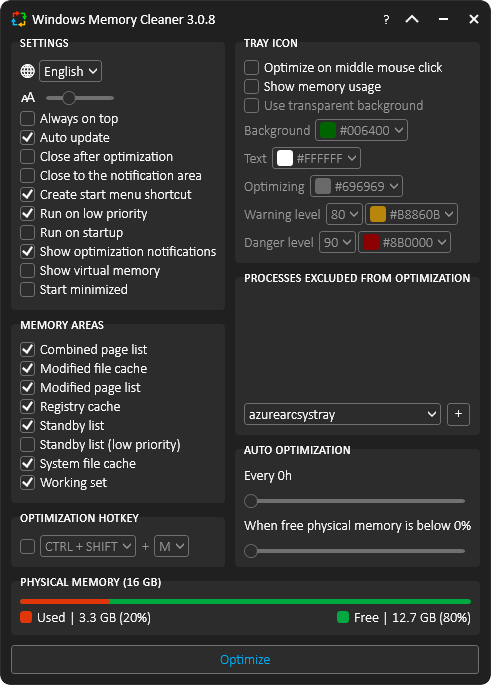
| Always on Top | Pins the main application window so it is always visible above other windows. |
| Auto Optimization | Set the app to clean memory automatically, either by period (Every X hours) or when free physical RAM drops below a specified threshold (When free physical memory is below X percent). |
| Auto Update | Automatically checks for new versions every 24 hours to keep the application up to date. |
| Close after Optimization | The application will automatically close after a memory optimization is completed. |
| Close to Notification Area | Minimizes the app to the system tray instead of closing when the 'X' button is clicked. |
| Compact Mode | Collapse the main window into a minimal view for at-a-glance monitoring. |
| Font Size Adjustment | Customize the font size for different screen sizes and resolutions. |
| Global Hotkey | Trigger an optimization instantly from anywhere with a customizable hotkey (default CTRL+SHIFT+M). |
| Hotkey Toggle | Enable or disable the global optimization hotkey independently. |
| Multi-Language Support | Albanian, Arabic, Bulgarian, Chinese (Simplified), Chinese (Traditional), Dutch, English, French, German, Greek, Hebrew, Hungarian, Indonesian, Irish, Italian, Japanese, Korean, Macedonian, Norwegian, Persian, Polish, Portuguese (Brazil), Portuguese (Portugal), Russian, Serbian, Slovenian, Spanish, Thai, Turkish, and Ukrainian. |
| Process Exclusion List | Build a list of processes to ignore during memory optimization, protecting critical applications. |
| Run on Low Priority | Limits the app's resource usage by reducing its process priority. This may increase optimization time but can prevent system freezes. |
| Run on Startup | Automatically starts the application when Windows boots by creating a task in the Windows Task Scheduler. |
| Show Optimization Notifications | Display system tray notifications after each optimization, showing the reason and amount of memory freed. |
| Show Virtual Memory | Displays virtual memory (page file) usage in the main window and system tray text. |
| Start Menu Shortcut | Automatically creates a Start Menu shortcut for quick access to the application. |
| Start Minimized | The application will start minimized directly to the system tray. A single-click on the tray icon restores it. |
| Tray Icon Customization | Customize tray icon colors (background, text, warning, danger, optimizing), display memory usage, set threshold levels, and enable middle-click optimization. |
The Compact Mode feature allows you to collapse the main window into a minimal view for at-a-glance monitoring. By clicking the arrow next to the minimize button, the UI shrinks to show only the most essential memory statistics and controls. This mode is ideal for users who want to keep an eye on their system’s memory usage without occupying much screen space. Toggle Compact Mode on or off at any time to suit your workflow.
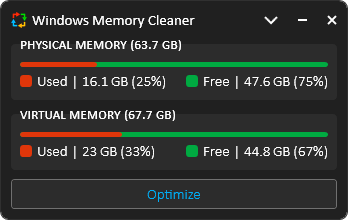
The application provides quick access and information directly from the system tray.
Menu: A right-click menu offers quick access to trigger an optimization or exit the application.
Notification: After an optimization, a notification appears showing the reason and the approximate amount of memory that was freed.
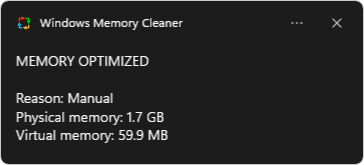
Tray Icon Customization: The tray icon can be configured to:
WinMemoryCleaner provides a user-friendly interface for powerful, documented Windows API functions. There are no tricks or secrets—just direct access to the tools needed to manage your system's memory effectively. Each cleaning function targets a specific memory area, and its availability depends on your Windows version.
Here’s a breakdown of what each function does and the minimum supported Windows version required to use it:
| Memory Area | Description | Windows | Server |
|---|---|---|---|
| Combined Page List | Flushes memory blocks from the page-combining list, a memory-saving feature in modern Windows that merges identical pages of memory. | 8+ | 2012+ |
| Modified File Cache | Flushes the volume file cache to disk for all fixed drives, ensuring all pending writes are committed. | XP+ | 2003+ |
| Modified Page List | Writes unsaved pages from RAM to disk and moves the now-saved pages to the standby list. | Vista+ | 2008+ |
| Registry Cache | Flushes registry hives from memory. Hives are logical groups of keys and values that are loaded into memory when the OS starts or a user logs in. | 8.1+ | 2012+ |
| Standby List | Clears the entire Standby List, which contains cached data from closed applications. This aggressive method frees the maximum amount of cached RAM for demanding tasks. | Vista+ | 2008+ |
| Standby List (low priority) | Clears only the lowest-priority pages from the Standby List. This gentle method frees some cached RAM without removing data that Windows considers more important. | Vista+ | 2008+ |
| System File Cache | Flushes the cache Windows uses for its system files, trimming it to release memory. Useful for refreshing the system’s state before launching a memory-intensive application. | XP+ | 2003+ |
| Working Set | Removes memory from all user-mode and system working sets, forcing processes (like games or browsers that hoard memory) to release non-essential RAM. This can reduce stutter and improve responsiveness. | XP+ | 2003+ |
Modern operating systems are good at managing memory, but they aren't perfect. Over time, RAM can become cluttered with cached data from closed applications (Standby List) or held unnecessarily by running processes (Working Set). This leads to system slowdowns, stuttering in applications, and reduced responsiveness, especially on systems with limited RAM.
The market for PC utilities is plagued by "RAM boosters" that use deceptive tricks and offer no real, verifiable benefits, creating deep-seated skepticism among users.
WinMemoryCleaner is the antidote to "snake oil" utilities. It does not use undocumented hacks or harmful tricks. Instead, it provides a clean, user-friendly interface to powerful, native Windows API functions that give you direct control over your system's memory. It is a tool built on transparency, proof, and respect for the user.
Don't take our word for it. You can verify the effects of this tool using Windows' own Resource Monitor.
resmon.exe in the Start Menu).Standby List and click Optimize.This is a direct, verifiable demonstration that the application converts cached memory into truly free memory, ready for your next task.
We understand that users are rightfully skeptical of system utilities. This project is built on a foundation of verifiable trust and transparency.
Every official release of WinMemoryCleaner is built, signed, and published automatically by a CI/CD pipeline using GitHub Actions. The entire process is defined in the public release.yml workflow file in this repository. This ensures that the distributed executables are compiled directly from the source code hosted on GitHub, eliminating the potential for manual error or intervention.
Since version 3.0.0, we have been digitally signing our files through SignPath.io using a free certificate provided under the SignPath Terms of Use. The project received the certificate in recognition of its popularity and public value in the open-source community. This process ensures that we distribute authentic files that have not been tampered with.
A digital signature proves two things:
You can verify the signature by right-clicking the .exe -> Properties -> Digital Signatures
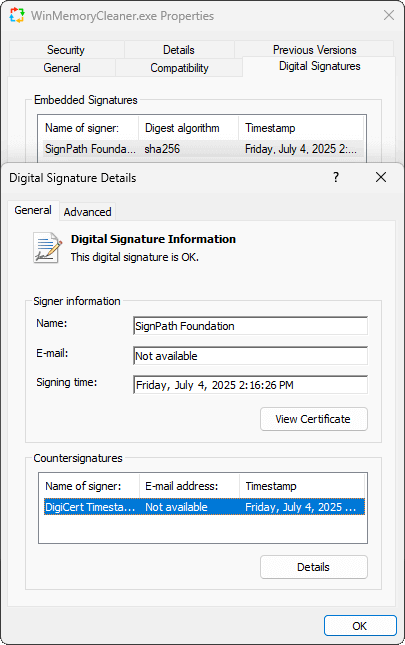
Even with a valid digital signature, Microsoft Defender SmartScreen may initially flag a new release with a "Windows protected your PC" warning.
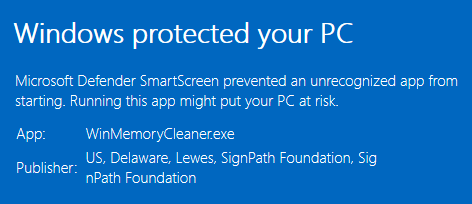
This happens because the application is new and has not yet built a strong reputation with Microsoft. This is a standard, reputation-based security measure. By running the app, you help it build a positive reputation, which will cause this warning to disappear more quickly for other users. We appreciate your trust and understanding.
Each new version is automatically submitted for analysis to leading security platforms, including VirusTotal and Hybrid Analysis, to ensure it is free from threats.
You must run these headless operations with administrator privileges.
Run optimizations silently for scripting and automation. Use any combination of the following arguments:
/CombinedPageList/ModifiedFileCache/ModifiedPageList/RegistryCache/StandbyList or /StandbyListLowPriority/SystemFileCache/WorkingSet> Command-line example:
{path}\WinMemoryCleaner.exe /ModifiedFileCache /StandbyList /WorkingSet
IgorMundstein/WinMemoryCleaner is a public repo on GitHub by IgorMundstein. This free RAM cleaner uses native Windows features to optimize memory areas. It's a compact, portable, and smart application.
It declares the GPL-3.0 license on GitHub.
Its maker tagged it for Windows. That is declared by the maker; Take My Repo has not tested it.
Graphs that teach > graphs that impress. Turn any code into an interactive knowledge graph you can explore, search, and ask questions about. Works with Claude Code, Codex, Cursor, Copilot, Gemini CLI, and more.
Interoperable by design. Governed by you. Open-source, secure platform for messaging, voice, video and governed AI, built for defense and government.
Open "Take it" on its page: Take My Repo writes an install plan for your machine and hands it to your AI agent (Claude Code, Codex or Cursor), which asks you before each step. Take My Repo has not tested it on any machine.
Its last change on GitHub was on 2025-12-19. GitHub counts 41 open issues and pull requests. Take My Repo does not judge from that whether it is maintained.
Nobody has reviewed it on Take My Repo yet, which says nothing about its quality.
Take My Repo cannot say: it does not audit code and has not run WinMemoryCleaner. What is known comes from GitHub. It declares the GPL-3.0 license on GitHub. Its last change was on 2025-12-19. It has 5,422 stars, which measure popularity, not safety. Nobody has reviewed it on Take My Repo yet, which says nothing about its quality. Read the source before you run it. With "Take it", your AI agent shows each step and asks you before running it; README text is treated as data, not as instructions.