
is-Engine
C++, SDL 2 and SFML game engine that allows to create games on Nintendo Switch, Web (HTML 5), Mobile and PC.
- 236
- Zlib
- 2 mo ago
Repo Is-Daouda/is-Engine, read from GitHub 2 h ago. Is-Daouda has not joined Take My Repo.
In short
Is-Daouda/is-Engine is a public repo on GitHub by Is-Daouda. C++, SDL 2 and SFML game engine that allows to create games on Nintendo Switch, Web (HTML 5), Mobile and PC. It declares the Zlib license on GitHub. It is written mainly in C, has 236 stars and last changed on 2026-09-14. Nobody has reviewed it on Take My Repo yet, which says nothing about its quality. Read from GitHub on 2026-11-24.
Similar repos
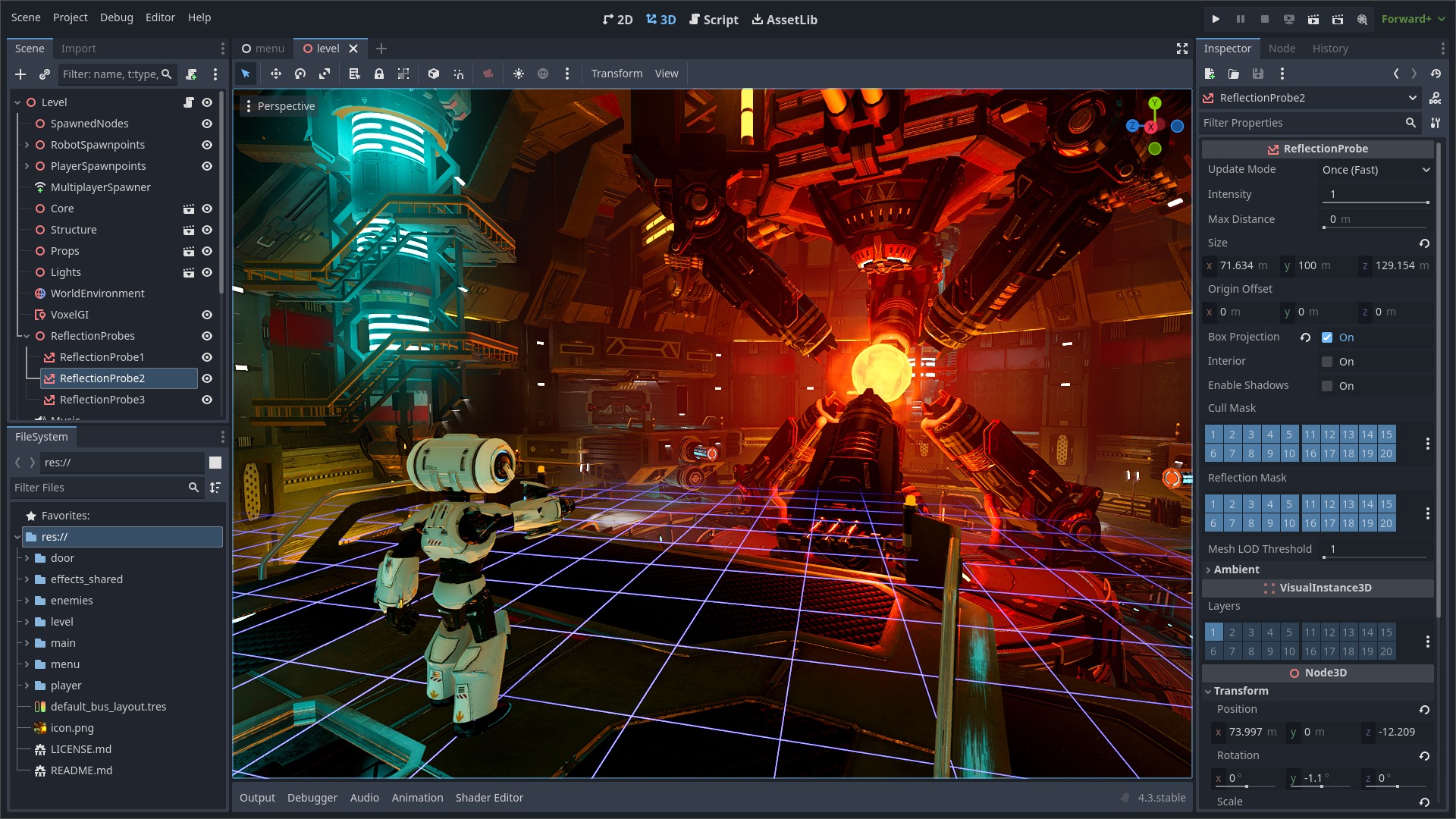
godot
Godot Engine – Multi-platform 2D and 3D game engine

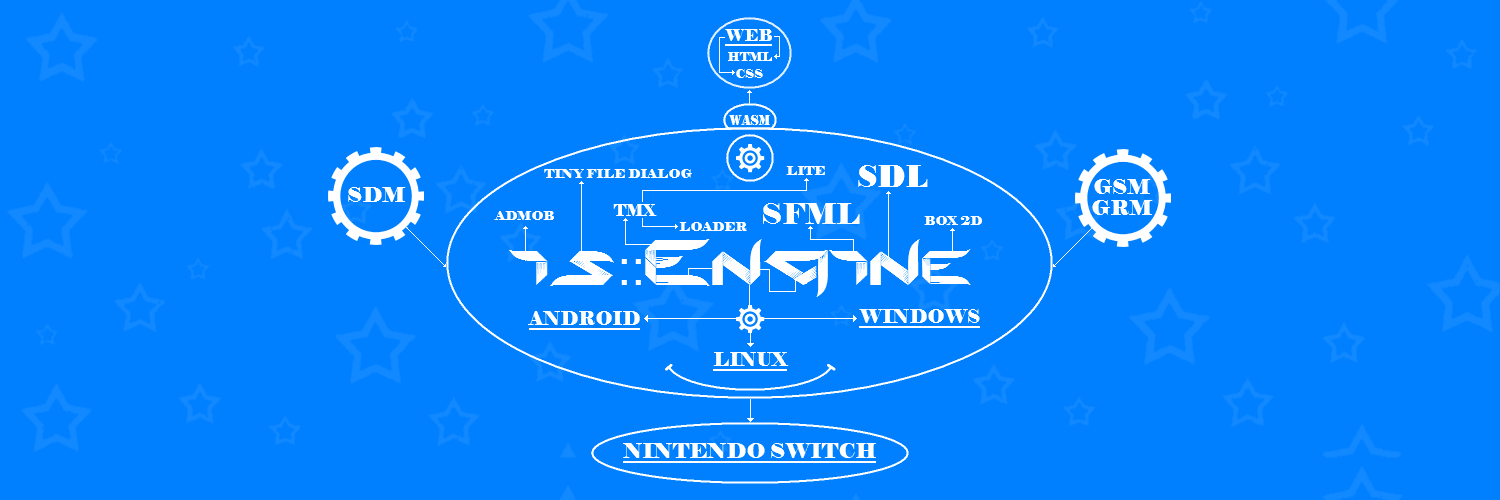
is::Engine (Infinity Solutions::Engine) 4.0.3
Open source C++ framework which uses the mechanisms of SFML 2 and which also allows to develop with several libraries at the same time (SDL 2, Emscripten) in order to easily export your games / applications on the Nintendo Switch, Web (HTML 5), Mobile and PC (Windows, Linux, macOS).
Contents
- Features
- What's new in this version
- Extras
- Game Engine User Guide and Youtube Tutorial
- Example of a project created with the engine
- Hello Scene Example
- Prerequisites
- How to use is::Engine with the different development tools
- Description of the project structure
- How to update an is::Engine project
- Special things to know about the engine
- How to activate the use of Admob
- Contribute







Features
- Run SFML game / application on SDL 2 (Like an Emulator)
- Language manager (English and French language support by default)
- Scene System
- Automatic management of a window
- Multi support for development tools (Nintendo-Switch, Android Studio, Qt, CMake, Emscripten, Visual Studio Code, Code::Block, Visual Studio
- is::LibConnect
- Web Push Notification
- SDM (Step and Draw Manager)
- GSM (Game Sound Manager)
- GRM (Graphics Resources Manager)
- CFF (CMake Files Fusion)
- TMX Lite
- TMX Loader (Old version)
- Entity system
- Object Event System
- Button System
- Background System
- Game Slider
- Sprite Animation
- Basic collision engine
- 2D physic engine (Box 2D)
- Message Box System (Modifiable appearance via Sprites and Font)
- Dialog Box System (as for RPG games)
- [Windows, Linux] Tiny File Dialogs to manage the dialog boxes of type: Message, File Save, Load File, Folder Selection
- Game Configuration System (sound, music, language, keyboard key, file path, ...)
- Game Save System
- [Android] Virtual Game Pad with 6 keys (multi directional cross and A - B button)
- [Android] Virtual Game Pad Configuration (Adjust Position, transparency, ...)
- [Android] Show Ad Banner
- [Android] Show Reward Video
What's new in this version
- Support for sf::RenderTexture in SDL 2
- Improved SFML simulator system with SDL 2
- Bug fixes
4.0.2
4.0.1
- Nintendo Switch Support
- The Demo and tutorials are compatible with the Nintendo Switch.
- Visual Studio 2022 can be used with all projects.
- Vertex Arrays support (Simulation with SDL 2).
When you want to use a texture with vertices, you must set the optional parameter useWithVertices to true in the loadFromFile() function, which is necessary when using SFML with SDL2.
    sf::Texture texture;
    texture.loadFromFile("image.png", true);
Extras
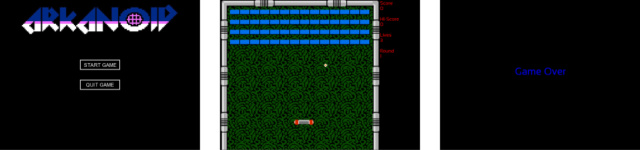
- Here is a Web Game : Arkanoid created thanks to the game engine tutorial.
It's a Web Game so it's playable on PC and mobile.
- The engine comes with a Demo (2D Platform Game) that uses only the functions of the engine, in order to show you its power and how to use it. Now imagine what you can do when you use Box 2D and the other tools!

- Example Pack that show how to use the various features of the game engine.
Game Engine User Guide and Youtube Tutorial
- English version
- French version
- Youtube tutorial : How to import an SFML project into is::Engine
- Youtube tutorial : How to create a game (Arkanoid) with the game engine
Example of a project created with the engine
Hello Scene Example
Here is an example code of a Scene (the place where the game objects come to life). In less than 50 lines of code, the engine allows to:
- Change the language of the game (English / French)
- Display an RPG type message with interaction
- Animate an object with the possibility of interacting with it (by clicking / touching it)
- Load resources (Textures, Music)
- Play music
- Display a background that scrolls vertically and horizontally with a speed
- Manages the display depth of each object
- Automatically manages the game window (closing confirmation, events, ...)
- Change the background color of the window (scene color)
class HelloScene : public is::GameDisplay {
public:
    HelloScene(is::GameSystemExtended &gameSysExt):
        GameDisplay(gameSysExt, sf::Color::White /* => scene color*/) {}

    void loadResources() {
        m_gameSysExt.m_gameLanguage = is::lang::ENGLISH; // set default game language

        // uncomment to change English language in French
        // m_gameSysExt.m_gameLanguage = is::lang::FRANCAIS;

        // load font and texture
        GameDisplay::loadParentResources(); // allows to load system resource (very important never forgot to call him)
        GRMaddTexture("hello_world", is::GameConfig::SPRITES_DIR + "hello_world.png");
        auto &texBg = GRMaddTexture("background", is::GameConfig::TILES_DIR + "background.png");
        auto &texDialog = GRMaddTexture("dialog_box", is::GameConfig::GUI_DIR + "dialog_box.png");

        // add a background to the position x = 0, y = 0 which will fill the scene and which will be scrolled (scrolling speed = 0.5)
        SDMaddSceneObject(std::make_shared<is::Background>(texBg, 0.f, 0.f, this, 0.5f, -0.5f, false, false));

        // add an object at position x = 0, y = 0 which will be updated and displayed in the scene
        SDMaddSceneObject(std::make_shared<HelloWorld>(0.f, 0.f, this));

        // add RPG style game dialog
        auto gameDialog = std::make_shared<is::GameDialog>(texDialog, GRMgetFont("font_msg"), this);
        gameDialog->setDepth(-2); // the display depth (make it appear on all objects. The object with the smallest value appears on the others)
        gameDialog->setDialog(is::GameDialog::DialogIndex::DIALOG_HELLO); // set the corresponding dialog (See GameDialog.h and GameLanguage.h for more details on creating a message for dialogue)
        SDMaddSceneObject(gameDialog);

        GSMaddSound("game_music", is::GameConfig::MUSIC_DIR + "game_music.wav"); // add music
        GSMplaySound("game_music"); // play music
    }
};
Prerequisites
- SFML Library (2.4 +)
- SDL 2 (2.0.12 +)
- GCC Compiler (7.3 +)
How to use is::Engine with the different development tools:
 Nintendo Switch
This project uses the template of carstene1ns.
1. Prerequisites
- DevkitPro with MSYS2
 Very important
- Not affiliated with Nintendo.
- All your source files (only .cpp or .c) must be located in the root of the cpp folder otherwise the compiler will not find them!
- The Switch uses the same touch functions as Android.
- The engine has been configured so that you can use the PC functions keyIsPressed(is::GameConfig::KEY_UP) or keyIsPressed(is::GameConfig::KEY_A), etc. on the Switch.
2. Installation
Windows
- Download devkitPro and install it in C:/devkitPro/.
- During installation:
- Check "devkitA64" (for Switch)
- Check "MSYS2 Base System"
- Check "portlibs" if available
- Once installed, open the MSYS2 terminal (C:\devkitPro\msys2\msys2.exe)
- Enter these commands in the console to download libraries:
Questions
What is is-Engine?
Is-Daouda/is-Engine is a public repo on GitHub by Is-Daouda. C++, SDL 2 and SFML game engine that allows to create games on Nintendo Switch, Web (HTML 5), Mobile and PC.
Is is-Engine open source?
It declares the Zlib license on GitHub.
Does is-Engine run on macOS, Windows or Linux?
Its maker tagged it for macOS, Windows and Linux, or as Docker or cross-platform. That is declared by the maker; Take My Repo has not tested it.
How do I install is-Engine?
Open "Take it" on its page: Take My Repo writes an install plan for your machine and hands it to your AI agent (Claude Code, Codex or Cursor), which asks you before each step. Take My Repo has not tested it on any machine.


