MatlabProgressBar
This MATLAB class provides a smart progress bar like tqdm in the command window and is optimized for progress information in simple iterations or large frameworks with full support of parallel parfor loops provided by the MATLAB Parallel Computing Toolbox.
- 90
- BSD-3-Clause
- 24 mo ago
Repo JAAdrian/MatlabProgressBar, read from GitHub 1 d ago. JAAdrian has not joined Take My Repo.
In short
JAAdrian/MatlabProgressBar is a public repo on GitHub by JAAdrian. This MATLAB class provides a smart progress bar like tqdm in the command window and is optimized for progress information in simple iterations or large frameworks with full support of parallel parfor loops provided by the MATLAB Parallel Computing Toolbox. It declares the BSD-3-Clause license on GitHub. It is written mainly in MATLAB, has 90 stars and last changed on 2024-12-16. Nobody has reviewed it on Take My Repo yet, which says nothing about its quality. Read from GitHub on 2026-11-23.


MatlabProgressBar
This project hosts the source code to the original MATLAB FileExchange project and is place of active development.
A drawback in MATLAB's own waitbar() function is the lack of some functionalities and
the loss of speed due to the rather laggy GUI updating process. Therefore, this MATLAB
class aims to provide a smart progress bar in the command window and is optimized for
progress information in simple iterations or large frameworks with full support of
parallel parfor loops and asynchronous processing via parfeval() provided by the
MATLAB Parallel Computing Toolbox.
A design target was to mimic the best features of the progress bar tqdm for Python. Thus, this project features a Unicode-based bar and some numeric information about the current progress and the average iterations per second.
Several projects exist on MATLAB's File Exchange but none incorporates the feature set shown below. That's why I decided to start this project.
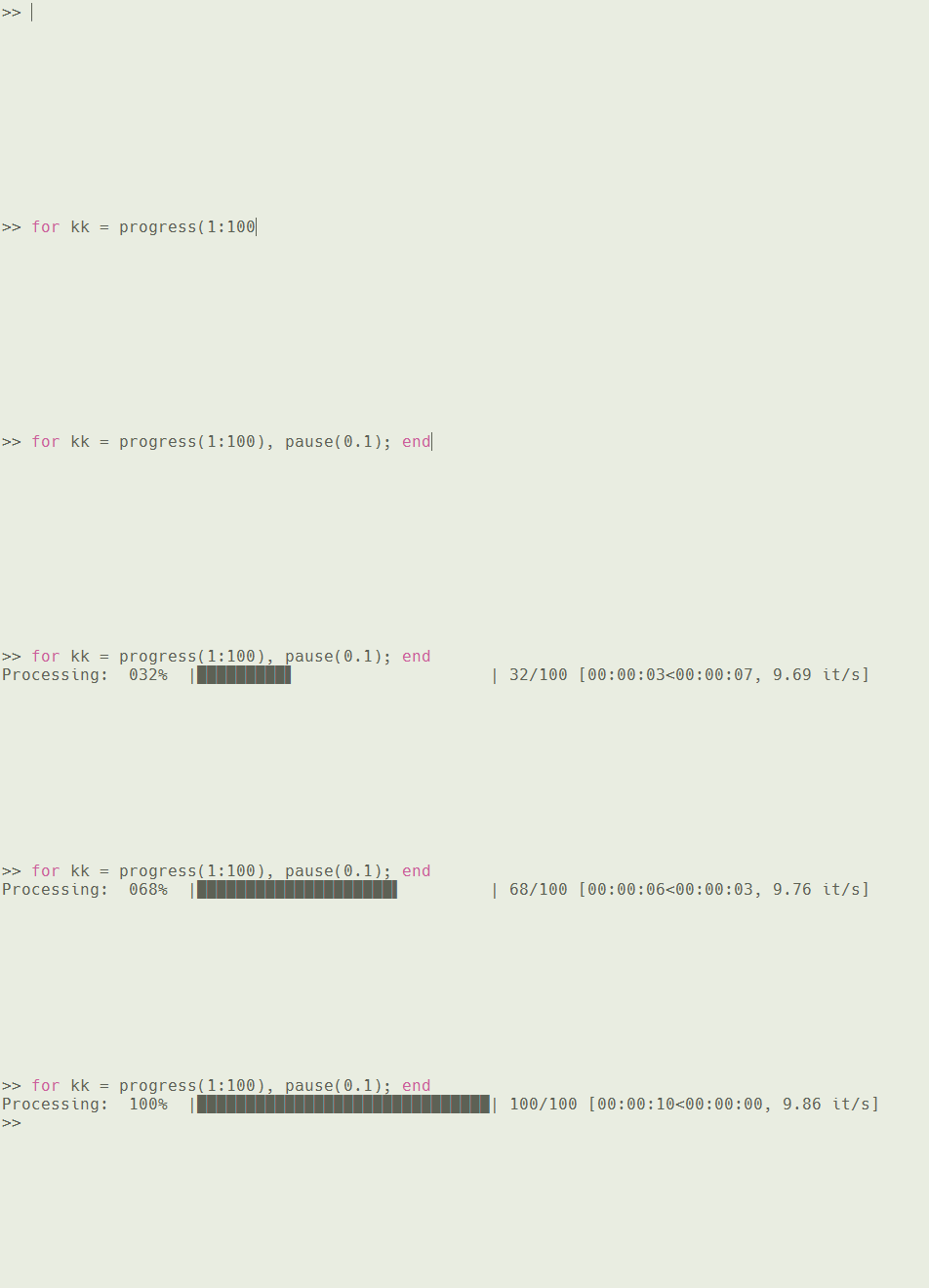
Supported features include (or are planned):
- proper unit testing
- display the bar name as a ticker. That way, a fixed bar width could be used
- inherit from MATLAB System Object to gain benefits from the setup method
- use this new functionality for the parallel implementation. Introduced in R2017a.
- TQDM Unicode blocks
- optional constructor switch for ASCII number signs (hashes)
- those will be used if
ProgressBar()is used in deploy mode (MATLAB Compiler)
- those will be used if
- optional bar title
- optional visual update interval in Hz [defaults to 10 Hz]
- when no total number of iterations is passed the bar shows the elapsed time, the number of (elapsed) iterations and iterations/s
- nested bars (at the moment only one nested bar is supported [one parent, one child])
-
printMessage()method for debug printing (or the like) - print an info when a run was not successful
- support another meaningful 'total of something' measure where the number of items
is less meaningful (for example non-uniform processing time) such as total file size
(processing multiple files with different file size). At the moment, the only
alternative supported unit is
Bytes - when the internal updating process is faster than the actual updates via
update(), the internal counter and printing of the process bar stops until the next update to save processing time - linear ETA estimate over all last iterations
- support parfor loops provided by the Parallel Computing Toolbox
- show s/it if it/sec < 1
- override MATLAB's default non-UTF font if
OverrideDefaultFontistrue. This will switch the font for the command line toCourier Newfor the lifetime of the bar. Default isfalse - disable the progress bar if
IsActiveisfalse. This will disable the functionality completely and can be used in situations in which the bar is not beneficial (e.g. if the bar is used in a sub-application of a processing cluster). Default istrue.
Note: Be sure to have a look at the Known Issues section for current known bugs and possible work-arounds.
Dependencies
No dependencies to toolboxes.
The code has been tested with MATLAB R2016a, R2016b and R2020b on Windows 10, Xubuntu 16.04.2 LTS and Linux Mint 20.
Installation
Put the files ProgressBar.m, progress.m and updateParallel.m into your MATLAB path
or the directory of your MATLAB project.
Usage
Detailed information and examples about all features of ProgressBar are stated in the
demo scripts in the ./demos/ directory.
Proposed Usage for Simple Loops
The simplest use in for-loops is to use the progress() function. It wraps the main
ProgressBar class and is intended to only support the usual progress bar. Be aware
that functionalities like printMessage(), printing success information or a step size
different to 1 are not supported with progress.m. Also, this only works for
non-parallel loops.
See the example below:
numIterations = 10e3;

% create the loop using the progress() class
for iIteration = progress(1:numIterations)
    % do some processing
end
Extended Usage with all Features
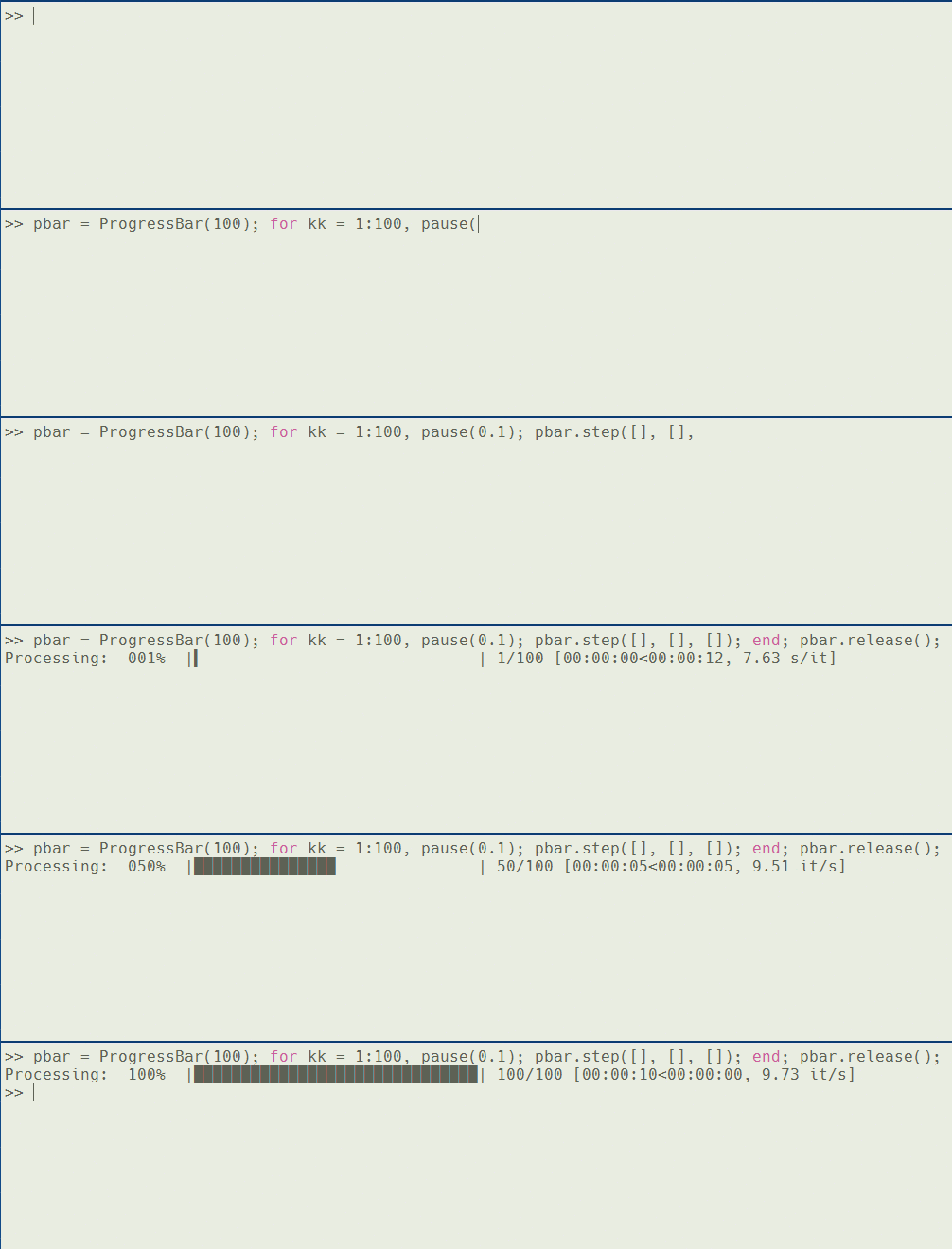
The basic work flow is to instantiate a ProgressBar object and use either the step()
method to update the progress state (MATLAB <= R2015b) or use the instantiated object
directly as seen below. Refer to the method's help for information about input
parameters. The shown call is the default call and sufficient. If you want to pass
information about the step size, the iteration's success or if a new bar should be
printed immediately (e.g. when iterations take long time) you can pass these information
instead of empty matrices.
All settings are done using name-value pairs in the constructor. It is strongly
encouraged to call the object's release() method after the loop is finished to clean
up the internal state and avoid possibly unrobust behavior of following progress bars.
Usage
obj = ProgressBar(totalIterations, varargin)
A simple but quite common example looks like this:
numIterations = 10e3;

% instantiate an object with an optional title and an update
% rate of 5 Hz, i.e. 5 bar updates per seconds, to save
% printing load.
progBar = ProgressBar(...
    numIterations, ...
    'Title', 'Awesome Computation' ...
    );

% begin the actual loop and update the object's progress
% state
for iIteration = 1:numIterations
    %%% do some processing here
    % ...

    progBar([], [], []);
    % or in releases <= R2015b
    % progBar.step([], [], []);
end
% call the 'release()' method to clean up
progBar.release();
Parallel Toolbox Support
If you use MATLAB's Parallel Computing Toolbox, refer to the following example or the
demo file k_parallelSetup.m. Tested parallel functionalities are parfor and
parfeval() for asynchronous processing.
numIterations = 10e3;

% Instantiate the object with the 'IsParallel' switch set to true
progBar = ProgressBar(numIterations, ...
    'IsParallel', true, ...
    'Title', 'Parallel Processing' ...
    );

% ALWAYS CALL THE SETUP() METHOD FIRST!!!
progBar.setup([], [], []);
parfor iIteration = 1:numIterations
    pause(0.1);

    % USE THIS FUNCTION AND NOT THE STEP() METHOD OF THE OBJECT!!!
    updateParallel([], pwd);
end
progBar.release();
As of v3.4.0, you can also nest the loops so that the inner one uses a parfor loop.
Known Issues
Flickering Bar or Flooding of the Command Window
MATLAB's speed to print to the command window is actually pretty low. If the update rate
of the progress bar is high the mentioned effects can occur. Try to reduce the update
rate from the default 5 Hz to something lower (say 3 Hz) with the 'UpdateRate', 3
name-value pair.
The Bar Gets Longer With Each Iteration
There seems to be a problem with the default font Monospaced in Windows. If this
behavior is problematic, change the font for the command window to a different
monospaced font, preferably with proper Unicode support.
If you do not want to or cannot change the font in the setting, you can set the class's
OverrideDefaultFont to true while you are in the configuration phase. This will
change MATLAB's coding font to Courier New for the duration in which the bar is alive
(until the release() method is executed). After the object's lifetime, your previous
font will be restored automatically.
For convenience, this property can also be set in the progress() wrapper to always
trigger for the wrapper if desired.
Thanks @GenosseFlosse for the fix!
Strange Symbols in the Progress Bar
The display of the updating progress bar is highly dependent on the font you use in
the command window. Be sure to use a proper font that can handle Unicode characters.
Otherwise be sure to always use the 'Unicode', false switch in the constructor.
Remaining Timer Objects in MATLAB's Background
Sometimes, if the user cancels a loop in which a progress bar was used, the destructor is not called properly and the timer object remains in memory. This can lead to strange behavior of the next progress bar instantiated because it thinks it is nested. If you encounter strange behavior like wrong line breaks or disappearing progress bars after the bar has finished, just call the following static method to delete all remaining timer objects in memory which belong(ed) to progress bars and start over.
ProgressBar.deleteAllTimers();
Issues Concerning Parallel Processing
The work-flow when using the progress bar in a parallel setup is to instantiate the
object with the IsParallel switch set to true and using the updateParallel()
function to update the progress state instead of the step() method of the object. If
this results in strange behavior check the following list. Generally, it is advisable to
first be sure that the executed code or functions in the parallel setup run without
errors or warnings. If not the execution may prevent the class destructor to properly
clean up all files and timer objects.
- are there remaining timer objects that haven't been deleted from canceled
for/parforloops orparfeval()calls when checking withtimerfindall('Tag', 'ProgressBar')?- use
delete(timerfindall('Tag', 'ProgressBar'))
- use
- does the progress exceed 100%?
- try to call
clear allor, specifically,clear updateParallelto clear the internal state (persistent variables) in the mentioned function. This should have been done by the class destructor but sometimes gets unrobust if there have been errors in parallel executed functions. - Also try to look into your temp directory (returned by
tempdir()) if remainingprogbarworker_*files exist. Delete those if necessary.
- try to call
TL/DR:
clear all and delete(timerfindall('Tag', 'ProgressBar')) are your friend! Be sure
that no files following the pattern progbarworker_* remain in the directory returned
by tempdir().
Unit Tests
You can run all available tests in the project directory by navigating into the tests
folder and executing runtests in MATLAB. However, if you want to omit the parallel
tests (e.g. you don't have the Parallel Toolbox installed), just execute
runtests Tag NonParallel
License
The code is licensed under BSD 3-Clause as stated in the LICENSE file
Questions
What is MatlabProgressBar?
JAAdrian/MatlabProgressBar is a public repo on GitHub by JAAdrian. This MATLAB class provides a smart progress bar like tqdm in the command window and is optimized for progress information in simple iterations or large frameworks with full support of parallel parfor loops provided by the MATLAB Parallel Computing Toolbox.
Is MatlabProgressBar open source?
It declares the BSD-3-Clause license on GitHub.
Does MatlabProgressBar run on macOS, Windows or Linux?
Its maker has not tagged a system, so it is unknown here. Its README says what it needs.