
rea
Reverse engineer anything with agents, from app behavior down to native binaries.
- 467k
- TypeScript
- MIT
- 7 h ago
A lightweight, intelligent auto-brightness script for Linux that automatically adapts to the time of day and natively learns from your manual adjustments.
Repo LeanBitLab/adaptive-brightness-linux, read from GitHub 1 min ago. LeanBitLab has not joined Take My Repo.
LeanBitLab/adaptive-brightness-linux is a public repo on GitHub by LeanBitLab. A lightweight, intelligent auto-brightness script for Linux that automatically adapts to the time of day and natively learns from your manual adjustments. It declares the GPL-3.0 license on GitHub. It is written mainly in Rust, has 14 stars and last changed on 2026-11-16. Nobody has reviewed it on Take My Repo yet, which says nothing about its quality. Read from GitHub on 2026-11-18.

LBrightness (lbright) is a lightweight, ultra-efficient, intelligent auto-brightness system for Linux. Written in high-performance Rust, it automatically adjusts screen brightness based on configurable time-of-day curves and Ambient Light Sensors (ALS), seamlessly learning your preferred levels when you make manual adjustments.
Built for microsecond-fast direct kernel sysfs I/O, robust external monitor DDC/CI control via ddcutil, and sub-5MB background memory footprint (< 4MB RSS typical) with zero idle CPU overhead.


/sys/class/backlight/* with zero subprocess overhead and microsecond latency.0x10) over an isolated worker thread with non-blocking timeouts to prevent system freezes.lbright tui) to view live status, add/edit/delete curve points, test time targets, toggle ALS, pause/resume, and rescan displays.profiles.conf into the new structured INI format with lbright migrate [--dry-run].curl --proto '=https' --tlsv1.2 -sSf https://sh.rustup.rs | shsudo apt install ddcutil i2c-tools (or equivalent for your distribution)To allow lbright to control internal backlights and external DDC/CI monitors without requiring root privileges:
# Add your user to the video and i2c groups
sudo usermod -aG video,i2c $USER

# Ensure the i2c-dev kernel module is loaded for external monitor control
sudo modprobe i2c-dev
echo "i2c-dev" | sudo tee /etc/modules-load.d/i2c-dev.conf
Note
Log out and log back in (or restart) for group permission changes to take effect.
Clone the repository and run the included installer script:
git clone https://github.com/LeanBitLab/adaptive-brightness-linux.git
cd adaptive-brightness-linux
chmod +x install.sh
./install.sh
The installer will:
cargo build --release).lbright to ~/.local/bin/lbright.lbright.service into ~/.config/systemd/user/.lbright.service..deb Package)To build and install a standard Debian package on Debian, Ubuntu, Linux Mint, or Pop!_OS:
# Build the package
./build-deb.sh

# Install the generated .deb package
sudo dpkg -i lbright_*.deb

# Enable and start the background service
systemctl --user enable --now lbright.service
# Build release binary
cargo build --release

# Copy binary to user path
install -Dm755 target/release/lbright "$HOME/.local/bin/lbright"

# Install systemd user service
install -Dm644 lbright.service "$HOME/.config/systemd/user/lbright.service"

# Reload and start service
systemctl --user daemon-reload
systemctl --user enable --now lbright.service
Manage the background daemon using standard systemctl commands:
# Check daemon status and resource usage
systemctl --user status lbright.service

# Restart the daemon
systemctl --user restart lbright.service

# Stop the daemon
systemctl --user stop lbright.service

# View real-time daemon logs
journalctl --user -u lbright.service -f
lbright provides a full suite of CLI subcommands for control, status inspection, and configuration.
lbright <SUBCOMMAND> [OPTIONS]
| Command | Description | Example |
|---|---|---|
status |
Display detected hardware, current brightness, ALS sensor metrics, and pause state | lbright status |
tui |
Launch the interactive ANSI terminal menu and curve editor | lbright tui |
scan |
Scan and list all internal backlight panels and external DDC/CI monitors | lbright scan |
set <device> <0-100> |
Manually set target brightness percentage on a specific device | lbright set internal 65 |
pause <duration|off> |
Temporarily or indefinitely pause automatic adjustments | lbright pause 30m |
migrate [--dry-run] |
Import legacy ~/.config/auto-brightness/profiles.conf into config.ini |
lbright migrate --dry-run |
daemon [--foreground] |
Run background daemon process (used by systemd) | lbright daemon --foreground |
version |
Print current lbright version |
lbright version |
help |
Print help and CLI options | lbright help |
set and config.ini)internal: Primary internal backlight panel (/sys/class/backlight/*).internal:<name>: Specific internal panel (e.g. internal:intel_backlight, internal:amdgpu_bl0).ddc:default: First detected external DDC/CI display.ddc:<index>: Specific DDC display index (e.g. ddc:1, ddc:2).ddc:bus=<bus>: Specific I2C bus number (e.g. ddc:bus=7).ddc:serial=<sn>: Specific monitor serial number (e.g. ddc:serial=ABC123456).ddc:model=<model>: Specific monitor model name (e.g. ddc:model=DELL_U2720Q).# View live status lbright status # Manually set internal screen brightness to 60% lbright set internal 60 # Set external DDC monitor #1 to 45% lbright set ddc:1 45 # Pause adjustments for 1 hour (e.g. during gaming or movie playback) lbright pause 1h # Resume adjustments immediately lbright pause off # Check current pause timer status lbright pause status # Preview migration from old profiles.conf lbright migrate --dry-run
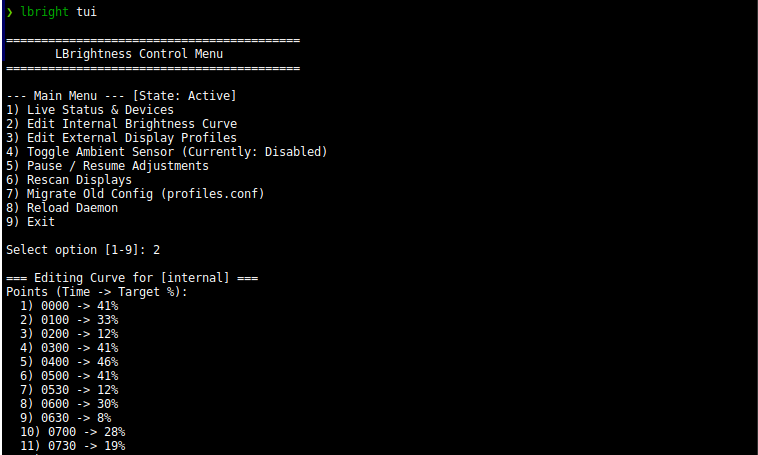
lbright tui)Run lbright tui from any terminal or SSH session to access an interactive management console:
==========================================
       LBrightness Control Menu
==========================================

--- Main Menu --- [State: Active]
1) Live Status & Devices
2) Edit Internal Brightness Curve
3) Edit External Display Profiles
4) Toggle Ambient Sensor (Currently: Disabled)
5) Pause / Resume Adjustments
6) Rescan Displays
7) Migrate Old Config (profiles.conf)
8) Reload Daemon
9) Exit
HHMM).lbright controls external monitors using the industry-standard DDC/CI (Display Data Channel Command Interface) protocol via ddcutil.
[!WARNING] VGA to HDMI / HDMI to VGA adapters do NOT work. Active and passive analog VGA converters block bidirectional I2C communication on slave address
0x37, preventing software brightness adjustment.
# Install ddcutil and i2c-tools
sudo apt install -y ddcutil i2c-tools

# Add your user to the i2c group
sudo usermod -aG i2c $USER

# Ensure kernel i2c-dev module is loaded
sudo modprobe i2c-dev
echo "i2c-dev" | sudo tee /etc/modules-load.d/i2c-dev.conf
Test if your monitor responds to DDC/CI commands:
# 1. Direct hardware check
ddcutil detect

# 2. LBrightness hardware scan
lbright scan

# 3. Test changing brightness on external display #1 to 50%
lbright set ddc:1 50
| Issue / Error Message | Cause | Solution |
|---|---|---|
Monitor does not support DDC/CI (address 0x37 unresponsive) |
DDC/CI disabled in monitor menu or blocked by video adapter. | 1. Enable DDC/CI in monitor physical OSD menu. 2. Replace VGA converter dongles with direct HDMI, DisplayPort, or DVI cables. |
Permission denied opening /dev/i2c-* |
Current user is not in i2c group. |
Run sudo usermod -aG i2c $USER, then log out and log back in (or run newgrp i2c). |
| External monitor not updating in background daemon | Display section disabled or daemon needs rescan. | Run lbright scan or open lbright tui -> Edit External Display Profiles to ensure the profile is enabled. |
config.ini)The configuration file is located at ~/.config/lbrightness/config.ini. It uses an INI structure with a [general] section and individual device curve sections.
# LBrightness Configuration
version = 2

[general]
interval_min = 15
ambient = false
ambient_poll_sec = 5
ambient_average = 3
ambient_hysteresis_pct = 3
fade_internal = true
fade_external = false
learn_internal = true
learn_external = false
min_internal = 5
max_internal = 100
min_external = 0
max_external = 100
ddc_rescan_min = 5
ddc_cooldown_sec = 10
ddc_set_timeout_sec = 5
ddc_detect_timeout_sec = 10

[internal]
enabled = true
point = 00:00:18
point = 07:00:45
point = 12:00:65
point = 19:00:55
point = 23:00:25

[ddc:default]
enabled = true
point = 00:00:18
point = 07:00:45
point = 12:00:65
point = 19:00:55
point = 23:00:25
[general] Settings| Option | Type | Default | Description |
|---|---|---|---|
interval_min |
Integer | 15 |
Periodic interval (in minutes) for recalculating time curves. |
ambient |
Boolean | false |
Enable or disable Ambient Light Sensor (ALS) integration. |
ambient_poll_sec |
Integer | 5 |
Sensor reading interval in seconds. |
ambient_average |
Integer | 3 |
Number of recent sensor samples used for rolling average smoothing. |
ambient_hysteresis_pct |
Integer | 3 |
Deadband percentage required before ALS triggers a brightness update (eliminates jitter). |
fade_internal |
Boolean | true |
Enables smooth multi-step brightness fading on internal sysfs panels. |
fade_external |
Boolean | false |
Multi-step fading on DDC displays (disabled by default due to I2C communication bus latency). |
learn_internal |
Boolean | true |
Automatically adjust 24h curve points when you change internal brightness manually. |
learn_external |
Boolean | false |
Automatically learn adjustments on external DDC displays. |
min_internal |
Integer (0-100) | 5 |
Minimum brightness floor for internal panel (prevents accidental black screen). |
max_internal |
Integer (0-100) | 100 |
Maximum brightness ceiling for internal panel. |
min_external |
Integer (0-100) | 0 |
Minimum brightness floor for external displays. |
max_external |
Integer (0-100) | 100 |
Maximum brightness ceiling for external displays. |
ddc_rescan_min |
Integer | 5 |
Periodic interval (in minutes) to rescan for attached/detached external monitors. |
ddc_cooldown_sec |
Integer | 10 |
Backoff cooldown period if a DDC communication error occurs. |
ddc_set_timeout_sec |
Integer | 5 |
Maximum execution timeout (in seconds) for ddcutil setvcp commands. |
ddc_detect_timeout_sec |
Integer | 10 |
Maximum execution timeout (in seconds) for ddcutil detect scans. |
[<device_id>])enabled = true|false: Enables or disables brightness management for this display.point = HH:MM:PERCENT: Curve control point mapping 24-hour time to brightness percentage (0-100). lbright uses smooth linear interpolation between adjacent points across midnight.| Resource | Default Path | Environment Override |
|---|---|---|
| Active Config | ~/.config/lbrightness/config.ini |
LBRIGHT_CONFIG_PATH |
| State Directory | ~/.local/state/lbrightness/ |
LBRIGHT_STATE_DIR |
| Legacy Config | ~/.config/auto-brightness/profiles.conf |
LBRIGHT_LEGACY_CONFIG_PATH |
If you previously used the Python version of auto-brightness, import your existing profiles and time curves into lbright:
# Preview the converted configuration without writing
lbright migrate --dry-run

# Perform non-destructive migration
lbright migrate
Your original ~/.config/auto-brightness/profiles.conf will remain untouched.
If you need to revert to the legacy Python service during testing:
# Disable lbright and enable legacy python service
systemctl --user disable --now lbright.service
systemctl --user enable --now auto-brightness.service
To switch back to lbright:
systemctl --user disable --now auto-brightness.service
systemctl --user enable --now lbright.serviceRun the uninstaller script to remove the binary and systemd service:
./uninstall.sh
To automatically delete configuration and state files without prompting:
./uninstall.sh -y
Check out our other projects: 👉 LeanBitLab Projects
LeanBitLab/adaptive-brightness-linux is a public repo on GitHub by LeanBitLab. A lightweight, intelligent auto-brightness script for Linux that automatically adapts to the time of day and natively learns from your manual adjustments.
It declares the GPL-3.0 license on GitHub.
Its maker tagged it for Linux. That is declared by the maker; Take My Repo has not tested it.
Open "Take it" on its page: Take My Repo writes an install plan for your machine and hands it to your AI agent (Claude Code, Codex or Cursor), which asks you before each step. Take My Repo has not tested it on any machine.
Its last change on GitHub was on 2026-11-16. Take My Repo does not judge from that whether it is maintained.
Reverse engineer anything with agents, from app behavior down to native binaries.
Nobody has reviewed it on Take My Repo yet, which says nothing about its quality.
Node.js JavaScript runtime ✨🐢🚀✨
LeanType is an Open-source keyboard, fork of HeliBoard with additional features and customisation
Reddit Client for Videos with YouTube like ui and controls, with optional sign in option
Offline speech-to-text voice input plugin for LeanType Keyboard powered by whisper.cpp
Standalone GIF, Klipy, and Local Media Plugin for LeanType Keyboard
A dynamic plugin for the LeanType Keyboard providing 100% on-device neural proofreading, grammar correction and custom ai key


