FreeDomain
Free domain registration and practical DNS learning resources for everyone.
- 209k
- Markdown
- AGPL-3.0
- 3 mo ago
LiaScript documentation course
Repo LiaScript/docs, read from GitHub 1 min ago. LiaScript has not joined Take My Repo.
LiaScript/docs is a public repo on GitHub by LiaScript. LiaScript documentation course. It declares no license on GitHub. Public does not mean open source: without a license, nobody is granted the right to reuse it. It is written mainly in Java, has 26 stars and last changed on 2026-11-17. Nobody has reviewed it on Take My Repo yet, which says nothing about its quality. Read from GitHub on 2026-11-19.
To see this document as an interactive LiaScript rendered version, click on the following link/badge:
If you need help, feel free to ask us any questions in the chat:
--{{0}}--
With LiaScript, we tried to implement an extended Markdown format that should enable everyone to create, share, adapt, translate or correct online courses without the need of being a web-developer. We believe that a language-based approach, instead of a tooling-centered one, provides more flexibility, freedom of creativity, and sustainability. Therefore we tried to develop a simplistic syntax that extends the static Markdown with quizzes, animations, spoken text, automated visualization ASCII-art and much more. Everything has been woven around Markdown, so that the content can still be read and interpreted with any kind of editor or Markdown-interpreter.
What is LiaScript?
a Markdown dialect for interactive courses and data-driven publishing,
everything is implemented in Elm/JavaScript and runs directly within the browser (online),
the interpreter itself is also a reader, which allows for storing documents as well as the progress,
courses can also be taken offline, since the interpreter is also a progressive web app (PWA), that allows to store documents and progress directly within the browser (locally),
everything is private, we do not store any data about the courses nor the users and their progress
--{{1}}--
There are a couple of problems that we currently see in the creation of Open educational resources (OER). One of them is isolation, that means people, who want to create content, are seldom connected via the applied technologies, instead, they are separated by platforms, authoring tools and used core technologies (programming languages). Furthermore, it is not possible to simply grab an educational website/project and to adapt its content for another audience. Additionally, it seems to be nearly impossible for people without a technical background to simply set up a small course. Thus, they stuck with Word, PowerPoint, and PDF, since they provide a simple continuation of the static formats people have used before the computer-era. "If I want to publish content for the computer, I want my audience to dive in, experiment, simulate, play with the content... but not only read."
{{1}}
Goals
--{{2}}--
Imagine a world where everyone would have the same access to high quality educational content for free. Imagine all kind of schoolbooks, technical or scientific literature could become open-courSe projects and more interactive, with collaborating teachers and students. Everything that is required is a simple text-editor and a web-browser.
{{2}}
--{{0}}--
As already mentioned all you need to work with LiaScript is an text-editor, but it can be useful to apply one of the following tools. At least we apply them to see the result of a change within the course document immediately. You will see, that the development of online-courses will speed up, especially if there is no need for memorizing complex point and click sequences.
"Let the editor be your canvas and the keyboard your brush."
--{{0}}--
There are currently 2 plugins for the Atom Editor and Visual-Studio-Code available, which are intended to ease and simplify the development of online courses with LiaScript. Additionally you can use the LiveEditor, an entirely browser based application.
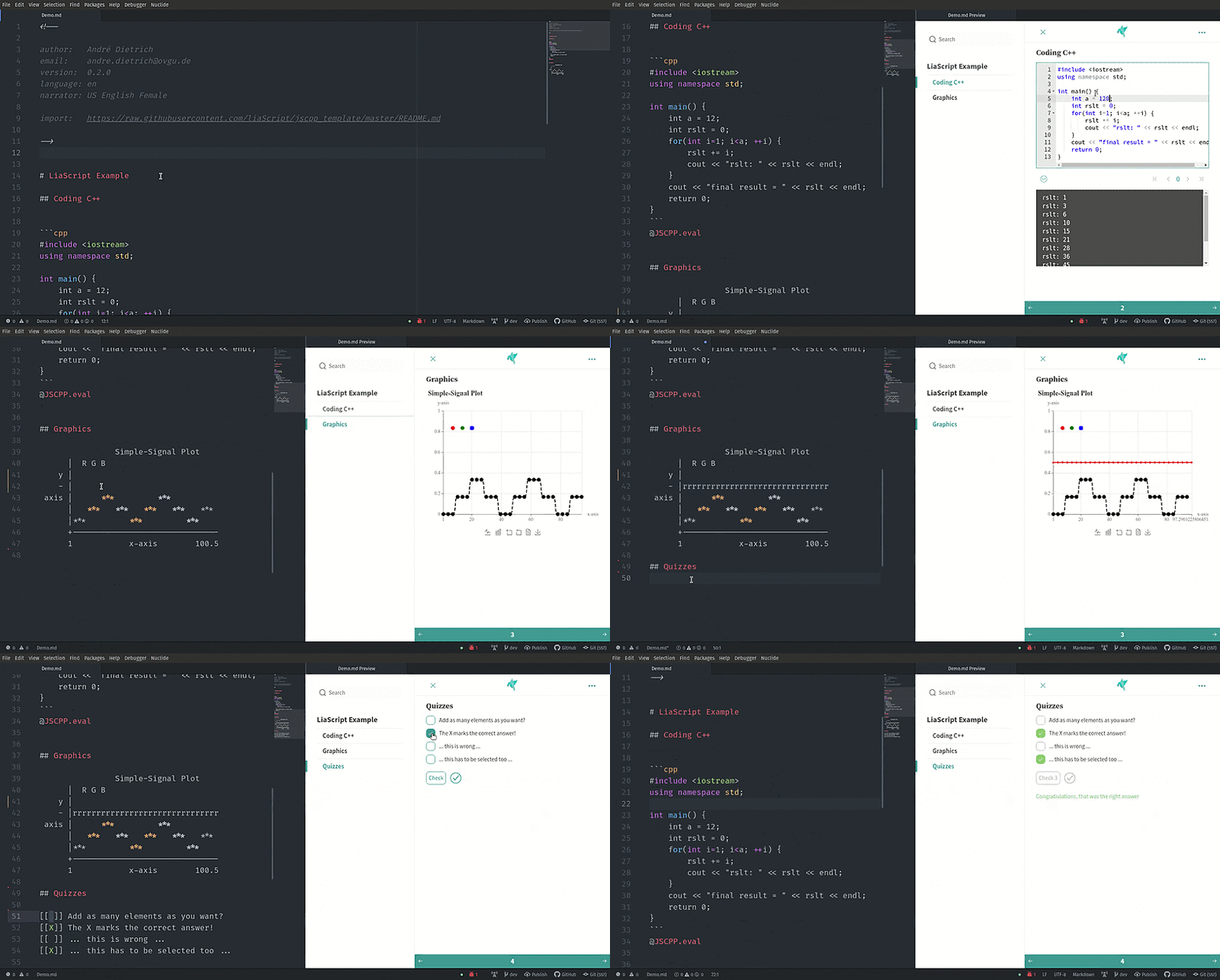
LiveEditor: Fully functional online editor, that looks like CodiMD, but is entirely browser based. With support for uploading images and videos and collaborative editing.
Atom: This is the free and open and official GitHub editor, with lots of plugins for various use cases.
Alt+L ), updates the view
on your course each time you save your document.lia in your Markdown document you switch on a fuzzy
search, that contains a lot of LiaScript help, examples, and snippets.Detailed installation instructions can be found here.
Visual-Studio-Code: This is Microsoft's free popular editor with various plugins and extensions.
Alt+L ), updates the view
on your course each time you save your document.lia in your Markdown document you switch on a fuzzy
search, that contains a lot of LiaScript help, examples, and snippets.Detailed installation instructions can be found here.
Using the GitHub builtin Web editor, you can install the following extension to preview your course while editing:
{{1}}
LiaScript-DevServer:
--{{1}}--
If you are used to another editor, you can also start a LiaScript development
server locally. It works like the plugin for Atom and updates your course within
your browser on every save, but this can also be used to monitor multiple
projects. And you can also use it for testing purposes, as if you would deploy
your projects. Started with --mcp, it also connects AI agents such as Claude
Code or Codex to your course preview, with a chat and with
agent links that send commands to the agent.
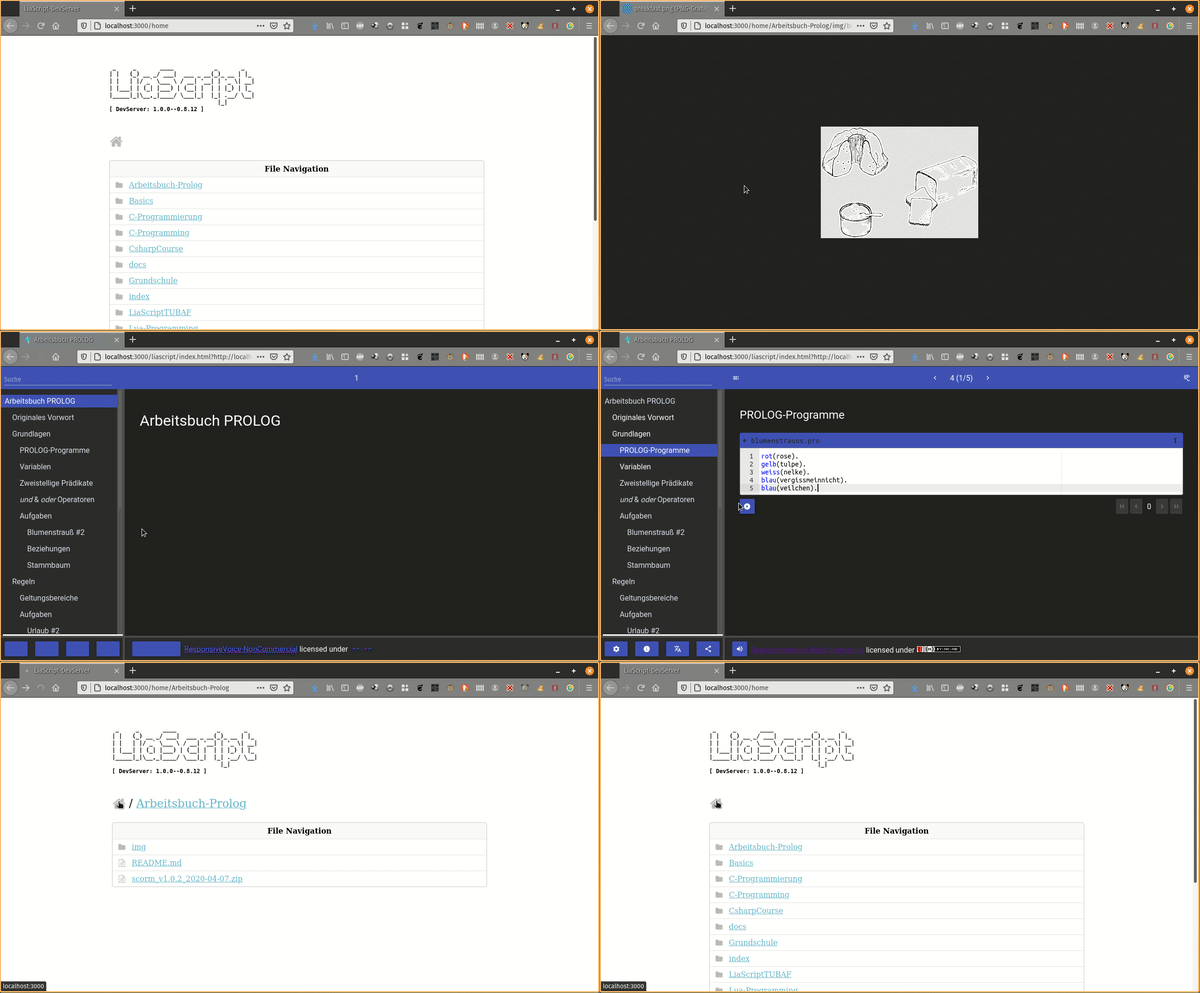
Get the project from:
{{2}}
CodiLIA:
--{{2}}--
If you prefer to work with multiple authors simultaneously, then you should give CodiLIA a try. It is a fork of the collaborative editor CodiMD/HedgeDoc, but instead of a Markdown preview, you will have a LiaScript preview, and you can immediately publish your courses.
Project: https://github.com/liascript/codilia
--{{0}}--
The easiest way of importing a LiaScript into another website or
Learning Management System (LMS)
such as
Moodle,
ILIAS, or
OPAL, is via importing
an external website or if possible via an
iframe.
{{1}}
LiaScript-Exporter:
--{{1}}--
However, there might be cases where you want to store the progress within the LMS. We therefore have developed an experimental exporter, which allows to bundle your entire project as an SCORM compliant zip-file that can be imported into most common LMS. Other formats than SCORM can be added too, simply write us a mail or create an issue, if you require another one.
{{2}}
Preview-Lia:
--{{2}}--
If you want to refer to your own courses or to foreign ones on your personal
website or blog, you can make use of our "preview web component". This creates
preview cards, which are updated at client-side, so that there is no need to
manually update all information whenever there is a change in the course. Simply
add the script tag as depicted in the code-snippet and link to your courses
via the tag preview-lia.
<html>
  <head>
    <script type="text/javascript" src="https://liascript.github.io/course/preview-lia.js"></script>
  </head>
  <body>
    ...
    <preview-lia src="https://raw.githubusercontent.com/liaScript/docs/master/README.md">
    </preview-lia>

    <preview-lia src="https://liascript.github.io/course/?https://raw.githubusercontent.com/liaScript/docs/master/README.md">
    </preview-lia>

    ...
  </body>
</html>
For more information visit the blog entry: Markdown just got a new preview tag
However, you can also use this to refer to your personal GitHub projects.
--{{3}}--
LiaScript was originally developed for supporting programming courses for embedded systems. You can see an example of the previous eLab remote laboratory installation.
{{3}}
--{{4}}--
Now it is the opposite, our main focus lays in the development of the Markup language, but parts of the old systems can still be used. Especially if you want to teach programming in (Java, C, C++, C#, Mono, Go and Python). The CodeRunner is an open-source project that enables remote compiling and execution of code. We apply it to teach procedural and object-oriented programming. You can either host your own server or use our free herokuapp:
{{4}}
CodeRunner:
Try the interactive LiaScript version at:
https://liascript.github.io/course/?https://github.com/liascript/CodeRunner
Or if you want to import this functionality into your course, then add the following statement into the main header of your LiaScript course:
import: https://raw.githubusercontent.com/LiaScript/CodeRunner/master/README.md
--{{0}}--
By now you should have a basic idea of what you can do with LiaScript, but probably not how you can publish your courses. The best way is actually to use GitHub, this way no prior versions of your course get lost, and you give others (you can even invite them) the opportunity to contribute to your project.
--{{1}}--
No further hosting is required, no further compilation step, the JavaScript interpreter of LiaScript does everything else directly within the browser at client-side.
--{{2}}--
As you can see from the example, it is also possible to refer to a specific
slide. You only have to add a # with the number of the slide, or you can add
the name of the specific slide as well.
--{{3}}--
You can also add additional tags to your project to make it discoverable. We
currently use three distinct categories: liascript to mark it to be related to
the projects, while the others liascript-course and liascript-template are
used to distinguish the projects into courses or extension, which can be added
to courses.
--{{4}}--
The same way you can also refer to courses that you have put into your DropBox, ownCloud, NextCloud, or if you have access to some old-fashioned web-space then you can also store all of your files there. You only have to make them publicly available and to refer to the raw or in other words, the text document. All other sources are loaded relative to this URL.
Create a free account at https://github.com
Refer to your projects as via a URL parameter:
https://LiaScript.github.io/course/?YOUR_RAW_COURSE_URL.md
Example with reference to a specific slide:
Make your document discoverable by adding the tags liascript and or
liascript-course, liascript-template to make it appear in one of the
following GitHub topics:
More information on tagging projects can be found here.
Use other ways of hosting repositories as well (e.g. DropBox, ownCloud, NextCloud).
--{{0}}--
However, we have no idea who is using LiaScript elsewhere, so it might be hard to find some resources online. From time to time we translate open-books into LiaScript and make them more interactive. You can see some of our the experiments at the following URL and use them as a source of inspiration:

Full overview on courses via the topic
liascript-course:
--{{0}}--
If you tried out CodeRunner, you will have probably noticed that you can reuse
functionality from different courses, simply by using the keyword import:
within the main definition of your LiaScript document. Such a functionality is
defined with the help of macros. We will dive deeper into this feature at the
end of this document, but if you are interested you can inspect some of our
templates, which shall provide self-explaining courses of how to embed and use
the implemented macros.
https://github.com/LiaTemplates

Full overview on extensions via the topic
liascript-template:
--{{0}}--
Before we dive into the syntax, a short tour through the LiaScript app itself. Everything in this chapter is available in every course, authors do not have to write anything for it. It is the part you might want to explain to your learners.
--{{0}}--
Every course you open is stored in your browser and shows up as a card on the home screen. By default the cards are shown as a list, but you can also sort them into your own columns, like on a kanban board.
Switch the layout: use the "Layout" button on the left of the header and choose "List" or "Kanban". It is only shown if there is at least one course.
Columns: the board starts with one column named "Courses". New columns are added via the field "new column" at the end of the board (press Enter or click "Add column"). The actions of a column appear on hover or focus (on touch devices they are always shown): rename, move to the left or right, and delete. If you delete a column, its courses move to the first column.
Move courses: drag a card with the mouse, or press and hold it on a touch screen, and drop it into another column. The board shows where the card will land. Alternatively, expand a card via "Show details" and choose a column in "Move to column".
Compact cards: on the board, a card only shows its image, title and the open button. "Show details" expands the description and all actions. Courses without a logo get the LiaScript bird, colored per course.
--{{1}}--
The layout and the columns are stored only within this browser. New courses always end up in the first column.
--{{0}}--
LiaScript is a progressive web app, once loaded, the app and the courses you visited also work without a network connection. Images, audio and video files are normally loaded from their original location. If you want to take a course with you, for example on a train or into a classroom with a bad connection, you can download its media files in advance.
Information menu of a course: "Download media for offline use"
Course card on the home screen: the download icon (on the kanban board within "Show details")
--{{1}}--
This stores the logo, all images, audio and video files of the course, including the recordings of narrator comments. Streams like YouTube or Vimeo cannot be downloaded and are skipped. A small box at the bottom right shows the progress and how many files could not be loaded.
{{1}}
Note: The download is not available in SCORM, xAPI and other LMS packages, they bring their own files. The stored files can only be removed by deleting the site data of LiaScript within your browser settings.
--{{0}}--
If you want more space for the content, for example on a small screen or while presenting, you can hide the navigation. Open the menu where you choose between Textbook, Presentation and Slides mode, and click on "Hide navigation".
--{{1}}--
The table of contents and the header disappear. What remains is a slim column of floating buttons for the menus, the button for the table of contents, two arrows for the previous and next slide, and the bar for text-to-speech. Click on "Hide navigation" again to bring everything back. This setting is not stored, after a reload the navigation is visible again.
--{{0}}--
LiaScript tries to be usable with a keyboard, a screen reader and in all color settings. Two settings are worth knowing:
Do not rely on color alone (settings menu): adds patterns to the series of charts, and checked quiz answers get a solid border if they are correct and a dashed one if they are wrong. Thus, the result can be seen without distinguishing red and green.
Reduce motion (a setting of your operating system or browser): LiaScript stops all animations and transitions, also those defined by course authors.
--{{1}}--
For authors this means, the content of a slide should also be understandable without its animations.
--{{0}}--
All parts of LiaScript can be used with the keyboard. The arrow keys switch slides only, if no other element needs them, while you are within a text field, a slider, a dropdown, a radio group, the table of contents or a matrix quiz, they belong to that element.
General
| Key | Action |
|---|---|
→ or Alt+Shift+N |
next animation step or slide |
← or Alt+Shift+P |
previous animation step or slide |
Alt+Shift+C |
open or close the table of contents |
Tab at the start of the page |
"Skip navigation" link, jumps directly to the content |
↓ on a menu button |
opens the menu |
Escape |
closes menus, popups, dialogs and dropdowns |
Table of contents
| Key | Action |
|---|---|
↑ / ↓ |
previous or next entry |
Home / End |
first or last entry |
→ |
opens a section, or moves to its first subsection if it is already open |
← |
closes a section, or moves to its parent |
The search in the table of contents tolerates one typo per word (for words with 4 or more characters), but only for words that do not appear in the course, thus a longer word never finds more sections than a shorter one.
How many levels of the table of contents are expanded can be set in the settings menu under "Table of contents depth" (see also tocDepth).
In right-to-left languages, → and ← are mirrored.
Content
| Element | Keys |
|---|---|
| dropdowns (gaps, selections) | ↑ ↓ Home End choose, Enter or Space select, Escape close |
| matrix quizzes and surveys | ↑ ↓ move between rows, ← → between cells (in single-choice rows they select) |
| drag & drop quizzes | Enter on a drop zone selects it, then Enter on a card places it there |
| images with an alt text | Enter or Space zooms the image |
| galleries | ← → switch the media while a gallery is open |
| code editors | Ctrl+Enter (Cmd+Enter on Mac) executes the code |
| terminals | Enter sends, ↑ ↓ browse the history |
| classroom chat | Ctrl+Enter (Cmd+Enter on Mac) sends a message |
| splitter between course & chat | ← → move it, Home End set it to 10% or 90% |
--{{0}}--
LiaScript also runs on feature phones with KaiOS, which have a numeric keypad instead of a touch screen. On these devices, courses can be navigated with the following keys, as long as the focus is not within an input field:
| Key | Action |
|---|---|
4 |
previous slide |
6 |
next slide |
2 |
scroll up |
8 |
scroll down |
* |
open or close the table of contents |
# |
go to the home screen |
--{{0}}--
This section is intended to give a brief overview on the basic Markdown syntax
elements. The only difference to common Markdown at this point is, that you can
define meta-information such as author, language, voice, etc. within a
HTML-comment at the beginning of every document. We will describe all of these
elements in more detail in section: Macros. All of these macros
start with a single word, which is followed by a colon. If you require more
space, like for comment: or link: you can use multiple lines, but every
following line has to start with an indentation.
Initial LIA-comment-tag for basic definitions:
<!--

author:   Andre Dietrich

email:    LiaScript@web.de

version:  0.0.1

language: en

narrator: US English Female

comment:  Write a short abstract of your course, that
          might contain multiple lines and sentences.

script:   https://javascript_resourse_url

script:   https://another_javascript_resourse_url

link:     https://some_css_stuff
          https://and_some_more_css
-->
--{{1}}--
The meta-information from your document is later shown within the information-section as well as within the home-section.
{{1}}

--{{2}}--
If you already know Markdown, then you can skip most of the content in this section. However, there are some slight differences that will be marked with a trailing star at the section title.
{{2}}
Something might be different 💫
--{{0}}--
A course is structured as any other Markdown document with starting hash-tags, whereby the number of hash-tags is used to define the hierarchy of your document.
# Main Title

 ...

## Section Title 1

 ...

### Subsection Title

 ...
## Section Title 2
--{{1}}--
Every section is presented separately. In contrast to most Markdown-parsers, LiaScript applies a two step-approach. Sections are parsed at first, which means that the parsers searches for patterns as depicted below. Parsing the content of a section is quite time-consuming, that is why the section-content gets only analyzed, if this specific section should be displayed to the user. However, this happens only at the first appearance, afterwards the resulting view is restored from a local cache.
{{1}}
Preprocessing pattern: ## foo bar
--{{0}}--
As mentioned earlier, the preprocessor searches for patterns ## header at the beginning of a line to identify sections.
However, there might be cases where you want to have multiple different sections on one slide, with different headers.
Semantic HTML can help us to deal with this, especially the two HTML5 tags section and article.
# Slide-Title

<section>
## Section-Title

...
</section>

<article>
## Article-Title

...
</article>
--{{1}}--
LiaScript will identify these HTML-tags and the content, such that the content within cannot be used as a separator. If you use these two semantic tags, your content is grouped in semantic correct way, which improves the readability if screen-readers are used or keyboard navigation is used.
--{{2}}--
When to use which tag might be philosophical question.
We can say, if you just want to structure your content with different sub-headers, then use <section>.
If your content represents a self-contained document, then use <article>.
However, the visually presented result will be the same, such that you could also
use a <div> to structure your content.
##### Article-TitleThe
<section>HTML element represents a generic standalone section of a document, which doesn't have a more specific semantic element to represent it. Sections should always have a heading, with very few exceptions.Source: https://developer.mozilla.org/en-US/docs/Web/HTML/Element/section
The
<article>HTML element represents a self-contained composition in a document, page, application, or site, which is intended to be independently distributable or reusable (e.g., in syndication). Examples include: a forum post, a magazine or newspaper article, or a blog entry, a product card, a user-submitted comment, an interactive widget or gadget, or any other independent item of content.Source: https://developer.mozilla.org/en-US/docs/Web/HTML/Element/article
--{{0}}--
There might be some cases, where you want to add further headings quickly. We therefore
apply the following syntax with underlining "equal signs" or "dashes". In
common Markdown, this alternative syntax is applied to define level-1 and
level-2 headings. We use it to create headings that are one level = or two
levels - below the main heading. However, these subsections will not be part
of the table of contents, and since their interpretation is slightly different
to common Markdown, you should use the method presented in the previous section.
...

## Section Title

Local Subsection
================

Local Sub-SubSection
--------------------
--{{0}}--
How would you separate paragraphs or other content elements from each other, if you only have a type-writer? The easiest way is a spatial separation, and in Markdown this is done via an empty line. Thus, whenever you have blocks such as paragraphs, enumerations, or tables, it is common practice to separate them via a newline. This makes it easier for you to edit and structure your course, and it prevents the interpreter from too much work.
This is a paragraph that consist only of one line.

Here comes another paragraph
with multiple lines.
And multiple sentences.
--{{0}}--
How does text-highlighting work in a text file and thus within a paragraph? Well, Markdown defines some basic characters that can be used to surround a word or a collection of words. We tried to use the GitHub flavored Markdown style for simple formatting, thus simply use multiple asterisks or underscores to mark certain parts of a text.
*italic* -> italic
**bold** -> bold
***bold and italic *** -> ***bold and italic ***
_also italic_ -> also italic
__also bold__ -> also bold
___also bold and italic___ -> also bold and italic
~strike~ -> strike
--{{1}}--
We define some additions to common Markdown, such as underline and superscript, which can be defined with the following syntax:
{{1}}
~~underline~~ -> ~~~strike and underline~~~ -> ~~~strike and underline~~~^superscript^ -> ^superscript^ --{{0}}--
As you can see from the examples, you can combine and nest all elements freely.
**bold _bold italic_** -> bold bold italic**~bold strike~ ~~bold underline~~** -> *~italic strike~ ~~italic underline~~* -> --{{0}}--
It is now possible within a LiaScript Markdown to apply sequences of dashes for typography. A sequence of dashes is now translated into:
single dash - --> Hyphen or minus sign -
double dash -- --> En dash --
triple dash --- --> Em dash ---
--{{1}}--
An Ellipsis is indicated by a sequence of three dots:
{{1}}
... will be translated to the Unicode symbol ...
--{{0}}--
Additionally single and double quotes are translated into their typographical counterparts, based on the defined language in the header of the course.
German, French, English or Welsh will be translated into different Unicode symbols.
"That's a 'magic' shoe." --> “That’s a ‘magic’ shoe.”
Applied quote translation as defined here: https://en.wikipedia.org/wiki/Quotation_mark
--{{1}}--
If you want o use the original characters, you will have to escape them, as shown also in the next section:
{{1}}
\" --> "
\' --> '
{{2}}
--{{2}}--
As an alternative you can still use the quote tag <q> for double quotations.
This will still use the language definition for that document, but you can also overwrite this per markdown block or quote:
<q>That's a 'magic' shoe.</q>\
<q lang="de">Das ist ein magischer Schuh.</q>

---

<!-- lang="fr" -->
Et voici un autre example: <q>C'est une chaussure magique.</q>
That's a 'magic' shoe.
Das ist ein magischer Schuh.
Et voici un autre example: C'est une chaussure magique.
--{{0}}--
If you want to use asterisks, hash-tags, or other syntax elements within your document without applying their functionality, then you can escape or in other words indicate them with a starting backslash. If you want to escape a backslash, you will have to write two subsequent backslashes. But you do not have to use it, if there is only one asterisk within a line, this will be interpreted as a single character. So you will have to apply this kind of escaping only to prevent misunderstandings between you and the interpreter.
\*, \~, \_, \#, \{, \}, \[, \], \|, \`, \$, \@, \\, \<, \>, \", \'
Result: *, ~, _, #, {, }, [, ], |, `, $, @, \, <, >, ", '
--{{0}}--
One thing that we missed in standard Markdown, was an implementation for arrows. The verbatim text shows, how arrows are defined in our Markdown implementation with their result on the right.
-> ->, ->> ->>, >-> >->, <- <-, <-< <-<,
<<- <<-, <-> <->, => =>, <= <=, <=> <=>
--> -->, <-- <--, <--> <-->, ==> ==>, <== <==, <==> <==>
~> >, <~ <
--{{1}}--
But you can also use some basic smileys. We will try to extend this partial support in the future.
{{1}}
:-) :-), ;-) ;-), :-D :-D, :-O :-O, :-( :-(, :-| :-|,
:-/ :-/, :-P :-P, :-* :-*, :') :'), :'( :'(
--{{2}}--
However, since LiaScript accepts Unicode, you can also copy and paste any kind of character including emojis.
The next section shows how external resources can be referenced and integrated.
--{{0}}--
There are two ways of adding links to a Markdown document, either by inlining the URL directly or you can name it (as shown in listing 2), by applying the typical brackets and parenthesis notation, the optional information is put in double quotes at the end of the URL. This optional information is used as a title attribute, and it is shown, when the user hovers the link with the mouse.
Example of an URL-link -> http://goo.gl/fGXNvu
text-formatting can be applied also *** http://goo.gl/fGXNvu *** ->
*** http://goo.gl/fGXNvu ***
Naming the link ([title](http://goo.gl/fGXNvu "optional info")) ->
title
For internal navigation you can refer to the slide number or to title with
a starting #
[next slide](#18) -> next slide
[next slide](#preview-lia-💫) -> next slide
If your internal link includes parentheses or other characters, you can
also use percent-encoding. An opening parentheses would then be written as
%28 and a closing one as %29.
For more information visit: https://developer.mozilla.org/en-US/docs/Glossary/percent-encoding
--{{0}}--
URLs containing parentheses, brackets, or quotation marks can confuse Markdown parsers, which may misinterpret these characters as part of the link syntax. The safest solution is to wrap the URL in angle brackets — a feature known as autolinks, supported by most Markdown readers and by LiaScript since Version 1.0.5.
Plain autolink: <https://en.wikipedia.org/wiki/Gymnasium_(Germany)>
Named link with autolink URL: [Gymnasium (Germany)](<https://en.wikipedia.org/wiki/Gymnasium_(Germany)>)
Result: Gymnasium (Germany)
--{{1}}--
As an alternative to angle brackets, you can also escape individual parentheses
or brackets with a backslash. This avoids the need for percent-encoding
(e.g., %28 and %29) while keeping the URL readable.
The result looks like follows:
{{1}}
Escaped URL: https://en.wikipedia.org/wiki/Gymnasium_\(Germany\)
Named link with escaped URL: [Gymnasium (Germany)](https://en.wikipedia.org/wiki/Gymnasium_\(Germany\))
Result: Gymnasium (Germany)
--{{0}}--
LiaScript has an advanced preview link, that will load the remote course and
parse the meta-information such as title, version, comment, logo, email, tags,
form your main HTML-comment at the top of your document. To do this, you will
have to use [preview-lia] as the title of your link, which is followed by the
raw URL of your course document.
[preview-lia](https://raw.githubusercontent.com/LiaScript/docs/master/README.md)
--{{1}}--
You can use this technique also to create previews for other courses on your personal website or for other GitHub projects, as it was described in section Projects. For more information follow the link:
{{1}} https://liascript.github.io/blog/markdown-just-got-a-new-preview-tag/
--{{0}}--
Sometimes it might be required to have both, a link and a visual representation
of it as an QR-Codes. Similar to previews, you simply name your link
qr-code:
Syntax: [qr-code](https://LiaScript.github.io)
Example:
--{{1}}--
You can add further information to your link by adding a title. Markdown is also allowed within the link title. In case of an image or media link, the title will be used as a subtitle and displayed accordingly.
{{1}}
Syntax: [qr-code](https://LiaScript.github.io "Checkout the LiaScript website or the __[blog](https://liascript.github.io/blog/)__")
Example:
--{{0}}--
These are additional link types that you can also use within the <a> tag, but LiaScript supports them natively.
{{1}}
mailto:
[Write me a Mail](mailto:LiaScript@web.de) --> Write me a Mail
[LiaScript\@web.de](mailto:LiaScript@web.de) --> LiaScript@web.de
--{{1}}--
The mailto link type does not need to be explained.
On most modern systems, clicking on such a link will open your email client and insert the email address after the colon directly into the recipient address field.
Since the @ symbol is used for macro calls, this has to be escaped at the moment.
{{2}}
tel:
[Call me](tel:+49-12345-67890) --> Call me
[+49-12345-67890](tel:+49-12345-67890) --> +49-12345-67890
--{{2}}--
The tel link type is lesser known and has been introduced for mobile phones.
Clicking on such a link will trigger the dial dialog, allowing you to call the pre-set number without any need for copy and paste.
{{3}}
| Protocol | Example | What happens on a click |
|---|---|---|
sms: |
[Text me](sms:+49-12345-67890?body=Hello) |
opens the messaging app with a prefilled text |
geo: |
[Meet here](geo:50.92558,13.33125) |
opens a map app at the given coordinates |
webcal: |
[Subscribe](webcal://example.com/lecture.ics) |
subscribes to a calendar |
sip: / sips: |
[Call via VoIP](sip:alice@example.com) |
starts a VoIP call |
matrix: |
[Join the room](matrix:r/liascript:matrix.org) |
opens a room or user in a Matrix client |
magnet: |
[Download](magnet:?xt=urn:btih:...) |
opens a torrent client |
bitcoin: |
[Donate](bitcoin:<address>?amount=0.001) |
opens a wallet |
ftp: / ftps: |
[Files](ftp://ftp.example.com/pub/) |
opens an FTP resource |
--{{3}}--
There are a couple more protocols that are less common on the web, but useful in education, from sending a prefilled SMS to opening a map at a meeting point.
For content, LiaScript additionally accepts ipfs:, ipns:, dat:, hyper:, data:, blob:, and file: as sources for links, images, and other media, see also the appendix.
Any other protocol, such as javascript:, is dropped for security reasons.
--{{0}}--
LiaScript courses can also be used together with AI agents.
A link with the scheme agent: does not open a page; instead, it sends a command to an agent that is connected to your course.
It has the form agent:<agent>/<command>?<parameters>, and the agent receives the agent name, the command, and the parameters, together with what the user is currently looking at: the file, the slide, its title, and the selected text.
[Explain this simpler](agent:tutor/explain?level=easy)

<button data-agent="agent:author/rewrite?tone=short">Shorten this section</button>

[Give me an exercise](#)<!-- data-agent="agent:tutor/exercise?n=3" -->
--{{1}}--
What tutor or explain mean is up to you: define them as sub-agents, skills, or simply within the instructions of your agent.
An empty agent name, as in agent:/explain, addresses the main agent.
--{{2}}--
At the moment, these links are only handled by the LiaScript-DevServer, if it is started with --mcp, and by the embeddable LiaScript chat.
In every other context, such a link leads nowhere and the data-agent forms are inert, which is why the examples above are not rendered as links.
{{2}}
Note: This protocol is experimental, its parameters and behavior might still change.
--{{0}}--
Images are defined similar to links, but they are indicated with a starting exclamation mark.
--{{1}}--
The name of the link or the alt-text is not wasted, since it is not displayed anymore. Instead, it is displayed, if the image cannot be loaded for some reasons, and it is used by screen readers to give visually impaired people a hint, of what will be visible on the image. So please, don't leave it empty.
--{{2}}--
The URL can be either relative to your Markdown document or it can be absolute, which means it is pointing to an external resource.
--{{3}}--
The optional title in LiaScript is not only used as a title attribute, instead it is used as a real sub-title for all media links.
Image-notation: 
{{2}}
relative URL: 

absolute URL: 
--{{4}}--
Note, that LiaScript is smart enough to scale your images to the optimal size. If your image is smaller than the current maximal applicable width, it is shown in full size. If it is larger, than it is scaled to fit in width and also in height. You can further click on all images to open them as modal and if the image is quite large, such as Leonardo's painting, then you can also zoom and inspect it, by hovering with the mouse or thumb.
--{{5}}--
Additionally, if you start a paragraph with an image, LiaScript expects it to be a floating object, which is depicted with a maximal size of 50% of your view-port, if it is not smaller than that.
{{5}}
 Lorem ipsum dolor sit amet, consectetur adipisicing elit, ...
Lorem ipsum dolor
sit amet, consectetur adipisicing elit, sed do eiusmod tempor incididunt ut
labore et dolore magna aliqua. Ut enim ad minim veniam, quis nostrud
exercitation ullamco laboris nisi ut aliquip ex ea commodo consequat. Duis aute
irure dolor in reprehenderit in voluptate velit esse cillum dolore eu fugiat
nulla pariatur. Excepteur sint occaecat cupidatat non proident, sunt in culpa
qui officia deserunt mollit anim id est laborum. Lorem ipsum dolor sit amet,
consectetur adipisicing elit, sed do eiusmod tempor incididunt ut labore et
dolore magna aliqua. Ut enim ad minim veniam, quis nostrud exercitation ullamco
laboris nisi ut aliquip ex ea commodo consequat.
--{{0}}--
How would you interpret a paragraph full of images? We thought that the only reasonable depiction of this could be a gallery.
    
--{{1}}--
And we like this idea... You can click on every image and inspect it also with the zooming feature.
{{1}}
--{{0}}--
If an exclamation mark indicates visual content, why not using a question mark to indicate auditive content. (From our perspective it resembles an ear.) Everything is similar to images and the URLs can be either relative or absolute.
Syntax: ?[a horse](https://www.w3schools.com/html/horse.mp3 "hear a horse")
Example:
--{{1}}--
Additionally, you can also directly reference music from the SoundCloud website or from Music.YouTube. The associated song will be automatically embedded for you.
{{1}}
Syntax: ?[soundcloud](https://soundcloud.com/glennmorrison/beethoven-moonlight-sonata)
Example:
--{{0}}--
Images are marked with a starting exclamation mark before the link, audio by a
starting question mark and movies are made of images and sound, that is why you
combine both marks !?. Defining resources this way shows at least the links
correctly in other Markdown parsers or on GitHub. There is baked-in support for
YouTube, Vimeo,
PeerTube, DailyMotion and
TeacherTube, which means that you only have to
include the link and the resource will be embedded appropriately.
Movie-notation: !?[alt-text](movie-url)
YouTube: !?[The Future of Programming](https://www.youtube.com/watch?v=8pTEmbeENF4)
relative path: !?[Something about math](vid/math.mp4)
List of supported Video Platforms
--{{1}}--
If you required more control over your video, such as autoplay, muted, start-time, and probably also size and colors, the you can also apply custom styling rules, then you should take a look at the following section:
{{1}}
--{{0}}--
If it is something else that you want to embed something else from another
website, then you should try out the link syntax with two starting question
marks. This means, LiaScript will try to use the oEmbed
service, which is offered by a couple of websites. If this succeeds, this will
embed only a specific part. If it fails, then LiaScript will at least try to
embed the website via an iframe.
Examples:
SketchFab: ??[3D triceratops](https://sketchfab.com/3d-models/animated-triceratops-skeleton-06cb55f941d94dc8b95ac46f92d89e7c)
StoryMaps: ??[presentation](https://storymaps.arcgis.com/stories/d550dc4997e94b18a829fd68dba26602)
CircuitJS: ??[Simulation: Non-inverting Amplifier](https://www.falstad.com/circuit/circuitjs.html?startCircuit=amp-noninvert.txt)
Phet: ??[Phet Simulation: Molecule Polarity](https://phet.colorado.edu/sims/html/molecule-polarity/latest/molecule-polarity_all.html)
--{{0}}--
What you have seen previously with images is also possible with any kind of multimedia link. Simply put everything into one paragraph and LiaScript will automatically generate a gallery for you:
 ?[audio](url) !?[movie](url) ??[something else](url) ??[something else](url)
?a horse
!?Fun with Tables
??VTK VolumeContour
??Circuit simulation
??Bust of Nefertiti
--{{0}}--
So far we had introduced Markdown only on a tiny level, which means, by now you should know how to emphasize words and phrases within a paragraph, how to add images and how you can use references to point to internal or external resources. But, all we did so far is to work with paragraphs. But as pointed out in the quote below, Markdown can do even more.
... Markdown’s syntax is comprised entirely of punctuation characters, which punctuation characters have been carefully chosen so as to look like what they mean. E.g., asterisks around a word actually look like *emphasis*. Markdown lists look like, well, lists. Even blockquotes look like quoted passages of text, assuming you’ve ever used email.
-- Markdown philosophy by John Gruber
--{{1}}--
Within the following part we will learn how to deal with Markdown blocks and how to format your content to define the following elements:
{{1}}
--{{0}}--
The GitHub-flavored Markdown supports two types of lists, ordered and unordered ones, and so does LiaScript. If you every used a typewriter then the following syntax for lists would look natural to you. The only thing that matters here is the correct indentation.
Use spaces for correct indentation! Tabs are allowed too, but might be confusing, since editors tend to use varying lengths from 2 to 4 spaces to display them...
--{{0}}--
To define an unordered list, starting asterisks *, pluses +, and dashes -
can be used and mixed. If one point has more than one line, you can also use
multiple lines to define paragraphs. All other Markdown elements, you will get
to know, can be included in the same way.
Markdown-Syntax:
* alpha
+ **beta**
- gamma
  and delta

  new Paragraph

  - and another
  - important list

- epsilon
--{{1}}--
As you can see from the result, you can apply all Markdown styling elements freely. The starting characters will be interpreted equally, thus it makes no difference, if you use asterisks, pluses and dashes. To improve the readability of your document, we would recommend to stick with one format for every level. Starting with asterisks on the first level and dashes within the second level, etc.
{{1}}
Result:
gamma and delta
new Paragraph
epsilon
{{2}}
Note
Since LiaScript version 1.0, the following syntax is also supported and is easier for AI tools to generate correctly.
The interpreter can distinguish between a continuation of the current list item and a nested sublist. In earlier versions, the structure had to be indicated more explicitly.
Although both forms are valid, adding a blank line before a nested list makes the document easier to read and clearly communicates that a new sublist begins.
* This belongs to a single list item
  - and is interpreted as a continuation introduced by a dash.

---

* This is a separate list item.

  - This is a nested sublist.
This belongs to a single list item
This is a separate list item.
--{{0}}--
Ordered lists are created by placing a number followed by a period in front of
each item. In LiaScript, the numbers you specify are preserved and therefore
become part of the list's structure.
This differs from standard Markdown and GitHub Flavored Markdown, which usually
ignore the numbers written in the source and automatically number each list
starting from 1.
Because LiaScript preserves the explicit numbering, you can interrupt a list
with additional content, continue it later, or use animations to show and hide
individual parts without losing the intended numbering.
Markdown syntax:
0. alpha
1. **beta**

Something else ...

3. *gamma*
   * delta
   * and epsilon
2. probably zeta
Result:
Something else ...
gamma
probably zeta
{{1}}
type--{{1}}--
By default, ordered lists use decimal numbers such as 1, 2, and 3.
The HTML-compatible type attribute allows you to select a different numbering
format.
The following values are supported:
| Value | Numbering format | Example |
|---|---|---|
1 |
Decimal numbers | 1, 2, 3 |
a |
Lowercase Latin letters | a, b, c |
A |
Uppercase Latin letters | A, B, C |
i |
Lowercase Roman numerals | i, ii, iii |
I |
Uppercase Roman numerals | I, II, III |
Add the attribute as an HTML comment directly before the list:
<!-- type="a" -->
1. one
2. two
12. twelve
99. risk
type="a"type="A"type="i"type="I"{{2}}
list-style-type--{{2}}--
For additional numbering formats, you can apply the CSS property
list-style-type through LiaScript's inline block styling.
This provides access to formats that are not available through the type
attribute, such as Greek letters or numbers with leading zeros.
<!-- style="list-style-type: lower-greek" -->
1. alpha
2. beta
3. gamma
Result:
Other useful values include:
decimal
decimal-leading-zero
lower-alpha
upper-alpha
lower-roman
upper-roman
lower-greek
--{{0}}--
If you, from time to time, reply to emails, than the following notation will
look quite familiar to you. To make use of quoted text, simply start a line with
a > greater than character.
Markdown-Syntax:
> This was said some time ago ...
>
>> This was said even longer ago,
> > I guess ...
>
> * aleph
> * beth
--{{1}}--
As you can see from the example, all Markdown elements can be used within a blockquote and vice versa. Everything you have learned so far can be easily combined, it could also be a gallery or an embedded object...
{{1}}
Result:
This was said some time ago ...
This was said even longer ago, I guess ...
- aleph
- beth
--{{0}}--
Many Markdown readers — including GitHub and LiaScript — support a special alert syntax built on top of blockquotes. An alert is simply a blockquote whose first line contains a keyword in square brackets, prefixed with an exclamation mark. Five types are defined by the GitHub flavored Markdown specification, each carrying a different semantic meaning and visual style.
Syntax:
> [!NOTE]
> Highlights information that users should take into account, even when skimming.

> [!TIP]
> Optional information to help a user be more successful.

> [!IMPORTANT]
> Crucial information necessary for users to succeed.

> [!WARNING]
> Critical content demanding immediate user attention due to potential risks.

> Nesting is of course also possible:
>
>> [!CAUTION]
>> Negative potential consequences of an action.
>>
>> - due to
>> - some reasons
{{1}}
--{{1}}--
The GitHub-flavoured icons were used as an inspiration for this type of alerts.
Result:
Note
Highlights information that users should take into account, even when skimming.
Tip
Optional information to help a user be more successful.
Important
Crucial information necessary for users to succeed.
Warning
Critical content demanding immediate user attention due to potential risks.
Nesting is of course also possible:
[!CAUTION] Negative potential consequences of an action.
- due to
- some reasons
{{2}}
GitLab-style with custom titles and icons:
--{{2}}--
GitLab extends this syntax by allowing a custom title directly after the keyword, separated by a space. LiaScript supports this style too, so you can use it regardless of where your document is hosted. When you provide a custom title, you can also embed an emoji or icon of your choice — the default icon associated with the alert type will then be replaced by whatever you put in the title.
> [!NOTE] 📝 Keep this in mind
> Both GitHub and GitLab will render this, though the visual style differs
> between platforms.

> [!TIP] 💡 Pro tip
> Use custom titles to give your alerts more context at a glance.

> [!IMPORTANT] ❗ Don't skip this
> Custom titles replace the default icon with whatever emoji you choose.

> [!WARNING] ⚠️ Proceed with caution
> This action cannot be undone once confirmed.

> [!CAUTION] 🔥 Danger zone
> Misusing this feature may lead to data loss.
{{3}}
--{{3}}--
The results are now more personalized, and the alert titles can be translated this way to support other languages too.
[!NOTE] 📝 Keep this in mind Both GitHub and GitLab will render this, though the visual style differs between platforms.
[!TIP] 💡 Pro tip Use custom titles to give your alerts more context at a glance.
[!IMPORTANT] ❗ Don't skip this Custom titles replace the default icon with whatever emoji you choose.
[!WARNING] ⚠️ Proceed with caution This action cannot be undone once confirmed.
[!CAUTION] 🔥 Danger zone Misusing this feature may lead to data loss.
--{{0}}--
Blockquotes are often used for citations, and so do we. You can use the
following pattern to mark a blockquote as a citation. Simply use two paragraphs
within a blockquote and start the second one with two dashes --.
LiaScript-Syntax:
> “Live as if you were to die tomorrow.
> Learn as if you were to live forever.”
>
> -- Mahatma Gandhi
--{{1}}--
The resulting blockquote looks slightly different. Furthermore, the paragraph
followed by dashes is put into and HTML cite-tag.
{{1}}
“Live as if you were to die tomorrow. Learn as if you were to live forever.”
-- Mahatma Gandhi
--{{2}}--
You can use this syntax, with starting dashes, everywhere within a LiaScript
document and your corresponding paragraph it will be rendered within a
cite-tag. But, at this time it will only affect the representation of
blockquotes. We are not sure yet, how this can also be applied to images,
tables, lists, etc.
{{2}}
lorem ipsum ....

-- Some more citations
--{{0}}--
Tables, as we hope, are easy to interpret and to create. Simply use horizontal rules to separate cells. The header is always defined by the first line, while the second line is used to separate the table header from the body visually and to define the column alignment.
Markdown-format:
| Tables               |      Are      |  Cool |
| -------------------- |:-------------:| -----:|
| *** columns 3 is *** | right-aligned | $1600 |
| ** column 2 is **    |   centered    |   $12 |
| * zebra stripes *    |   are neat    |    $1 |
--{{1}}--
As you can see in the result, you can sort tables, by clicking onto the icon that appears on the right of every header cell. A table will then be either sorted ascending, descending, or not sorted, which means your initial row order will be restored.
{{1}}
Result:
| Tables | Are | Cool |
|---|---|---|
| *** columns 3 is *** | right-aligned | $1600 |
| ** column 2 is ** | centered | $12 |
| * zebra stripes * | are neat | $1 |
--{{2}}--
The position of the colon defines whether a column should be centered, aligned to the left or to the right. By default, if you do not use colons, all columns are aligned to the left.
{{2}}
:---:---::--- or --- (default) --{{0}}--
But why stopping here? A table, in many cases, is just a representation of a dataset. If so, why not simply visualizing it accordingly and plot a graph, display a chart or a map, or whatever fits the most for your data. At the moment we apply simple rules to identify the nature of your dataset and thus choose a visual representation.
For more details have a look at section Fun With Tables, which provides and extensive overview onto all supported representation schemes.
--{{1}}--
The easiest and probably most obvious representation of a simple plot, would be
the following. A header with some names and columns that contain numbers. The
first column is interpreted as the main column and thus defines the x
values, the rest is up to you. A cell is then only associated with a number, if
the first "word", sequence of characters separated by a space, can be parsed
as a number. The 0km within this example gets ignored. So if you want certain
values to be ignored, simply attach something directly to the number, or add a
character in front of it.
{{1}}
| x's |  some y's  |                  dist |
| --- |:----------:| ---------------------:|
| 1   |    1 \$    |                 16 km |
| 2.2 |    2 \$    |                 12 km |
| 3.3 |    5 \$    |                  1 km |
| 4   | -12.333 \$ | 0km _will be ignored_ |
--{{2}}--
LiaScript identifies this pattern and automatically adds a button above the table, which allows to switch between the table and the "line chart" representation. You can modify the chart interactively and even download the resulting image.
{{2}}
| x's | some y's | dist |
|---|---|---|
| 1 | 1 $ | 16 km |
| 2.2 | 2 $ | 12 km |
| 3.3 | 5 $ | 1 km |
| 4 | -12.333 $ | 0km will be ignored |
--{{3}}--
A function cannot possess different y-values for one x-value, thus, if you have two or more equal x-values, the resulting plot will be a scatter plot.
{{3}}
| x's |  some y's  |  dist |
| --- |:----------:| -----:|
| 1   |    1 \$    | 16 km |
| 2.2 |    2 \$    | 12 km |
| 3.3 |    5 \$    |  1 km |
| 4   | -12.333 \$ | -5 km |
| 4   |            |     1 |
{{3}}
| x's | some y's | dist |
|---|---|---|
| 1 | 1 $ | 16 km |
| 2.2 | 2 $ | 12 km |
| 3.3 | 5 $ | 1 km |
| 4 | -12.333 $ | -5 km |
| 4 | 1 |
--{{4}}--
Last but not least bar-charts. If the first column contains at least one cell, that cannot be parsed as a number while the others do have, then this table gets interpreted as a bar-chart. The first column thus defines your set of groups. It is now also possible to sort your table according to different columns, and to see this ordering also within the bar-chart representation.
{{4}}
| Animal          | weight in kg | Lifespan years | Mitogen |
| --------------- | ------------:| --------------:| -------:|
| Mouse           |        0.028 |             02 |      95 |
| Flying squirrel |        0.085 |             15 |      50 |
| Brown bat       |        0.020 |             30 |      10 |
| Sheep           |           90 |             12 |      95 |
| Human           |           68 |             70 |      10 |
{{4}}
| Animal | weight in kg | Lifespan years | Mitogen |
|---|---|---|---|
| Mouse | 0.028 | 02 | 95 |
| Flying squirrel | 0.085 | 15 | 50 |
| Brown bat | 0.020 | 30 | 10 |
| Sheep | 90 | 12 | 95 |
| Human | 68 | 70 | 10 |
--{{5}}--
As mentioned earlier, this is only a brief introduction into this topic. So check out section Fun With Tables for a complete overview.
--{{0}}--
Editing tables might seem tedious, but actually it is not. There is a huge number of plugins for different editors that you can use, which do the formatting for you. You can use them to quickly navigate through your cells, and some even allow sorting.

Editors: Plugins
--{{0}}--
You can also use plain HTML in your Markdown, if you miss something. It will mostly work pretty good, but it should be used with caution, since some interpreters apply different rules. Some interpret everything within an HTML tag as HTML, while others allow mixing. Thus, HTML can contain Markdown, which contains HTML, which contains... By the way, LiaScript allows mixing. Thus, keep in mind that newlines and indentation are still relevant.
Markdown-Syntax:
<div style="color: green"> Test <q>**bold**</q> and <b>HTML bold</b> works also inline  </div>
--{{1}}--
The result shows how the inline-CSS is applied to all nested Markdown elements. However, if you want to apply some styling to your document, LiaScript supports another minimal invasive way of doing that. We will describe this in detail in section Styling.
{{1}}
Result:
Test bold and HTML bold works also inline
See the following list for an complete overview onto all HTML elements:
--{{2}}--
If you use custom HTML instead of Markdown, then no styling will be applied. You can of course create more complex content or tables, this way you can apply your own styling to all elements.
{{2}}
--{{3}}--
If you want to, you can also copy the generated LiaScript structure and use our classes. Most Browsers include an inspector, which can be used to interactively inspect the entire DOM-tree.
{{3}}
Open Inspector: Ctrl+Shift+i or Ctrl+Shift+k
{{3}}
--{{4}}--
But, you can also import your own styles within the main document comment by
using the link definition. We will explain this in more details within the
macro section link.
{{4}}
<!--
...
link: file.css
...
-->

# Main Title
--{{0}}--
The details and summary tags are standard HTML tags and GitHub also supports
their usage with Markdown. These tags offer a neat way to define something what
is nowadays called accordion. Thus, your user can click on the summary text to
make the body of the details-tag appear.
Syntax:
<details>

<summary>**Honest Textbook ads (click to enlarge)**</summary>

!?[If High School and College Textbooks Were Honest - Honest Ads](https://www.youtube.com/watch?v=lhSjYT7pWkw)

</details>
Result:
!?If High School and College Textbooks Were Honest - Honest Ads
<lia-keep> 💫 --{{0}}--
If you want to embed more complex HTML, and only HTML, without taking care about
indentation and formatting, then should use the lia-keep tag to surround your
code.
<lia-keep>
  <style>
    table, th
LiaScript/docs is a public repo on GitHub by LiaScript. LiaScript documentation course.
It declares no license on GitHub. Public does not mean open source: without a license, nobody is granted the right to reuse it.
Its maker has not tagged a system, so it is unknown here. Its README says what it needs.
Open "Take it" on its page: Take My Repo writes an install plan for your machine and hands it to your AI agent (Claude Code, Codex or Cursor), which asks you before each step. Take My Repo has not tested it on any machine.
Its last change on GitHub was on 2026-11-17. Take My Repo does not judge from that whether it is maintained.
Nobody has reviewed it on Take My Repo yet, which says nothing about its quality.
Free domain registration and practical DNS learning resources for everyone.
freeCodeCamp.org's open-source codebase and curriculum. Learn math, programming, and computer science for free.
Bring projects, wikis, and teams together with AI. AppFlowy is the AI collaborative workspace where you achieve more without losing control of your data. The leading open source Notion alternative.
Graphs that teach > graphs that impress. Turn any code into an interactive knowledge graph you can explore, search, and ask questions about. Works with Claude Code, Codex, Cursor, Copilot, Gemini CLI, and more.
Interpreter for interactive educational content, written in an extended Markdown format...
Export LiaScript courses into SCORM, IMS, PDF, Android APK, xAPI, ePub or a standalone WEB project ...
A BMAD-method-inspired teaching agent to support the creation of lectures with LiaScript