rea
Reverse engineer anything with agents, from app behavior down to native binaries.
- 474k
- TypeScript
- MIT
- 17 min ago
A modern, self-hosted Android MDM — fleet control, kiosk, app delivery, and signed auto-updates, with a console that doesn't feel like 2012.
Repo MDMesh-app/MDMesh, read from GitHub 15 h ago. MDMesh-app has not joined Take My Repo.
MDMesh-app/MDMesh is a public repo on GitHub by MDMesh-app. A modern, self-hosted Android MDM — fleet control, kiosk, app delivery, and signed auto-updates, with a console that doesn't feel like 2012. It declares the Apache-2.0 license on GitHub. It is written mainly in Java, has 77 stars and last changed on 2026-11-22. Nobody has reviewed it on Take My Repo yet, which says nothing about its quality. Read from GitHub on 2026-11-22.
Self-hosted mobile device management (MDM) for Android: a server, a web console and a Device Owner agent.
Quick start · Features · How it works · Install guide · Architecture · Roadmap
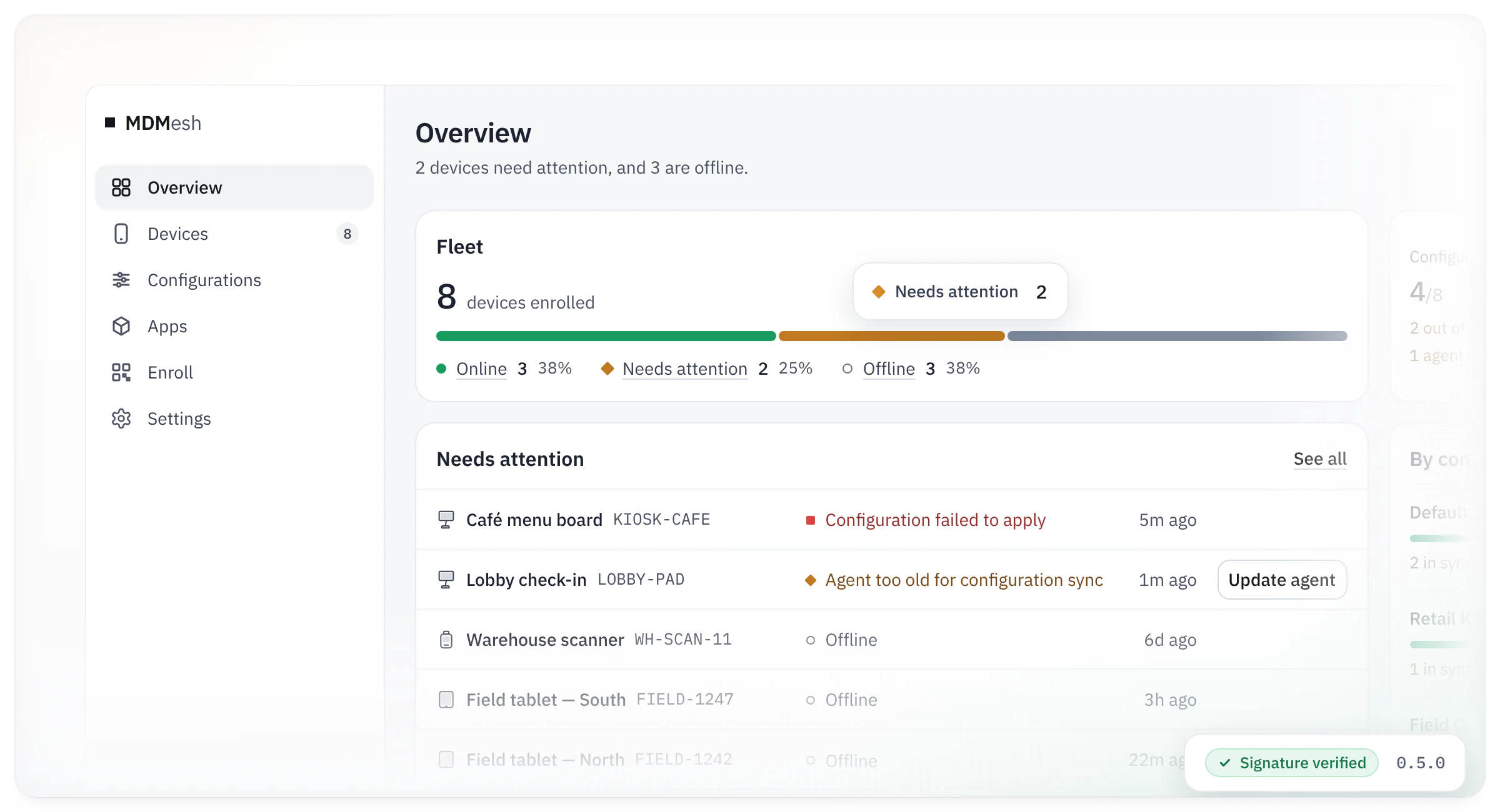
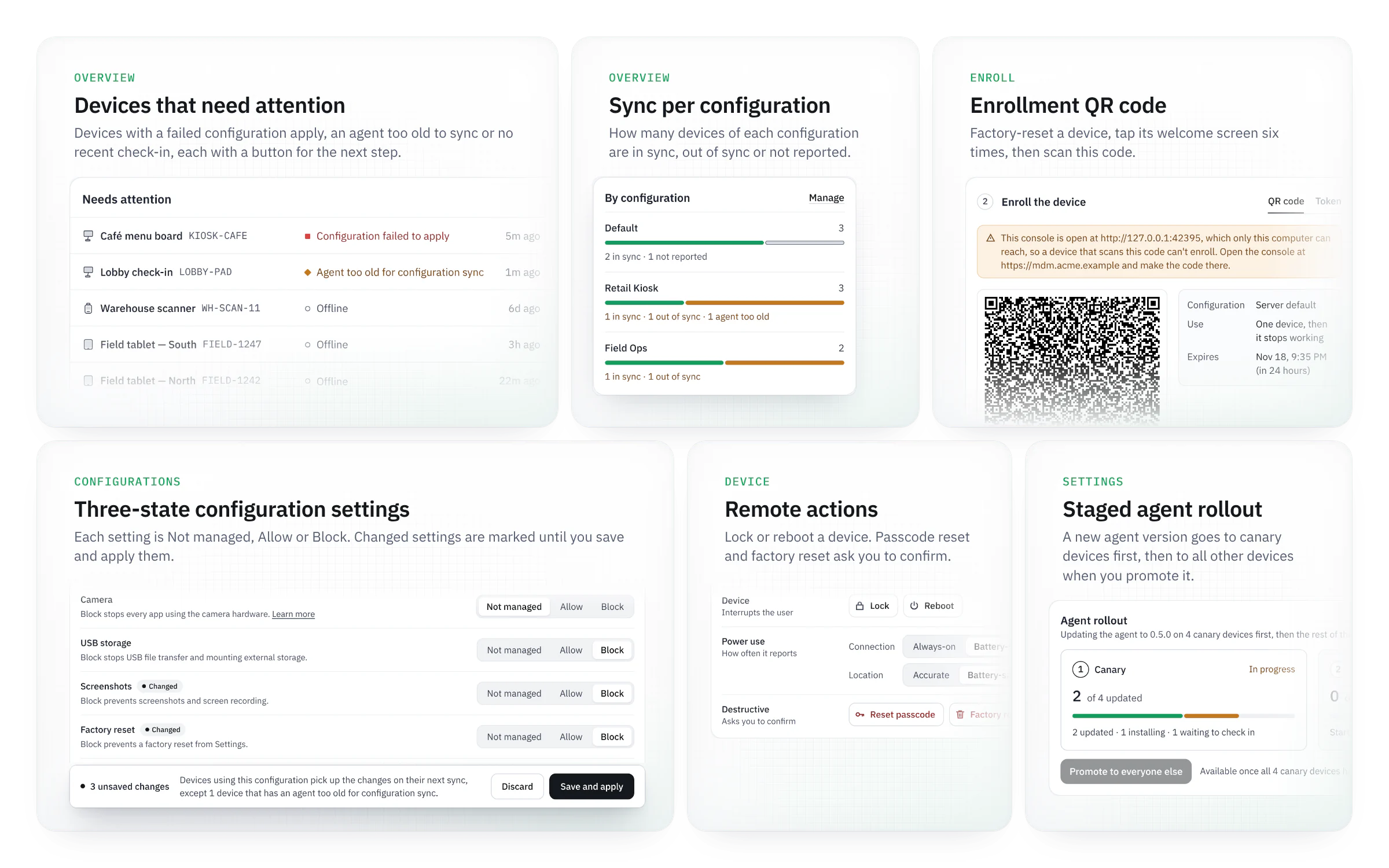
You enroll an Android device by scanning a QR code during its setup, which makes the MDMesh agent its Device Owner. From the web console you then install apps on it, lock it into kiosk mode, see its location and send it remote actions. On quick-start installs, the server updates from signed releases; agents update from the signed release's APK.
/agent/v1) only ever adds fields. A test
in CI checks this.
web/src/extensions/ and server plugins in
plugins/fork/, without editing core files (EXTENDING).On an x86_64 Linux host with Docker, Docker Compose v2, curl, openssl 3.0+ (or an older openssl and
minisign), and either a domain in Cloudflare (for a Cloudflare Tunnel) or a domain pointed at the host with ports 80
and 443 open:
bash <(curl -fsSL https://github.com/MDMesh-app/MDMesh/releases/latest/download/quickstart.sh)
To check quickstart.sh against the signed release before it runs, use the
checked install in DEPLOY.md instead.
The quick start pulls the released images and sets up updates from the console. To build the images from source instead
(./setup.sh --update needs git, curl, and openssl 3.0+, or an older openssl and minisign; python3 is
optional, to verify the release for the enrollment QR):
git clone https://github.com/MDMesh-app/MDMesh.git && cd MDMesh
./setup.sh --update      # checks out the newest signed release, then sets it up
Without Docker, run sudo ./setup.sh --update --native from the clone on Debian 12/13 or Ubuntu 24.04 (x86_64 or
Arm64). It only needs git and brings the rest (native install). Each
installer prints the console URL and a temporary admin password. Then enroll a device:
On a test device you can also use adb shell dpm set-device-owner (docs/DEV.md).
DEPLOY.md covers the hosting modes and the native install, and docs/UPGRADING.md covers updates.
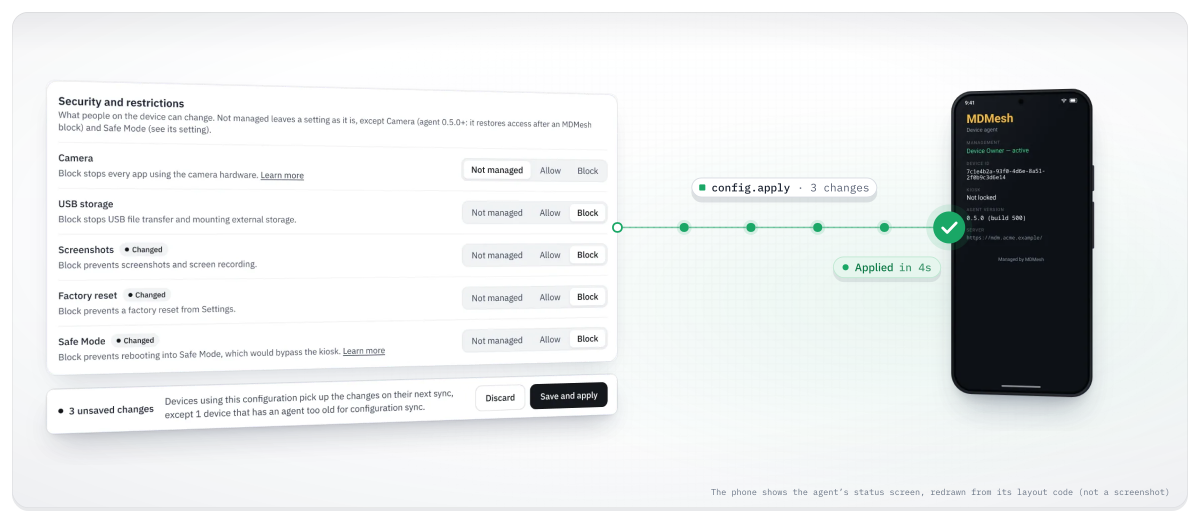
config.apply command. A device without an open connection gets it at its next regular check-in.
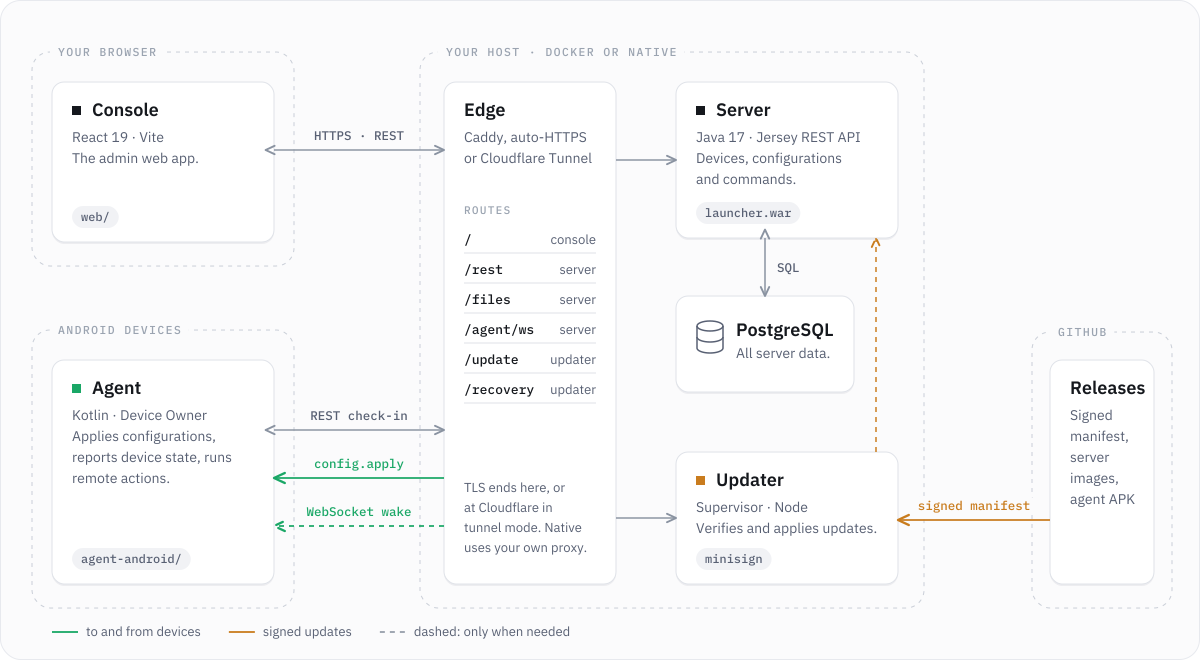
The server is a Java (Jersey) REST API with a PostgreSQL database. In the Docker install, Caddy serves the React console and passes API requests to the server. Caddy gets the TLS certificate. With a Cloudflare Tunnel, Cloudflare handles TLS instead. A native install serves the console from Tomcat, behind your own TLS proxy. Agents check in over REST and keep a WebSocket open, so the server can wake them when there's a command. The updater, a separate service, checks GitHub Releases and verifies each release's minisign signature. On quick-start installs it also applies the update, with a database backup and an automatic rollback. STRUCTURE.md describes the code layout.
Code, docs, bug reports and ideas are all welcome. Start with CONTRIBUTING.md, then report a bug or suggest a feature. For a PR, follow the PR template; small, focused PRs merge fastest. Report security issues privately, as SECURITY.md describes.
MDMesh is licensed under the Apache License 2.0. It is a fork of Headwind MDM by Headwind Solutions LLC, also Apache-2.0 (why and how: ADR-0008). Trademarks and brand names belong to their owners.
MDMesh-app/MDMesh is a public repo on GitHub by MDMesh-app. A modern, self-hosted Android MDM — fleet control, kiosk, app delivery, and signed auto-updates, with a console that doesn't feel like 2012.
It declares the Apache-2.0 license on GitHub.
Its maker tagged it for macOS, Windows and Linux, or as Docker or cross-platform. That is declared by the maker; Take My Repo has not tested it.
Open "Take it" on its page: Take My Repo writes an install plan for your machine and hands it to your AI agent (Claude Code, Codex or Cursor), which asks you before each step. Take My Repo has not tested it on any machine.
Its last change on GitHub was on 2026-11-22. Take My Repo does not judge from that whether it is maintained.
Nobody has reviewed it on Take My Repo yet, which says nothing about its quality.
Reverse engineer anything with agents, from app behavior down to native binaries.
Turn your Android device into a locked-down web page in fullscreen mode.
Turn any Android device into a beautiful, dedicated Home Assistant kiosk. Purpose-built for Home Assistant from the ground up.
A list of Free Software network services and web applications which can be hosted on your own servers
Flutter makes it easy and fast to build beautiful apps for mobile and beyond