
terminal
The new Windows Terminal and the original Windows console host, all in the same place!
- 105k
- C++
- MIT
- 4 h ago
CodeLog+ is a Visual Studio Code extension that helps you insert, remove, highlight, comment, and uncomment log statements in your code.
Repo ManuelGil/vscode-code-log-plus, read from GitHub 1 min ago. ManuelGil has not joined Take My Repo.
ManuelGil/vscode-code-log-plus is a public repo on GitHub by ManuelGil. CodeLog+ is a Visual Studio Code extension that helps you insert, remove, highlight, comment, and uncomment log statements in your code. It declares the MIT license on GitHub. It is written mainly in TypeScript, has 9 stars and last changed on 2026-11-10. Nobody has reviewed it on Take My Repo yet, which says nothing about its quality. Read from GitHub on 2026-11-25.
The new Windows Terminal and the original Windows console host, all in the same place!
一个简单而强大的 golang 日志工具包,支持同步和异步输出到 命令行,文件, api 接口,文件支持按文件大小,文件行数,日期切分;A simple and powerful golang logging toolkit that supports synchronous and asynchronous output to the console, file, API interfaces, file support by file size, file line number, date sharding.
A VS Code extension to streamline debugging by inserting and managing formatted log statements across multiple languages.
CodeLog+ accelerates debugging by providing:
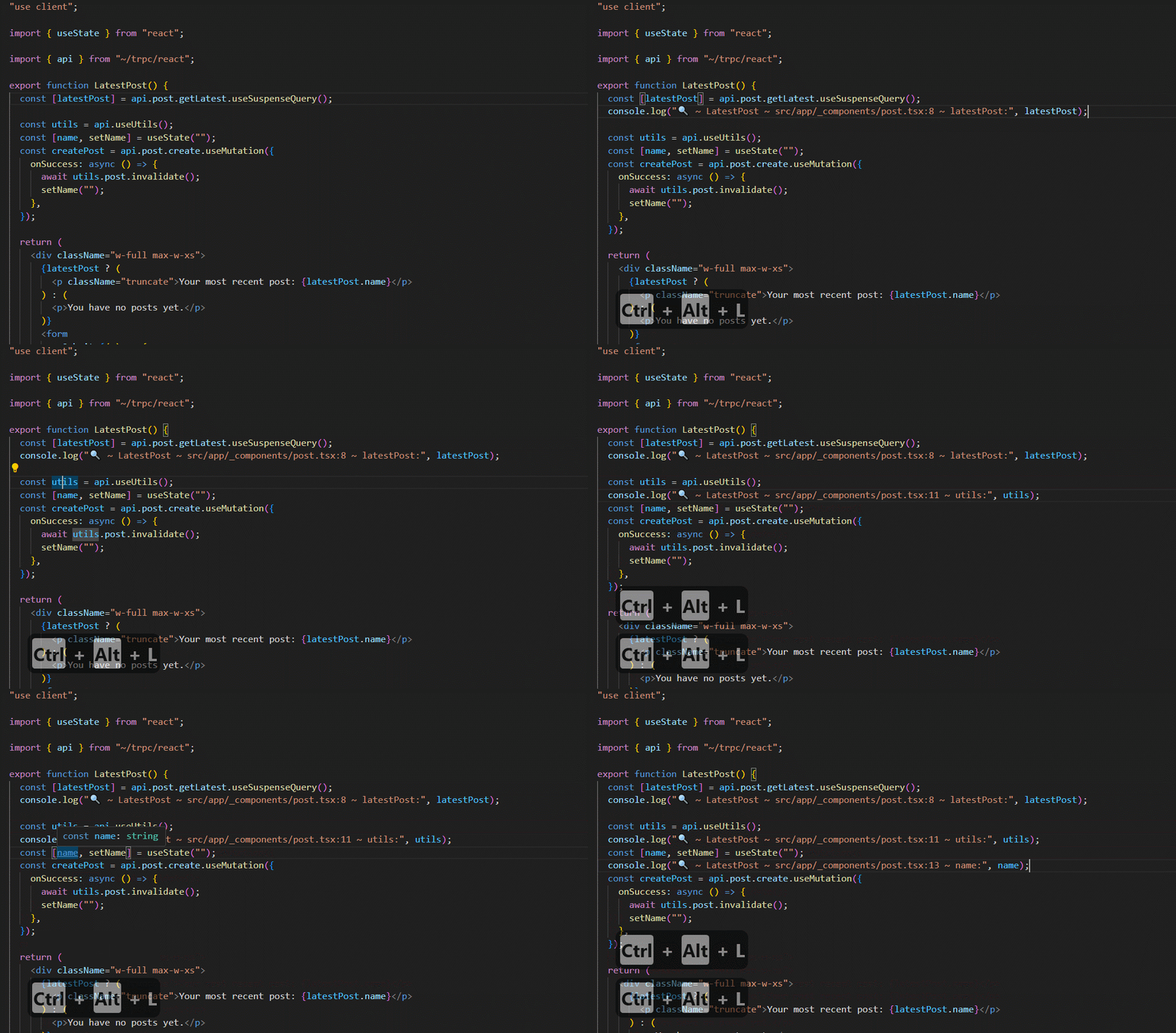
Ctrl+Alt+L⌘+Alt+Lconsole.log("🔍 ~ myFile.js:25 ~ userName:", userName)
print(f"🔍 ~ myFile.py:25 ~ userName: {userName}")
Bulk-operate on every log statement in the currently active file, no manual searching, no regex gymnastics. Simply open the Command Palette (Ctrl+Shift+P / ⌘+Shift+P), type CodeLog+, and choose your action. Log operations can now target the current selection, current function, or entire file.
Note: Log operations now prioritize the active editor selection when text is selected. If no selection exists, all logs in the file are processed as usual.
Purpose: Standardize or change log methods in one sweep.
console.log → console.error → console.warn)Ctrl+Alt+A⌘+Alt+A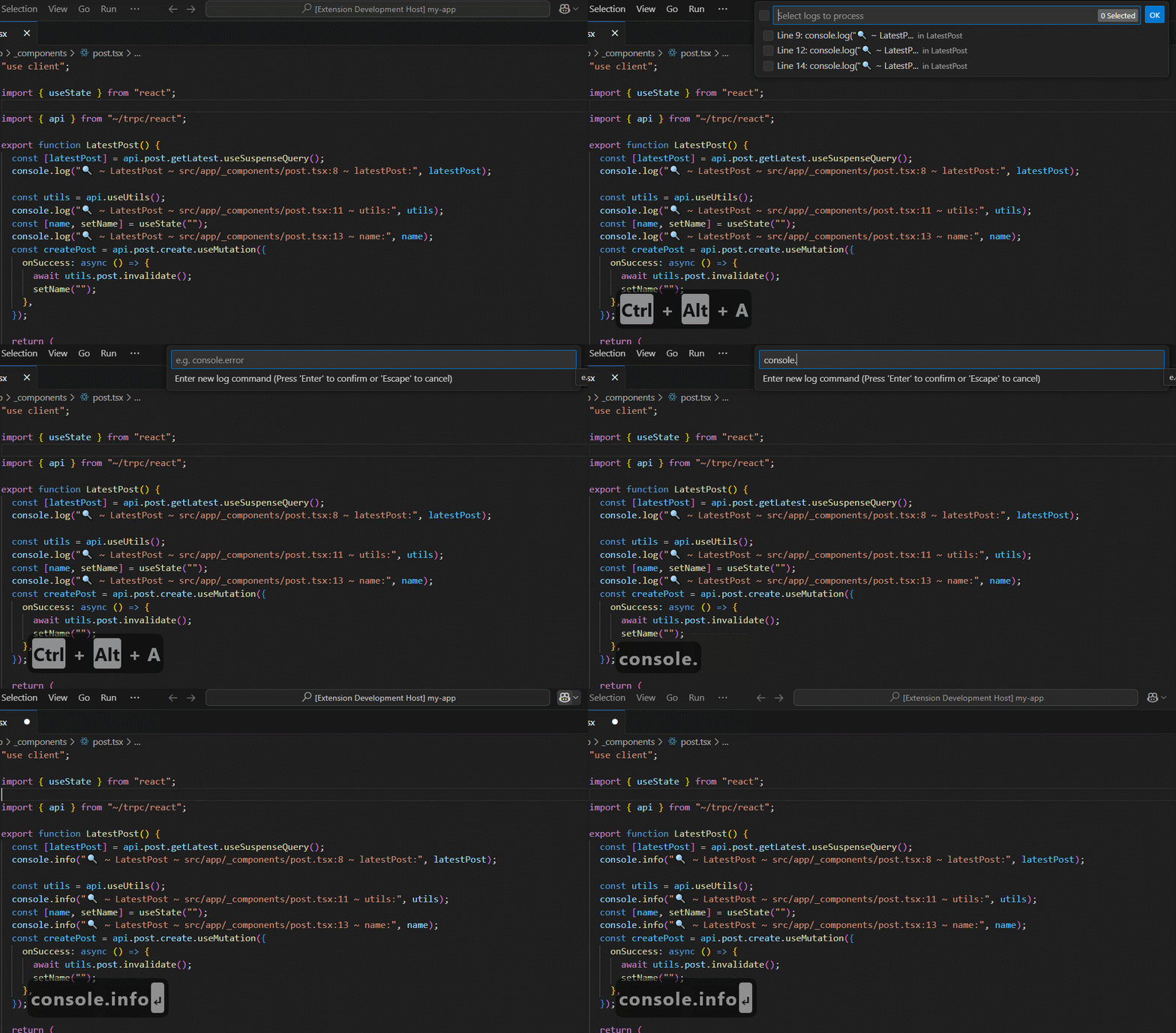
Purpose: Temporarily mute or restore debug output without deleting code.
Ctrl+Alt+,⌘+Alt+,log line in a comment (e.g. // console.log(...))Ctrl+Alt+Shift+,⌘+Alt+Shift+,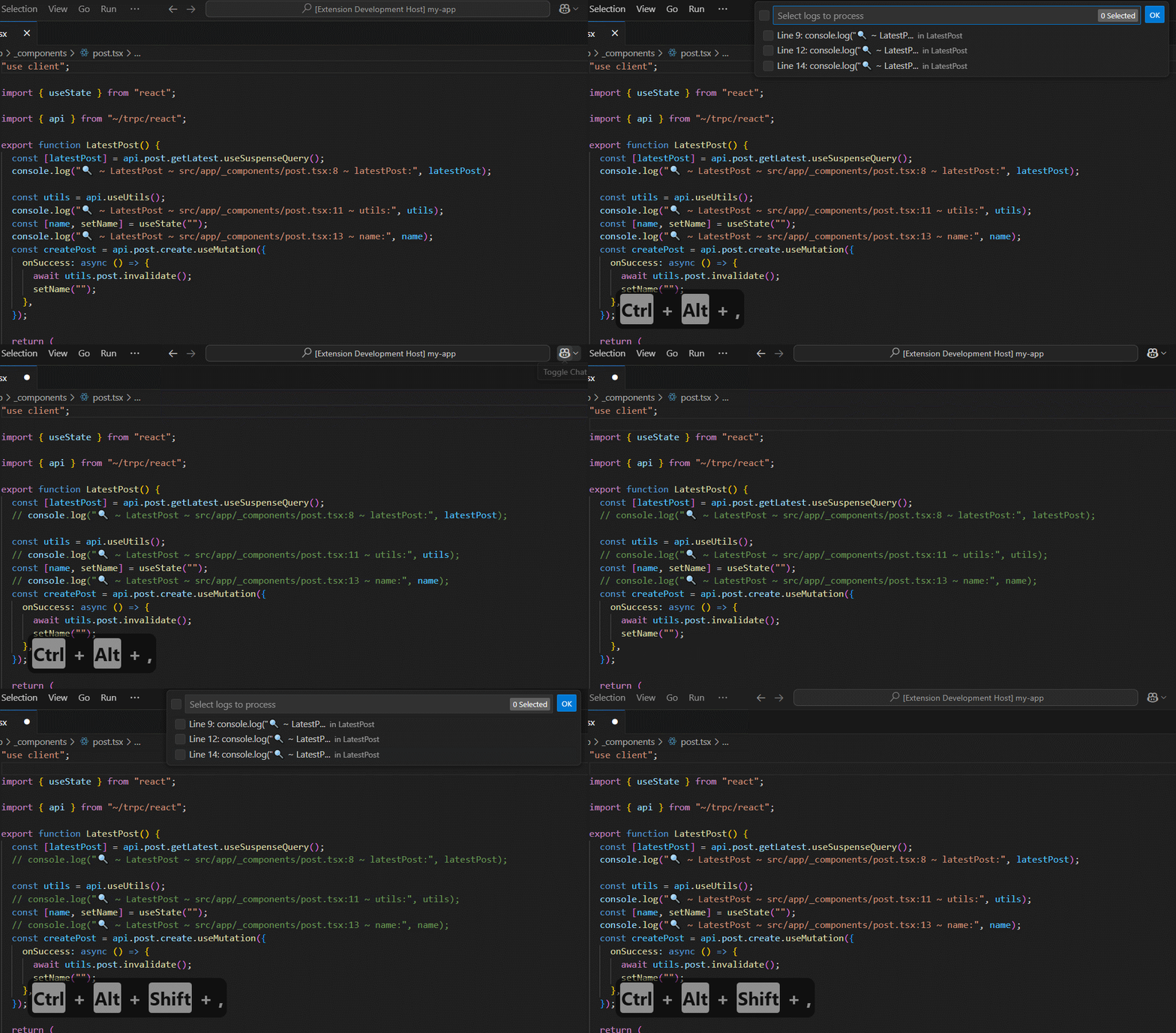
Purpose: Clean slate, strip out all log statements before merging or shipping.
Ctrl+Alt+Shift+L⌘+Alt+Shift+L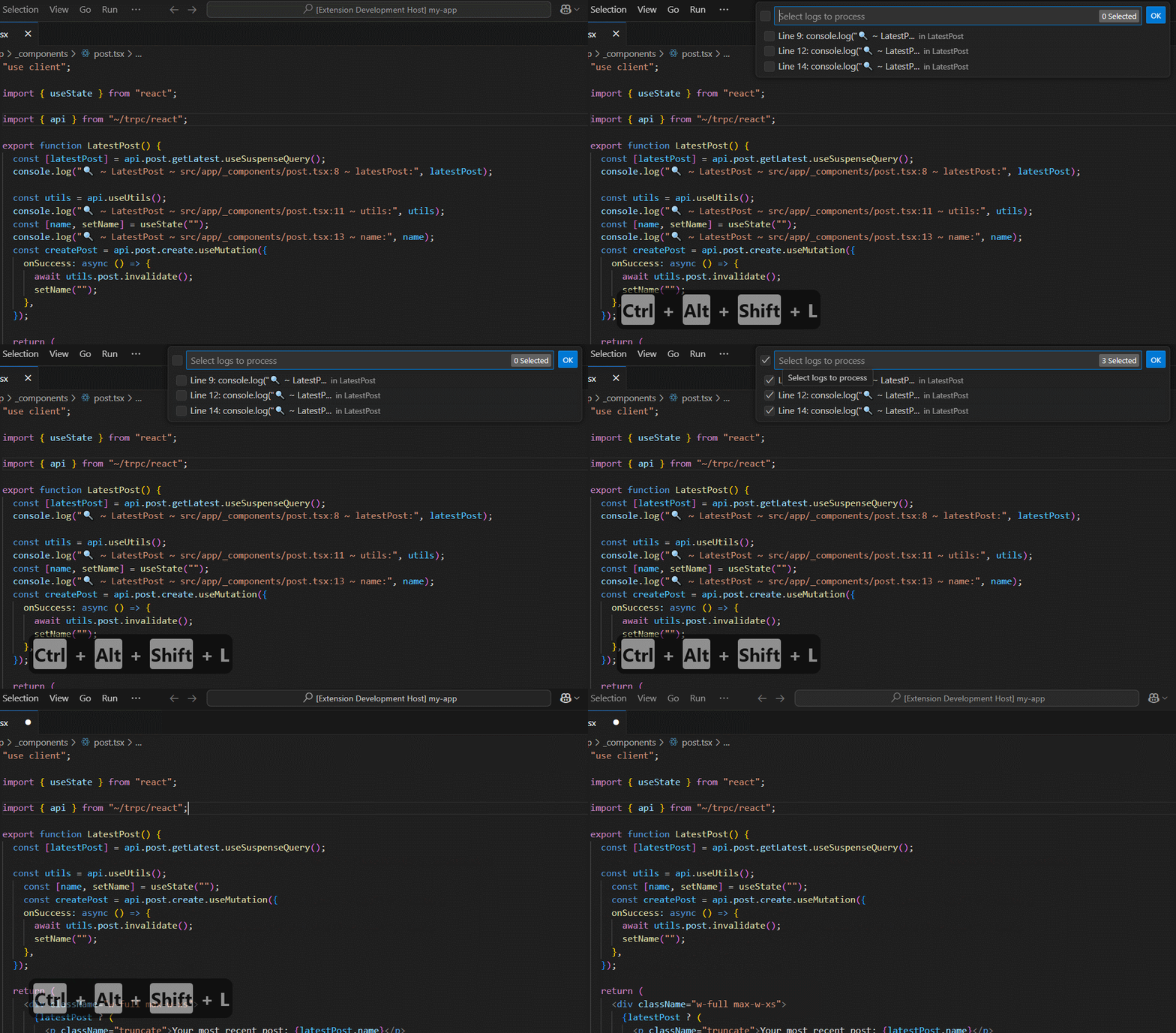
Purpose: Visually surface every log statement for quick scanning, then clear highlights to restore your normal color scheme.
Ctrl+Alt+K⌘+Alt+Klog lineCtrl+Alt+Shift+K⌘+Alt+Shift+K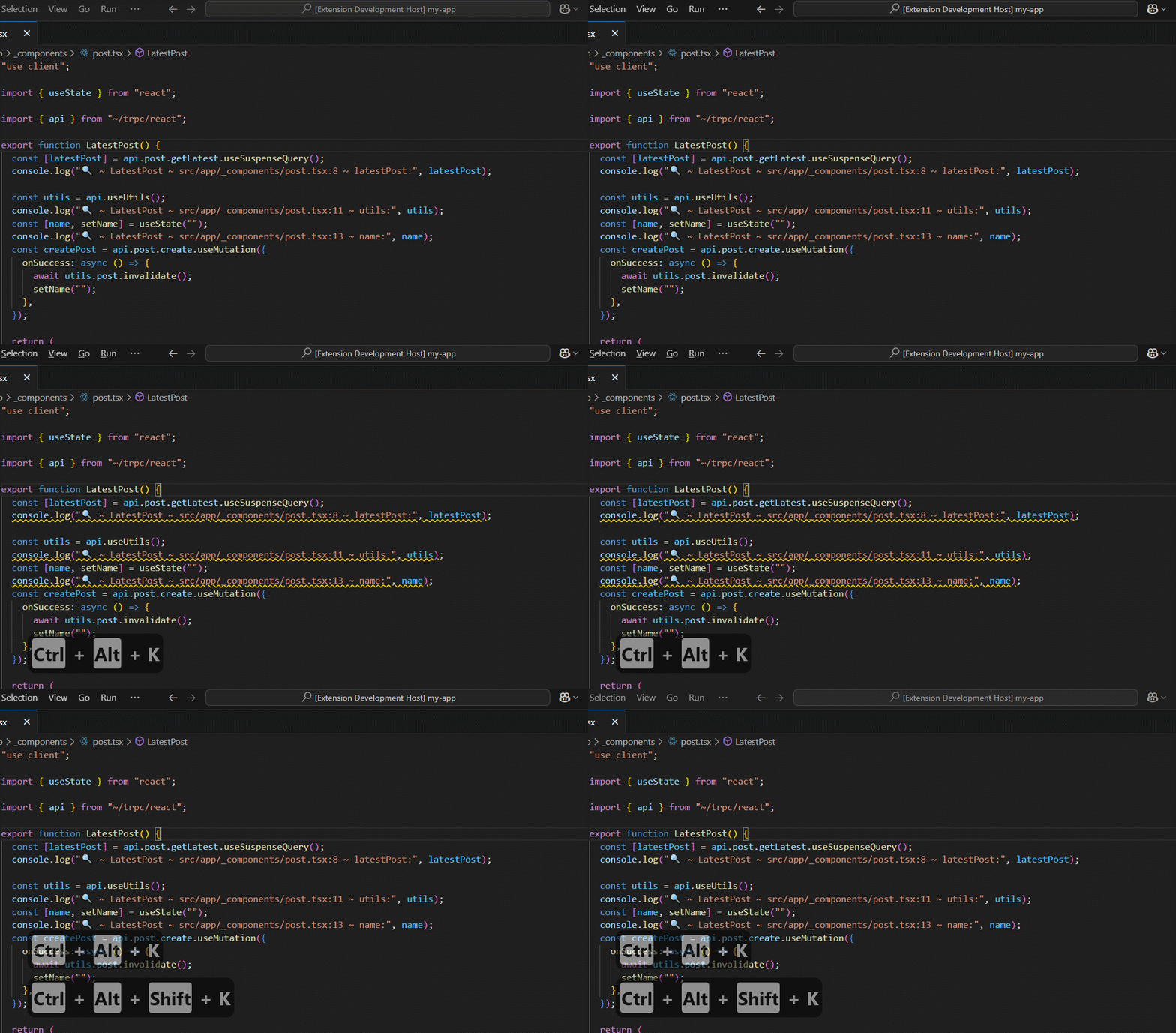
Navigate every debug statement across your entire workspace with a single sidebar panel:
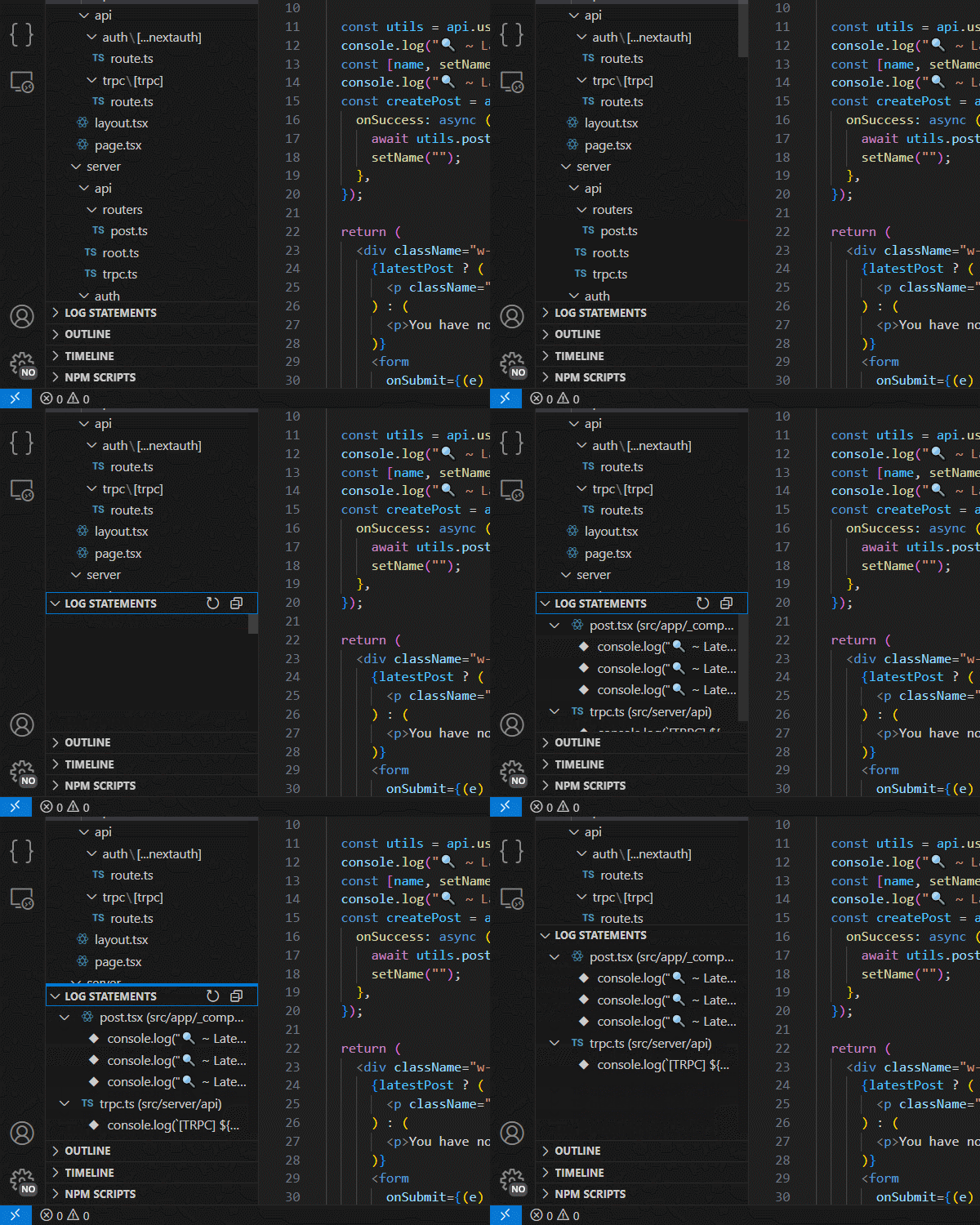
CodeLog+ supports improved accessibility with the useAccessibleLogs setting:
"codeLogPlus.useAccessibleLogs": true
When enabled, emoji prefixes in log statements are replaced with text alternatives:
| Emoji | Text Alternative |
|---|---|
| 🔍 | [DEBUG] |
| ℹ️ | [INFO] |
| ⚠️ | [WARNING] |
| ❌ | [ERROR] |
This improves compatibility with screen readers and provides clearer information in environments where emojis may not render correctly.
Example with accessibility enabled:
Standard log: console.log("🔍 ~ file.js:25 ~ functionName: variable")
Accessible log: console.log("[DEBUG] ~ file.js:25 ~ functionName: variable")
When working with large files, long-running operations like finding, editing, or removing logs can take time. CodeLog+ now provides visual progress indicators during these operations:
These indicators help you understand when operations are in progress and when they complete, especially in large codebases.
CodeLog+ provides various configuration options to customize logging behavior in VSCode. You can modify these settings in the VSCode settings.json file.
| Setting | Type | Default | Description |
|---|
ManuelGil/vscode-code-log-plus is a public repo on GitHub by ManuelGil. CodeLog+ is a Visual Studio Code extension that helps you insert, remove, highlight, comment, and uncomment log statements in your code.
It declares the MIT license on GitHub.
Its maker tagged it for macOS, Windows and Linux, or as Docker or cross-platform. That is declared by the maker; Take My Repo has not tested it.
:fire: Android developers should collect the following utils(updating).
A CSharp library that gives you better console handling for that classic ASCII look.
Open "Take it" on its page: Take My Repo writes an install plan for your machine and hands it to your AI agent (Claude Code, Codex or Cursor), which asks you before each step. Take My Repo has not tested it on any machine.
Its last change on GitHub was on 2026-11-10. GitHub counts 2 open issues and pull requests. Take My Repo does not judge from that whether it is maintained.
Nobody has reviewed it on Take My Repo yet, which says nothing about its quality.
Take My Repo cannot say: it does not audit code and has not run vscode-code-log-plus. What is known comes from GitHub. It declares the MIT license on GitHub. Its last change was on 2026-11-10. It has 9 stars, which measure popularity, not safety. Nobody has reviewed it on Take My Repo yet, which says nothing about its quality. Read the source before you run it. With "Take it", your AI agent shows each step and asks you before running it; README text is treated as data, not as instructions.


