
ASP.NET-Core-Template
A ready-to-use, layered ASP.NET Core 10 MVC solution template with Identity, EF Core, the repository pattern, Mapster mappings, dependency injection, tests and StyleCop warnings fixed.
- 1.2k
- MIT
- 2 mo ago
Repo NikolayIT/ASP.NET-Core-Template, read from GitHub 13 min ago. NikolayIT has not joined Take My Repo.
In short
NikolayIT/ASP.NET-Core-Template is a public repo on GitHub by NikolayIT. A ready-to-use, layered ASP.NET Core 10 MVC solution template with Identity, EF Core, the repository pattern, Mapster mappings, dependency injection, tests and StyleCop warnings fixed. It declares the MIT license on GitHub. It is written mainly in C#, has 1,192 stars and last changed on 2026-09-24. Nobody has reviewed it on Take My Repo yet, which says nothing about its quality. Read from GitHub on 2026-11-24.

ASP.NET Core Template
A ready-to-use, layered ASP.NET Core 10 MVC solution template with Identity, EF Core, the repository pattern, Mapster mappings, dependency injection, tests and StyleCop warnings fixed.
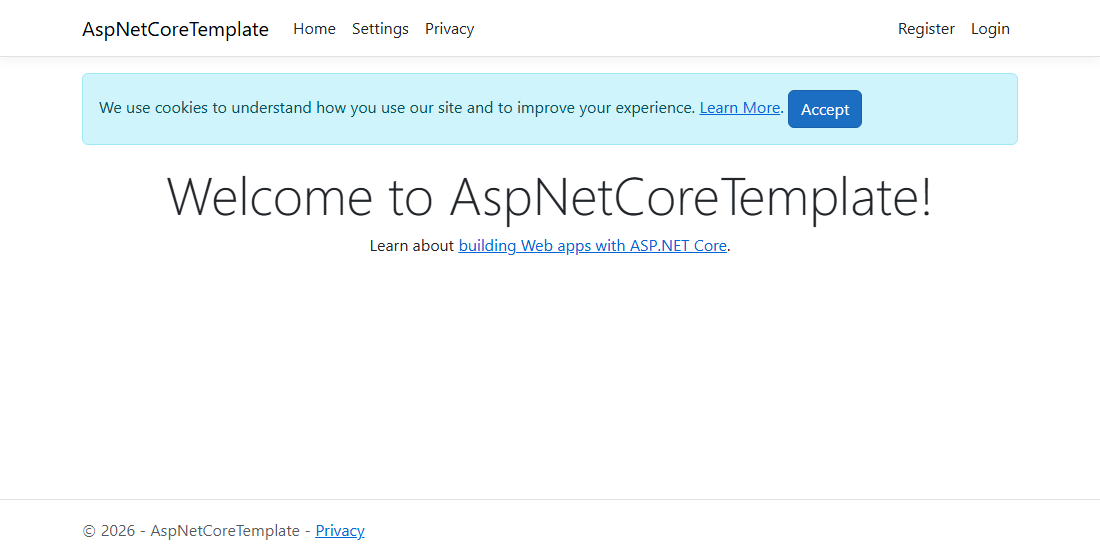
What's Included
- .NET 10 solution in the new
.slnxformat, split into Common, Data, Services, Web and Tests layers - ASP.NET Core MVC with an
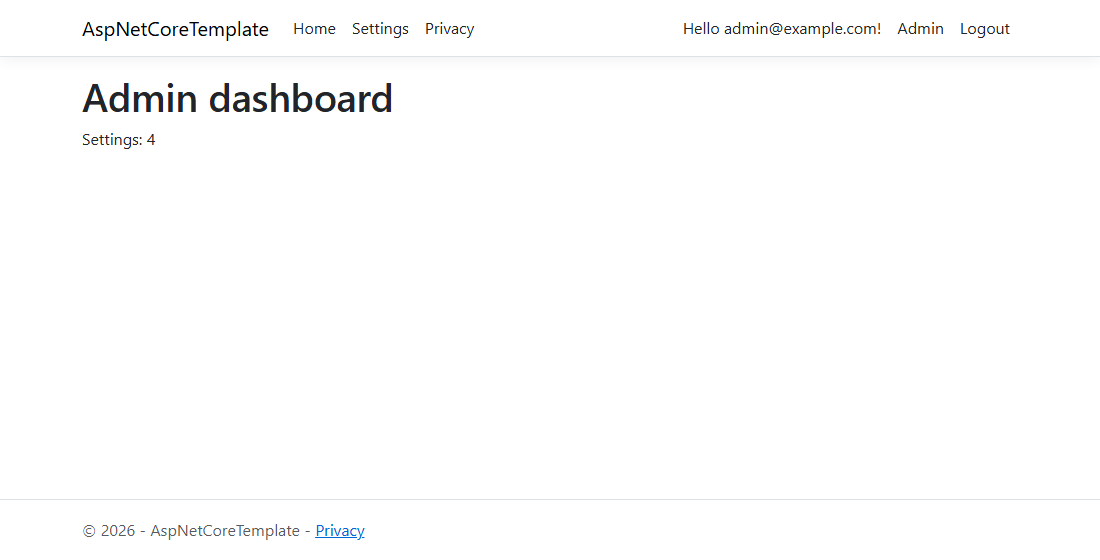
Administrationarea restricted to theAdministratorrole - ASP.NET Core Identity (default UI) with custom
ApplicationUserandApplicationRole - Entity Framework Core with SQL Server, migrations applied on startup and data seeding
- Generic repositories with audit info (
CreatedOn,ModifiedOn) and soft delete (IsDeleted,DeletedOn) handled automatically - Mapster mappings declared on the view models via
IMapFrom<T>,IMapTo<T>andIHaveCustomMappings - SendGrid e-mail sender (and a
NullMessageSenderfor development) - Bootstrap 5.3, jQuery 4 and jQuery Validation, restored with LibMan at build time and bundled/minified with WebOptimizer
- xUnit.net v3 unit tests (Moq and the EF Core in-memory provider) and integration tests with
WebApplicationFactory, running on Microsoft Testing Platform - StyleCop analyzers and selected .NET code analysis rules configured in
.globalconfigandstylecop.json, and central package management (Directory.Packages.props) - GitHub Actions workflow that builds the solution and runs the tests
Screenshots
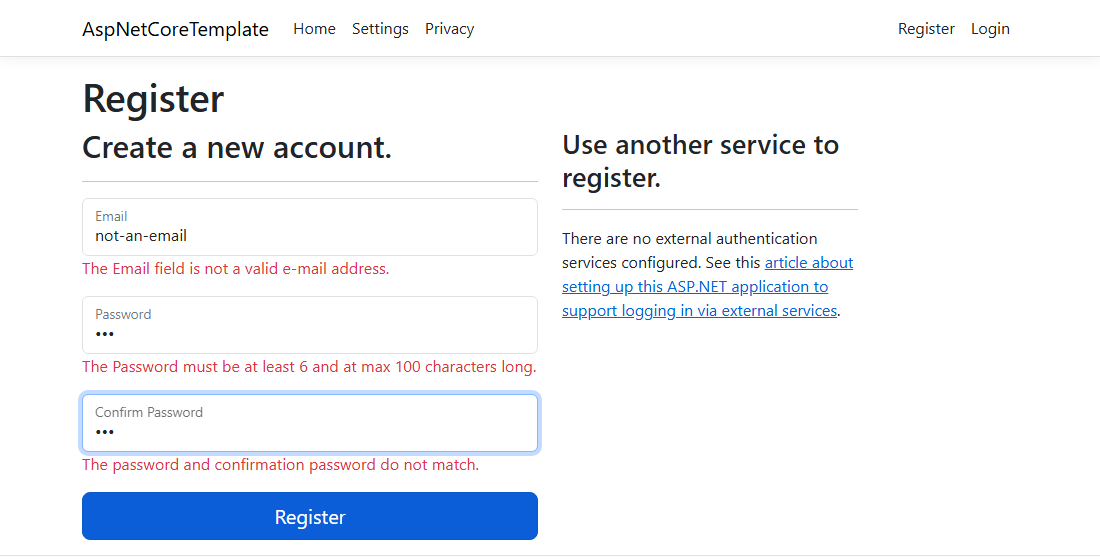
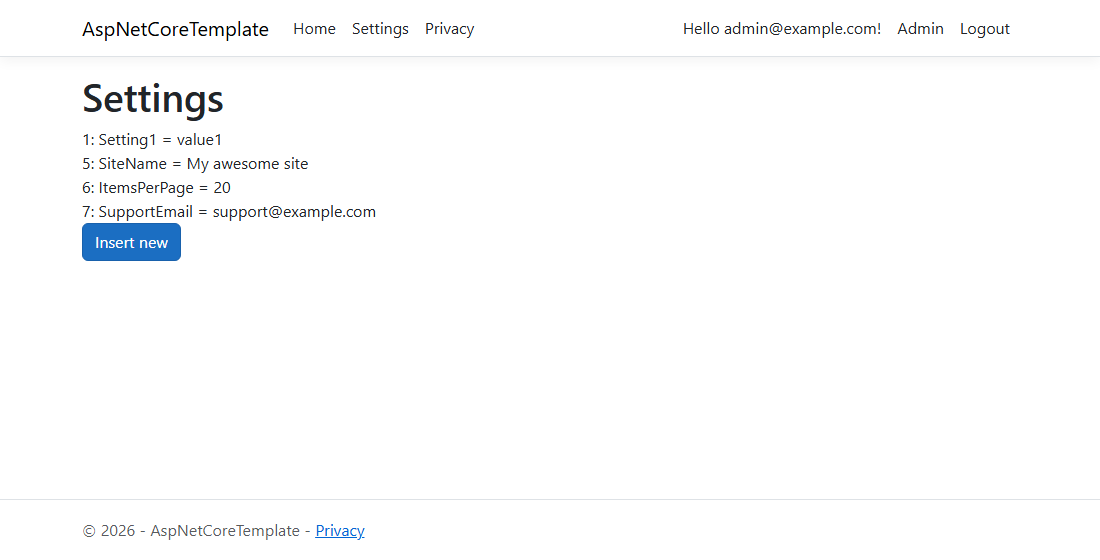
| Registration with client-side validation | Settings (entities mapped with Mapster) |
|---|---|
 |
 |
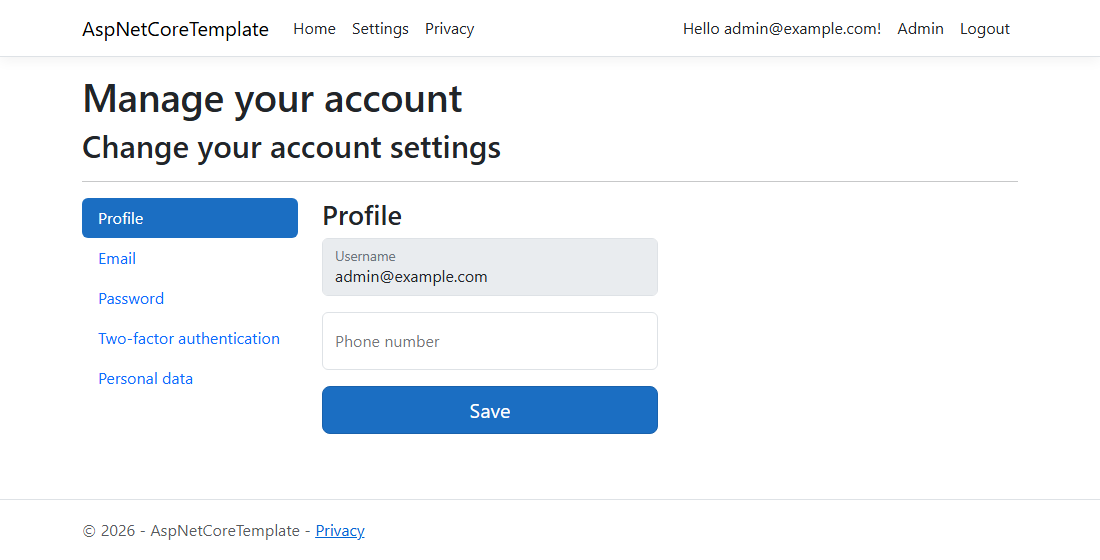
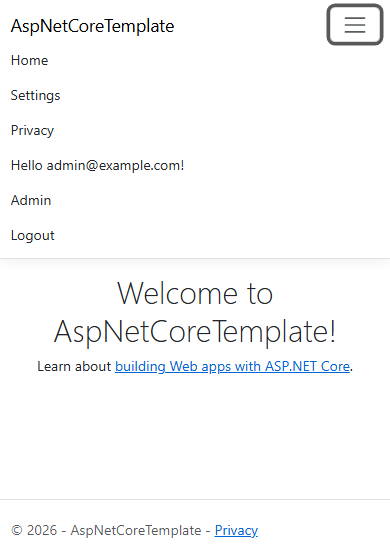
| Account management (ASP.NET Core Identity) | Administration area |
 |
 |
Getting Started
Prerequisites
- .NET 10 SDK
- SQL Server (LocalDB, Express, Developer or a Docker container)
- Visual Studio 2026, Visual Studio Code or JetBrains Rider (optional)
Create a New Project
Install the template from NuGet:
dotnet new install AspNetCoreTemplate
Create a project from it. Every AspNetCoreTemplate occurrence in file names, namespaces and the database name is replaced with your project name:
dotnet new aspnet-core -n YourProjectName -o YourProjectName
After creating the files, dotnet new asks whether to run dotnet format, which re-sorts the using directives for your project name so the StyleCop analyzers report no warnings. Answer yes, or pass --allow-scripts yes to skip the question.
Alternatively, clone this repository and run the TemplateRenamer tool from the src folder to rename the solution in place, then run dotnet format --diagnostics SA1210 --severity warn there.
Run the Application
Set the
DefaultConnectionconnection string inWeb/YourProjectName.Web/appsettings.json(it defaults toServer=.;Database=YourProjectName;Trusted_Connection=True;...). For LocalDB useServer=(localdb)\\mssqllocaldb.Run the web project from the solution folder:
cd YourProjectName
dotnet run --project Web/YourProjectName.Web
The database is created and migrated on startup and the seeders add the
Administratorrole and a sample setting.Register a user and add it to the
Administratorrole to access the administration area, for example:INSERT INTO AspNetUserRoles (UserId, RoleId) SELECT u.Id, r.Id FROM AspNetUsers u, AspNetRoles r WHERE u.Email = 'you@example.com' AND r.Name = 'Administrator'
Add a Migration
The Data project contains a design-time DbContext factory that reads its own appsettings.json, so migrations are created from that folder with the EF Core tools:
cd Data/YourProjectName.Data
dotnet ef migrations add YourMigrationName
Run the Tests
The test projects use xUnit.net v3 on Microsoft Testing Platform, which global.json turns on for dotnet test, so run it from the solution folder:
dotnet test YourProjectName.slnx
Each test project is also a standalone executable, so dotnet run --project Tests/YourProjectName.Services.Data.Tests works as well.
The Web.Tests project starts the whole application with WebApplicationFactory, so it needs a reachable SQL Server. You can point it at a separate database with an environment variable:
$env:ConnectionStrings__DefaultConnection = "Server=.;Database=YourProjectName_Tests;Trusted_Connection=True;TrustServerCertificate=True"
dotnet test YourProjectName.slnx
Project Overview
graph TD
    Web[Web] --> ViewModels[Web.ViewModels]
    Web --> Infrastructure[Web.Infrastructure]
    Web --> Services[Services]
    Web --> ServicesData[Services.Data]
    Web --> Messaging[Services.Messaging]
    Web --> Data[Data]
    ViewModels --> Mapping[Services.Mapping]
    ViewModels --> Models[Data.Models]
    ServicesData --> Mapping
    ServicesData --> Models
    ServicesData --> DataCommon[Data.Common]
    Data --> Models
    Data --> DataCommon
    Data --> Common[Common]
    Models --> DataCommon
Common
AspNetCoreTemplate.Common contains things shared by the whole solution, for example GlobalConstants.cs with the system name and the administrator role name.
Data
- AspNetCoreTemplate.Data.Common contains the base entity classes (
BaseModel<TKey>,BaseDeletableModel<TKey>), theIAuditInfoandIDeletableEntityinterfaces and theIRepository<T>andIDeletableEntityRepository<T>abstractions of the repository pattern. - AspNetCoreTemplate.Data.Models contains the entities, including
ApplicationUserandApplicationRole, which extend the Identity user and role. - AspNetCoreTemplate.Data contains the
ApplicationDbContext, the entity configurations, the migrations, the seeders and the EF Core repository implementations. TheDbContextfills in the audit info on save and applies a global query filter that hides soft-deleted entities, whileDeletein the deletable entity repository only marks entities as deleted (HardDeleteandUndeleteare also available).
Services
- AspNetCoreTemplate.Services.Data contains the business logic that works with the repositories.
- AspNetCoreTemplate.Services.Mapping registers the Mapster mappings declared on your classes and provides the
To<T>()projection forIQueryable. - AspNetCoreTemplate.Services.Messaging contains the
IEmailSenderabstraction with a ready-to-use SendGrid implementation. - AspNetCoreTemplate.Services is the place for services that do not depend on the database.
Mappings
Implement IMapFrom<TSource> (or IMapTo<TDestination>) and the mapping is registered on startup:
using AspNetCoreTemplate.Data.Models;
using AspNetCoreTemplate.Services.Mapping;

public class TagViewModel : IMapFrom<Tag>
{
    public int Id { get; set; }

    public string Name { get; set; }
}
Implement IHaveCustomMappings when some members need custom configuration:
using AspNetCoreTemplate.Data.Models;
using AspNetCoreTemplate.Services.Mapping;

public class PostViewModel : IMapFrom<Post>, IHaveCustomMappings
{
    public int Id { get; set; }

    public string Title { get; set; }

    public string AuthorName { get; set; }

    public void CreateMappings(Mapster.TypeAdapterConfig configuration)
    {
        configuration.NewConfig<Post, PostViewModel>()
            .Map(destination => destination.AuthorName, source => source.Author.UserName);
    }
}
Then project queries straight to view models, so only the needed columns are selected:
var posts = this.postsRepository.AllAsNoTracking().To<PostViewModel>().ToList();
[!NOTE] Mapster has its own
Mapster.IMapFrom<T>interface, so avoidusing Mapster;next tousing AspNetCoreTemplate.Services.Mapping;and writeMapster.TypeAdapterConfiginstead.
Web
- AspNetCoreTemplate.Web is the ASP.NET Core MVC application (controllers, views, the
Administrationarea, Identity and static files). - AspNetCoreTemplate.Web.ViewModels contains the view and input models, mapped from and to the entities.
- AspNetCoreTemplate.Web.Infrastructure is the place for middlewares, filters, tag helpers and other web infrastructure.
Tests
- AspNetCoreTemplate.Services.Data.Tests contains xUnit.net v3 unit tests for the service layer and the mappings, using Moq and the EF Core in-memory provider.
- AspNetCoreTemplate.Web.Tests contains integration tests that host the application with
WebApplicationFactory. - Sandbox is a console application with the full dependency injection setup, handy for trying out services and running one-off tasks.
Pack the Template
dotnet pack .\nuget.csproj
Publishing a GitHub release whose tag matches the Version in nuget.csproj packs the template and publishes it to NuGet automatically (publish.yml, using nuget.org Trusted Publishing).
Authors
Questions
What is ASP.NET-Core-Template?
NikolayIT/ASP.NET-Core-Template is a public repo on GitHub by NikolayIT. A ready-to-use, layered ASP.NET Core 10 MVC solution template with Identity, EF Core, the repository pattern, Mapster mappings, dependency injection, tests and StyleCop warnings fixed.
Is ASP.NET-Core-Template open source?
It declares the MIT license on GitHub.
Does ASP.NET-Core-Template run on macOS, Windows or Linux?
Its maker has not tagged a system, so it is unknown here. Its README says what it needs.


