

awesome-selfhosted
A list of Free Software network services and web applications which can be hosted on your own servers
- 339k
- 52 min ago
Developer CLI for OpenKey — generate passwords, manage developer secrets, access your vault, and sync securely with a self-hosted server.
Repo OpenSelfHosting/openkey_cli, read from GitHub 1 min ago. OpenSelfHosting has not joined Take My Repo.
OpenSelfHosting/openkey_cli is a public repo on GitHub by OpenSelfHosting. Developer CLI for OpenKey — generate passwords, manage developer secrets, access your vault, and sync securely with a self-hosted server. It declares the MIT license on GitHub. It is written mainly in TypeScript, has 8 stars and last changed on 2026-10-29. Nobody has reviewed it on Take My Repo yet, which says nothing about its quality. Read from GitHub on 2026-11-22.

OpenKey CLI is the command-line companion for the self-hosted, end-to-end encrypted OpenKey password manager.
It helps you:
.env files, API tokens, AWS credentials, and other likely leaks on your machineThis README is a practical quick-start guide. For deeper product docs and platform setup notes, see the CLI guide.
OpenKey CLI is designed for developers who want a fast, local-first workflow without uploading secrets to a third-party service.
Typical use cases:
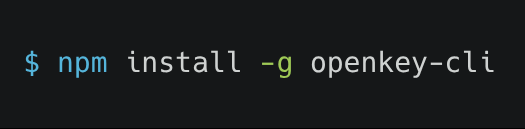
.env values in a structured vaultnpm install -g openkey-cli openkey --version
npx openkey-cli --help
npx tsx src/cli.ts --help
node dist/cli.js --help
git clone https://github.com/OpenSelfHosting/OpenKey_cli.git
cd OpenKey_cli
npm install
npm run build
npm link
npm link is optional, but it makes the openkey binary available globally on your PATH.
A good default workflow looks like this:
# 1) check whether a local bridge or server session is available
openkey status

# 2) generate a password without touching your vault
openkey gen -l 24 --no-symbols

# 3) scan for likely secrets and review the results
openkey discover --dry-run

# 4) save approved findings into a device collection
openkey discover -y

# 5) list or fetch the values you need
openkey secret list
openkey get "GitHub" --field username
openkey secret copy "GitHub PAT"

# 6) export selected values for the current shell session
eval "$(openkey env DATABASE_URL GITHUB_TOKEN)"
OpenKey CLI also supports a server-backed flow for self-hosted deployments:
openkey config set-server http://localhost:8000
openkey login --email you@example.com
eval "$(openkey unlock)"
openkey sync
These examples assume the OpenKey desktop app is already unlocked and running locally.
# health check
openkey status

# generate a password without needing a vault
openkey gen -l 24 --no-symbols

# preview discovered secrets without saving anything
openkey discover --dry-run

# import discovered values into a device collection
openkey discover -y

# add a secret manually
openkey secret add --name "GitHub PAT" --kind apiToken --secret ghp_...

# add a secret from stdin
printf '%s' 'ghp_...' | openkey secret add -n "GitHub PAT" --stdin

# list secrets in the vault
openkey secret list
openkey secret list -d laptop -k apiToken

# export a device-specific .env file
openkey secret export -d laptop -o .env.local

# copy a secret to the clipboard and clear it after 45s
openkey secret copy "GitHub"

# show a TOTP code and copy it
openkey totp "GitHub" -c

# fetch a field from a matching item
openkey get "GitHub" --field username

# search by name or content
openkey search api

# export env vars for the current shell
eval "$(openkey env DATABASE_URL GITHUB_TOKEN)"

# run a command with secrets injected into its environment
openkey run -e DATABASE_URL -e GH=GitHub -- npm start
Shell completion is available for Bash, Zsh, and Fish:
eval "$(openkey completion zsh)"
If you use the OpenKey Android app, unlock it and open the relevant terminal configuration screen, then:
pkg install nodejs
npm install -g openkey-cli
export OPENKEY_NATIVE_PORT=...
export OPENKEY_NATIVE_TOKEN=...
openkey status
The port and token are short-lived and are generated for the current unlocked session. Re-copy them after locking the vault again.
This mode uses a self-hosted OpenKey server for encrypted sync and session-based access.
openkey config set-server http://localhost:8000
openkey login --email you@example.com
eval "$(openkey unlock)"
openkey sync
eval "$(openkey lock)"
Notes:
OPENKEY_PASSWORD in scripts/CIOPENKEY_EMAILOpenKey CLI supports two primary backends.
Native bridge
CLI session
openkey login + openkey unlockOPENKEY_SESSION for the current shellopenkey gen works without either backend because it generates passwords locally and does not access the vault.
The config file is stored in the standard user config directory:
~/Library/Application Support/OpenKey/config.json~/.config/openkey/config.json%APPDATA%\OpenKey\config.jsonThese are the commands most people use day to day.
openkey gen — generate a strong password offlineopenkey discover — scan a machine for likely secrets and onboard themopenkey secret ... — add, list, get, update, and export secretsopenkey logins, openkey cards, openkey crypto — inspect non-secret vault recordsopenkey get, openkey copy, openkey totp — fetch values for a single itemopenkey env / openkey run — inject values into shells or child processesopenkey sync, openkey login, openkey unlock — use self-hosted server modeopenkey doctor — check local bridge/session/server healthopenkey genGenerate a password completely offline. This command does not require login, app unlock, or a server connection.
Common options:
openkey gen --help
openkey gen -l 24
openkey gen -l 32 --no-symbols
openkey gen -l 20 --no-upper --no-digits
openkey gen -l 28 -a -c
What it does:
I, l, 1, O, 0-cUse this when you need a new strong password for a service or for testing local credentials without touching any vault state.
openkey discoverSearch the current machine for likely secrets and import them into the OpenKey vault under a device collection.
Examples:
openkey discover --dry-run
openkey discover -d laptop --depth 5
openkey discover --no-ssh --no-aws -y
This command can scan:
.env filesFlags:
-d, --device: choose the target device collection name-p, --path: scan specific directories--depth: max directory recursion depth for .env discovery--dry-run: show candidates without saving them-y, --yes: save new findings without promptingUse this to quickly onboard secrets into a structured, device-based vault instead of manually adding each item.
OpenKey stores secret entries in device collections and allows typed secret kinds.
apiToken (default)sshKeyenvSnippetotheropenkey secret addCreate a new secret object.
openkey secret add --name "GitHub PAT" --kind apiToken --secret ghp_...
openkey secret add -n "SSH key" -k sshKey --file ~/.ssh/id_ed25519
openkey secret add -n "My token" --stdin --secret -
Useful options:
-n, --name: display name-k, --kind: secret type-s, --secret: raw value-f, --file: read a value from a file--stdin: read from stdin-u, --username: related username-H, --host: hostname or service target-d, --device: assign a device collection--public-key, --public-key-file: SSH-related metadata--notes: description notesopenkey secret setCreate or update a secret matched by the combination of name and device.
openkey secret set -n "GitHub PAT" -k apiToken -s ghp_...
This is useful when you want to upsert a secret without worrying whether the item already exists.
openkey secret listList all secrets with masked values.
openkey secret list
openkey secret list -d laptop
openkey secret list -k apiToken
This is safe for inspection because secret values are masked rather than printed in full.
openkey secret getPrint the raw secret value for a matched item.
openkey secret get "GitHub PAT"Use this when you need the actual credential value in a script or terminal. Because it prints the plaintext secret, use it deliberately.
openkey copyCopy a best-match vault item by name, host, or UUID prefix without requiring the secret subcommand. This is the shorthand for the common “copy a secret to clipboard” workflow.
openkey copy "GitHub PAT"
openkey copy "GitHub" --clear 60
When the item is not a secret, OpenKey copies the matched value in the same way the generic get command resolves it.
openkey secret copyCopy a secret directly to the system clipboard.
openkey secret copy "GitHub PAT"
openkey secret copy "GitHub PAT" --clear 120
openkey secret copy "GitHub PAT" --keep
The clipboard auto-clears after 45 seconds by default unless you disable that behavior with --keep.
openkey secret updateModify fields on an existing secret without recreating it.
openkey secret update "GitHub PAT" --secret ghp_newvalue
openkey secret update "GitHub PAT" --notes "Rotated on 2026-10-29"
openkey secret exportExport secrets in a format ready for shell use.
openkey secret export -d laptop -o .env.local
openkey secret export --format exports
This creates either a .env-style file or shell-export format, depending on the selected mode.
openkey secret devicesList device collections and the number of secrets assigned to each one.
openkey secret devices
openkey secret rmDelete a secret.
openkey secret rm "GitHub PAT" -yThis command prompts by default unless -y is used.
In addition to typed secrets, OpenKey CLI can query other item categories already present in the vault.
openkey loginsList login entries with masked passwords.
openkey cardsList payment cards with numbers masked.
openkey cryptoList crypto wallets with masked keys or seed material.
openkey searchSearch across secrets, logins, cards, and crypto items using a keyword query.
openkey search api
openkey search github
openkey getRetrieve a value from a matching item when the item is not a plain secret.
openkey get "GitHub" --field usernameThis is the general-purpose “fetch a known field from a credential item” command.
openkey totpGenerate a time-based one-time password for a matching login or secret record.
openkey totp "GitHub"
openkey totp "GitHub" -c
Use -c to copy the TOTP code to the clipboard.
openkey envPrint environment-export statements for one or more vault items.
eval "$(openkey env DATABASE_URL GITHUB_TOKEN)"
openkey env DATABASE_URL
openkey env DATABASE_URL=GitHub
This is intended for shell workflows where you want to inject secrets into your current session.
openkey runRun a child process with selected secret values injected into its environment.
openkey run -e DATABASE_URL -e GH=GitHub -- npm start
The command after -- receives the environment variables you configured and runs normally.
These commands are used for self-hosted server mode.
openkey loginLog in to the configured self-hosted server.
openkey login --email you@example.com
openkey logoutClear server access tokens.
openkey unlockUnlock the server-backed vault and print a shell-ready OPENKEY_SESSION export.
eval "$(openkey unlock)"
openkey lockPrint the command to clear the active OPENKEY_SESSION.
openkey syncPull ciphertext from the server and optionally push the local cache.
openkey sync
openkey sync --push
openkey config set-serverSet the OpenKey server URL.
openkey config set-server http://localhost:8000
openkey config showDisplay the current CLI configuration.
openkey config set-lockSet the unlock session lifetime in minutes.
openkey statusShow the current status of the local bridge, running session, and server connection.
openkey doctorRun a focused diagnosis of CLI, bridge, session, and server health.
openkey doctor
openkey completionPrint a shell completion script.
openkey completion bash
openkey completion zsh
openkey completion fish
openkey forgetWipe local config and cached ciphertext from the CLI.
--json makes output machine-readable--keep if you want the copied value to remain in the clipboard--clear N changes the clipboard timeout in secondslist and search mask secret values; use get or copy when you need the plaintextopenkey config set-locknpm test
npm run typecheck
npm run buildOpenKey CLI is licensed under the MIT License.
OpenSelfHosting/openkey_cli is a public repo on GitHub by OpenSelfHosting. Developer CLI for OpenKey — generate passwords, manage developer secrets, access your vault, and sync securely with a self-hosted server.
It declares the MIT license on GitHub.
Its maker tagged it for macOS, Windows and Linux, or as Docker or cross-platform. That is declared by the maker; Take My Repo has not tested it.
Open "Take it" on its page: Take My Repo writes an install plan for your machine and hands it to your AI agent (Claude Code, Codex or Cursor), which asks you before each step. Take My Repo has not tested it on any machine.
Its last change on GitHub was on 2026-10-29. GitHub counts 1 open issue and pull requests. Take My Repo does not judge from that whether it is maintained.
A list of Free Software network services and web applications which can be hosted on your own servers
Nobody has reviewed it on Take My Repo yet, which says nothing about its quality.
Fair-code workflow automation platform with native AI capabilities. Combine visual building with custom code, self-host or cloud, 400+ integrations.
The open-source cloud for agents & devs. Including Auth, Databases, Storage, Functions, Messaging, Hosting, Realtime, WAF and more
High performance self-hosted photo and video management solution.
Open-source OpenKey browser extension with autofill, passkeys, secure vault access, and self-hosted encrypted sync for Chrome and Firefox.
Zero-knowledge, self-hosted sync server for OpenKey — stores ciphertext only and never decrypts your vault data.
A collection of reusable Agent Skills for AI coding agents, covering debugging, code review, testing, security, DevOps, documentation, and software development workflows. Open source, community-driven, and built on the Agent Skills standard.
Official documentation website for OpenKey — an open-source, privacy-focused password manager with self-hosting and device-to-device sync.


