label-studio
Label Studio is a multi-type data labeling and annotation tool with standardized output format
- 29k
- TypeScript
- Apache-2.0
- 9 h ago
OpenScreenShot is a privacy-first, free, open-source screenshot extension -- zero data leaves your device, no account needed, no telemetry, no third-party services.
Repo PGHQdev/OpenScreenShot, read from GitHub 19 h ago. PGHQdev has not joined Take My Repo.
PGHQdev/OpenScreenShot is a public repo on GitHub by PGHQdev. OpenScreenShot is a privacy-first, free, open-source screenshot extension -- zero data leaves your device, no account needed, no telemetry, no third-party services. It declares the MIT license on GitHub. It is written mainly in TypeScript, has 95 stars and last changed on 2026-10-25. Nobody has reviewed it on Take My Repo yet, which says nothing about its quality. Read from GitHub on 2026-11-24.
Label Studio is a multi-type data labeling and annotation tool with standardized output format

The whole page. One click. Yours to keep.
Open-source full-page screenshot extension for Chrome and Firefox. Capture, annotate, blur, export as PNG, JPEG, WebP, or PDF, and record a tab. Everything runs on your device. No account.




 Add to Chrome Chrome · Edge · Brave · Arc · Chromium |
 Add to Firefox Firefox for desktop · 140+ |



 MCP Local server · client setup required |
 CLI Terminal · scripts · CI/CD |
Website · Docs · Roadmap · Report a bug
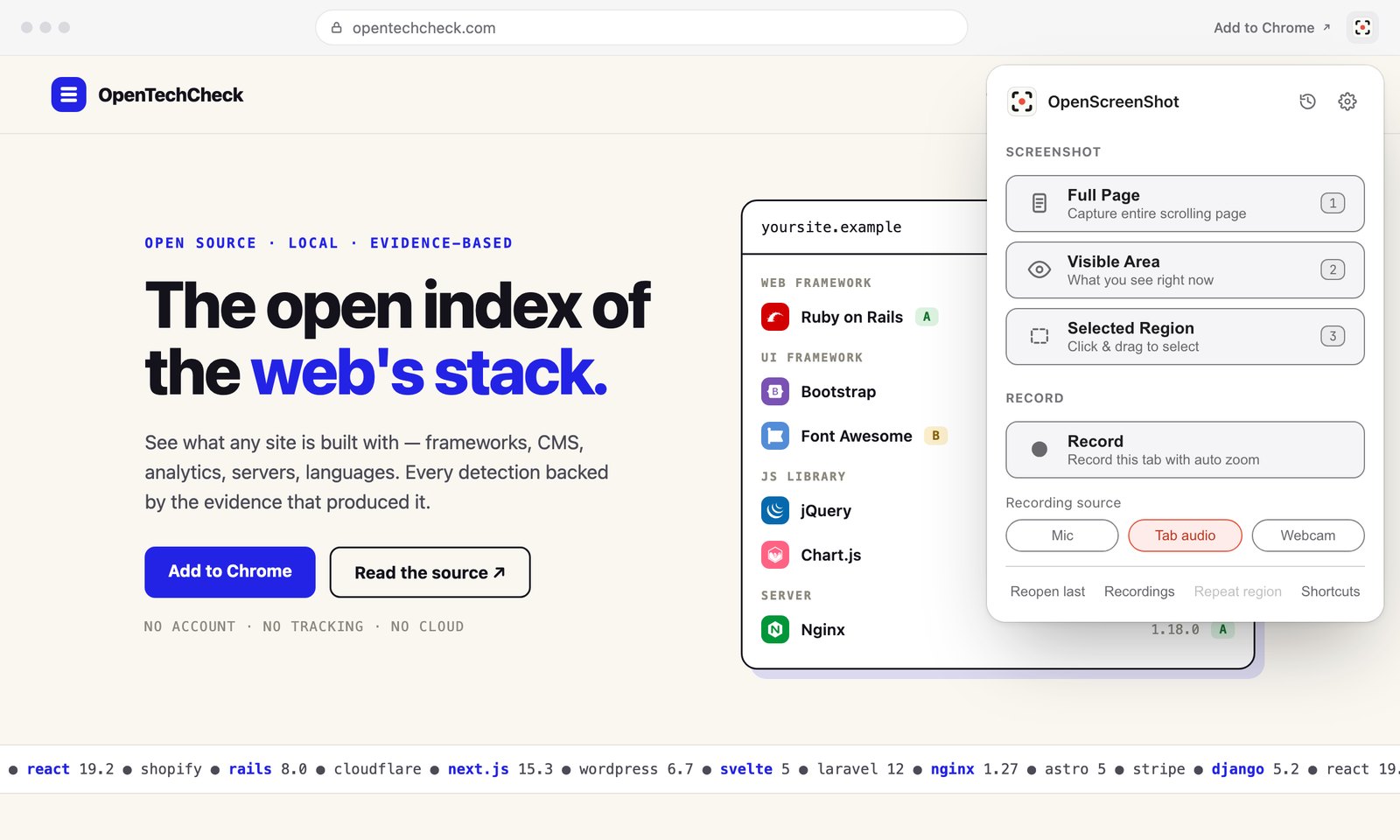
Chrome preview. Screenshot capture and editing are also available in Firefox.
Capture the whole web page, crop it, mark it up, blur what is private, and save it as an image or a PDF. Every step runs in your browser: nothing is uploaded, and there is no account.
The full tour, every shortcut, and the settings reference live in the docs.
| Chrome & Chromium | Firefox | |
|---|---|---|
| Install | Chrome Web Store | Firefox Add-ons |
| Full-page, visible, region & element capture | ✓ | ✓ |
| Annotations, redaction & local history | ✓ | ✓ |
| Image, PDF & clipboard export | ✓ | ✓ |
| Screen recording | Chrome | Not available |
Firefox requires desktop version 140 or later. The Chrome extension also works in Edge, Brave, Arc, and other Chromium browsers. Screen-wide color picking and floating capture windows appear only when the browser supports them.
Prefer a capture menu on every click? Turn off Express mode in settings. For alternatives and a sourced feature comparison, see How it compares.
Choose Capture element from the page or extension right-click menu, or from the popup when Express mode is off. Hover over a card, image, chart, or table to highlight it. Use ↑ / ↓ to select a larger or smaller area, or ← / → to move between elements without a mouse. Click or press Enter to capture; Esc cancels.
The capture follows your existing Editor, Clipboard, or Download setting. The element must be fully visible: scroll it into view, or use the Capture full page fallback offered for clipped elements. Content inside an iframe is captured as part of the iframe's visible rectangle. No new permissions are needed.
host_permissions is empty: activeTab grants access on your click, and the extension
does not have standing access to every website. Captures, recordings, and edits stay
in local browser storage until you export or delete them. Chrome can optionally request
broader access for recording across sites; Firefox does not request recording permissions. Full policy: PRIVACY.md.
| Permission | Why |
|---|---|
activeTab |
Access the current tab — only when you click the extension, use a shortcut, or pick a capture from the right-click menu |
scripting |
Inject on-demand page functions for scroll-and-stitch, region selection, the quick-mode clipboard write, and the recording's click tracker |
storage (+ unlimitedStorage) |
Settings, the last region rect, editing drafts, a parked Record click, and stashing large full-page PNGs and recording chunks for the editor |
downloads |
Save exports, quick-mode captures, and recording exports to your Downloads folder |
contextMenus |
Add one capture submenu to the page right-click menu |
clipboardWrite |
Copy a screenshot from the editor or from quick mode; it never reads the clipboard |
offscreen (Chrome) |
Run the recording engine in a hidden document — MediaRecorder and the IndexedDB writes need a page context a service worker doesn't have |
tabCapture (Chrome, optional) |
Requested once, at your first recording; every recording after that starts in one click |
<all_urls> (Chrome, optional host) |
Only if you turn on "Record across sites" — keeps click tracking alive when a recording navigates to a new origin |
TypeScript (strict) + Preact, bundled by Vite + @crxjs/vite-plugin. One runtime dependency (Preact); unit tests with Vitest. Node.js 22.19+ and pnpm 10.33.0.
pnpm install --frozen-lockfile
pnpm run icons
| Chrome | Firefox | |
|---|---|---|
| Develop | pnpm run dev |
pnpm run dev:firefox |
| Build | pnpm run build |
pnpm run build:firefox |
| Package | pnpm run package |
pnpm run package:firefox |
| Load locally | chrome://extensions → Developer mode → Load unpacked → dist/ |
about:debugging → This Firefox → Load Temporary Add-on → dist-firefox/manifest.json |
pnpm typecheck
pnpm lint
pnpm test
pnpm format:check
pnpm lint:firefox   # validate dist-firefox/ after building
The Firefox release guide covers reviewer source archives, verification, and automated Mozilla submissions. Tagged releases have separate Chrome and Firefox workflows; store review determines when each update becomes available.
For the website, use pnpm site:dev; a push to main deploys it. See
CONTRIBUTING.md for the contribution workflow.
openscreenshot/
├── manifest.json            # MV3 manifest (crxjs entry)
├── public/                  # icons + i18n messages
├── src/
│   ├── background/          # service worker (capture + recording coordinator)
│   ├── content/             # on-demand capture funcs (scroll, region, recording click tracker)
│   ├── control/             # recording control tab: area, camera preview, Start/Stop (Preact)
│   ├── editor/              # annotation editor + export (Preact, own tab)
│   ├── offscreen/           # recording engine: MediaRecorder + IndexedDB chunks
│   ├── popup/               # popup UI (Preact)
│   ├── recorder/            # recording editor: timeline, zoom, trim, export (Preact, own tab)
│   └── shared/              # design tokens, messaging, storage, types, utils
├── mcp/                     # optional local CLI + MCP server
├── site/                    # Astro website + localized content
├── site-dist/               # generated site build, served by site-worker.js
├── tests/unit/              # unit tests (Vitest)
└── scripts/                 # icon + screenshot pipelines
openscreenshot (npm) is a separate, optional tool that drives the Chrome already on your
machine. It is local by default and needs no account. Node.js 22.12 or newer and Chrome,
Chromium, or Edge are required. The package README has every option.
Optional: openscreenshot auth login, then --cloud on the CLI or cloud: true on the MCP
tool, renders the page on OpenScreenShot Cloud, a hosted
screenshot API with a free plan. In Cloud mode, the URL and the options go to Cloud.
PGHQdev/OpenScreenShot is a public repo on GitHub by PGHQdev. OpenScreenShot is a privacy-first, free, open-source screenshot extension -- zero data leaves your device, no account needed, no telemetry, no third-party services.
It declares the MIT license on GitHub.
Its maker has not tagged a system, so it is unknown here. Its README says what it needs.
Open "Take it" on its page: Take My Repo writes an install plan for your machine and hands it to your AI agent (Claude Code, Codex or Cursor), which asks you before each step. Take My Repo has not tested it on any machine.
Konva.js is an HTML5 Canvas JavaScript framework for interactive graphics, design editors, whiteboards, and diagrams. Scene graph with events, drag and drop, transforms, animations, and export.
The agent harness performance optimization system. Skills, instincts, memory, security, and research-first development for Claude Code, Codex, Opencode, Cursor and beyond.
Reverse engineer anything with agents, from app behavior down to native binaries.
Its last change on GitHub was on 2026-10-25. Take My Repo does not judge from that whether it is maintained.
Nobody has reviewed it on Take My Repo yet, which says nothing about its quality.
Take My Repo cannot say: it does not audit code and has not run OpenScreenShot. What is known comes from GitHub. It declares the MIT license on GitHub. Its last change was on 2026-10-25. It has 95 stars, which measure popularity, not safety. Nobody has reviewed it on Take My Repo yet, which says nothing about its quality. Read the source before you run it. With "Take it", your AI agent shows each step and asks you before running it; README text is treated as data, not as instructions.