
docs.particular.net
All content for ParticularDocs
- 110
- 2 h ago
Repo Particular/docs.particular.net, read from GitHub 2 h ago. Particular has not joined Take My Repo.
In short
Particular/docs.particular.net is a public repo on GitHub by Particular. All content for ParticularDocs. It declares no license on GitHub. Public does not mean open source: without a license, nobody is granted the right to reuse it. It is written mainly in C#, has 110 stars and last changed on 2026-11-25. Nobody has reviewed it on Take My Repo yet, which says nothing about its quality. Read from GitHub on 2026-11-25.
Similar repos
All alternatives to docs.particular.net- GitHubRepo
AwsLoanBrokerShowcase
An example of a distributed messaging system implmenting a loan broker, using NServiceBus and AWS services

In the maintainer's words. Shown from GitHub; Take My Repo does not keep a copy.
ParticularDocs
How to Contribute
Before you start, ensure you have created a GitHub account.
There are two approaches to contributing.
Via the GitHub Web UI
For simple changes, the GitHub web UI should suffice.
- Find the page you want to edit on ParticularDocs.
- Click the
Edit Onlinebutton. This will automatically fork the project so you can edit the file. - Make the changes you require. Ensure you verify the changes in the
Previewtab. - Add a description of the changes.
- Click
Propose File Changes.
By Forking and Submitting a Pull Request
For more complex changes you should fork and then submit a pull request. This is useful if you are proposing multiple file changes
- Fork on GitHub.
- Clone the fork locally.
- Work on the feature.
- Push the code to GitHub.
- Send a Pull Request on GitHub.
For more information, see Collaborating on GitHub especially using GitHub pull requests.
Running locally
The repository contains a devcontainer that has all the necessary tools to develop content for the documentation. The content is automatically rendered on http://localhost:55666.
For more information about devcontainers visit the official documentation. Install the pre-requirements mentioned in the getting started guide and open the repository in Code (> code .).
[!NOTE] The docstool is currently started in the foreground. While it is possible to run it in the background with
&or the parallel execution feature of devcontainer it might be more cumbersome to inspect the log output of the tool. The downside of starting in the foreground is that Code will continuously show a spinner with "Configuring container".
Building samples and snippets
To build all samples and snippets run .\tools\build-samples-and-snippets.ps1 -FullBuild from the repository root folder. Without -FullBuild, the script only builds affected solutions unless it is running on master.
Conventions
Lower case and - delimited
All content files (.md, .png, .jpg etc) and directories must be lower case.
All links pointing to them must be lower case.
Use a dash (-) to delimit filenames (e.g. specify-endpoint-name.md).
Headers
Each document has a header. It is enclosed by --- and is defined in a YAML document format.
The GitHub UI will correctly render YAML.
For example:
---
title: Auditing Messages
summary: Provides built-in message auditing for every endpoint.
versions: '[4,)'
related:
- samples/custom-checks/monitoring3rdparty
redirects:
- nservicebus/overview
---
Title
title: Auditing With NServiceBus
Must be 70 characters or less, and 50-60 characters is recommended.
Required. Used for the web page title tag <head><title>, displayed in the page content, and displayed in search results.
Note: When considering what is a good title keep in mind that the parent context of a given page is fairly well known by other means. ie people can see where it exists in the menu and can see where in the hierarchy it is through the breadcrumbs. So it is often not necessary to include the parent title in the current pages title. For example when documenting "Publishers name configuration", for "Azure Service Bus Transport", then "Publishers name configuration" would be a sufficient title where "Publishers name configuration in Azure Service Bus Transport" is overly verbose and partially redundant.
Component
component: Core
Required when using partials views, recommended also when using snippets in multiple versions. Allows the rendering engine determine what versions of the given page should be generated. Specified by providing the component key.
Versions
versions: '[1,2)'
In case of components that consist of multiple packages it's also possible to explicitly specify ranges of versions for each package separately:
versions: 'PackageA:[1,2); PackageB : [3,4); PackageC :*'
Optional. Used for specifying what versions the given page covers, especially relevant for features that are not available in all supported versions. The old format 'nuget_version_range' or 'package_name: nuget_version_range; package_name_2: nuget:version_range2'.
Reviewed
reviewed: 2016-03-01
Optional. Used to capture the last date that a page was fully reviewed. Format is yyyy-MM-dd.
Summary
summary: Provides built-in message auditing for every endpoint.
Optional. This section defines a short YAML string used as the page’s meta description tag (<meta name="description" />). It provides a concise, SEO‑friendly summary that may be displayed in search results as a snippet. The content should be under 160 characters (including spaces), accurately reflect the page’s topic, and act as a "pitch" that convinces users the page matches their needs.
Hidden
hidden: true
Causes two things:
- Stops search engines from finding the page using a
<meta name="robots" content="noindex" />. - Prevents the page from being found in the docs search.
Preview Image
previewImage: preview-image.png
Populates a feature image for the Open Graph and Twitter Card meta tags for social sharing.
The URL should be a relative URL, usually just the filename in the same directory as the article, but ../ to go up a directory is also supported. If it works in a Markdown image tag  then it should work for the metadata.
Related
related:
- samples/custom-checks/monitoring3rdparty
A list of related pages for this page. These links will be rendered at the bottom of the page. Can include both samples and articles and they will be grouped as such when rendered in html.
Suppress Related
suppressRelated: true
No related content will be displayed at the bottom of the article, including specifically included articles in the metadata, as well as any documents discovered by traversing the directory structure. This is intended for pages where tight control over the presentation of related material is desired.
Redirects
redirects:
- nservicebus/overview
When renaming an existing article to a new name, add the redirects: section in the article header and specify the previous name for the article. If the old URL is linked anywhere, the new renamed article will automatically be served when the user clicks on it.
The Redirects pull request check fails when a page is moved or renamed without a redirect for its old URL. A deleted page without a redirect gives a warning. If a redirect is not wanted, add the no-redirect-needed label to the pull request.
- Values specified in the
redirectssection must be lower case. - Multiple values can be specified for the redirects, same as
tags. - Values are fully qualified
URL format for Redirects and Related
Should be the URL relative to the root with no beginning or trailing slash padding and no .md.
UpgradeGuides
To Mark something as an upgrade guide use isUpgradeGuide: true
The upgradeGuideCoreVersions setting can optionally be used to filter which NSB core version tab the page show up in the search results
isUpgradeGuide: true
upgradeGuideCoreVersions:
 - 5
 - 6
Learning Path
To mark a page as belonging to the Particular Software Learning Path use isLearningPath: true.
Calls to action
callsToAction: ['architecture-review', 'solution-architect']
Calls to action are defined in calls-to-action.yaml.
An example header for an article
In the following example, whenever the URLs /servicecontrol/sc-sp or /servicecontrol/debugging-servicecontrol are being requested, the given article will be rendered.
---
title: ServicePulse Interaction
summary: 'Using ServicePulse Together'
redirects:
- servicecontrol/sc-sp
- servicecontrol/debugging-servicecontrol
related:
- servicecontrol/installation
---
Components
Two things are generally referred to as "components", which can be confusing:
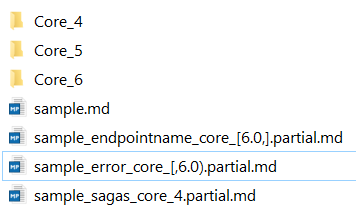
- Components, as defined in components.yaml, is the true definition of components, and defines the topic for a page, as well as the collection of snippets that it will pull in. In the case of a component like MSMQ, the functionality started in Core but was moved out to the MSMQ transport, but all of these together use the component
MsmqTransport. - NuGet Aliases are frequently misidentified as components because they look the same. NuGet aliases are used to translate the name of a versioned directory like
MsmqTransport_1into the NuGet packageNServiceBus.Transport.Msmq. Multiple NuGet aliases can exist within a component, i.e. MSMQ will have versioned snippet directoriesCore_6andMsmqTransport_1, which are different NuGet Aliases, but both belong to the same component.
When you are adding a new package, you therefore need to add new entries to both components.yaml and nugetAlias.txt, which can be a source of confusion.
components.yaml
"Components" is a general term used to describe a deployable set of functionality. Components exist in components/components.yaml. Note that over time a component may have moved between nugets or split into new nugets. For example, the ASB Data Bus or the Callbacks.
Sample Component:
- Key: Callbacks
  Url: nservicebus/messaging/callbacks
  NugetOrder:
    - NServiceBus.Callbacks
    - NServiceBus
When adding a new component
Component Key
The component key allows for shorthand when referring to components in page headers.
Component URL
The component URL is the definitive source of documentation for a given component. This will eventually be used to link back to said documentation from both NuGet usages, samples and articles.
Component NugetOrder
Since components can be split over multiple different nugets, it is not possible to infer the order from the NuGet version alone. So we need to have a lookup index and the NugetOrder allows us to sensibly sort component versions. For example, NServiceBus.Callbacks.1.0.0 should sort higher than the version of Callbacks that exists in NServiceBus.5.0.0.
nugetAlias.txt
All NServiceBus-related NuGet packages (used in documentation) are listed in components/nugetAlias.txt. The alias part of the NuGet is the key that is used to infer the version and component for all snippets. For example, Snippets/Callbacks has, over its lifetime, existed in both the Core NuGet and the Callbacks NuGet. So the directories under Callbacks are indicative of the NuGet (alias) they exist in and then split over the multiple versions of a given NuGet.
Example aliases:
ASP: NServiceBus.Persistence.AzureStorage
Autofac: NServiceBus.Autofac
Azure: NServiceBus.Azure
Callbacks: NServiceBus.Callbacks
Target Frameworks
Samples can be targeted to multiple target frameworks. Samples can be edited and tested for multiple frameworks within this repository when using Visual Studio. When the site is rendered, separate downloads for each target framework are generated by splitting the framework list and transforming the project files before zipping.
When multi-targeting samples for NServiceBus 8 and earlier, The recommended set of frameworks is:
<TargetFrameworks>net8.0;net48</TargetFrameworks>
For NServiceBus 9, samples can't currently be multi-targeted, so they should be singled targeted:
<TargetFramework>net9.0</TargetFramework>
Some things to keep in mind:
- The same list of target frameworks must be used for each project, in the same order.
- Target framework monikers (i.e.
net8.0) are translated to framework display names (i.e..NET 8) in /components/tfm-mappings.txt.- Download dropdown items are ordered by position in this file descending, so that options for newer frameworks are presented first.
Questions
What is docs.particular.net?
Particular/docs.particular.net is a public repo on GitHub by Particular. All content for ParticularDocs.
Is docs.particular.net open source?
It declares no license on GitHub. Public does not mean open source: without a license, nobody is granted the right to reuse it.
Does docs.particular.net run on macOS, Windows or Linux?
Its maker has not tagged a system, so it is unknown here. Its README says what it needs.
How do I install docs.particular.net?
More from Particular
Everything by Particular- NServiceBusThe gold standard for async .NET microservices on Azure, AWS and on-prem 2.2k
- WorkshopSOA Done Right 589
- NServiceBus.RabbitMQRabbitMQ transport for NServiceBus 96
- ServiceControlBackend for ServicePulse 61
- NServiceBus.SqlServerSQL Server Transport for NServiceBus 46
- ServicePulseProduction monitoring for distributed systems. 41