x64dbg
An open-source user mode debugger for Windows. Optimized for reverse engineering and malware analysis.
- 50k
- C++
- 2 d ago
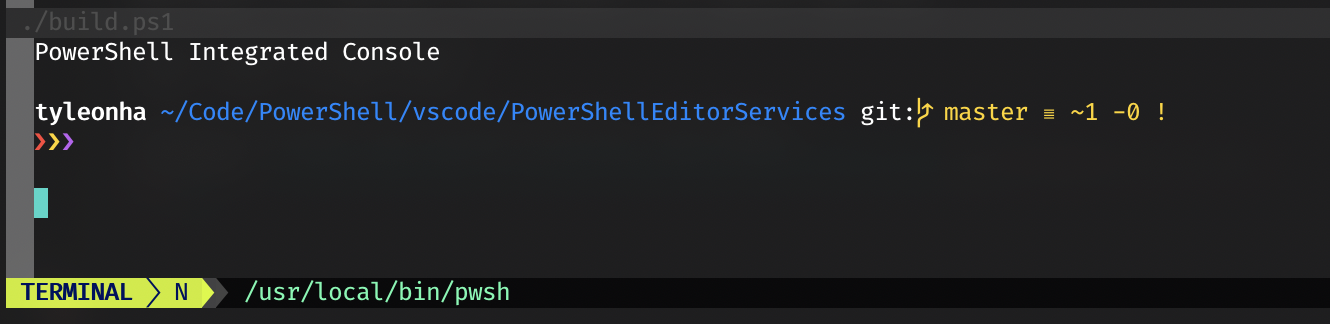
A common platform for PowerShell development support in any editor or application!
Repo PowerShell/PowerShellEditorServices, read from GitHub 1 min ago. PowerShell has not joined Take My Repo.
PowerShell/PowerShellEditorServices is a public repo on GitHub by PowerShell. A common platform for PowerShell development support in any editor or application! It declares the MIT license on GitHub. It is written mainly in C#, has 783 stars and last changed on 2026-10-15. Nobody has reviewed it on Take My Repo yet, which says nothing about its quality. Read from GitHub on 2026-11-24.
An open-source user mode debugger for Windows. Optimized for reverse engineering and malware analysis.
💡 Full-featured code intelligence and smart autocomplete for Sublime Text
PowerShell Editor Services is a PowerShell module that provides common functionality needed to enable a consistent and robust PowerShell development experience in almost any editor or integrated development environment (IDE).
Note
PowerShell for Azure Data Studio will no longer be updated or maintained.
The functionality in PowerShell Editor Services is available in the following editor extensions:
Warning
These clients are community maintained and may be very out of date. It is recommended to use a generic LSP plugin with your client if possible.
PSES runs as a PowerShell Module in currently supported versions of PowerShell 7+.
Windows PowerShell 5.1 is supported on a best-effort basis.
If you're looking to integrate PowerShell Editor Services into your Language Server Protocol compliant editor or client, we support two ways of connecting.
If you're looking for a more feature-rich experience, named pipes (AKA sockets) are the way to go. They give you all the benefits of the Language Server Protocol with extra capabilities that you can take advantage of:
The typical command to start PowerShell Editor Services using named pipes / sockets is as follows:
pwsh -NoLogo -NoProfile -Command "./PowerShellEditorServices/Start-EditorServices.ps1 -SessionDetailsPath ./session.json"
The start script, Start-EditorServices.ps1, is found in the PowerShellEditorServices folder instead the PowerShellEditorServices.zip downloaded from the GitHub releases.
The session details (which named pipes were created) will be written to the given session details path, and the client needs to point to these in order to connect.
The Visual Studio Code, Vim, Neovim, and IntelliJ extensions use named pipes.
Connecting to PSES over standard input and output (stdio) is the simplest option in most LSP clients.
Note
Some features are not available over stdio, such as the debugger and Extension Terminal, because they require their own IO streams and stdio provides a single pair of streams.
Use PSES over stdio as follows:
pwsh -NoLogo -NoProfile -Command "./PowerShellEditorServices/Start-EditorServices.ps1 -Stdio -LogLevel Error"
Important
Adjust the path to Start-EditorServices.ps1 as needed. The command above assumes
that the current directory is set to the folder where you expanded the PSES ZIP
archive to.
Depending on your editor, set the environment variables NO_COLOR and TERM
before issuing the command above to improve the readability of any error messages
pwsh may output. See Disabling ANSI Output
for more details.
For examples of tested end-to-end configurations, see:
They use eglot for Emacs and LanguageClient-neovim.
If you are trying to automate the service in PowerShell, you can also run it under Start-Process to prevent hanging your script.
It also gives you access to process automation features like $process.Close() or $process.Kill().
The Start-EditorServices.ps1 script takes many more optional arguments, but they no longer need to be specified.
$command = @(
    "$PSES_BUNDLE_PATH/PowerShellEditorServices/Start-EditorServices.ps1",
        "-BundledModulesPath $PSES_BUNDLE_PATH",
        "-LogPath ./logs",
        "-SessionDetailsPath ./session.json",
        "-FeatureFlags @()",
        "-AdditionalModules @()",
        "-HostName 'My Client'",
        "-HostProfileId 'myclient'",
        "-HostVersion 1.0.0",
        "-LogLevel Trace"
) -join " "

$pwsh_arguments = "-NoLogo -NoProfile -Command $command"
$process = Start-Process pwsh -ArgumentList $arguments -PassThru
...
$process.Close(); #$process.Kill();
Once the command is run,
PowerShell Editor Services will wait until the client connects to the named pipe.
The session.json will contain the paths of the named pipes that you will connect to.
There will be one you immediately connect to for Language Server Protocol messages,
and once you connect to when you launch the debugger for Debug Adapter Protocol messages.
The PowerShell Extension Terminal uses the host process' stdio streams for console input and output. Please note that this is mutually exclusive from using stdio for the Language Server Protocol messages.
If you want to take advantage of the PowerShell Extension Terminal,
you must include the -EnableConsoleRepl switch when calling Start-EditorServices.ps1.
This is typically used if your client can create arbitrary terminals in the editor like below:
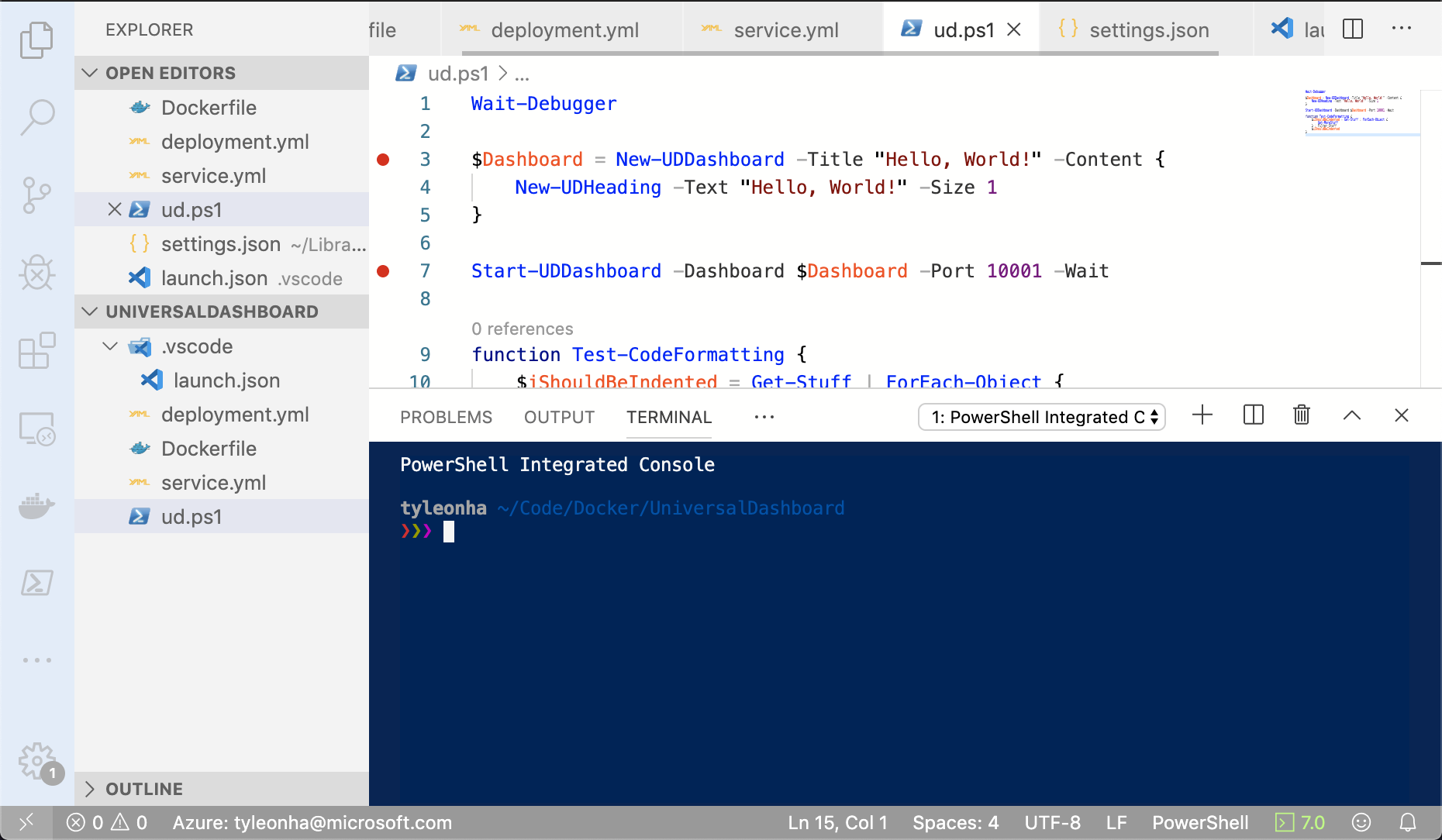
The Visual Studio Code, Vim, and IntelliJ extensions currently use the PowerShell Extension Terminal.
Debugging support is also exposed with PowerShell Editor Services.
It is handled within the same process as the Language Server Protocol.
This provides a more integrated experience for end users but is something to note as not many other language servers work in the same way.
If you want to take advantage of debugging,
your client must support the Debug Adapter Protocol.
Your client should use the path to the debug named pipe found in the session.json file talked about above.
The debugging functionality in PowerShell Editor Services is available in the following editor extensions:
PowerShell is not a statically typed language. As such, the renaming of functions, parameters, and other symbols can only be done on a best effort basis. While this is sufficient for the majority of use cases, it cannot be relied upon to find all instances of a symbol and rename them across an entire code base such as in C# or TypeScript.
There are several edge case scenarios which may exist where rename is difficult or impossible, or unable to be determined due to the dynamic scoping nature of PowerShell.
The focus of the rename support is on quick updates to variables or functions within a self-contained script file. It is not intended for module developers to find and rename a symbol across multiple files, which is very difficult to do as the relationships are primarily only computed at runtime and not possible to be statically analyzed.
$splat = @{};$splat.a = 5;Do-Thing @a)Foreach-Parallel or Start-Job and the variable is not defined within the scriptblock is not supported and can have unexpected results.$a = 5; $x = {$a}; & $x does not consider the two $a to be related, even though in execution this reference matches.ForEach-Object -Parallel {$x} the same as Foreach-Object {$x} for purposes of finding scope definitions. To avoid unexpected renaming, define/redefine all your variables in the scriptblock using a param block.begin block and placing it after a process block, while technically correct in PowerShell, will not rename as expected.Get-Variable and Set-Variable are not considered and not currently searched for renamesIf there is a rename scenario you feel can be reasonably supported in PowerShell, please file a bug report in the PowerShellEditorServices repository with the "Expected" and "Actual" being the before and after rename. We will evaluate it and accept or reject it and give reasons why. Items that fall under the Unsupported Scenarios above will be summarily rejected, however that does not mean that they may not be supported in the future if we come up with a reasonably safe way to implement a scenario.
PowerShell/PowerShellEditorServices is a public repo on GitHub by PowerShell. A common platform for PowerShell development support in any editor or application!
It declares the MIT license on GitHub.
Its maker tagged it for Windows. That is declared by the maker; Take My Repo has not tested it.
Eclipse Theia is an open-source platform for building custom IDEs and tools for browser and desktop. It includes Theia AI, the vendor-neutral AI harness platform, and powers the AI-native Theia IDE.
Open-source Windows and Office activator featuring HWID, Ohook, TSforge, and Online KMS activation methods, along with advanced troubleshooting.
The F# compiler, F# core library, F# language service, and F# tooling integration for Visual Studio
Open "Take it" on its page: Take My Repo writes an install plan for your machine and hands it to your AI agent (Claude Code, Codex or Cursor), which asks you before each step. Take My Repo has not tested it on any machine.
Its last change on GitHub was on 2026-10-15. GitHub counts 145 open issues and pull requests. Take My Repo does not judge from that whether it is maintained.
Nobody has reviewed it on Take My Repo yet, which says nothing about its quality.
Take My Repo cannot say: it does not audit code and has not run PowerShellEditorServices. What is known comes from GitHub. It declares the MIT license on GitHub. Its last change was on 2026-10-15. It has 783 stars, which measure popularity, not safety. Nobody has reviewed it on Take My Repo yet, which says nothing about its quality. Read the source before you run it. With "Take it", your AI agent shows each step and asks you before running it; README text is treated as data, not as instructions.