AutopilotMonitor
Windows Autopilot & Intune enrollment monitoring: live session timelines, fleet health, diagnostics, and an MCP server for AI-assisted troubleshooting.
- 98
- C#
- AGPL-3.0
- 2 d ago
OOBE like user interface for Operating System Deployments
Repo PowerShellCrack/OSDOOBEUI, read from GitHub 1 d ago. PowerShellCrack has not joined Take My Repo.
PowerShellCrack/OSDOOBEUI is a public repo on GitHub by PowerShellCrack. OOBE like user interface for Operating System Deployments. It declares no license on GitHub. Public does not mean open source: without a license, nobody is granted the right to reuse it. It is written mainly in PowerShell, has 33 stars and last changed on 2021-04-15. Nobody has reviewed it on Take My Repo yet, which says nothing about its quality. Read from GitHub on 2026-11-20.
An Out-of-the-Box Experience like user interface for Operating System Deployments
A PowerShell Driven UI that looks and feels like Windows 10 OOBE. Used in SCCM/MDT TaskSequence Bare-metal deployments
To support the UI in windows PE, these features must be installed:
The recommended command to run the UI is:
Work-In-Progress The UI is designed o look and feel like Windows 10 OOBE startup wizard but with more control
"%DEPLOYROOT%\tools\%architecture%\ServiceUI.exe" -process:TSProgressUI.exe "%SYSTEMROOT%\System32\WindowsPowerShell\v1.0\powershell.exe" -ExecutionPolicy Bypass -Sta -File "%SCRIPTROOT%\Custom\OSDOOBEUI\OSDOOBEUI.ps1"
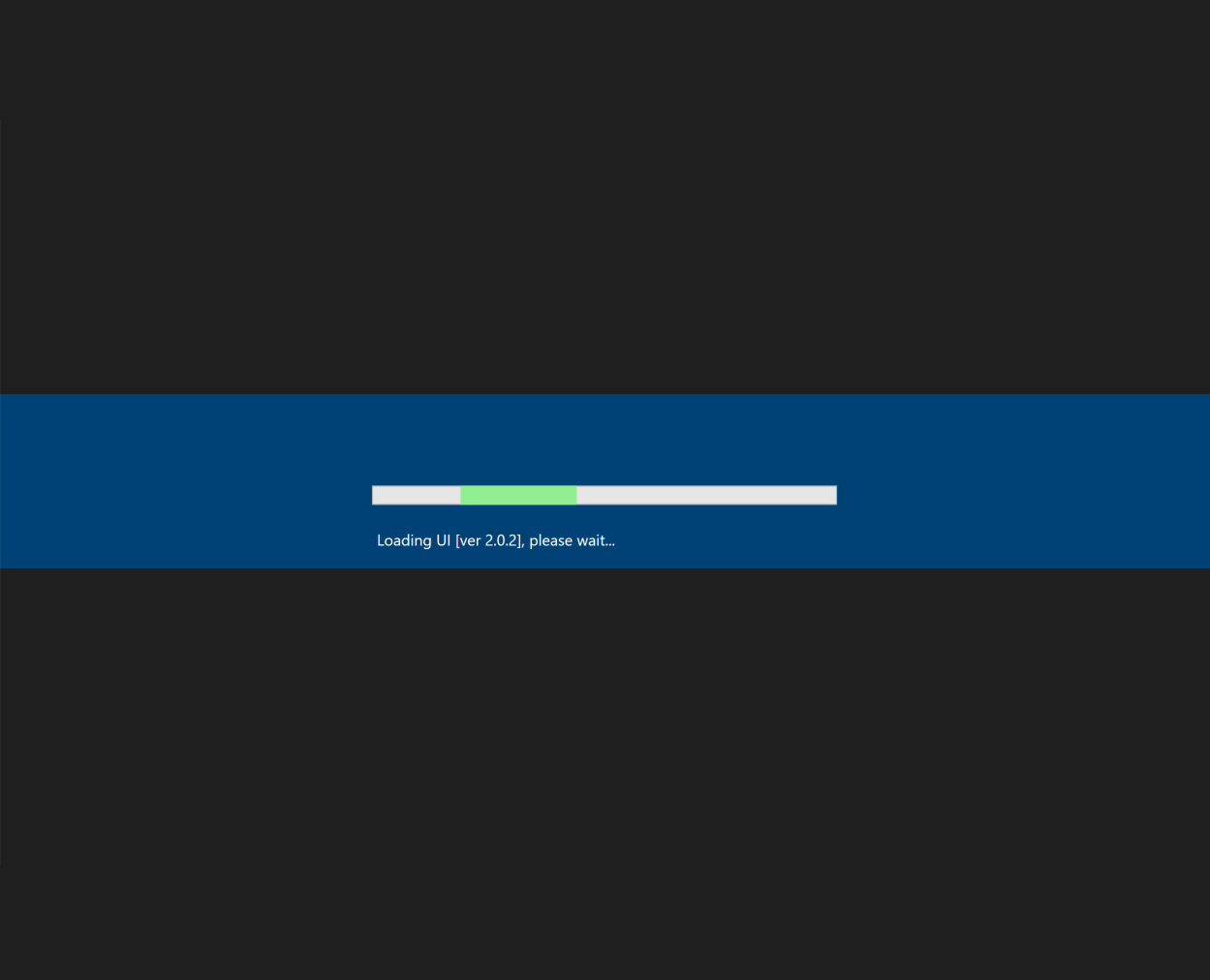
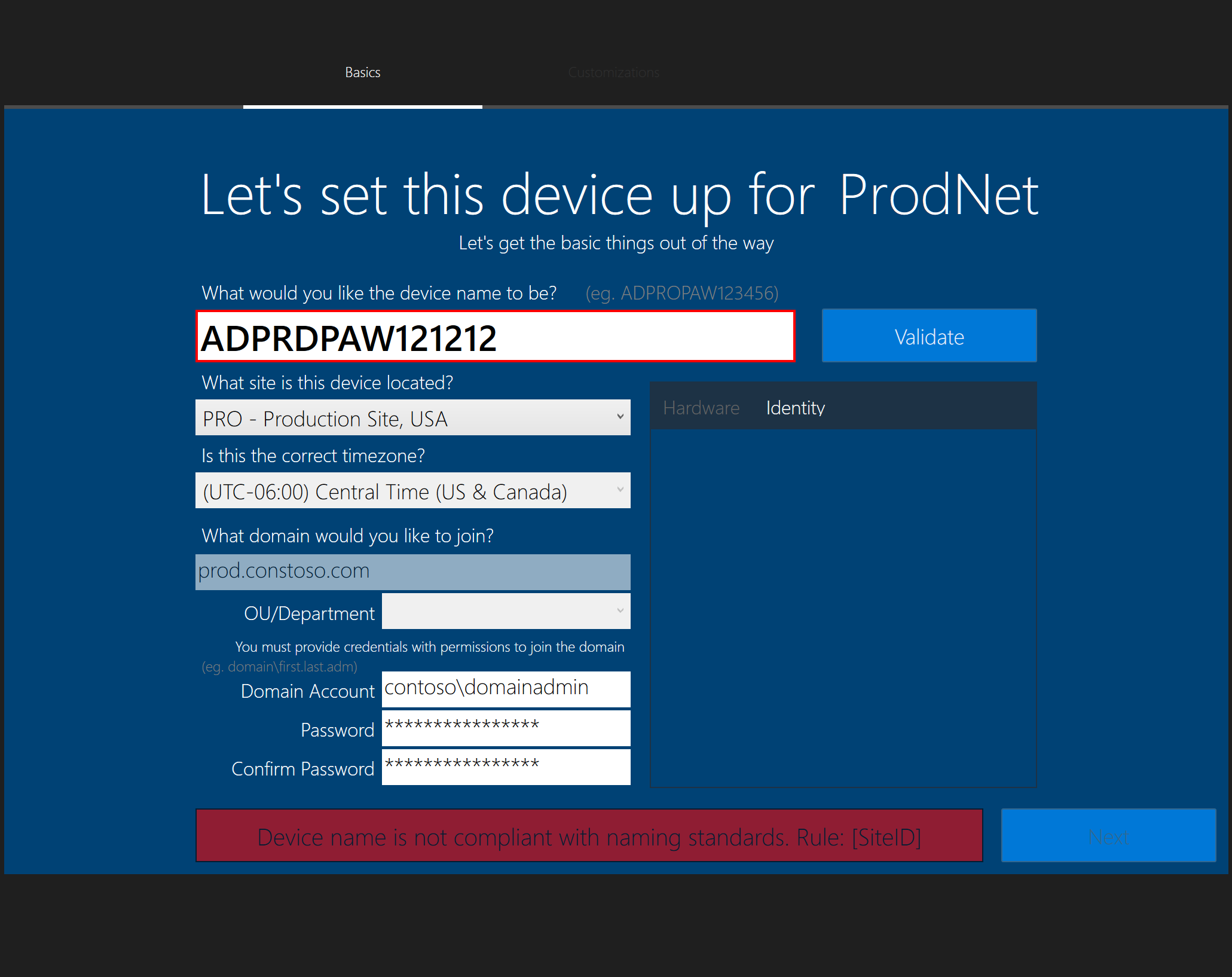
The UI is designed to be a single page with the option to add an additional app page if needed. The UI will look like this:
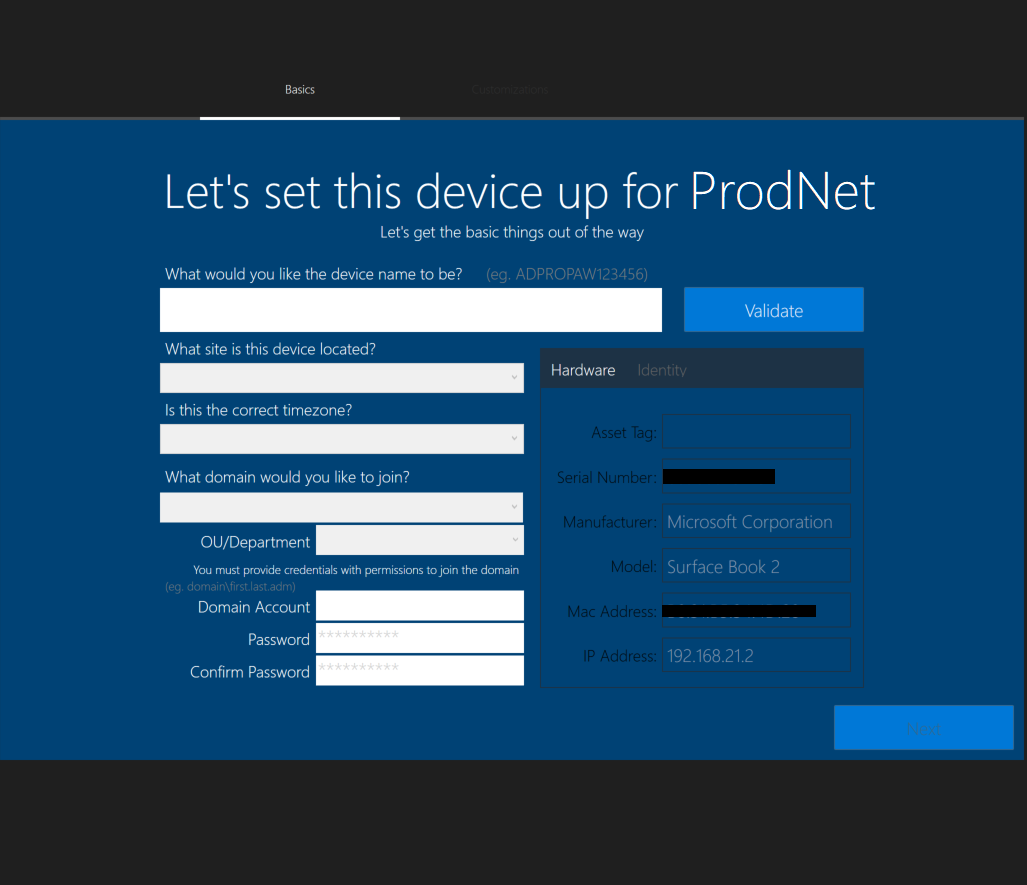
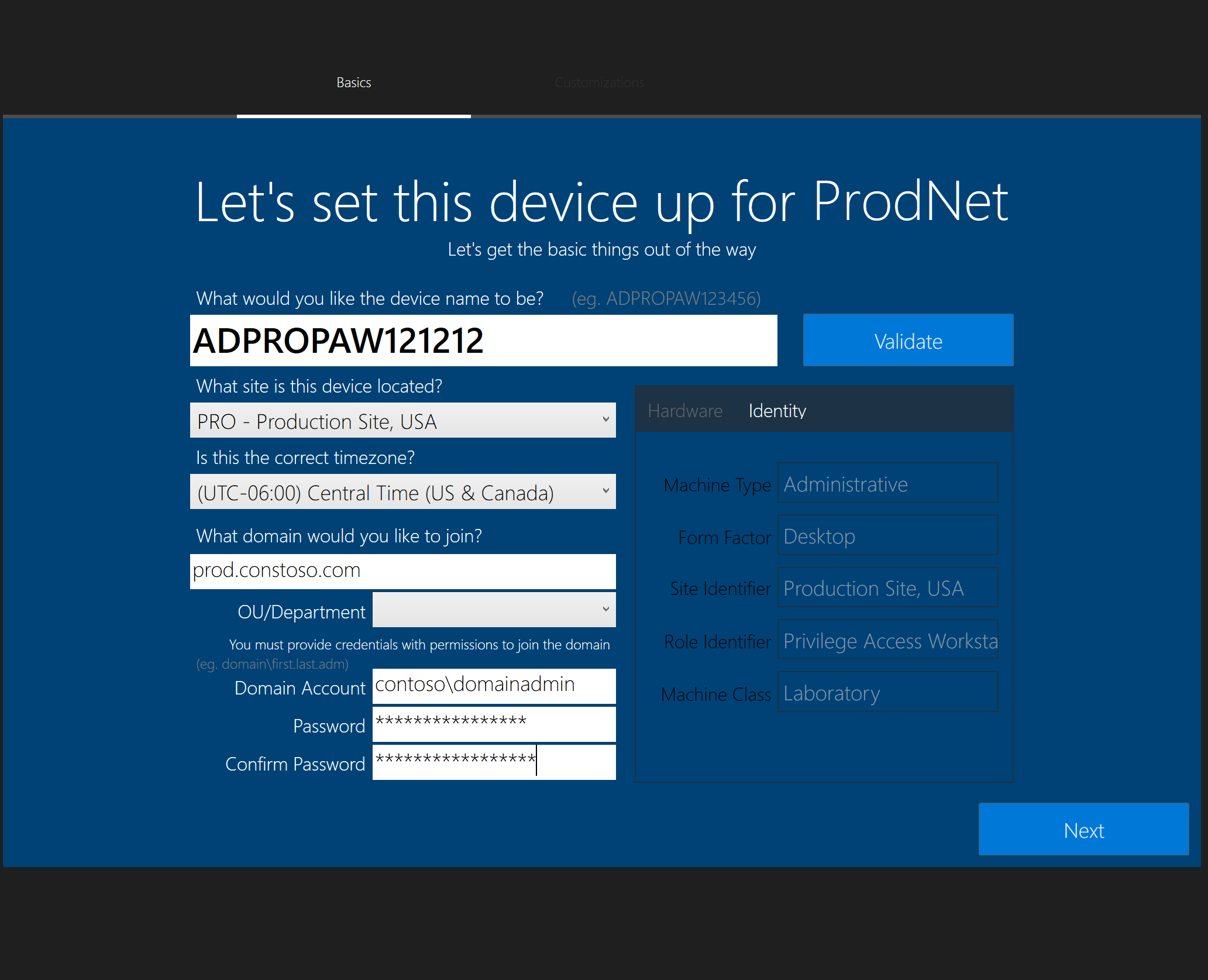
"%DEPLOYROOT%\tools\%architecture%\ServiceUI.exe" -process:TSProgressUI.exe "%SYSTEMROOT%\System32\WindowsPowerShell\v1.0\powershell.exe" -ExecutionPolicy Bypass -Sta -File "%SCRIPTROOT%\Custom\OSDOOBEUI\OSDOOBEUI_SinglePage.ps1" -ConfigPath OOBEUIWPF.config
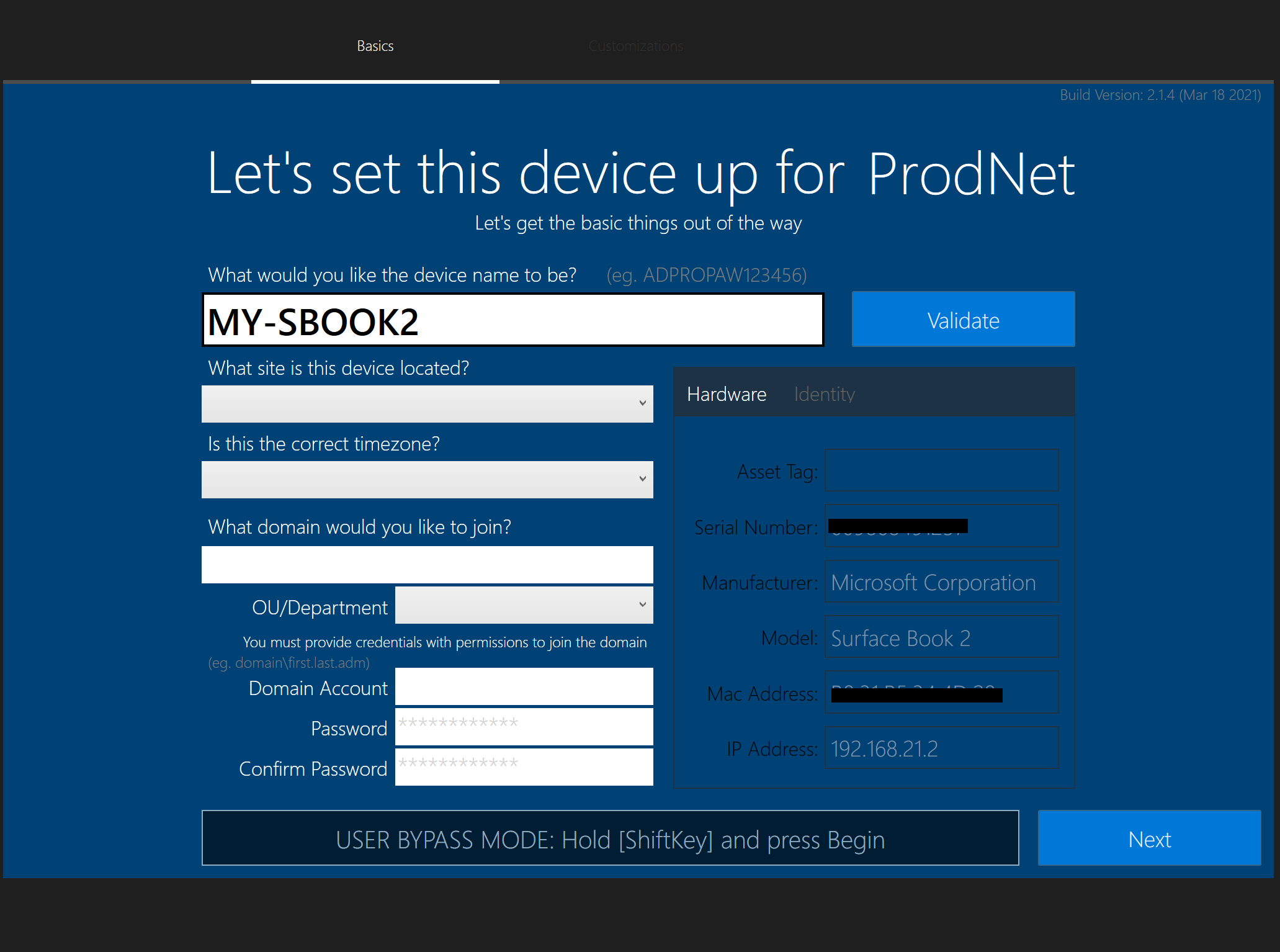
All settings are configurable within the OSDOOBEUI.config file
        $OSDOOBEUI_txtComputerName.text = 'ADPROD12345PAW'
        $ComputerNameObject = $OSDOOBEUI_txtComputerName
        Validate-ComputerNameRules $ComputerNameObject
[Still Testing] AutoGenerateName [string]; Auto generates name based option selected [AD, SQL or Locale, disabled]. Using a SQL table and AD, name will be autogenerated and validated, Locale uses local config from network locale
[Still Testing] GenerateNameMethod [string]; Auto generates name based option selected _[AD, SQL,ODJFile,ODJBlob,Locale,TSEnv,Clear].
[Still Testing] GenerateNameSource [string]; Used only with ODJ set in GenerateNameMethod Property; specifies location to pull ODJ file. Path can be a local, network share, or a URL (Will use invoke method). ODJ file path will search for odj files that follow the naming format. Must be named: .odj. Using a SQL table and AD, name will be autogenerated and validated, Locale uses local config from network locale NOTE: ODJ set custom properties: ODJ_FilePath,ODJ_BlobData
OverWriteUIControlByTS [Boolean]; Determines if tasksequence controls the UI vs Config (only changes UI_Control section) TS variables needs to mirror control but with UI prefix added (eg. True -> UIControl_ShowSplashScreen=True)
ShowSplashScreen [Boolean]; Display splash screen prior to menu loaded. Hides verbose command window
ShowSiteCode [Boolean]; Displays site code. Site code can be changed is displayed
ShowSiteListSelection [Boolean]; Dropdown of all sites with site ID and site Code(if exists)
EnableNetworkDetection [Boolean]; Select site locales based on current IP
ValidateNameRules [Boolean]; Uses Generation Rule Sets to ensure name is valid. Does not check if name is available on domain
ShowClassificationProperty [string]; Displays classification property in Identity field with appropriate color based on device name (Values to choose from: Id,Level,Type,None)
ShowDomainOUListSelection [Boolean]; Dropdown to select the OU to join to. Can be controlled by site locale
AllowCustomDomain [Boolean]; If enabled the domain field is a fillable textbox, if disabled the domain field is a dropdown (populated by Locale Domain Info)
AllowWorkgroupJoin [Boolean]; If set to false, the workgroup option is filtered out.
AllowSiteSelection [Boolean]; Enables the ability to change the Site ID from selection list (Must have ShowSiteListSelection enabled)
FilterAccountDomainType [string]; Set this value to match a Locale Domain Type property. If set, the matching domain by classification will be filled in for the account domain
FilterDomainProperty [string]; Value is used when matching domain property to classification id property. Currently supports only classification id filter.
AllowRuleBypassModeKey [string]; If set, the validation rules can be bypassed by pressing shift before clicking validate. This allows custom names. Other validations are still checked
HideDomainList [Boolean]; If this is set to true, the domains fields will be hidden and no validation or variables will be set; overwrites ShowDomainOUListSelection
HideDomainCreds [Boolean]; If this is set to true, the credential fields will be hidden and no validation or variables will be set -->
AllowRuleBypassModeKey screenshot
This is highly configurable and can have up to 5 areas. Please read the config file for more details
The varname can be renamed. however keep the ID the same
example:
<rulesets Id="Id1" Name="Machine Type" VarName="IDMachineType" MustExist="True" >
    <rule Char="A" Name="Administrative"                VarValue="Admin" />
    <rule Char="D" Name="Developer"                     VarValue="Developer" />
    <rule Char="R" Name="Training"                      VarValue="Training" />
</rulesets>
example:
<rulesets Id="Id2" Name="Form Factor" VarName="IDFormFactor" MustExist="True" >
    <rule Char="D" Name="Desktop"                       VarValue="Desktop" />
    <rule Char="H" Name="Virtual Desktop (VDI)"         VarValue="VDI" />
    <rule Char="L" Name="Laptop"                        VarValue="Laptop" />
    <rule Char="U" Name="Virtual Machine"               VarValue="VM" />
</rulesets>
example:
<rulesets Id="Id3" Name="Site Identifier" VarName="SiteID" MustExist="True" >
    <rule Name="Local Sites" GetVariable="MenuLocaleSiteList" MatchProperty="ID" DisplayProperty="BaseLocation" SetVariable="SiteID" />
</rulesets>
example:
<rulesets Id="Id4" Name="Machine Class" VarName="IDMachineClass" MinCharIdentifier="5" MustExist="True" >
    <rule Char="0#####" Name="Corporation"          VarValue="Corp" />
    <rule Char="1#####" Name="Laboratory"             VarValue="Lab" />
</rulesets>
example:
<rulesets Id="Id5" Name="Role Identifier" VarName="IDMachineRole" MustExist="True" >
    <rule Char="dPAW" Name="Privilege Access Workstation"             VarValue="PAW" />
    <rule Char="SSW" Name="Security Access Workstation"              VarValue="SAW" />
    <rule Char="JMP" Name="Jump Box Workstation"                     VarValue="JMP" />
</rulesets>
If enabled, list is pre selected based on Computer Machine AS Rule; Searches for Type
example:
<Locale_Classifications>
	<classification Id="Prod" Level="Confidential"	Type="Confidential"	Color="Green"  />
	<classification Id="Lab" Level="Laboratory"    Type="Laboratory"	Color="Yellow"	/>
</Locale_Classifications>
Value is controlled based on dropdown field or by computer name value and when Validate is pressed. Not all options are present:
example:
<Locale_Domains>
	<domain Name="LABD" FQDN="lab.contoso.com"       ClassId="Lab" Type="Join" />
	<domain Name="PROD" FQDN="prod.contoso.com"       ClassId="Prod" Type="Join" />
	<domain Name="PROD" FQDN="prod.contoso.com"       ClassId="Prod" Type="Auth" />
</Locale_Domains>
If enabled, this list will poplulate a dropdown based on site selected
example:
<Locale_DomainOUs>
		<OU Name="Lab" Domain="LABD" LDAPOU="OU='Test',OU='lab',DC='contoso',DC=com"    ClassId="Lab" />
		<OU Name="Production" Domain="PROD" LDAPOU="OU='Systems',OU='Prod',DC='contoso',DC=com"    ClassId="Prod" />
</Locale_DomainOUs>
Value is controlled based on dropdown field or by computer name value and when Validate is pressed. Not all options are present:
example:
<Locale_Sites DisplayFormat="<id> - <Baselocation>" SiteCodeFormat=" _[<SiteCode>]" >
<site ID="LAB" BaseLocation="Laboratory Site, USA" TZ="MST" Region="US" SiteCode="LAB" Domain="LABD" />
<site ID="PRO" BaseLocation="Production Site, USA" TZ="CST" Region="US" SiteCode="PRO" Domain="PROD" />
</Locale_Sites>
If enabled, it will match the IP subnet with the Site code and preselect the option in the UI
example:
<Locale_NetworkDetection>
    <Network SiteId="TEST" CidrAddr="192.168.1.0/24" />
    <Network SiteId="SITEB" CidrAddr="10.11.0.0/24" />
    <Network SiteId="SITEA" CidrAddr="10.21.0.0/24" />
</Locale_NetworkDetection>
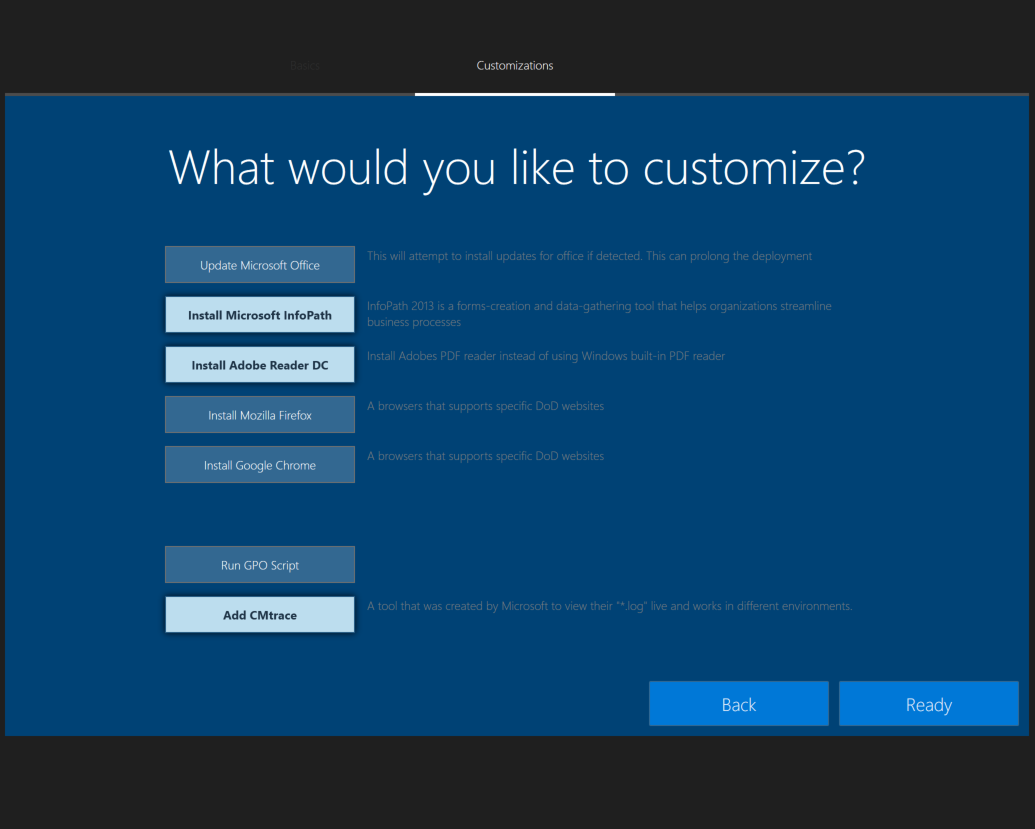
<Menu_AppButtons>
	<item id="1" Name="Update Microsoft Office"      TSvar="MSO13" DefaultEnabled="No" Desc='This will attempt to install updates for office if detected. This can prolong the deployment' />
    <item id="2" Name="Install Microsoft InfoPath"   TSvar="MSOIP" DefaultEnabled="Yes" Desc='InfoPath 2013 is a forms-creation and data-gathering tool that helps organizations streamline business processes' />
    <item id="3" Name="Install Adobe Reader DC"      TSvar="ADRDC" DefaultEnabled="No"  Desc='Install Adobes PDF reader instead of using Windows built-in PDF reader' />
	<item id="4" Name="Install Mozilla Firefox"      TSvar="MOZF" DefaultEnabled="No" Desc='A browsers that supports specific DoD websites' />
	<item id="5" Name="Install Google Chrome"        TSvar="GCE" DefaultEnabled="No" Desc='A browsers that supports specific DoD websites' />
	<item id="7" Name="Run GPO Script"               TSvar="SCRIPT1" DefaultEnabled="No" />
	<item id="8" Name="Add CMtrace"                  TSvar="SCRIPT2" DefaultEnabled="Yes" Desc='A tool that was created by Microsoft to view their "*.log" live and works in different environments.'/>
</Menu_AppButtons>
If a task sequence is detected, the output will be a TS variable
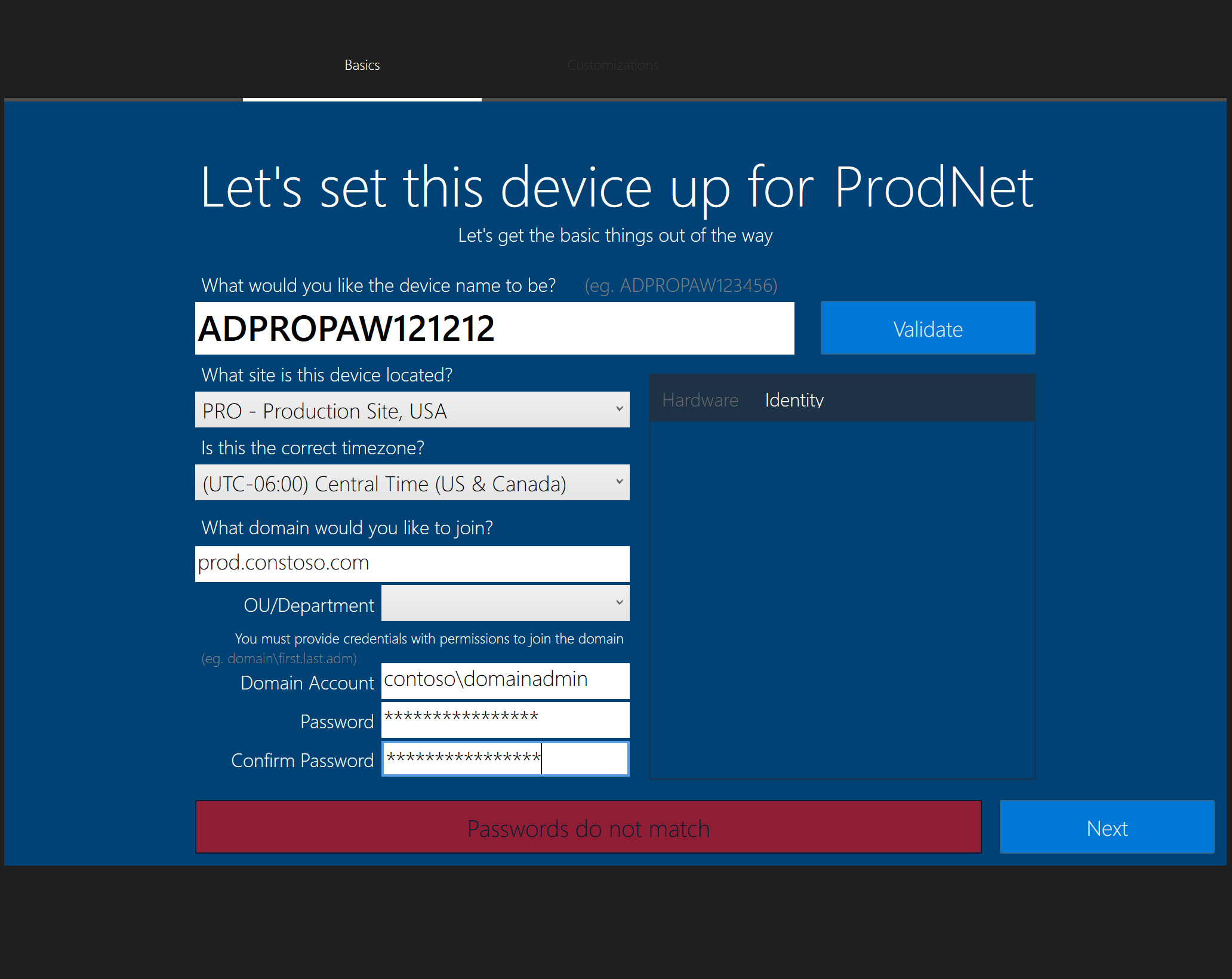
Here are some screenshots or errors presented in UI
PowerShellCrack/OSDOOBEUI is a public repo on GitHub by PowerShellCrack. OOBE like user interface for Operating System Deployments.
It declares no license on GitHub. Public does not mean open source: without a license, nobody is granted the right to reuse it.
Its maker tagged it for Windows. That is declared by the maker; Take My Repo has not tested it.
Open "Take it" on its page: Take My Repo writes an install plan for your machine and hands it to your AI agent (Claude Code, Codex or Cursor), which asks you before each step. Take My Repo has not tested it on any machine.
Its last change on GitHub was on 2021-04-15. Take My Repo does not judge from that whether it is maintained.
Nobody has reviewed it on Take My Repo yet, which says nothing about its quality.
Windows Autopilot & Intune enrollment monitoring: live session timelines, fleet health, diagnostics, and an MCP server for AI-assisted troubleshooting.
Open-source Windows and Office activator featuring HWID, Ohook, TSforge, and Online KMS activation methods, along with advanced troubleshooting.
Variety of customization scripts such as app removal, local user, timezone
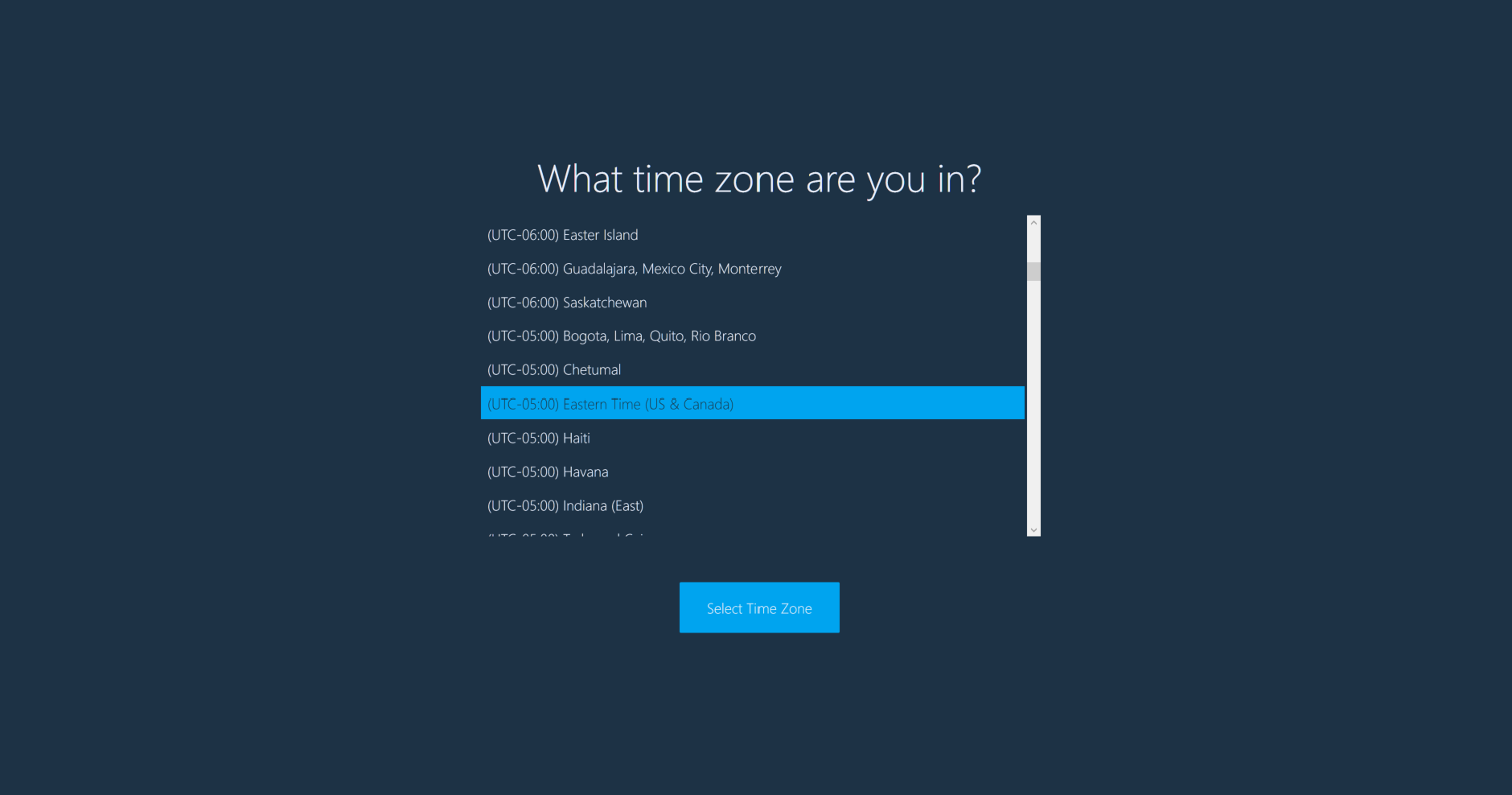
Select Time Zone using WPF styled to look like Windows OOBE