Adventure-Commander
Adventure Commander is a text based rogue like game for COM S 327
- 1
- 8 y ago
Repo RedTopper/Adventure-Commander, read from GitHub 4 h ago. RedTopper has not joined Take My Repo.
In short
RedTopper/Adventure-Commander is a public repo on GitHub by RedTopper. Adventure Commander is a text based rogue like game for COM S 327. It declares no license on GitHub. Public does not mean open source: without a license, nobody is granted the right to reuse it. It is written mainly in C++, has 1 stars and last changed on 2018-12-03. Nobody has reviewed it on Take My Repo yet, which says nothing about its quality. Read from GitHub on 2026-11-22.
Adventure Commander
A text base adventure game written in C++
Author
Aaron Walter - ajwalter - 792829065
Features
- Completely written in C++
- Cross platform with Linux and Windows (Portable)
- Uses UTF-8 characters with Emoji support that works cross platform
- No usages of
newanddelete, memory management withstd::shared_ptr<>
Final Assignment
For the final assignment, I decided to port my entire code base to Windows Visual C++ and MinGW build environments. I thought it would be a fun challenge to write 100% portable code (at least between the major desktop operating systems).
The toughest challenge of porting the code was the preservation of UTF8 (specifically emoji). Windows native consoles do not allow UTF8 beyond the "Basic Multilingual Plane", so emojis were unsupported. Instead, I ported the code base to use a library called "Public Domain Curses" on Windows and regular NCurses on other linux based operating systems.
The solution was challenging. The version of PDCurses that I am using allows me to render text to a graphical environment instead of the built in console. This also makes it a stand alone application that makes it feel more "native" to windows. The main problem, however, is that UTF8 still isn't supported! To use Unicode, you must first convert UTF8 to UTF16 using the native windows library. There are still some issues with this method which cause graphical glitches when rendering Unicode in the native windows console.
There were many other challenges along the way, such as getting my Makefile to compile on Windows and MinGW as well as various CMake issues. At one point I tried using SDL2 with SDL TTF, which failed pretty badly. The result, however was driver.cpp and driver.h, which allows anyone to implement their own rendering subsystem if they want to port the code elsewhere.
The rest of this README describes various processes on how to build Adventure Commander for different platforms, as well as various troubleshooting tips.
Build using the Makefile
Ubuntu
- Install ncurses on Ubuntu:
sudo apt install libncursesw5-dev - Go to Makefile Common
Fedora
- Install ncurses on Fedora:
sudo yum install ncurses-devel - Go to Makefile Common
Windows (Native with MinGW)
- Navigate to the included PDCurses wingui library
cd library/PDCurses/wingui - Build the library with
make -f Makefile.mng pdcurses.a WIDE=Y UTF8=Y - Navigate to the project directory
cd ../../../ - Go to Makefile Common
Makefile Common
- Run
maketo compile everything - Run
./gameto launch the game - Press
TABfor in game help!
Build using CMake
Windows (Native with Visual Studio 2017)
- Open the
x64 Native Tools Command Prompt for VS 2017* - Navigate to the
library\PDCurses\winguifolder. - Build the library with
nmake -f Makefile.vc WIDE=Y UTF8=Y - Open up Visual Studio and choose
File > Open > Folder... - Make the folder
cmake-build-windows-64in the root of the project - Go to CMake Common
Windows/Linux (Linux Build with CLion WSL Toolchain)
- Install ncurses on WSL:
sudo apt install libncursesw5-dev - Open the project with File > Open...
- Set up your toolchain (if needed): https://www.jetbrains.com/help/clion/how-to-use-wsl-development-environment-in-clion.html
- Go to CMake Common
Windows (Native with CLion Visual Studio Toolchain)
- Open the project with File > Open...
- Follow the first 3 steps of Build using CMake > Visual Studio
- Go to CMake Common
CMake Common
- Press the build button
- Navigate to the build directory
cmake-build-* - Copy the
resourcefolder into this folder - Run
./Adventure_Commanderif in CLion, or press Play in VStudio - Press
TABfor in game help!
Console setup
This game uses UTF-8 to make it look nice! Please read this if your terminal looks messed up (ex: question marks or blank output):
- If you are using
Native Windows Build, PDCurses should take care of emoji. - If you are using
WSL bash, use the console emulatorCmderfor emoji. - If you are using
gnome-terminal(called Terminal), UTF-8 works with emoji. - If you are using
xterm, press CTRL + RIGHT CLICK and enable TrueType fonts. (Use the --lame switch to disable emoji)
In any case, your locale should be set to "en_US.UTF-8". You can check with the
command locale. SSH environments can sometimes break this, so you might need
to put these in your ~/.profile if you are using SSH and see question marks:
export LC_ALL=en_US.UTF-8export LANG=en_US.UTF-8
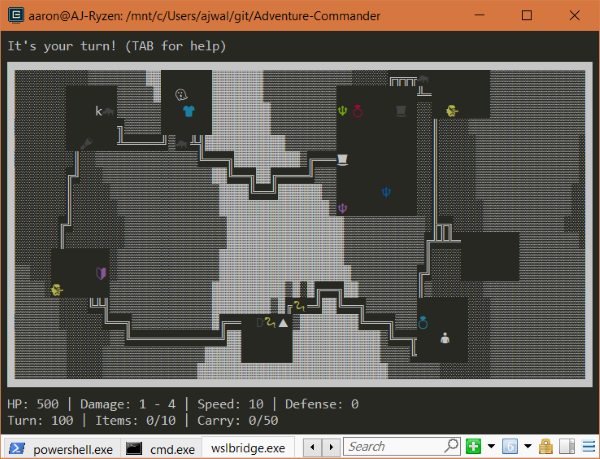
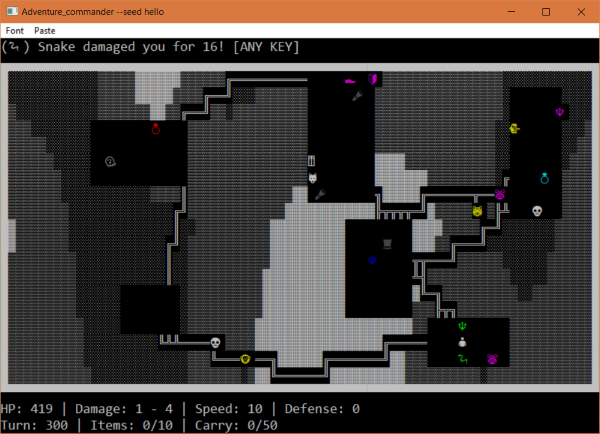
Screenshots
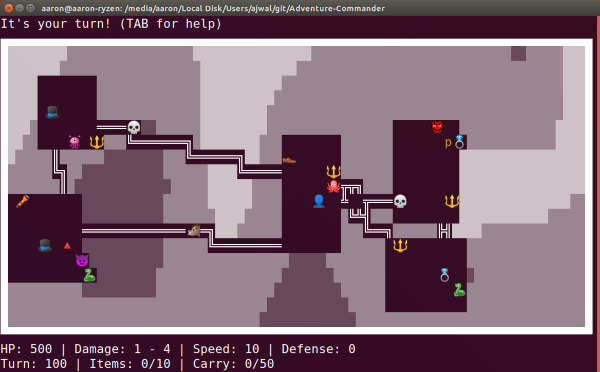
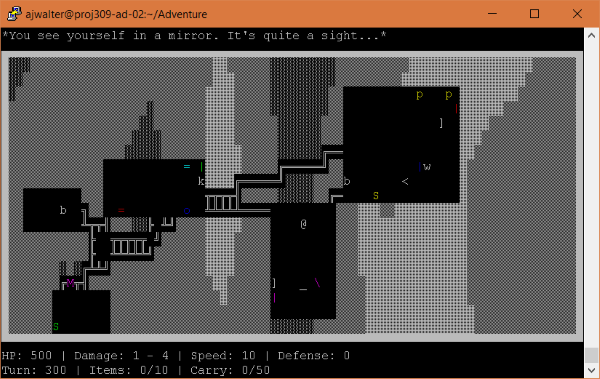
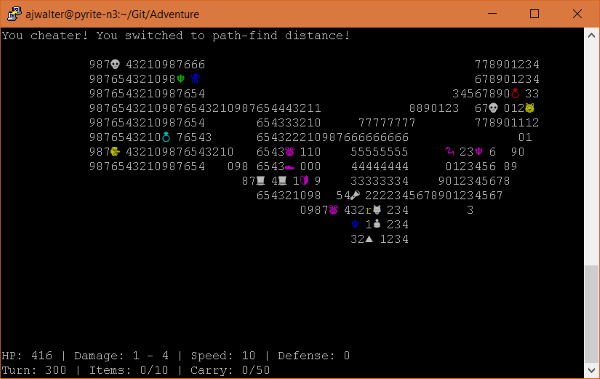
Questions
What is Adventure-Commander?
RedTopper/Adventure-Commander is a public repo on GitHub by RedTopper. Adventure Commander is a text based rogue like game for COM S 327.
Is Adventure-Commander open source?
It declares no license on GitHub. Public does not mean open source: without a license, nobody is granted the right to reuse it.
Does Adventure-Commander run on macOS, Windows or Linux?
Its maker has not tagged a system, so it is unknown here. Its README says what it needs.
How do I install Adventure-Commander?
Open "Take it" on its page: Take My Repo writes an install plan for your machine and hands it to your AI agent (Claude Code, Codex or Cursor), which asks you before each step. Take My Repo has not tested it on any machine.
Is Adventure-Commander still maintained?
Its last change on GitHub was on 2018-12-03. Take My Repo does not judge from that whether it is maintained.