greenlight
Pre-submission compliance scanner for the Apple App Store and Google Play. Scans code, privacy manifests, Android manifests, and IPA/APK/AAB binaries against the review guidelines. Offline, no account.
- 2.5k
- Go
- MIT
- 4 mo ago
Verify
Repo RevylAI/verify, read from GitHub 1 min ago. RevylAI has not joined Take My Repo.
RevylAI/verify is a public repo on GitHub by RevylAI. Verify. It declares the Apache-2.0 license on GitHub. It is written mainly in Python, has 5 stars and last changed on 2026-11-21. Nobody has reviewed it on Take My Repo yet, which says nothing about its quality. Read from GitHub on 2026-11-22.

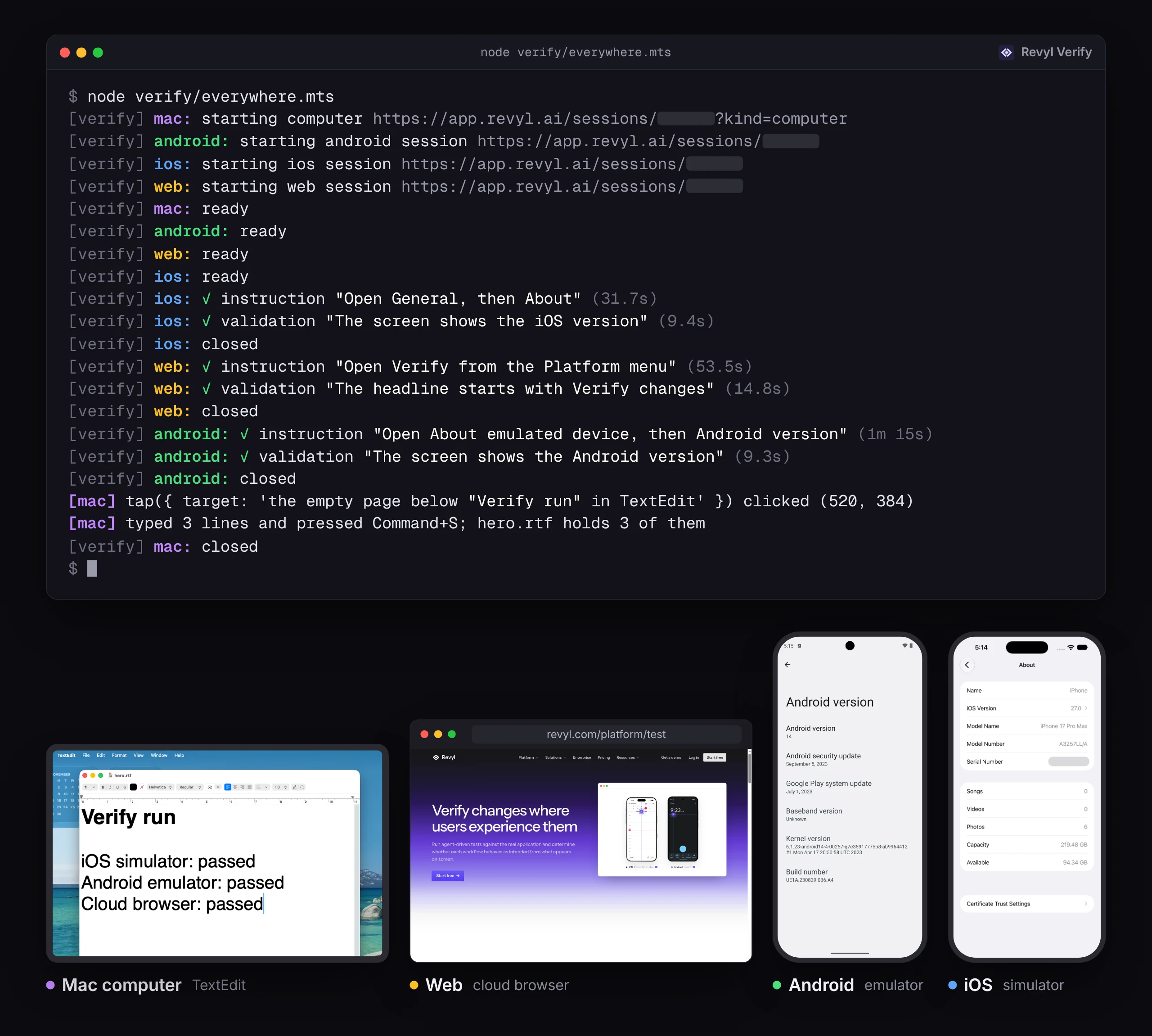
Verify runs end-to-end checks in a cloud browser, iOS simulator, or Android emulator on Revyl. You write what the agent should do and what must be true afterward, in plain sentences, and call it from a script, a coding agent, CI, or the test runner you already use. When you know exactly what to press, you can tap, type and swipe yourself instead. Verify also opens Mac computers for commands, files, screenshots, and clicks and keys on the screen.
import { open } from '@revyl/verify';

const session = await open({ platform: 'ios', app: { bundleId: 'com.apple.Preferences' } });
try {
  await session.instruction('Open General, then About');
  await session.validation('The screen shows the operating system version');
  await session.screenshot({ path: '.verify/about.png' });
} finally {
  await session.close();
}
You maintain sentences instead of selectors and coordinates that break when a screen changes, and every run prints a session link that keeps the report and available recording after the session closes.
Paste this prompt into your coding agent, and it sets up Verify in the project's language:
Set up Verify in this project.

Read https://docs.revyl.com/verify.md and follow it. It's the current Revyl guide for this, so prefer it over anything you remember about Revyl.

Use the SDK for this project's language: @revyl/verify on Node.js 22.18 or later for Node.js or TypeScript, revyl-verify on Python 3.10 or later for Python (install it with pip or uv), or the github.com/RevylAI/verify/go module for Go. Write the iOS Settings example in that language: open the com.apple.Preferences bundle, run one instruction, and run one validation that checks the operating system version. Ask before starting a paid cloud session, then run the example.

You're done when the example has opened iOS Settings, the operating system version validation has passed, and the session has closed.

Ask me before anything that needs my login or approval.
Or set it up yourself:
npx @revyl/verify init --platform ios
init adds Verify to your project, writes verify.config.ts and an example script for the platform you pass (web, ios, android or mac; in a terminal, leave --platform out and it asks), writes verify.config.ts and an example script, signs you in through the browser on the first interactive run, and prints the command that runs the example. With no app id, the iOS and Android examples open the built-in Settings app, so they run on a new account before you upload anything. To skip the config, run npm install @revyl/verify and save the example above as verify/check.mts, then run node verify/check.mts. Getting started covers sign-in, your own app, and CI.
For finished projects, see examples/: a web store, mobile Settings, a Mac workspace, a small agent platform that runs web and iOS side by side, and your own model (with Python and Go versions).
Tap, double-tap, long-press, drag, type, swipe and press keys yourself, by a description Revyl locates on screen or by coordinates, in the same script as your steps:
await session.type({ target: 'Email field' }, 'demo@example.com');   // Revyl finds the element you describe
await session.pressKey('enter');
await session.swipe('up');                                            // scrolls the content down
await session.tap({ x: 196, y: 640 });                                // or a point in screenshot pixels
await session.longPress({ target: 'First message row' });             // press and hold, 1.5 s by default
await session.drag({ target: 'Third item handle' }, { target: 'First item' });  // press, move, release
await session.instruction('Accept the terms if they are shown');      // the agent where it's fuzzy
await session.validation('The welcome screen is shown');
doubleTap, typeFocused, back, goHome, openUrl, launchApp, locate and screenSize round them out; which call works where shows the platform limits. Early access. Since TypeScript (@revyl/verify) 0.4.0, Python (revyl-verify) 0.2.0 and Go v0.3.0. doubleTap, longPress, drag, typeFocused, goHome, and Web keys and modifiers in pressKey, are new in TypeScript 0.5.0, Python 0.3.0 and Go v0.4.0. On a Mac computer's screen, tap (by point or by description), screenSize, typeFocused and pressKey are new in TypeScript 0.6.0, Python 0.4.0 and Go v0.5.0. The Python and Go READMEs show them with each language's names. The web and mobile guides have runnable scripts, and api.md lists every call.
Steps run on Revyl's agent unless you pass a model. Then the agent loop runs on your machine with your key, and Revyl provides the device and finds the elements your model names:
const session = await open('ios', { model: 'anthropic/claude-sonnet-5-5' });       // key from ANTHROPIC_API_KEY
await session.instruction('Open General, then About');
await session.instruction('Open Privacy', { model: 'openai/gpt-5.5' });              // or per step

await open('ios', { model: { id: 'qwen-3.8-27b', baseURL: 'https://api.cerebras.ai/v1', apiKey: process.env.CEREBRAS_API_KEY } });
Since TypeScript (@revyl/verify) 0.4.0, Python (revyl-verify) 0.2.0 and Go v0.3.0; the Python and Go READMEs show them with each language's names. Built in: anthropic, openai, google, openrouter, groq, cerebras, xai and ollama; anything OpenAI-compatible works through baseURL. Early access; Use your own model covers the providers, picking a model, what Revyl still sees, limits and troubleshooting.
| Package | Install | Status |
|---|---|---|
@revyl/verify |
npm install @revyl/verify |
TypeScript SDK and the verify CLI (init, login, logout, whoami). Published on npm, Node.js 22.18 or later. |
revyl-verify (npm) |
npm install revyl-verify |
Alias of @revyl/verify at the same version. |
| Go module | go get github.com/RevylAI/verify/go@v0.5.3 |
Published as the go/v0.5.3 tag, Go 1.26.9 or later. Calls return errors instead of throwing. |
revyl-verify (PyPI) |
pip install revyl-verify or uv add revyl-verify |
Python SDK, published on PyPI. Python 3.10 or later, sync and asyncio APIs, no CLI; see the Python guide. |
| Platform | Instructions / validations | Exact actions | Commands / files / processes | PNG screenshot |
|---|---|---|---|---|
| Web | Yes | Yes | — | Yes |
| iOS simulator | Yes | Yes | — | Yes |
| Android emulator | Yes | Yes | — | Yes |
| Mac computer | — | Screen: tap, typeFocused, pressKey |
Yes | Yes |
| Call | Web | iOS | Android | Mac computer |
|---|---|---|---|---|
tap({ x, y }), tap({ target }), screenSize |
Yes | Yes | Yes | Yes |
locate |
Yes | Yes | Yes | No, use tap({ target }), which returns the point it clicked, or read the point off screenshot() |
doubleTap, longPress, type, swipe, drag |
Yes | Yes | Yes | No |
pressKey(key, { modifiers }) |
Yes: 'enter', 'backspace', 'tab', 'escape', arrows and more, with modifiers |
'enter' and 'backspace' only |
'enter' and 'backspace' only |
Yes: the Web keys and modifiers, where 'meta' is Command |
typeFocused(text, { clear }) |
Yes, types into the focused field | No, use type(location, text) |
No, use type(location, text) |
Yes, with { clear: false } |
back() |
Yes, browser history | No, tap the on-screen back control | Yes, the system back button | No |
goHome() |
No, use openUrl or navigate |
Yes, the home screen | Yes, the home screen | No |
openUrl(url) |
Yes, loads an http(s) URL in the tab | Yes, a URL or deep link | Yes, a URL or deep link | No |
launchApp(bundleId) |
No, use openUrl or navigate |
Yes | Yes | No |
navigate(url) |
Yes | No, use openUrl |
No, use openUrl |
No |
instruction, validation, your own model |
Yes | Yes | Yes | No, use exec() and the screen calls above |
screenshot() |
Yes | Yes | Yes | Yes |
exec, files, processes |
No, open a Mac computer | No, open a Mac computer | No, open a Mac computer | Yes |
Coordinates. Prefer a description, such as tap({ target: 'Sign in button' }): Revyl finds the element on the current screen, and you never handle coordinates. Otherwise a point is { x, y } in screenshot pixels on every platform: whole numbers from the top-left corner of the image screenshot() returns. So a position you read off a screenshot goes to tap(), type(), swipe() and every other exact action unchanged. screenSize() returns the screenshot's width and height, and locate() and the points tap(), doubleTap(), longPress() and type() return use the same pixels. A point outside the screenshot is refused with INVALID_ARGUMENT before any action is sent, and the message names the valid range. On iOS, Verify converts the pixels to the screen's points for you. On Web they equal CSS pixels at the default device scale factor of 1, and you still pass screenshot pixels at any other. This holds from TypeScript 0.4.1, Python 0.2.1 and Go v0.3.1; earlier versions took iOS points. On a Mac computer a point is in screenshot pixels too, and tap({ target }) returns the point it clicked in the same pixels. Verify refuses a negative or fractional point before sending it, and Revyl refuses one past the screen's edge without clicking; both throw INVALID_ARGUMENT naming the valid range.
A call a platform doesn't support throws NOT_AVAILABLE_ON_PLATFORM, and its message names the alternative.
Web is available to every organization. Mac computers are available to organizations on a current paid Revyl plan and have a server-bounded lifetime; see computers.
The documentation covers the API, configuration, web, mobile, computers, CI, your own model, errors and troubleshooting, coding agents, and live end-to-end results. The npm package ships these pages in node_modules/@revyl/verify/docs/, with an llms.txt index, so a coding agent can read the docs for the version you installed. The Revyl docs site has an overview at docs.revyl.com/verify.
Verify is at 0.x, so APIs can still change between minor releases; the changelog records each release. See Contributing and Releasing to work on Verify.
RevylAI/verify is a public repo on GitHub by RevylAI. Verify.
It declares the Apache-2.0 license on GitHub.
Its maker has not tagged a system, so it is unknown here. Its README says what it needs.
Open "Take it" on its page: Take My Repo writes an install plan for your machine and hands it to your AI agent (Claude Code, Codex or Cursor), which asks you before each step. Take My Repo has not tested it on any machine.
Its last change on GitHub was on 2026-11-21. GitHub counts 5 open issues and pull requests. Take My Repo does not judge from that whether it is maintained.
Nobody has reviewed it on Take My Repo yet, which says nothing about its quality.
Pre-submission compliance scanner for the Apple App Store and Google Play. Scans code, privacy manifests, Android manifests, and IPA/APK/AAB binaries against the review guidelines. Offline, no account.
Map every screen and user path in a mobile app — interactive navigation maps with screenshots
Verify your app matches the Figma design. Pull frames from Figma API, screenshot the real app on a cloud device via Revyl CLI, pixel-diff them.
Open-source tools for mobile engineering teams. Security scanning, PR review bots, visual regression, Figma design checking — powered by Revyl CLI + Claude Code.