
HomeAssistant-GreeClimateComponent
Custom Gree climate component written in Python3 for Home Assistant. Controls AC's supporting the Gree protocol.
- 532
- Python
- GPL-3.0
- 11 h ago
Copilot created Snake game. just for fun!
Repo RobHofmann/Snake.Game, read from GitHub 10 h ago. RobHofmann has not joined Take My Repo.
RobHofmann/Snake.Game is a public repo on GitHub by RobHofmann. Copilot created Snake game. just for fun! It declares no license on GitHub. Public does not mean open source: without a license, nobody is granted the right to reuse it. It is written mainly in C#, has 0 stars and last changed on 2025-06-11. It is archived: its maker no longer maintains it. Nobody has reviewed it on Take My Repo yet, which says nothing about its quality. Read from GitHub on 2026-11-23.
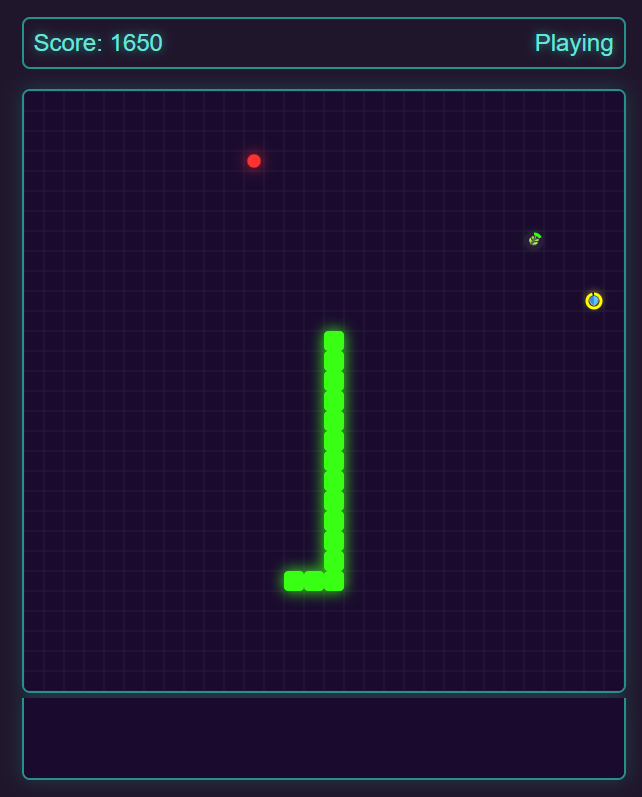
A modern implementation of the classic Snake game with power-ups, built with .NET 8 and SignalR for real-time gameplay.


The game consists of two parts that need to be running simultaneously:
cd src/Snake.API
dotnet run --urls="http://localhost:5075"
cd src/Snake.Web
dotnet run --urls="http://localhost:5080"
The game now supports multiple concurrent players:
Snake.Game.sln in Visual StudioSnake.API and Snake.Web to "Start"Install recommended extensions:
Open workspace settings (.vscode/settings.json):
{
  "editor.formatOnSave": true,
  "editor.defaultFormatter": "ms-dotnettools.csharp"
}.vscode/launch.json):{
"version": "0.2.0",
"configurations": [
{
"name": "API",
"type": "coreclr",
"request": "launch",
"program": "${workspaceFolder}/src/Snake.API/bin/Debug/net8.0/Snake.API.dll",
"args": ["--urls", "http://localhost:5075"],
"cwd": "${workspaceFolder}/src/Snake.API",
"stopAtEntry": false,
"env": {
"ASPNETCORE_ENVIRONMENT": "Development"
}
},
{
"name": "Web",
"type": "coreclr",
"request": "launch",
"program": "${workspaceFolder}/src/Snake.Web/bin/Debug/net8.0/Snake.Web.dll",
"args": ["--urls", "http://localhost:5080"],
"cwd": "${workspaceFolder}/src/Snake.Web",
"stopAtEntry": false,
"env": {
"ASPNETCORE_ENVIRONMENT": "Development"
}
}
],
"compounds": [
{
"name": "API + Web",
"configurations": ["API", "Web"]
}
]
}Install workloads:
Install extensions:
Configure user secrets (optional):
dotnet user-secrets init --project src/Snake.API
dotnet user-secrets init --project src/Snake.Web
dotnet build Snake.Game.sln
dotnet test Snake.Game.sln
src/Snake.API - Backend API and SignalR hubsrc/Snake.Web - Frontend web applicationsrc/Snake.Domain - Core game logic and entitiestests/ - Unit, integration, and functional testssrc/Snake.API/Properties/launchSettings.jsonsrc/Snake.Web/Properties/launchSettings.jsonSignalR Connection Issues
Snake.API/Program.csGame Not Loading
Build Errors
dotnet restore to restore packagesFor more detailed information, see:
RobHofmann/Snake.Game is a public repo on GitHub by RobHofmann. Copilot created Snake game. just for fun!
It declares no license on GitHub. Public does not mean open source: without a license, nobody is granted the right to reuse it.
Its maker tagged it for Windows. That is declared by the maker; Take My Repo has not tested it.
Open "Take it" on its page: Take My Repo writes an install plan for your machine and hands it to your AI agent (Claude Code, Codex or Cursor), which asks you before each step. Take My Repo has not tested it on any machine.
No. It is archived on GitHub: its maker no longer maintains it.
Nobody has reviewed it on Take My Repo yet, which says nothing about its quality.
Custom Gree climate component written in Python3 for Home Assistant. Controls AC's supporting the Gree protocol.
Custom component for Philips TV's running Android which are built between 2014 and 2016. Written in Python3 for Home Assistant.
PowerShell-based tool to schedule and reboot Unifi Access Points (APs) via the Unifi Controller API.
Powershell script that uploads files to Blob storage & optionally deletes uploaded files
Small script to migrate a Git Repo with all branches & tags
