
CoffeeScript
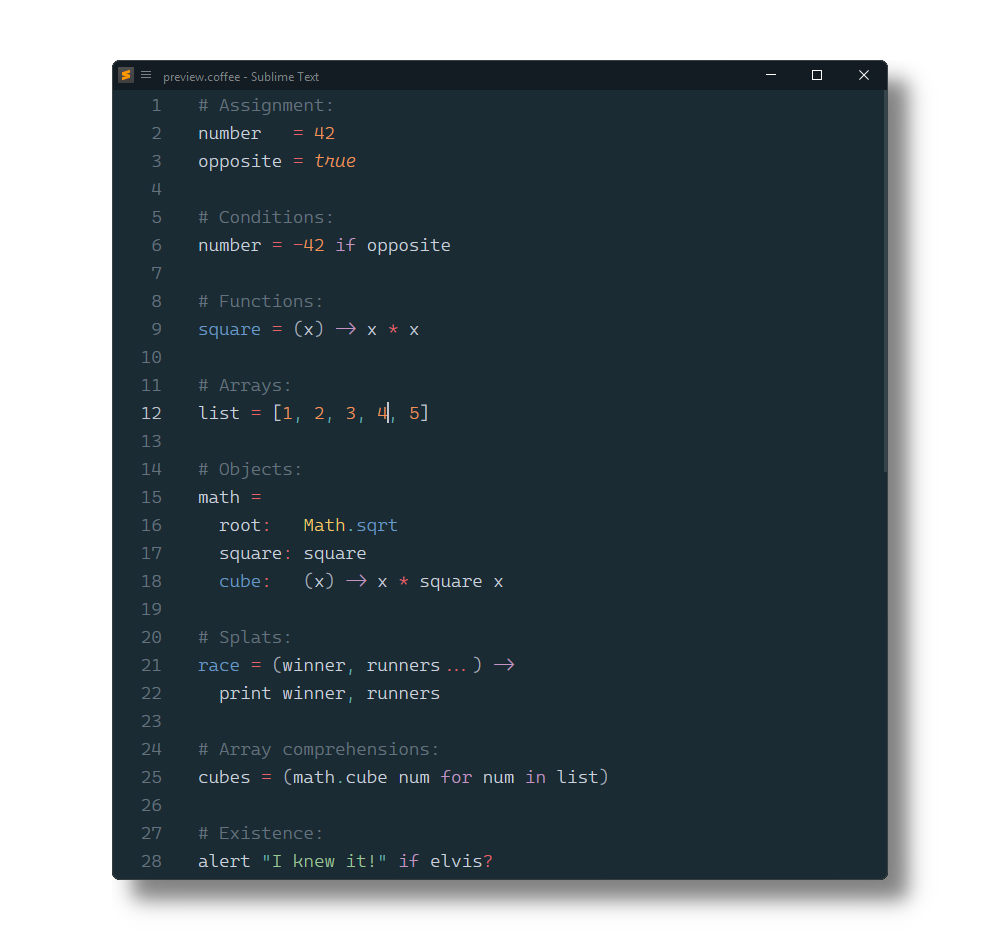
Syntax highlighting and checking, commands, shortcuts, snippets, watched compilation and more.
- 441
- 9 mo ago
Repo SublimeText/CoffeeScript, read from GitHub 12 min ago. SublimeText has not joined Take My Repo.
In short
SublimeText/CoffeeScript is a public repo on GitHub by SublimeText. Syntax highlighting and checking, commands, shortcuts, snippets, watched compilation and more. It declares no license on GitHub. Public does not mean open source: without a license, nobody is granted the right to reuse it. It is written mainly in CoffeeScript, has 441 stars and last changed on 2026-03-06. Nobody has reviewed it on Take My Repo yet, which says nothing about its quality. Read from GitHub on 2026-11-22.
CoffeeScript 
CoffeeScript syntax definitions build system and snippets for Sublime Text.
This package is for Sublime Text 3+.
An old version for Sublime Text 2 is accessible via the st2 branch.
Installation
Package Control
The easiest way to install is using Package Control. It's listed as CoffeeScript.
- Open
Command Paletteusing ctrl+shift+P or menu itemTools → Command Palette... - Choose
Package Control: Install Package - Find
CoffeeScriptand hit Enter
Manual Install
- Download appropriate CoffeeScript.sublime-package for your Sublime Text build.
- Copy it into Installed Packages directory
[!NOTE]
To find Installed Packages...
- call Menu > Preferences > Browse Packages..
- Navigate to parent folder
[!WARNING]
Manually installed packages are not automatically updated by Package Control.
Source Control
[!TIP]
Only recommended, if contributions to this package are planned.
Sublime stores packages in the following locations:
Nix: ~/.config/sublime-text/packages
Mac: ~/Library/Application\ Support/Sublime\ Text/Packages
Win: %APPDATA%\Sublime Text\Packages
As a repository within the packages directory
Open a Terminal/Console and run the following commands, replacing PACKAGE_PATH with the path corresponding to your OS above.
cd PACKAGE_PATH
git clone https://github.com/SublimeText/BetterCoffeeScript.git "CoffeeScript"
As a repository outside of the packages directory
If you use Github for Mac/Windows which store repositories in a specific location, or if you just don't want a repository in your packages directory, then instead you can use a link.
Clone the repository via GUI program or command line:
cd WHEREVER_YOU_WANT
git clone https://github.com/SublimeText/BetterCoffeeScript.git
Once that is done, create the link:
Windows:
cd PACKAGE_PATH
mklink /D "CoffeeScript" ABSOLUTE_PATH_TO_REPOSITORY
Nix/Mac:
cd PACKAGE_PATH
ln -s ABSOLUTE_PATH_TO_REPOSITORY "CoffeeScript"
Commands/Shortcuts
You can access the commands either using the command palette (ctrl+shift+P or cmd+shift+P) or via shortcuts.
alt+shift+t - Run a Cake task alt+shift+r - Run some CoffeeScript (prints output to a panel on the bottom) alt+shift+s - Run a syntax check alt+shift+c - Compile a file alt+shift+d - Display compiled JavaScript alt+shift+l - Display lexer tokens alt+shift+n - Display parser nodes alt+shift+w - Toggle watch mode alt+shift+p - Toggle output panel
Context menu has Compile Output that compiles the current CoffeeScript and outputs the javascript code that is run, in a panel.
Note: Some of the commands use the Status Bar for output, so you'll probably want to enable it (View » Show Status Bar).
Snippets
- Use
TABto run a snippet after typing the trigger. - Use
TABandshift+TABto cycle forward/backward through fields. - Use
ESCto exit snippet mode.
Snippet Triggers
Comprehension
Array: forin Object: forof Range: fori (inclusive) Range: forx (exclusive)
Statements
If: if Else: el If Else: ifel Else If: elif Switch: swi Ternary: ter Try Catch: try Unless: unl
Classes
Class - cla Class extends SuperClass - clx
Other
Function: - Function: = (bound) Interpolation: #
Building
When using the build system, it is assumed that your
.sublime-projectfile lives in your project's base directory (due to limitations with the build system).
Hitting F7 (Tools » Build) will run the Cake task 'sbuild'.
If you're not quite sure what the point of this is then read on.
Let's say before distributing your project that you would like to combine all of your .js files into one and then minify them them using UglifyJS or something.
That's what this is for! You would create a Cakefile and inside it you would write a task:
task 'sbuild', 'Prepare project for distribution.', -> # ...
Settings
Go to Preferences > Package Settings > CoffeeScript > Settings - User to change settings.
{
  /*
    The directories you would like to include in $PATH environment variable.
    Use this if your node installation is at a separate location and getting errors such as `cannot find node executable`

    example:
    "envPATH": "/usr/local/sbin:/usr/local/bin:/usr/sbin:/usr/bin:/sbin:/bin"

  */
  "envPATH": "/usr/local/sbin:/usr/local/bin:/usr/sbin:/usr/bin:/sbin:/bin",
  /*
    The directory containing your coffee binary. Usually
    /usr/local/bin.
  */
  "binDir": "/usr/local/bin",

  /*
    Compile without the top-level function wrapper (coffee -b).
  */

  "noWrapper": true,

  /*
    Enable or disable refresh the compiled Output on Save.
    Only available for watch mode.
  */
  "watchOnSave": true,
  /*
    Enable refreshing compiled JS when CoffeeScript is modified.

    Put false to disable
    Put a number of seconds to delay the refresh
  */
  "watchOnModified": 0.5,
  /*
    Enable Compiling on save. It will compile into the same folder.
  */
  "compileOnSave": true,
  /*
    ## Enable outputting the results of the compiled coffeescript in a panel
  */
  "showOutputOnSave": false,
  /*
    ## Enable compiling to a specific directory.
    #### Description

    if it is a string like 'some/directory' then `-o some/directory` will be added to `coffee` compiler.
    if it is false or not string then it will compile your `script.coffee` to the directory it is in.

    #### Example:
    Directory is relative to the file you are editing if specified such as
      compileDir": "out"
    Directory is absolute if specified such as
      compileDir": "/home/logan/Desktop/out"

  */
  "compileDir": false,
  /*
    ## Enable compiling to a specific relative directories.

    #### Example:
    Set absolute path for compile dir:
      "compileDir": "/home/user/projects/js"
    And specified folders
      "relativeDir": "/home/user/projects/coffee"
      "compilePaths":
      {
        "/home/user/projects/coffee": "/home/user/projects/first/js",
        "/home/user/projects/second/coffee": "../js",
      }

    So
      "/home/user/projects/coffee/app.coffee" will compile to "/home/user/projects/first/js/app.js"
      "/home/user/projects/coffee/models/prod.coffee" will compile to "/home/user/projects/first/js/models/prod.js"
      "/home/user/projects/coffee/second/coffee/app2.coffee" will compile to "/home/user/projects/second/js/app2.js"
      "/home/user/projects/main.coffee" will compile to "/home/user/projects/js/main.js"

  */
  "compilePaths": false,
}
Project settings
Go to Project > Edit Project to change project settings.
{
  "folders": [
    "."
  ],
  "settings": {
    "CoffeeScript": {
      "noWrapper": true,
      "compileOnSave": true,
      "compileDir": "out"
    }
  }
}
FAQ
Most of the linux terminal commands written here can be run via cygwin - aka Linux Terminal in Windows.
Most of the problems are related to configurations. Remember to configure
binDirafter you install!Do I have coffee-script installed?
Try finding coffee-script in your global npm list with npm ls -g | grep coffee which will output something like:
npm ls -g | grep coffee

# will output:
#├── coffee-script@1.6.3
#├─┬ coffeelint@0.5.6
#│ ├── coffee-script@1.6.3
#├── UNMET DEPENDENCY generator-coffee *
#│ │ ├── coffee-script@1.3.3
- Where can I find out the path to coffee binary?
In Linux which command will tell you where a command originates from. In terminal type:
which coffee
# /usr/bin/coffee
This path will go into the binDir setting.
- I'm getting the error message
'coffee' is not recognized as an internal or external command,when saving.
The coffee-script binary probably is not installed. Either install coffee-script or set checkSyntaxOnSave and compileOnSave to false in Preferences > Package Settings > CoffeeScript > Settings - User.
Questions
What is CoffeeScript?
SublimeText/CoffeeScript is a public repo on GitHub by SublimeText. Syntax highlighting and checking, commands, shortcuts, snippets, watched compilation and more.
Is CoffeeScript open source?
It declares no license on GitHub. Public does not mean open source: without a license, nobody is granted the right to reuse it.
Does CoffeeScript run on macOS, Windows or Linux?
Its maker has not tagged a system, so it is unknown here. Its README says what it needs.
How do I install CoffeeScript?
Open "Take it" on its page: Take My Repo writes an install plan for your machine and hands it to your AI agent (Claude Code, Codex or Cursor), which asks you before each step. Take My Repo has not tested it on any machine.
Is CoffeeScript still maintained?
Its last change on GitHub was on 2026-03-06. Take My Repo does not judge from that whether it is maintained.
What do people who ran CoffeeScript say?
Nobody has reviewed it on Take My Repo yet, which says nothing about its quality.