
multi-codex-app
Run several Codex desktop accounts side by side, each with its own separate profile and login.
- 60
- MIT
- 7 wk ago
Repo am-will/multi-codex-app, read from GitHub 2 d ago. am-will has not joined Take My Repo.
In short
am-will/multi-codex-app is a public repo on GitHub by am-will. Run several Codex desktop accounts side by side, each with its own separate profile and login. It declares the MIT license on GitHub. It is written mainly in Go, has 60 stars and last changed on 2026-10-08. Nobody has reviewed it on Take My Repo yet, which says nothing about its quality. Read from GitHub on 2026-11-22.
Multi Codex App
Run more than one Codex account at the same time.
Multi Codex App gives each of your Codex accounts its own copy of the Codex desktop app, with its own name, Dock icon, sign-in, chats, and plugins. Your personal and work accounts can stay open side by side, so you never have to sign out to switch.
https://github.com/user-attachments/assets/de21fbea-44f5-4a70-a849-11caee7e6e9d
What you get
- A separate app for each account. Launchers like "Codex Personal" and "Codex Work" each open their own Codex, signed in to their own account.
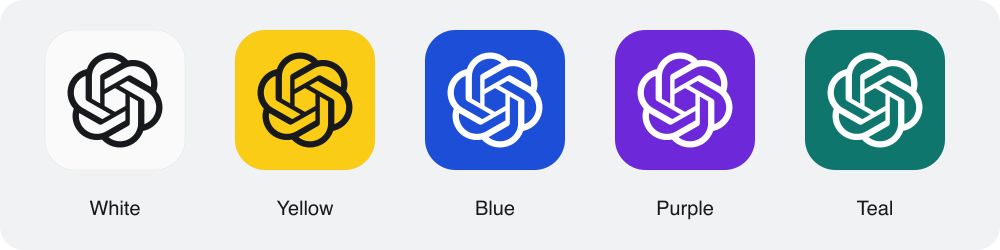
- Names and colors you choose. Five icon colors make each one easy to spot in the Dock, Spotlight, and Raycast.
- Plugins per account. Connect Gmail, GitHub, Figma, and more in one app without touching the others. You can connect the same plugin in several apps, each with its own login.
- Everything runs at once. Open as many as you need, side by side.
- Shared chats and memories, if you want them. Let some or all of your apps see the same chats and memories, and turn it off any time.
- A one-line install. A short setup wizard handles the rest.
Install
Before you start: install the official Codex desktop app.
On macOS or Linux, paste this into Terminal:
curl -fsSL https://raw.githubusercontent.com/am-will/multi-codex-app/main/install.sh | sh
You don't need Node, Go, Swift, or Xcode. The installer opens a short setup wizard:
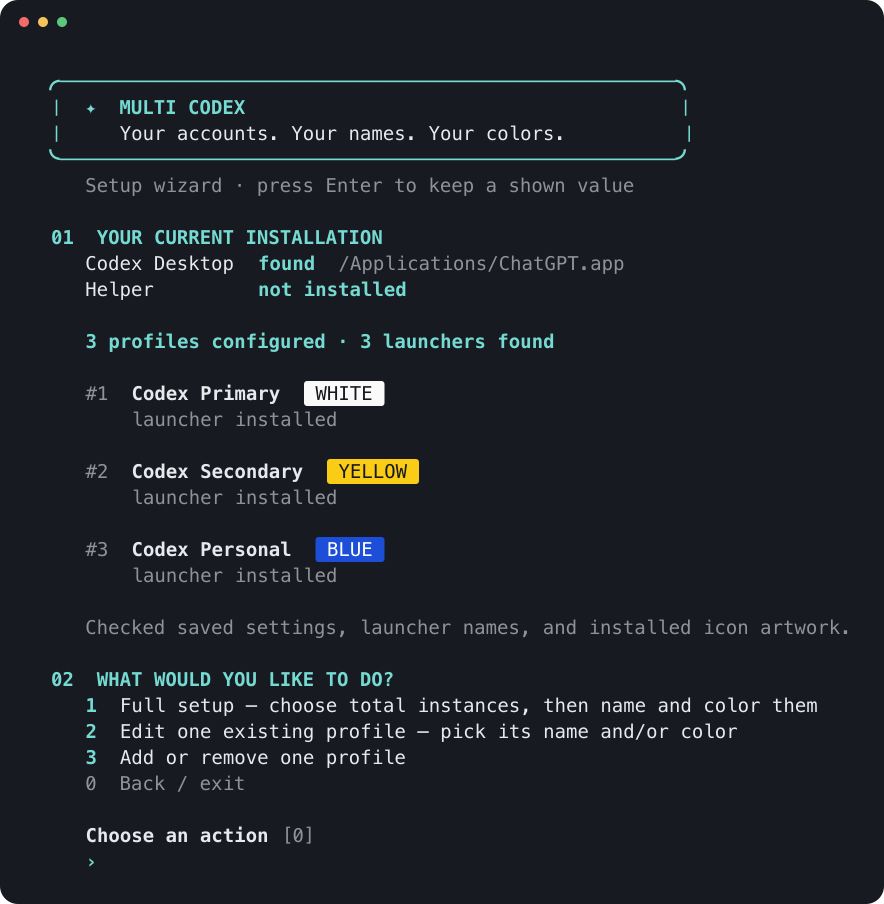
- It checks what you already have: the Codex app, the helper, and any profiles or launchers from an earlier setup. It only looks; nothing changes until you confirm.
- You choose how many accounts you want in total, including the one you use today.
- You name each one and pick its icon color (type a color name or a number from 1 to 5).
- You review the plan, then it installs.
When it's done, open each new app and sign in with the account you want it to use. Nothing is copied between accounts.
Run multi-codex-app wizard any time to come back. You can redo the full setup, edit one profile's name or color, add and remove a single profile, or share chats and memories.
Other ways to install (skip the wizard, Windows, Linux)
Skip the wizard and create three profiles with default names and colors:
curl -fsSL https://raw.githubusercontent.com/am-will/multi-codex-app/main/install.sh | sh -s -- --count 3
If the installer can't find the Codex app, add --app /absolute/path/to/ChatGPT.app.
"Command not found"? Add ~/.local/bin to your PATH, for example in ~/.zshrc:
export PATH="$HOME/.local/bin:$PATH"
Linux needs a compatible desktop app already installed, plus xdg-mime, Python 3, and Tk (python3-tk on Debian and Ubuntu). This tool doesn't download or patch a Linux desktop app.
Windows (experimental): download the script, read it, then run it in PowerShell. Point -App at the desktop app, not the Codex CLI:
Invoke-WebRequest https://raw.githubusercontent.com/am-will/multi-codex-app/main/install.ps1 -OutFile install-multi-codex.ps1
.\install-multi-codex.ps1 -Count 3 -App 'C:\path\to\ChatGPT.exe'
Store-managed installs may need the exact path to the app and a change in Default Apps. Open a new terminal afterwards so the CLI is on your PATH.
Is it safe to run? The installers check each release's SHA-256 checksum before running it. Releases are not notarized or code-signed, so read install.sh or install.ps1 first, or build from source. Don't turn off your system's security settings to run it.
Connecting plugins
When you connect a plugin such as Gmail, Codex sends you to your browser to approve it. The browser then hands the approval back to Codex. With several Codex apps open, Multi Codex needs to know which one should get it, so it asks:
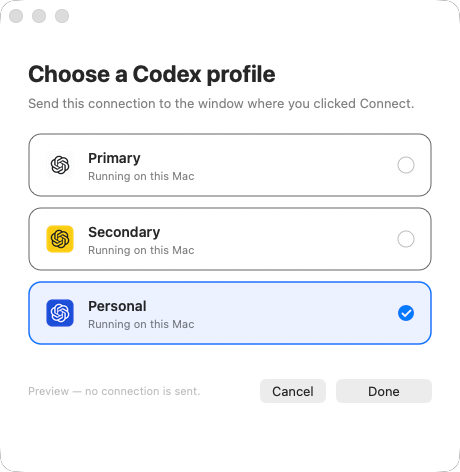
- In the Codex app you want, start connecting the plugin.
- Approve it in your browser. Make sure you're signed in to the right account there first. The browser doesn't know which Codex app you started from.
- When Choose a Codex profile appears, pick that same app and click Continue.
The plugin is added to that app only. To use the same plugin in another app, connect it there too, with whichever account you like. On macOS, apps that aren't running are greyed out, and nothing is selected for you.
[!TIP] After opening Codex, wait a few seconds before connecting a plugin. Codex takes over the login link when it starts, and Multi Codex takes it back within about ten seconds.
On macOS, the menu-bar helper also lists all your profiles and can show a preview of the chooser.
Sharing chats and memories
Each app starts with its own chats and memories. If you want an app to see the same chats and memories as another one, turn sharing on for it. You can turn it off again whenever you like.
The shared chats and memories live in one app, called the owner. That's profile 1, your original Codex, unless you pick another.
Turn sharing on
- Quit the app you want to change. On a Mac, press ⌘Q; closing the window isn't enough.
- Run
multi-codex-app wizardand choose Share chats and memories between profiles, then Change one profile. Pick the app and what it should share. - Open the app again. It now shows the shared chats and memories.
Or do it in one command, using the profile's number from multi-codex-app list:
multi-codex-app share 2 all
Turn sharing off
- Quit the app.
- Run
multi-codex-app share 2 off, or choose Neither in the wizard. - Open the app again. Its own chats and memories are back, exactly as they were.
Turning sharing off never deletes anything. Chats the app started while sharing stay with the shared chats, so the owner can still open them.
What you can share
| Option | Command | What the app shows |
|---|---|---|
| Chats and memories | share 2 all |
The shared chats and the shared memories |
| Chats only | share 2 chats |
The shared chats, with its own memories |
| Memories only | share 2 memories |
Its own chats, with the shared memories |
| Neither | share 2 off |
Its own chats and memories (the default) |
Run multi-codex-app share to see what each app shares.
Good to know
- Shared chats are live. Every sharing app sees the same chats, including new ones from the others. Nothing is copied, so nothing gets out of sync and no extra disk space is used.
- You can read every shared chat, but only continue your own. Codex ties each chat to the account that started it. To pick up another account's chat, start a new chat and refer to it.
- Memories grow in the owner. Only the owner's app writes memories; the other apps read them. The more you use the owner, the more the shared memories grow, so make your most-used app the owner.
- Work accounts. When an app shares chats, the owner can learn memories from them, using the owner's account. If that's not OK for a work account, choose Memories only for it: it gets the shared memories without adding its chats.
- Removing or uninstalling. Turn sharing off first. Multi Codex reminds you if you forget.
More about sharing
- Where your own chats wait. While an app shares, its own chats and memories wait in a
.multi-codex-privatefolder inside its Codex folder. Turning sharing off moves them back. - What's linked. Sharing chats links the app's chat storage to the owner's:
sessions,archived_sessions, the chat databases, attachments, generated images, and Codex's chat write locks. Codex already handles several apps using one copy, the same way the Codex CLI and desktop app share~/.codex. If two apps write to the same chat at once, the second is told the chat is busy. Sharing memories links thememoriesfolders. - What stays separate. Sign-ins, settings, and plugins always stay with each app. So does each app's memory database, so resetting memories in a sharing app can't clear the owner's.
- Chats only. An app that shares chats but keeps its own memories builds them from the shared chats. Those memories are kept for next time when it stops sharing.
- Changing the owner.
multi-codex-app share owner 3works while nothing is shared. The new owner's own chats and memories become the shared ones. - After Codex updates, run
multi-codex-app doctor. If something needs repair, it tells you the command. Choosing an app's current option again, likeshare 2 all, always repairs it. - Platforms. Sharing works on macOS and Linux. Windows isn't supported yet, because SQLite there doesn't follow links. Turning chat sharing off uses the
sqlite3command, which macOS includes, or Python 3 on Linux.
Everyday commands
| Command | What it does |
|---|---|
multi-codex-app wizard |
Open the setup wizard: full setup, edit one profile, add or remove one, or share chats and memories |
multi-codex-app list |
Show your profiles with their numbers, names, and colors |
multi-codex-app launch 2 |
Open profile 2, or bring it to the front |
multi-codex-app rename 2 Work |
Rename profile 2 to "Codex Work" |
multi-codex-app icon 2 yellow |
Change profile 2's icon color |
multi-codex-app icons |
Show the five colors: white, yellow, blue, purple, teal |
multi-codex-app add |
Add more profiles (guided) |
multi-codex-app remove 4 |
Remove profile 4's launcher but keep its data |
multi-codex-app restore 4 |
Bring profile 4 back with its data |
multi-codex-app list --removed |
Show removed profiles you can restore |
multi-codex-app share |
Show which profiles share chats and memories |
multi-codex-app share 2 all |
Share chats and memories in profile 2 (or chats, memories, off) |
multi-codex-app share owner 3 |
Make profile 3 hold the shared chats and memories |
multi-codex-app update |
Install the newest release and keep your profiles |
multi-codex-app doctor |
Check paths and login-link routing |
multi-codex-app uninstall |
Remove the integration but keep your data |
More about managing profiles
- Names.
rename 2 Workcreates Codex Work. A name that already starts with "Codex" is used as written, sorename 3 "Codex (My Company)"creates Codex (My Company). Names show up in the chooser, the helper menu, and the app launcher. Duplicate names, and names with characters your file system doesn't allow, are rejected. - Numbers never change. A profile keeps its number, data folder, and sign-in when you rename it or change its color. New profiles never reuse the number or data of a removed one.
- Colors. The first five profiles get white, yellow, blue, purple, and teal, in that order, and later ones repeat. Your choice sticks through renames, setup, and updates. The same artwork is used for launchers, Spotlight and Raycast results, the helper menu, and the chooser.
- Adding.
addwalks you through the new profiles.add --count 2adds two with default names and colors. - Full setup never removes profiles or replaces sign-ins.
setup --count 6makes sure you have six in total, andupdatekeeps all your current choices. - Removing.
remove IDtakes away that profile's launcher and Dock icon but keeps its sign-in, chats, settings, and data. It doesn't close a window that's already open. Removing your last profile also removes the helper.restore IDbrings a profile back, as long as its name doesn't clash with another launcher. If the profile shares chats or memories, or is the owner of shared ones, turn sharing off first. - Plain text. Set
NO_COLOR=1orTERM=dumbto turn off the wizard's colors.
Good to know
- Dock grouping. On macOS your colored launchers sit in the Dock, but running windows may still group under the original Codex icon. macOS groups windows by the signed app, and launchers can't change that.
- Nothing is merged.
Questions
What is multi-codex-app?
am-will/multi-codex-app is a public repo on GitHub by am-will. Run several Codex desktop accounts side by side, each with its own separate profile and login.
Is multi-codex-app open source?
It declares the MIT license on GitHub.
Does multi-codex-app run on macOS, Windows or Linux?
Its maker has not tagged a system, so it is unknown here. Its README says what it needs.
How do I install multi-codex-app?
Open "Take it" on its page: Take My Repo writes an install plan for your machine and hands it to your AI agent (Claude Code, Codex or Cursor), which asks you before each step. Take My Repo has not tested it on any machine.