javascript-tutorials-code
Here I have added all the JavaScript codes that I have shown on my YouTube Tutorials
- 189
- JavaScript
- 21 mo ago
The maintainer has not written a description at the source.
Repo anisul-Islam/javascript-documentation, read from GitHub 1 min ago. anisul-Islam has not joined Take My Repo.
anisul-Islam/javascript-documentation is a public repo on GitHub by anisul-Islam. It declares no license on GitHub. Public does not mean open source: without a license, nobody is granted the right to reuse it. It is written mainly in HTML, has 100 stars and last changed on 2025-02-14. Nobody has reviewed it on Take My Repo yet, which says nothing about its quality. Read from GitHub on 2026-11-21.

1.1 Introduction to Javascript
1.2 Output Console Object & comment
1.3 Tokens - variables, data types, operators
Intermediate JavaScript Topics
2.1 Document Object Model (DOM) and Events
2.2 Browser Object Model (BOM)
3.3 Prepare for technical test
What is Javascript?
A single threaded, dynamic typing, OOP programming language for web.
it can be used in front-end and back-end
It adds interactivity to the web page such as adding items to the carts, form validation etc.
Example: Create a button with HTML, Style with CSS and add clicking functionality by using javascript
A demo
    // index.html
    <!DOCTYPE html>
    <html lang="en">
      <head>
        <meta charset="UTF-8" />
        <meta name="viewport" content="width=device-width, initial-scale=1.0" />
        <title>Document</title>
        <link rel="stylesheet" href="style.css" />
      </head>
      <body>
        <h1>Welcome to JS</h1>
        <button onclick="deleteItem()">Delete</button>
        <script src="script.js"></script>
      </body>
    </html>

    // style.css
    button {
      background-color: green;
      color: white;
      padding: 0.5rem;
      border: none;
      border-radius: 5px 5px;
    }

    // index.js
    function deleteItem() {
      alert("The item is deleted!");
    }
What are the ways to add javascript?
Inline JavaScript:
Inline JavaScript is directly embedded within an HTML document using the <script> tag. It's placed directly within the HTML code and typically used for small scripts or quick actions.
<!DOCTYPE html>
<html>
  <head>
    <title>Inline JavaScript Example</title>
  </head>
  <body>
    <h1>Welcome to JS</h1>
    <button onclick="alert('The item is deleted!')">Delete</button>
  </body>
</html>
In this example, the JavaScript code alert('The item is deleted!') is executed when the button is clicked.
Internal JavaScript:
Internal JavaScript is placed within the HTML document, but it's placed in the <script> tag within the <head> or <body> section of the HTML. This allows you to keep your JavaScript separate from your HTML content.
<!DOCTYPE html>
<html>
  <head>
    <title>Internal JavaScript Example</title>
    <script>
      function deleteItem() {
        alert("The item is deleted!");
      }
    </script>
  </head>
  <body>
    <h1>Internal JavaScript Example</h1>

    <button onclick="deleteItem()">Delete</button>
  </body>
</html>
In this example, the JavaScript function deleteItem() is defined within the <script> tag in the HTML document and called when the button is clicked.
External JavaScript:
External JavaScript is stored in a separate .js file and linked to the HTML document using the <script> tag's src attribute. This approach is ideal for larger scripts and helps keep your HTML clean and organized.
index.html:
<!DOCTYPE html>
<html>
  <head>
    <title>External JavaScript Example</title>
  </head>
  <body>
    <h1>External JavaScript Example</h1>

    <button onclick="deleteItem()">Click Me</button>
    <script src="script.js"></script>
    <script src="script2.js"></script>
  </body>
</html>
script.js:
function deleteItem() {
  alert("The item is deleted!");
}
In this example, the JavaScript code is stored in an external file named script.js and linked to the HTML file using the <script> tag's src attribute.
External JavaScript is often preferred for better code organization and maintainability, especially in larger web applications where you may have multiple scripts.
output functions: functions that will help you to show output such as document.write(), window global object -> console.log(), lert(), confirm()
console
In JavaScript, the console object is a built-in object that provides a way to interact with the browser's debugging console or the console of other JavaScript environments (like Node.js). It's commonly used for debugging, logging information, and monitoring the behavior of your code. Here are some important functions and methods provided by the console object:
console.log(...args): This is one of the most commonly used functions. It logs the provided arguments to the console. For example:
console.log("Hello, world!");
console.error(...args): Logs error messages to the console with a red icon. Useful for reporting errors and issues in your code.
console.error("An error occurred.");
console.warn(...args): Logs warning messages to the console with a yellow icon. It's often used for non-fatal issues or potential problems.
console.warn("This is a warning message.");
console.info(...args): Logs informational messages to the console with a blue icon. Useful for general information about your code's behavior.
console.info("This is an informational message.");
console.debug(...args): Logs debugging messages to the console. These messages are typically used for detailed debugging information and may not be shown in all console environments.
console.debug("Debugging information.");
console.clear(): Clears the console, removing all previous log messages. Useful for keeping the console tidy during debugging sessions.
console.clear();
console.group(label) and console.groupEnd(): These methods allow you to group related log messages together. You can create a group using console.group(label) and close it with console.groupEnd(). This is particularly useful for organizing logs in complex applications.
console.group("Group Label");
console.log("Log message 1");
console.log("Log message 2");
console.groupEnd();
console.table(data): Displays tabular data in a table format. This is especially helpful for visualizing arrays or objects.
const data = [
  { name: "Alice", age: 30 },
  { name: "Bob", age: 25 },
];
console.table(data);
console.time(label) and console.timeEnd(label): These methods are used to measure the time it takes to execute a piece of code. You start a timer with console.time(label) and stop it with console.timeEnd(label).
console.time("Timer");
// Code to measure execution time
console.timeEnd("Timer");
Comments in JavaScript are used to provide explanations or additional information within your code. They are not executed by the JavaScript interpreter and are meant for human readability. JavaScript supports two primary types of comments:
Single-line Comments:
//.// on the same line is treated as a comment and is ignored by the JavaScript engine.// This is a single-line comment var x = 5; // Assigning a value to a variable const area = 0.5 * base * height; // area of triangle = 1/2 * base * height // TODO: Create a new Todo console.log("Create a new Todo"); // TODO: Read all the todos // FIXME: Unable to read all the todos console.log("Listed all the todos"); // TODO: update a Todo console.log("Todo is updated"); // TODO: delete a todo console.log("Todo is deleted");
Multi-line Comments:
/* and */./* This is a multi-line comment. It can span across multiple lines. */ /* function oldCode() { // This entire function is "commented out" and won't run. } */
Code Explanation: Comments are used to explain complex sections of code, making it easier for developers (including yourself) to understand the purpose and functionality of code blocks.
Documentation: Comments can serve as a form of documentation, providing information on how to use functions, classes, or libraries, including descriptions of parameters and return values.
TODO Lists: Developers often use comments with "TODO" or "FIXME" labels to highlight areas of code that need attention or future enhancements.
Disable Code: Comments can be used to temporarily disable lines or blocks of code for debugging or testing purposes without deleting the code.
Version History: Comments can include information about the version of the code, date of last modification, and author details for version control and collaboration.
Algorithmic Explanation: When implementing complex algorithms, comments can help explain the logic and steps involved.
Cross-browser Compatibility: Comments may include notes about specific browser-related workarounds or compatibility issues.
Debugging: Comments can aid in debugging by providing context or identifying problematic areas.
Code Organization: Comments can be used to divide code into sections, making it easier to navigate and understand.
While comments are essential for code readability and collaboration, it's also crucial to keep them up to date. Outdated comments can be misleading and may not accurately reflect the current state of the code. Therefore, it's good practice to maintain comments as you make changes to your code.
Program 1: E-Commerce app [printing category information]
// Print Category1 information

console.log("Id: 1");
console.log("Name: Electronics");
console.log(
  "Description: Latest gadgets and electronic devices including phones, laptops, and accessories."
);

// Print Category2 information
console.log("Id: 2");
console.log("Name: Fashion");
console.log(
  "Description: Trending apparel and accessories for men, women, and kids."
);

// Print Category3 information
console.log("Id: 3");
console.log("Name: Home & Kitchen");
console.log(
  "Description: Quality home and kitchen products, including furniture, decor, and cookware."
);

// Print Category4 information
console.log("Id: 4");
console.log("Name: Books");
console.log(
  "Description: A wide variety of books including fiction, non-fiction, educational, and more."
);

// Print Category5 information
console.log("Id: 5");
console.log("Name: Sports & Outdoors");
console.log(
  "Sports gear, outdoor equipment, and fitness accessories for active lifestyles."
);
setup prettier code formatter
Keywords: javascript reserved words for specific reasons.
puncuators
Escape sequnces: \ characters
Escape sequences in JavaScript are used to represent special characters or control characters within strings. They begin with a backslash (\) followed by a specific character, and they are used to produce characters that are otherwise difficult to type or include in a string directly. Here are some common escape sequences in JavaScript:
Newline (\n): Represents a line break or a new line character.
var text = "This is line 1.\nThis is line 2.";
console.log(text);
Output:
This is line 1.
This is line 2.
Tab (\t): Represents a tab character.
var indentedText = "First\tSecond\tThird";
console.log(indentedText);
Output:
First Second Third
Backslash (\\): Represents a literal backslash character.
var filePath = "C:\\Program Files\\MyApp\\file.txt";
console.log(filePath);
Output:
C:\Program Files\MyApp\file.txt
Single Quote (\'): Represents a single quotation mark within a single-quoted string.
var singleQuoted = "This is an example of a single quote: 'Hello'";
console.log(singleQuoted);
Output:
This is an example of a single quote: 'Hello'
Double Quote (\"): Represents a double quotation mark within a double-quoted string.
var doubleQuoted = 'This is an example of a double quote: "Hello"';
console.log(doubleQuoted);
Output:
This is an example of a double quote: "Hello"
Unicode Characters (\uXXXX): Represents a character using its Unicode code point in hexadecimal (XXXX).
var smileyFace = "\u263A";
console.log(smileyFace);
Output:
☺These escape sequences allow you to include special characters or characters that have special meanings within your strings without causing syntax errors or unexpected behavior.
Program 2: E-Commerce app [Add Backslash characters]
// Print Category1 information

console.log("Id: 1");
console.log("Name: Electronics");
console.log(
  "Description: Latest gadgets and electronic devices including phones, laptops, and accessories.\n\n"
);

// Print Category2 information
console.log("Id: 2");
console.log("Name: Fashion");
console.log(
  "Description: Trending apparel and accessories for men, women, and kids.\n\n"
);

// Print Category3 information
console.log("Id: 3");
console.log("Name: Home & Kitchen");
console.log(
  "Description: Quality home and kitchen products, including furniture, decor, and cookware.\n\n"
);

// Print Category4 information
console.log("Id: 4");
console.log("Name: Books");
console.log(
  "Description: A wide variety of books including fiction, non-fiction, educational, and more.\n\n"
);

// Print Category5 information
console.log("Id: 5");
console.log("Name: Sports & Outdoors");
console.log(
  "Sports gear, outdoor equipment, and fitness accessories for active lifestyles.\n\n"
);
Data types: [typeof operator] can help us to find out the data type of a value. Data types can be divided into 2: primitive & non-primitive/reference.
Primitive data types: Primitive data types are also known as in-built data types. String, Number, Bigint, boolean, null, undefined, symbol
Example
// primitive data types -> String, Number, Boolean, null, undefined, Symbol

// String data type ->  Represents sequences of characters, such as text.
console.log(typeof "John"); // string
console.log(typeof ""); // empty string

// Boolean data type -> Represents a true or false value.
console.log(typeof true); // boolean

// Number data type -> Represents numeric values, both integers and floating-point numbers.
console.log(typeof 123); // number
console.log(typeof 123.5); // number

// Undefined: variable is declared but no value is assigned
// Undefined -> data type for variable without value
console.log(typeof x); // undefined

// null ->  Represents the intentional absence of any object or value.(fun: typeof null is object)
console.log(typeof null);

/*
Symbol is used as an identifier for object properties
 Symbols are unique identifiers
 introduced in ES6
 it can be used when defining constants such as enum for uniqueness
 */
const symbol1 = Symbol("foo");
const symbol2 = Symbol("foo");
console.log(typeof symbol1); // symbol
console.log(symbol1 === symbol2); // false

const symbol = Symbol("Bye");
console.log(typeof symbol);
console.log(symbol);

// BigInt: Represents large integers with arbitrary precision (introduced in ECMAScript 2020). This data type can represent numbers greater than 253-1 which helps to perform operations on large numbers. The number is specified by writing ‘n’ at the end of the value

var bigNumber = 125522222222222222222222222222222222222n;
console.log(bigNumber);
Non Primitive data types: non-primitive data types are derived from primitive data types. It is also known as derived data types or reference data types. Object (Array is also part of Object type), Function.
Example
// Object type -> Represents a collection of key-value pairs (properties) where values can be of any data type, including other objects.
console.log(tyoeof {name: 'anis'});
console.log(typeof [1,2,3]) // array is object type

 // function type -> Represents a reusable block of code that can be executed.
 console.log( typeof function display () { }) // function type
what are the differences between primtive & non-primitive data types?

// Copying by value
let num1 = 5;
let num2 = num1; // num2 gets the value of num1

num2 = 10; // Modifying num2 does not affect num1

console.log(num1); // Output: 5
console.log(num2); // Output: 10

// Copying by reference
let arr1 = [1, 2, 3];
let arr2 = arr1; // arr2 references the same array as arr1

arr2.push(4); // Modifying arr2 also affects arr1

console.log(arr1); // Output: [1, 2, 3, 4]
console.log(arr2); // Output: [1, 2, 3, 4]
Data type conversion in js JavaScript provides several methods for type conversion, allowing you to convert data from one type to another. Here are some common methods and examples:
Implicit Type Conversion (Coercion): JavaScript automatically converts data types in certain situations. For example, when you use the + operator with different data types, JavaScript may implicitly convert them to a common type (usually a string or a number).
const num = 5;
const str = "10";

// JavaScript implicitly converts 'str' to a number before addition
const result = num + str; // result is 15 (a number)
Explicit Type Conversion (Type Casting): You can explicitly convert data types using various methods. Here are some common ones:
String Conversion: Use String() or .toString() to convert a value to a string.
const num = 42;
const str = String(num); // str is "42"
Number Conversion: Use Number(), parseInt(), or parseFloat() to convert a value to a number.
const str = "3.14";
const num = Number(str); // num is 3.14

const intStr = "42";
const intNum = parseInt(intStr); // intNum is 42
Boolean Conversion: Use Boolean() to convert a value to a boolean.
const value = "Hello";
const bool = Boolean(value); // bool is true (non-empty strings are truthy)
Explicit Type Conversion to Arrays and Objects: You can convert values to arrays or objects using specific constructors or methods.
Array Conversion: Use Array.from() to convert iterable objects (like strings or arrays-like objects) into arrays.
const str = "hello";
const arr = Array.from(str); // arr is ['h', 'e', 'l', 'l', 'o']
Object Conversion: You can create objects using object literal syntax {}.
const keyValuePairs = [
  ["a", 1],
  ["b", 2],
];
const obj = Object.fromEntries(keyValuePairs); // obj is { a: 1, b: 2 }
Varibale is a placeholder for storing data.
let title = "iphone 12";
let price = 510;
let discountPercentage = 8.5;
variables naming rules (collected from w3school)
Naming Convention: 4 most popular variable naming style out of many formats naming conventions
Underscore: first_name, last_name
Upper Camel Case (Pascal Case): FirstName, LastName -> normally used for Classes (nouns)
Lower Camel Case: firstName, lastName -> normally used for methods/variables
SCREAMING SNAKE CASE / CONSTANT_CASE for naming constants
Program 2: E-Commerce app [printing product details dynamically]
// Program 2: printing product details dynamically
const id = 101;
const title = "iphone 12";
const description = "brilliant phone with 4k camera";
const price = 549;
const discountPercentage = 8;
const rating = 4.69;
const brand = "Apple";

console.log("id : " + id);
console.log("title : " + title);
console.log("description: " + description);
console.log("price : " + price);
console.log("discountPercentage : " + discountPercentage);
console.log("rating : " + rating);
console.log("brand : " + brand);
Operators: Symbol that helps us to do mathmatical operation. 3 major types: Unary (works with one operand), binary (works with 2 operands), ternary (3 operands).
Types of operators
Arithmetic operators : +, -, *, /, %
Program 3: E-Commerce app [operators]
// Program 3: E-Commerce app [operators]
const id = 101;
const title = "iphone 12";
const description = "brilliant phone with 4k camera";
const price = 549;
const discountPercentage = 8.5;
const rating = 4.69;
const brand = "Apple";

// calculating price after discount
const discountAmount = (price * discountPercentage) / 100;
const priceAfterDiscount = price - discountAmount;

console.log("id : " + id);
console.log("title : " + title);
console.log("description: " + description);
console.log("price : " + price + " euros");
console.log("discountPercentage : " + discountPercentage);
console.log("rating : " + rating);
console.log("brand : " + brand);
console.log("priceAfterDiscount : " + priceAfterDiscount + " euros");
Arithmetic Programs: Create normal calculator, algebra formula calculator, area calculator (triangle,circle), temperature calculator(fahrenheit-celsius), years to hours, swap 2 numbers.
Assignment operators: +=, -=, *=, /=, %=
Comparision / Relational operators: >, >=, <, <=, ==, !=, ===, !== .Result is always boolean value
let num1 = 20;
let num2 = 10;

console.log(num1 > num2); // true
console.log(num1 >= num2); // true
console.log(num1 < num2); // false
console.log(num1 <= num2); // false
console.log(num1 === num2); // false
console.log(num1 !== num2); // true
Logical operators: &&, ||, ! result is always boolean value
let num1 = 20;
let num2 = 10;
let num3 = 5;

console.log(num1 > num2 && num1 > num3); // true
console.log(num2 > num1 && num2 > num3); // false
console.log(num3 > num1 && num3 > num2); // false
console.log(num3 > num1 || num3 > num2); // false
console.log(num2 > num1 || num2 > num3); // true
Bitwise operators: &, |, ^, ~, >>, <<
Unary operators: + (unary plus), -(unary minus), ++ (increment), -- (decrement)
Ternary/conditional Operator: condition ? expression1 : expression2;
Prompt & Data Type conversion: prompt() can help us to take user input. Though it is not recommended but for testing purpose we can use it instead of a form. Number(), toString(), pasreInt(), parseFloat(), parseDouble()
Program 4: E-Commerce app [adding prompt(), & Number function]
// Program 4: E-Commerce app [adding prompt(), & Number function]
const id = 101;
const title = "iphone 12";
const description = "brilliant phone with 4k camera";
const price = 549;
const rating = 4.69;
const brand = "Apple";

// getting user input using prompt()
const discountPercentage = Number(prompt("Discount percentage? "));

// calculating price after discount
const discount = (price * discountPercentage) / 100;
const priceAfterDiscount = price - discount;

console.log("id : " + id);
console.log("title : " + title);
console.log("description: " + description);
console.log("price : " + price + " euros");
console.log("discountPercentage : " + discountPercentage);
console.log("rating : " + rating);
console.log("brand : " + brand);
console.log("priceAfterDiscount : " + priceAfterDiscount + " euros");
if, else if, else
// if syntax
// if the condition is true then if body will work
if (condition) {
  // the body of if
}

// if, else syntax
// if the condition is true then if body will work or else will work
if (condition) {
  // the body of if
} else {
  // the body of else
}

// if, else if, else syntax
if (condition) {
  // the body of if
} else if (condition) {
  // the body of else if
} else if (condition) {
  // the body of else if
} else {
  // the body of else
}
if, else if, else related programs
positive / negative / zero program
Even / odd program
Vowel / consonant program
find large / small number program
digit spelling program
// a program that will find a large number between 2 numbers
var num1 = parseInt(prompt("Enter first numebr : "));
var num2 = parseInt(prompt("Enter second numebr : "));

// first method - using only if
if (num1 > num2) {
  console.log("Large Number is : " + num1);
}
if (num1 < num2) {
  console.log("Large Number is : " + num2);
}
if (num1 == num2) {
  console.log("Equal numbers");
}

// second method - more efficient than first method
if (num1 > num2) {
  console.log("Large Number is : " + num1);
} else if (num1 < num2) {
  console.log("Large Number is : " + num2);
} else if (num1 == num2) {
  console.log("Equal numbers");
}

// third method - more efficient than first and second method
if (num1 > num2) {
  console.log("Large Number is : " + num1);
} else if (num1 < num2) {
  console.log("Large Number is : " + num2);
} else {
  console.log("Equal numbers");
}

// A program that will find a letter is vowel or consonant
var letter = prompt("Enter a letter : ");

// convert any uppercase input into lower cause we set only lowercase letter in condition
letter = letter.toLowerCase();

// Now check the condition
if (
  letter == "a" ||
  letter == "e" ||
  letter == "i" ||
  letter == "o" ||
  letter == "u"
) {
  console.log("Vowel");
} else {
  console.log("Consonant");
}
Program 5 : E-commerce app [conditional control statement if/else]
const id = 101;
const title = "iphone 12";
const description = "brilliant phone with 4k camera";
const price = 549;
const rating = 4.69;
const brand = "Apple";
let priceAfterDiscount;

// getting user input using prompt()
const discountPercentage = Number(prompt("Discount percentage? "));

if (discountPercentage < 0) {
  console.log("Not a valid discount percentage");
} else {
  // calculating price after discount
  const discountAmount = (price * discountPercentage) / 100;
  priceAfterDiscount = price - discountAmount;
}

console.log("id : " + id);
console.log("title : " + title);
console.log("description: " + description);
console.log("price : " + price + " euros");
console.log("discountPercentage : " + discountPercentage);
console.log("rating : " + rating);
console.log("brand : " + brand);
console.log("priceAfterDiscount : " + priceAfterDiscount + " euros");
switch: An alternative for if, else. 4 keywords: switch, case, break, default
// A program to understand switch -> digit spelling program
// 0 -> Zero
// 1 -> One
// 2 -> Two
// ...
// ...
// 9 -> Nine
// for any number program will display "not a digit"

var digit = parseInt(prompt("Enter a digit : "));
switch (digit) {
  case 0:
    console.log("Zero");
    break;

  case 1:
    console.log("One");
    break;

  case 2:
    console.log("Two");
    break;

  case 3:
    console.log("Three");
    break;

  case 4:
    console.log("Four");
    break;

  case 5:
    console.log("Five");
    break;

  case 6:
    console.log("Six");
    break;

  case 7:
    console.log("Seven");
    break;

  case 8:
    console.log("Eight");
    break;

  case 9:
    console.log("Nine");
    break;

  default:
    console.log("Not a digit");
}
for loop
//A program to demonstrate for loop
for (var i = 1; i <= 10; i++) {
  console.log("Bangladesh");
}

console.log("End of for loop");

// sum of numbers 1+2+..+100
// var sum = 0;
// for (var x = 1; x <= 100; x++){
//     sum = sum + x;
// }
// console.log(sum);
while loop
//A program to demonstrate while loop
var i = 1;
while (i <= 10) {
  console.log("Bangladesh");
  i++;
}

console.log("End of for loop");

// sum of numbers 1+2+..+100
// var sum = 0;
// var x = 1;
// while ( x <= 100){
//     sum = sum + x;
//     x++;
// }
// console.log(sum);
do while loop
// A program to demonstrate do while loop
var i = 1;
do {
  console.log("Bangladesh");
  i++;
} while (i <= 10);

console.log("End of for loop");

// sum of numbers 1+2+..+100
// var sum = 0;
// var x = 1;
// do{
//     sum = sum + x;
//     x++;
// }while ( x <= 100)
// console.log(sum);
for of loop: The for...of loop is used for iterating over the values of iterable objects like arrays and strings.
const colors = ["red", "green", "blue"];

for (const color of colors) {
  console.log(color);
}

// Output:
// "red"
// "green"
// "blue"
for in loop: The for...in loop is used for iterating over the keys (property names) of objects. It should not be used to iterate over arrays because it may also iterate over object prototype properties.
const person = {
  name: "John",
  age: 30,
  job: "Engineer",
};

for (const key in person) {
  console.log(key + ": " + person[key]);
}

// Output:
// "name: John"
// "age: 30"
// "job: Engineer"
break and continue statement
// break and continue keyword program

// The break statement "jumps out" of a loop or switch if the condition is matched.
for (var i = 1; i <= 100; i++) {
  if (i == 20) break;
  console.log(i);
}

// The continue statement breaks one iteration (in the loop), if a specified condition occurs, and continues with the next iteration in the loop.
for (var i = 1; i <= 100; i++) {
  if (i == 20) continue;
  console.log(i);
}
Function: Function is a block of codes for a specific task. It is beneficial for reusablity. Separation of concerns. return keyword can be used only once inside a function. value that a function received is called parameters and the value we pass when calling function is known as arguments
Function related topics:
// function example 2
// without function
let num1; // best practice: always slipt the declaration as I did in 3 lines
let num2;
let sum;

num1 = 20;
num2 = 30;
sum = num1 + num2;
console.log(sum);

num1 = 10;
num2 = 20;
sum = num1 + num2;
console.log(sum);

num1 = 40;
num2 = 20;
sum = num1 + num2;
console.log(sum);

// with function
function addNumbers(num1, num2) {
  const sum = num1 + num2;
  console.log(sum);
}

addNumbers(20, 30);
addNumbers(10, 30);
addNumbers(5, 15);
// Function example3

// creating function without parameter
function message() {
  console.log("Hello, I am a function without parameter");
}

// creating function with one parameter
function welcomeMessage(name) {
  console.log("Welcome " + name + "to the Full-stack");
}

// creating function with multiple parameters
function welcomeMessage2(name, programName) {
  console.log("Welcome " + name + "to the " + programName);
}

// returning from a function
function welcomeMessage3(name, programName) {
  return "Welcome " + name + "to the " + programName;
}

// calling functions
message();
welcomeMessage("Alex");
welcomeMessage2("Alex", "full-stack");
console.log(welcomeMessage3("Brown", "full-stack"));
Program 6: E-Commerce app [function]
// Program 6: E-commerce app  [function]

const id = 101;
const title = "iphone 12";
const description = "brilliant phone with 4k camera";
const price = 549;
const rating = 4.69;
const brand = "Apple";

// getting user input using prompt()
const discountPercentage = Number(prompt("Discount percentage? "));

// priceAfterDiscount function
function priceAfterDiscount(price, discountPercentage) {
  if (discountPercentage < 0) {
    console.log("Not a valid discount percentage");
    return 0;
  } else {
    // calculating price after discount
    const discountAmount = (price * discountPercentage) / 100;
    return price - discountAmount;
  }
}

// printing product details
function printProductDetails(
  pId,
  pTitle,
  pDescription,
  pPrice,
  pRating,
  pBrand,
  pDiscountPercentage
) {
  console.log("id : " + pId);
  console.log("title : " + pTitle);
  console.log("description : " + pDescription);
  console.log("rating : " + pRating);
  console.log("brand : " + pBrand);
  console.log("Original price : " + pPrice + " euros");
  console.log("Discount Percentage : " + pDiscountPercentage);
  console.log(
    "After the discount price : " +
      priceAfterDiscount(price, pDiscountPercentage) +
      " euros"
  );
}

printProductDetails(
  id,
  title,
  description,
  price,
  rating,
  brand,
  discountPercentage
);
Hoisting is a JavaScript behavior where variable and function declarations are moved to the top of their containing scope during the compilation phase. This means that you can use variables and functions in code before they are declared in the source code. However, there is a distinction between variable and function hoisting.
Variable Hoisting:
Variables declared with var are hoisted. This means that they are moved to the top of their function or global scope, and their initial value is set to undefined.
console.log(x); // undefined
var x = 5;
In the above example, x is hoisted, but its value is undefined until it's assigned the value 5.
Function Hoisting:
Function declarations are also hoisted. You can call a function before its declaration in the code.
sayHello(); // Hello, world!

function sayHello() {
  console.log("Hello, world!");
}
In this case, the function sayHello is hoisted to the top of the scope, so you can call it before its actual declaration in the code.
Block-Scoped Variables (let and const):
Variables declared with let and const are also hoisted, but they are not initialized with undefined. Instead, they are in a "temporal dead zone" until they are declared in the code.
console.log(x); // ReferenceError: x is not defined
let x = 5;
Unlike var, if you try to access a let or const variable before its declaration, it will result in a ReferenceError.
It's important to understand hoisting because it can lead to unexpected behavior in your code if you're not aware of how it works. To avoid issues, it's generally a good practice to declare variables at the beginning of their containing scope and to use let and const for better scoping behavior compared to var.
In JavaScript, the scope of a variable refers to the context in which the variable is declared and can be accessed. The scope determines where in your code a variable is visible and can be used. JavaScript has two main types of variable scope: global scope and local scope (also known as function scope). Understanding variable scope is crucial for writing clean, maintainable, and bug-free JavaScript code. It helps prevent unintended variable name collisions and allows you to control the visibility and lifetime of variables in your programs.
Global Scope:
var globalVar = "I'm global"; // Global scope
function foo() {
  console.log(globalVar); // Accessible within functions
}
console.log(globalVar); // Accessible outside functions
Local Scope (Function Scope):
function bar() {
  var localVar = "I'm local"; // Local scope
  console.log(localVar); // Accessible within the function
}
bar();
console.log(localVar); // Error: localVar is not defined
Block Scope (ES6 and Later):
let and const keywords allow for block-scoped variables.if statements or for loops. These variables are only accessible within the block where they are declared.if (true) { let blockVar = "I'm block-scoped"; // Block scope console.log(blockVar); // Accessible within the block } console.log(blockVar); // Error: blockVar is not defined
Lexical Scope (Closures):
function outer() {
  var outerVar = "I'm in outer scope";
  function inner() {
    console.log(outerVar); // Accesses outerVar via closure
  }
  return inner;
}
var closureFunc = outer();
closureFunc(); // Logs "I'm in outer scope"
More on clousre Certainly, here's an example of a closure in JavaScript:
function outer() {
  var outerVar = "I'm in the outer function"; // Outer variable

  function inner() {
    console.log(outerVar); // Accesses outerVar from the outer function
  }

  return inner; // Return the inner function
}

// Create a closure by calling outer and assigning its result to a variable
var closureFunc = outer();

// Execute the closure
closureFunc(); // Logs "I'm in the outer function"
In this example:
We have an outer function called outer that defines a variable outerVar within its scope.
Inside the outer function, there's an inner function called inner.
The inner function has access to the outerVar variable even though it's declared in the outer function. This is an example of a closure. Closures allow inner functions to "remember" the scope in which they were created, even after the outer function has finished executing.
We return the inner function from the outer function, creating a closure.
We assign the returned inner function to the variable closureFunc.
When we execute closureFunc(), it logs the value of outerVar, which is still accessible due to the closure.
Closures are powerful because they allow you to encapsulate data and behavior, creating private variables and functions that can be used to manage state or implement various patterns like the module pattern and the revealing module pattern in JavaScript.
2 important things: reassign, scope - block, function, global.
var variable can be reassigned and function scoped. var variables also become part of window object which can be overriden. try window.varName
var name = "alex";
name = "robin"; // reassign allowed for var variables

if (true) {
  var age = 32;
}

console.log(name);
console.log(age); // allowed as var variable is function scoped
let variable can be reassigned but blocked (a set of curly braces) scoped.
let name = "alex";
name = "robin"; // reassign allowed for let variables

if (true) {
  let age = 32;
}

console.log(name);
console.log(age); // not allowed as let variable is block scoped
const variable can not be reassigned but blocked (a set of curly braces) scoped. const object can be changed by its properties.
const name = "alex";
name = "robin"; // reassign is not allowed for const variables

if (true) {
  const age = 32;
}

console.log(name);
console.log(age); // not allowed as const variable is blocked scoped
Object: In JavaScript, objects are fundamental data structures used to store and organize data. Objects are collections of key-value pairs, where each key is a string (or a symbol in ES6+) that acts as a unique identifier for a value. Values in objects can be of any data type, including other objects, functions, arrays, and primitive types (like strings, numbers, and booleans).
// Creating an empty object
const person = {};

// Adding properties to the object
person.firstName = "John";
person.lastName = "Doe";
person.age = 30;

// Accessing object properties
console.log(person.firstName); // "John"
console.log(person.lastName); // "Doe"
console.log(person.age); // 30

// Objects can also be created with properties in a single step
const car = {
  make: "Toyota",
  model: "Camry",
  year: 2022,
};

// Accessing properties using square brackets (useful when the property name is dynamic)
const propertyName = "make";
console.log(car[propertyName]); // "Toyota"

// Nested objects
const student = {
  name: "Alice",
  info: {
    major: "Computer Science",
    GPA: 3.9,
  },
};

console.log(student.info.major); // "Computer Science"
console.log(student["info"]["GPA"]); // 3.9

// Deleting a property
delete car.year;

// Checking if a property exists
console.log("make" in car); // true
console.log("year" in car); // false

// Iterating through object properties
for (const key in car) {
  console.log(key, car[key]);
}

// Object methods (functions attached to objects)
const calculator = {
  add: function (a, b) {
    return a + b;
  },
  subtract: function (a, b) {
    return a - b;
  },
};

console.log(calculator.add(5, 3)); // 8
console.log(calculator.subtract(10, 4)); // 6
const student = {
  name: "Anisul Islam", // property
  displayInfo: function () {
    // method related to object
    return `Hello! My name is ${this.name}`;
  },
};

console.log(student.name);
console.log(student.displayInfo());
// object program example
// what is Object?
// How to create an object?
// How to access object properties?
// Constructor, this keyword
// function inside constructor

// declaring variables and using them
const name = "Anisul Islam";
const age = 27;
const cgpa = 3.92;
const lang = ["Bengali", "English"];

// declaring objects -> object is one type of variable that can store differnt types of variables
const student1 = {
  // property : value
  name: "Anisul Islam",
  age: 27,
  cgpa: 3.92,
  lang: ["Bengali", "English"],
};

const student2 = {
  // property : value
  name: "Rokib",
  age: 28,
  cgpa: 2.92,
  lang: ["Hindi", "Bengali"],
};

const student3 = {
  // property : value
  name: "Sweety",
  age: 25,
  cgpa: 4.92,
  lang: ["Bengali", "Urdu"],
};
// printing object property's value
// object properties can be accessed in two ways: objectName.propertyName or objectName["propertyName"]
console.log(student1.name);
console.log(student1[name]);
console.log(student1);

console.log("using constructor");
// adding constructor and simplifying the task

function Student(name, age, cgpa, lang) {
  this.name = name;
  this.age = age;
  this.cgpa = cgpa;
  this.lang = lang;

  // adding function inside the constructor
  /*
  object properties that holds a function is called Method. Use dot operator for accessing. we can declare the function outside then use here
  */
  this.display = function () {
    console.log(this.name);
  };
  <!-- this.display = function d() {
    console.log(this.name);
  }; -->

  this.display = d;
}

  function d() {
    console.log(this.name);
  };

const s1 = new Student("Anisul Islam", 27, 3.92, ["Bengali", "English"]);
const s2 = new Student("Rabeya Begum", 23, 4.92, ["Bengali", "Urdu"]);
const s3 = new Student("Milon", 29, 4.68, ["Bengali",
anisul-Islam/javascript-documentation is a public repo on GitHub by anisul-Islam. Its maker has not written a description.
It declares no license on GitHub. Public does not mean open source: without a license, nobody is granted the right to reuse it.
Its maker has not tagged a system, so it is unknown here. Its README says what it needs.
Open "Take it" on its page: Take My Repo writes an install plan for your machine and hands it to your AI agent (Claude Code, Codex or Cursor), which asks you before each step. Take My Repo has not tested it on any machine.
Its last change on GitHub was on 2025-02-14. Take My Repo does not judge from that whether it is maintained.
Here I have added all the JavaScript codes that I have shown on my YouTube Tutorials
Nobody has reviewed it on Take My Repo yet, which says nothing about its quality.
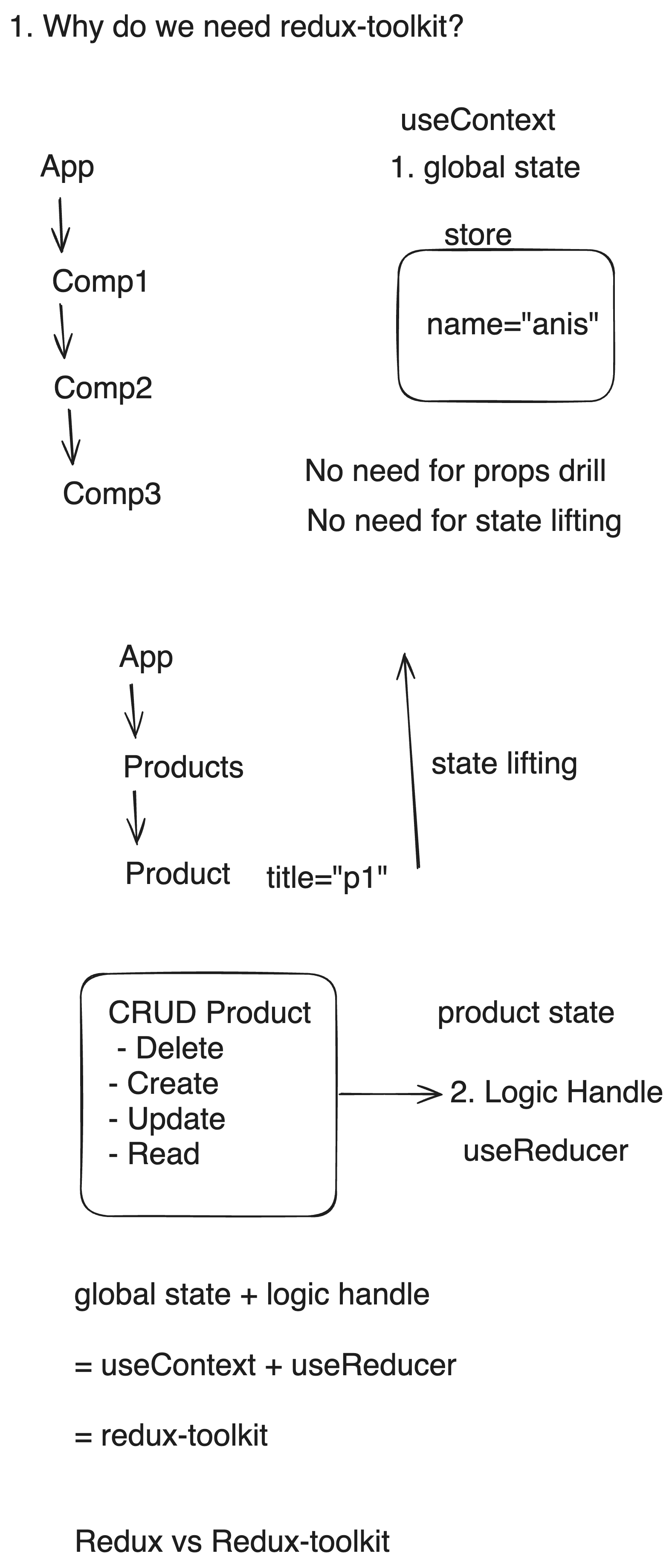
In this repo, I will share my experience regarding redux, react-redux and redux-toolkit