
AutoGPT
AutoGPT is the vision of accessible AI for everyone, to use and to build on. Our mission is to provide the tools, so that you can focus on what matters.
- 188k
- Python
- 49 min ago
Auto-Use Computer Use — drives your OS, browser, scours the web, writes your code. One agent, end to end.
Repo auto-use/Auto-Use, read from GitHub 1 min ago. auto-use has not joined Take My Repo.
auto-use/Auto-Use is a public repo on GitHub by auto-use. Auto-Use Computer Use — drives your OS, browser, scours the web, writes your code. One agent, end to end. It declares the Apache-2.0 license on GitHub. It is written mainly in Python, has 118 stars and last changed on 2026-07-26. Nobody has reviewed it on Take My Repo yet, which says nothing about its quality. Read from GitHub on 2026-11-21.

🤖 Computer Use Framework for macOS & Windows
Let AI drive your computer — Autouse AI — Computer Use, now with both the macOS and Windows builds combined in a single repository. Control your entire OS with natural language. Browser automation, coding tasks, file management — all powered by vision-language models.
Features • Architecture • GUI Engine • Example Tasks • Providers • Setup • Author
grep, glob, view, and shell out, but can never write. Spawned in parallel, each in its own isolated session scratchpad.osascript execution with automatic TCC permission-dialog handling so first-run consent prompts don't stall the agent.Auto Use is not one model in a loop — it's a hierarchy of agents that can spawn more agents.
                    ┌─────────────────────┐
                    │   Parent Agent      │
                    │  (GUI · Web · OS)   │
                    └──────────┬──────────┘
                               │ spawns
                    ┌──────────▼──────────┐
                    │     CLI Agent       │
                    │  (coding · shell)   │
                    └──────────┬──────────┘
                               │ spawns ∞
       ┌───────────────────────┼───────────────────────┐
       ▼                       ▼                       ▼
  ┌─────────┐             ┌─────────┐             ┌─────────┐
  │ Minion  │             │ Minion  │             │ Minion  │
  │  scout  │   …         │  scout  │   …         │  scout  │
  └─────────┘             └─────────┘             └─────────┘
   read-only: shell · view · grep · glob · scratchpad · exit
shell, view, grep, glob, scratchpad, exit. No writes, no Applescript, no GUI — just fast, isolated reconnaissance. Multiple minions run in parallel; the CLI Agent waits on all of them and merges results.Each Minion runs in its own session-isolated scratchpad at cli_minion/{session_id}/, with results polled from a per-run JSON file. Live progress streams to the frontend through minion_start / minion_line / minion_end events.
Invocation examples:
# Direct CLI Agent
python cli.py

# CLI Agent with a specific task
python -m Auto_Use.macOS_use.agent.coder --task "refactor the auth module"

# Single Minion for a quick read-only question
python -m Auto_Use.macOS_use.agent.minions --task "where is _validate_token defined and who calls it?"

Most "AI controls your screen" projects pick one approach. Auto Use uses three, in sequence, on every loop iteration:
AXUIElementCreateSystemWide from PyObjC's ApplicationServices walks the foreground window into a structured tree of buttons, text fields, links — each with coordinates, labels, and role.Quartz.CGWindowListCreateImage captures the display; PIL overlays numbered magenta bounding boxes onto every interactive element discovered in step 1. Retina / HiDPI scaling is handled automatically.Why hybrid? Pure-vision agents hallucinate coordinates and miss off-screen state. Pure-accessibility agents miss everything that lives in a canvas or video. Auto Use shows the model both, refreshed after every action, so it always reasons over current ground truth.

The AppleScript pathway is a first-class action type, not a bash escape hatch.
tell application "..." blocks via osascript._scan_permission_dialog()) detects macOS consent popups mid-run and clicks the affirmative button — "Allow", "OK", or "Always Allow" — so both automation prompts ("Allow / Don't Allow") and folder prompts ("Don't Allow / OK") don't deadlock the CLI agents. If a popup can't be clicked (Accessibility not granted), the blocked shell command fails fast (~8s) with a clear permission_dialog message instead of stalling.open for inactive apps, strips redundant activate / launch directives for already-running apps so foregrounding doesn't fight the user's focus.One-time setup — grant Full Disk Access. So the coder/minion agents can read & write Desktop/Documents/Downloads without macOS permission popups, grant Full Disk Access in System Settings → Privacy & Security → Full Disk Access: add AutoUse.app (packaged) or your Terminal / VS Code /
pythonbinary (dev runs). Auto Use opens this pane for you on first launch if it isn't granted.
Shell access is wrapped in a Sandbox that the model can't escape by accident.
subprocess.Popen inside a designated Desktop workspace./system, /usr/sbin, /private/var.Enter name:, etc.) don't hang the agent.input_text to drive the dialog.{status, output, error, agent_location} so the agent always knows where it is in the filesystem.Live web search built into the agent loop — no manual copy-paste between browser and chat. Backed by Perplexity Sonar (or any Perplexity / OpenAI / Anthropic web-search-capable model when selected), the agent issues queries, reads results, and folds the findings straight into its next action.

Just describe what you want — Auto Use picks the right tool for the job.
"Uninstall VLC media player"
"Create a Python Flask API with user authentication"
"Why is AMD stock price going up?"
"Check disk space and clean up temp files"
"Send an iMessage to John saying I'll be 10 minutes late"
| Category | Examples |
|---|---|
| Browser | Fill forms, extract data, navigate sites, download files |
| Productivity | Create documents, manage spreadsheets, organize files |
| Development | Write code, debug errors, run tests, manage git |
| System | Install software, configure settings, manage processes |
| Research | Search web, compile information, generate reports |
Auto Use supports 6 LLM providers:
💡 Recommended for most users: We strongly encourage installing the latest binary build from our official website for a fully seamless installation and the complete UI experience — no manual setup required.
The steps below are for developers who want to run Auto Use directly from source.
Run the setup script
bash MacOS_setup.sh
Add your API key(s)
Copy the example env file and fill in your keys:
cp .env.example .env
Then open .env and add the API key for whichever provider(s) you want to use.
Run Auto Use — pick your experience:
python app.py    # 🖼️  Full desktop UI (recommended) — webview frontend with live agent streams, minion progress, model switcher
python main.py   # 💻  Terminal-only experience — same agents, no GUI, fully usable over SSH
Run the setup script
windows_setup.bat
Add your API key(s)
Copy the example env file and fill in your keys:
copy .env.example .envThen open .env and add the API key for whichever provider(s) you want to use.
Run Auto Use — pick your experience:
python app.py     :: 🖼️  Full desktop UI (recommended) — webview frontend with live agent streams, minion progress, model switcher
python main.py    :: 💻  Terminal-only experience — same agents, no GUI, fully usable over SSH
Note: On Windows, Python 3.13.3 is the preferred version for best compatibility.
| Feature | Auto Use | Others |
|---|---|---|
| Multi-agent system | ✅ | ❌ |
| Domain knowledge injection | ✅ | ❌ |
| Multi-provider LLM support | ✅ | Limited |
| Vision-based automation | ✅ | ✅ |
| Coding agent | ✅ | ❌ |
| Read-only sub-agent scouts (Minion) | ✅ | ❌ |
| Unlimited sub-agent spawning | ✅ | ❌ |
| Hybrid Accessibility + Vision GUI control | ✅ | ❌ |
| Native AppleScript with auto-consent | ✅ | ❌ |
| Web search integration | ✅ | ❌ |
| Secure sandbox | ✅ | ❌ |
This repository supports both macOS and Windows — the two platform builds live side-by-side in the same repo:
Auto_Use/macOS_useAuto_Use/windows_useAshish Yadav — founder of Autouse AI
Licensed under the Apache License 2.0 — see LICENSE and NOTICE.
If you use, fork, reference, or derive from this project, you must:
NOTICE file.Yadav, Ashish. Autouse AI — Computer Use. Autouse AI, 2026. https://github.com/auto-use
auto-use/Auto-Use is a public repo on GitHub by auto-use. Auto-Use Computer Use — drives your OS, browser, scours the web, writes your code. One agent, end to end.
It declares the Apache-2.0 license on GitHub.
Its maker has not tagged a system, so it is unknown here. Its README says what it needs.
Open "Take it" on its page: Take My Repo writes an install plan for your machine and hands it to your AI agent (Claude Code, Codex or Cursor), which asks you before each step. Take My Repo has not tested it on any machine.
Its last change on GitHub was on 2026-07-26. Take My Repo does not judge from that whether it is maintained.
Nobody has reviewed it on Take My Repo yet, which says nothing about its quality.
AutoGPT is the vision of accessible AI for everyone, to use and to build on. Our mission is to provide the tools, so that you can focus on what matters.
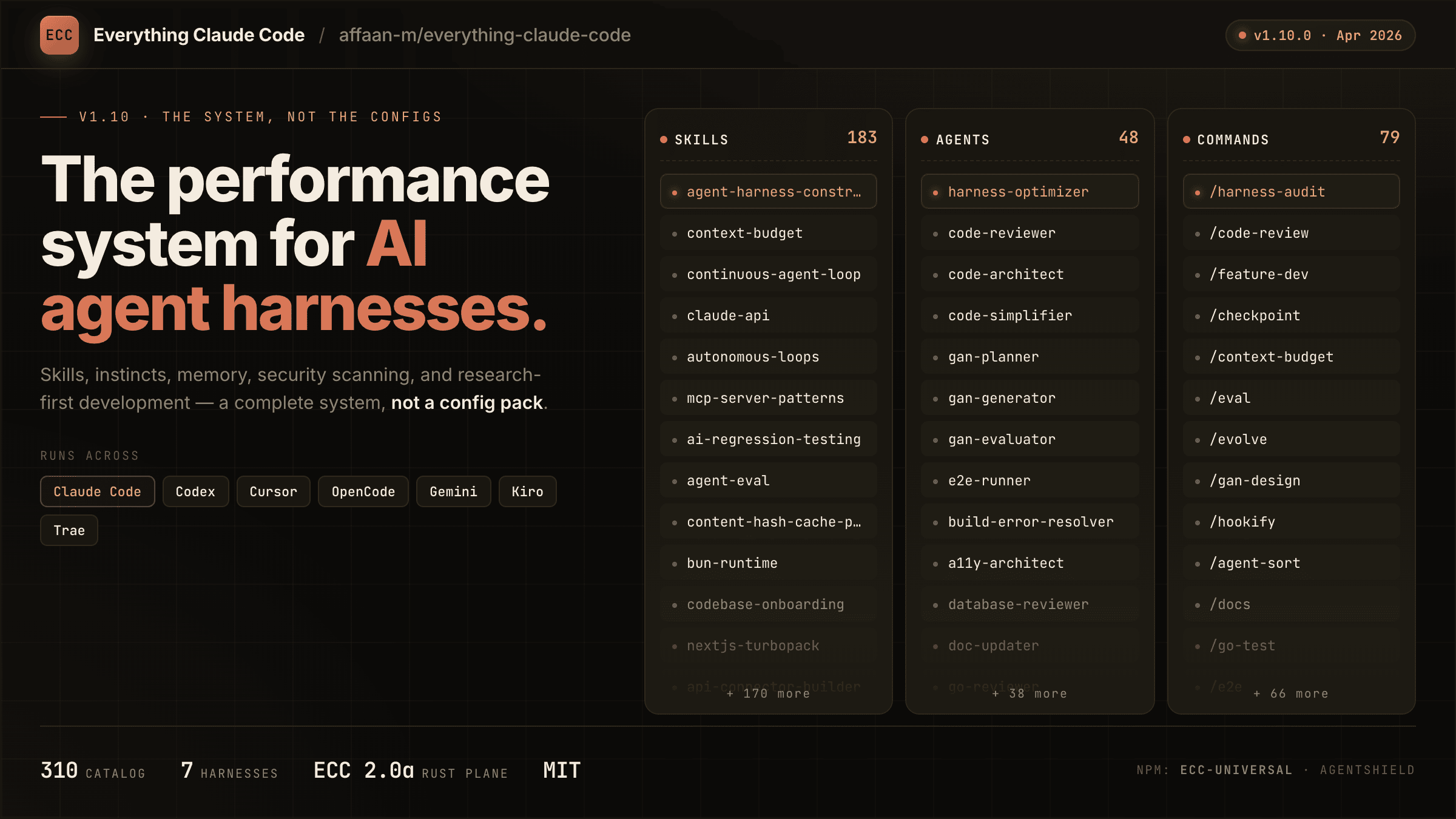
The agent harness performance optimization system. Skills, instincts, memory, security, and research-first development for Claude Code, Codex, Opencode, Cursor and beyond.
A hand-picked collection of the finest of resources for the most awesome of agents, Claude Code, the undisputed champion of coding companions, from the unstoppable team at Anthropic PBC (no affiliation). A delectable showcase of top tier skills, ambidextrous agents, scintillating status lines, top notch developer tooling, and also we have plugins
Reverse engineer anything with agents, from app behavior down to native binaries.
Build Agentic workflows, RAG pipelines, with rich AI model and tool support on one collaborative workspace. Deploy on cloud, VPC, or self-hosted, so teams move from prototype to production without rebuilding the stack.