VS Code Native Browser Test (Claude Skill)
A Claude / AI coding-agent skill that teaches the agent to use VS Code's built-in browser tools for in-editor web verification — without installing Playwright, Puppeteer, or headless Chrome.
The problem
When you ask an AI agent to "test this page", "screenshot the dashboard", or "click the Save button", the default behavior is to install Playwright — a 300 MB dependency plus a Chromium binary, just to click one button.
VS Code already ships a fully integrated browser and 10 native browser-agent tools that do exactly this with zero install. This skill teaches the agent to use them.
What you get
Installation
Option A — Project scope (recommended)
Drop the skill into your project so it travels with the repo:
# From the root of your project
mkdir -p .claude/skills
cp -r /path/to/this/repo/.claude/skills/vscode-browser-test .claude/skills/
Commit the result so every contributor gets the same behavior.
Option B — User scope (machine-wide)
Drop the skill into your Claude user-config directory so it is available in every workspace:
| OS |
Path |
| macOS / Linux |
~/.claude/skills/vscode-browser-test/ |
| Windows |
%USERPROFILE%\.claude\skills\vscode-browser-test\ |
Option C — Direct download
Click Code → Download ZIP on GitHub, then unzip the .claude/skills/vscode-browser-test/ folder into either location above.
Prerequisites
The native browser tools are opt-in in VS Code. Enable them once:
- Open VS Code Settings (
Ctrl+, / Cmd+,)
- Search for
workbench.browser.enableChatTools
- Set it to
true and reload the window.
Then enable the tools in chat:
- Open the Chat view
- Click the Tools button (in the chat input area)
- Expand Built-in > Browser
- Toggle on all 10 tools
Quick toggle: Prefix any chat message with @browser to force-enable browser tools for that single turn — no settings change required.
For a full walkthrough, see the VS Code browser-agent testing guide.
The 10 native browser tools
| # |
Tool |
What it does |
| 1 |
openBrowserPage |
Open a URL or local file in the integrated browser |
| 2 |
readPage |
Get a structured snapshot (DOM, ARIA, headings, links) |
| 3 |
screenshotPage |
Capture viewport or a specific element as PNG |
| 4 |
clickElement |
Click a button/link/element by ref or selector |
| 5 |
typeInPage |
Type into an input, or focus+type via ref/selector |
| 6 |
hoverElement |
Hover to reveal tooltips, dropdowns, hover states |
| 7 |
dragElement |
Drag-and-drop reordering, file drops, sliders |
| 8 |
handleDialog |
Accept/dismiss alerts, confirms, prompts, file choosers |
| 9 |
navigatePage |
Go to URL, back/forward, or reload |
| 10 |
runPlaywrightCode |
Last resort — run arbitrary Playwright code |
The skill teaches the agent to reach for runPlaywrightCode only when no higher-level tool can do the job. The 9 native tools give better visual confirmation and are easier to step through.
Usage examples
The skill activates automatically when Claude detects phrases like "test this page", "screenshot the dashboard", "click the X button", "fill the form", or "check responsive".
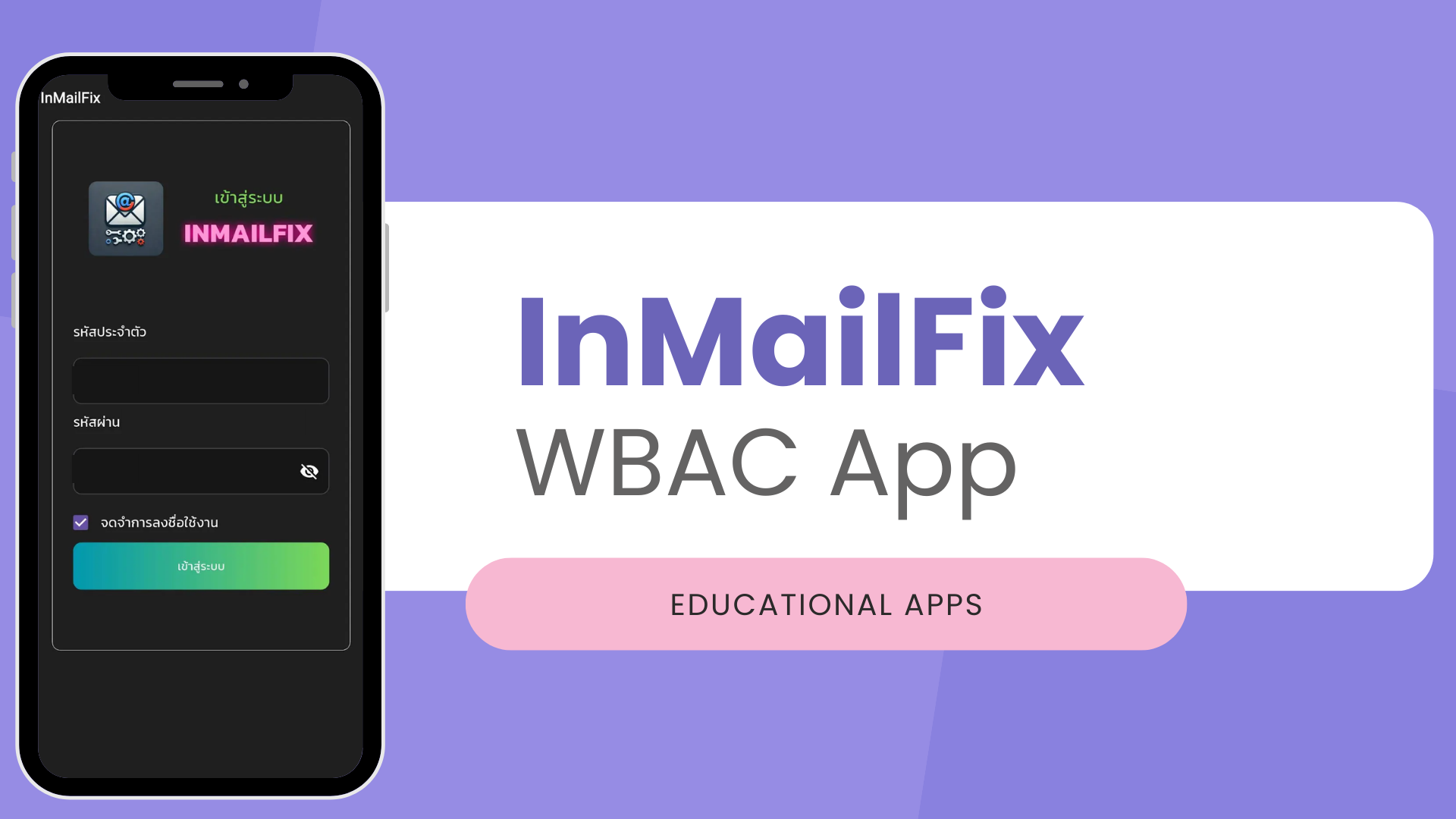
Example 1 — Screenshot a mockup
You: "screenshot the dashboard mockup"
The agent runs:
openBrowserPage url=file:///absolute/path/to/docs/mockup/dashboard.html
screenshotPage
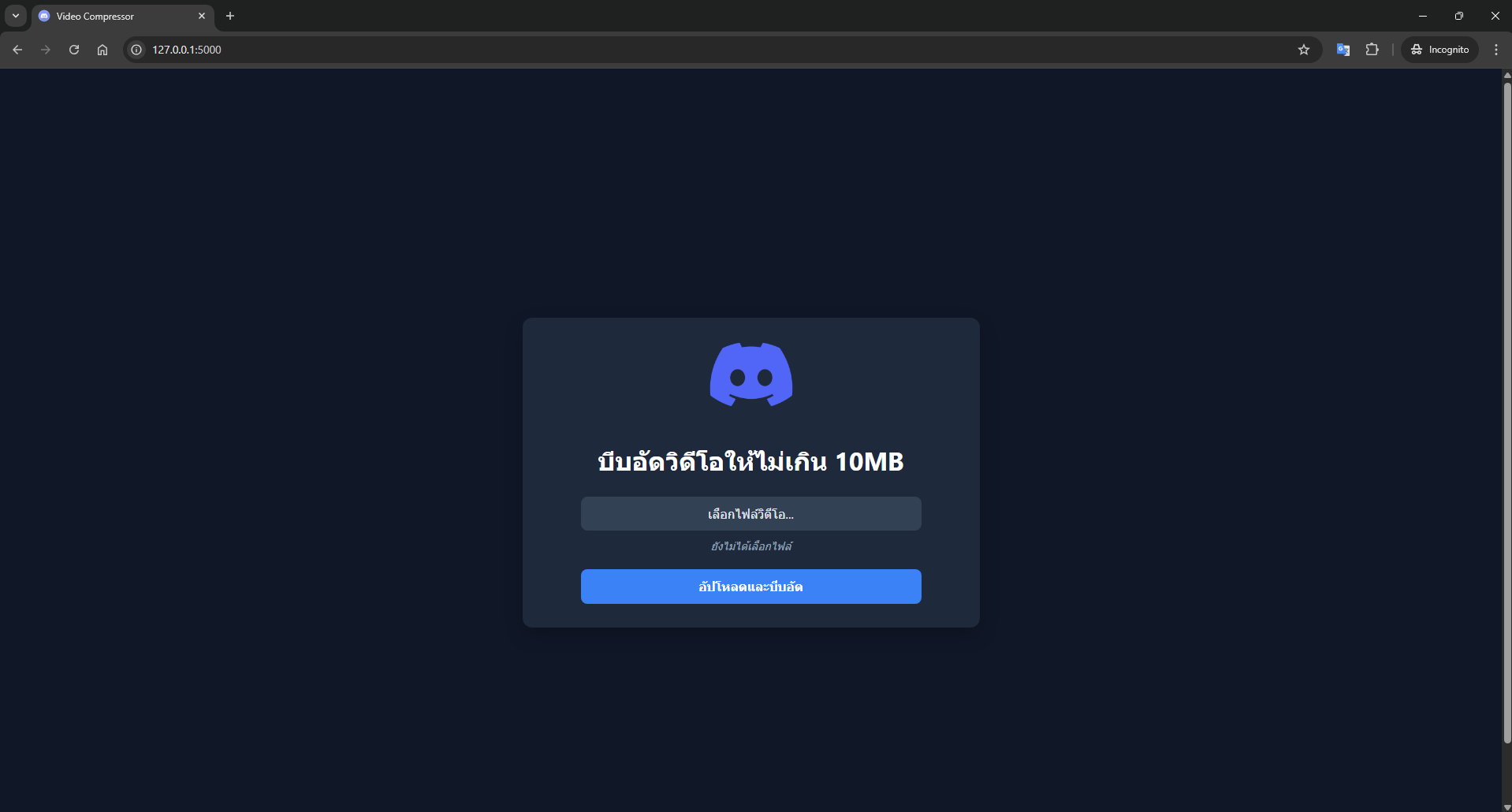
Example 2 — Verify a form
You: "test the login form"
The agent runs the build → test → debug loop:
openBrowserPage  url=http://127.0.0.1:3000/login
readPage        → list inputs
typeInPage      → fill username
typeInPage      → fill password
screenshotPage  → before submit
clickElement    → submit button
handleDialog    → if alert/confirm appears
screenshotPage  → after submit
verify          → redirect or expected success state
Example 3 — Responsive check
runPlaywrightCode → page.setViewportSize({width: 375, height: 812})
screenshotPage    → mobile capture
runPlaywrightCode → page.setViewportSize({width: 1280, height: 720})
screenshotPage    → desktop capture
See SKILL.md for the full workflow, anti-patterns, and troubleshooting.
When NOT to use this skill
| Scenario |
Use instead |
| Large E2E test suites in CI |
Playwright, Cypress, or WebdriverIO |
| Cross-browser testing (Firefox/Safari) |
BrowserStack, Sauce Labs, or Playwright matrix |
| Headless CI/CD pipelines |
Playwright (these tools require the VS Code UI) |
| Visual regression at scale |
Percy, Chromatic, or Playwright Trace |
| Performance / load testing |
k6, Lighthouse CI, or Playwright tracing |
Repository layout
.
├── .claude/
│   └── skills/
│       └── vscode-browser-test/
│           └── SKILL.md          # The actual skill (YAML front matter + body)
├── .github/
│   ├── ISSUE_TEMPLATE/
│   │   ├── bug_report.md
│   │   └── feature_request.md
│   └── pull_request_template.md
├── .editorconfig                 # Tab/indent/EOL consistency
├── .gitignore                    # OS / editor junk
├── CHANGELOG.md                  # Version history
├── CONTRIBUTING.md               # How to contribute
├── LICENSE                       # MIT
├── README.md                     # You are here
└── SECURITY.md                   # Vulnerability disclosure
Contributing
Contributions are welcome. See CONTRIBUTING.md for the workflow.
When editing the skill itself, keep these rules in mind:
- The skill is project-agnostic. Do not hard-code paths, framework names, or Thai/foreign-language UI labels.
- The description in the YAML front matter is what triggers the skill — keep it specific enough to fire only on browser-verification tasks.
- Every claim about a tool's behavior should be verifiable against the upstream VS Code docs.
Security
See SECURITY.md for the supported versions and disclosure process.
License
MIT — © 2025 the contributors.
Acknowledgments
- The VS Code team for shipping the integrated browser and the 10 native tools.
- Anthropic for the Claude Skills format and runtime.
- The Agent Skills community for the portable skill spec.