rpf9-explorer
Windows RPF archive explorer with model, texture, audio and video previews, asset export, and saved replacement projects.
- 95
- 12 h ago
Repo breadbbbb/rpf9-explorer, read from GitHub 1 h ago. breadbbbb has not joined Take My Repo.
In short
breadbbbb/rpf9-explorer is a public repo on GitHub by breadbbbb. Windows RPF archive explorer with model, texture, audio and video previews, asset export, and saved replacement projects. It declares no license on GitHub. Public does not mean open source: without a license, nobody is granted the right to reuse it. It is written mainly in C#, has 95 stars and last changed on 2026-11-24. Nobody has reviewed it on Take My Repo yet, which says nothing about its quality. Read from GitHub on 2026-11-24.
Similar repos

rpf9-explorer 1.5
A desktop viewer for RPF archives and game assets on Windows, macOS and Linux. Open multiple archives or a folder, search textures, preview models and media, export files, and save replacement projects.
RPF9 can open in indexed mode with a compatible local decoder, or use the built-in recovery scans. Indexed mode browses the native member table, including nested archives, and reads supported stored, chunked, and transformed members. Archive rebuilding remains unavailable.
See the RPF9 research notes for the format findings and the local decoder guide for setup.
About GTA 6
This is an unofficial project developed while inspecting RPF9 files associated with GTA 6. The source contains no actual GTA 6 game code. GTA 6 source code, decompiled game code, game executables, and game scripts are not included.
The source package contains the explorer's code, build files and documentation. The Windows build includes the required third-party notices. Game archives and raw model, texture, audio, and movie files are not bundled. The screenshots show the app displaying files loaded locally.
This project is not affiliated with, endorsed by, or sponsored by Rockstar Games or Take-Two Interactive. GTA 6 and related names belong to their respective owners.
Choose a build
Choose your operating system and processor under Releases. Each package includes its own .NET runtime and the command-line tools.
| Platform | Getting started |
|---|---|
| Windows x64 | Extract the ZIP and launch the desktop app. |
| macOS on Apple silicon or Intel | Extract the matching archive and open the application bundle. The build uses an ad hoc signature. It has no Apple notarization. |
| Desktop Linux on x64 or ARM64 | Extract the archive with permissions intact and run the desktop launcher from the extracted folder. The viewer uses X11 or XWayland. |
On macOS and Linux, use Open files, Open folder, or drop sources onto the window. Search across sources, sort by size, and double-click a nested archive to browse it. Parent archive returns to the previous index. Scan archive runs the recovery scanners. Decoder… accepts a compatible local bridge configuration.
Select a texture to preview it. Select a model to rotate it by dragging and zoom with the wheel. The drawable selector switches fragment children or dictionary components. Export OBJ saves the displayed geometry. For metadata, select a block, choose a record, or follow a populated array to its target. Extract selected writes the selected entry into a destination folder of your choice.
Use Models on macOS and Linux to assemble a vehicle at its wheel mounts, choose an authored wardrobe kit, or queue model parts across searches. The Edit menu stages replacements and compares them with the originals. Workspace saves and reopens projects. Select a movie or audio stream to use the player, or use Export to save a decoded stream or texture.
Browse by content on Windows and the All content selector on macOS and Linux group assets across archives. Choose a group or use a query such as group:"Radio stations" or group:"World / Maps". Open an audio archive with the indexed decoder to see station names, score, dispatch, vehicle sounds and other banks named by its audio configuration. Double-click a station to browse its banks, then select a stream to play it. When a sibling conversation catalogue matches a scripted speech bank, the stream selector shows the recorded take, scene cues and original stream ID. Search with cue: followed by a cue or part of its name. Station membership can be known even when an individual song title is missing.
Select a vehicle with recognized wheel mounts and choose Assemble vehicle to preview its loaded components. On a character part, Find outfits lists the authored kits that reference it. Load the wardrobe catalogue and its model sources in the same workspace.
Select a supported native shader to inspect its decoded RDNA 2 instructions and register-level pseudocode. Operations that require hardware-specific semantics keep their instruction spelling. Save shader listing exports the text. The compiled shader remains available through extraction.
Open files or a folder
On Windows, extract the build ZIP and launch the rpf9-explorer desktop app. Keep the Tools and Licenses folders beside the application.
- Click Open or press Ctrl+O to select one or more
.rpf,.ttpf, or.zipfiles. - Click Open folder to find supported files in a folder and its subfolders.
- You can also drag files or a folder into the window.
Opening more files adds them to the current workspace. Use File > Clear loaded sources to start over. A workspace can hold up to 512 source files.
Select a source or folder on the left to browse it. With a local decoder configured, double-click a nested archive row to open its index and use Up to return to its parent. Files with a matched path candidate show that name. Other entries show a slot number and name hash. Read the header signature result in the archive information.
In recovery mode, model discovery searches the RPF9 file on first open, including drawable dictionaries that contain character components. Later opens use the saved scan results. Scan entire archive switches to recovery mode for that source and searches other supported payloads.
Find and preview textures
Choose Images in the filter above the file list. Turn on Thumbnails to browse image previews, then select an image to see it on the right. Thumbnail pages contain up to 96 images.
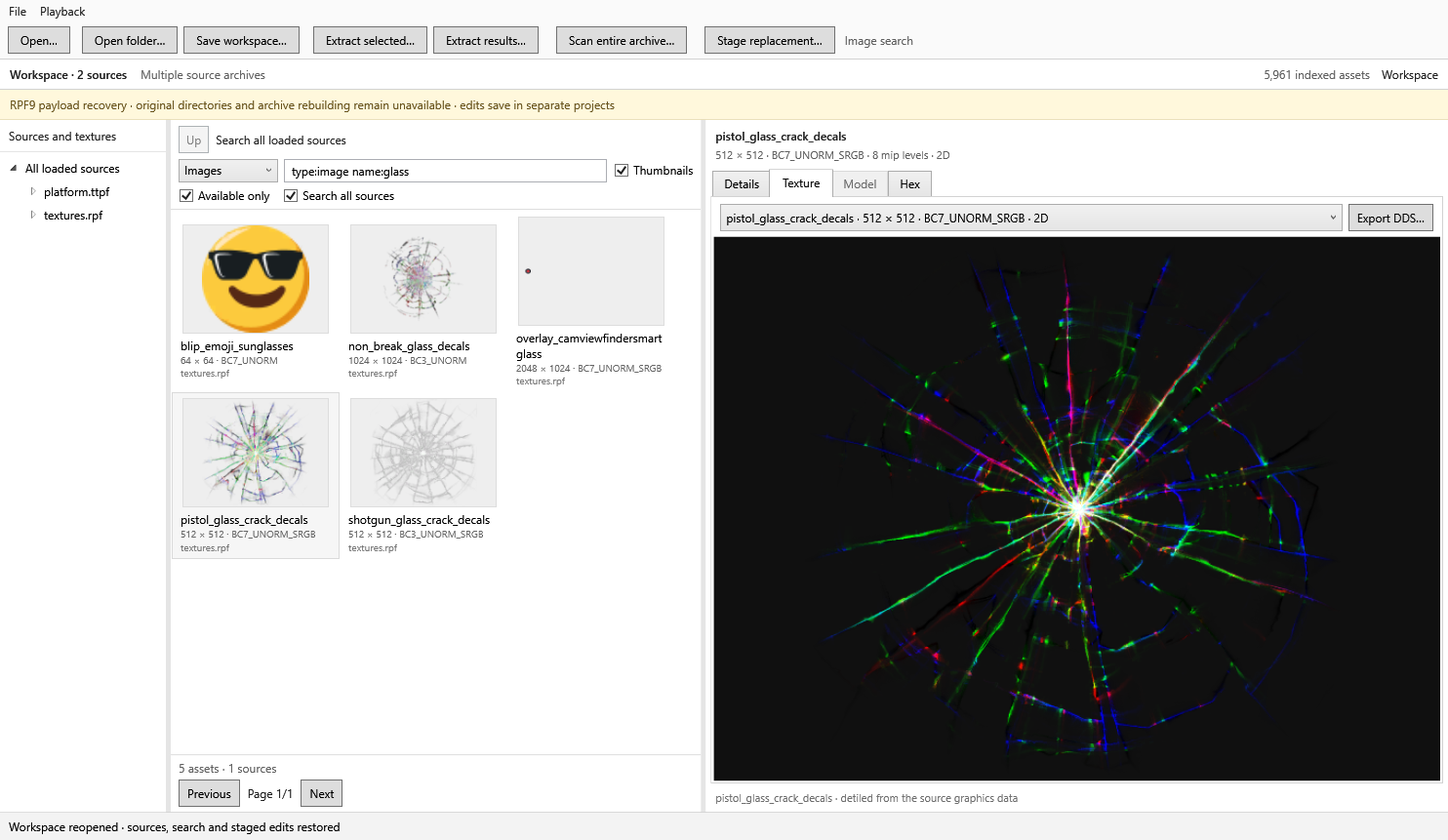
Searches match all the words you enter. Use quotes for a phrase, -word to exclude a word, and * or ? for wildcards. Search is case-insensitive.
| Search | Result |
|---|---|
type:image name:glass |
Images with glass in their name |
format:bc7 width:>=1024 |
BC7 images at least 1024 pixels wide |
source:textures -normal |
Matches in texture sources, excluding normal |
size:<2MiB height:>=512 |
Files smaller than 2 MiB and at least 512 pixels high |
Other fields are archive:, key:, hash:, mips:, w:, and h:. Numeric fields accept >, >=, <, <=, and =. Size values accept KiB, MiB, and GiB.
Search all sources searches every loaded file while a query is entered. Uncheck it to search the current location. Available only hides entries that cannot be extracted with the current decoders. Selecting a folder in the tree clears the search.
Browse a texture dictionary
Expand an archive and its folders under Sources and textures, then expand a texture dictionary to see its images. You can also double-click a Texture folder row. Use Up to return to its parent.
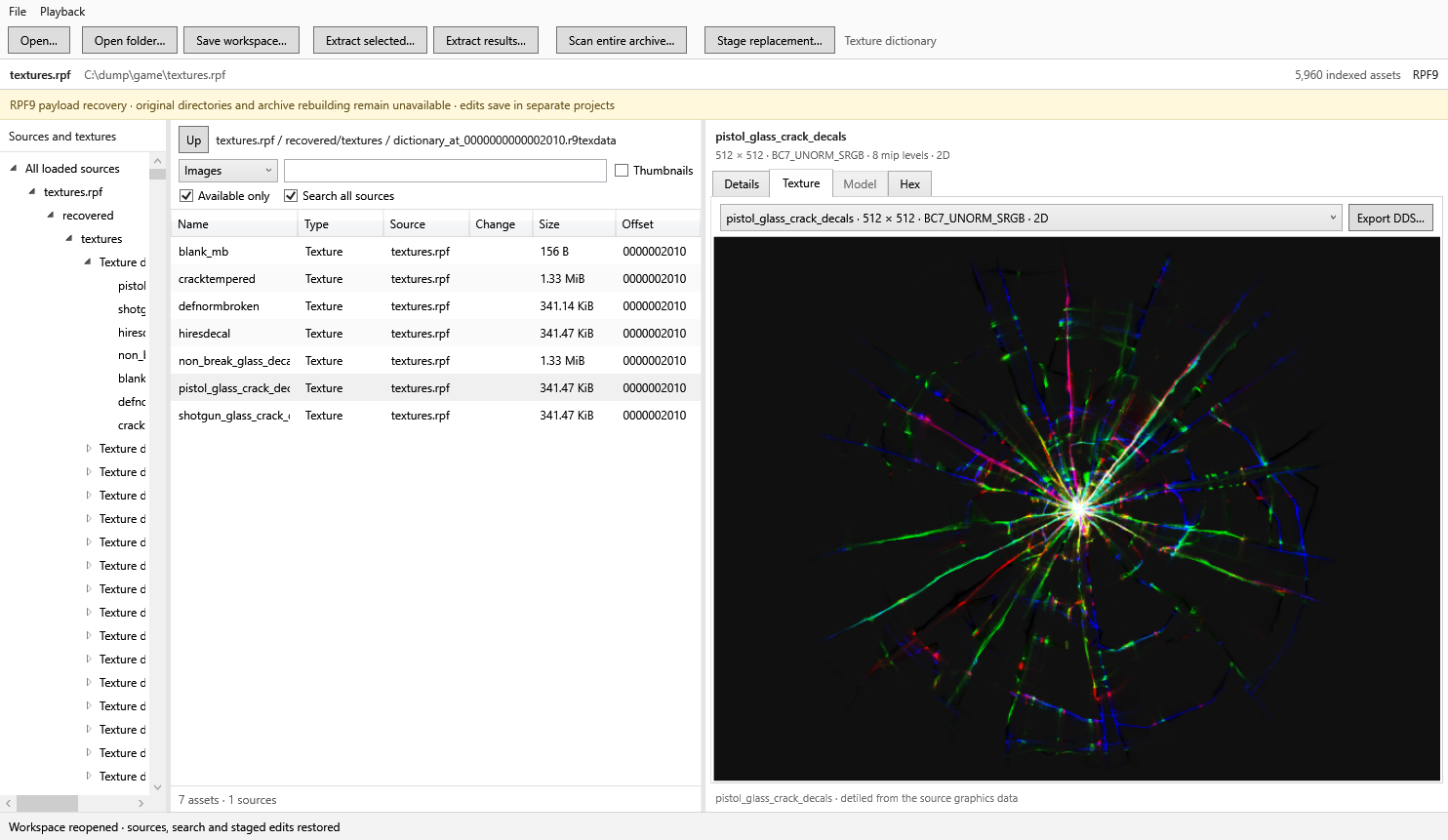
The texture selector above the preview switches between images in the same dictionary. Arrays, cube maps, and volumes also have a slice or face selector where supported. Export DDS saves the texture in DDS format, including the available mip levels.
Supported TTPF layouts include compact 2D mip chains, 2D arrays, streaming cube maps, and single-mip 3D volumes, including Xbox BCPack BC1, BC3, BC4, and BC5 chunks. The preview can select individual slices or faces, and DDS exports preserve the supported texture shape. R16G16B16A16_UNORM previews retain the original 16-bit channels in DDS exports. Unvalidated storage profiles, unsupported formats, and unsupported BCPack codecs (BC6H/BC7) remain unavailable. These additional layouts and BCPack-compressed textures are read-only; they do not add native replacement support.
Streaming textures may have generated names based on native keys. These are not claimed to be their original filenames.
Integrations using RpfPreview.Core can load local BC1/BC3/BC4/BC5 history tables with BcpackHistory.Load(path) and pass them to the decoding or export overloads. The desktop viewer uses the built-in tables. History files are not bundled; BC6H/BC7 history tables remain unsupported.
Appearance
Use the Dark mode switch at the top right to change the app's appearance. Buttons, file lists, navigation, and preview details follow the selected theme. The setting is remembered when the app reopens.
Vehicle previews
Supported vehicle shaders use approximate paint, tyre, glass, lens, and light materials. Select a vehicle fragment with recognized skeleton wheel mounts, then choose Assemble vehicle. Load the relevant wheel and brake resources into the same workspace first. Export OBJ saves the assembled geometry.
An optional vehicle configuration beside the source archive or app can provide paint color, wheel scales, and part names. Without a matching configuration, assembly can use generic available rims and tyres. These are preview approximations; they do not reproduce the game's complete paint system or prove an authored vehicle configuration. Missing textures and unsupported native shaders can remain unresolved.
Preview models
Choose Models, search for a model, and select it. The preview loads supported geometry and matches diffuse textures by their native asset keys. It checks embedded model textures, loaded texture sources, and sibling game texture folders when available.
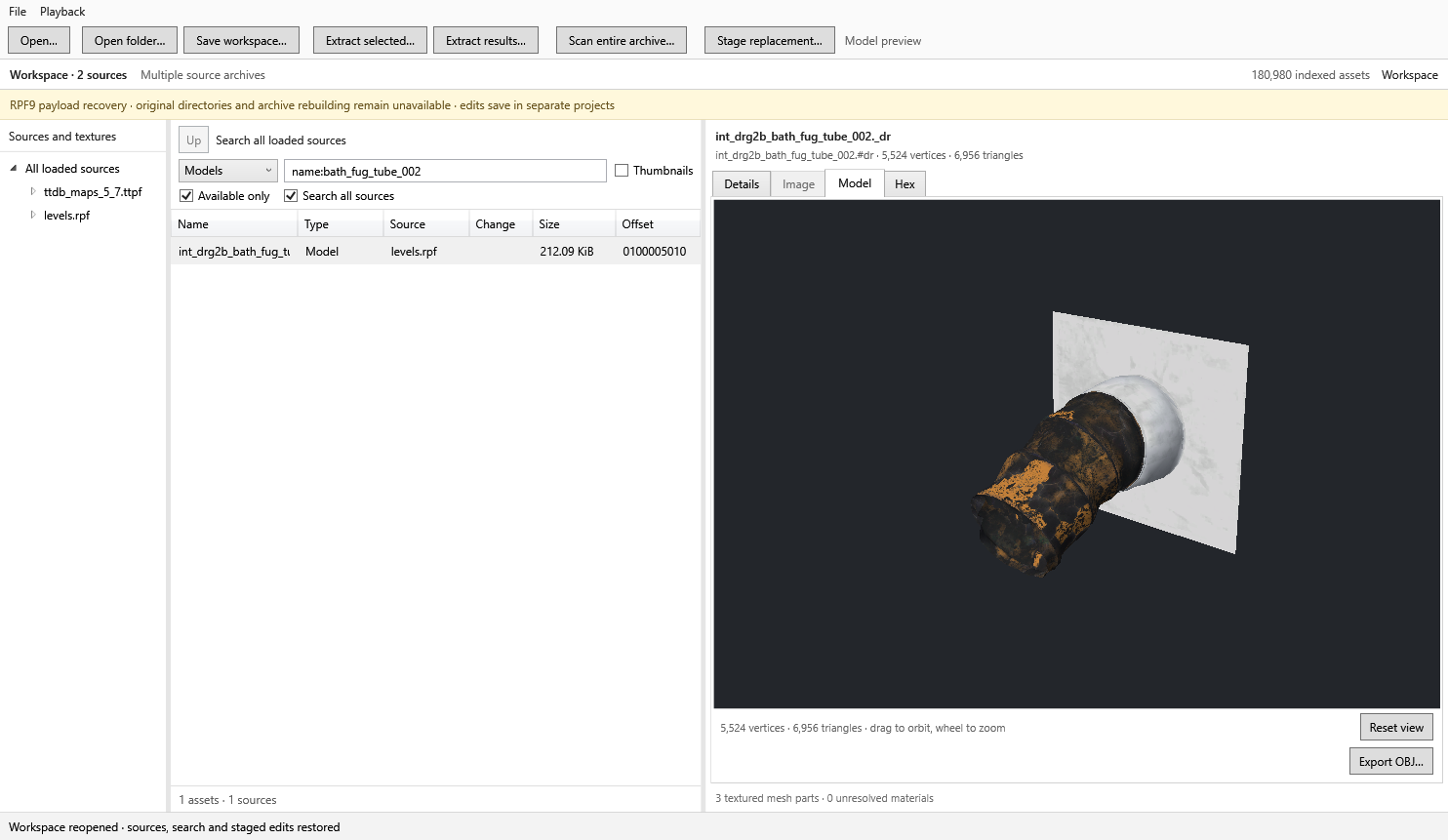
Drag with the left mouse button to orbit, drag with the right mouse button to pan, and use the mouse wheel to zoom. Reset view resets the camera. Export OBJ saves decoded geometry and supported UV coordinates.
Core integrations can call RageModelDecoder.Decode(system, graphics, drawableOffset, lod) with lod from 0 to 3 to choose a model's level of detail. The returned model records the selection in Lod. Individual model previews use LOD 0. Wardrobe assembly chooses the most detailed readable native variant within its preview limits. An unavailable LOD returns null.
Some fragments contain several drawables. Use the selector in the Model tab to switch between the primary and its children. Export OBJ saves the displayed drawable. In Core, DecodeModels returns readable drawables in record order. Each fragment model exposes its FragmentDrawableIndex and DrawableOffset.
Inspect RAGE resources
Open an indexed RPF9 archive and double-click a child archive to browse its contents. Select a generic RAGE resource to see where its system and graphics sections begin and how many bytes each occupies. Geometry, textures and other supported assets open in their existing viewers.
Choose Metadata or search for format:0drp to find recognized version 122 metadata. The Structure tab lists the numbered data blocks, marks the root, and shows field hashes and offsets from its structure definition. Supported array fields show an item count and the block they reference. Hex shows the beginning of the decoded resource. You can also drop an extracted 0DRP resource into the app without configuring an archive decoder. Detailed metadata inspection supports up to 16 MiB.
Character parts inside drawable dictionaries appear as individual model results using their native names. Search for a character by name, or use body, arms or legs to include shared skin components. Different detail variants may share a name. Use the source offset to distinguish them.
Use Add selected parts to collect model components across different searches. Preview queued parts overlays the collected components in their original coordinates and keeps their supported texture bindings. Clear parts empties the queue. You can also Ctrl- or Shift-select two or more visible rows and click Preview together. Assembly details lists every component, omitted selection, source and material mapping. Manual selection does not infer an outfit or fill in missing body parts. Alternate clothes and detail variants can overlap.
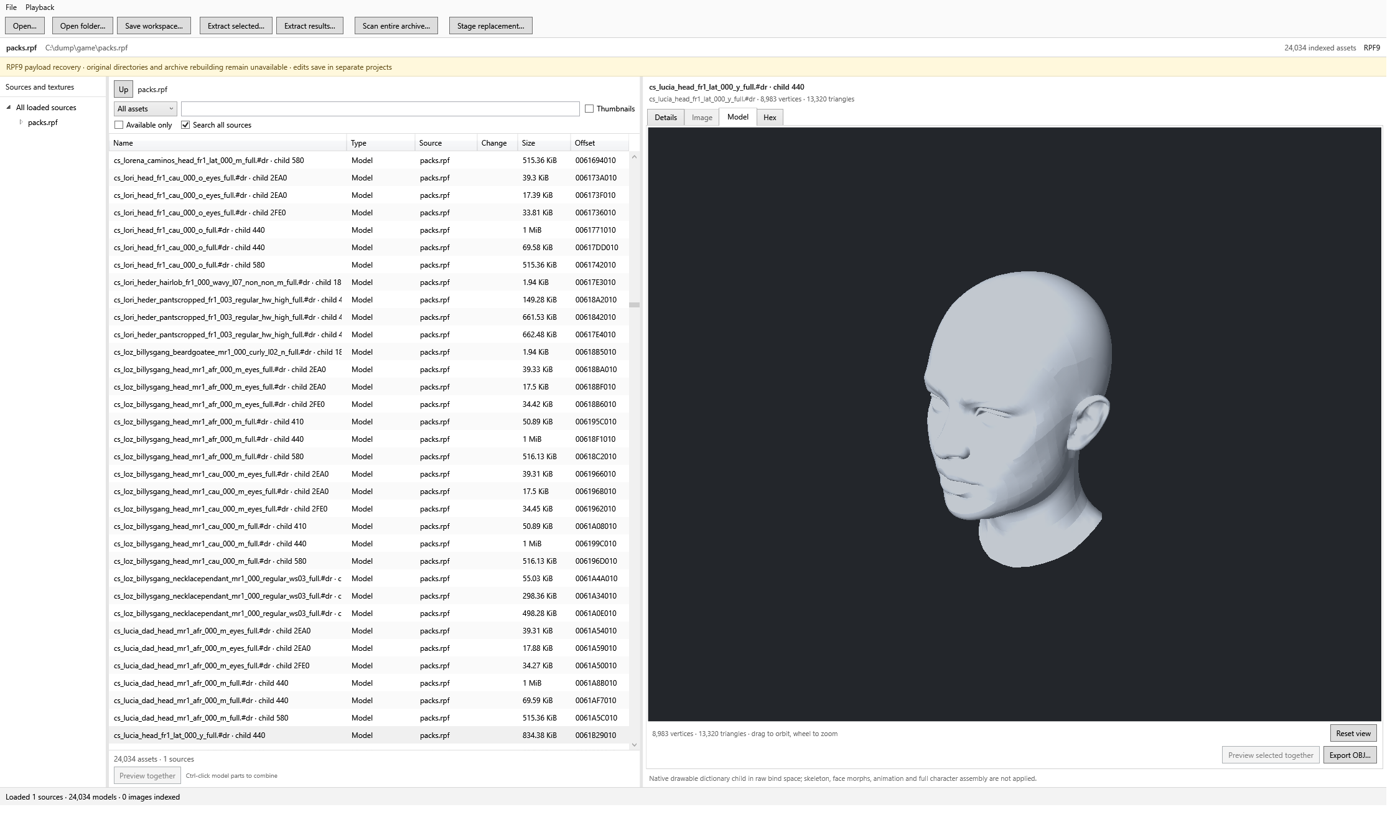
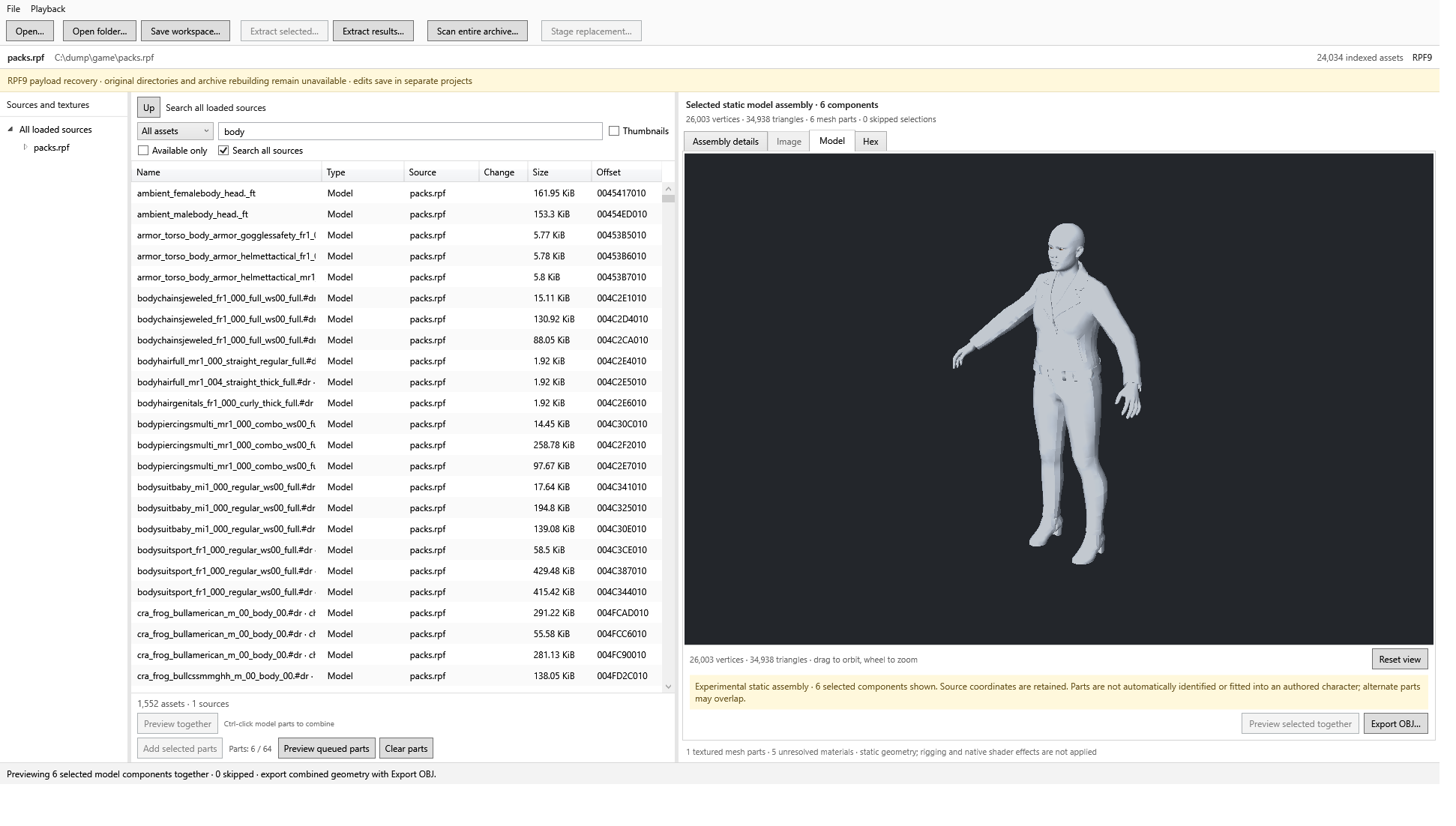
Load the relevant texture pools if a model appears gray. The text below the preview reports missing materials, lower-resolution mip levels, and layered-material approximations. Layered materials show the first available supported color layer. Some distant models use their native vertex colors when they have no UV coordinates.
For an unfinished download, the model archive can be complete while its sibling texture pools still contain missing regions. Finish downloading the character texture pools, then select the model or assemble the outfit again. The app checks changed texture pools on the next preview. Empty compressed chunks and unreadable pool indexes are reported in the assembly details.
Questions
What is rpf9-explorer?
breadbbbb/rpf9-explorer is a public repo on GitHub by breadbbbb. Windows RPF archive explorer with model, texture, audio and video previews, asset export, and saved replacement projects.
Is rpf9-explorer open source?
It declares no license on GitHub. Public does not mean open source: without a license, nobody is granted the right to reuse it.
Does rpf9-explorer run on macOS, Windows or Linux?
Its maker tagged it for Windows. That is declared by the maker; Take My Repo has not tested it.