
dcf
Data Cleaning Framework, interactively build up pandas transforms
- 2
- BSD-3-Clause
- 4 y ago
Repo buckaroo-data/dcf, read from GitHub 1 min ago. buckaroo-data has not joined Take My Repo.
In short
buckaroo-data/dcf is a public repo on GitHub by buckaroo-data. Data Cleaning Framework, interactively build up pandas transforms. It declares the BSD-3-Clause license on GitHub. It is written mainly in Python, has 2 stars and last changed on 2023-04-19. Nobody has reviewed it on Take My Repo yet, which says nothing about its quality. Read from GitHub on 2026-11-24.
Data Cleaning Framework
This repo has migrated to Data Cleaning Exploration Framework - DCEF due to the pip package name of DCF being taken. All future development will occur there, this README will remain up for a month, then it will be emptied, only pointing at DCEF in the README.
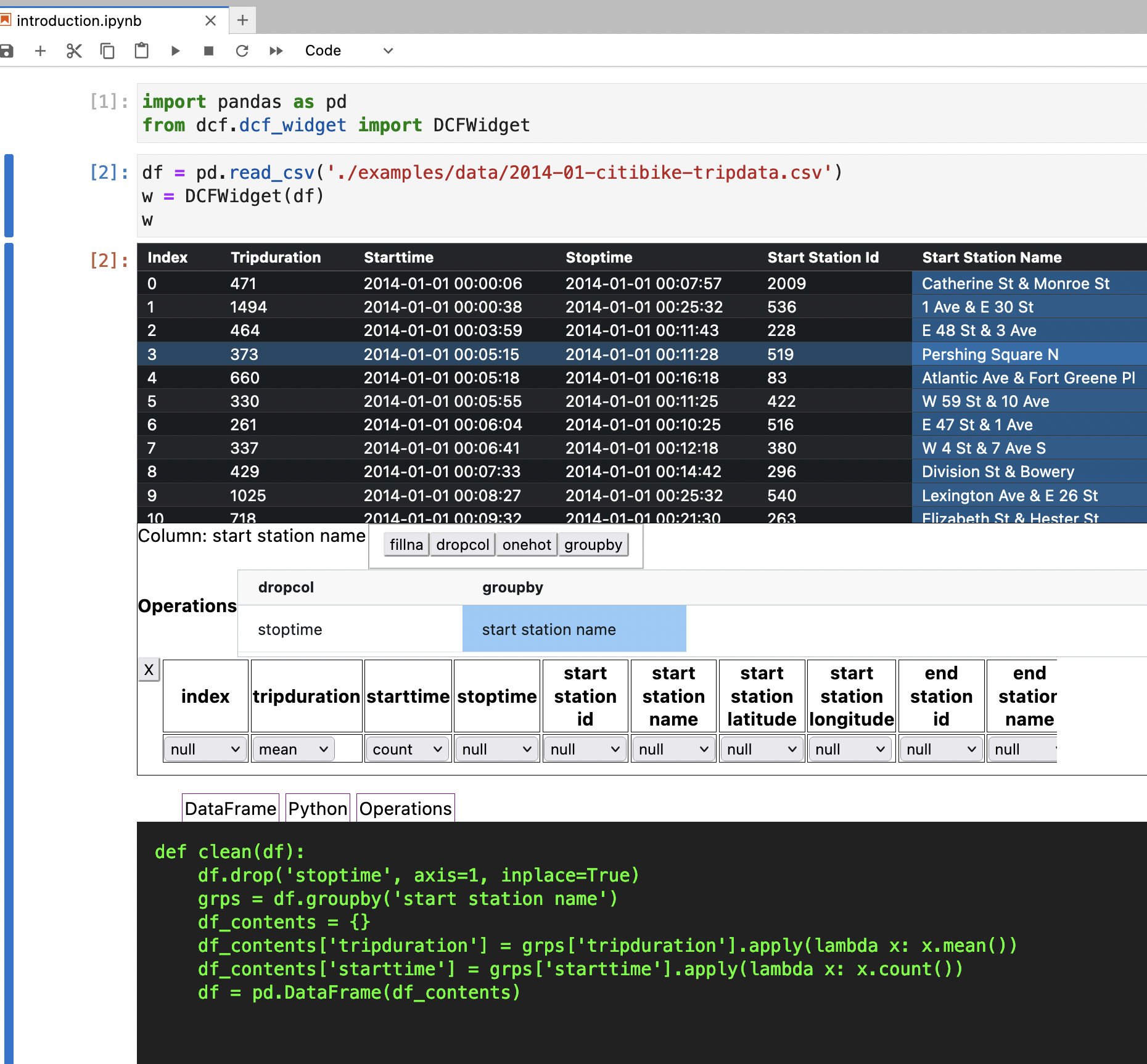
We all know how awkward it is to clean data in jupyter notebooks. Multiple cells of exploratory work, trying different transforms, looking up different transforms, adhoc functions that work in one notebook and have to be either copied/pasta-ed to the next notebook, or rewritten from scratch. Data Cleaning Framework (DCF) makes all of that better by providing a visual UI for common cleaning operations AND emitting python code that performs the transformation. Specifically, the DCF is a tool built to interactively explore, clean, and transform pandas dataframes.

Installation
If using JupyterLab, dcf requires JupyterLab version 3 or higher.
You can install dcf using pip or conda:
Using pip:
pip install dcef
Caveats
DCF is in beta form. At this point, it is based on from Bloomberg's ipydatagrid for the basis of the widget build.
If you install ipydatagrid with dcf at this point, expect errors.
Using DCF
in a jupylter notebook just add the following to a cell
from dcf.dcf_widget import DCFWidget
DCFWidget(df=df)  #df being the dataframe you want to explore
and you will see the UI for DCF
Using commands
At the core DCF commands operate on columns. You must first click on a cell (not a header) in the top pane to select a column.
Next you must click on a command like dropcol, fillna, or groupby to create a new command
After creating a new command, you will see that command in the commands list, now you must edit the details of a command. Select the command by clicking on the bottom cell.
At this point you can either delete the command by clicking the X button or change command parameters.
Writing your own commands
Builtin commands are found in all_transforms.py
Simple example
Here is a simple example command
class DropCol(Transform):
    command_default = [s('dropcol'), s('df'), "col"]
    command_pattern = [None]

    @staticmethod
    def transform(df, col):
        df.drop(col, axis=1, inplace=True)
        return df

    @staticmethod
    def transform_to_py(df, col):
        return "    df.drop('%s', axis=1, inplace=True)" % col
command_default is the base configuration of the command when first added, s('dropcol') is a special notation for the function name. s('df') is a symbol notation for the dataframe argument (see LISP section for details). "col" is a placeholder for the selected column.
since dropcol does not take any extra arguments, command_pattern is [None]
    def transform(df, col):
        df.drop(col, axis=1, inplace=True)
        return df
This transform is the function that manipulates the dataframe. For dropcol we take two arguments, the dataframe, and the column name.
    def transform_to_py(df, col):
        return "    df.drop('%s', axis=1, inplace=True)" % col
transform_to_py emits equivalent python code for this transform. Code is indented 4 space for use in a function.
Complex example
class GroupBy(Transform):
    command_default = [s("groupby"), s('df'), 'col', {}]
    command_pattern = [[3, 'colMap', 'colEnum', ['null', 'sum', 'mean', 'median', 'count']]]
    @staticmethod
    def transform(df, col, col_spec):
        grps = df.groupby(col)
        df_contents = {}
        for k, v in col_spec.items():
            if v == "sum":
                df_contents[k] = grps[k].apply(lambda x: x.sum())
            elif v == "mean":
                df_contents[k] = grps[k].apply(lambda x: x.mean())
            elif v == "median":
                df_contents[k] = grps[k].apply(lambda x: x.median())
            elif v == "count":
                df_contents[k] = grps[k].apply(lambda x: x.count())
        return pd.DataFrame(df_contents)
The GroupBy command is complex. it takes a 3rd argument of col_spec. col_spec is an argument of type colEnum. A colEnum argument tells the UI to display a table with all column names, and a drop down box of enum options.
In this case each column can have an operation of either sum, mean, median, or count applied to it.
Note also the leading 3 in the command_pattern. That is telling the UI that these are the specs for the 3rd element of the command. Eventually commands will be able to have multiple configured arguments.
Argument types
Arguments can currently be configured as
integer- allowing an integer inputenum- allowing a strict set of options, returned as a string to the transformcolEnum- allowing a strict set of options per column, returned as a dictionary keyed on column with values of enum options
Order of Operations for data cleaning
The ideal order of operations is as follows
-
Column level fixes
- drop (remove this column)
- fillna (fill NaN/None with a value)
- safe int (convert a colum to integers where possible, and nan everywhere else)
- OneHotEncoding ( create multiple boolean columns from the possible values of this column )
- MakeCategorical ( change the values of string to a Categorical Data type)
- Quantize
-
DataFrame transformations these transforms largely keep the shape of the data the same
- Resample
- ManyColdDecoding (the opposite of OneHotEncoding, take multiple boolean columns and transform into a single categorical
- Index shift (add a column with the value from previous row's column)
-
Dataframe transformations 2 These result in a single new dataframe with a vastly different shape
- Stack/Unstack columns
- GroupBy (with UI for sellect group by function for each column)
-
DataFrame transformations 2 These transforms emit multiple DataFrames
- Relational extract (extract one or more columns into a second dataframe that can be joined back to a foreign key column)
- Split on column (emit separate dataframes for each value of a categorical, no shape editting)
-
DataFrame combination
- concat (concatenate multiple dataframes, with UI affordances to assure a similar shape)
- join (join two dataframes on a key, with UI affordances)
DCF can only work on a single input dataframe shape at a time. Any newly created columns are visible on output, but not available for manipulation in the same DCF Cell.
Components
- a rich table widget that is embeddable into applications and in the jupyter notebook.
- A UI for selecting and trying transforms interactively
- An output table widget showing the transformed dataframe
What works now, what's coming
Exists now
- React frontend app
- Displays a datatframe
- Simple UI for column level functions
- Shows generated python code
- Shows transformed data frame
- DCF server
- Serves up dataframes for use by frontend
- responds to dcf commands
- shows generated python code
- Developer User experience
- define DCF commands in python onloy
- DCF Intepreter
- Based on Peter Norvig's lispy.py, a simple syntax that is easy for the frontend to generate (no parens, just JSON arrays)
- DCF core (actual transforms supported)
- dropcol
- fillna
- one hot
- safe int
- GroupBy
Next major features
- Jupyter Notebook widget
- embed the same UI from the frontend into a jupyter notebook shell
- No need to fire up a separate server, commands sent via ipywidgets.comms
- Add a "send generated python to next cell" function
- React frontend app
- Styling
- Server only, some UI for DataFrame selection
- Pre filtering concept (only operate on first 1000 rows, some sample of all rows)
- DataFrame joining UI
- Summary statistics tab for incoming dataframe
- Multi index columns
- DateTimeIndex support
- Styling
- DCF core
- MakeCategorical
- Quantize
- Resample
- ManyColdDecoding
- IndexShift
- Computed
- Stack/Unstack
- RelationalExtract
- Split
- concat
- join
FAQ
Why did you use LISP?
This is a problem domain that requried a DSL and intermediate language. I could have written my own or chosen an existing language. I chose LISP because it is simple to interpret and generate, additionally it is well understood. Yes LISP is obscure, but it is less obscure than a custom language I would write myself. I didn't want to expose an entire progrmaming language with all the attendant security risks, I wanted a small safe strict subset of programming features that I explicitly exposed. LISP is easier to manipulate as an AST than any language in PL history. I am not yet using any symbolic manipulation facilities of LISP, and will probably only use them in limited ways.
Do I need to know LISP to use DCF?
No. Users of DCF will never need to know that LISP is at the core of the system.
Do I need to know LISP to contribute to DCF?
Not really. Transfrom functions and their python equivalent are added to the dcf interpreter. Transform functions are very simple and straight forward. Here are the two functions that make fillna work.
def fillna(df, col, val):
    df.fillna({col:val}, inplace=True)
    return df

def fillna_py(df, col, val):
    return "    df.fillna({'%s':%r}, inplace=True)" % (col, val)
If you want to work on code transformations, then a knowledge of lisp and particularly lisp macros are helpful.
What is an example of a code transformation?
Imagine you have a dropcol command which takes a single column to drop, also imagine that there is a function dropcols which takes a list of columns to drop.
It is easier to build the UI to emit individual dropcol commands, you will end up with more readable code when you have a single command that drops all columns.
You could write a transform which reads all dropcol forms and rewrites it to a single dropcols command.
Alternatively, you could write a command that instead of subtractively reducing a dataframe, builds up a new dataframe from an explicit list of columns. That is also a type of transform that could be written.
Is DCF meant to repalce knowledge of python/pandas
No, DCF helps experienced pandas devs quickly build and try the transformations they already know. Transformation names stay very close to the underlying pandas names. DCF makes different transforms more discoverable than reading obscure blogposts and half working stackoverflow submissions. Different transformations can be quickly tried without a lot of reading and tinkering to see if it is the transform you want. Finally, all transformations are emitted as python code. That python code can be a starting point.
Development installation
For a development installation:
git clone https://github.com/paddymul/dcf.git
cd dcf
conda install ipywidgets=8 jupyterlab
pip install -ve .
Enabling development install for Jupyter notebook:
Enabling development install for JupyterLab:
jupyter labextension develop . --overwriteNote for developers: the --symlink
Questions
What is dcf?
buckaroo-data/dcf is a public repo on GitHub by buckaroo-data. Data Cleaning Framework, interactively build up pandas transforms.
Is dcf open source?
It declares the BSD-3-Clause license on GitHub.
Does dcf run on macOS, Windows or Linux?
Its maker tagged it for macOS, Windows and Linux, or as Docker or cross-platform. That is declared by the maker; Take My Repo has not tested it.
How do I install dcf?
Open "Take it" on its page: Take My Repo writes an install plan for your machine and hands it to your AI agent (Claude Code, Codex or Cursor), which asks you before each step. Take My Repo has not tested it on any machine.