
cc-switch
A cross-platform desktop All-in-One assistant for Claude Code, Codex, OpenCode,DeepSeek Harness and more. Only official website: ccswitch.io
- 156k
- Rust
- MIT
- 7 h ago
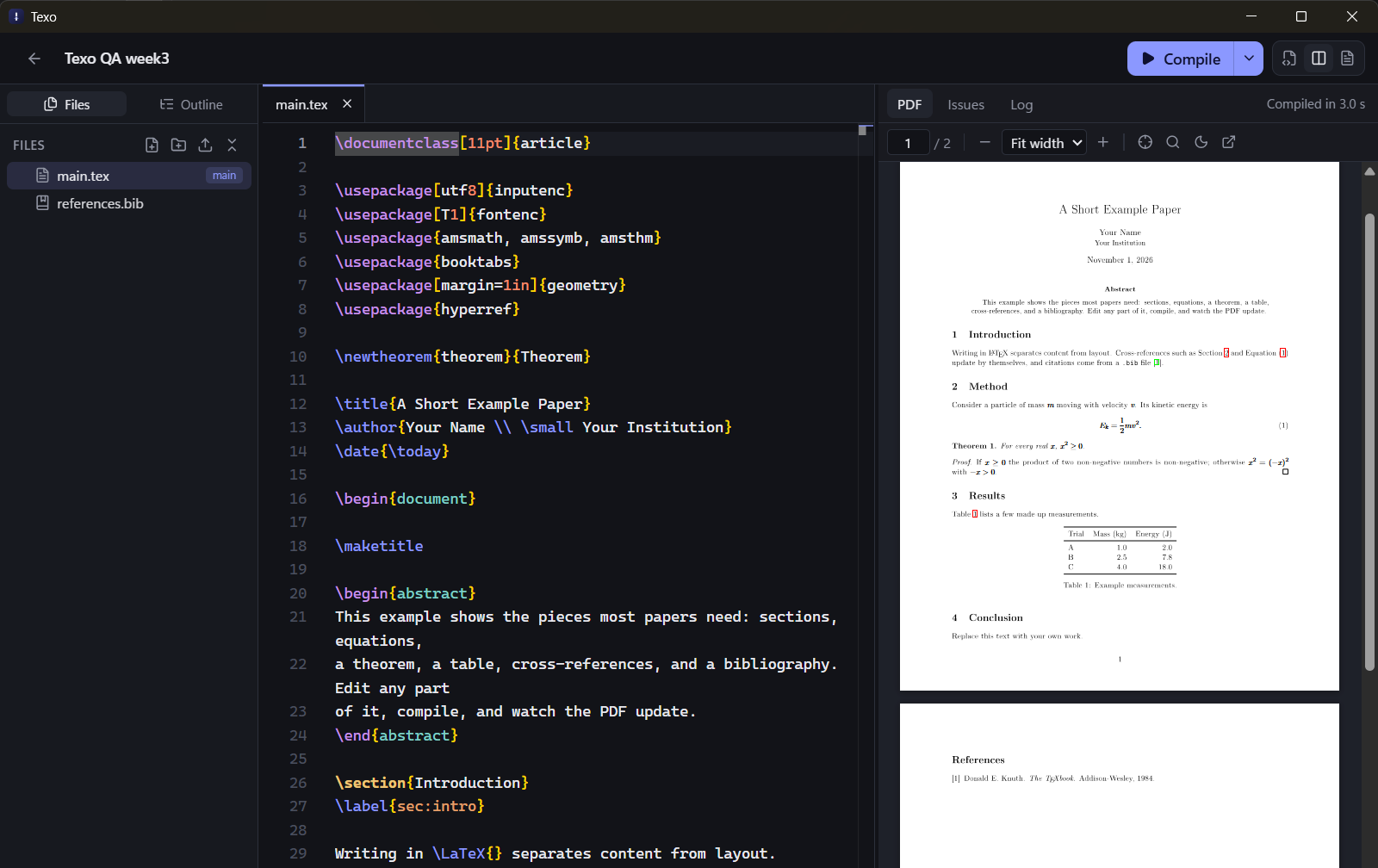
A desktop LaTeX editor for Windows: live PDF preview, SyncTeX, clear compile errors, and offline compiling with your own TeX.
Repo codewithdark-git/Texo, read from GitHub 23 h ago. codewithdark-git has not joined Take My Repo.
codewithdark-git/Texo is a public repo on GitHub by codewithdark-git. A desktop LaTeX editor for Windows: live PDF preview, SyncTeX, clear compile errors, and offline compiling with your own TeX. It declares the MIT license on GitHub. It is written mainly in TypeScript, has 1 stars and last changed on 2026-11-17. Nobody has reviewed it on Take My Repo yet, which says nothing about its quality. Read from GitHub on 2026-11-21.
Write LaTeX on your own machine. Texo is a desktop LaTeX editor for Windows and Linux with a live PDF preview, clear compile errors, and jumps between your source and the PDF. It comes with its own LaTeX engine, so there's nothing else to install, and your projects stay plain folders on your disk.
Download Texo 1.0 → for Windows and Linux.
.texo/ subfolder and never rewrites your sources behind your back..tex file), or import a .zip or .tar.gz from another editor. Export a project as a .zip..tex or .md file between Code and Visual with the toggle above the editor or Ctrl+Shift+E. Each file remembers its mode.# makes a heading, - a list, **bold** bold.\begin{…} inserts the matching \end).\ref labels, and \cite keys from your .bib files (search by key, title or author).\newcommand.\input, \include, \includegraphics and \bibliography.main.tex → main.pdf). It's one file, kept up to date, and a failed compile never replaces it. If you already have a file with that name, Texo leaves it alone.| Keys | Action |
|---|---|
| Ctrl+P | Go to a file |
| Ctrl+Shift+F | Search in project |
| Ctrl+Shift+E | Switch between Code and Visual |
| Ctrl+, | Settings |
| Ctrl+S | Save (Texo also saves automatically) |
| Ctrl+Enter | Compile |
| Ctrl+W / Ctrl+Tab | Close tab / next tab |
| Ctrl+= / Ctrl+- / Ctrl+0 | Editor zoom in / out / reset |
| Ctrl+Alt+J | Show the cursor's position in the PDF |
| Double-click PDF | Jump to the source line |
| Ctrl+B / Ctrl+I | Bold / italic |
| Alt+Z | Toggle word wrap |
| F2 | Rename in the file tree |
| Ctrl+N / Ctrl+O | New project / open a folder (dashboard) |
| Ctrl+Shift+O | Import a .zip (dashboard) |
| Ctrl+Shift+/ | All shortcuts |
Download from the releases page. No separate LaTeX install is needed.
Windows: run Texo_…_x64-setup.exe. The installers aren't code-signed yet, so SmartScreen may warn you. Choose More info → Run anyway. Texo installs for the current user. It needs WebView2, which comes with Windows 11; the installer fetches it on older systems.
Linux (x86-64):
AppImage (any distribution): make it executable, then run it.
chmod +x Texo_*_amd64.AppImage
./Texo_*_amd64.AppImage
Debian / Ubuntu: install the .deb package.
sudo apt install ./Texo_*_amd64.deb
The Linux builds need WebKitGTK 4.1, which current GNOME and KDE desktops already have.
My paper/
├── main.tex
├── main.pdf           # the latest compiled PDF, kept up to date by Texo
├── references.bib
└── .texo/
    ├── project.json   # name, main document, engine
    └── build/         # aux files, logs, SyncTeX data
The folder still works in any other LaTeX editor.
latexmkrc is Perl code, so it only runs for projects you created in Texo or chose to trust.pdflatex.exe..texo/.Requirements: Node 24+, pnpm, and Rust (stable). On Windows, also Visual Studio Build Tools with the C++ workload. On Linux, the Tauri system packages (WebKitGTK 4.1 and friends).
The dev and build commands download the bundled Tectonic engine into src-tauri/binaries/ on first use. It's a pinned version, checked against a SHA-256 hash.
pnpm install
pnpm tauri dev
Run every check (typecheck, frontend tests, Rust tests), the same as CI:
pnpm check
With MiKTeX or TeX Live installed, also compile real documents. These tests cover latexmk and the direct engine, SyncTeX, and the security guards:
pnpm test:tex
Build the installers (Windows: NSIS .exe, Linux: AppImage and .deb):
pnpm tauri build
pnpm tauri build --bundles appimage,deb
Pushing a v* tag builds both platforms in CI and attaches the installers to the GitHub release.
| Path | What |
|---|---|
src/components/ |
Dashboard and shared UI |
src/workspace/ |
Workspace: file tree, tabs, outline, autosave, compile panel, PDF viewer |
src/editor/ |
Monaco setup, LaTeX/BibTeX grammars, themes, completions |
src/visual/core/ |
Visual mode's lossless LaTeX and Markdown parsing and writing |
src/visual/view/ |
Visual mode's editor view, toolbar, input rules and popovers |
src/lib/templates.tsx |
The template gallery's catalogue and thumbnails |
src/lib/api.ts |
Typed wrappers for the Rust commands |
src-tauri/src/project.rs |
Project folders: create, scan, rename, duplicate, saved PDF |
src-tauri/src/fsops.rs |
File reads and writes, confined to the project |
src-tauri/src/compile.rs |
Finds TeX tools and runs latexmk, the engine, or Tectonic |
src-tauri/src/texlog.rs |
Turns TeX/BibTeX/Biber logs into issues |
src-tauri/src/synctex.rs |
Reads SyncTeX data for jumps between source and PDF |
src-tauri/src/templates.rs, src-tauri/templates/ |
Project templates |
src-tauri/src/archive.rs |
Zip and tar.gz import and export |
src-tauri/src/watcher.rs |
Notices file changes made outside Texo |
src-tauri/src/symbols.rs |
Finds labels, citations, and commands for completions |
codewithdark-git/Texo is a public repo on GitHub by codewithdark-git. A desktop LaTeX editor for Windows: live PDF preview, SyncTeX, clear compile errors, and offline compiling with your own TeX.
It declares the MIT license on GitHub.
Its maker tagged it for macOS, Windows and Linux, or as Docker or cross-platform. That is declared by the maker; Take My Repo has not tested it.
Open "Take it" on its page: Take My Repo writes an install plan for your machine and hands it to your AI agent (Claude Code, Codex or Cursor), which asks you before each step. Take My Repo has not tested it on any machine.
Its last change on GitHub was on 2026-11-17. GitHub counts 0 open issues and pull requests. Take My Repo does not judge from that whether it is maintained.
Nobody has reviewed it on Take My Repo yet, which says nothing about its quality.
A cross-platform desktop All-in-One assistant for Claude Code, Codex, OpenCode,DeepSeek Harness and more. Only official website: ccswitch.io
Open-source AI job search agent and job finder: scan job boards, score each job 1-5 against your CV before you apply, tailor an ATS-friendly resume and cover letter, get interview prep and an application tracker. It helps you fill in each application; you press Submit. Runs locally in Codex, OpenCode and other AI CLIs, or as a Claude Code plugin.
LaTeX and Typst editor with live collaboration and AI agents. Open-source IDE and Overleaf alternative for Mac, Windows and Linux.
This project is dedicated to collecting high-quality macOS software and organizing them systematically by different categories for easy search and use.
The job search that runs on your machine. AI job application framework built on Claude Code: evaluate postings, tailor CVs, write cover letters, prep interviews. Fork it and own it.
DarkGPT Chat Explorer is an interactive web application that allows users to engage in conversations with various GPT (Generative Pre-trained Transformer) models in real-time. This repository contains the source code for the application.
This repository guides you through the process of building a GPT-style Large Language Model (LLM) from scratch using PyTorch. The structure and approach are inspired by the book Build a Large Language Model (From Scratch) by Sebastian Raschka.
A comprehensive collection of machine learning algorithms implemented from scratch and using popular libraries, with detailed explanations and practical examples.
Faceless Video Generator is an AI-powered tool for creating engaging videos from any topic. By leveraging state-of-the-art AI for script generation, text-to-speech audio synthesis, and background video matching, this project generates complete videos with minimal user input.
QuantLLM is a Python library designed for developers, researchers, and teams who want to fine-tune and deploy large language models (LLMs) efficiently using 4-bit and 8-bit quantization techniques.
The MathGPT is a web application built with Streamlit that allows users to input mathematical problems and receive solutions. The app supports both text and LaTeX input, making it versatile for various mathematical expressions.


