Private, offline voice dictation for Windows and Linux.
Hold a key, speak, and your words appear in any app, transcribed on your own computer.
Download
·
Website
·
Quick start
·
Using Vocelle
·
Troubleshooting
·
What's new
Why Vocelle
- Works offline. Speech recognition runs on your computer with open-source Whisper models. No account, no internet needed after the model download.
- Private by design. Your audio never leaves your computer. No screenshots, no telemetry.
- Types anywhere. Word, Chrome, Slack, Teams, VS Code, Notepad: if an app has a text cursor and accepts paste, Vocelle can type into it.
- Reads like you typed it. Filler words, stutters and spacing are cleaned up, and your dictionary gets names right.
- Stays out of the way. A small tray app with a floating indicator that never steals focus.
Screenshots
 |
 |
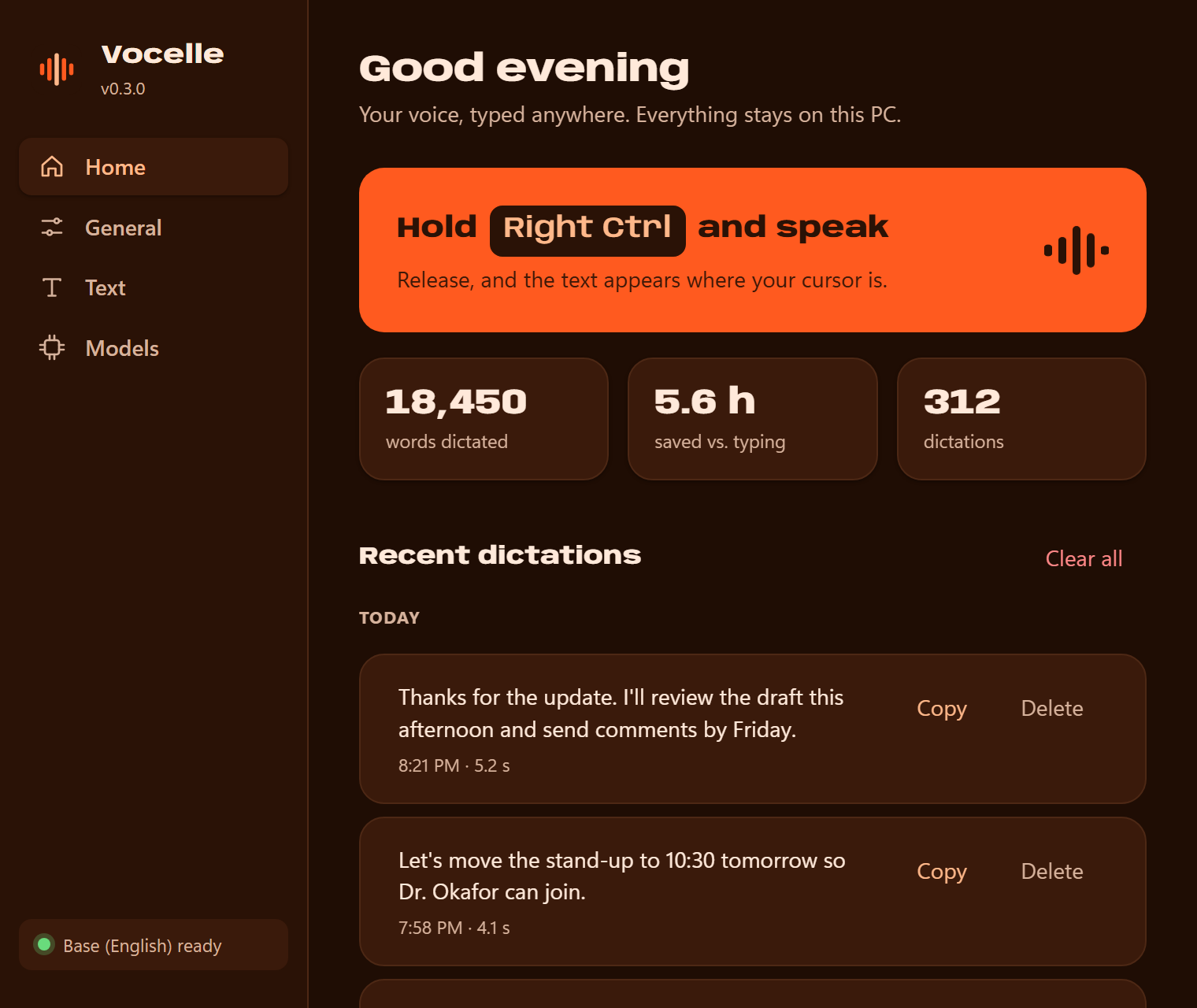
| Home: your stats and recent dictations |
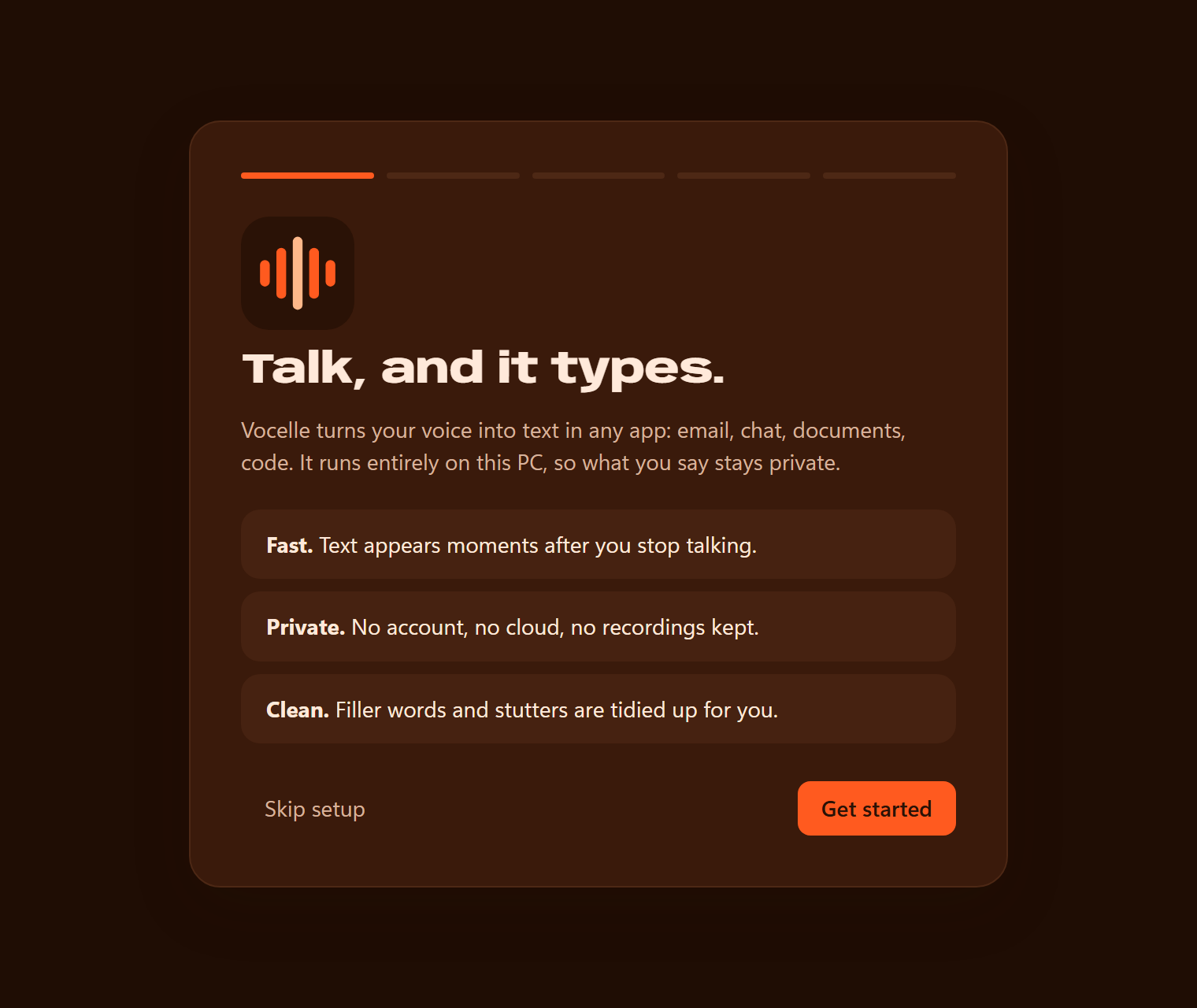
Welcome: a two-minute guided setup |
 |
 |
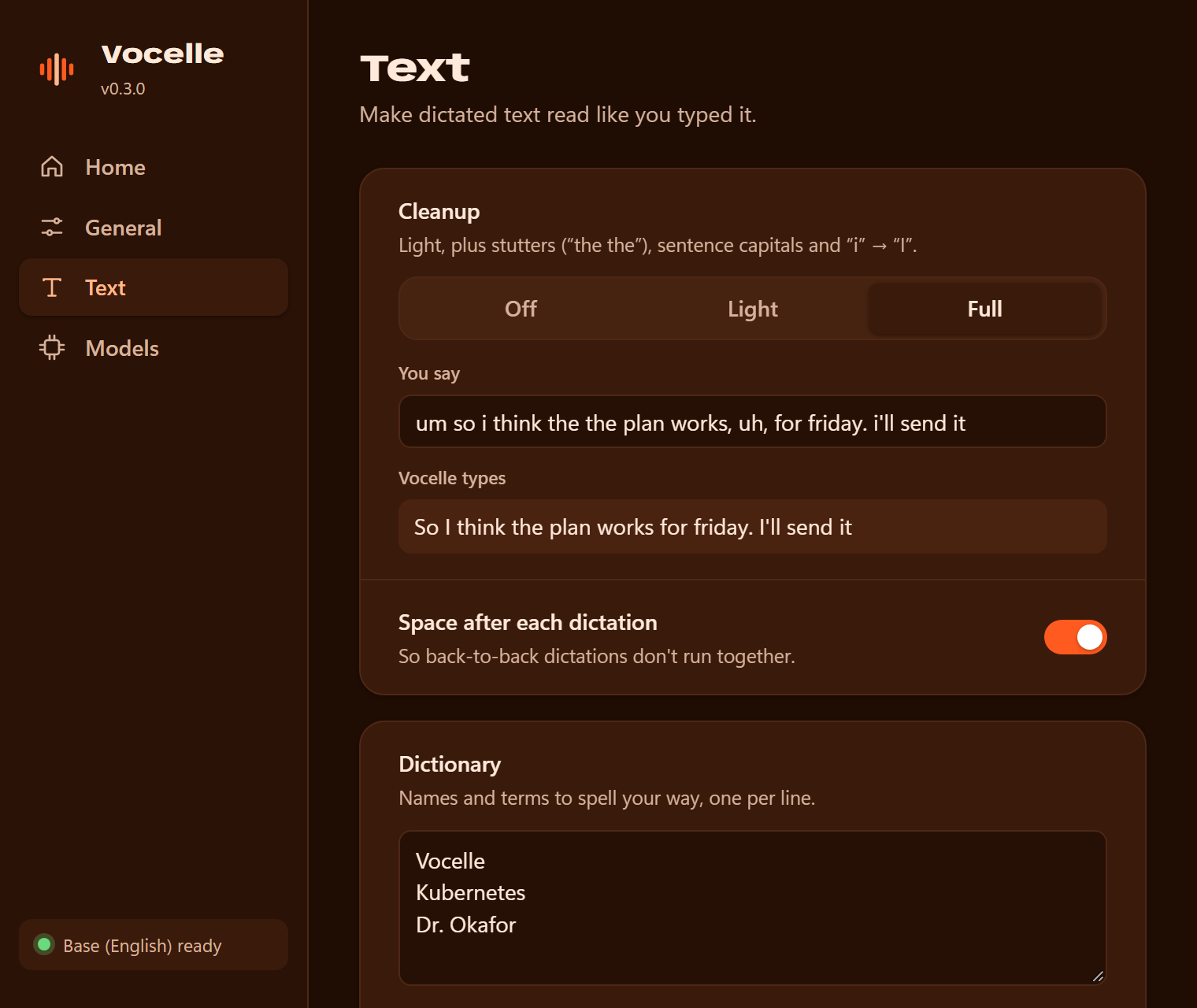
| Text: cleanup with live preview, dictionary |
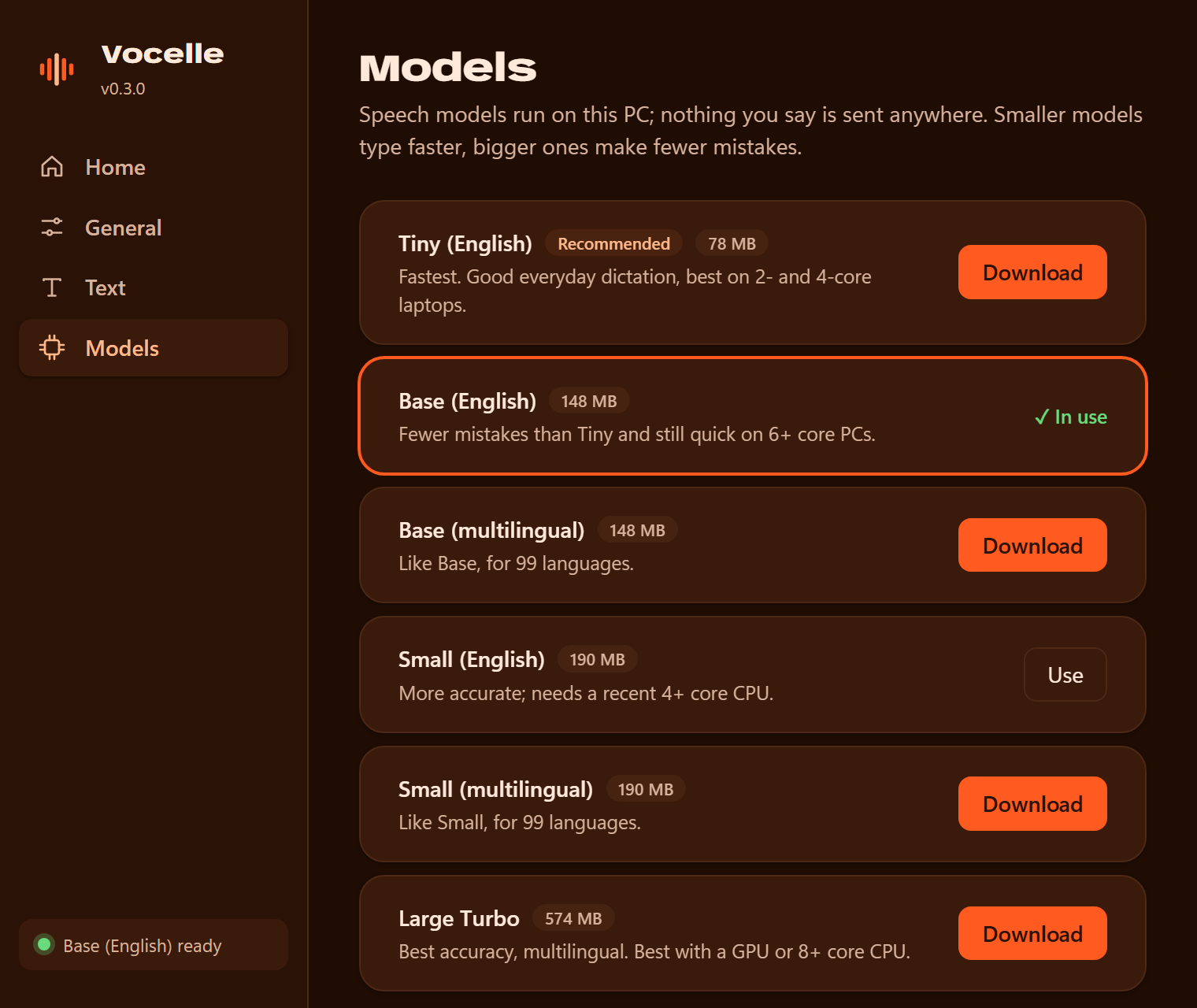
Models: download and switch, all local |
While you dictate, a small pill above the taskbar shows what's happening without any text: bars that move with your voice while listening, a wave of dots while transcribing, then a check mark.
How it works
flowchart LR
    A["Hold the talk key"] --> B["Record the microphone<br/>(in memory only)"]
    B --> C["Whisper transcribes<br/>on your computer"]
    C --> D["Cleanup, dictionary<br/>and replacements"]
    D --> E["Pasted at your cursor,<br/>clipboard restored"]
Everything in this chain runs on your computer. Voice detection skips silence, so a key press without speech types nothing.
Features
|
|
| ⚡ Fast |
Long dictations are transcribed while you're still talking, so text appears moments after you let go. |
| 🎙️ Your talk key |
Hold to talk, release to type. Right Ctrl by default; pick Caps Lock, an F-key and more. |
| 🧠 Local Whisper models |
Six models from Tiny (78 MB) to Large Turbo (574 MB). Vocelle recommends one for your computer. |
| ✨ Text cleanup |
Removes "um" and "uh", fixes stutters, spacing and capitals. Three levels, with a live preview. |
| 📖 Dictionary and replacements |
Teach Vocelle names and jargon, and set rules like "vocel" → "Vocelle". |
| 🏠 Home |
Words dictated, time saved, and your last 200 dictations by day, text only and stored on your computer. Copy or delete any of them, or turn history off. |
| 📋 Clipboard safe |
Whatever you had copied (text, images, files, formatting) is put back after each dictation. |
| 🤫 Voice detection |
Silence and background noise aren't typed. |
| 🌍 21 languages |
Automatic language detection with multilingual models, or pick one. |
| 🔒 Verified downloads |
Models come from the official whisper.cpp repositories and are checked with SHA-256. |
System requirements
|
Windows |
Linux (preview) |
| OS |
Windows 10 (1903+) or 11, 64-bit |
x86-64 desktop with an X11 session (Ubuntu 22.04+, Debian 12+, Fedora, Arch…) |
| CPU |
AVX2: Intel 4th gen (2013) or newer, AMD Ryzen or newer |
Same |
| Memory |
4 GB (8 GB for the larger models) |
Same |
| Disk |
~200 MB with a small model, up to 800 MB with the largest |
Same |
And a microphone.
Quick start
- Download from the latest release:
- Windows:
Vocelle_x.y.z_x64-setup.exe, then run it.
The installer isn't code-signed yet, so Windows may show "Windows protected your PC". Click More info → Run anyway.
- Debian / Ubuntu:
Vocelle_x.y.z_amd64.deb, then sudo apt install ./Vocelle_x.y.z_amd64.deb.
- Other Linux:
Vocelle_x.y.z_amd64.AppImage, then chmod +x Vocelle_*.AppImage and run it.
- Follow the welcome setup. On first launch Vocelle walks you through five short steps: check your microphone, download the speech model recommended for your computer, pick your talk key, and try a dictation.
- Dictate anywhere. Click into any text box, hold Right Ctrl, speak, and release. Your text appears at the cursor.
Vocelle keeps running in the system tray (the orange sound-wave icon). Click it to open the app again; you can rerun the setup from General → Setup guide.
Using Vocelle
Talk key
On the General tab, choose a key from the list or click Press a key… and press the one you want. The change applies immediately.
Hold the key while you speak and release it when you're done. Pressing another key while holding it (for example Right Ctrl+C) cancels, so normal shortcuts keep working. A quick tap is ignored. Recordings stop on their own after 5 minutes, in case the key got stuck; that text is copied rather than typed, so press Ctrl+V to paste it.
When text can't be typed
If Vocelle can't type into the app you're in (for example one run as administrator), your text is copied instead and the indicator says so: click where you want it and press Ctrl+V. Paste last dictation in the tray menu copies your last dictation again (or pastes it, when another app has focus). Home keeps the last problem, with what to do about it, until you dismiss it.
Keys you can use: Right Ctrl, Left Ctrl, Right Shift, Caps Lock, Scroll Lock, Pause, Insert and F1–F12 (plus Menu and F13–F24 on Windows). Letters, digits and Space can't be used, because holding them would type characters. On Windows, a non-modifier talk key such as Caps Lock is reserved for Vocelle, so it won't also toggle caps.
Text cleanup
On the Text tab:
| Level |
What it does |
Example: "um so i think the the plan works, uh, for friday" |
| Off |
Inserts exactly what the model heard |
um so i think the the plan works, uh, for friday |
| Light (default) |
Removes "um", "uh" and similar; fixes spacing; capitalizes the first letter |
So i think the the plan works for friday |
| Full |
Light, plus stutters, sentence capitals and a lone "i" |
So I think the plan works for friday |
Filler words are removed in English, German, French, Dutch and Italian, using only sounds that are never real words in that language (German "um" stays, for example). With automatic detection, the language Whisper heard is used. In other languages, cleanup only fixes spacing, capitals and stutters, so no real word is deleted. Full leaves web addresses, file names and numbers such as "example.com" or "3.5" alone.
Type in Try it to preview any level. Vocelle also adds a space after each dictation so back-to-back dictations don't run together; you can turn that off.
Dictionary and replacements
- Dictionary: one name or term per line (for example Kubernetes or Dr. Okafor). These are given to the speech model as spelling hints.
- Replacements: whole-word rules applied to every dictation, not case-sensitive. Use them for words the model keeps getting wrong, or for shortcuts such as "my email" → you@example.com.
Home and history
Home shows how many words you've dictated, roughly how much time that saved compared with typing at 40 words a minute, and your last 200 dictations grouped by day with the time and length of each. Copy puts one back on the clipboard; Delete or Clear all removes them. Turn history off on the General tab. Audio is never saved, only the final text.
Choosing a model
| Model |
Size |
Languages |
Best for |
| Tiny (English) |
78 MB |
English |
Fastest, a little less accurate; best for slow or older PCs |
| Base (English) |
148 MB |
English |
Accurate and quick on most laptops; the best place to start |
| Base (multilingual) |
148 MB |
99 languages |
Like Base, for other languages |
| Small (English) |
190 MB |
English |
Higher accuracy on a recent 4+ core CPU |
| Small (multilingual) |
190 MB |
99 languages |
Like Small, for other languages |
| Large Turbo |
574 MB |
99 languages |
Best accuracy; 8+ core CPU |
English-only models are faster and more accurate for English, and always transcribe English. You can download several and switch with Use on the Models tab. Cancel stops a download; the next Download continues where it stopped.
Configuration
Everything is set in the app, which saves automatically. The files live here:
| What |
Windows |
Linux |
| Settings |
%APPDATA%\com.codewithdark.vocelle\settings.json |
~/.config/com.codewithdark.vocelle/settings.json |
| Log (timings only) |
%LOCALAPPDATA%\com.codewithdark.vocelle\vocelle.log |
~/.local/share/com.codewithdark.vocelle/vocelle.log |
| History and totals |
%LOCALAPPDATA%\com.codewithdark.vocelle\history.json, stats.json |
~/.local/share/com.codewithdark.vocelle/history.json, stats.json |
| Models |
%LOCALAPPDATA%\com.codewithdark.vocelle\models\ |
~/.local/share/com.codewithdark.vocelle/models/ |
settings.json reference
{
  "model": "base.en",
  "talk_key": "ControlRight",
  "microphone": null,
  "language": "auto",
  "cleanup": "light",
  "trailing_space": true,
  "dictionary": ["Vocelle", "Kubernetes"],
  "replacements": [{ "from": "vocel", "to": "Vocelle" }],
  "history": true,
  "onboarded": true
}
| Key |
Values |
Default |
model |
tiny.en, base.en, base, small.en-q5_1, small-q5_1, large-v3-turbo-q5_0 |
none until you download a model |
talk_key |
A key code: ControlRight, ControlLeft, ShiftRight, CapsLock, ScrollLock, Pause, Insert, ContextMenu, F1–F24 |
ControlRight |
microphone |
A device name from the Settings list, or null for the system default |
null |
language |
auto or a language code (en, es, fr, de, hi, ur, zh, ja…) |
auto |
cleanup |
off, light, full |
light |
trailing_space |
true, false |
true |
dictionary |
List of words and phrases |
[] |
replacements |
List of { "from": "…", "to": "…" } |
[] |
history |
true, false |
true |
onboarded |
true once the welcome setup is finished or skipped |
false |
Missing keys get their defaults, so older settings files keep working, and a key with a bad value gets its default without affecting the others. Edit the file only while Vocelle is closed; it's read at start-up.
Each save keeps the previous version as settings.json.bak (the same for history.json and stats.json). If a file is damaged, Vocelle keeps it as <name>.corrupt-<time> and uses the backup.
Privacy
- Audio is recorded only while you dictate, is processed in memory, and is never saved to disk.
- Transcription runs entirely on your computer. The only network requests Vocelle makes are the model downloads you start in Settings, from
huggingface.co.
- History stores text only, on your computer, and can be turned off or cleared. The Home totals are just counts (dictations, words, seconds).
- On Windows, dictated text is kept out of clipboard history (Win+V) and cloud clipboard sync.
- No accounts, analytics or telemetry.
Troubleshooting
Nothing happens when I press the talk key
- Make sure Vocelle is running (look for the tray icon).
- Open Vocelle and check that the bottom of the sidebar shows the model as ready.
- Check which key and mode are set on the General tab.
- Some keyboards and remote-desktop tools remap Right Ctrl. Try Caps Lock or an F-key instead.
Linux: the talk key does nothing
Vocelle listens for the talk key through X11. On a Wayland session, desktop security doesn't let apps see global key presses. Log in with an "Xorg" or "X11" session (choose it on the login screen). The .deb package installs the needed X11 libraries; for the AppImage, make sure libxtst6 is installed.
"Can't type into an app running as administrator" (Windows)
Windows blocks normal apps from typing into apps that run as administrator. Either run that app normally, or start Vocelle as administrator too.
"No speech heard"
Vocelle didn't detect speech. Pick the right microphone on the General tab and speak a little closer to it.
A name keeps coming out wrong
Add it to the Dictionary on the Text tab. If it still comes out wrong, add a Replacement from what Vocelle types to what you want.
Transcription is slow
- On a laptop, plug in the charger or choose Best performance in Windows Settings → System → Power. On battery, Windows can slow the processor to a third of its speed, and dictation slows down with it.
- Switch to Tiny (English), the fastest model. Home suggests this when recent dictations were slow.
- Close CPU-heavy apps (video rendering, games, many browser tabs).
- Each dictation's timings are written to
vocelle.log (see Configuration). The log never contains what you said.
"This CPU isn't supported yet (needs AVX2)"
Your CPU doesn't support AVX2 (see System requirements). Support for older CPUs is planned.
Linux: nothing appears in a terminal
Vocelle pastes with Ctrl+V, but most Linux terminals paste with Ctrl+Shift+V. Dictate into another app for now; terminal support is planned.
Updating
Download the newer installer from Releases and run it over the installed version (Windows), or install the new .deb or AppImage the same way as before. Your settings, history and downloaded models are stored outside the app folder, so they carry over. Automatic updates are planned.
FAQ
Does Vocelle need an internet connection?
Only to download a speech model the first time. After that it works fully offline.
Does it send my voice or text anywhere?
No. Recording, transcription and cleanup all happen on your computer. See Privacy.
Which model should I use?
Start with the one marked Recommended: Vocelle picks it for speed on your computer. If dictation feels slow, try a smaller model; if words come out wrong, try a bigger one. English-only models are the better choice when you only dictate in English.
Can I dictate in other languages?
Yes. Download a multilingual model (Base, Small or Large Turbo) and choose the language on the General tab, or leave it on automatic detection.
Does it work with a GPU?
Official builds use the CPU, which is fast enough for everyday dictation with Base or Small. GPU builds are possible from source (see Development); GPU support in official builds is planned.
Is there a macOS version?
Not yet. Vocelle supports Windows, with Linux as a preview.
Uninstall
- Windows: Settings → Apps → Installed apps → Vocelle → Uninstall.
- Debian / Ubuntu:
sudo apt remove vocelle
- AppImage: delete the file.
To also remove downloaded models, history and settings, delete the folders listed under Configuration.
Roadmap
- Next: optional AI rewriting (local or with your own API key), spoken commands like "new line", per-app styles.
- Later: signed installer with automatic updates, support for CPUs without AVX2, GPU acceleration.
See CHANGELOG.md for what's in each release.
Development
Build instructions, architecture and test hooks are in docs/DEVELOPMENT.md. Releases follow docs/RELEASING.md. To report a security problem, see SECURITY.md.
License
Vocelle is proprietary software. You may download and use official releases; the source is published for transparency only. See LICENSE. Bundled open-source components keep their own licenses.