
cli
Command-line tool for css-doodle to preview and generate images/videos.
- 21
- MIT
- 4 d ago
Repo css-doodle/cli, read from GitHub 10 min ago. css-doodle has not joined Take My Repo.
In short
css-doodle/cli is a public repo on GitHub by css-doodle. Command-line tool for css-doodle to preview and generate images/videos. It declares the MIT license on GitHub. It is written mainly in JavaScript, has 21 stars and last changed on 2026-11-18. Nobody has reviewed it on Take My Repo yet, which says nothing about its quality. Read from GitHub on 2026-11-22.
@css-doodle/cli
Command-line tool for css-doodle to preview and generate images/videos.
Installation
npm install -g @css-doodle/cli
[!NOTE] Once installed, you can use either
cssdorcss-doodlecommand in the terminal.
Usage
Usage: cssd [options] [command]

Options:
  -V, --version  output the version number
  -h, --help     display help for command

Commands:
  run            Open a window to preview the css|cssd file, default command
  render         Generate an image or video from a css/cssd/html file, css-doodle or CodePen link, or http(s) URL
  gen            Generate code using css-doodle generators
  config         Display/set configurations
  use            Shorthand to fetch and use a custom version of css-doodle
  parse          Print the parsed tokens, help to debug in development
  update         Update CLI to latest version
Commands
run
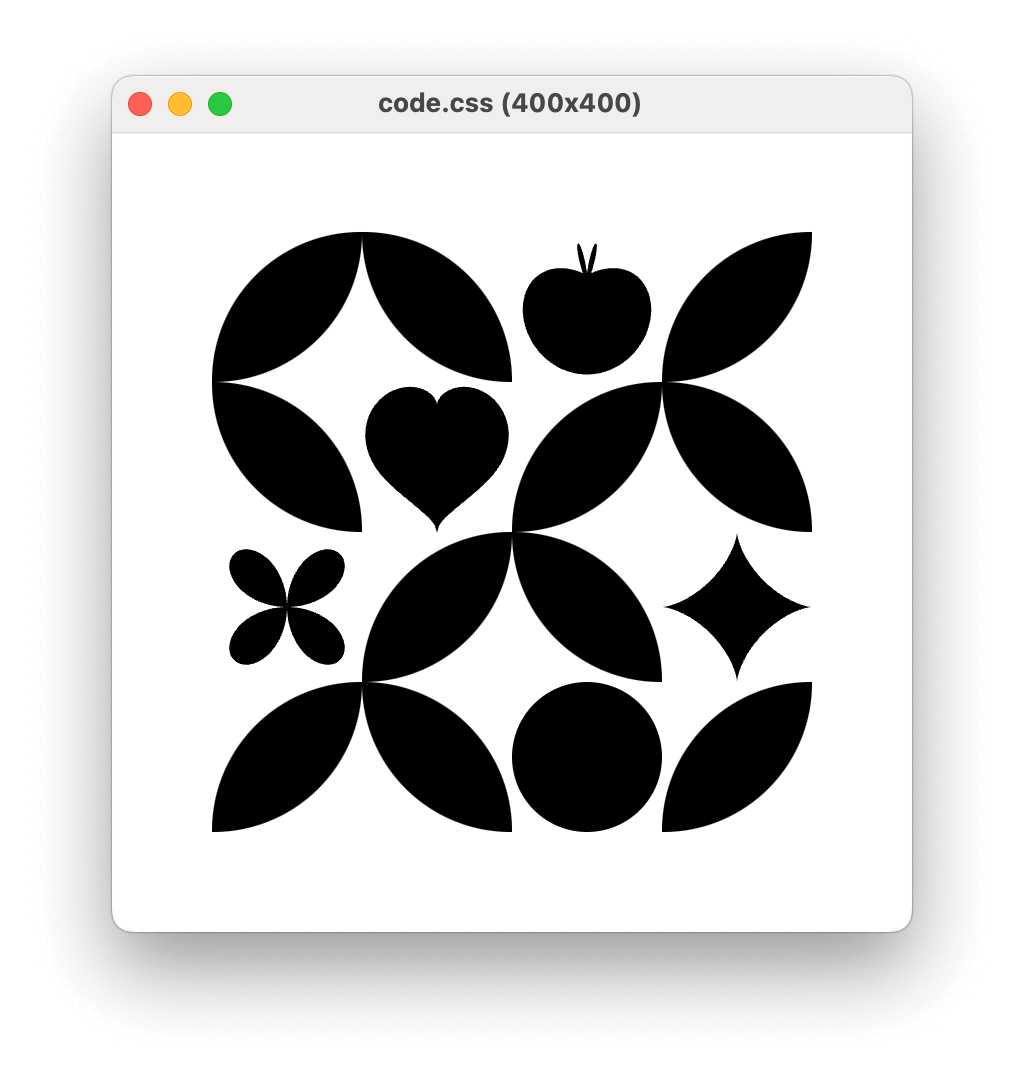
Open a window to preview the css-doodle source file. The source file can be a .css or .cssd file, or a css-doodle link.
--fullscreen: Open in fullscreen mode.--seed <seed>: Seed for the random functions, to get a reproducible result.--show-fps-counter: Show fps counter overlay.--show-paint-rects: Show paint rects overlay.-w, --window <size>: Size of the preview window, e.g.800x600, defaults to fit the doodle.
cssd run code.css
cssd run code.css --fullscreen
cssd preview code.css
The run can be omitted if you just want to preview.
cssd somefile.css
cssd <<< '@grid: 5 / 400px; background: @p(red, blue)'
render
Generate an image/video from the css-doodle source file. The source file can be a .css, .cssd, .html file, css-doodle link
(https://css-doodle.com/d/:id), CodePen link, or http(s) URL.
-o, --output <output>: Custom output filename of the generated result, missing directories are created. A directory likerenders/keeps the default filename inside it-x, --scale <scale>: Scale factor of the generated result, defaults to2for images,1for videos-s, --selector <selector>: CSS selector to target the rendered node, defaults tocss-doodle. Reports an error if no element matches-d, --delay <delay>: Delay time before taking screenshot/screencast, e.g,2s, maximum30s-t, --time <time>: Record screen for a specific time, e.g,10s, maximum60s-q, --quiet: Quiet mode, suppresses non-error output-w, --window <size>: The size of the rendered window, defaults to1600x1000for images,1200x800for videos-f, --format <format>: Output format,png|webp|jpeg|jpgfor images,mp4for videos (gif|webmare deprecated)-y, --yes: Overwrite the output file if it already exists without prompting--seed <seed>: Seed for the random functions, to reproduce a result (only for css-doodle source code)
cssd render
cssd render code.css
cssd render code.css -o result.png
cssd render code.css -o result.png -y
cssd render code.css -x 4
cssd render code.css --seed 1702
cssd render https://css-doodle.com/d/R3WhVB20fJ9fbZ1L
cssd render https://codepen.io/yuanchuan/pen/MQEeJo
cssd render <<< '@grid: 3/400px; background: @p(red, blue)'
Without -o, the output filename includes the seed of the doodle (e.g. code-1702.png), so you can pass it back with --seed to render the same
result again.
Time values accept ms, s, or m units and decimals, e.g. 500ms, 1.5s, 1m. A number without unit is in milliseconds.
Screen recording:
cssd render -t 10s
If the output filename ends with .png, .webp, .jpeg, or .jpg, it will generate an image; if it ends with .mp4, it will generate a video. If
no output filename is specified, you can use the -f option to specify the output format. By default, it will generate a PNG image.
Videos are recorded by the browser as AV1-encoded MP4. The .gif and .webm formats are deprecated and require ffmpeg.
cssd render code.css -o result.mp4
cssd render code.css -o result.png

# png
cssd render code.css
# webp
cssd render code.css -f webp
gen
Generate code using css-doodle generators.
svg: Generate SVG code using svg() function.polygon: Generate CSS polygon() using shape() function.--seed <seed>: Seed for the random functions insvg, to get a reproducible result (requires css-doodle 0.53.0 or later).
cssd gen svg <<< 'svg {}'
cssd gen svg code.css
cssd gen svg code.css --seed 1702
cssd gen polygon code.css
cssd generate svg code.css

# read from STDIN
cssd gen polygon
config
Display/set the configurations in key/value pairs. They are saved in ~/.config/css-doodle/config.json, or under $XDG_CONFIG_HOME when it's set.
set <field> <value>: Set a configuration with key/value pair.get <field>: Get a configuration value by key.unset <field>: Unset a configuration field.list: List all configurations.
Recognizable field configurations:
browserPath(orbrowser-path,executablePath,executable-path): The path to the browser executable. On macOS, the app bundle like/Applications/Google Chrome.appworks too.css-doodle: The path to the css-doodle to use, a version number like0.40.6orlatest, orbundledto use the built-in one.
# show all configurations
cssd config list

# use a custom browser
cssd config set browserPath /Applications/Google\ Chrome.app

# unset
cssd config unset browserPath

# get the value
cssd config get browserPath

# download and use a custom version of css-doodle
cssd config set css-doodle 0.40.6

# use a local css-doodle file
cssd config set css-doodle /path/to/css-doodle.min.js
use
Shorthand of cssd config set css-doodle <version>.
<version>: The version of css-doodle to use. It can be a specific version,latest, orbundledto go back to the built-in one.
cssd use css-doodle@0.40.6

# or just version
cssd use 0.40.6
cssd use latest

# back to the built-in version
cssd use bundled
parse
Print the parsed tokens, useful for debugging css-doodle code in development.
cssd parse code.css
cssd parse <<< '@grid: 3/400px; background: @p(red, blue)'
update
Update CLI to latest version, with the package manager it's installed by: npm, pnpm, yarn, bun, or Volta. It won't update a CLI run by npx,
installed in a project, or linked to its source code with npm link.
cssd update
Questions
What is cli?
css-doodle/cli is a public repo on GitHub by css-doodle. Command-line tool for css-doodle to preview and generate images/videos.
Is cli open source?
It declares the MIT license on GitHub.
Does cli run on macOS, Windows or Linux?
Its maker tagged it for macOS. That is declared by the maker; Take My Repo has not tested it.
How do I install cli?
Open "Take it" on its page: Take My Repo writes an install plan for your machine and hands it to your AI agent (Claude Code, Codex or Cursor), which asks you before each step. Take My Repo has not tested it on any machine.
Is cli still maintained?
Its last change on GitHub was on 2026-11-18. GitHub counts 2 open issues and pull requests. Take My Repo does not judge from that whether it is maintained.
What do people who ran cli say?
Nobody has reviewed it on Take My Repo yet, which says nothing about its quality.