rea
Reverse engineer anything with agents, from app behavior down to native binaries.
- 477k
- TypeScript
- MIT
- 3 h ago
A modern replacement for ps written in Rust
Repo dalance/procs, read from GitHub 13 min ago. dalance has not joined Take My Repo.
dalance/procs is a public repo on GitHub by dalance. A modern replacement for ps written in Rust. It declares the MIT license on GitHub. It is written mainly in Rust, has 6,256 stars and last changed on 2026-11-24. Nobody has reviewed it on Take My Repo yet, which says nothing about its quality. Read from GitHub on 2026-11-25.
procs is a replacement for ps written in Rust.
pstop)Download from release page, and extract to the directory in PATH.
You can install from Nixpkgs.
nix-env --install procs
You can install from snapcraft.
sudo snap install procs
You can install from homebrew.
brew install procs
You can install from MacPorts.
sudo port install procs
You can install from the Alpine Linux repository.
The correct repository (see above link for the most up-to-date information) should be enabled before apk add.
sudo apk add procs
You can install from the Arch Linux extra repository.
sudo pacman -S procs
You can install with scoop.
scoop install procs
sudo dnf install procs
winget install procs
You can install with rpm.
sudo rpm -i https://github.com/dalance/procs/releases/download/v0.14.12/procs-0.14.12-1.x86_64.rpm
You can install with cargo.
cargo install procs
You can install with x-cmd.
x env use procs
# or
x procs # Download procs, and invoke procs in a way that does not affect the current environment
On macOS, normal users can't access any information on other users' processes. On Linux, normal users can't access some information (ex. Read/Write throughput) of other users.
If you want to show this information, you should use sudo.
$ sudo procs
[sudo] password for ...:
If you want to skip password input, you can add the following entry to /etc/sudoers.
[user or group] ALL= NOPASSWD: [procs binary path]
// ex. myuser ALL= NOPASSWD: /usr/local/bin/procs
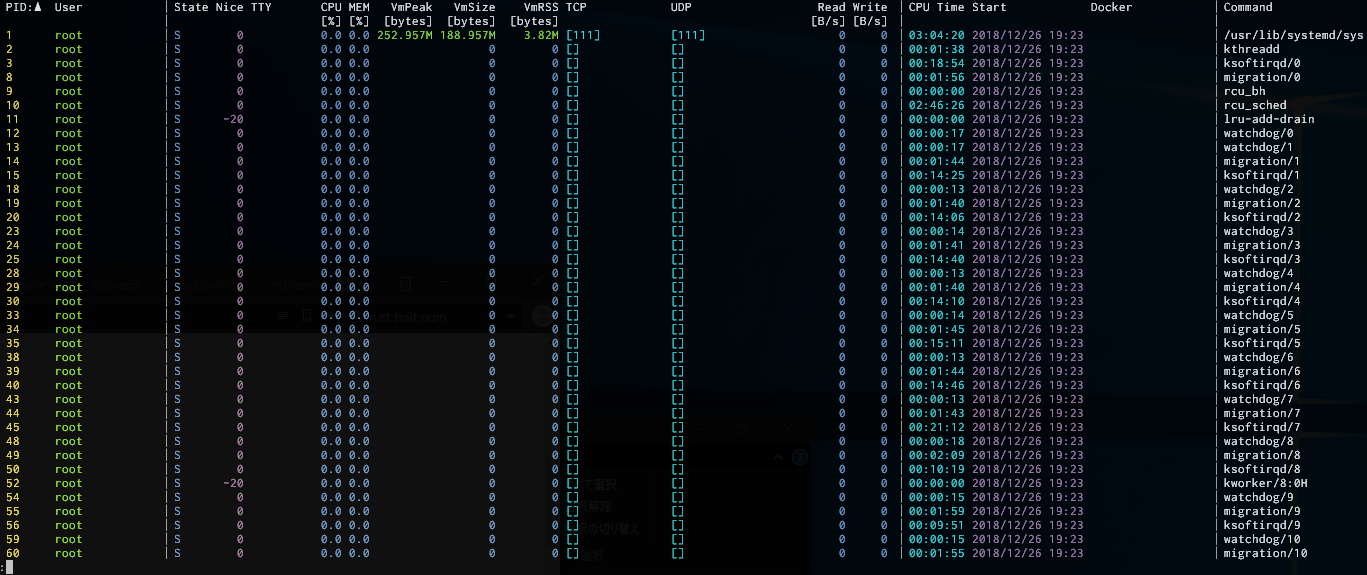
In the following screenshots, config/large.toml is used as the configuration.
Type procs only. It shows the information of all processes.
procs
If you add any keyword as argument, it is matched to USER, Command by default.
procs zsh
If you want to add columns matching to non-numeric keyword, nonnumeric_search option can be used in configuration file.

If a numeric is used as the keyword, it is matched to PID by default.
Numeric is treated as exact match, and non-numeric is treated as partial match by default.
procs --or 6000 60000 60001 16723
If you want to add columns matching to numeric keyword, numeric_search option can be used in configuration file.

Note that procfs permissions only allow identifying listening ports for processes owned by the current user, so not all ports will show up unless run as root.
If there are some keywords, logical operation between the keywords can be specified by commandline option.
--and : The processes that match with all keywords are shown.--or : The processes that match with any keyword are shown.--nand: The processes are shown unless these match with all keywords.--nor : The processes are shown unless these match with any keyword.The default operation can be specified in the configuration file. See [search] section.
If you have access permission to docker daemon ( unix:///var/run/docker.sock ), Docker column is added.
procs growi

Note that procs gets the container information through UNIX domain socket, so Docker Toolbox on macOS (doesn't use UNIX domain socket) is not supported. Docker Desktop for Mac is supported but not tested.
If output lines exceed terminal height, pager is used automatically. This behavior and pager command can be specified by configuration file.
On Linux and macOS, less is the default pager.
If there is not less, more is used.
Instead of them, built-in pager can be used by configuration use_builtin.
On Windows, built-in pager is always used.
If --watch or --watch-interval <second> option is used, procs automatically updates output like top.
If --watch is used, the update interval becomes 1s.
The update interval can be specified by the argument of --watch-interval.
There are some keyboard shortcuts to control.
n: Change the sort column to the next columnp: Change the sort column to the previous columna: Change the sort order to ascendingd: Change the sort order to descendingq: QuitIf --tree option is used, processes are sorted by dependency order and dependency tree is shown at left side.
procs --tree

If TreeSlot column exists in config, dependency tree is shown at the slot.
Column sort order can be changed by --sorta or --sortd option.
The last character of --sorta and --sortd means sort order: "a"scending and "d"escending.
The column for sort is selected by the option keyword.
The keyword is matched with column kind that is shown by --list option.
If --sorta cputime, column is sorted by CpuTime with ascending order.
If --sortd rss, column is sorted by VmRss with descending order.
The keyword is matched partially and case is ignored.
The default sort is specified by [sort] section in the configuration file.
procs --sortd cpu

--insert option inserts new column to the position of Slot column or MultiSlot column.
The column for insert is selected by the option keyword.
The keyword is the same as sort option.
A Slot column can be used by an inserted column.
If many insertions are required, many Slot columns should be added.
A MultiSlot column can be used by many inserted columns.
If there is a MultiSlot, all the remaining columns are inserted to the MultiSlot, and the subsequent Slot / MultiSlot is not used.
Unused Slot / MultiSlot is not shown.
--gen-completion option generates shell completion files under the current directory.
The following shells are supported.
zshbashfishpowershellelvish--gen-completion-out option generates shell completion to stdout.
You can source it directly on some shells.
source <(procs --gen-completion-out bash)
You can change configuration by writing a configuration file.
There are some configuration examples in config directory of this repository.
config/large.toml is the default configuration before procs v0.9.21.
The locations of the configuration file is OS-specific:
~/.config/procs/config.toml, /etc/procs/procs.toml~/Library/Preferences/com.github.dalance.procs/config.toml, /etc/procs/procs.toml~/AppData/Roaming/dalance/procs/config/config.tomlFor compatibility, if ~/.procs.toml exists, it will be preferred to
the OS-specific locations.
--use-config option can specify a built-in configuration.
--load-config option can specify a configuration file path.
The complete example of a configuration file can be generated by --gen-config option.
[[columns]]
kind = "Pid"
style = "BrightYellow|Yellow"
numeric_search = true
nonnumeric_search = false

[[columns]]
kind = "Username"
style = "BrightGreen|Green"
numeric_search = false
nonnumeric_search = true
align = "Right"

[style]
header = "BrightWhite|Black"
unit = "BrightWhite|Black"
tree = "BrightWhite|Black"

[style.by_percentage]
color_000 = "BrightBlue|Blue"
color_025 = "BrightGreen|Green"
color_050 = "BrightYellow|Yellow"
color_075 = "BrightRed|Red"
color_100 = "BrightRed|Red"

[style.by_state]
color_d = "BrightRed|Red"
color_r = "BrightGreen|Green"
color_s = "BrightBlue|Blue"
color_t = "BrightCyan|Cyan"
color_z = "BrightMagenta|Magenta"
color_x = "BrightMagenta|Magenta"
color_k = "BrightYellow|Yellow"
color_w = "BrightYellow|Yellow"
color_p = "BrightYellow|Yellow"

[style.by_unit]
color_k = "BrightBlue|Blue"
color_m = "BrightGreen|Green"
color_g = "BrightYellow|Yellow"
color_t = "BrightRed|Red"
color_p = "BrightRed|Red"
color_x = "BrightBlue|Blue"

[search]
numeric_search = "Exact"
nonnumeric_search = "Partial"
logic = "And"

[display]
show_self = false
show_thread = false
show_thread_in_tree = true
cut_to_terminal = true
cut_to_pager = false
cut_to_pipe = false
color_mode = "Auto"

[sort]
column = 0
order = "Ascending"

[docker]
path = "unix:///var/run/docker.sock"

[pager]
mode = "Auto"
[[columns]] section[[columns]] section defines which columns are used.
The first [[columns]] is shown at left side, and the last is shown at right side.
| Key | Value | Default | Description |
|---|---|---|---|
| kind | See kind list |
Column type | |
| style | See style list |
Column style | |
| numeric_search | true, false | false | Whether the column can be matched with numeric keywords |
| nonnumeric_search | true, false | false | Whether the column can be matched with non-numeric keywords |
| align | Left, Right, Center | Left | Text alignment |
| max_width | [Number] | Maximum column width | |
| min_width | [Number] | Minimum column width | |
| header | [String] | Alternate header description |
kind listprocs kind |
ps STANDARD FORMAT |
Description | Linux | macOS | Windows | FreeBSD |
|---|---|---|---|---|---|---|
| Arch | -not supported- | Architecture of binary | o | o | ||
| Ccgroup | -not supported- | Control group by compressed format | o | |||
| Cgroup | cgroup | Control group | o |
dalance/procs is a public repo on GitHub by dalance. A modern replacement for ps written in Rust.
It declares the MIT license on GitHub.
Its maker has not tagged a system, so it is unknown here. Its README says what it needs.
Open "Take it" on its page: Take My Repo writes an install plan for your machine and hands it to your AI agent (Claude Code, Codex or Cursor), which asks you before each step. Take My Repo has not tested it on any machine.
Its last change on GitHub was on 2026-11-24. Take My Repo does not judge from that whether it is maintained.
The agent harness performance optimization system. Skills, instincts, memory, security, and research-first development for Claude Code, Codex, Opencode, Cursor and beyond.
Fair-code workflow automation platform with native AI capabilities. Combine visual building with custom code, self-host or cloud, 400+ integrations.
Makes your AI agent think like the laziest senior dev in the room. The best code is the code you never wrote.
Nobody has reviewed it on Take My Repo yet, which says nothing about its quality.
Take My Repo cannot say: it does not audit code and has not run procs. What is known comes from GitHub. It declares the MIT license on GitHub. Its last change was on 2026-11-24. It has 6,256 stars, which measure popularity, not safety. Nobody has reviewed it on Take My Repo yet, which says nothing about its quality. Read the source before you run it. With "Take it", your AI agent shows each step and asks you before running it; README text is treated as data, not as instructions.