
massCode
A free, open-source developer workspace. Snippets, notes, HTTP requests, calculations, and dev tools in one local-first app.
- 7.1k
- TypeScript
- AGPL-3.0
- 19 h ago
The Snippets QuickNav plugin adds a quick-access navigator (aka QuickNav) to the WordPress Admin Bar (Toolbar). It allows easy access to your Code Snippets listed by Active, Inactive, Snippet Type or Tag. Safe Mode is supported. Comes with inspiring links to snippet libraries.
Repo deckerweb/snippets-quicknav, read from GitHub 30 min ago. deckerweb has not joined Take My Repo.
deckerweb/snippets-quicknav is a public repo on GitHub by deckerweb. The Snippets QuickNav plugin adds a quick-access navigator (aka QuickNav) to the WordPress Admin Bar (Toolbar). It allows easy access to your Code Snippets listed by Active, Inactive, Snippet Type or Tag. Safe Mode is supported. Comes with inspiring links to snippet libraries. It declares the GPL-2.0 license on GitHub. It is written mainly in PHP, has 3 stars and last changed on 2026-10-28. It is archived: its maker no longer maintains it. Nobody has reviewed it on Take My Repo yet, which says nothing about its quality. Read from GitHub on 2026-11-25.
A free, open-source developer workspace. Snippets, notes, HTTP requests, calculations, and dev tools in one local-first app.
[!IMPORTANT] My toolbar integration is now built into both the free and Pro versions of Code Snippets — it is already included in the free version! :-)
Snippets QuickNav is no longer needed. It has served its purpose, and this repository is now archived.
A heartfelt thank you to the Code Snippets team! This is what true partnership in WordPress looks like — code snippets really do connect people. ;-)
Creating this plugin had been a long-held wish of mine, and in spring 2025 I finally made it happen. It is a great honor that my code is now available to more than one million WordPress users through Code Snippets and that people enjoy using it.
I have been using Code Snippets myself since 2012, when the plugin first launched. I especially enjoy using it on WordPress Multisite.
Give Code Snippets a try — the Pro version is well worth it, too:
[!IMPORTANT] Meine Toolbar-Integration ist jetzt direkt in Code Snippets enthalten – sowohl in der kostenlosen als auch in der Pro-Version. Sie ist also bereits in free dabei! :-)
Snippets QuickNav wird nicht mehr benötigt. Es hat seinen Dienst getan, und dieses Repository ist nun archiviert.
Ein herzliches Dankeschön an das Code Snippets Team! So geht wahre Partnerschaft in WordPress – Code Snippets verbinden eben. ;-)
Dieses Plugin war ein lange gehegter Wunsch von mir, den ich mir im Frühjahr 2025 endlich erfüllen konnte. Es ist mir eine große Ehre, dass mein Code nun über Code Snippets mehr als einer Million WordPress-Nutzern zur Verfügung steht und gern genutzt wird.
Selbst verwende ich Code Snippets seit 2012, also seit Bestehen des Plugins. Besonders gern setze ich es auch in WordPress Multisite ein.
Auch du solltest Code Snippets ausprobieren – die Pro-Version lohnt sich ebenfalls:
The original README below is preserved for historical reference. Its installation, update, and support information describes the former standalone plugin.
Die ursprüngliche README bleibt nachfolgend zur Dokumentation erhalten. Ihre Angaben zu Installation, Updates und Support beziehen sich auf das frühere eigenständige Plugin.
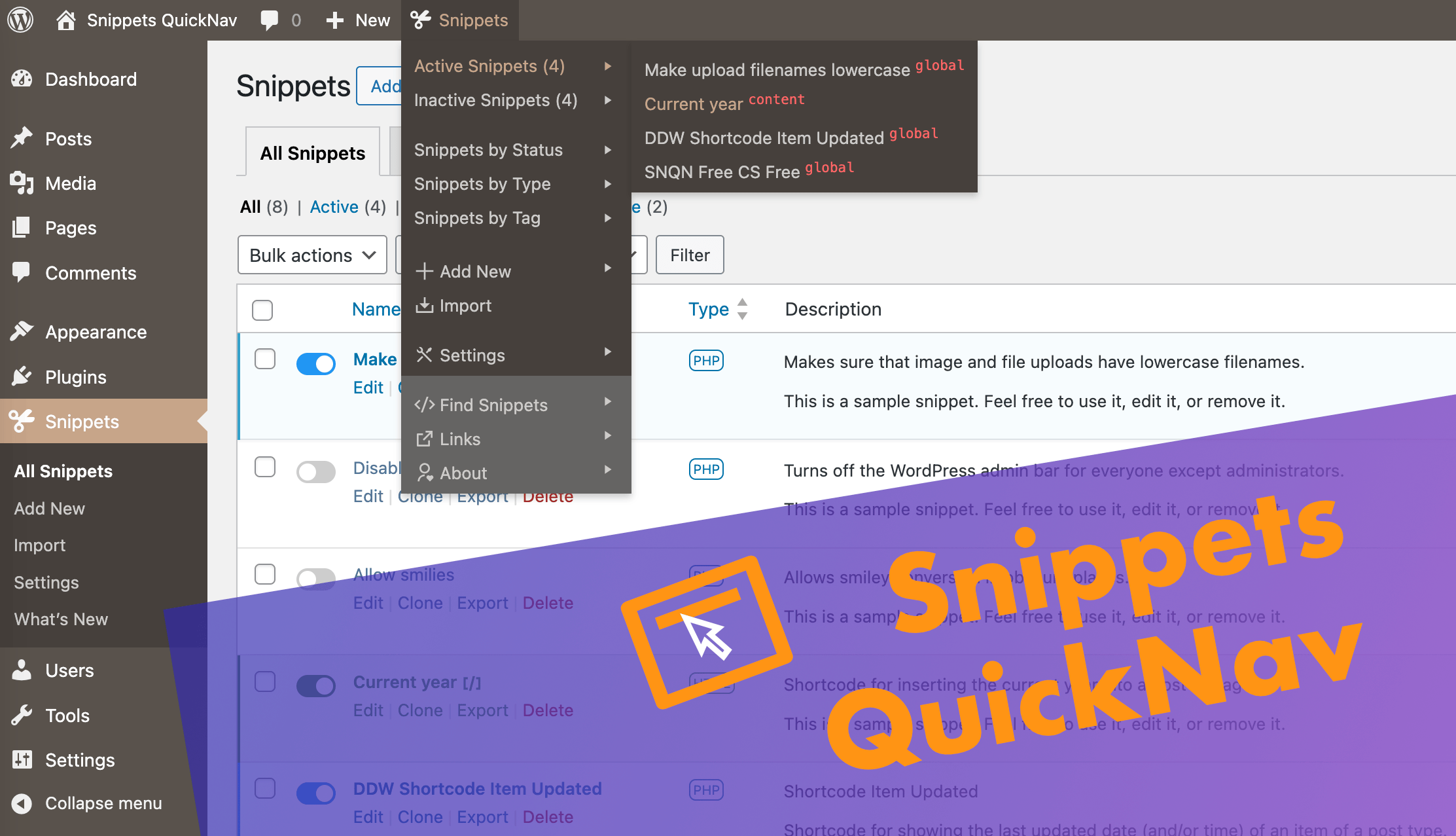
The Snippets QuickNav plugin adds a quick-access navigator (aka QuickNav) to the WordPress Admin Bar (Toolbar). It allows easy access to your Code Snippets listed by Active, Inactive, Snippet Type or Tag. Safe Mode is supported. Comes with inspiring links to snippet libraries.


Support Project | Installation | Updates | Description | FAQ | Custom Tweaks | Changelog | Plugin's Backstory | Plugin Scope / Disclaimer
If you find this project helpful, consider showing your support by buying me a coffee! Your contribution helps me keep developing and improving this plugin.
Enjoying the plugin? Feel free to treat me to a cup of coffee ☕🙂 through the following options:


Download .json version for Code Snippets (free & Pro) just use the "Import" page.
➔ Please decide for one of both alternatives!
manage_options and activate_pluginsAlternative 1: Just download a new ZIP file (see above), upload and override existing version. Done.
Alternative 2: Use the (free) Git Updater plugin and get updates automatically.
Alternative 3: Upcoming! – In future I will built-in our own deckerweb updater. This is currently being worked on for my plugins. Stay tuned!
Just manually: Download the latest Snippet version (see above) and import it in Code Snippets. – You can delete the old snippet; then just activate the new one. Done.
Please see here under Custom Tweaks via Constants what is possible!
I don't know. Not everything needs to be built-in. That's what plugins are for: those who need this functionality can install and use them. Or better, just use it as Code Snippet in Code Snippet itself. Done :-)
Because I needed (and wanted!) it myself for the sites I maintain. Read the backstory here ...
Because the restrictions there for plugin authors are becoming more and more. It would be possible, yes, but I don't want that anymore. The same for limited support forums for plugin authors on .org. I have decided to leave this whole thing behind me.
The intended usage of this plugin is for Administrator users only. Therefore the default capability to see the new Admin Bar node is set to activate_plugins. You can change this via the constant SNQN_VIEW_CAPABILITY – define that via wp-config.php or via Code Snippet plugin:
define( 'SNQN_VIEW_CAPABILITY', 'activate_plugins' );
You can define an array of user IDs (can also be only one ID) and that way restrict showing the Snippets Admin Bar item only for those users. Define that via wp-config.php or via Code Snippet plugin:
define( 'SNQN_ENABLED_USERS', [ 1, 500, 867 ] );
This would enable only for the users with the IDs 1, 500 and 867. Note the square brackets around, and no single quotes, just the ID numbers.
For example you are one of many admin users (role administrator) but only you want to show it for yourself. Given you have user ID 1:
define( 'SNQN_ENABLED_USERS', [ 1 ] );
That way only you can see it, the other admins can't!
You can define an integer value to adjust the menu position of the main menu item. Define that via wp-config.php or via Code Snippets plugin:
define( 'SNQN_MENU_POSITION', 81 );
This example will place it somewhere after the default "+ New" item. Note: the default value is 999 which puts the item quite on the middle or right side of the Admin Bar.
The default is just "Snippets" – catchy and short. However, if you don't enjoy "Snippets" you can tweak that also via the constant SNQN_NAME_IN_ADMINBAR – define that also via wp-config.php or via Code Snippet plugin:
define( 'SNQN_NAME_IN_ADMINBAR', 'Codes' );

define( 'SNQN_COUNTER', 'yes' );
deckerweb/snippets-quicknav is a public repo on GitHub by deckerweb. The Snippets QuickNav plugin adds a quick-access navigator (aka QuickNav) to the WordPress Admin Bar (Toolbar). It allows easy access to your Code Snippets listed by Active, Inactive, Snippet Type or Tag. Safe Mode is supported. Comes with inspiring links to snippet libraries.
It declares the GPL-2.0 license on GitHub.
Its maker has not tagged a system, so it is unknown here. Its README says what it needs.
Code Snippets for WordPress and WooCommerce speed up, which can be imported into the plugin.
Quick access to Breakdance content, templates, settings and addons in the WordPress toolbar. / Direktzugriff auf Breakdance-Inhalte, Templates, Einstellungen und Addons über die WordPress-Toolbar.
Open "Take it" on its page: Take My Repo writes an install plan for your machine and hands it to your AI agent (Claude Code, Codex or Cursor), which asks you before each step. Take My Repo has not tested it on any machine.
No. It is archived on GitHub: its maker no longer maintains it.
Nobody has reviewed it on Take My Repo yet, which says nothing about its quality.
Take My Repo cannot say: it does not audit code and has not run snippets-quicknav. What is known comes from GitHub. It declares the GPL-2.0 license on GitHub. It is archived: its maker no longer maintains it. It has 3 stars, which measure popularity, not safety. Nobody has reviewed it on Take My Repo yet, which says nothing about its quality. Read the source before you run it. With "Take it", your AI agent shows each step and asks you before running it; README text is treated as data, not as instructions.




