
copilot-updates
Fetch GitHub changelog articles for any label and generate dark-themed PowerPoint presentations, powered by a Copilot skill and Python pipeline.
- 4
- MIT
- 8 mo ago
Repo devartifex/copilot-updates, read from GitHub 1 d ago. devartifex has not joined Take My Repo.
In short
devartifex/copilot-updates is a public repo on GitHub by devartifex. Fetch GitHub changelog articles for any label and generate dark-themed PowerPoint presentations, powered by a Copilot skill and Python pipeline. It declares the MIT license on GitHub. It is written mainly in Python, has 4 stars and last changed on 2026-03-26. Nobody has reviewed it on Take My Repo yet, which says nothing about its quality. Read from GitHub on 2026-11-23.
Copilot Updates
Turn GitHub changelog articles into polished, presentation-ready slides — automatically.
Fetch · Summarize · Translate · Present — in under 5 minutes.
Why · How · Demo · Quick Start · Usage · Config · Contribute
🎯 The Opportunity
GitHub ships product updates every single week — across Copilot, Actions, Security, and more.
For any team that tracks these changes, the same recurring challenge surfaces: how do you stay on top of everything, and share what matters with your audience in a meaningful way?
Today, the answer is usually manual:
- 📰 Someone reads through dozens of changelog articles
- 🔍 Picks what's relevant for their team or audience
- ✍️ Writes summaries, formats slides, repeats this every week
That's hours of low-leverage work — done by people who should be doing something harder.
✨ How It Works
This repository is a working AI pipeline powered by a repo-local Copilot skill that orchestrates everything — it calls Python scripts for deterministic work (scraping, validation, indexing, slide generation) and uses AI only for what requires it: writing structured summaries and speaker notes. The result is a polished, multilingual PowerPoint presentation — automatically.
|
⏱️ Time saved per week
|
[!NOTE] This repository is the skill. Clone or symlink it to
~/.copilot/skills/copilot-updates/to use it from any project. The skill supplies workflow knowledge; the Python scripts inscripts/do the heavy lifting.Important: generated artifacts are written to the current working directory where you invoke the skill, not to the skill folder itself. That means the skill will create
output/and.pptxfiles in the project or folder you are currently working in.
📸 Example Output
Every generated presentation uses a dark GitHub-themed design (16:9 widescreen) with four slide types:
|
Title Slide 
Date range, active label filters, and source |
Section Divider 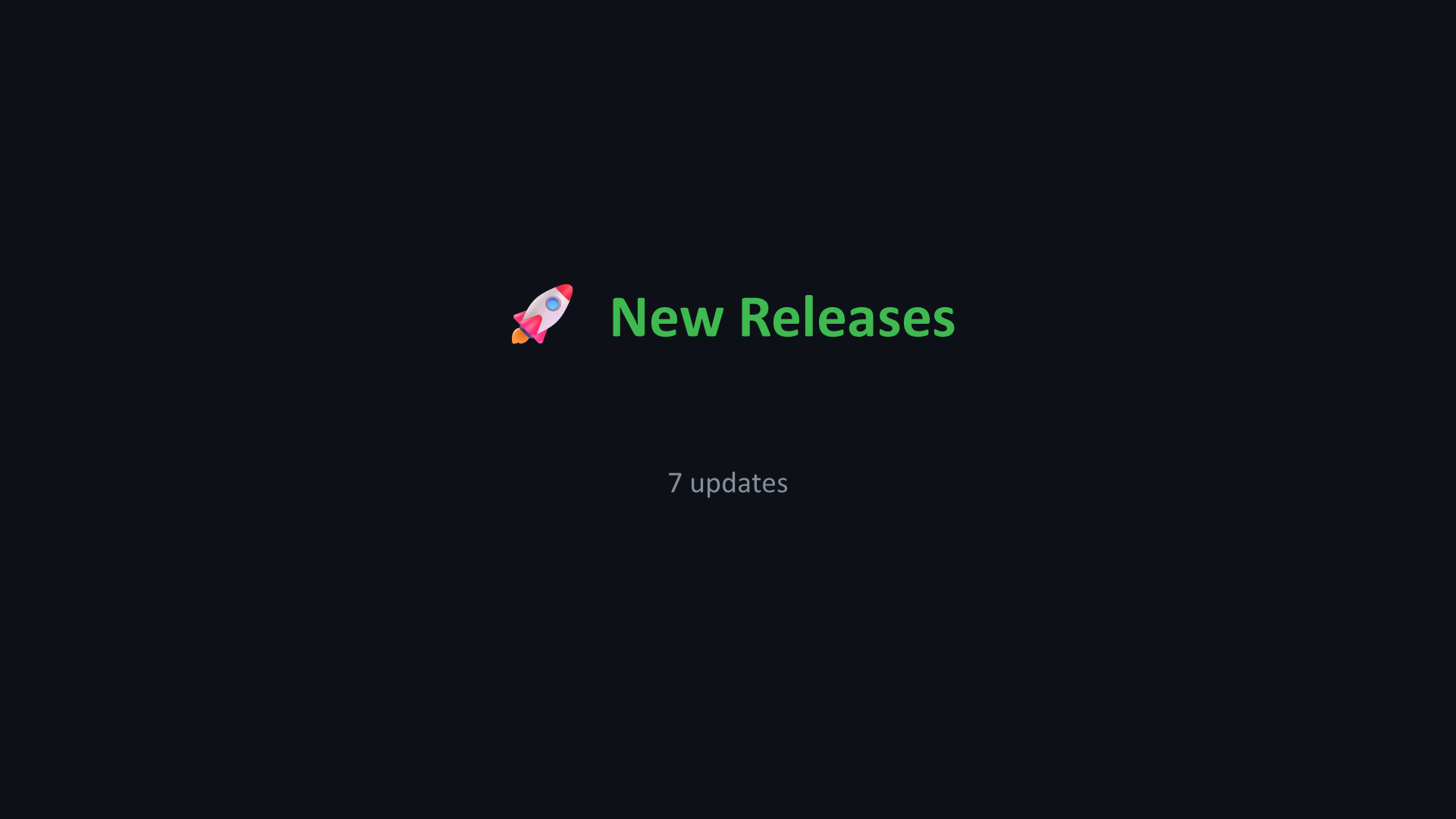
Category header with article count |
|
Article Hero 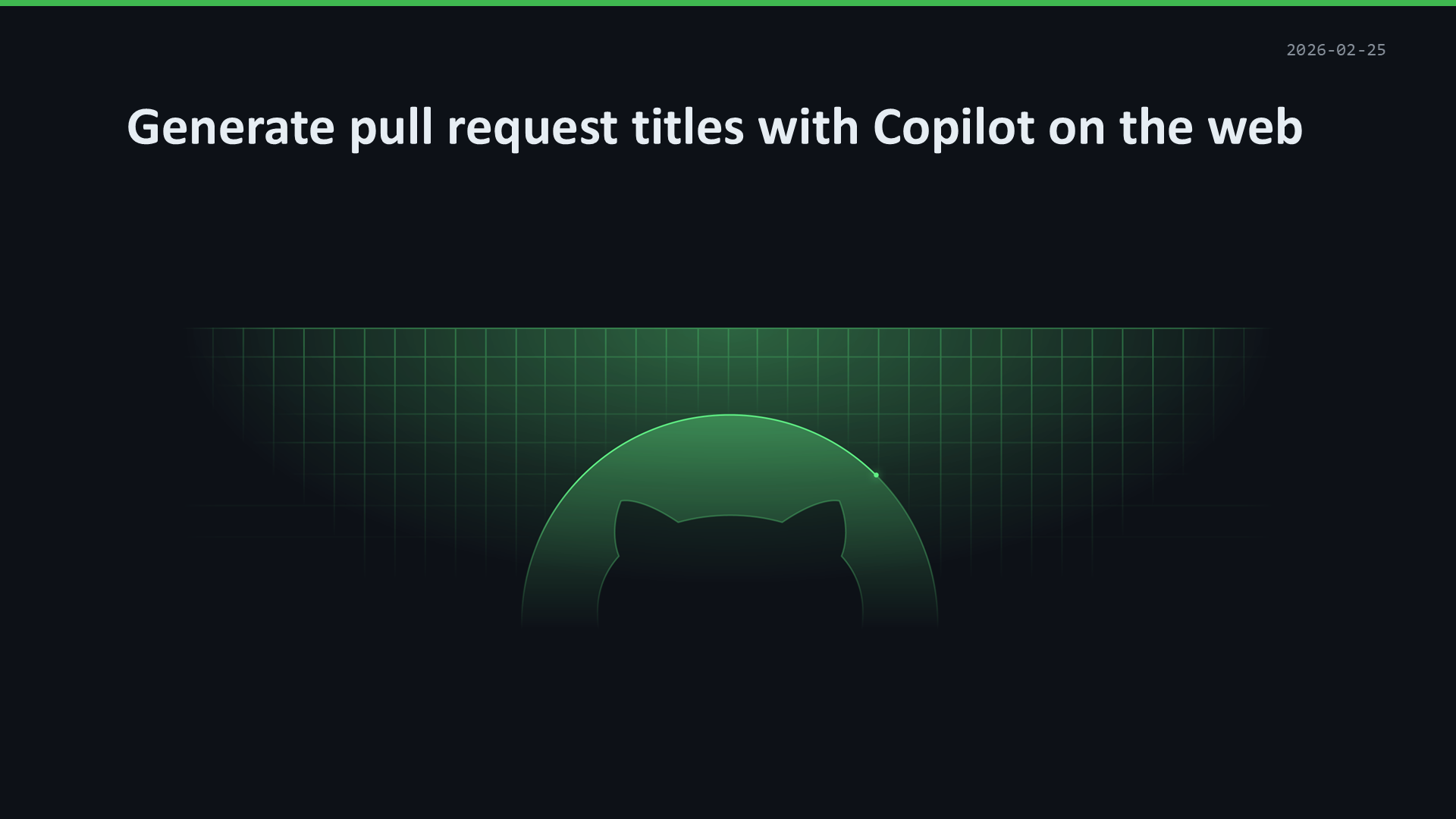
Article title with hero image and date |
Summary 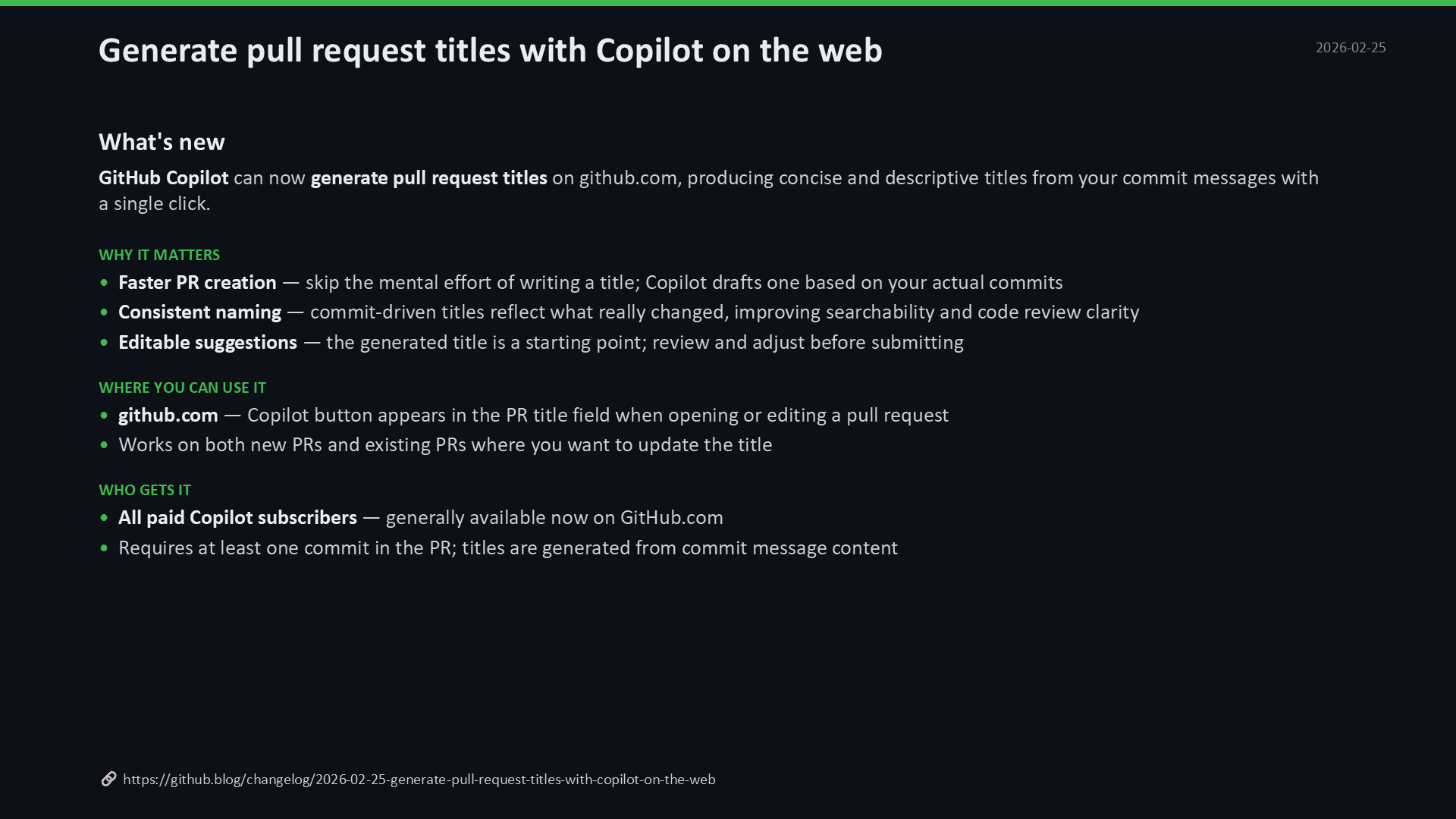
Structured content with source link & speaker notes |
[!TIP] Summaries and speaker notes can be generated in any language. Article titles and technical terms always stay in English.
🚀 Getting Started
Prerequisites
| Requirement | Notes |
|---|---|
| Python 3.11+ | Core runtime |
| VS Code + GitHub Copilot | Optional for chat-based usage |
Choose how you want to use the skill
You can use copilot-updates in two different ways:
Option 1 — Use it inside the cloned repository
Use this mode when you want to work directly in this repo.
- Clone the repository anywhere you like
- Open Copilot in this repository
- Run the pipeline from this repository root
In this mode, generated files are written inside this repo's working folder:
.\output\raw\.\output\{locale}\...- generated
.pptxfiles in the repo root
Option 2 — Use it from outside the repository
Use this mode when you want the skill available from any project folder.
- Keep one clone of this repo somewhere on disk
- Register that clone under your user skills folder
- Invoke the skill while working in another folder or project
In this mode, generated files are written to the folder where you invoke the skill, not to the repo that contains the skill:
C:\work\demo\output\raw\C:\work\demo\output\{locale}\...- generated
.pptxfiles inC:\work\demo\
Configure Option 2 — install as a global Copilot skill
# Clone to your user skills directory
git clone https://github.com/g-mercuri/copilot-updates ~/.copilot/skills/copilot-updates

# Or symlink an existing clone
ln -s /path/to/copilot-updates ~/.copilot/skills/copilot-updates
On Windows (PowerShell):
New-Item -ItemType SymbolicLink -Path "$env:USERPROFILE\.copilot\skills\copilot-updates" -Target "C:\path\to\copilot-updates"
Install Python dependencies
Run this once for the clone that contains the skill scripts:
cd scripts
uv sync
💡 Alternative: plain venv / pip
cd scripts
python -m venv .venv
.venv\Scripts\Activate.ps1   # Windows
source .venv/bin/activate    # macOS / Linux
pip install .
📖 Usage
Option A — Copilot Skill ✨ (recommended)
VS CodeIf you are using Option 1, open Copilot Chat in this repository and ask Copilot to use the If you are using Option 2, open Copilot in the project folder where you want the output to be created, and then invoke the skill there. |
Copilot CLIThis repository is a self-contained Copilot skill (
You can ask in natural language, or invoke it explicitly: |
In Copilot CLI, use /skills list to confirm the skill is available and /skills reload after editing skill files.
[!WARNING] Check which folder you are currently in before invoking the skill. The pipeline writes
output/raw/,output/{locale}/..., and the generated.pptxto your current working directory.Example: if you run Copilot from
C:\work\demo, the skill writes files underC:\work\demo\output\...and creates the presentation there.
You'll be prompted for:
| Input | Example | Description |
|---|---|---|
startDate |
2026-02-01 |
Start of the date range |
endDate |
2026-02-25 |
End of the date range |
labels |
copilot,actions or all |
Which changelog labels to include |
language |
italian, english, spanish |
Output language for summaries |
The skill orchestrates the full pipeline end-to-end:
Fetch → Prepare → Summarize → Validate → Index → PowerPoint
In practice, the important boundary is:
scripts/fetch_articles.py,scripts/process_articles.py, andscripts/create_pptx.pydo the deterministic work- the skill reads
output/batch.json, writes each processed article file underoutput/{locale}/..., and then resumes the scripted pipeline - before validation, every
target_fileinoutput/batch.jsonshould exist on disk
[!TIP] Re-running for the same date range is safe — both the scraper and the skill skip articles that already have output files.
Option B — Manual CLI
1️⃣ Fetch raw articles
python scripts/fetch_articles.py --labels copilot --from-date 2026-02-01 --to-date 2026-02-25
More examples & flags
# Multiple labels
python scripts/fetch_articles.py --labels copilot,actions,client-apps --from-date 2026-02-01 --to-date 2026-02-25

# All labels
python scripts/fetch_articles.py --labels all --from-date 2026-02-01 --to-date 2026-02-25
| Flag | Default | Description |
|---|---|---|
--labels, -L |
copilot |
Comma-separated label slugs, or all |
--from-date |
required | Start date (YYYY-MM-DD) |
--to-date |
required | End date (YYYY-MM-DD) |
--output-dir, -d |
output/ |
Output directory |
2️⃣ Process articles
python scripts/process_articles.py --prepare --locale en \
  --from-date 2026-02-01 --to-date 2026-02-25
Between
--prepareand--validate, run the Copilot skill (or write summaries manually) to generate the structured article files.
Then verify that every target_file listed in output/batch.json exists, and continue:
python scripts/process_articles.py --validate --locale en
python scripts/process_articles.py --index --locale en
[!TIP]
--prepareonly buildsoutput/batch.json. It does not generate translated summaries by itself.
[!TIP] If you write summaries manually, assemble the full file: front matter,
#title, optional,---, then the structured body. Validation may pass even if a file is missing from the expected date range, so it is worth checking the batch manifest before generating the deck.
Flags
Questions
What is copilot-updates?
devartifex/copilot-updates is a public repo on GitHub by devartifex. Fetch GitHub changelog articles for any label and generate dark-themed PowerPoint presentations, powered by a Copilot skill and Python pipeline.
Is copilot-updates open source?
It declares the MIT license on GitHub.
Does copilot-updates run on macOS, Windows or Linux?
Its maker has not tagged a system, so it is unknown here. Its README says what it needs.
How do I install copilot-updates?
Open "Take it" on its page: Take My Repo writes an install plan for your machine and hands it to your AI agent (Claude Code, Codex or Cursor), which asks you before each step. Take My Repo has not tested it on any machine.