tauri
Build smaller, faster, and more secure desktop and mobile applications with a web frontend.
- 113k
- Rust
- Apache-2.0
- 2 h ago
Awoo Installer and GoldLeaf uploader of the NSPs (and other files), RCM payload injector, application for split/merge files.
Repo developersu/ns-usbloader, read from GitHub 2 d ago. developersu has not joined Take My Repo.
developersu/ns-usbloader is a public repo on GitHub by developersu. Awoo Installer and GoldLeaf uploader of the NSPs (and other files), RCM payload injector, application for split/merge files. It declares the GPL-3.0 license on GitHub. It is written mainly in Java, has 2,368 stars and last changed on 2026-11-10. Nobody has reviewed it on Take My Repo yet, which says nothing about its quality. Read from GitHub on 2026-11-22.
NS-USBloader is:
Click here for Android version ;)
With a GUI and cookies. Works on Windows, macOS and Linux.
Sometimes I add new posts about this project on my blog page.
GNU General Public License version 3, or (at your option) any later version.
Perfect algorithms and great examples from the mrdude2478/IPS_Patch_Creator
French by Stephane Meden (JackFromNice)
Italian by unbranched
Korean by DDinghoya
Portuguese by almircanella
Spanish by /u/cokimaya007, Kuziel Alejandro
Chinese (Simplified) by Huang YunKun (htynkn), FFT9 (XXgame Group)
Chinese (Traditional) by qazrfv1234, FFT9 (XXgame Group)
German by Swarsele
Vietnamese by Hai Phan Nguyen (pnghai)
Czech by Spenaat
Arabic by eslamabdel
Romanian by Călin Ilie
Swedish by Daniel Nylander
Japanese by kuragehime
Ryukyuan languages by kuragehime
Turkish language by Erimsaholut, batuhanmeral
Serbian (Latin) translation BlytheScythe
Catalan translation segured928
Angelo Elias Dalzotto makes packages in AUR
Phoenix[Msc] provides his shiny Mac M1 for debugging
brew install libusb| Goldleaf version | NS-USBloader version |
|---|---|
| v0.5 | v0.4 - v0.5.2, v0.8+ |
| v0.6 | none |
| v0.6.1 | v0.6 |
| v0.7 - 0.7.3 | v0.7+ |
| v0.8 - 0.9 | v1.0+ |
| v0.10 - 1.0.0 | v6.0+ |
| v1.1.0 - 1.1.1 | none |
| v1.2.0+ | v6.0+ |
where '+' means 'any subsequent/later NS-USBloader version'.
Awoo Installer uses the same command-set (or 'protocol') as Adubbz/Tinfoil.
A lot of other forks/apps use the same command-set. To stop speculating about the name, it's now called 'Awoo' (was 'Tinfoil')
Install JRE/JDK 23 or higher (openJDK for instance). JavaFX is not needed since it's embedded.
root # java -jar /path/to/NS-USBloader.jar
Optional: add user to the 'udev' rules so NS-USBloader can be run without root.
root # vim /etc/udev/rules.d/99-NS.rules
SUBSYSTEM=="usb", ATTRS{idVendor}=="057e", ATTRS{idProduct}=="3000", MODE="0666"
root # udevadm control --reload-rules && udevadm trigger
root # vim /etc/udev/rules.d/99-NS-RCM.rules
SUBSYSTEM=="usb", ATTRS{idVendor}=="0955", ATTRS{idProduct}=="7321", MODE="0666"
root # udevadm control --reload-rules && udevadm trigger
java -Dglass.gtk.uiScale=150% -jar application.jarsudo apt install default-jdksudo apt install openjfxDownload the -mac+linux-aarch64.jar build.
Manually install libusb with Homebrew by running brew install libusb in your Terminal.
The first thing you should do is install Awoo (Huntereb) or Goldleaf (XorTroll) on your NS.
Take a look at the app, find the option to install from USB and/or Network. Maybe this (very old) article about Tinfoil will be helpful.
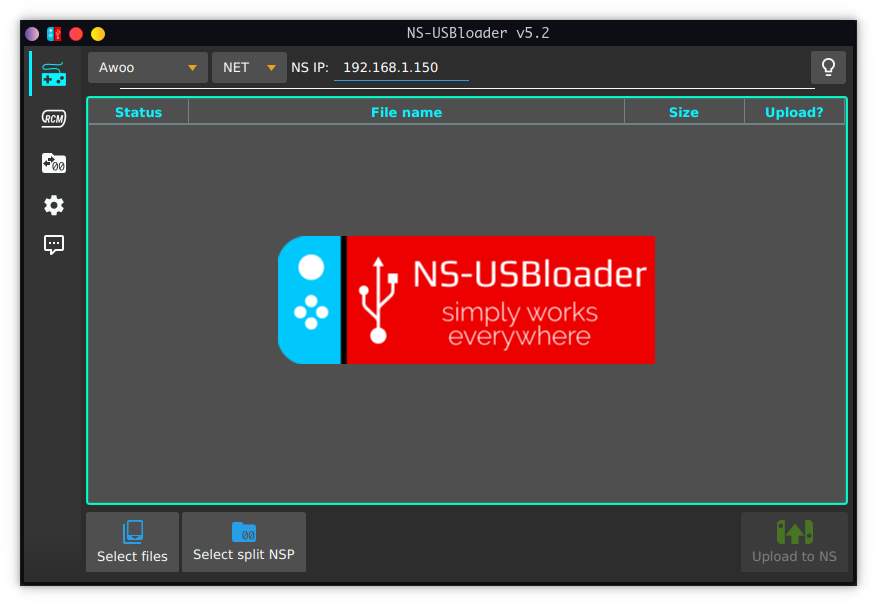
There are three tabs. The first one is the main one.
At the top, you select the application and protocol from a drop-down menu. For Goldleaf, only USB is available. The lamp icon switches between light and dark themes.
You can drag and drop files (split files, i.e. folders) into the application, or use the "Select NSP files" button. Multiple selection is available. Click the button again and select files from another folder if you want to add more — they will be added to the table.
In the table, you can check the boxes for the files you want to send to the application (Awoo or Goldleaf). You can also use the space bar to select/unselect files, and the Delete button to remove them. Right-clicking opens a context menu where you can delete a single item or all items.
For Goldleaf v0.6.1 and NS-USBloader v0.6 (and higher) you will have to use 'Explore content' -> 'Remote PC (via USB)'. You will see two drives HOME:/ and VIRT:/. The first drive points to your home directory. The second one is a reflection of what you've added to the table (first application tab). Also, the VIRT:/ drive has limited functionality in comparison to HOME:/. E.g., you can't write files to this drive since it's not a drive. But don't worry, it won't have any impact on Goldleaf or your NS if you try.
Also, to write files with Goldleaf (from NS to PC): You have to 'Stop execution' properly before accessing files transferred from GL. Usually you have to wait 5 seconds or less. It will guarantee that your files are properly written to the PC.
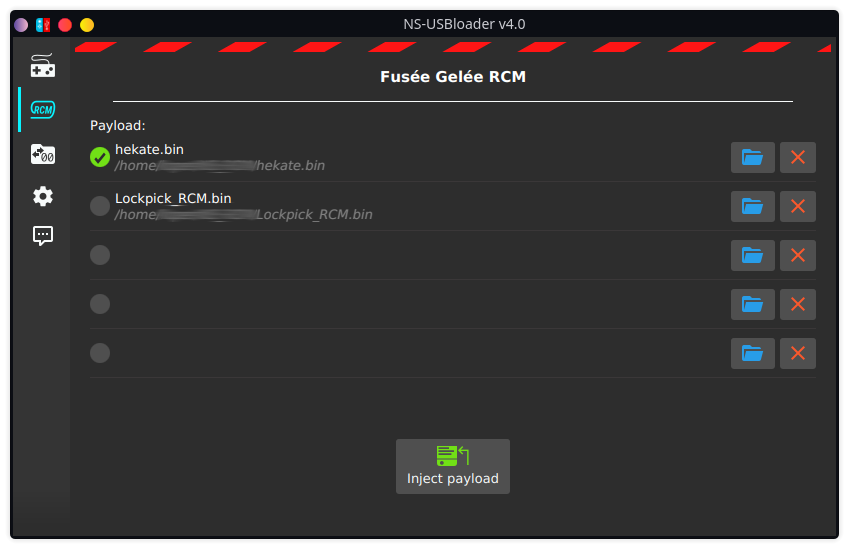
On this tab you can select a payload, like Hekate or LockPick_RCM and send it to the NS. Drag-n-drop is supported. Also, some in-app validations of the payload take place ;)
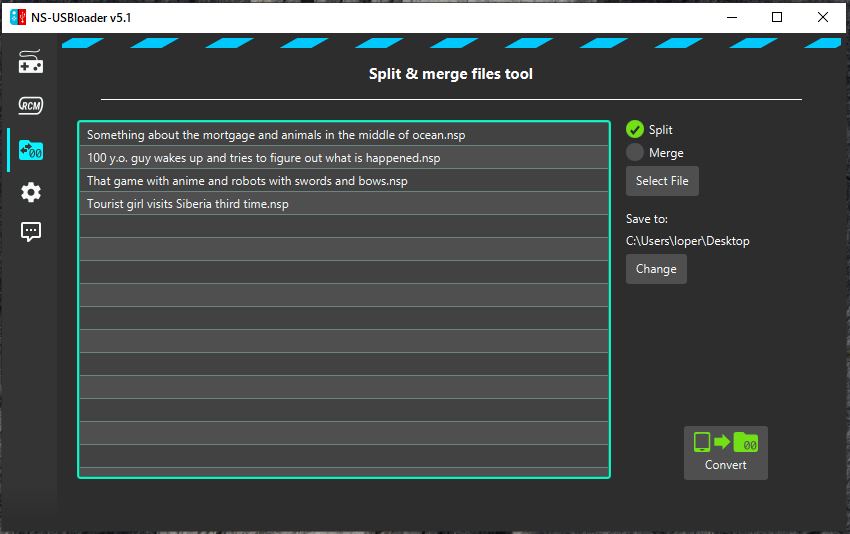
On this tab you can split and merge files. Select 'Split' or 'Merge' and split/merge. BTW, Drag-n-drop is supported (except for the Windows .exe)
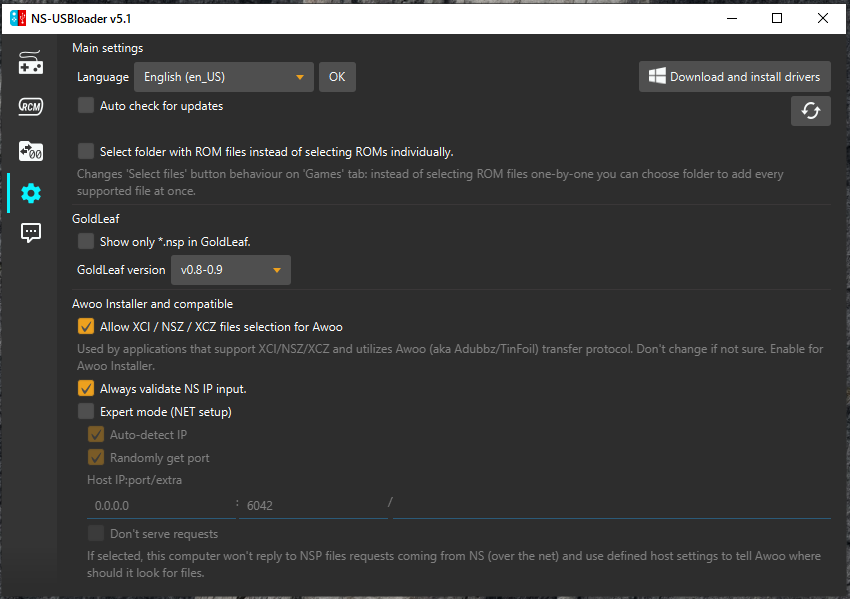
Here you can configure settings for network file transmission. Usually you shouldn't change anything. But if you're a cool hacker, go ahead! The most interesting option here is 'Don't serve requests'. The architecture of the Awoo's NET part works in an interesting way. When you select Awoo network transfer, the application will wait on port 2000 for information about where it should take files from. Like '192.168.1.5:6060/my file.nsp'. Usually NS-USBloader serves requests by implementing a simplified HTTP server, bringing it up, and so on. But if this option is selected, you can define the path to the remote location of the files. For example, if you set '192.168.4.2:80/ROMS/NS/' in settings and add the file 'my file.nsp' to the table then NS-USBloader will simply tell Awoo "Hey, go take files from '192.168.4.2:80/ROMS/NS/my%20file.nsp' ". Of course, you have to bring up the '192.168.4.2' host and make the file accessible from such address (just go install nginx).
Also, here you can:
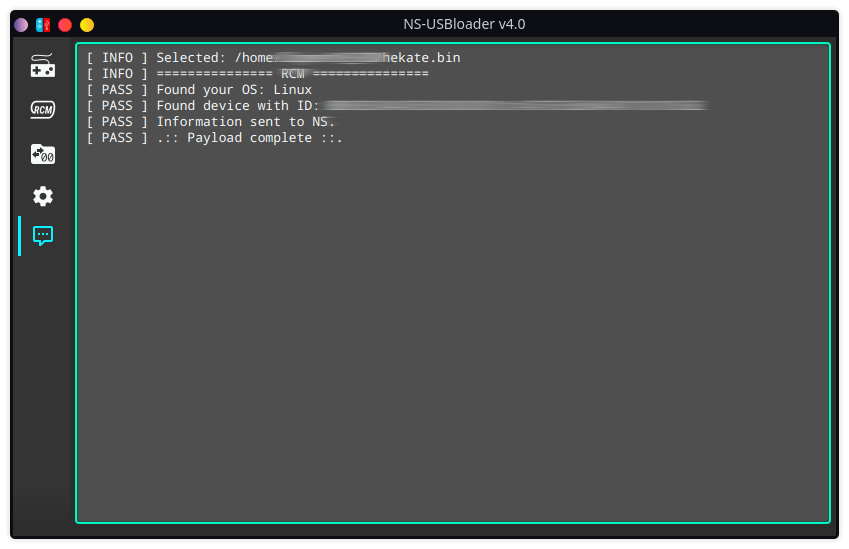
That's where all logs are dropped. Verbose information about transmissions comes here.
To get help, run $ java -jar ns-usbloader-4.0.jar --help
 -c,--clean                      Remove/reset settings and exit
 -g,--Goldleaf <...>             Install via Goldleaf mode. Check '-g help' for information.
 -h,--help                       Show this help
 -m,--merge <...>                Merge files. Check '-m help' for information.
 -n,--tfn <...>                  Install via Awoo Network mode. Check '-n help' for information.
 -r,--rcm <[PATH/]payload.bin>   Send payload
 -s,--split <...>                Split files. Check '-s help' for information.
 -t,--tinfoil <FILE...>          Install via Awoo USB mode.
 -v,--version                    Show application version
For help with more complex commands, use the help argument after the first key. For example:
developersu/ns-usbloader is a public repo on GitHub by developersu. Awoo Installer and GoldLeaf uploader of the NSPs (and other files), RCM payload injector, application for split/merge files.
It declares the GPL-3.0 license on GitHub.
Its maker tagged it for macOS, Windows and Linux, or as Docker or cross-platform. That is declared by the maker; Take My Repo has not tested it.
Dear ImGui: Bloat-free Graphical User interface for C++ with minimal dependencies
Nintendo Switch library manager, with automated management tasks, serving your library to multiple supported clients on your Switch, with shop customization and multi user authentication.
Open "Take it" on its page: Take My Repo writes an install plan for your machine and hands it to your AI agent (Claude Code, Codex or Cursor), which asks you before each step. Take My Repo has not tested it on any machine.
Its last change on GitHub was on 2026-11-10. GitHub counts 49 open issues and pull requests. Take My Repo does not judge from that whether it is maintained.
Nobody has reviewed it on Take My Repo yet, which says nothing about its quality.
Take My Repo cannot say: it does not audit code and has not run ns-usbloader. What is known comes from GitHub. It declares the GPL-3.0 license on GitHub. Its last change was on 2026-11-10. It has 2,368 stars, which measure popularity, not safety. Nobody has reviewed it on Take My Repo yet, which says nothing about its quality. Read the source before you run it. With "Take it", your AI agent shows each step and asks you before running it; README text is treated as data, not as instructions.