
directgate
Secure browser-based remote access with ultra-low-latency remote desktop over end-to-end encrypted peer-to-peer connections. No VPN, no port forwarding, no static IP.
- 26
- GPL-3.0
- 3 h ago
Repo directgate/directgate, read from GitHub 2 h ago. directgate has not joined Take My Repo.
In short
directgate/directgate is a public repo on GitHub by directgate. Secure browser-based remote access with ultra-low-latency remote desktop over end-to-end encrypted peer-to-peer connections. No VPN, no port forwarding, no static IP. It declares the GPL-3.0 license on GitHub. It is written mainly in C, has 26 stars and last changed on 2026-11-24. Nobody has reviewed it on Take My Repo yet, which says nothing about its quality. Read from GitHub on 2026-11-24.
Similar repos
ente
💚 End-to-end encrypted cloud for everything.


DirectGate
Your devices. Accessible everywhere. Exposed nowhere.
DirectGate gives you the ultra-low-latency remote desktop, full terminal and file manager experience, and code editor on your own machines from any browser - over connections that are end-to-end encrypted and, whenever possible, peer-to-peer. Nothing listens on the public internet. No static IP required, no VPN to run and no port to forward.
This repository is the agent: the program you install on a machine you want to reach. It is the only part of DirectGate that runs on your hardware and touches your shell, so it is open source. You can read every line, audit the cryptography, and build it yourself to confirm that the binary you run is exactly this code.
What it does:
- Ultra-low-latency remote desktop over WebRTC, with P2P when possible and TURN fallback
- Works behind NAT - no port forwarding, no firewall changes, no static IP
- End-to-end encrypted (AES-256-SIV) at the application layer, independent of transport
- Peer-to-peer over WebRTC whenever possible; the relay never sees plaintext
- Terminal, file manager, and a browser-based code editor over a single connection
- Full file manager experience with upload/download, rename, copy, move, and delete
- Advanced file search, image/video playback, and drag-and-drop between devices
- Multiple concurrent sessions multiplexed over one link
Screenshots
These are the experiences the agent powers once it is paired with your account.
https://github.com/user-attachments/assets/50337ba3-db01-4299-9d25-035b21ffeb5b
Ultra-low-latency remote desktop, responsive enough to play story-driven games directly in your browser.
https://github.com/user-attachments/assets/e0ac308f-fe0f-4628-bcfc-edd889b087b1
A customizable window manager with multiple sessions in one workspace tab. Terminals, file managers, and code editors - each showing its own transport mode (P2P, TURN, or relayed) and end-to-end encryption status.
|
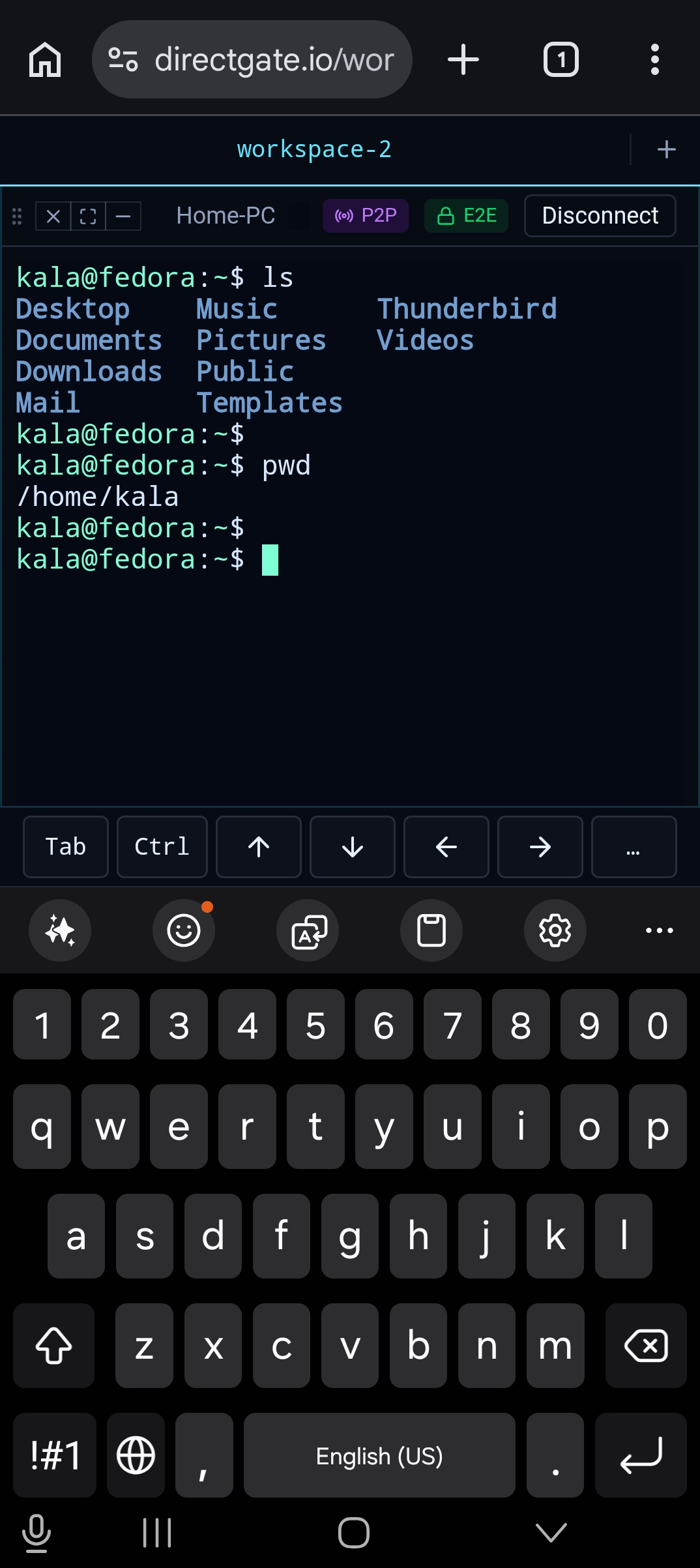
Mobile terminal - a full PTY session in the phone browser, with P2P and E2E badges. |
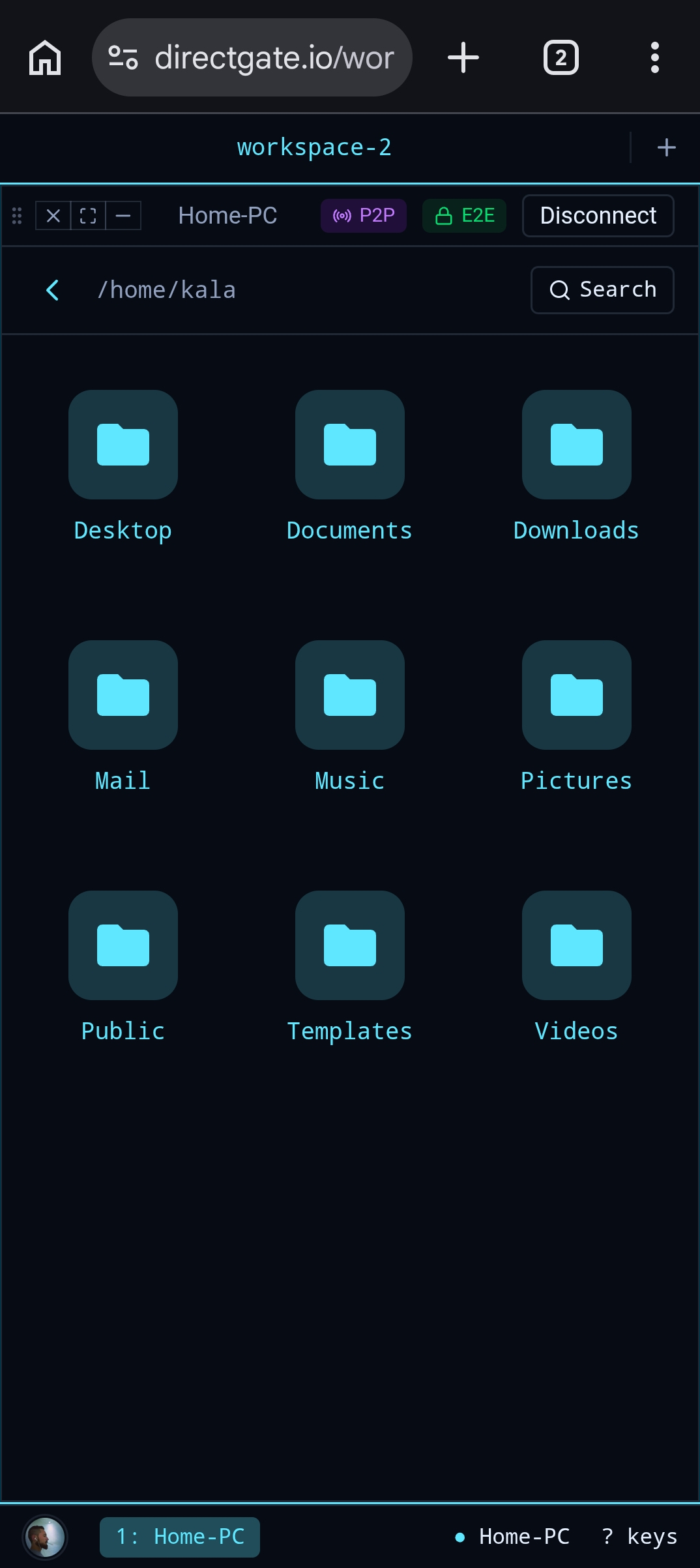
Mobile file manager - browse and manage remote files from your phone. |
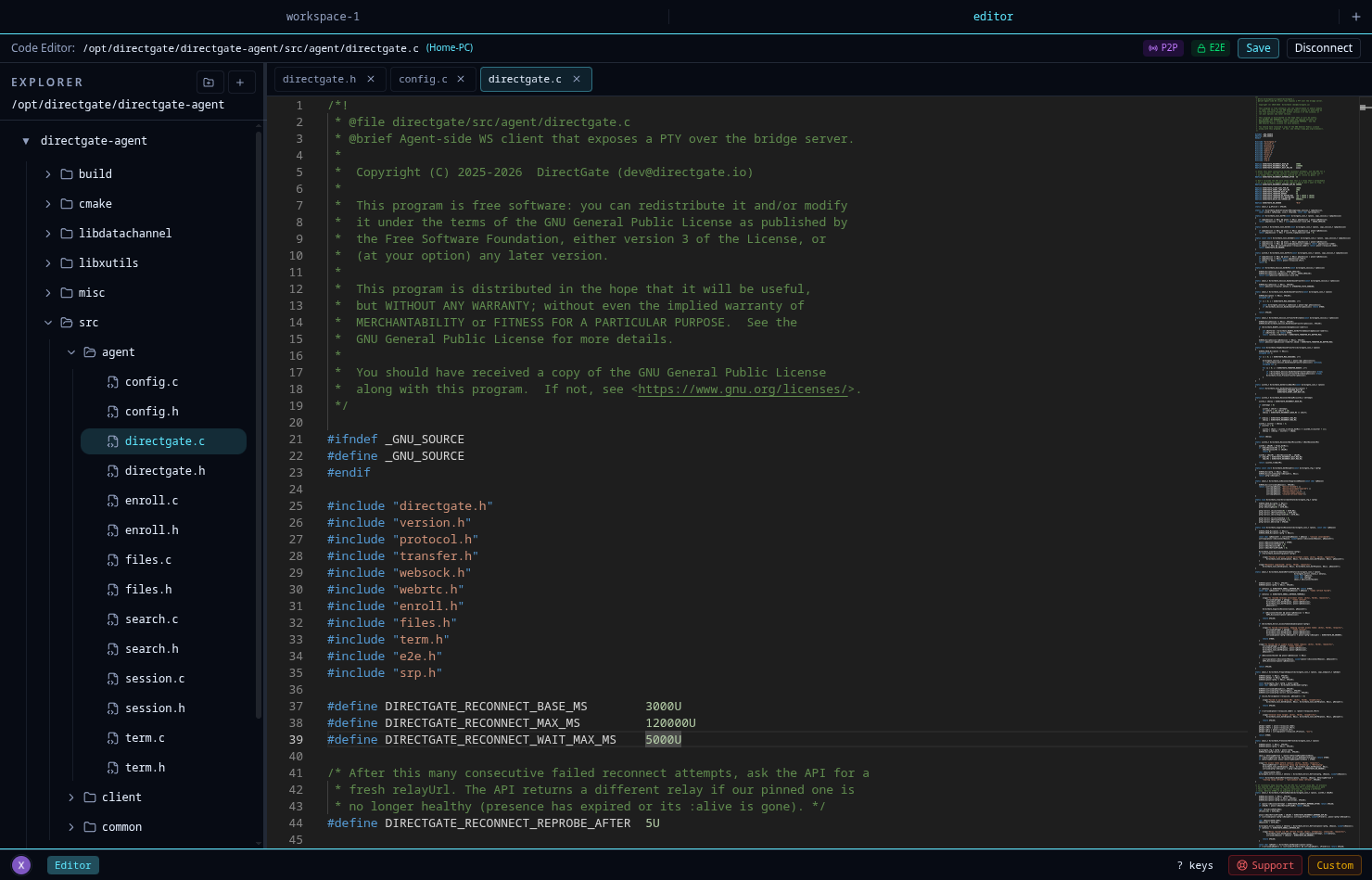
Code editor - edit files on the remote machine directly from the browser. |
Quick start
Install the agent - see Installation.
Sign in at directgate.io, add a device, and run the pairing command it shows you on the machine where the agent is installed:
directgate -sed <device_id> -t <pairing_token>Restart the agent service (see Pairing) and connect to the device from your browser.
How it works
DirectGate has three pieces; only the agent lives in this repository:
- Agent (this repo) - runs on your machine: authenticates the client, spawns a PTY, serves the remote desktop, file manager, and encrypts all traffic end-to-end.
- Relay / signaling - operated by directgate.io. Pairs agents and clients, carries signaling, and forwards encrypted payloads when a direct link isn't possible. It never sees plaintext.
- Client - the web client at directgate.io, or the
dgcliterminal client in this repo.dgcli loginsigns in through your browser, and runningdgclion its own lists your devices and connects to the one you pick.dgcli -ggenerates an Ed25519 key so connections authenticate without typing the device password.dgcli exec,cp,ls,rm,mkdirandmvdo one thing and exit, the waysshandscpdo (dgcli cp ./a.tar homelab:/tmp/), anddgcli mcpoffers them to AI agents as MCP tools. See Configuration.
After authentication, the client and agent negotiate a WebRTC peer-to-peer data channel. Once it opens, terminal I/O and file transfers flow directly between the two peers, bypassing the relay:
+--------------+              +-----------------+              +--------------+
|   DG agent   | <-- WSS -->  |  directgate.io  |  <-- WSS --> |    Client    |
|    (PTY)     |              |   (signaling)   |              | (web / CLI)  |
+--------------+              +-----------------+              +--------------+
       ^                                                              ^
       |               WebRTC Data Channel (direct P2P)               |
       +--------------------------------------------------------------+
         (DTLS transport + AES-256-SIV application-layer encryption)
If a direct path can't be established, the connection degrades gracefully - TURN, then the WebSocket relay - and stays end-to-end encrypted throughout. The client always shows which path is active.
See Architecture and WebRTC P2P & connectivity for details.
Security
The agent is the component that runs on your machine, so its cryptography is exactly what you can audit here.
- TLS (WSS) on every signaling connection
- DTLS on the WebRTC data channel
- End-to-end encryption with AES-256-SIV at the application layer - keys derived from the SRP session key via HKDF-SHA256, separate per direction, with per-packet nonces and a monotonic replay counter
- Remote desktop video is end-to-end encrypted with DTLS-SRTP on the WebRTC media channel rather than AES-SIV. Its DTLS fingerprints are exchanged inside the AES-SIV-protected signaling channel, so the relay can neither substitute them nor decrypt the stream. If the media channel is unavailable, video falls back to H.264 over the AES-SIV data channel. Desktop control and input messages are always AES-SIV encrypted
- Remote desktop capabilities - a desktop session captures the selected display and injects the mouse and keyboard events the client sends. This is what remote desktop is; it cannot work without them. Both are available only to a client that has completed SRP or Ed25519 authentication, and all of it travels encrypted. The agent shows no local on-screen indicator while a desktop session is live, so grant desktop access on the same basis as shell access - anyone who can authenticate can already run commands as
shell.user. On macOS, the OS additionally enforces Screen Recording and Accessibility permissions - SRP-6a authentication - the password is never transmitted in any form
- Optional Ed25519 key authorization in addition to SRP
The relay can never read terminal, file, editor, desktop, or signaling payloads. It does necessarily see routing metadata - device ID, source IPs, connection timing, and traffic volume - which is inherent to any relay.
See Security model for the full design and trust assumptions, and directgate.io/security for the threat model and FAQ.
Supported platforms
The agent is officially supported on Windows, macOS and Linux, with remote desktop on both Xorg and Wayland - from an x64 workstation to a Raspberry Pi.
| Supported | |
|---|---|
| Operating systems | Windows macOS Linux |
| CPU architectures | x86 x64 ARM64 ARMHF |
| Display servers | X11 / Xorg Wayland |
| Wayland compositors | KWin Mutter wlroots labwc Wayfire Sway |
| Screen capture | X11 XDG portals PipeWire |
| Linux packages | Debian-based (apt) RPM-based (dnf) |
| Any other Linux distribution | Build from source |
On Linux the agent picks the capture and input path from the session it runs in, not from what happens to be installed:
- Xorg - XShm capture and XTest input.
- KDE Plasma (KWin) and GNOME (Mutter) - the XDG desktop portal's screen cast over PipeWire, with input through the RemoteDesktop portal. The first connection asks for permission on the remote machine; the grant is remembered after that.
- wlroots compositors - labwc (Raspberry Pi OS), Wayfire and Sway - the compositor's own screencopy with a virtual keyboard and pointer, since their portal has no RemoteDesktop.
All three feed the same H.264 pipeline, with the same GPU encoder probe. See Linux desktop sessions for requirements and the differences between them.
Installation
The easiest way to install the agent is from the official DirectGate package repositories. Once added, the agent stays up to date through your normal system updates. The debugsource packages are published for every release, so you can rebuild from source and compare against the distributed binaries.
Debian / Ubuntu / Raspbian (apt)
# Add the DirectGate signing key
curl -fsSL https://pkg.directgate.io/keys/directgate.asc \
  | sudo gpg --dearmor -o /usr/share/keyrings/directgate.gpg

# Add the DirectGate repository
echo "deb [signed-by=/usr/share/keyrings/directgate.gpg] https://pkg.directgate.io/apt stable main" \
  | sudo tee /etc/apt/sources.list.d/directgate.list

# Install
sudo apt update
sudo apt install directgate
Fedora / RHEL / Alma / Rocky (dnf)
# Add the DirectGate signing key
sudo rpm --import https://pkg.directgate.io/keys/directgate.asc

# Add the DirectGate repository
sudo tee /etc/yum.repos.d/directgate.repo >/dev/null <<'EOF'
[directgate]
name=DirectGate
baseurl=https://pkg.directgate.io/rpm/el/8/$basearch
enabled=1
gpgcheck=1
repo_gpgcheck=0
gpgkey=https://pkg.directgate.io/keys/directgate.asc
EOF

# Install
sudo dnf install directgate
macOS (Homebrew)
brew tap directgate/directgate
brew trust directgate/directgate
brew install directgate
Windows
Download the latest Windows installer from the official install page.
The Windows installer registers one auto-start service, directgate-agent. That service runs only a small LocalSystem launcher; the actual DirectGate agent is started in the configured logged-on user's session. Remote access is not available until the device is explicitly paired and the client authenticates.
From source
If your platform isn't listed above, or you want to build and audit the agent yourself, see Building from source. The short version:
git clone --recurse-submodules https://github.com/directgate/directgate.git
cd directgate-agent
cmake -B build && cmake --build build -j
sudo make -C build install
Pairing with your account
After installing the agent, pair it with your directgate.io account so it shows up in your workspace:
Sign in at directgate.io and add a new device. The web client generates a ready-to-run pairing command - copy it and run it on the machine where the agent is installed:
directgate -sed <device_id> -t <pairing_token>This initializes the SRP verifier (
-s), enrolls the device (-e), sets the device ID (-d), and supplies the pairing token (-t). The agent contacts the API, enrolls, and stores its access/refresh tokens, routing key, relay URL, and any account-configured STUN/TURN servers in its config. Tokens and the ICE server list refresh automatically on subsequent runs.Restart the agent service so it picks up the new configuration:
sudo systemctl restart directgate-agent   # Linux (systemd)
brew services restart directgate          # macOS (Homebrew)
The device now appears in your workspace and you can connect to it from the web client. You can re-run the pairing command at any time to re-pair, rotate the agent identity keypair with directgate -r, or change the SRP password with directgate -s.
See Configuration & running for the full config reference and command-line options.
Documentation
| Topic | Description |
|---|
Questions
What is directgate?
directgate/directgate is a public repo on GitHub by directgate. Secure browser-based remote access with ultra-low-latency remote desktop over end-to-end encrypted peer-to-peer connections. No VPN, no port forwarding, no static IP.
Is directgate open source?
It declares the GPL-3.0 license on GitHub.
Does directgate run on macOS, Windows or Linux?
Its maker has not tagged a system, so it is unknown here. Its README says what it needs.
How do I install directgate?
Open "Take it" on its page: Take My Repo writes an install plan for your machine and hands it to your AI agent (Claude Code, Codex or Cursor), which asks you before each step. Take My Repo has not tested it on any machine.




