
rea
Reverse engineer anything with agents, from app behavior down to native binaries.
- 477k
- TypeScript
- MIT
- 1 h ago
Remove EXIF data from photos & videos to protect privacy when sharing online.
Repo doubleangels/redact, read from GitHub 43 min ago. doubleangels has not joined Take My Repo.
doubleangels/redact is a public repo on GitHub by doubleangels. Remove EXIF data from photos & videos to protect privacy when sharing online. It declares the GPL-3.0 license on GitHub. It is written mainly in Java, has 8 stars and last changed on 2026-11-23. Nobody has reviewed it on Take My Repo yet, which says nothing about its quality. Read from GitHub on 2026-11-25.
Privacy & metadata remover for Android.
Strip the hidden location, device and time details from your photos and videos, check exactly what a file reveals before you share it, and convert formats, all on your phone.
Using Redact? It's made by one person, with no ads and no marketing budget.
A short review on Google Play, saying what you use it for, is the biggest help there is: it's how other people find it.
Using Redact
Building and contributing
Every photo and video your phone takes carries a hidden label called metadata. Depending on your settings, that label can include:
Most apps and websites do not show you this, but anyone who receives the original file can read it. Redact removes it, lets you inspect what a file contains before you send it, and converts between formats, without your files ever leaving your device.
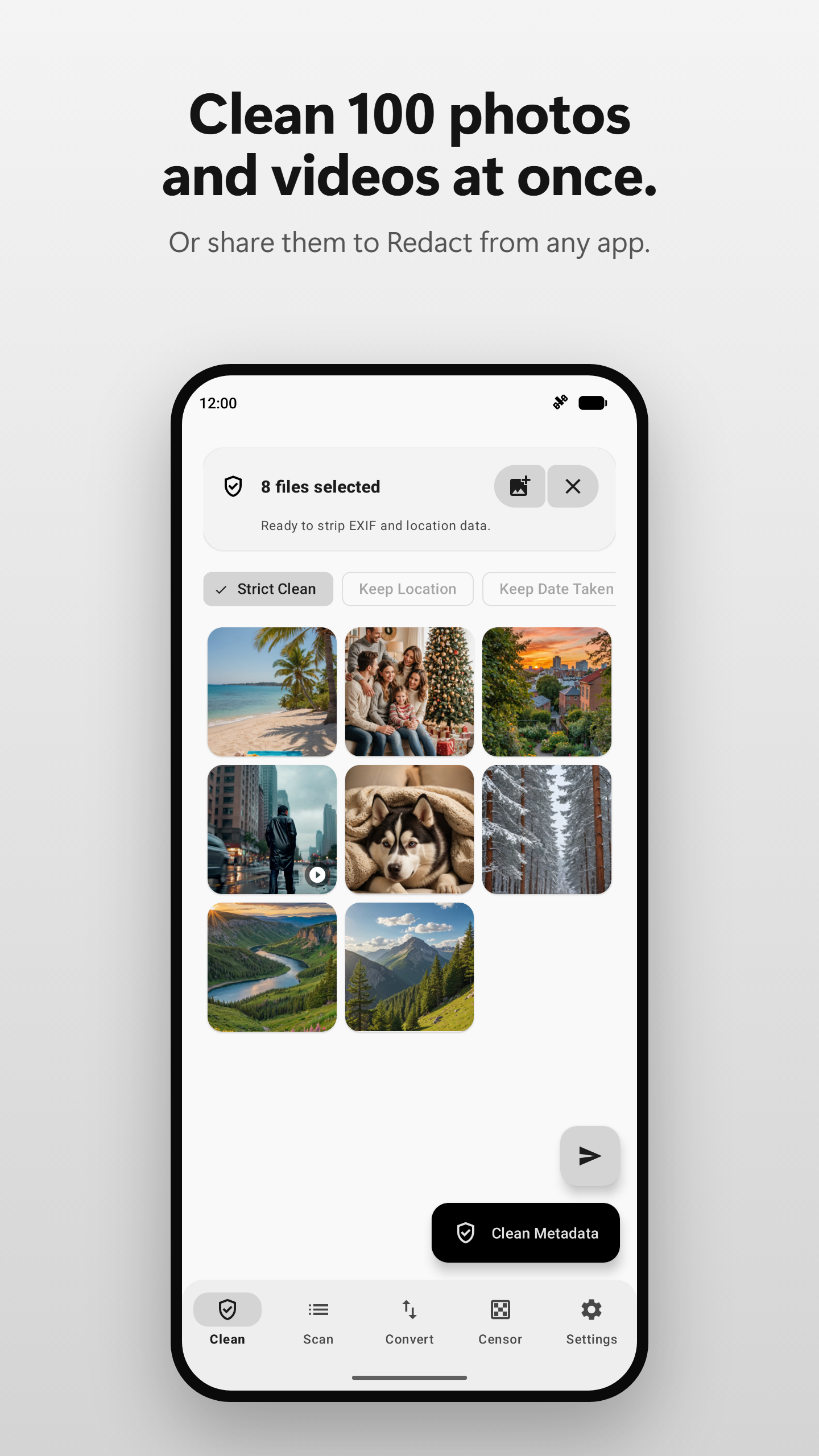
Short version: pick a photo or video, tap Clean Metadata, and share the clean copy that Redact saves to your gallery.
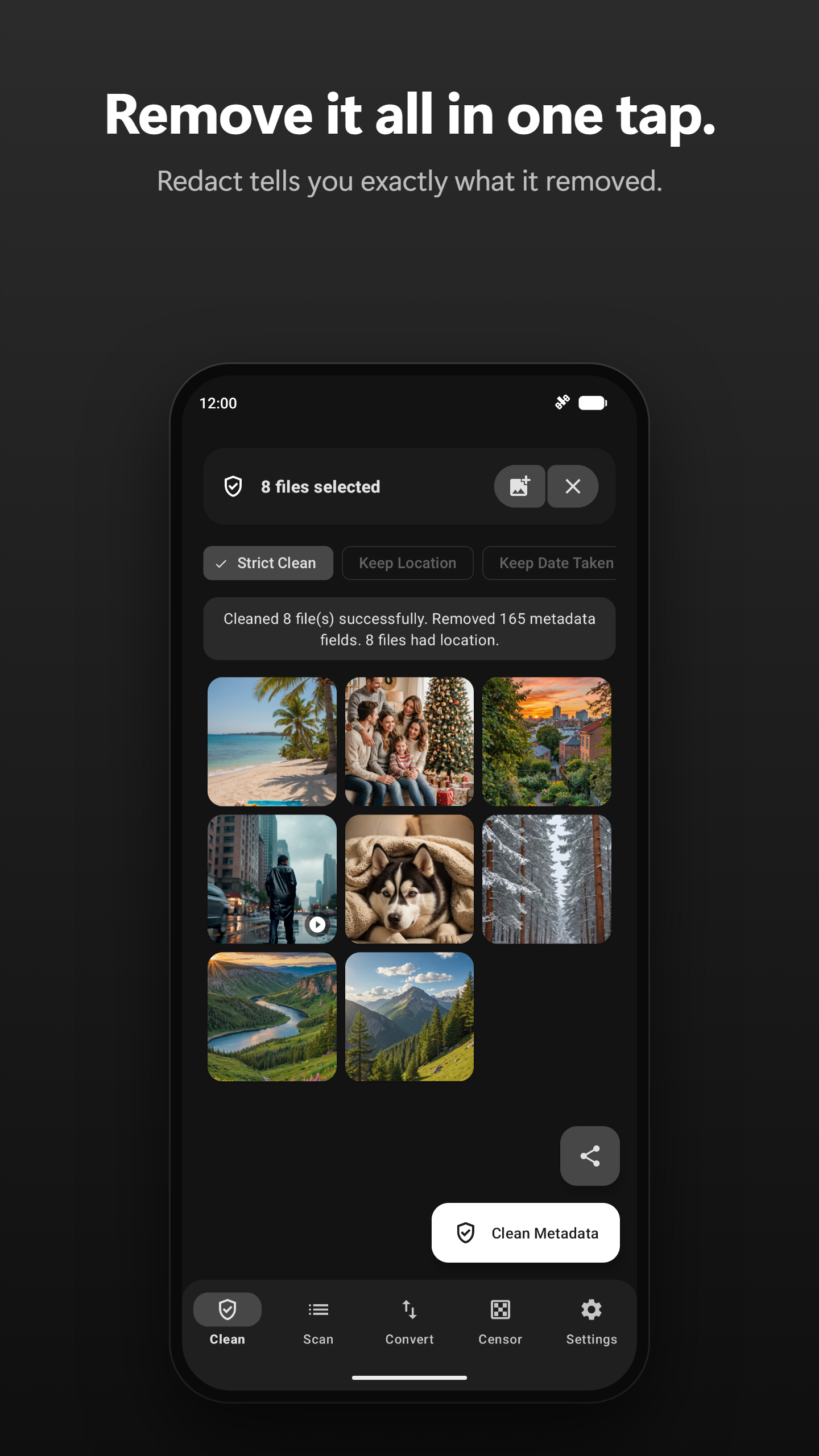
| Clean | Removes the location, device details, dates and other hidden information from photos and videos, including extra preview images and the short video inside a Motion Photo (or, with Keep Motion Photos, just that video's own hidden information). Strict Clean gives the most thorough clean, and Faster Video Cleaning speeds up videos that allow it. When a clean finishes, Redact tells you what it removed, and a Share button sends the clean copies on. |
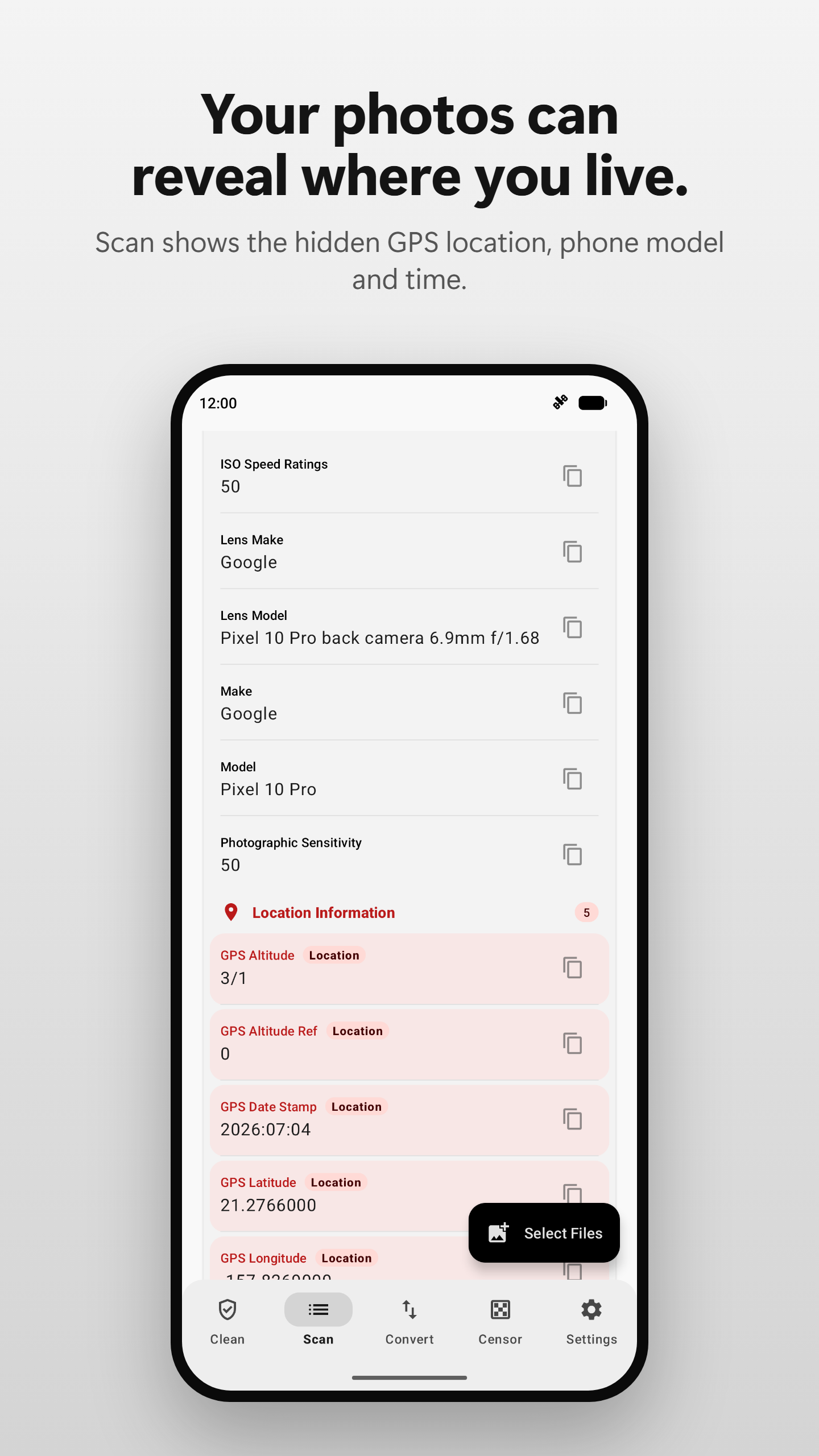
| Scan | Shows a file's metadata in an organized, readable list before you decide what to do. Rows that reveal where a file was taken carry a Location badge. Search the list, copy values, share the whole list as text, send the file to Clean or Convert, or open the location in your maps app. Pick several files to see at a glance how many have a location, a date, a phone's name or a person's name. |
| Censor | Pixelate, black out or blur faces, number plates, addresses and anything else in a photo with a rectangle or brush, and crop away what shouldn't be in it at all, with undo, redo and pinch-zoom. The censored copy is saved without metadata, and the original stays as it is. |
| Statistics | Your Privacy Stats at the top of Settings, and the Statistics screen it opens, show how many metadata fields and locations Redact has removed, which kinds of personal details your files carried, and your activity over the last 30 days. Counted only on your device and never sent anywhere. |
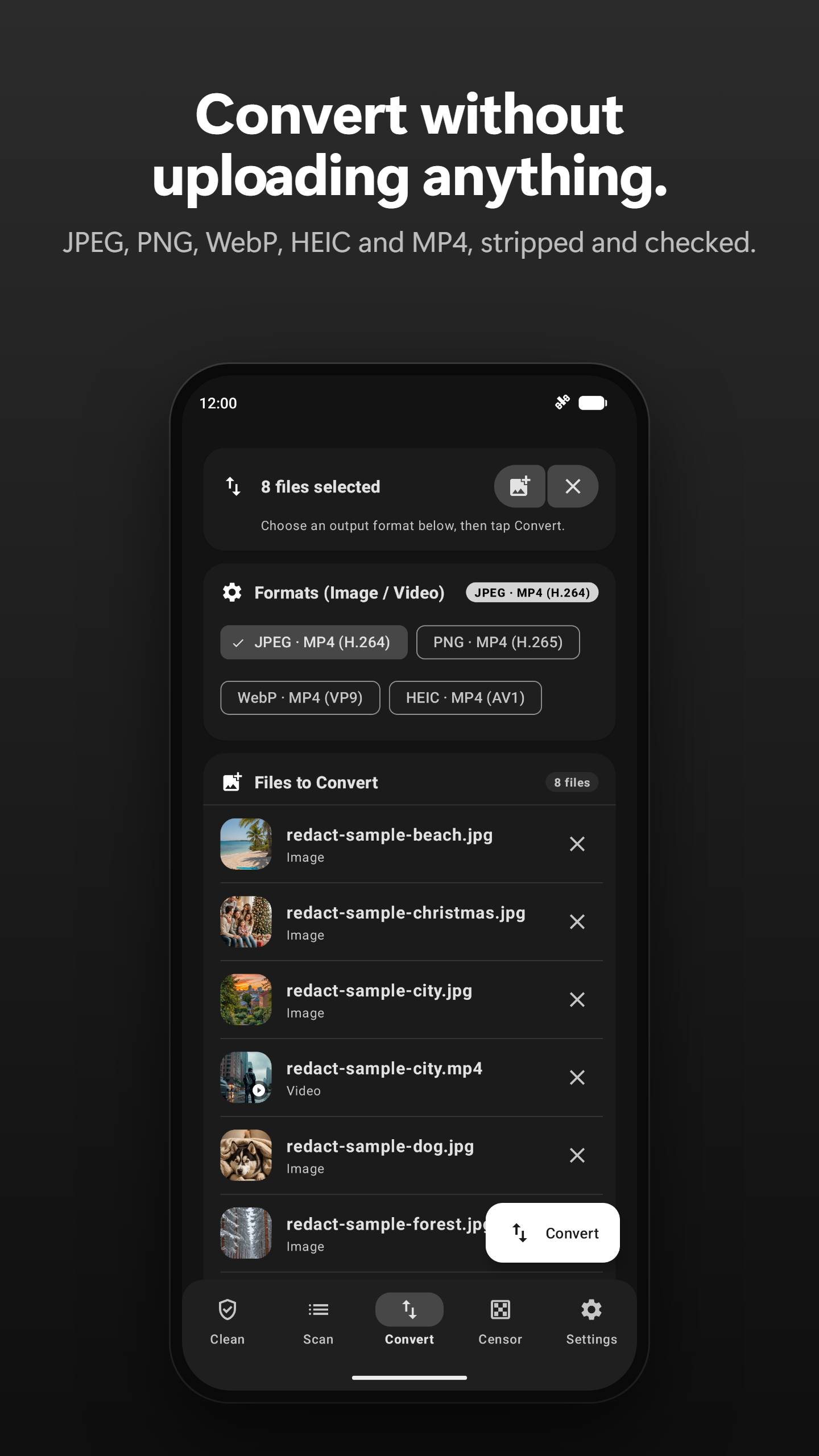
| Convert | Converts images between JPEG, PNG, WebP and HEIC (on supported devices), and videos between H.264, H.265, VP9 and AV1. Converted files are checked for hidden information before they're saved, so they don't carry the original's location or device details. |
| Share into Redact | Share a photo or video from any other app. Redact cleans it and reopens the share sheet with the clean copy, with an optional confirmation step and a progress dialog you can cancel. |
| Open with Redact | Open a photo or video in Redact from your gallery or file manager, or share it to Scan with Redact, and it goes straight to Scan. |
| Shortcuts | Long-press the app icon to jump straight to Clean, Scan, Convert or Censor, or add the Clean, Scan or Censor tiles to Quick Settings. |
| Batches | Clean or convert up to 100 files at once (50 when you share them in from another app). If some files fail, Redact keeps going, reports what succeeded, lists the files it couldn't clean with the reason, and can try just those again. |
| Drag, drop and paste | Drag photos and videos onto Clean, Scan, Convert or Censor from another app in split screen, on a tablet or on a Chromebook, or paste them with Paste or Ctrl+V. |
| Large files | There is no hard size cap. Redact warns you first when storage or memory looks too low for the job, and a file shared in that would leave less than 256 MB free is skipped rather than allowed to fill your storage. |
| Delete originals (optional) | Turn on Delete Originals After Cleaning and Redact asks Android to move the originals to trash after a successful clean. Android shows its own confirmation, so nothing is removed without your say-so. |
| Open source, no ads | No ads and no tracking. The source code is public, so anyone can check how Redact works. |
| 13 languages | English, Spanish, French, German, Italian, Portuguese, Russian, Japanese, Korean, Chinese (Simplified and Traditional), Hindi and Arabic. Follows your phone's per-app language setting. |
You can also build it yourself, see For developers.
On first start, a short introduction explains what hidden metadata is and that your files never leave your phone. It then walks through each permission on its own page (photos and videos, photo and video locations, notifications), plus whether to send crash reports, saying what each is for before asking, so you can allow it or choose Not Now. The last page sums up your choices. See it again any time from Settings › About › Show Introduction.
Your originals are never modified.
Removes hidden information and saves a new copy to Pictures/Redact (images) or Movies/Redact (videos). You can choose up to 100 files at a time. The location is always removed unless you turn on Keep Location in Settings, which asks you to confirm and is ignored by Strict Clean. Settings can also keep the camera details, the date taken and the video in a Motion Photo; see Settings.
Above the files, chips for Strict Clean, Keep Location, Keep Date Taken, Keep Camera Settings and Remove Audio change those settings without a trip to Settings. They are the same settings, so a change stays for the next batch, and Keep Location asks first as it does in Settings.
When the clean finishes, Redact sums up what it removed, such as "Removed 24 metadata fields, including location" for one file, or the total and how many files had a location for a batch. Anything you chose to keep isn't counted. If notifications are on, the same summary appears there too. Two buttons then appear above Clean Metadata:
Long-press any of these buttons to see its name. Convert also shows Share, Scan Result and Open when it finishes, and Censor does after a save.
If some files could not be cleaned, a Failed Files button lists each one with the reason: a format this phone can't open, not enough memory, or a file that couldn't be cleaned safely, so nothing was saved. Retry Failed cleans just those again (a format the phone can't open is left out, as it would fail the same way).
Share Without Saving sends the selected files on without keeping copies in your gallery. It shows above Clean Metadata while files are selected, cleans them the way a share into Redact does (the location is always removed and the Keep options do not apply), opens the share sheet, and deletes the clean copies afterwards. Up to 50 files at a time.
Pick one file to see everything embedded in it, grouped into sections such as image properties and technical details. Pick several and Scan reads them all and sums up how many have a location, a date, the name of a phone or camera, or a person's name, how many have nothing to remove and which ones have a location, with a button to send them all to Clean.
gps altitude finds GPS_ALTITUDE. Typing a section's name, such as camera or location, shows that whole section. The search clears when you scan another file.doubleangels/redact is a public repo on GitHub by doubleangels. Remove EXIF data from photos & videos to protect privacy when sharing online.
It declares the GPL-3.0 license on GitHub.
Its maker has not tagged a system, so it is unknown here. Its README says what it needs.
Open "Take it" on its page: Take My Repo writes an install plan for your machine and hands it to your AI agent (Claude Code, Codex or Cursor), which asks you before each step. Take My Repo has not tested it on any machine.
Its last change on GitHub was on 2026-11-23. Take My Repo does not judge from that whether it is maintained.
A list of Free Software network services and web applications which can be hosted on your own servers
Flutter makes it easy and fast to build beautiful apps for mobile and beyond
🖼️ Image Toolbox is a powerful app for advanced image manipulation. It offers dozens of features, from basic tools like crop and draw to filters, OCR, and a wide range of image processing options
Fast and extensible multi-platform HTTP/1-2-3 web server with automatic HTTPS
Nobody has reviewed it on Take My Repo yet, which says nothing about its quality.
Take My Repo cannot say: it does not audit code and has not run redact. What is known comes from GitHub. It declares the GPL-3.0 license on GitHub. Its last change was on 2026-11-23. It has 8 stars, which measure popularity, not safety. Nobody has reviewed it on Take My Repo yet, which says nothing about its quality. Read the source before you run it. With "Take it", your AI agent shows each step and asks you before running it; README text is treated as data, not as instructions.





