dstack
A unified orchestration layer for heterogeneous AI compute. It standardizes how to manage compute and run training and inference on GPU clouds, Kubernetes, VMs, or bare-metal clusters.
- 2.3k
- Python
- MPL-2.0
- 1 d ago
The maintainer has not written a description at the source.
Repo dstackai/dstack-templates, read from GitHub 1 min ago. dstackai has not joined Take My Repo.
dstackai/dstack-templates is a public repo on GitHub by dstackai. It declares no license on GitHub. Public does not mean open source: without a license, nobody is granted the right to reuse it. It has 2 stars and last changed on 2026-02-27. Nobody has reviewed it on Take My Repo yet, which says nothing about its quality. Read from GitHub on 2026-11-21.
Templates let users create dstack runs from the UI via a launch wizard — select a template,
pick GPU resources, adjust settings, and review the final configuration.
While dstack is typically used via the CLI, templates make it easy to launch runs
directly from the UI through a guided experience.
Note
Templates require dstack server version 0.20.12 or newer.
To enable the launch wizard, point the server to a Git repository containing templates
via the DSTACK_SERVER_TEMPLATES_REPO environment variable:
$ DSTACK_SERVER_TEMPLATES_REPO=https://github.com/dstackai/dstack-templates dstack server
Once configured, the Launch button on the Runs page will show the available templates. Select a template, configure the parameters, and click Apply to create the run.
Note
The launch wizard is an experimental feature. Currently, templates are configured per server. Per-project templates configuration is coming soon.
To define your own templates, fork this repository or create a new one following the same layout.
Templates are YAML files placed under the .dstack/templates/ directory in the repository.
Each file defines a single template.
Each template file has the following top-level fields:
type — always templatename — unique identifier within the repositorytitle — human-readable label shown in the UIdescription — short description shown in the UIparameters — list of configurable parametersconfiguration — a standard dstack run configuration (dev-environment, service, or task)A simple template that launches a dev environment accessible from a desktop IDE:
type: template
name: desktop-ide

title: Desktop IDE
description: Access the instance from your desktop VS Code, Cursor, or Windsurf.

parameters:
  - type: name
  - type: ide
  - type: resources
  - type: python_or_docker
  - type: repo
  - type: working_dir

configuration:
  type: dev-environment
A template that deploys in-browser VS Code as a service:
type: template
name: in-browser-ide

title: In-browser IDE
description: Access the instance using VS Code in the browser.

parameters:
  - type: name
  - type: resources
  - type: python_or_docker
  - type: repo
  - type: working_dir

  - type: env
    title: Password
    name: PASSWORD
    value: $random-password

configuration:
  type: service

  env:
    - BIND_ADDR=0.0.0.0:8080
  commands:
    - |
      echo "Your password is $PASSWORD. Share it carefully as it grants full access to the IDE."
    - |
      curl -fsSL https://code-server.dev/install.sh | sh -s -- --method standalone --prefix /tmp/code-server
    - |
      /tmp/code-server/bin/code-server --bind-addr $BIND_ADDR --auth password --disable-telemetry --disable-update-check .
  port: 8080

  probes:
    - type: http
      url: /healthz

  gateway: true
  https: auto
  auth: false
The env parameter with value: $random-password tells the UI to auto-generate a random
password and pass it to the run configuration.
Parameters are special constructs supported by the dstack UI. Each parameter type maps to
a dedicated UI widget that provides context-aware configuration (e.g. showing available GPU offers,
listing Git repos, etc.).
| Type | Description |
|---|---|
name |
Configure an optional run name. |
ide |
Pick a desktop IDE (VS Code, Cursor, Windsurf). |
resources |
Configure GPU/CPU resources based on available offers in the project. |
python_or_docker |
Select a Python version (to use the dstack base image) or specify a Docker image. |
repo |
Configure a Git repo to clone into the run. |
working_dir |
Configure a working directory. |
env |
Define a custom environment variable. Supports title, name, and value properties. The special value $random-password tells the UI to auto-generate a random password. |
dstackai/dstack-templates is a public repo on GitHub by dstackai. Its maker has not written a description.
It declares no license on GitHub. Public does not mean open source: without a license, nobody is granted the right to reuse it.
Its maker has not tagged a system, so it is unknown here. Its README says what it needs.
Open "Take it" on its page: Take My Repo writes an install plan for your machine and hands it to your AI agent (Claude Code, Codex or Cursor), which asks you before each step. Take My Repo has not tested it on any machine.
Its last change on GitHub was on 2026-02-27. Take My Repo does not judge from that whether it is maintained.
Nobody has reviewed it on Take My Repo yet, which says nothing about its quality.
A unified orchestration layer for heterogeneous AI compute. It standardizes how to manage compute and run training and inference on GPU clouds, Kubernetes, VMs, or bare-metal clusters.
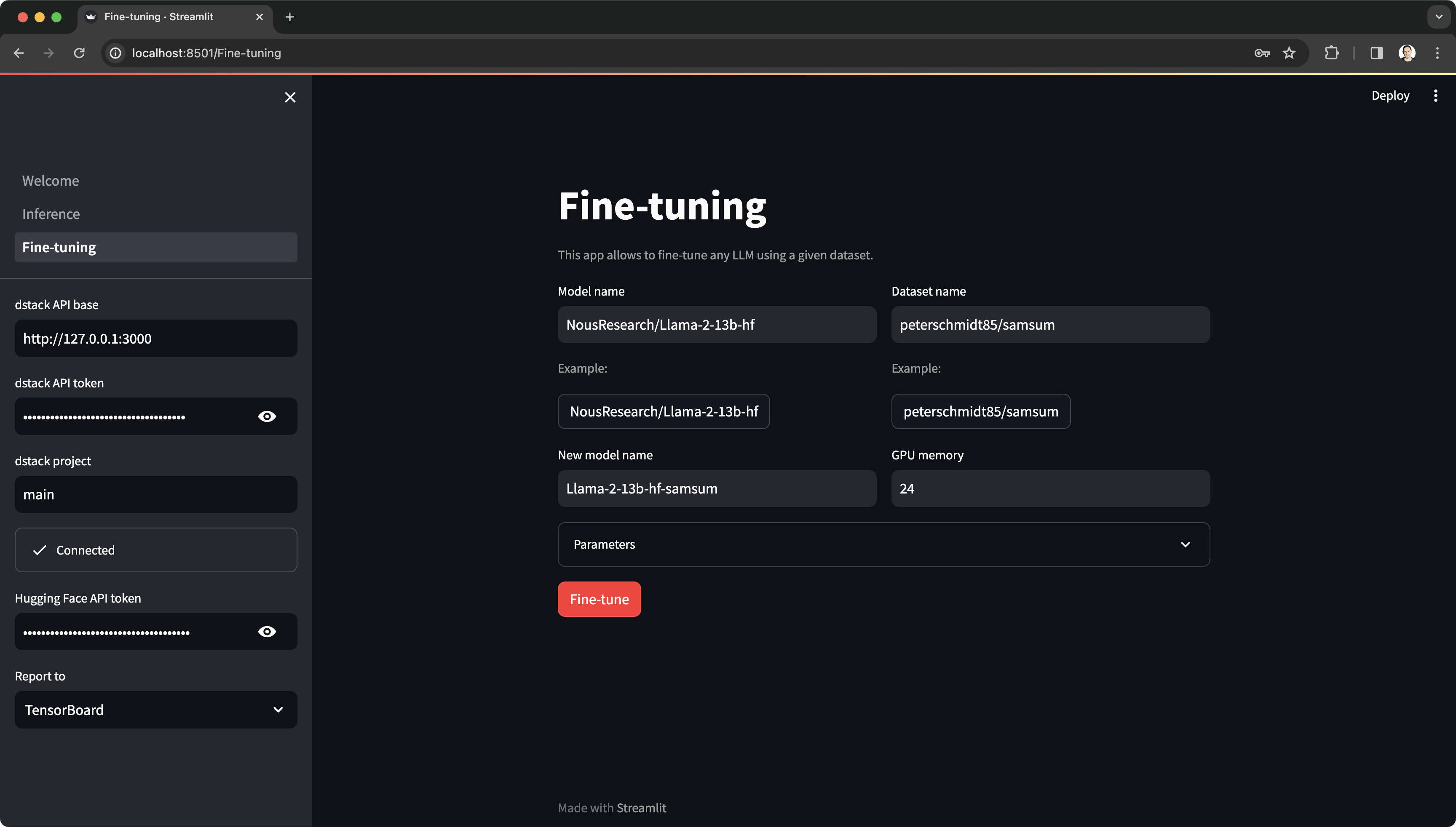
This Streamlit app helps deploy LLMs to your cloud (AWS, GCP, Azure, Lambda Cloud) via user interface and access them for inference.
dstack Enterprise extends the open-source version of dstack with enterprise features.