MoravaEngine
About
2D/3D graphics engine written in C++.
It supports three graphics APIs:
- Vulkan 1.4 (ray tracing is used when the GPU has it)
- OpenGL
- DirectX 11 (Windows only)
It runs on Windows 10 and 11, and on Linux with Vulkan and OpenGL (built with GCC and Clang, tested on Ubuntu in WSL2). macOS support is in progress: the window, input and file dialogs are already platform independent.
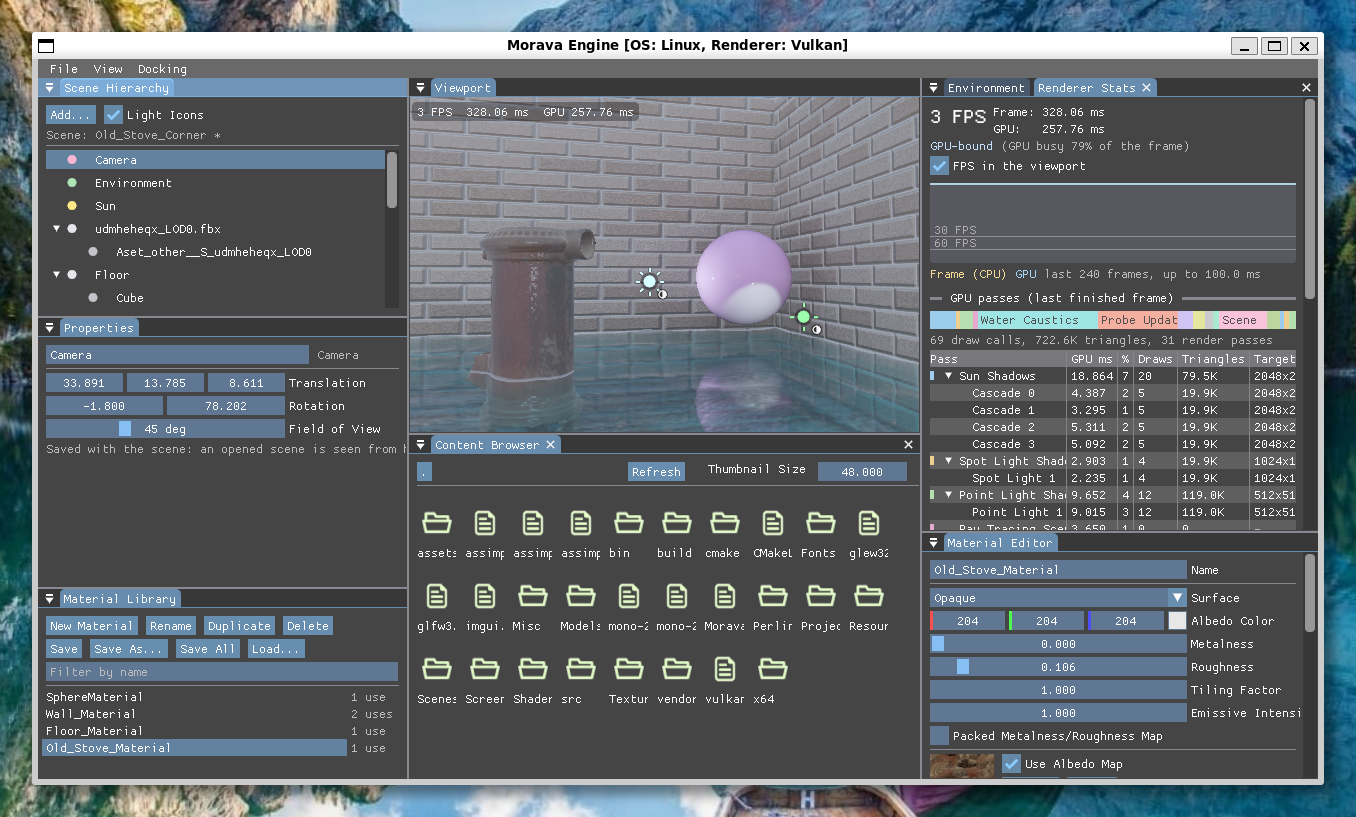
The main scene is a Vulkan scene editor (ENV_MAP_VULKAN):
- Scene Hierarchy, Inspector, Content Browser, Material Library and Material Editor panels
- Scenes and materials saved to files (
.mscene, .mmat)
- Physically based rendering (PBR) and image based lighting (IBL)
- Sun, point and spot lights with shadows
- Global illumination with a probe volume
- Ray-traced probe updates, ambient occlusion and reflections, with raster fallbacks
- A path tracer as a reference view
- Screen-space ambient occlusion (GTAO)
- Glass, water and cutout materials (alpha-tested: leaves, eyelashes)
- Bloom, auto exposure and tonemapping
- Skeletal animation
- Debug views for the passes above
The older scenes (OpenGL, and one DirectX 11 scene) experiment with single techniques:
- Phong lighting model
- Shadows (directional light, omni-directional shadows)
- Screen-space ambient occlusion (SSAO)
- Particle systems
- Instanced rendering
- Surface reflection and refraction
- Framebuffers and post-processing
- Level of detail
- Perlin noise generator
- Procedural landmass generation
- Voxel based volumes
- Marching cubes algorithm
- Physics simulations
The rendering design of the Vulkan editor is described in docs/rendering/SSAO_GI_RayTracing_Guide.html.
Credits
Building
The build is one CMake project, CMakeLists.txt in the repository's root. It builds the engine and the libraries it uses (GLFW, assimp, shaderc, SPIRV-Cross, Jolt Physics, miniaudio, yaml-cpp, ImGui and others) from source.
Requirements
- Windows 10 or 11 with Visual Studio 2026 (C++17)
- CMake 3.15 or newer
- Vulkan SDK (CMake finds it through the
VULKAN_SDK environment variable)
- .NET 10 SDK (C# scripting: CMake finds it through
DOTNET_ROOT or the dotnet command; -DMORAVA_SCRIPTING=OFF builds without it)
- Python 3 (used by the shaderc build)
- Git
On Linux: see "Building on Linux" below.
Get the sources
git clone --recursive https://github.com/dtrajko/MoravaEngine.git
cd MoravaEngine
python vendor/cross-platform/shaderc/utils/git-sync-deps
The last command downloads the libraries shaderc itself depends on (glslang, SPIRV-Tools, SPIRV-Headers).
Configure and build
From the repository's root folder:
cmake -S . -B build
cmake --build build --config Debug --parallel
This builds the default: the scene SceneEnvMapVulkan (the Vulkan editor) with the Vulkan API. Other scenes and graphics APIs: see "Select the scene and the graphics API" below.
The first build takes a while, because it also builds the libraries. --config Release builds the optimized version.
To work in Visual Studio instead, run only the first command and open build/MoravaEngine.sln. MoravaEngine is the startup project.
Run
The engine loads its shaders, models and textures relative to the repository's root folder, so start it from there:
build\Debug\MoravaEngine.exe
Visual Studio is already set up to start it in that folder.
Run a project with MoravaPlayer
The Vulkan build also makes MoravaPlayer, the game player: it plays a project's start scene in the project's window, without the editor. It is built next to the editor (build\Debug\MoravaPlayer.exe; build-linux/MoravaPlayer on Linux) and, like the editor, has to be started from the repository's root folder, where the engine's shaders are. The project's path is then relative to that folder:
build\Debug\MoravaPlayer.exe --project ..\Projects\Sample\Sample.mproject
In the player, Alt+Enter and F11 switch between fullscreen and a maximized window, Escape leaves fullscreen (unless the game uses Escape itself), and Alt+F4 closes the game.
Started from another folder, it stops at once with "Resources/Shaders not found in the working directory".
A project is a folder of its own, anywhere (Projects/Sample is the sample): a .mproject file names the project, its start scene, its asset folder and the game's window (size, full screen, VSync, title). Its scenes and materials are found in the project's folder first, then in the engine's (its models and environment maps). In the editor, File > New Project makes one in a chosen folder (with a first scene as its start scene), File > Open Project opens one, and File > Project Settings edits it; its Scenes list opens the project's scenes (double-click, or Open). --scene <file> instead of --project plays a single scene.
The game reads actions, not keys: a project's Settings/Input.minput names them and their bindings (keys, the mouse, gamepad buttons and sticks). Any connected gamepad works; GLFW knows the layout of most controllers (Xbox, PlayStation and many more). The sample's actions are Move (WASD, the arrow keys, the left stick), Look (the mouse, the right stick) and Jump (Space, A): its orange cube, Player, moves with them. In the editor, View > Input shows each action's live value and the connected gamepads; its Try option checks the bindings without Play. During Play the game has the input while the Viewport has the focus (Play gives it, a click on the view gives it back); Escape gives the mouse back to the editor.
Models collide and move with physics (Jolt) while the game runs. In the Inspector of a model, Collider gives it a shape (a box, sphere or capsule fitted around it, or its meshes: Convex Mesh for moving models, Triangle Mesh for static ones); a collider alone makes it static, like a floor or a wall. Rigid Body makes it move: Dynamic (gravity and collisions move it, with its mass, friction and bounciness) or Kinematic (the game moves it, and it pushes the dynamic ones). Character makes it a walking figure, as a player: a standing capsule the game moves by a velocity, which stops at walls and slides along them, walks up slopes and steps, slides down slopes too steep for it, stands on things and pushes dynamic models. The sample's second scene, Scenes/Physics.mscene, is the same room with a pyramid and a wall of 100 boxes, ramps, stairs and falling balls; its Player is a capsule character that walks with the Move action and jumps with Jump. Open it in the editor (File > Open Scene) and press Play, or play it with the player:
build\Debug\MoravaPlayer.exe --project ..\Projects\Sample\Sample.mproject --scene ..\Projects\Sample\Scenes\Physics.mscene
A collider marked Trigger is a zone things pass through: the log says what enters and leaves it (the Physics scene has a glass Trigger Zone). View > Physics opens the Physics panel: the bodies, the step time and the last collision and trigger events while the game runs, debug views that draw every collider (colored by state: static, awake, sleeping, trigger, character) and the contact points into the viewport, a query test that casts a ray or a sphere from the middle of the view, and the project's collision layers (which kinds of bodies collide, saved in the .mproject file).
Simulate (the button after Play, CTRL + SHIFT + P) runs physics alone, without the game's logic and input, on a copy of the scene like Play: the view stays the editor's camera and models can be selected and moved while the bodies fall, roll and settle. Stop brings the scene back as it was.
Games are scripted in C# on .NET 10 (in progress). The build puts Morava.ScriptCore.dll (the engine's C# side) and a private copy of the .NET runtime (dotnet/, about 75 MB) next to the executables, and the engine starts .NET from there at startup, as a shipped game will: the log says C# scripting: .NET 10.0.x from .... The C# API scripts use is in ScriptCore (namespace Morava): Entity (transform, name, tags, Destroy, components, collision and trigger methods), Rigidbody, CharacterController, Scene, Input, Physics queries and Time. Entities get tags for the scripts in the Inspector, under the name (Tags, separated by commas).
A project's scripts are a C# project of its own, built into a DLL that the project's settings name (Script Assembly); the sample's are in Projects/Sample/Scripts, and the build makes them. A script is a class deriving from Morava.Entity: in the Inspector, an entity's Script section picks the class and shows its public fields (numbers, text, vectors, other entities, enums) to set for that entity. While the game runs, each script gets OnCreate, OnUpdate, OnFixedUpdate and its collision and trigger calls; a script that throws an exception pauses Play, and the log has the file and line. The editor builds the scripts itself when one is saved (Build on Save, or Scripts > Build Scripts, CTRL + B) and reloads them after each build (a build during Play: at Stop), keeping the values set in the scenes. Compiler errors and a script's exceptions appear in View > Console: double-click one to open the file at that line in the code editor (Visual Studio, VS Code or Rider, chosen in the Project Settings). Scripts > New Script makes a script from a template, and the Inspector's Edit Script opens an entity's. To debug the scripts, start the game from the code editor: in Visual Studio (or Rider) F5 with the Morava Player launch profile, in VS Code the Morava Player configuration in Run and Debug (the Morava Editor ones start the editor instead, to debug during Play). Both build the scripts first and open the project. Or attach the .NET debugger to an editor already running (Visual Studio: Debug > Attach to Process, MoravaEngine.exe, code type Managed (.NET Core, .NET 5+); VS Code: Attach to the Morava editor). Breakpoints in the scripts hit during Play. The sample's start scene, Scenes/RollABall.mscene, is a small game made this way: roll the ball with Move (WASD, arrows, the left stick) to collect the 12 pickups. C (the gamepad's Y) switches the camera: above the playground, behind the ball, or the ball's eyes; Q, E, R and F (the right stick) turn the view behind and in front of it, and while the ball rolls the view turns behind its direction by itself. The game starts behind the ball.
A prefab is an entity with everything under it, saved as a file (.mprefab) to place again: right-click an entity in the Scene Hierarchy and Save as Prefab..., or drag it onto the Content Browser. Drag a prefab from the Content Browser onto the viewport or the Scene Hierarchy (or Add > Prefab...) to place an instance of it; an instance's name, position and rotation are its own, the rest is the prefab's. In the Inspector, Apply to Prefab writes an instance to its prefab, and the other instances that weren't changed take it (also when a scene opens); Revert brings an instance back to its prefab, Unpack makes it ordinary entities. The Content Browser shows the project's files (or the engine's): double-click opens scenes and scripts and places prefabs. Roll a Ball's pickups are instances of Assets/Prefabs/Pickup.mprefab.
Scripts place prefabs while the game runs: a public Prefab field shows in the Inspector (pick one, or drag it from the Content Browser), and Scene.Instantiate(prefab, position) places it at once, its scripts' OnCreate run and its bodies and sounds working, returning its root (its script when it has one). Scene.Load("Scenes/Level2.mscene") goes on in another scene at the end of the frame (Scene.Reload(): this one again, as it started); Scene.Name and Scene.Path say which one runs. In the editor, Stop brings back the scene that was played. In Roll a Ball a collected pickup bursts into sparkles (Assets/Prefabs/Sparkle.mprefab), and the game starts again after the win or a fall.
The renderer draws only what the camera can see: before the G-buffer prepass and the scene pass, each mesh's bounding box is tested against the camera's view (frustum culling), and each shadow map's pass tests the models against its own view. Skinned meshes are always drawn. The Renderer Stats panel shows how many meshes were drawn and culled, and has the debug toggles: Frustum Culling