IntuneWinAppUtil GUI
A PowerShell-based graphical user interface for Microsoft's IntuneWinAppUtil.exe.
This tool simplifies the packaging of Win32 apps for Microsoft Intune by providing a modern and easy-to-use WPF interface, including automation, validation, and configuration persistence.
For additional project documentation and practical guidance, see the IntuneWinAppUtilGUI Knowledge Base.
🔧 Features
- Built with WPF (XAML) and PowerShell — no external dependencies for packaging.
- Auto-download of the latest version of
IntuneWinAppUtil.exe from GitHub (optional).
- Automatically stores tool path and reuses it on next launch (saved in a JSON file, check "Configuration file").
- Command-line helpers for checking executable versions and building Intune detection rules.
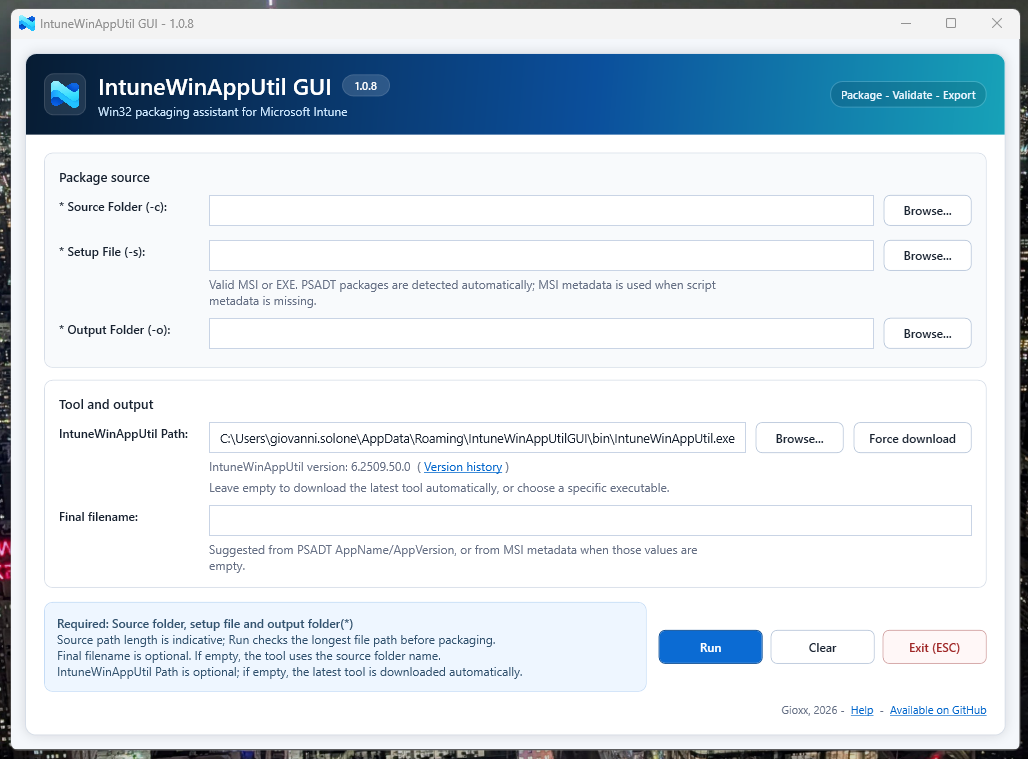
- Graphical interface for all required options (
-c, -s, -o).
- It detects the use of PSAppDeployToolkit and automatically proposes the setup file and final IntuneWin package name, including MSI-backed packages.
- Live path length indicator for Source/Output folders, with a final max-path check at Run time.
- Remembers the last 10 output folders in a drop-down (cleared with Clear recent); a missing output folder is created at Run time.
- Copy path button in the result panel copies the full path of the new
.intunewin file.
- Publish to Intune (preview): create a Win32 app, or update an existing one, through Microsoft Graph (see Publish to Intune).
- Optional update check on startup with a non-blocking UI banner.
- Sanitizes invalid characters from the output filename.
- Uses Windows-version-safe UI labels instead of emoji glyphs in the WPF interface.
🧰 Requirements
- Windows 10 or later (Windows 11 is recommended).
- PowerShell 5.1 or higher (PowerShell 7 is recommended).
- .NET Framework 4.7.2 or higher (usually already installed on supported systems).
🚀 How to Use
Method 1: From PowerShell Gallery (recommended)
Once published, you'll be able to install via:
Install-Module IntuneWinAppUtilGUI -Scope CurrentUser
Show-IntuneWinAppUtilGUI
Method 2: Clone or Download
Clone this repository or download as ZIP and extract (e.g., C:\IntuneWinAppUtilGUI)..
In PowerShell, import the module from the extracted folder:
Import-Module "C:\IntuneWinAppUtilGUI\IntuneWinAppUtilGUI.psm1"
Then launch the tool with:
Show-IntuneWinAppUtilGUI
💡 Tip: you can add the module path to your $env:PSModulePath if you want to make it persist and available system-wide.
Check an executable FileVersion
The module also provides a command-line helper for the version value commonly used in Intune detection rules:
Get-IntuneFileVersion -Path 'C:\Program Files\MyApp\MyApp.exe'
The command returns only the executable's FileVersion, for example 1.2.3.4. It raises an error if the path does not exist or points to a directory.
🔍 Intune detection script
The Scripts/Intune_CheckAppInstallation.ps1 script can be used as a starting point for a custom Intune Win32 app detection rule. It checks both 64-bit and 32-bit Program Files locations and returns:
- exit code
0 when the executable is found and, when configured, meets the minimum version;
- exit code
1 when the executable is missing or its version is below the required minimum.
Before using it, edit $searchPath to match the relative path of the target executable:
$searchPath = "Vendor\Application\application.exe"
To require a minimum version, pass it to Get-AppStatus near the end of the script:
$status = Get-AppStatus -MinimumVersion "1.2.3.4"
To detect the file regardless of its version, leave the call without -MinimumVersion. The script writes a concise status message to standard output, which is useful when reviewing Intune Management Extension logs.
☁️ Publish to Intune (preview)
After packaging, Upload to Intune... in the result panel opens the Publish to Intune window. Publish to Intune... next to Run opens the same window for any .intunewin.
- New app creates a Win32 app. Name, version, commands and the MSI detection rule are prefilled from the package.
- Update existing searches an app by name, loads its settings and lets you change them, and optionally uploads the new package. With a new package, the settings and the new content are applied together after the upload is committed; if anything fails, the app in Intune is left as it was.
- Detection rules: MSI product code, file or folder, registry, PowerShell script, with the same comparison operators as the portal. Select a rule to load it into the editor, change it and Update rule. Requirement rules set in the portal are kept as they are.
- Open in Intune opens the app in the Intune admin center.
Requirements:
- The
Microsoft.Graph.Authentication module. If it is missing, the window offers to install it for the current user (Install-Module Microsoft.Graph.Authentication -Scope CurrentUser).
- An account that can manage Intune apps. The Microsoft Graph Command Line Tools app needs consent for
DeviceManagementApps.ReadWrite.All in your tenant, and an administrator may have to grant it.
- Start the GUI from a PowerShell console window (Windows Terminal or the PowerShell console): the Windows sign-in prompt needs it.
Not handled yet, as the window itself says: assignments, icon, supersedence, dependencies, custom return codes (Intune defaults are used). Set them in the portal through Open in Intune.
📦 Fields Explained
| Field |
Required |
Description |
| Source Folder (-c) |
✅ Yes |
The root folder containing your setup file. |
| Setup File (-s) |
✅ Yes |
The installer (EXE or MSI, but any file works, e.g. PS1/BAT/CMD for script-based apps). If in same folder, only the filename is shown. |
| Output Folder (-o) |
✅ Yes |
Where the .intunewin package will be created. |
| IntuneWinAppUtil |
✅ Yes* |
You can specify the path manually or let the GUI download the latest version automatically. |
| Final Filename |
Optional |
Renames the generated .intunewin file. Invalid characters are removed automatically. |
* The field is optional only if the tool is not yet downloaded — the GUI will handle this.
🗂️ Configuration File
A configuration file config.json is created in:
%APPDATA%\IntuneWinAppUtilGUI\
It stores the ToolPath and the last 10 output folders (RecentOutputFolders) so they can be reused at next launch.
This file is updated when the GUI closes, after each successful package and when Clear recent is clicked.
Optional: UpdateCheckEnabled (boolean) to enable/disable the update check banner.
🌐 Auto-download Feature
If the path to IntuneWinAppUtil.exe is not provided:
- The GUI will automatically download and extract the latest tool from:
https://github.com/microsoft/Microsoft-Win32-Content-Prep-Tool
- The tool will be stored locally under the
%APPDATA%\IntuneWinAppUtilGUI\bin folder.
- You can always choose to download the latest available version by simply clicking the "Force download" button.
💡 Tips
- Use the Help button in the main window to review command-line switches and keyboard shortcuts.
- Press ESC to close the window after confirmation.
- Press ENTER to run the packaging when you are ready.
- A small tooltip message at the bottom of the GUI provides quick usage hints.
- Clear and Exit buttons are provided to reset inputs or close the app manually.
Optional launch switches
Show-IntuneWinAppUtilGUI -ShowVersion
Show-IntuneWinAppUtilGUI -ForceUpdateBanner
Show-IntuneWinAppUtilGUI -Diag
-ShowVersion displays installed/latest module versions in the header banner.-ForceUpdateBanner simulates an update banner for testing.-Diag writes startup/shutdown diagnostics such as handles, GDI handles and memory usage.- Standard PowerShell
-Verbose and -Debug switches are preserved when the GUI relaunches itself in STA mode.
🤝 Contributions
Pull requests and issues are welcome. If you have an improvement idea, feel free to open a discussion or PR!
📄 License
Licensed under the MIT License.