shade
PoC shadow SaaS and insecure credential detection system using a browser extension.
- 44
- Apache-2.0
- 4 mo ago
Repo hazcod/shade, read from GitHub 22 h ago. hazcod has not joined Take My Repo.
In short
hazcod/shade is a public repo on GitHub by hazcod. PoC shadow SaaS and insecure credential detection system using a browser extension. It declares the Apache-2.0 license on GitHub. It is written mainly in Go, has 44 stars and last changed on 2026-08-05. Nobody has reviewed it on Take My Repo yet, which says nothing about its quality. Read from GitHub on 2026-11-24.
Similar repos
awesome-falsehood
😱 Falsehoods Programmers Believe in

shade
A system for detecting shadow SaaS and securely recording the credentials used.
The system consists of a Go API backend and a browser extension written in TypeScript.
The extension communicates to a backend:
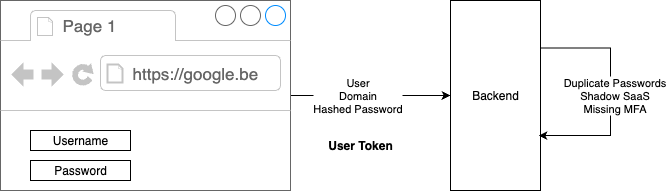
And very roughly looks like this:

And integrates with HaveIBeenPwned to check your passwords (in a secure way):
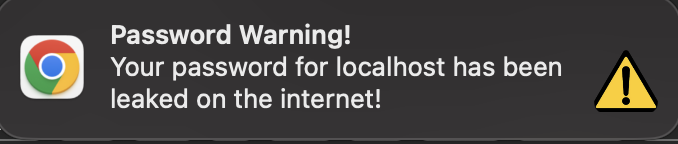
How does it work?
The browser extension is deployed to your company browsers with a secret token. Using this token, the extension will now report any login events to a web (SaaS) application of that user to the backend. Only events using the correct secret user token and username filter will be processed. A typical use case is only processing email usernames for the company domain. Every password entry will be matched to HIBPs k-Anonymity model for password checking.
The Chrome extension configuration profile looks like this:
{
  "filters": ["domain.com"],
  "locked": true,
  "api": "http://localhost:8080",
  "id": "",
  "enabled": true,
  "token": ""
}
Configuration options:
- filters: Array of domains to filter for in usernames (e.g., company domain)
- locked: Whether users can change settings (recommended: true for production)
- api: Backend server URL
- id: Unique device identifier (auto-generated if empty)
- enabled: Enable/disable the extension
- token: Secret authentication token for backend communication
And an example configuration file for the Go backend:
log:
  level: info

http:
    port: 8080
    interface: 0.0.0.0

storage:
    type: memory
    properties:
      token: YOUR-LONG-SECRET-TOKEN-VALUE-HERE
Which you could run with shade -config=dev.yml.
Project Structure
backend/: Go backend serverextension/: Chrome extension
Building the Project
The project includes a Makefile to simplify building and cleaning both the backend and extension.
Makefile Commands
# build the extension and run the server locally
% make dev

# Build both the backend and extension
% make

# Clean up build artifacts
% make clean
Backend
The backend is a Go HTTP server that provides API endpoints for receiving and storing login data.
Features
- Receives login data from the Chrome extension
- Stores login data in memory (can be extended to use a database)
- Provides endpoints for retrieving login data and statistics
API Endpoints
GET /api/health: Health check endpoint (e.g. to verify browser extension token)POST /api/creds/register: Registers a login event for the user (user, domain, password hash)POST /api/password/domaincheck: Verifies if the user password is being shared across other websitesGET /api/password/compromised: Returns compromised passwords from HIBP database
Web Dashboard
The backend provides a comprehensive web dashboard accessible at /dashboard/ with the following pages:
- Dashboard (
/dashboard/): Overview with statistics cards showing total users, domains, duplicate passwords, and users without MFA - Discovered SaaS (
/dashboard/saas): Table view of all discovered SaaS applications with search/filter functionality - Password Security (
/dashboard/security): Shows users with duplicate passwords and users without MFA - Enrolled Users (
/dashboard/users): Lists all enrolled users with their device tokens, hostnames, IP addresses, and last seen timestamps
Authentication
The web dashboard supports multiple authentication providers:
- Local Authentication: Username/password authentication with configurable users
- OIDC: OpenID Connect integration for enterprise SSO
HIBP Integration
The backend integrates with Have I Been Pwned (HIBP) to check password security:
- Real-time Checking: Every login event is checked against HIBP database
- Caching: Results are cached for 1 hour to improve performance
- Bulk Checking: Scheduled checks every 8 hours for all stored passwords
- Privacy-Preserving: Uses k-anonymity model - only first 5 characters of SHA-1 hash are sent
- User Notifications: Extension shows warnings when breached passwords are detected
Chrome Extension
The Chrome extension detects login events on web pages and sends the data to the backend.
Features
- Login Detection: Automatically detects login forms and submissions on web pages
- MFA Support: Detects multi-factor authentication fields (TOTP, SMS codes) including support for multi-step login flows
- Success Validation: Only sends login data for successful authentication attempts, filtering out failed logins
- Data Capture: Captures domain, username, password hash, MFA status, client IP, and hostname
- HIBP Notifications: Shows real-time warnings when passwords are found in breach databases
- Device Tracking: Assigns unique device IDs and tracks real client information
- Configuration UI: Popup interface for settings with API testing and test page access
- Privacy-First: Passwords are hashed locally using SHA-512 before transmission
Building the Extension
# Option 1: Build manually
cd extension

# Install dependencies
npm install

# Build the extension
npm run build

# Option 2: Build using the Makefile
make extension
Loading the Extension in Chrome
- Open Chrome and navigate to
chrome://extensions - Enable "Developer mode" (toggle in the top-right corner)
- Click "Load unpacked" and select the
extensiondirectory - The extension should now be installed and active
Configuration
Click on the extension icon in the Chrome toolbar to open the popup UI. From there, you can:
Shade - Password Security Monitoring
Shade is a tool for monitoring password security across multiple services. It detects and reports duplicate password usage across different services and can provide insights into password security risks.
Features
- Track password usage across multiple services
- Detect duplicate password usage
- Web dashboard for monitoring
- Multiple authentication provider support (Local, OIDC)
- API for integration with other services
Authentication
Shade supports multiple authentication providers:
- Local Authentication: Username/password authentication against a local configuration
- OIDC Authentication: Single Sign-On using any OpenID Connect provider (Google, Okta, Auth0, etc.)
Configuration
Authentication is configured in the config.yaml file:
auth:
  type: "local"  # or "oidc"
  secret: "your-session-secret"
  properties:
    # For local auth:
    users:
      - username: "admin"
        password_hash: "$2a$10$..."
        email: "admin@example.com"
        roles: ["admin"]

    # For OIDC auth:
    provider_url: "https://accounts.google.com"
    client_id: "your-client-id"
    client_secret: "your-client-secret"
    redirect_url: "http://localhost:8080/auth/callback"
    scopes: ["profile", "email"]
Installation
- Clone the repository
- Copy
config.example.yamltoconfig.yamland configure it for your environment - Build and run the application
go build -o shade ./cmd
./shade -config config.yaml
Usage
Once the server is running, you can access the dashboard at http://localhost:8080.
You'll need to log in using credentials configured in the config file (for local auth) or via your OIDC provider (for OIDC auth).
API
All API endpoints require authentication:
GET /api/health- Check the health of the systemPOST /api/login/register- Register a new login eventGET /api/password/domaincheck- Check for duplicate password usage
Local development
- Build the extension with
make extension. - Run the local server with
make. - Load the extension via 'Load unpacked extension' from
chrome://extensions. - Open the extension page in Chrome, click on
Inspect viewsand configure the extension there:
chrome.storage.local.set({ config: { filters:[], locked: true, api: 'http://localhost:8080', id: '1', enabled: true, token: 'foo' } }, () => {
    console.log("Config saved.");
});
- Open up the embedded test page at chrome-extension://ppkdjdnjclkkfmkflkpibohckapebacn/test-login.html
Development and Testing
Test Pages
The project includes several test pages for development and validation:
- test_login_success.html: Tests login success/failure detection with simulated scenarios
- test_multistep_login.html: Tests multi-step authentication flows and MFA detection
- Extension Test Page: Accessible via "Open Test Page" button in extension popup
Webpack Configuration
The extension uses webpack with environment-specific optimizations:
# Development build (unminified for debugging)
npm run build -- --mode=development

# Production build (minified and optimized)
npm run build -- --mode=production
MFA Detection
The extension automatically detects various MFA field types:
- TOTP Fields: Numeric inputs with patterns like
totp,mfa,code,token - Multi-step Flows: Waits for MFA fields to appear after initial login
- Generic Detection: Uses common MFA field patterns that work across different websites
- Field Characteristics: Detects based on maxLength, autocomplete, and inputMode attributes
License
[License information]
- Enable/disable the extension
- Set the backend API URL
- View the device ID
How It Works
- The Chrome extension injects a content script into all web pages
- The content script monitors for login forms and submissions
- When a login event is detected, the content script captures the domain, username, and password
- The data is sent to the background script
- The background script adds the device ID and sends the data to the backend
- The backend stores the data and provides endpoints for retrieving it
Security Considerations
- The extension stores sensitive data (passwords) temporarily in memory
- The backend stores login data in memory (in a production environment, this would be replaced with a secure database)
- Communication between the extension and backend should be secured with HTTPS in a production environment
- The device ID is used to identify the source of the login data
Testing the Extension
To test the Chrome extension and verify it's working correctly, follow these steps:
Prerequisites
Make sure the backend server is running:
# Start the backend server
./shade
Ensure the extension is loaded in Chrome (as described in "Loading the Extension in Chrome" section)
Testing Steps
Verify the extension is loaded properly:
- Check that the extension icon appears in Chrome's toolbar
- Click on the icon to open the popup UI
- Verify that the configuration options are displayed correctly
- Check that the Device ID is generated and displayed
Configure the extension:
- In the popup UI, ensure the "Backend API URL" is set to where your backend is running (default:
http://localhost:8080) - Make sure the extension is enabled (toggle should be on)
- Click "Save Settings" to apply the configuration
- In the popup UI, ensure the "Backend API URL" is set to where your backend is running (default:
Test login detection:
Option 1: Use the included test page
- Open the
extension/test-login.htmlfile in Chrome - Fill in the form with test credentials
- Submit the form
- Check the Console for messages from the extension
- Open the
Option 2: Use any website with a login form
- Open a new tab and navigate to a website with a login form
- Open Chrome DevTools by right-clicking on the page and selecting "Inspect"
- Go to the "Console" tab in DevTools
- Fill in the login form with test credentials (username and password)
- Submit the form
- Check the Console for messages like "Login detected on [domain] for user [username]"
Verify data is sent to the backend:
- After submitting a login form, check the backend server logs for messages indicating that login data was received
- You can also verify by querying the backend API:
# Get your device ID from the extension popup # Then use it to query the backend curl http://localhost:8080/api/logins?device_id=YOUR_DEVICE_ID - Check the response to see if your test login was recorded
Check overall statistics:
curl http://localhost:8080/api/statsThis should show the total number of logins detected and unique devices.
Debugging Tips
If the extension isn't working as expected:
Check the extension logs:
- Open Chrome DevTools for the background script:
- Go to
chrome://extensions - Find the Login Detector extension
- Click "service worker" under "Inspect views"
- Check the Console for any error messages
- Go to
- Open Chrome DevTools for the background script:
Verify content script injection:
Questions
What is shade?
hazcod/shade is a public repo on GitHub by hazcod. PoC shadow SaaS and insecure credential detection system using a browser extension.
Is shade open source?
It declares the Apache-2.0 license on GitHub.
Does shade run on macOS, Windows or Linux?
Its maker has not tagged a system, so it is unknown here. Its README says what it needs.
How do I install shade?
Open "Take it" on its page: Take My Repo writes an install plan for your machine and hands it to your AI agent (Claude Code, Codex or Cursor), which asks you before each step. Take My Repo has not tested it on any machine.
Is shade still maintained?
Its last change on GitHub was on 2026-08-05. Take My Repo does not judge from that whether it is maintained.