
git-sim
The visual layer for Git in your own repos: simulate, record, replay, audit, and share entire Git workflows, wherever you or your agents run them.
- 4.7k
- GPL-2.0
- 6 wk ago
Repo initialcommit-com/git-sim, read from GitHub 17 min ago. initialcommit-com has not joined Take My Repo.
In short
initialcommit-com/git-sim is a public repo on GitHub by initialcommit-com. The visual layer for Git in your own repos: simulate, record, replay, audit, and share entire Git workflows, wherever you or your agents run them. It declares the GPL-2.0 license on GitHub. It is written mainly in Python, has 4,694 stars and last changed on 2026-10-12. Nobody has reviewed it on Take My Repo yet, which says nothing about its quality. Read from GitHub on 2026-11-25.
Similar repos
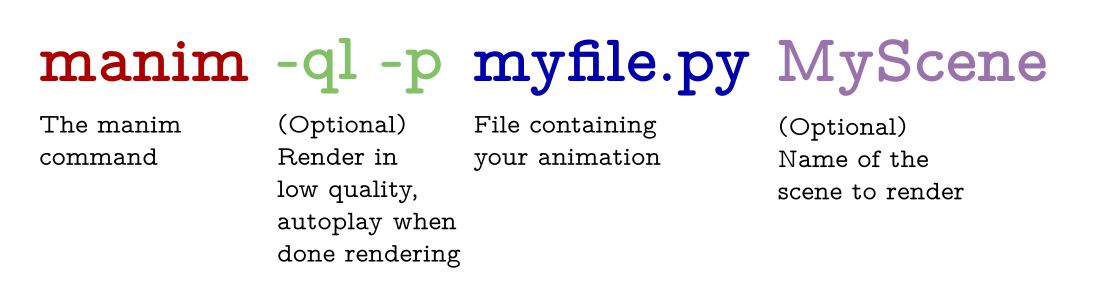
manim
A community-maintained Python framework for creating mathematical animations.

git-sim


The visual layer for Git in your own repos: simulate, record, replay, audit, and share individual Git commands or entire Git workflows, wherever you or your agents run them.
|
Simulate any Git command before you run it, as a web-first, embeddable, interactive graph designed for you to share.
|
|
Watch and record your repo animating in real-time, every Git operation, human or agentic, as a visual command sequence you can save, replay, and share.
|
|
Use git-sim without ever leaving your editor: Leverage git-sim right in your IDE with the VS Code extension (also works in Cursor, Windsurf, and VSCodium).
|
|
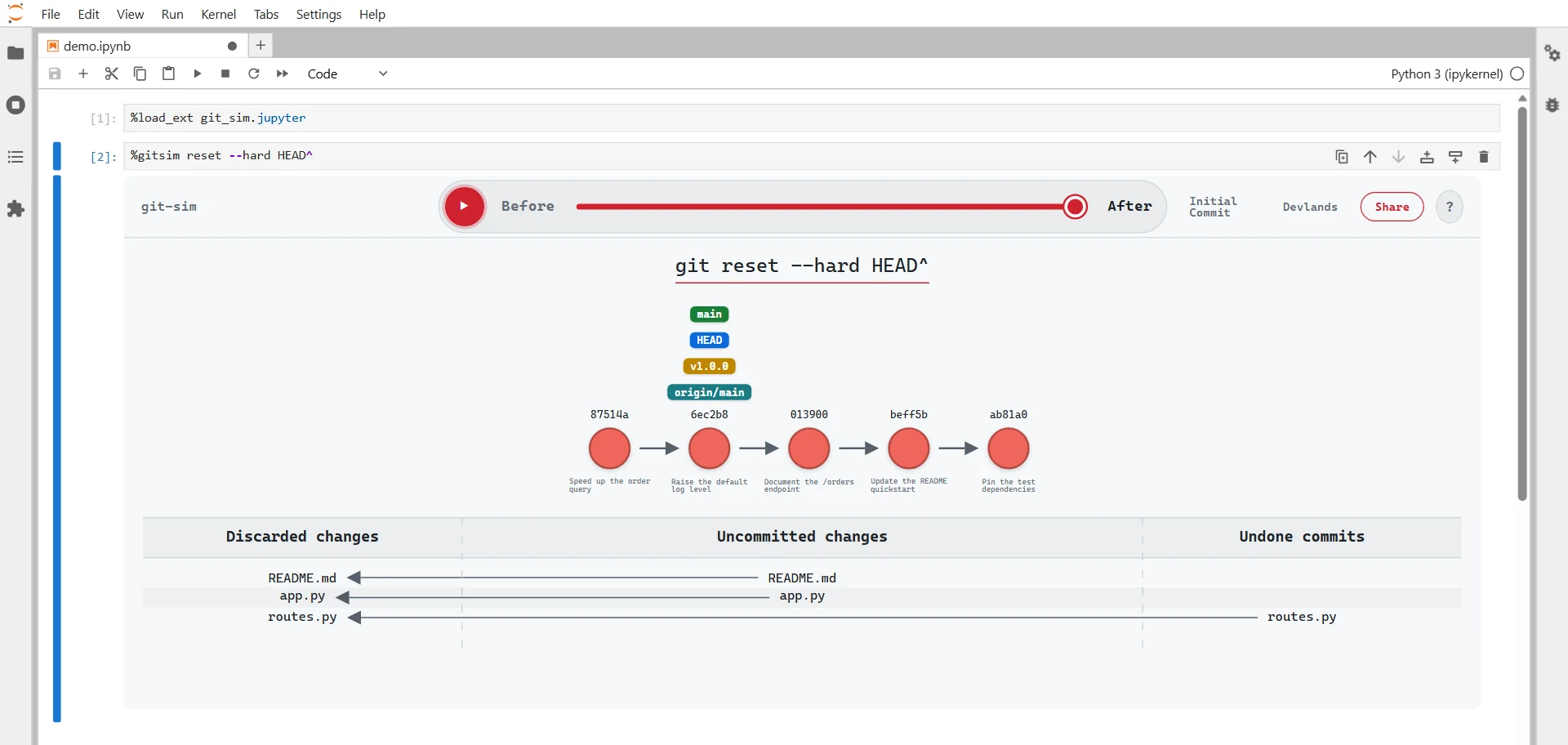
Integrate with Jupyter: Invoke git-sim within Jupyter to render Git simulations inline in your notebooks.
|
|
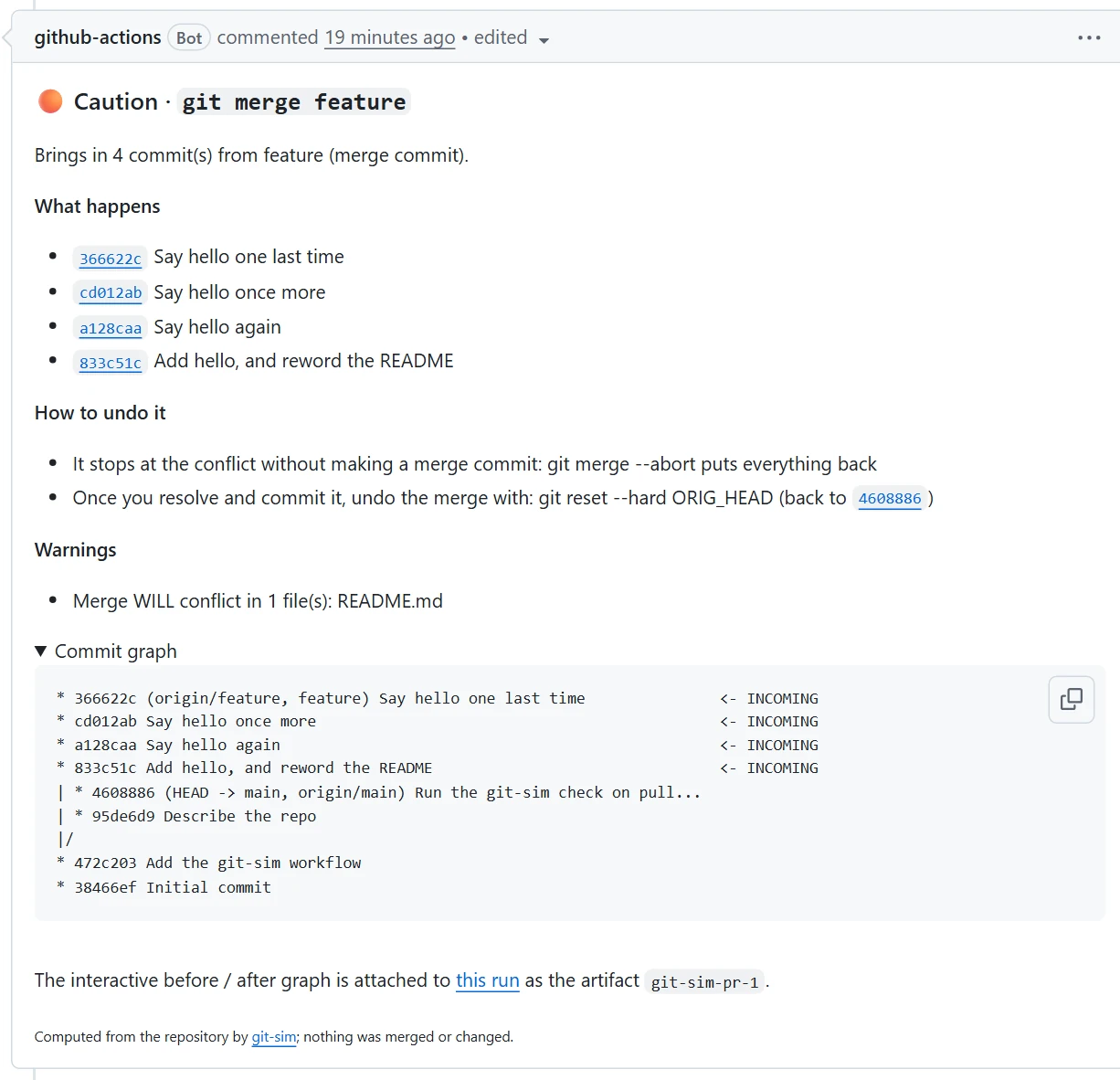
Automatically run git-sim on GitHub PR's: The git-sim GitHub Action generates both textual and visual descriptions of the resulting PR merge, whether it is safe, and how to undo it.
|
|
Catch and review risky Git commands from AI agents in real time, before they harm your work. Wires into Claude Code, GitHub Copilot, Cursor, Codex, Gemini CLI, and any MCP agent.
|
|
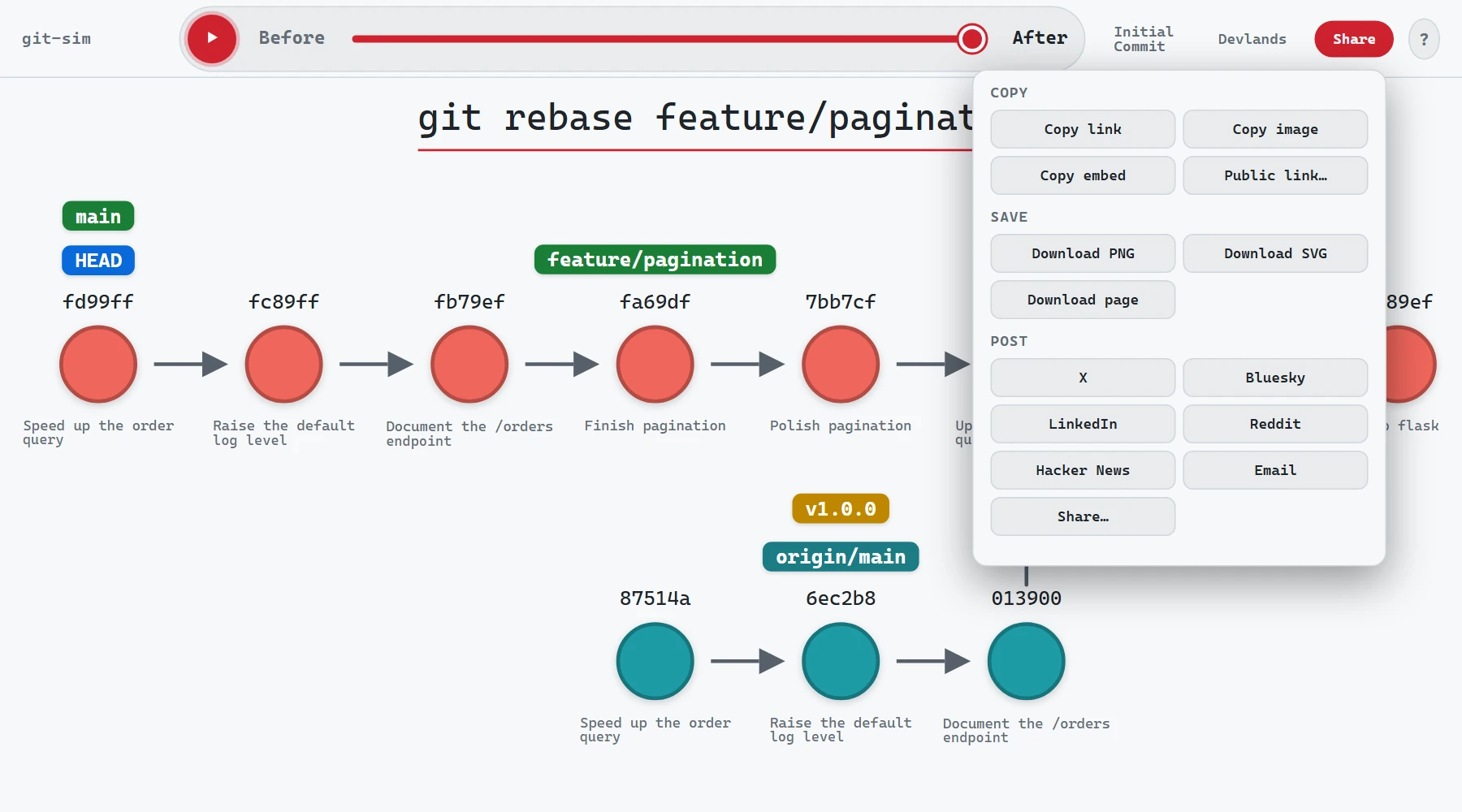
Share any git-sim visualization as a link, an embed, an HTML page, a PNG or SVG image, an MP4 video, or a social post.
|
If git-sim helps you, ⭐ star the repo or sponsor it on GitHub.
Requirements
- Windows, macOS, or Linux
- Python 3.10 to 3.14, and Git
- Animated video (
--animate) needs Manim: see Installation
Minimal Linux distros such as those on servers, Docker images, CI runners, and WSL often lack the following required dependencies: libEGL, libGL, and fontconfig. If git-sim errors and prompts for them, use the command below that applies to your Linux flavor:
$ sudo apt install libegl1 libgl1 libfontconfig1           # Debian, Ubuntu, WSL
$ sudo dnf install mesa-libEGL mesa-libGL fontconfig       # Fedora, RHEL
Get started
1. Install git-sim
$ pip install git-sim
Or pipx install git-sim, or uv tool install git-sim.
2. Simulate any Git command: in your local repo, prefix any Git command with git-sim instead of git
$ git-sim merge dev
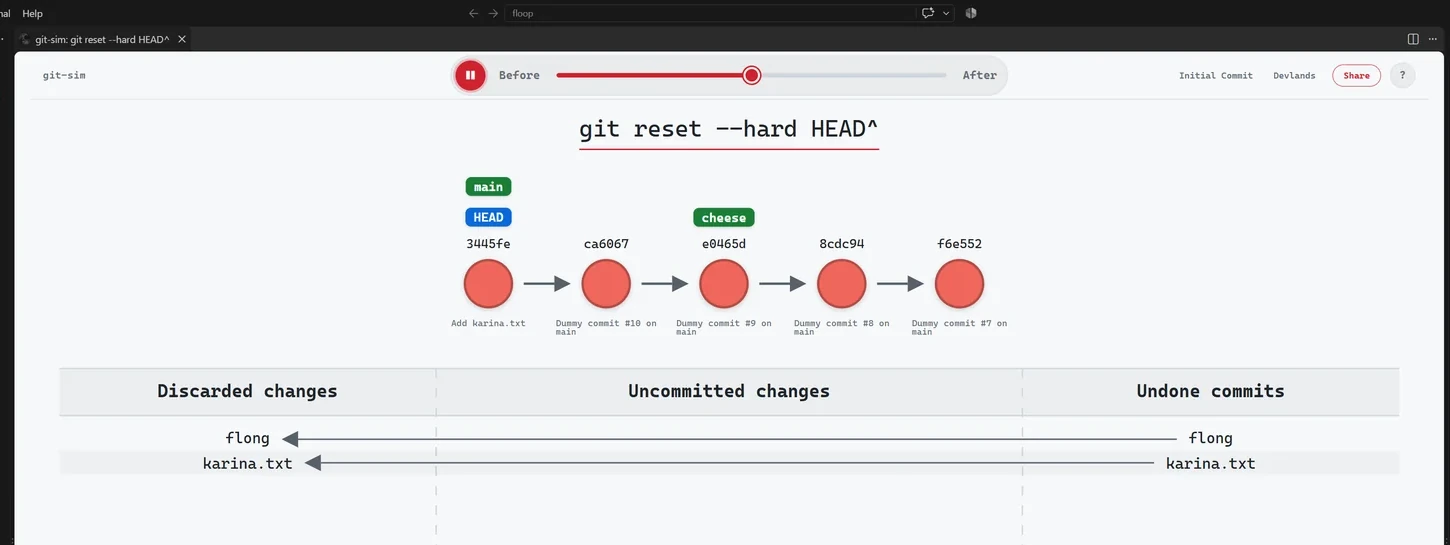
$ git-sim reset --hard HEAD^
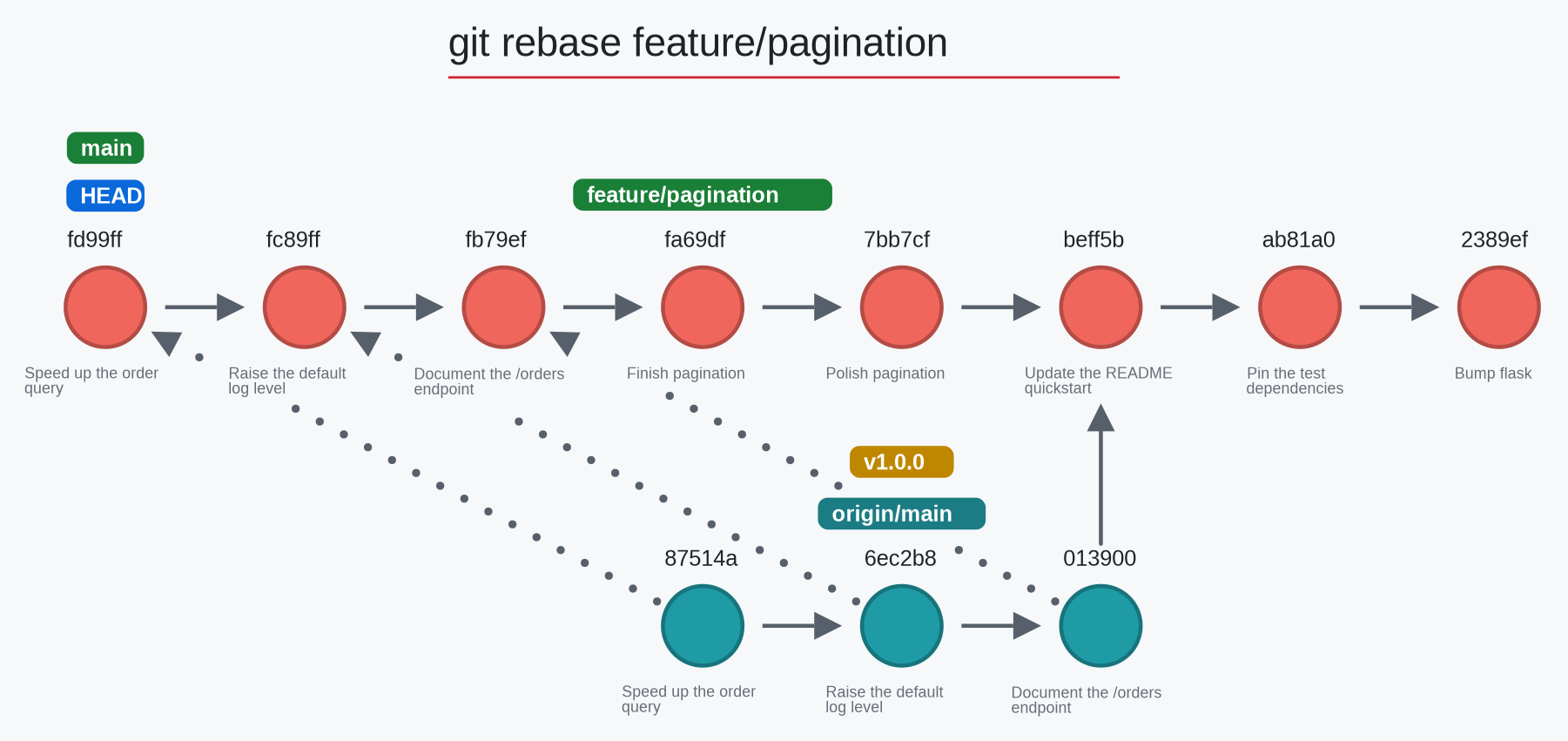
$ git-sim rebase main
By default, git-sim creates a web-first, shareable visualization that opens in your browser. It generates an interactive simulation of exactly how any Git command will impact your repo, without actually running the real Git command so nothing changes in your repo.
Run git-sim -h to list all commands.
3. Watch your repo update in real time: a live graph that animates each Git operation in sequence, recording it so you can save, replay, and share it
$ git-sim live
4. Install the git-sim VS Code extension: Use all git-sim functionality directly in VS Code via the integrated command palette tools.
$ code --install-extension initialcommit.git-sim
Or search for git-sim in the Extensions view (the Marketplace in VS Code, Open VSX in Cursor, Windsurf, and VSCodium).
5. Jupyter Notebook integration: use git-sim inside Jupyter after installing it in the notebook's Python environment:
%load_ext git_sim.jupyter   # once per notebook: adds the %gitsim magic
%gitsim rebase main         # the interactive graph, right under the cell
%gitsim live                # a live graph that follows the repo as it changes
%gitsim live stop           # stops live mode (so does restarting the kernel)
From Jupyter, git-sim simulates Git commands against the repo in the notebook's working directory, or path specified after the -C flag.
The graph's frame grows to fit it unless you set --height in pixels.
%gitsim live runs live mode in the background until you stop it or restart the kernel, and needs Jupyter running on your own machine (not Colab, JupyterHub, or Binder).
6. GitHub PR integration: See Installation.
7. Check a risky command before it runs: how risky it is, and what you could lose
$ git-sim preflight reset --hard HEAD~1
8. Connect your AI agents: add the pre-flight hook and MCP server to the agents on your machine
$ git-sim wire-agents
No Git repo handy to visualize? The bundled git-dummy creates Git repos in whatever structure you want to play with:
git-dummy --scenario orders builds the sample repo the graphs in this README are drawn on (--scenario orders-behind for fetch and pull), so you can run the same commands in it.
Your Git repo data stays on your machine
By default, when you run git-sim it generates an interactive Git graph which opens in the git-sim viewer at initialcommit.com, but the graph's data is compressed and placed in the link's #fragment, which browsers never send to the server, so nothing about your code leaves your local machine.
For example, git-sim branch feature opens a link like the one below, shortened here (the full link is about 2,000 characters):
https://initialcommit.com/tools/git-sim/viewer#d=eNrNWdtu2zgQ_RVBxaK7QEzzTqmIDbjJusWifdkC-06LlK1GlgxJiZP9-h3q4lvcpqqdrf1gmJSGnDOXw-H4unyYe4kZ-...&t=git+branch+feature&m=light&p=git-sim-branch_10-04-26_19-02-11.html
Everything after the # stays in your local browser: d is the compressed graph, t is the command, m is the color theme, and p is the name of the graph file saved on your machine. All the site receives is https://initialcommit.com/tools/git-sim/viewer.
The page is also saved locally, and --open-in local (or git_sim_open_in=local) opens that file offline instead, without invoking the git-sim viewer on initialcommit.com at all.
The one exception is a public link, which you may decide to create with the Share → Public link option. Generating the public link stores the git-sim graph data on initialcommit.com servers. The link is shortened for convenience and shows the graph itself when posted, and you'll also be provided a link to delete the stored graph data at any time.
Live mode
To enter git-sim's live mode, browse into any local Git repo and run:
$ git-sim live
Run git-sim live to record every Git operation executed by you or your AI agents in real-time as a visual, interactive session you can replay and share.
It names, animates, and tracks every change to your Git repo, so you can step back through any of them, replay the whole session, save it as a single HTML page, or download it as a video.
By default, the page opens in the git-sim viewer on initialcommit.com which connects to a lightweight web server git-sim live runs on your machine, reachable only from 127.0.0.1 and with a session key. All Git data is compressed and stored in the URL #fragment, so nothing about your repo leaves your machine, and --open-in local serves the page from git-sim itself instead if you prefer not to invoke initialcommit.com's git-sim viewer and run purely local.
Runs inside VS Code: the VS Code extension shows the same live graph in its Live graph tab and sidebar view (see the extension's page).
How it watches your repo: live mode reads what Git reports between checks, rather than watching .git, and waits for the repo to settle, so a rebase or a pull shows as one change. It names each change from the reflog when it can (git commit, git reset <commit>, git switch -c <branch>), and otherwise from what changed (a branch created, a file staged, a stash popped). Chrome and Edge ask once for permission to reach the local server. If a browser refuses, the page offers the local version.
Useful options:
-C <path>: follow another repo--no-zones: the commit graph alone, without the working directory table--interval <seconds>: how often to check (default 1)--sessions, --replay: list this repo's recorded sessions, or reopen the latest (--session <folder> for another)--once: draw the current state and exit--json: print one JSON line per change instead of opening a page, for editors--port <number>: the local server's port-d: open nothing, and just print the addresses
Set GIT_SIM_LIVE_DEBUG=1 to log each detected change.
Embed a git-sim graph in your web page
Embed a git-sim graph in any web page, blog post, tutorial, or docs. Includes the full interactive viewer. Click Copy embed in any git-sim graph's Share menu, and paste the HTML into your page:
<div class="git-sim" data-graph="eJzVXWtvo0gW_SuI0a52..." data-title="git rebase main">
<a href="https://initialcommit.com/learn/git/go?cmd=rebase&from=embed">git rebase</a> main, created with <a href="https://initialcommit.com/tools/git-sim">git-sim</a>
</div>
<script src="https://initialcommit.com/js/tools/git-sim-embed.js" defer></script>
The compressed graph data travels inside the data-graph attribute, so there's no file to host.
To host it as a file instead, save the SVG with git-sim --img-format svg rebase main (or Download SVG in the Share menu), and use data-src="/path/to/graph.svg" in place of data-graph.
Pre-flight
$ git-sim preflight reset --hard HEAD~2
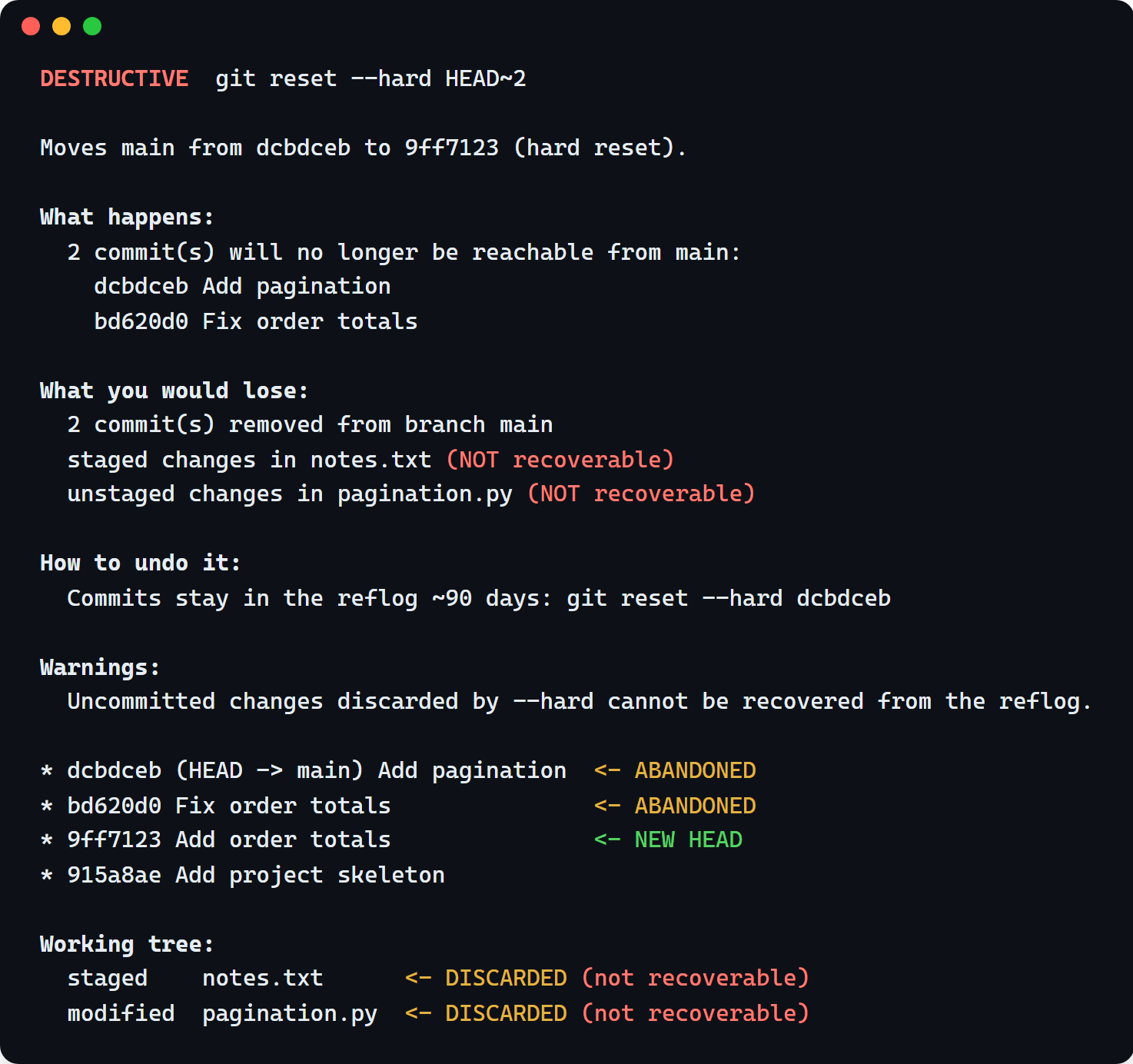
git-sim's pre-flight mode shows a deterministic evaluation of whether any Git command is safe or potentially destructive to your repo, including how risky it is, which commits might become unreachable, which changes would be lost for good, and the command that undoes it, all without impacting your repo.
Questions
What is git-sim?
initialcommit-com/git-sim is a public repo on GitHub by initialcommit-com. The visual layer for Git in your own repos: simulate, record, replay, audit, and share entire Git workflows, wherever you or your agents run them.
Is git-sim open source?
It declares the GPL-2.0 license on GitHub.
Does git-sim run on macOS, Windows or Linux?
Its maker tagged it for macOS, Windows and Linux, or as Docker or cross-platform. That is declared by the maker; Take My Repo has not tested it.
How do I install git-sim?
Open "Take it" on its page: Take My Repo writes an install plan for your machine and hands it to your AI agent (Claude Code, Codex or Cursor), which asks you before each step. Take My Repo has not tested it on any machine.





