
WardenOne
One extension. Every defence. - the all-in-one privacy, security & anti-scam extension for Chromium browsers (MV3). 110 on-device protections: ad & tracker blocking, anti-fingerprinting, phishing/scam & credential-theft defence, cookie-wall lifting, download scanning, IP-leak protection, plus YouTube & Twitch tools. No account, no telemetry. GPLv3.
- 23
- GPL-3.0
- 3 d ago
Repo iri-dev/WardenOne, read from GitHub 4 h ago. iri-dev has not joined Take My Repo.
In short
iri-dev/WardenOne is a public repo on GitHub by iri-dev. One extension. Every defence. - the all-in-one privacy, security & anti-scam extension for Chromium browsers (MV3). 110 on-device protections: ad & tracker blocking, anti-fingerprinting, phishing/scam & credential-theft defence, cookie-wall lifting, download scanning, IP-leak protection, plus YouTube & Twitch tools. No account, no telemetry. GPLv3. It declares the GPL-3.0 license on GitHub. It is written mainly in JavaScript, has 23 stars and last changed on 2026-11-21. Nobody has reviewed it on Take My Repo yet, which says nothing about its quality. Read from GitHub on 2026-11-24.


WardenOne
One extension. Every defence.
Blocks scams, password theft, dodgy downloads, trackers, fingerprinting, pop-ups and forced redirects. It keeps an eye on your other extensions too. And it all runs on your device.
No account. No telemetry. No WardenOne tracking. No remote browsing proxy.
No WardenOne backend · Entirely open source · Local-first by design
There's no account and no analytics. Your browsing doesn't go through any server of mine (I don't have one). Public-list and update checks contact their named sources; optional reputation checks run only if you turn them on. The privacy policy explains exactly what each sends.
[!WARNING] Official builds only. WardenOne is a browser extension, never an
.exe, installer or setup program. Download it only from github.com/iri-dev/WardenOne. If you received another copy, read the impersonation incident notice.
One master switch. 112 protections.
109 individually controllable · 3 watch-only
Three of them are watch-only: Background Reports, Hardware & File Access and Browser Capabilities. They write down what happened. They don't block anything so there's nothing for a switch to turn off.
WardenOne works across the network, pages, downloads, storage and your other extensions. Not just the page you're looking at. And when it blocks something it shows you why.
Site comparisons use a bundled Public Suffix List so separately registered sites under
suffixes such as or.jp and k12.ca.us stay separate. Known shared-hosting tenants also
keep separate identities; the background worker uses the complete private suffix list.
Page guards run on Google Docs and Drive content and non-login pages on the supported identity-provider domains. Authentication routes keep their compatibility exemptions. On these hosted apps, fingerprint noise, overlay removal and automatic consent handling stay paused while phishing, ClickFix, skimmer, form-trap and fake-update checks remain available.
Custom cosmetic rules are checked individually in the browser, so one invalid selector
does not disable the other rules. Unsupported procedural list operators are reported as
skipped; native CSS selectors such as :has() remain available.
Inspect it for yourself: Privacy policy · Permissions explained · Security policy · Source · Licence

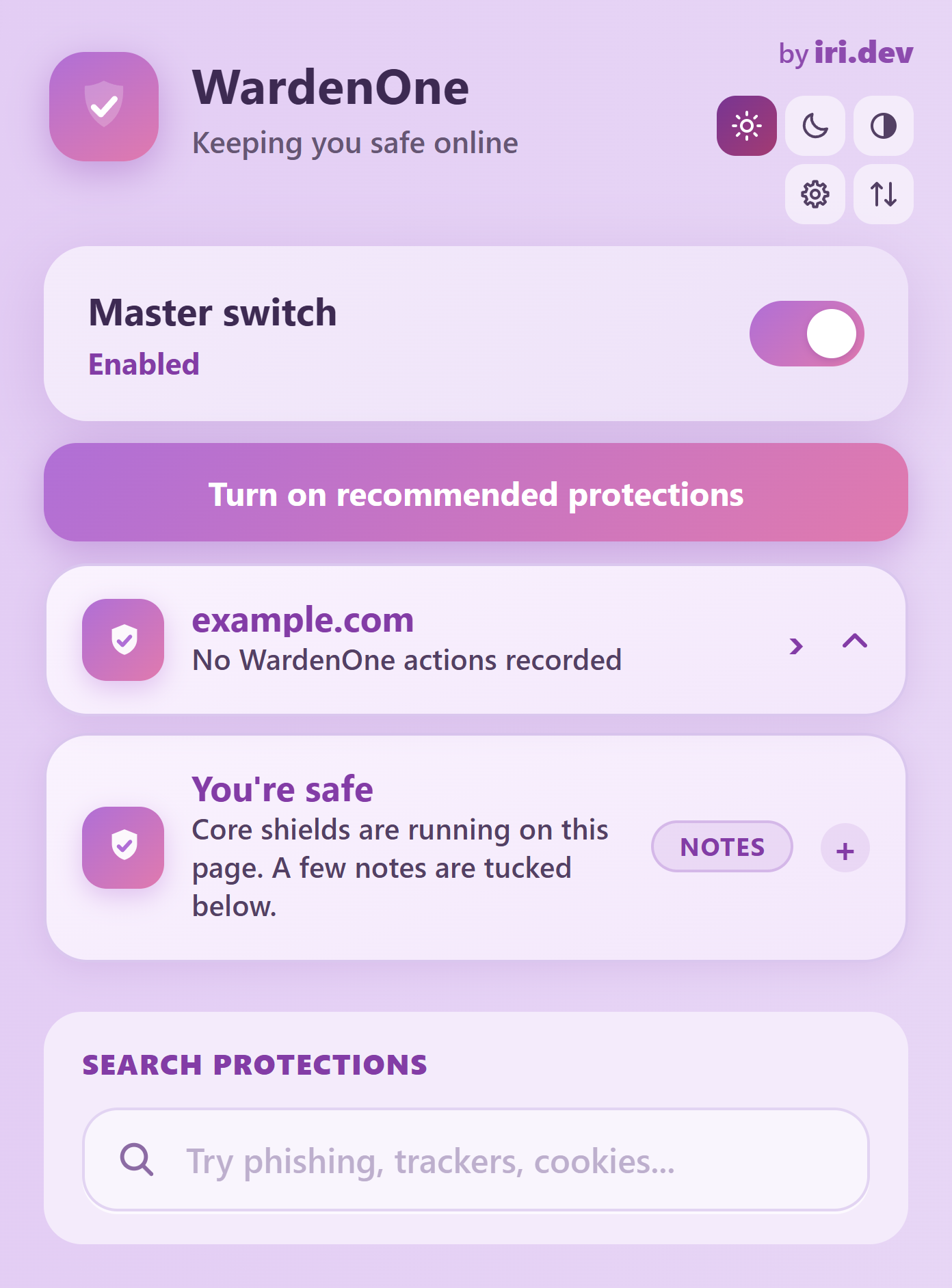
The main popup. Master switch, current-site summary, protection health and search. Settings and section arrangement are in the top-right. Click any image to see it full size.
Explore the features
- Security: scam and phishing warnings, password and session guards, Download Shield, File Shield, and checks on your other extensions.
- Privacy: tracker and cookie controls, link cleaning, IP-logger protection, and optional anti-fingerprinting.
- Content blocking: AdShield for ordinary pages and dedicated handling for YouTube, Twitch, and Spotify, plus search cleanup and Element Zapper.
- Control and verification: pause one site, adjust a protection there, inspect Activity and network requests, write your own rules, and check Protection Health or run the Self-Test.
- Tools and comfort: Memory Shield, EyeShield, keyboard and right-click tools, and optional Resource Saver controls to pause GIFs, stop muted video previews, or disable WebGL on selected sites or everywhere except allowed sites.
- Settings and popup layout: a separate searchable Settings page for switches, site exceptions, notifications, backup, and rearranging the popup's sections.
The popup and Settings captures use the current build. Some other feature screenshots come from earlier builds and may place controls differently.
Quick install
- Download WardenOne-latest.zip and unzip it somewhere you intend to keep it.
- Open
chrome://extensionsand enable Developer mode in the top-right. - Select Load unpacked, then choose the unzipped folder containing
manifest.json.
Please leave Developer mode on afterwards. WardenOne isn't on the Web Store, so Chrome counts it as an unpacked extension and switches it off the moment Developer mode goes off. It then stops protecting you, even after a restart, until you turn Developer mode back on.
The About page in Settings shows both the version and the GitHub build ID. Include both when reporting a problem; the version stays the same between rolling builds.
First run
Pick Recommended for the core security baseline. Maximum Privacy adds fingerprint noise, fraud and bot-check script blocking, first-party tracker blocking, breach and clipboard checks, WebRTC hardening, and header/link protections. These can affect calls, screen sharing, graphics, sign-ins or purchases. Choosing Recommended again preserves advanced choices you already enabled; use the individual switches in Settings to undo them.
Then pick Normal notifications or Silent mode. Silent mode still protects you, it just hides the routine pop-ups and badges. Everything's still in the Notification Centre if you want to look.
The on-page badge opens a compact list of triggered rules, with their IDs and site-specific controls. Rule names open matching settings; a closed lock pauses a supported control on this site, including YouTube ad blocking. The open lock restores it, including after reload. Its count includes available browser network matches and fades back to a hint after its brief highlight. Observations are separate from blocks; Activity holds the site's history. When network counts are unavailable, the badge marks the count as partial rather than claiming nothing was blocked. Its panel and corner badge follow WardenOne's Light, Dark or System appearance choice, including changes made while a page is open.
The final setup step links Settings and section arrangement, and has a searchable guide to every protection, popup control and tool. Open a group or search for something like GIFs, WebGL, Zapper or backup to read what it does, see its fresh-install default, and find its controls.

The full feature guide is searchable, with explanations, default labels and links to the controls.
See the complete first-run journey


Updating an unpacked installation
The ZIP gets rebuilt every time I push something that passes the tests. But an unpacked extension does not update itself from GitHub so you have to do it yourself:
- Export a settings backup from WardenOne before a major update.
- Download and unzip the newest build.
- Keep your installed WardenOne folder at the same path and replace its contents with the new build.
- Open
chrome://extensionsand press Reload on WardenOne.
Keep the folder in the same place. If the path changes Chromium can treat it as a whole different extension and your settings won't come with it.
The popup checks WardenOne's own GitHub build when you open it. If GitHub confirms that your installed build is an ancestor of the latest complete release, a small update notice appears near the top of the popup. Open Settings → About WardenOne to compare the build IDs, check again, and follow the update steps. The check uses build commits because the extension version stays the same between rolling builds. A source checkout without a packaged build ID, a Store build, a failed check, or a build from a different history is never called outdated. GitHub sees the normal request from your IP address; the commit comparison also sends your public build ID, not your browsing history or the site you are visiting. Results are reused for up to six hours while the browser stays open. WardenOne does not install updates for you.
Compatibility: Chrome, Brave, Edge, Opera and other Chromium-based browsers. Minimum supported Chromium version: 121.
Why WardenOne exists
Staying safe online usually means installing an ad blocker and an anti-tracker and a fingerprinting tool and a pop-up blocker and a download scanner... and then hoping they all get along. I wanted one extension that just does all of it together. Plus the things content blockers usually skip, like phishing and password theft protection, checking your other extensions, and being able to see whether any of it is working.
A few rules I've stuck to while building it:
- If WardenOne finds nothing it says it found nothing. It won't say "safe".
- If something fails (a rule it can't apply, a missing part, a verdict it isn't sure about) you get to see that. It doesn't get quietly ignored.
- If a protection breaks a site you can back off a little at a time. Pause that site, turn off one protection there, undo one firewall rule. You shouldn't have to turn everything off.
Unknown does not mean safe.
If WardenOne doesn't know, it says it doesn't know.
A file with nothing weird in its structure doesn't get called harmless. An extension that isn't in the local catalogue doesn't get called trusted. Search results never get a green tick just because nothing matched. And if a privacy check can't really be measured it says untestable, not passed.
WardenOne also doesn't promise to be invisible. Some protections have to run inside the page
itself and a page that goes looking can spot them (a few named globals, the warnings it draws,
the events it uses to talk to itself). Renaming them wouldn't make anyone safer. So instead every
single one is written down with the reason it exists, and tools/test-detectability-budget.js
fails if a new one sneaks in. A page that finds them doesn't really gain anything either. Anything
from the page that leads to a real decision has to be signed with a key the page never had. And
the protections that really matter run where the page can't reach them.
Why the name WardenOne?
Warden is the job. Keep watch over the browser and step in when there's actual evidence something's wrong, without pretending to know more than it does.
One is about how it's built. It's not an ad blocker sat next to a separate phishing tool and a privacy tool and a download scanner. Everything shares what it knows. A dodgy redirect can feed into a scam warning. A download can use the reputation of the page it came from. And when a site breaks you can trace it back through the same activity log that made the decision.
It does not mean one extension can stop everything bad on the internet. Nothing can promise that and I'm not going to pretend this one can.

Security
Questions
What is WardenOne?
iri-dev/WardenOne is a public repo on GitHub by iri-dev. One extension. Every defence. - the all-in-one privacy, security & anti-scam extension for Chromium browsers (MV3). 110 on-device protections: ad & tracker blocking, anti-fingerprinting, phishing/scam & credential-theft defence, cookie-wall lifting, download scanning, IP-leak protection, plus YouTube & Twitch tools. No account, no telemetry. GPLv3.
Is WardenOne open source?
It declares the GPL-3.0 license on GitHub.



