
Microsoft-Activation-Scripts
Open-source Windows and Office activator featuring HWID, Ohook, TSforge, and Online KMS activation methods, along with advanced troubleshooting.
- 201k
- Batchfile
- GPL-3.0
- 2 wk ago
:wrench: :hammer: A set of PowerShell functions to enhance your functions and scripts or to facilitate working in the console. Most should work cross-platform and cross-version. Operating system limitations are handled on a per command basis. The Samples folder contains demonstration scripts. After installing the module run Open-PSScriptToolsHelp.
Repo jdhitsolutions/PSScriptTools, read from GitHub 6 min ago. jdhitsolutions has not joined Take My Repo.
jdhitsolutions/PSScriptTools is a public repo on GitHub by jdhitsolutions. :wrench: :hammer: A set of PowerShell functions to enhance your functions and scripts or to facilitate working in the console. Most should work cross-platform and cross-version. Operating system limitations are handled on a per command basis. The Samples folder contains demonstration scripts. After installing the module run Open-PSScriptToolsHelp. It declares the MIT license on GitHub. It is written mainly in PowerShell, has 1,008 stars and last changed on 2026-08-19. Nobody has reviewed it on Take My Repo yet, which says nothing about its quality. Read from GitHub on 2026-11-25.
Open-source Windows and Office activator featuring HWID, Ohook, TSforge, and Online KMS activation methods, along with advanced troubleshooting.

This module contains a collection of functions, variables, and format files that you can use to enhance your PowerShell scripting work or get more done from a PowerShell prompt with less typing. Most of the commands are designed to work cross-platform. Please post any questions, problems, or feedback in the Issues section of this module's GitHub repository. Feedback is greatly appreciated.
The contents of this file and other documentation can be viewed using the Open-PSScriptToolsHelp command. This will open a PDF of all module documentation. You can also use Get-PSScriptTools to see a summary of module commands.
Please note that code samples have been formatted to fit an *80-character width.* Some example code breaks lines without using line continuation characters. I'm trusting that you can figure out how to run the example.
You can get the current release from this repository or install this from the PowerShell Gallery:
Install-Module PSScriptTools
or in PowerShell 7:
Install-Module PSScriptTools [-scope CurrentUser] [-force]
Starting in v2.2.0, the module was restructured to better support Desktop and Core editions. However, starting with v2.13.0, the module design has reverted. All module commands will be exported. Anything that is platform-specific should be handled on a per-command basis. It is assumed you will be running this module in Windows PowerShell 5.1 or PowerShell 7.
It is recommended to install this module from the PowerShell Gallery and not GitHub.
To remove the module from your system, you can easily uninstall it with common PowerShell commands.
Get-Module PSScriptTools | Remove-Module
Uninstall-Module PSScriptTools -AllVersions
These commands are designed to either streamline common PowerShell tasks or add new functionality.
You can use this command to copy the command line from a given PowerShell history item to the clipboard.The default item will the be last history item. Once copied, you can paste into your following prompt to edit and/or re-run.
PS C:\> Copy-HistoryCommand
Copy the command from the last history item to the clipboard. This command has an alias of ch.
Get-ProcessTree is intended to show you a hierarch of processes. In other words, a process tree. The command takes a process ID and iterates through its parents.
PS C:\> Get-ProcessTree 10156

NPM(K)  PM(K)  WS(K)   CPU(s)    Id SI ProcessName                 StartTime
------  -----  -----   ------    -- -- -----------                 ---------
    41 190584 264452   249.17 18244  1 WindowsTerminal  7/21/2026 9:26:26 AM
   155 447784 591468 1,360.58 18320  1 pwsh             7/21/2026 9:26:27 AM
    30  61704  87424     0.31 10156  1 powershell      7/22/2026 12:54:09 PM
The oldest "parent" will be listed first.
You can also get processes with the associated user name.
PS C:\> Get-ProcessTree 7732 -IncludeUserName

 WS(K) CPU(s)    Id UserName            ProcessName            StartTime
 ----- ------    -- --------            -----------            ---------
 14660  12.88  2000                     services    7/21/2026 8:58:18 AM
 11432   0.12  5492 NT AUTHORITY\SYSTEM sshd        7/21/2026 8:58:20 AM
 13336   0.02  9788 NT AUTHORITY\SYSTEM sshd        7/22/2026 1:04:58 PM
 13532   0.02 27668 Cadenza\roygbiv     sshd        7/22/2026 1:05:02 PM
 10280   0.03 25996 Cadenza\roygbiv     cmd         7/22/2026 1:05:02 PM
110160   1.31  7732 Cadenza\roygbiv     pwsh        7/22/2026 1:05:03 PM
You can use any process property name.
PS C:\> Get-ProcessTree 7732 | Select ID,Name,@{Name="Runtime";Expression = {
  New-Timespan -start $_.StartTime -end (Get-Date)}},Path | Format-Table

   Id Name     Runtime            Path
   -- ----     -------            ----
 2000 services 1.04:10:12.3658062
 5492 sshd     1.04:10:10.7142182 C:\Windows\System32\OpenSSH\sshd.exe
 9788 sshd     00:03:32.3461489   C:\Windows\System32\OpenSSH\sshd.exe
27668 sshd     00:03:27.7697884   C:\Windows\System32\OpenSSH\sshd.exe
25996 cmd      00:03:27.7487386   c:\windows\system32\cmd.exe
 7732 pwsh     00:03:27.7088487   c:\progra~1\powershell\7\pwsh.exe
As an alternative, you can display the process tree in a graphical format using ANSI styling.
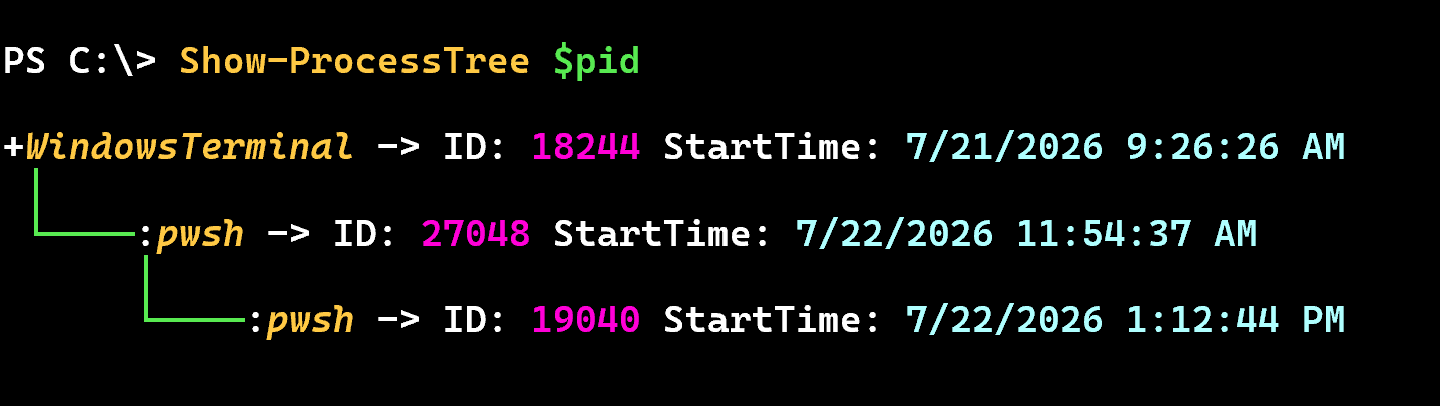
You can also request user name information.
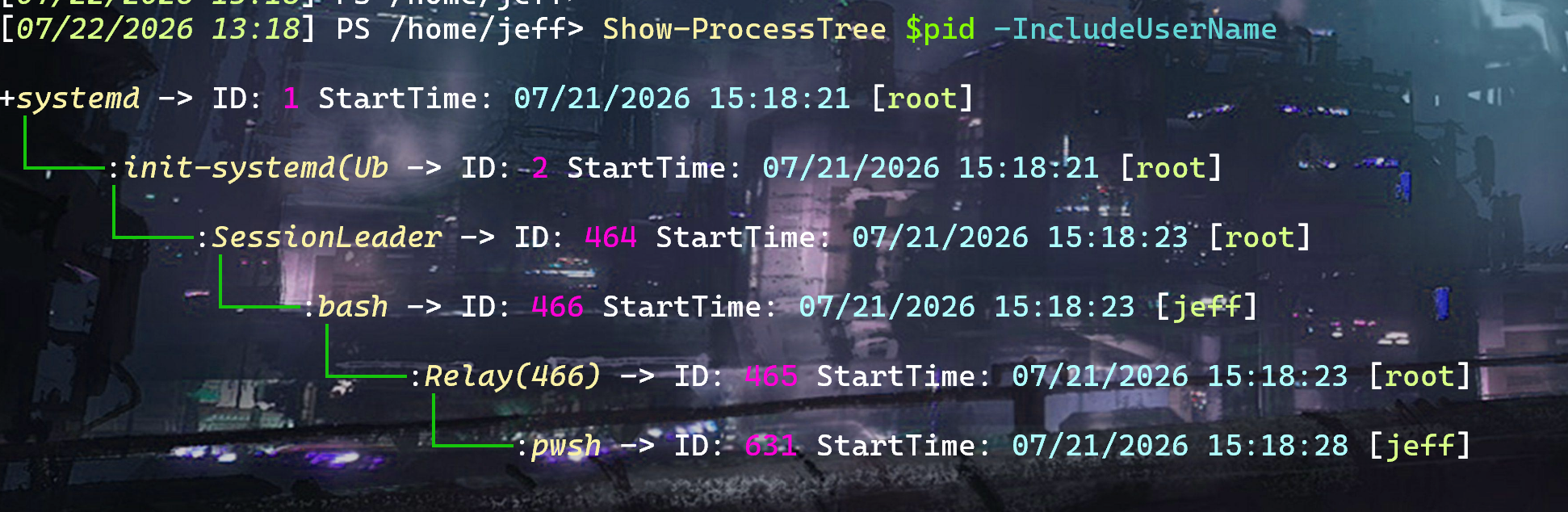
As you can see, the command also works cross-platform.
The process tree commands require PowerShell 7.
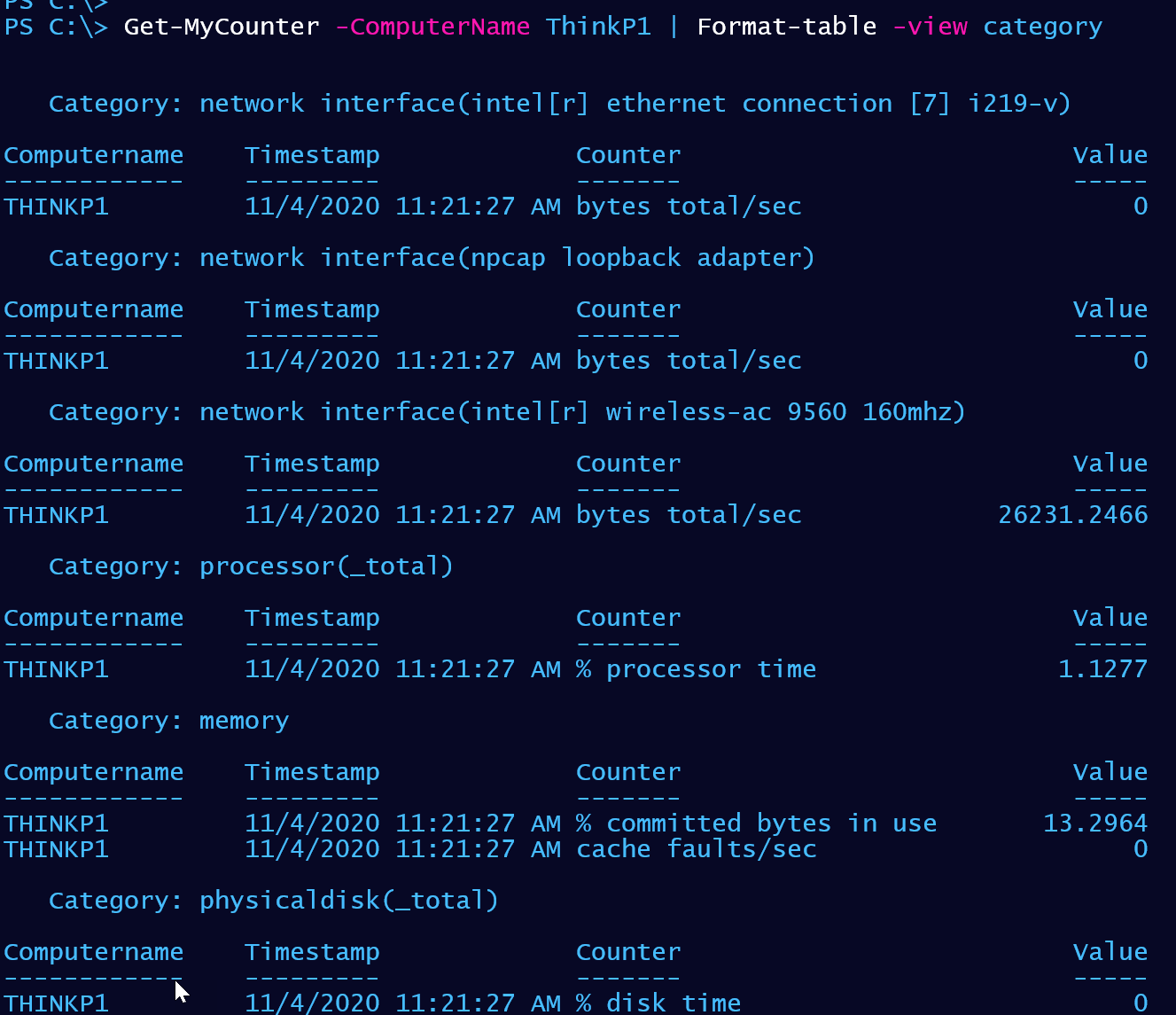
Get-MyCounter is an enhanced version of the legacy Get-Counter cmdlet, which is available on Windows platforms to retrieve performance counter data. One of the challenges with using Get-Counter is how it formats results. The information may be easy to read on the screen, but it is cumbersome to use in a pipelined expression.
Get-MyCounter takes the same information and writes a custom object to the pipeline that is easier to work with. You can pipe counters from Get-Counter to Get-MyCounter.
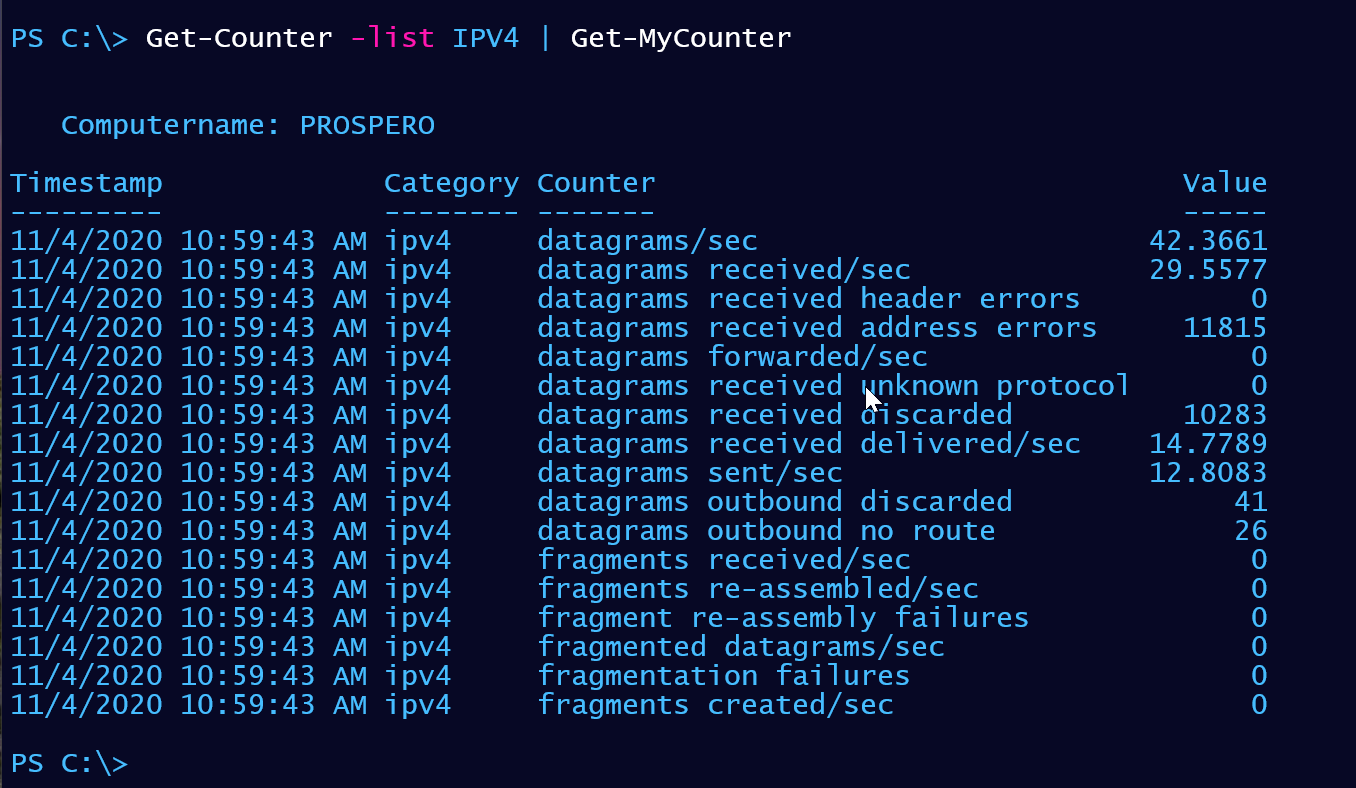
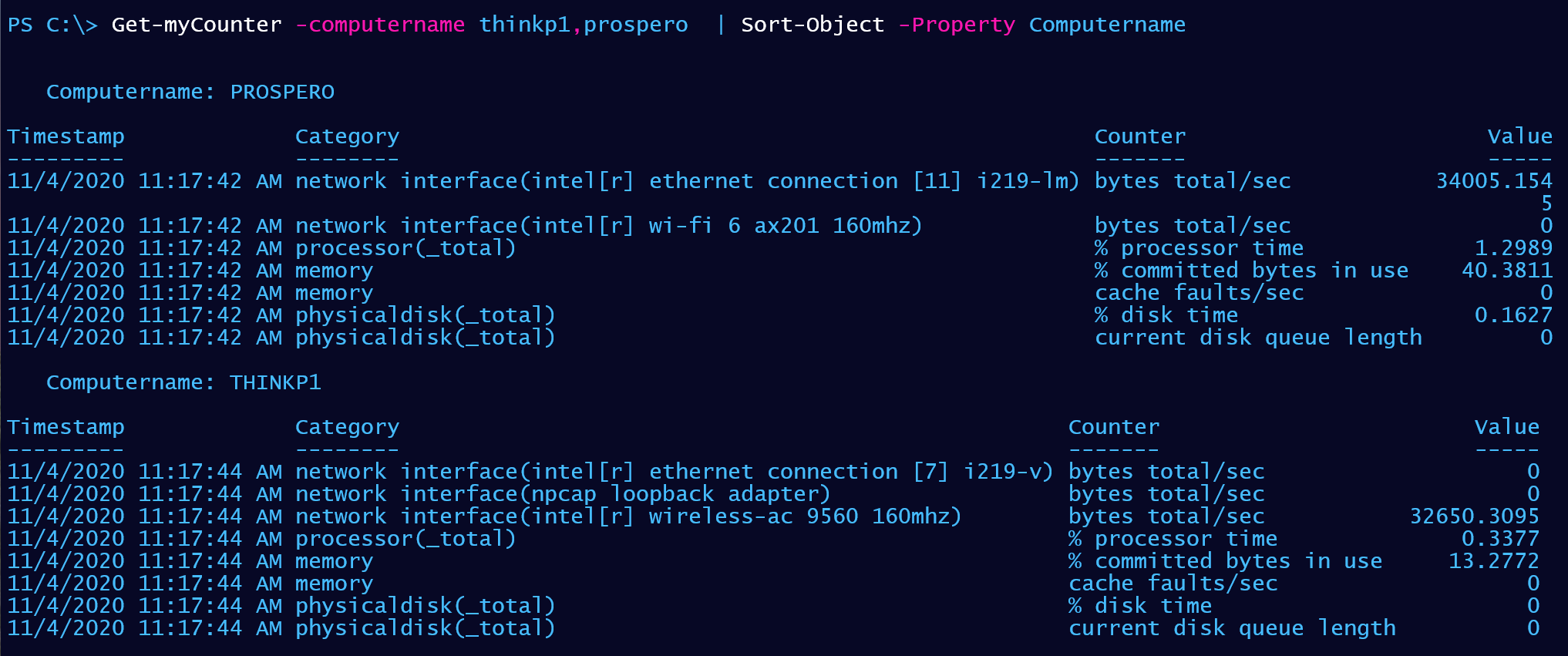
One advantage of Get-MyCounter over Get-Counter is that the performance data is easier to work with.
Get-MyCounter '\IPv4\datagrams/sec' -MaxSamples 60 -SampleInterval 5 -computer SRV1 |
Export-CSV  c:\work\srv1_ipperf.csv -NoTypeInformation
In this example, the performance counter is sampled 60 times every 5 seconds and the data is exported to a CSV file which could easily be opened in Microsoft Excel. Here's a sample of the output object.
Computername : SRV1
Category     : ipv4
Counter      : datagrams/sec
Instance     :
Value        : 66.0818918347238
Timestamp    : 11/4/2025 11:31:29 AM
Get-MyCounter writes a custom object to the pipeline which has an associated formatting file with custom views.
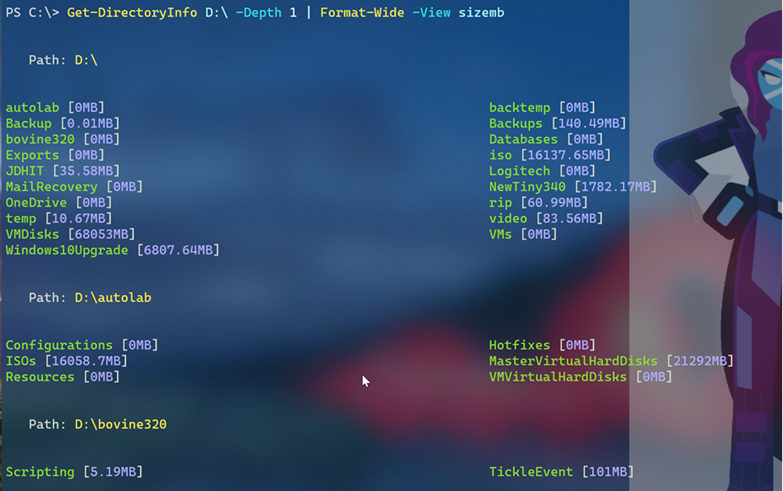
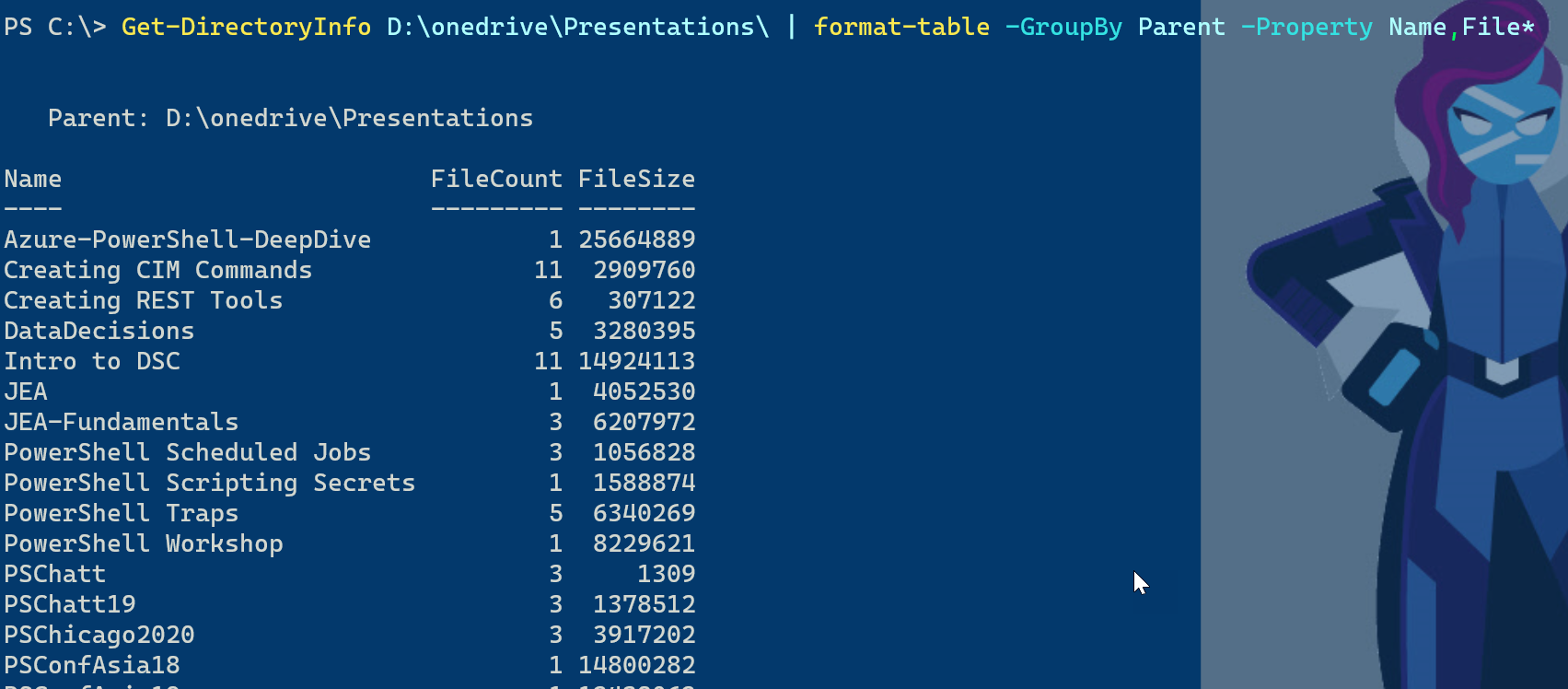
This command, which has an alias of dw, is designed to provide quick access to top-level directory information. The default behavior is to show the total number of files in the immediate directory. Although, the command will also capture the total file size in the immediate directory. You can use the Depth parameter to recurse through a specified number of levels. The default displays use ANSI escape sequences.

The command output will use a wide format by default. However, other wide views are available.
You can use the object in other ways.
PowerShell's formatting system includes several custom views that display objects in different ways. Unfortunately, this information is not readily available to a typical PowerShell user. This command displays the available views for a given object type.
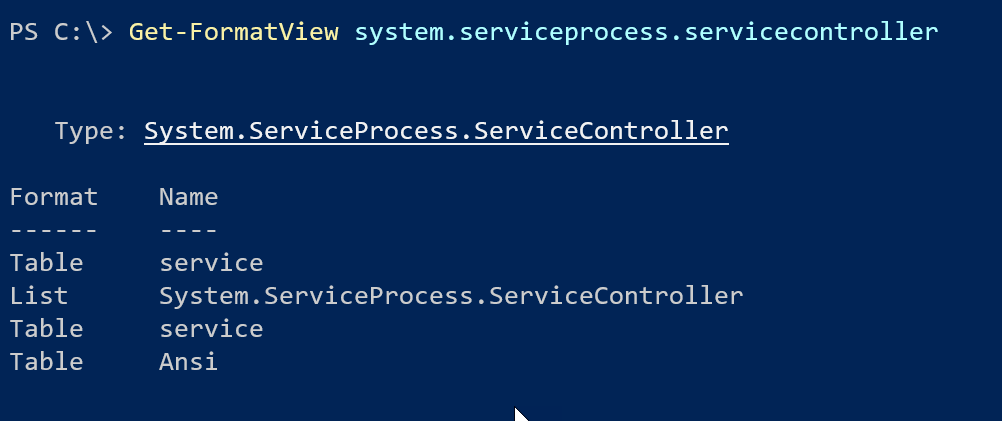
This command has an alias of gfv.
This command is designed to solve the problem when you want to run a function loaded locally on a remote computer. Copy-PSFunction will copy a PowerShell function that is loaded in your current PowerShell session to a remote PowerShell session. The remote session must already be created. The copied function only exists remotely for the duration of the remote PowerShell session.
$s = New-PSSession -ComputerName win10 -cred $art
Copy-PSFunction Get-Status -Session $s
Once copied, you might use Invoke-Command to run it.
Invoke-Command { Get-Status -AsString } -session $s
If the function relies on external or additional files, you will have to copy them to the remote session separately.
This command is designed to make it easy to identify all possible PowerShell profile scripts. Including those for hosts such as VSCode or the PowerShell ISE. The command writes a custom object to the pipeline which has defined formatting. The default view is a table.
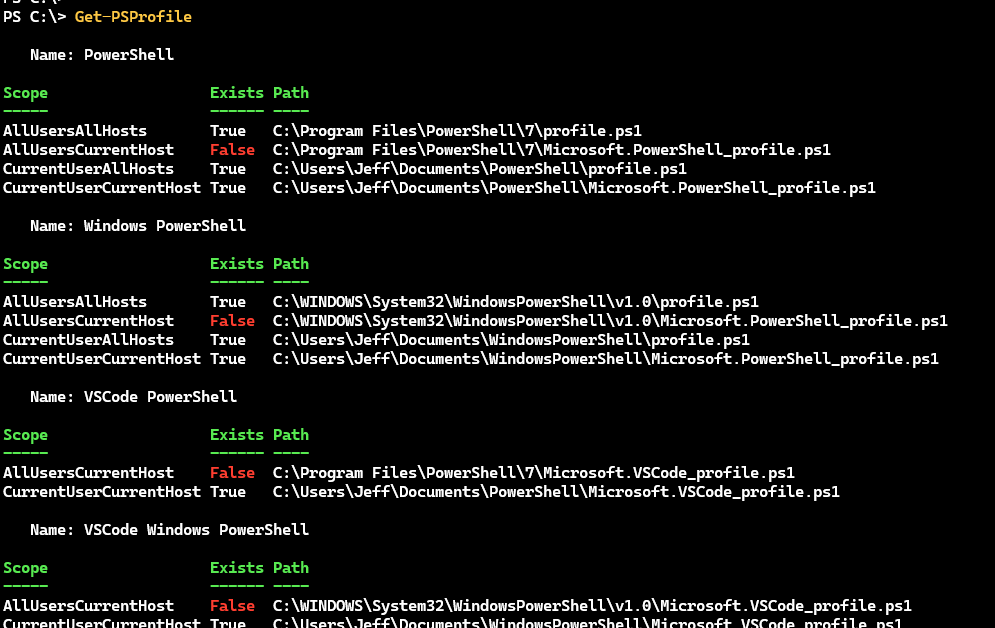
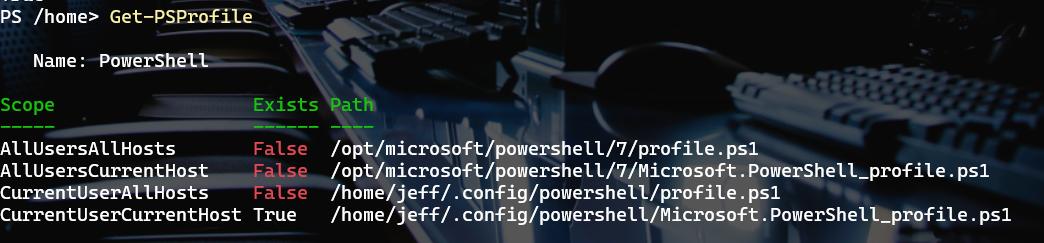
There is also a list view.
PS C:\> Get-PSProfile | Where {$_.Name -eq 'PowerShell' -and $_.Exists} | Format-List

   Name: PowerShell

Scope        : AllUsersAllHosts
Path         : C:\Program Files\PowerShell\7\profile.ps1
Exists       : True
Size         : 1323
LastModified : 5/6/2026 4:02:57 PM

Scope        : CurrentUserAllHosts
Path         : C:\Users\Jeff\Documents\PowerShell\profile.ps1
Exists       : True
Size         : 1910
LastModified : 3/13/2026 4:35:47 PM

Scope        : CurrentUserCurrentHost
Path         : C:\Users\Jeff\Documents\PowerShell\Microsoft.PowerShell_profile.p...
Exists       : True
Size         : 8215
LastModified : 5/15/2026 2:48:52 PM
Often you might define aliases for functions and scripts you use all of the time. It may be difficult sometimes to remember them all or to find them in the default Get-Alias output. This command will list all currently defined aliases that are not part of the initial PowerShell state.
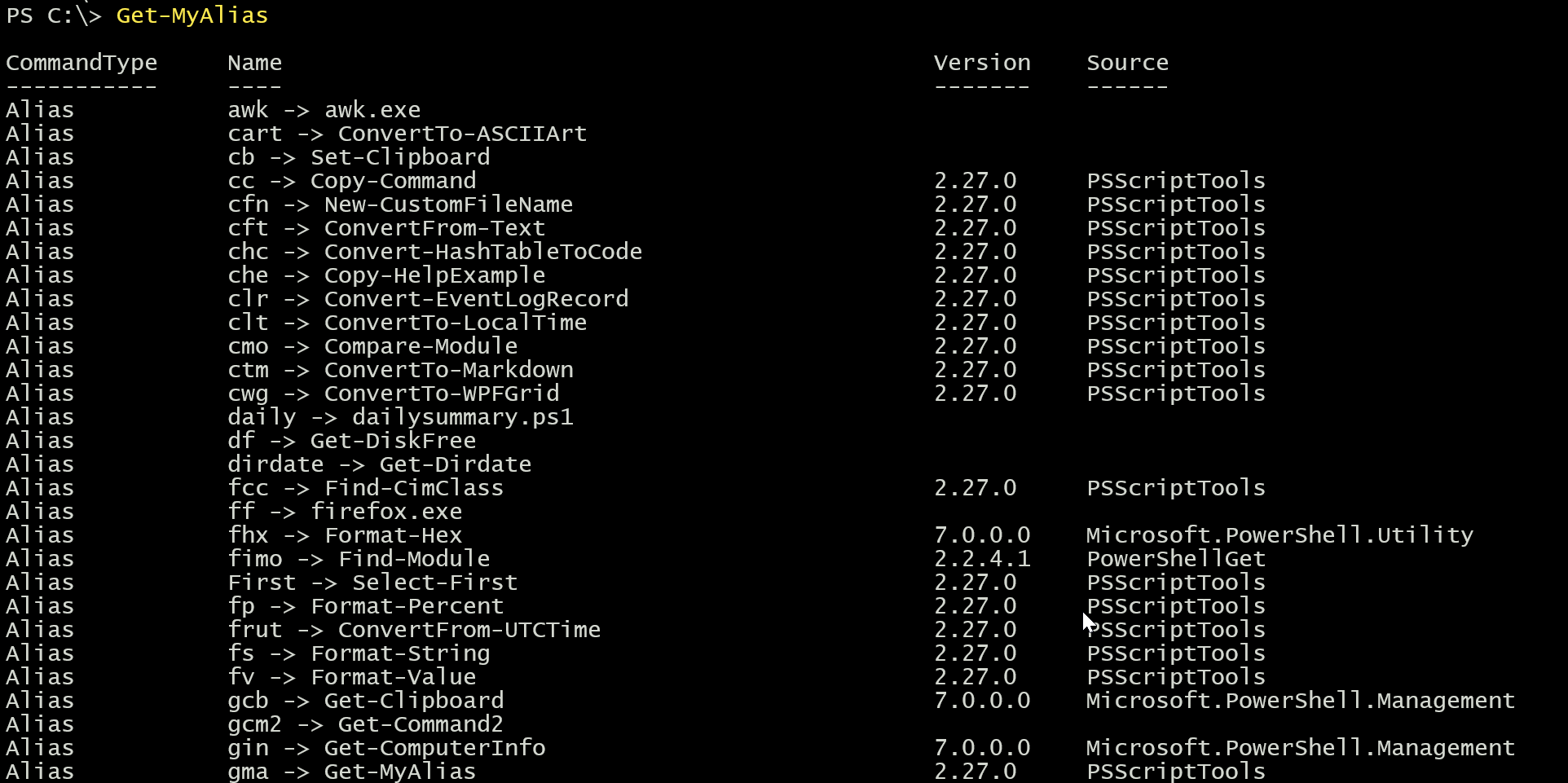
These are all aliases defined in the current session that aren't part of the initial session state. You can filter aliases to make it easier to find those that aren't defined in a module. These aliases should be ones created in your stand-alone scripts or PowerShell profile.
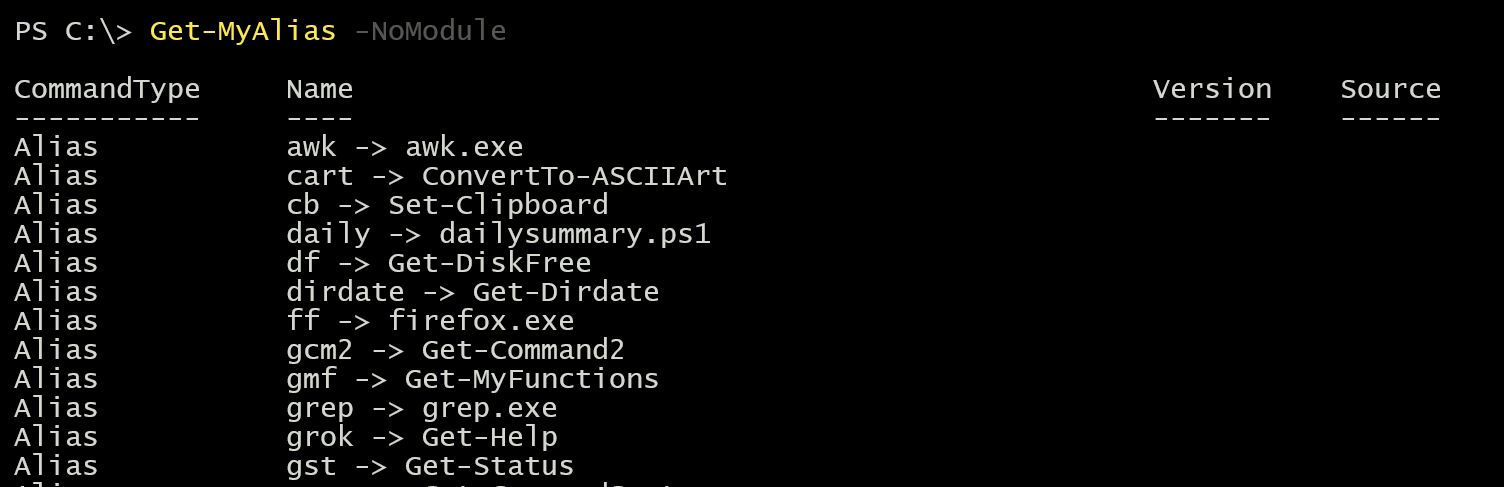
The PSScriptTools module also includes a custom formatting file for alias objects which you can use with Get-Alias or Get-MyAlias.
Get-Alias | Sort-Object Source | Format-Table -View source
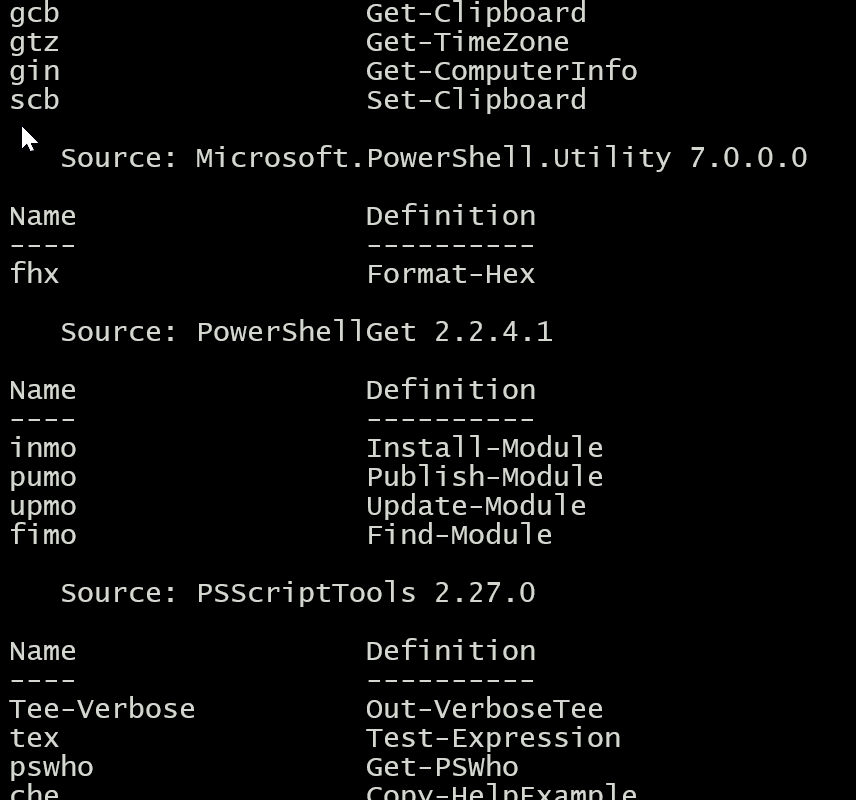
This command has an alias of gma.
This is an alternative to Get-Command
jdhitsolutions/PSScriptTools is a public repo on GitHub by jdhitsolutions. :wrench: :hammer: A set of PowerShell functions to enhance your functions and scripts or to facilitate working in the console. Most should work cross-platform and cross-version. Operating system limitations are handled on a per command basis. The Samples folder contains demonstration scripts. After installing the module run Open-PSScriptToolsHelp.
It declares the MIT license on GitHub.
Pode is a Cross-Platform PowerShell web framework for creating REST APIs, Web Sites, and TCP/SMTP servers
A simple, lightweight PowerShell script that allows you to remove pre-installed apps, disable telemetry, as well as perform various other changes to declutter and customize your Windows experience. Win11Debloat works for both Windows 10 and Windows 11.
☄🌌️ The minimal, blazing-fast, and infinitely customizable prompt for any shell!
Its maker tagged it for Windows. That is declared by the maker; Take My Repo has not tested it.
Open "Take it" on its page: Take My Repo writes an install plan for your machine and hands it to your AI agent (Claude Code, Codex or Cursor), which asks you before each step. Take My Repo has not tested it on any machine.
Its last change on GitHub was on 2026-08-19. GitHub counts 1 open issue and pull requests. Take My Repo does not judge from that whether it is maintained.
Nobody has reviewed it on Take My Repo yet, which says nothing about its quality.
Take My Repo cannot say: it does not audit code and has not run PSScriptTools. What is known comes from GitHub. It declares the MIT license on GitHub. Its last change was on 2026-08-19. It has 1,008 stars, which measure popularity, not safety. Nobody has reviewed it on Take My Repo yet, which says nothing about its quality. Read the source before you run it. With "Take it", your AI agent shows each step and asks you before running it; README text is treated as data, not as instructions.


